
Key Takeaways
- Collect Windows Device Diagnostics Logs in Microsoft Intune
- Collect diagnostics allows admins to gather logs without physically accessing the device.
- The user can continue working while logs are collected.
- Only system and nonuser locations are accessed; personal files are not included.
- Helps diagnose compliance errors, app failures, and Autopilot enrollment issues.
- Administrators can download and review diagnostic files directly from the Intune admin center.
This step-by-step guide explains how to collect Windows Device Diagnostic Logs in Microsoft Intune using the Collect diagnostics remote action. By following these steps, administrators can remotely gather system and management logs from a Windows device directly through the Intune portal without interrupting the end user. The process includes navigating to the device in the Intune admin center, initiating the Collect diagnostics action, and downloading the generated log file once it becomes available. This method helps IT teams efficiently troubleshoot issues related to compliance, policy deployment, application failures, or Windows Autopilot provisioning.
Table of Content
Table of Contents
Step-by-Step Guide to Collect Windows Device Diagnostics Logs in Microsoft Intune
This post explains how to collect Intune diagnostic logs from Windows devices using the Intune admin center. These logs, which include MDM event logs, Intune Management Extension logs, and relevant registry details, help administrators troubleshoot issues related to Intune, compliance, app deployment, and Windows Autopilot failures.
- Intune Management Extension Deep Dive – Win32 App Deployment Troubleshooting Help Guide
- Intune User Policy Troubleshooting Tips For Prevent Changing Theme
- Intune Policy Tattooed Or Not Tattooed Windows CSP Policy
Prerequisites of Windows Device Diagnostics in Microsoft Intune
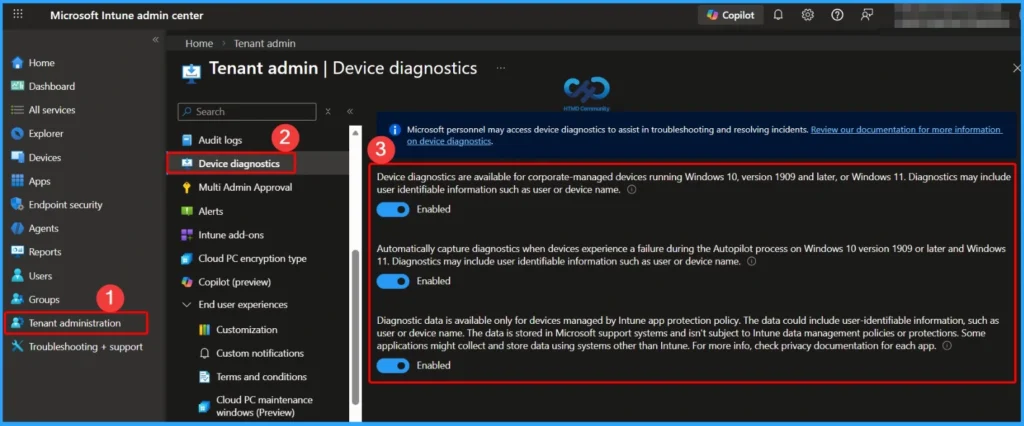
Before collecting Windows device diagnostics, you must enable the device diagnostic settings in the Tenant Administration blade of the Intune admin center. This configuration ensures that diagnostic data can be collected from supported devices and, if required, automatically captured during Windows Autopilot failures. Device diagnostics are supported only for corporate-managed devices running Windows 10 version 1909 and later or Windows 11.
| Prerequisite Requirements |
|---|
| Enable Device diagnostics in the Tenant Administration section of Intune. |
| Supported OS versions: Windows 10 version 1909 and later Windows 11 |
| Devices must be corporate-managed. |
| Optional: Enable automatic diagnostic capture for Autopilot failures (may include user-identifiable information such as user name or device name). |
Navigate to the Device in Intune Admin Center
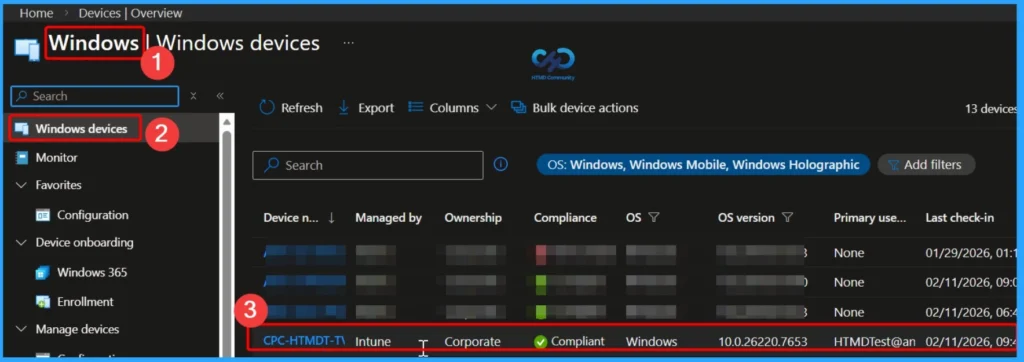
In the Microsoft Intune admin center, go to Devices and then select All devices to view the list of enrolled devices. From the displayed list, choose the specific Windows device for which you want to collect diagnostic logs.

- Here, we select the CPC-HTMDT-TVWl1 Windows device. This device is corporate-managed.
Select the Collect Diagnostics Remote Action
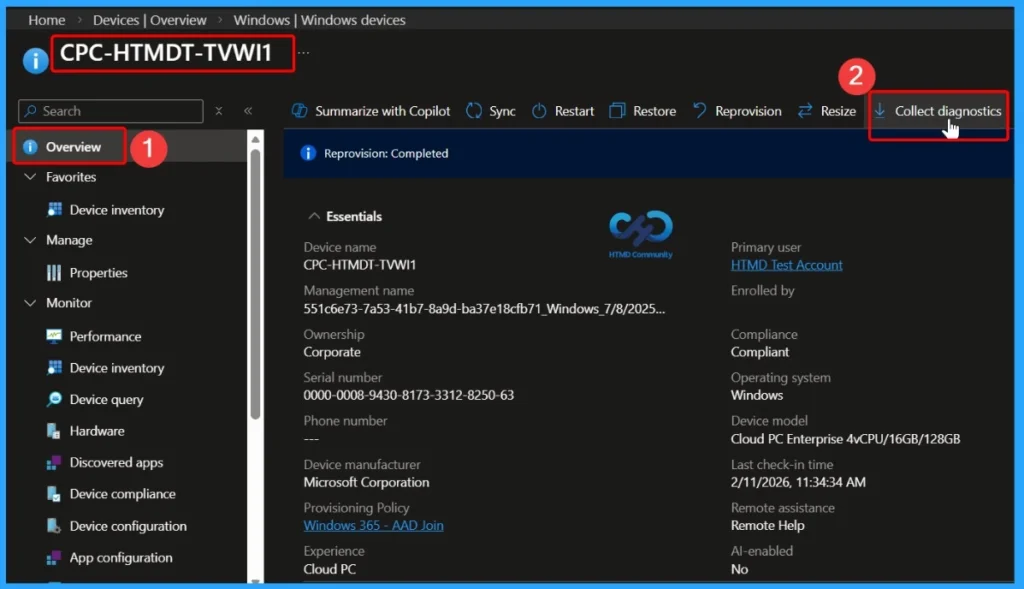
On the device overview page, locate the row of remote action icons displayed at the top of the pane. From the available options, select Collect diagnostics to initiate the process of gathering system and management logs from the selected Windows device.
Confirm Diagnostics Collection
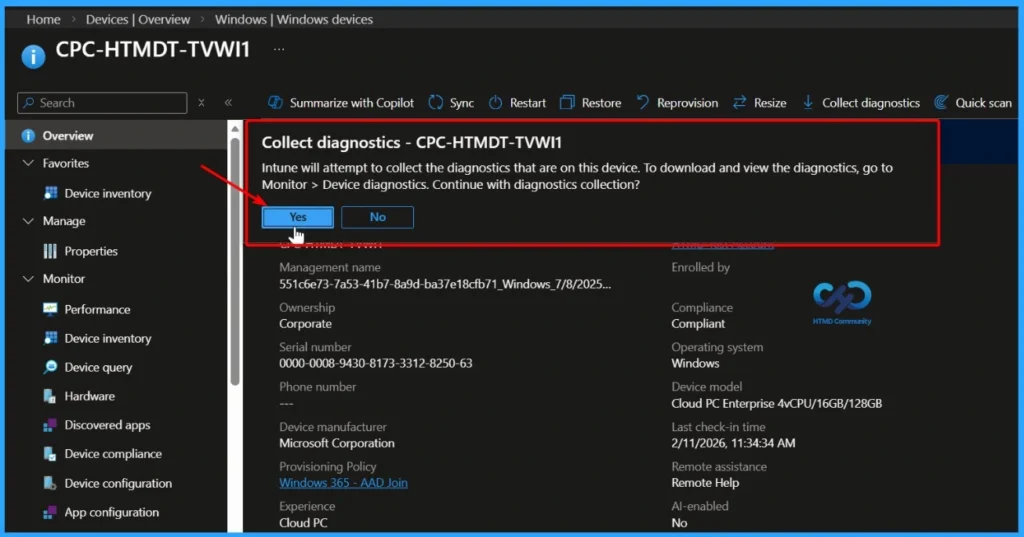
After selecting Collect diagnostics, a pop-up window appears (for example, Collect diagnostics – CPC-HTMDT-TVWI1) asking for confirmation. The message informs you that Intune will attempt to collect the available diagnostics from the selected device and that you can download and review the logs later by navigating to Monitor > Device diagnostics in the Intune admin center. Click Yes or Continue to proceed with the diagnostics collection process.
Diagnostics Collection Initiated
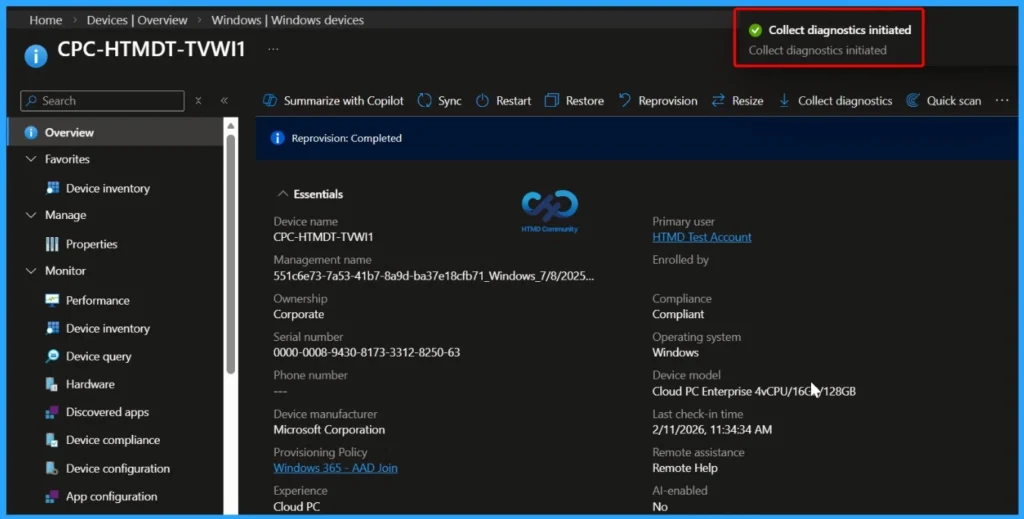
After selecting the Yes button to confirm, a notification message appears in the Intune admin center indicating that the Collect diagnostics action has been successfully initiated. This confirms that Intune has started gathering the required system and management logs from the selected Windows device, and you can monitor the progress under Monitor > Device diagnostics.
Collect Diagnostics Completed Successfully
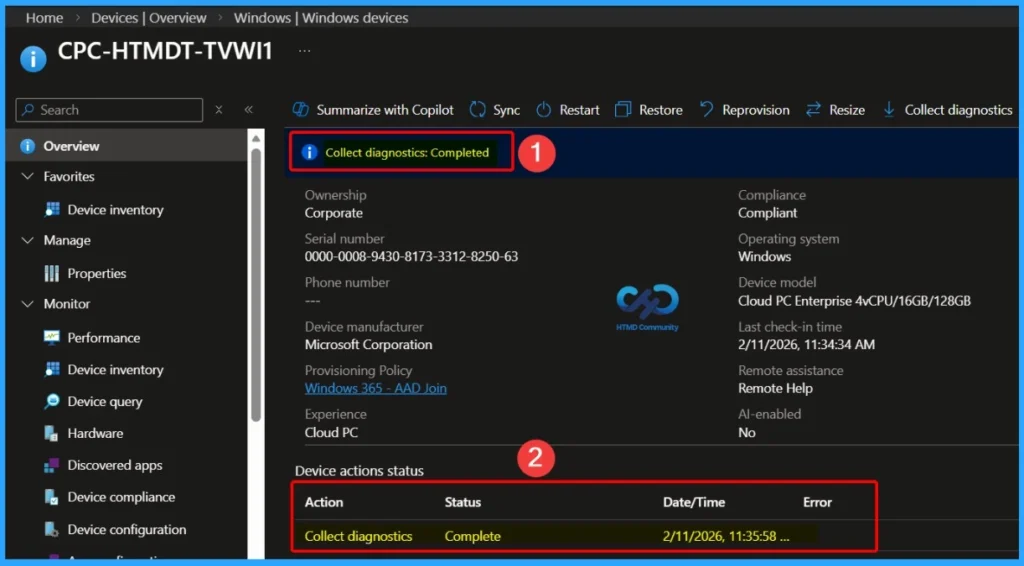
In the Device diagnostics section, you can see that the Collect diagnostics action has completed successfully. The device action status shows the action name as Collect diagnostics with the status marked as Complete, along with the corresponding date and time (2/11/2026, 11:35). This confirms that the diagnostic logs have been successfully collected and are now available for download and review.
| Action | Status | Date and Time |
|---|---|---|
| Collect Diagnostics | Complete | 2/11/2026 11:35 |
How to Download Intune Device Diagnostics Logs
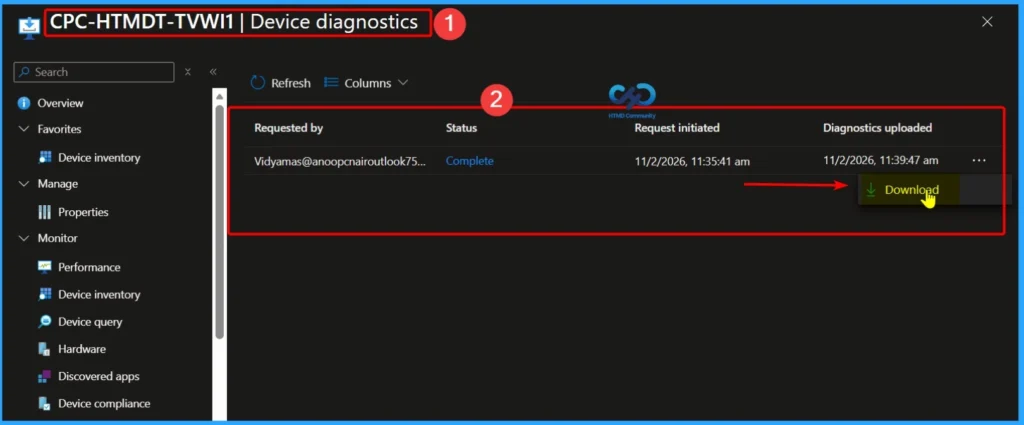
Once the Collect diagnostics action is completed successfully, go to the Device diagnostics tab where the status will show as Complete. From there, select the Download button to retrieve the collected diagnostic logs. These diagnostics are available for download for up to 28 days, after which they are automatically deleted. Additionally, Intune allows a maximum of 10 diagnostic collections per device to be stored at any given time.
Downloading the Diagnostics ZIP File
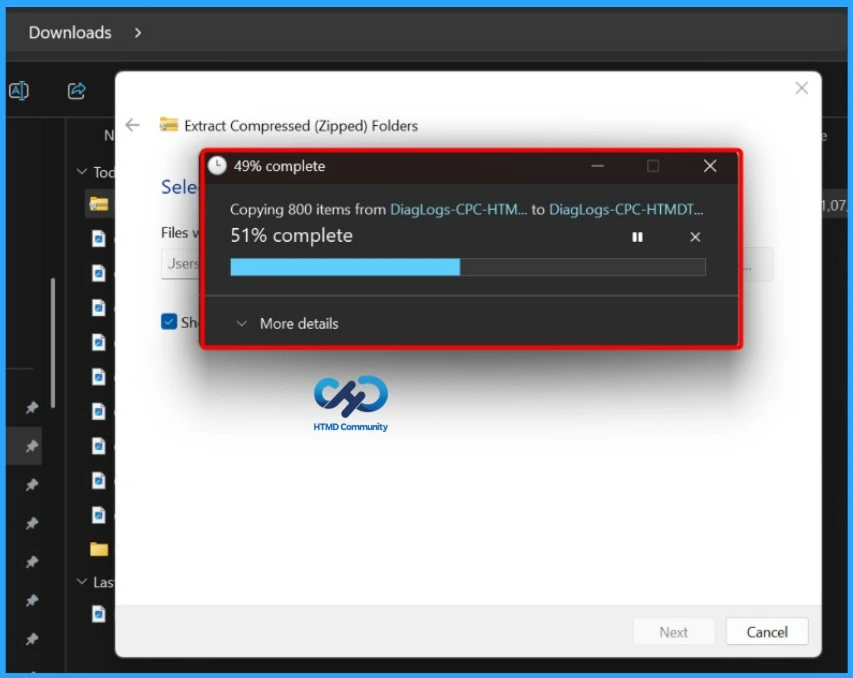
After clicking the Download button, the diagnostics data is packaged into a ZIP file and added to your browser’s download tray. The file is then automatically saved to your computer, allowing you to extract and review the collected logs for further troubleshooting and analysis.
Extract and Review the Collected Diagnostic Logs
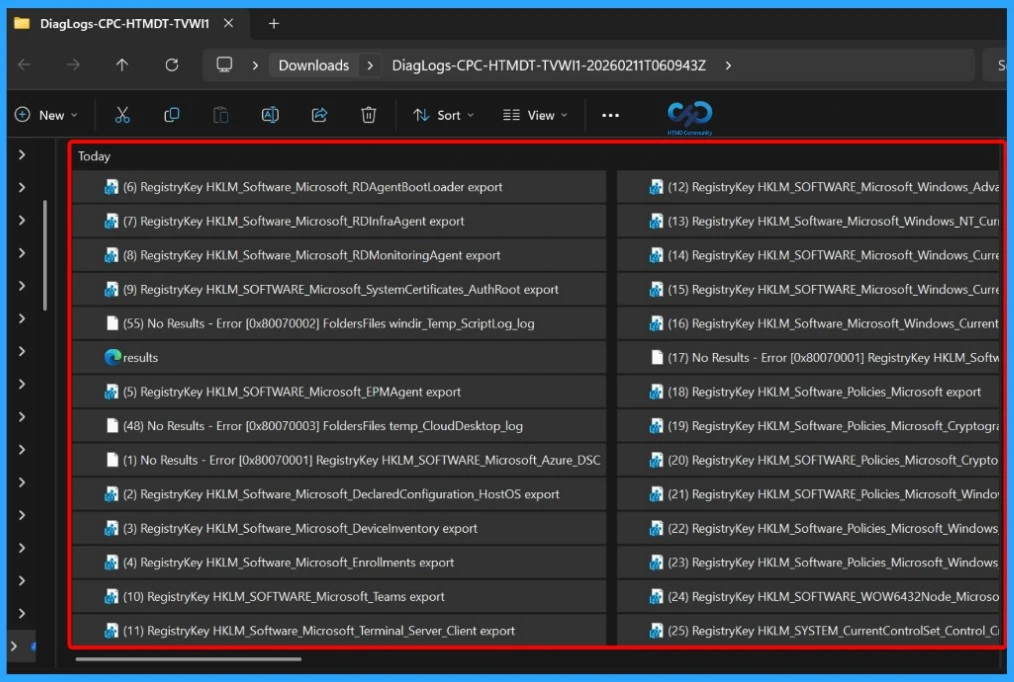
After downloading the diagnostics ZIP file, extract it to access the collected data. Once extracted successfully, open the directory to review the collected logs. You will see multiple folders inside the ZIP file, which may seem complex; however, the Intune team is working on improvements to simplify and flatten the folder structure in future updates.
Please note that no personal information is collected during this process, and the maximum size of the diagnostic package is currently 250 MB. The data inside the ZIP file is organized in a specific order, and reviewing these logs can help administrators effectively diagnose device and management issues.
- (1) No Results – Error [0x80070001] RegistryKey HKLM_SOFTWARE_Microsoft_Azure_DSC
- (2) RegistryKey HKLM_Software_Microsoft_DeclaredConfiguration_HostOS export
- (3) RegistryKey HKLM_Software_Microsoft_Devicelnventory export
- (4) RegistryKey HKLM_Software_Microsoft_Enrollments export
- (5) RegistryKey HKLM_SOFTWARE_Microsoft_EPMAgent export
- (6) RegistryKey HKLM_Software_Microsoft_RDAgentBootLoader export
- (7) RegistryKey HKLM_Software_Microsoft_RDInfraAgent export
- (8) RegistryKey HKLM_Software_Microsoft_RDMonitoringAgent export
- (9) RegistryKey HKLM_SOFTWARE_Microsoft_SystemCertificates_AuthRoot export
- (10) RegistryKey HKLM_SOFTWARE_Microsoft_Teams export
- (11) RegistryKey HKLM_Software_Microsoft_Terminal_Server_Client export
- (12) RegistryKey HKLM_SOFTWARE_Microsoft_Windows_Advanced_Threat_Protection export
- (13)RegistryKey HKLM_Software_Microsoft_Windows_NT_CurrentVersion_Terminal_Server export
- (14) RegistryKey HKLM_SOFTWARE_Microsoft_Windows_CurrentVersion_Authentication_LogonUI export
- (15) RegistryKey HKLM_SOFTWARE_Microsoft_Windows_CurrentVersion_Internet_Settings export
- (16) RegistryKey HKLM_Software_Microsoft_Windows_CurrentVersion_Uninstall export
- (17) No Results – Error [0x80070001] RegistryKey HKLM_Software_Microsoft_WVDAgentManager
- (18) RegistryKey HKLM_Software_Policies_Microsoft export
- (19) RegistryKey HKLM_Software_Policies_Microsoft_Cryptography export
- (20) RegistryKey HKLM_SOFTWARE_Policies_Microsoft_Cryptography_Configuration_SSL export
- (21) RegistryKey HKLM_SOFTWARE_Policies_Microsoft_Windows_Advanced_Threat_Protection export
- (22) RegistryKey HKLM_Software_Policies_Microsoft_Windows_NT_Terminal_Services export
- (23) RegistryKey HKLM_Software_Policies_Microsoft_Windows_CredentialsDelegation export
- (24) RegistryKey HKLM_SOFTWARE_WOW6432Node_Microsoft_Windows_CurrentVersion_Uninstall export
- (25) RegistryKey HKLM_SYSTEM_CurrentControlSet_Control_Cryptography export
- (26) RegistryKey HKLM_SYSTEM_CurrentControlSet_Control_Lsa export
- (27) RegistryKey HKLM_SYSTEM_CurrentControlSet_Control_SecurityProviders export
- (28) RegistryKey HKLM_SYSTEM_CurrentControlSet_Control_SecurityProviders_SCHANNEL export
- (29) RegistryKey HKLM_SYSTEM_CurrentControlSet_Control_Terminal_Server export
- (30) RegistryKey HKLM_SYSTEM_CurrentControlSet_Control_Terminal_Server_AddIns_WebRTC_Redirector export
- (31) RegistryKey HKLM_SYSTEM_CurrentControlSet_Services_RdAgent export
- (32) RegistryKey HKLM_SYSTEM_CurrentControlSet_Services_RDAgentBootLoader export
- (33) RegistryKey HKLM_SYSTEM_CurrentControlSet_Services_TermService export
- (34) RegistryKey HKLM_SYSTEM_CurrentControlSet_Services_UmRdpService export
- (35) RegistryKey HKLM_SYSTEM_CurrentControlSet_Services_WinRM export
- (36) No Results – Error [0x80070001] RegistryKey HKLM_SYSTEM_CurrentControlSet_Services_WVDAgent
- (37) No Results – Error [0x80070001] RegistryKey HKLM_SYSTEM_CurrentControlSet_Services_WVDAgentManager
- (38) Command programfiles_windows_defender_mpcmdrun_exe _- GetFiles output
- (39) Command windir_system32_Dsregcmd_exe_status output
- (40) Command windir_system32_ipconfig_exe_all output
- (41) Command windir_system32_mdmdiagnosticstool_exe _- area_Autopilot;deviceprovisioning;device output
- (42) Command windir_system32_msinfo32_exe_report_temp_MDMDiagnostics_msinfo32_log output
- (43) Command windir_system32_netsh_exe_winhttp_show proxy output
- (44) Command windir_system32_pnputil_exe_enum-drivers output
- (45) FoldersFiles ProgramFiles_Microsoft_Device_Inventory_Agent Logs
- (46) FoldersFiles ProgramFiles_Microsoft_EPM_Agent_Logs
- (47) FoldersFiles ProgramFiles_Microsoft_RDInfra
- (48) No Results – Error [0x80070003] FoldersFiles temp_CloudDesktop_log
- (49) FoldersFiles temp_MDMDiagnostics_mdmlogs-2026-02-11-06-05-42_cab
- (50) FoldersFiles temp_MDMDiagnostics_msinfo32_log
- (51) FoldersFiles windir_debug_NetSetup_log
- (52) FoldersFiles windir_Logs_WindowsUpdate_etl
- (53) FoldersFiles windir_system32_config_systemprofile_AppData_Local_mdm_log
- (54) FoldersFiles windir_system32_winevt_logs
- (55) No Results – Error [0x80070002] FoldersFiles windir_Temp_ScriptLog_log results
Disable Collect Diagnostics for Windows Devices in Intune
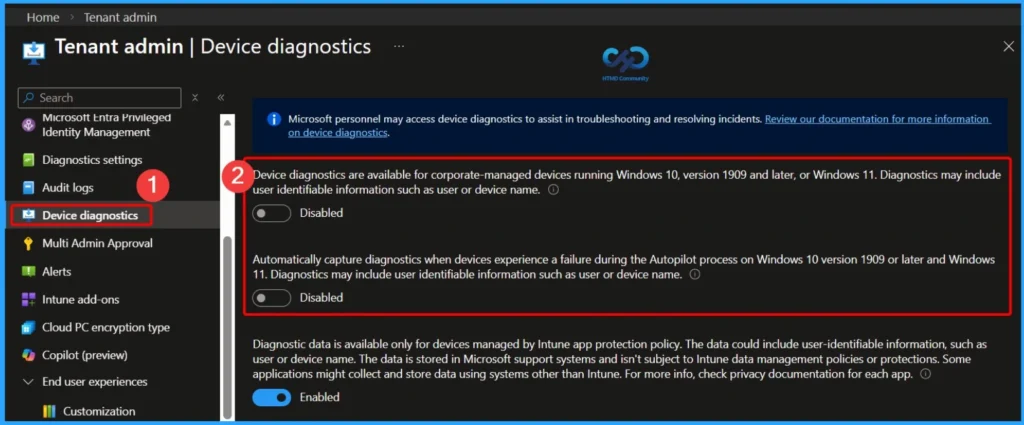
If you do not want IT administrators to collect diagnostics from managed Windows devices, you can disable the Collect diagnostics remote action at the tenant level. A user with Global Administrator or Intune Administrator permissions can sign in to the Microsoft Intune admin center and navigate to Tenant administration > Device diagnostics. From there, turn the toggle switch to Disabled to stop further diagnostic collections across all devices.
Need Further Assistance or Have Technical Questions?
Join the LinkedIn Page and Telegram group to get the latest step-by-step guides and news updates. Join our Meetup Page to participate in User group meetings. Also, join the WhatsApp Community and the Whatsapp channel to get the latest news on Microsoft Technologies. We are there on Reddit as well.
Resources
Remote Device Action: Collect Diagnostics – Microsoft Intune | Microsoft Learn
Author
About Author – Jitesh, Microsoft MVP, has over six years of working experience in the IT Industry. He writes and shares his experiences related to Microsoft device management technologies and IT Infrastructure management. His primary focus is Windows 10/11 Deployment solution with Configuration Manager, Microsoft Deployment Toolkit (MDT), and Microsoft Intune.
Not sure how any of this is of use to technicians. Once collected then read it with what?
You can read it with CMTrace? The log files. Do you have something in mind which file in particular?
Yes. I am struggling to parse the WindowsUpdate Logs (folder 53). They are not readable in CMTrace and unable to also import in Event Viewer as its not an ETL or something other.