
Key Takeaways
- KB5077744 is an emergency out-of-band (OOB) update released by Microsoft
- Affected Systems: Windows 11 version 24H2 and 25H2.
- The update addresses significant bugs introduced by the January 2026 Patch Tuesday updates
- OS Builds 26200.7627 and 26100.7627
In this blog post, I’ll discuss how to deploy the KB5077744 OOB Update for Windows 11 24H2 and 25H2 using Microsoft Intune. On January 24, 2026, Microsoft released the 2026.01 Out-of-Band (OOB) update for Windows 10 and later to address critical issues requiring immediate remediation.
Table of Content
Table of Contents
Create an Expedite Windows Quality Update Policy
To fast-track this fix, admins can create an Expedited Quality Update policy in Microsoft Intune, ensuring affected devices receive the update as a priority outside the normal patching cadence. By assigning the policy to the relevant device groups, organizations can minimize downtime, reduce risk, and quickly restore device stability while maintaining compliance across managed endpoints. Here are the steps to create an Expedite Windows Quality Update policy in Intune. Let’s walk through the process step by step.
- Seamless Provisioning of Windows 365 Cloud PCs for External Identities with Intune
- How to Configure AI-Enabled Features for Windows 365 Cloud PCs
- Disable Client Computer Printing Over both HTTP and HTTPS using Intune
- How to Fix Windows App Authentication Error 0x80080005 for AVD and Windows 365 After January Updates
- Sign in to the Microsoft Intune admin center
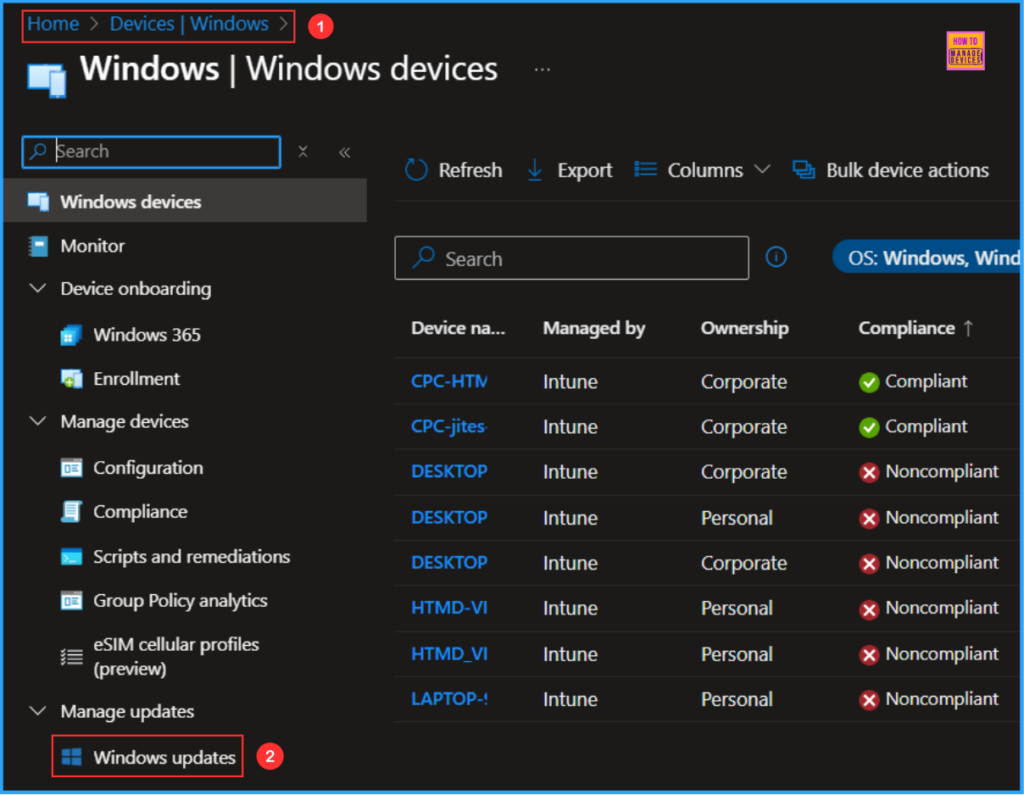
- Navigate to Devices > Windows > Manage Updates > Windows updates
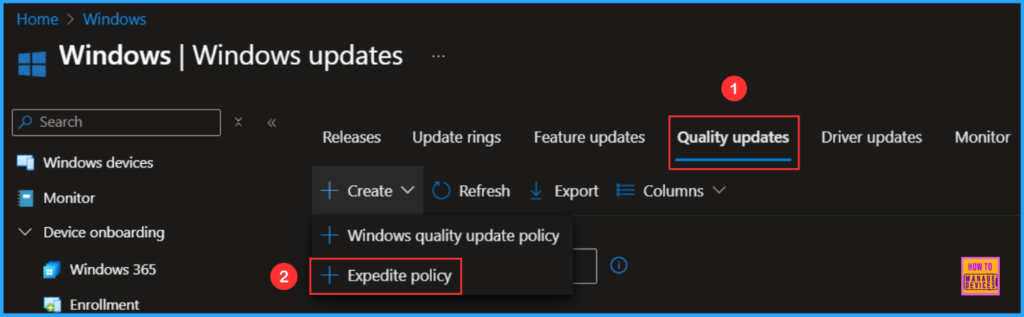
On the Next pane, i.e. Windows updates, navigate to the below-mentioned path, which will help you create an Expedite policy. Click on Quality updates > +Create > +Expedite policy.
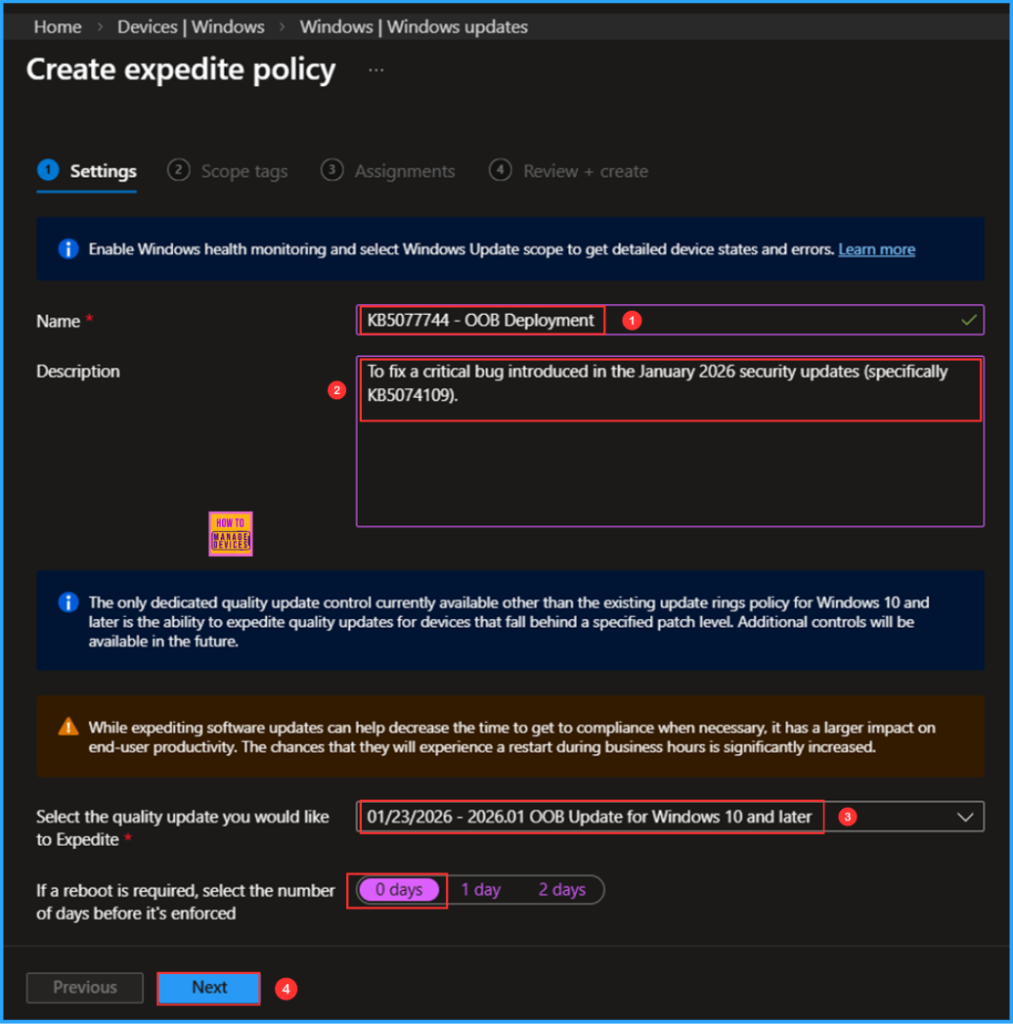
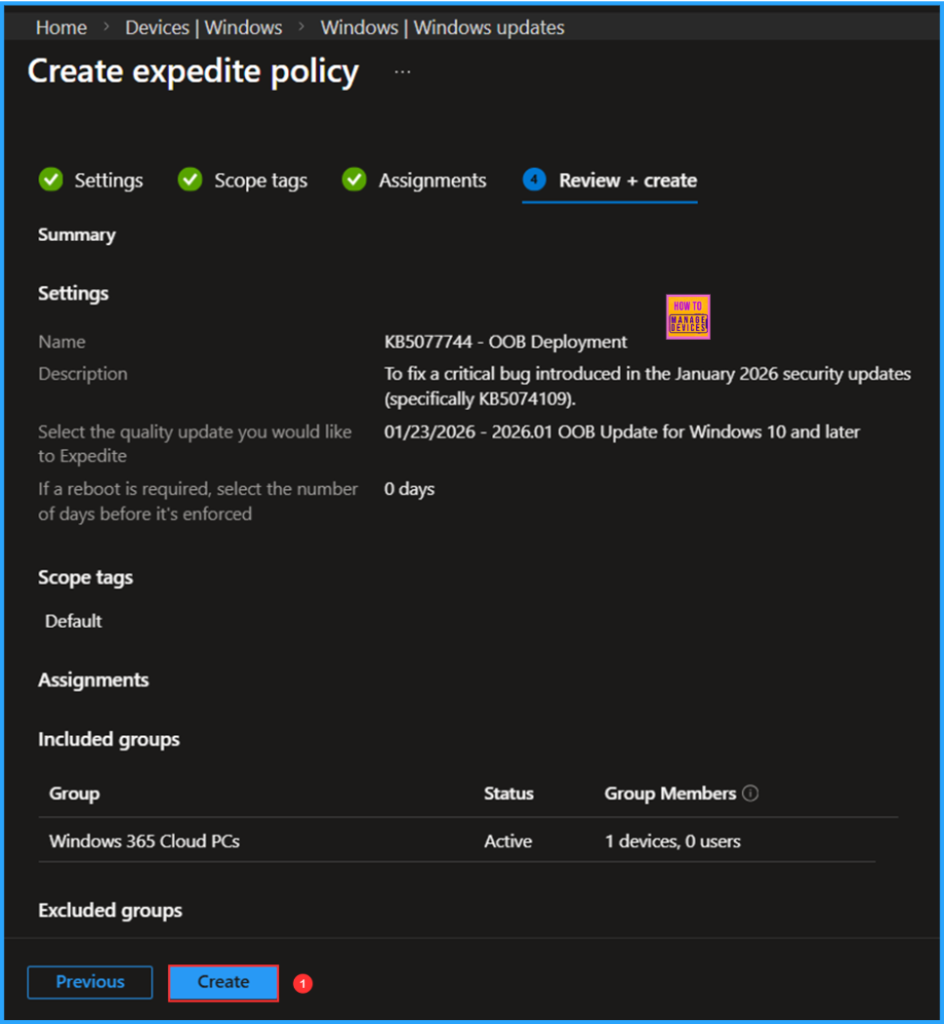
In the Settings pane, fill in the details below. In this example, we are going for the latest Expedite update for January 2026. You also see 01/23/2026 – 2026.01 OOB Update for Windows 10 and later updates available in Intune.

- Name: KB5077744 – OOB Deployment
- Description: To fix a critical bug introduced in the January 2026 security updates (specifically KB5074109).
- Select the quality update you would like to Expedite: 01/23/2026 – 2026.01 OOB Update for Windows 10 and later
- If a reboot is required, select the number of days before it’s enforced: 0 days
Note: The only dedicated quality update control currently available, other than the existing update rings policy for Windows 10 and later, is the ability to expedite quality updates for devices that fall behind a specified patch level. Additional controls will be available in the future.
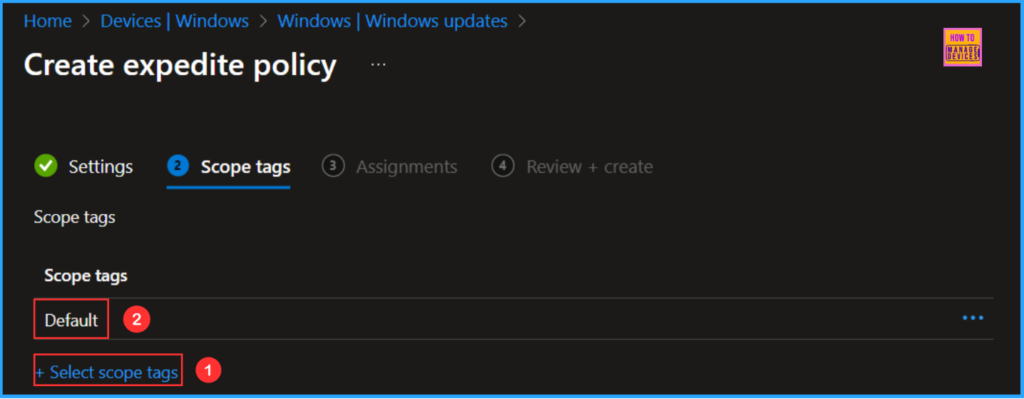
On the next page, click on +Select scope tags and choose the Scope tags as Default. You can also select any other custom scope tags available to the tenant based on your requirements.
Important Note: While expediting software updates can help decrease the time to get to compliance when necessary, it has a larger impact on end-user productivity. The chances that they will experience a restart during business hours are significantly increased.
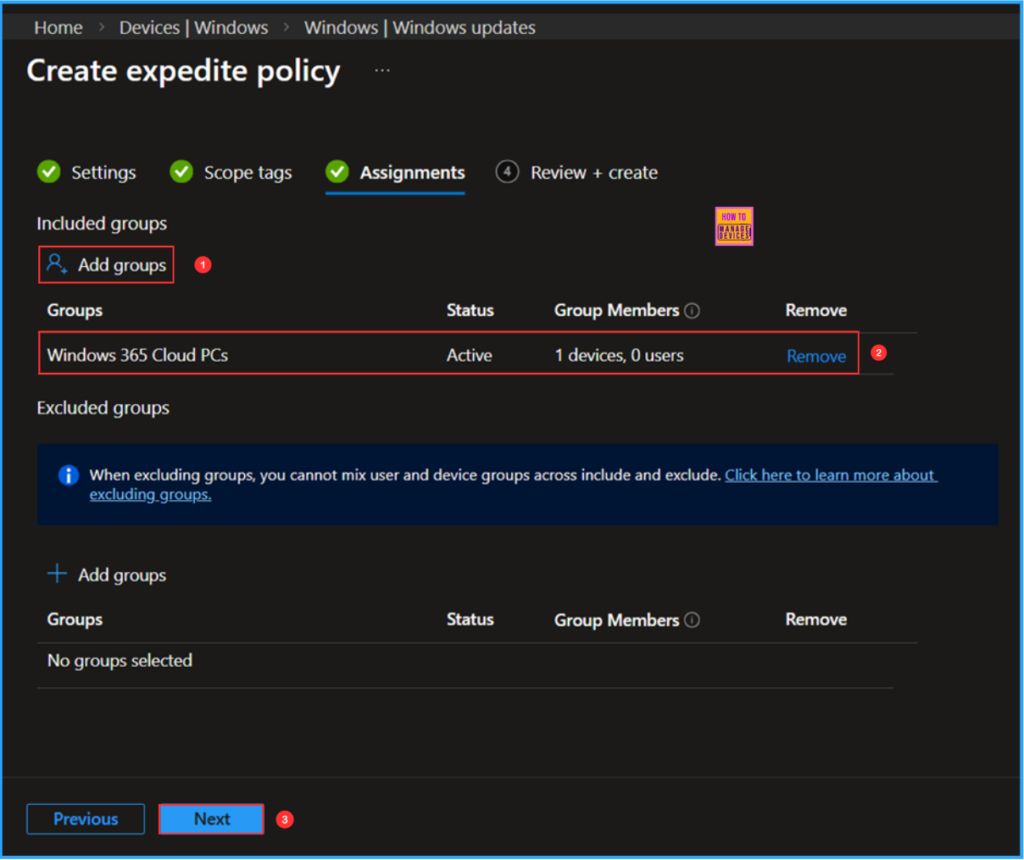
Click Next and assign the profile to a device group that contains devices affected by the KB5074109 update. In this example, I’m selecting the Windows 365 Cloud PCs group. Then, click Add groups and choose the required device group under Included groups.
On the Review + Create page, carefully review all the settings you’ve configured for the KB5077744 – OOB Update Deployment (Expedite Quality Update). Once verified, select Create to apply the changes.
Monitor the KB5077744 OOB Expedite Windows Quality Update Deployment Status
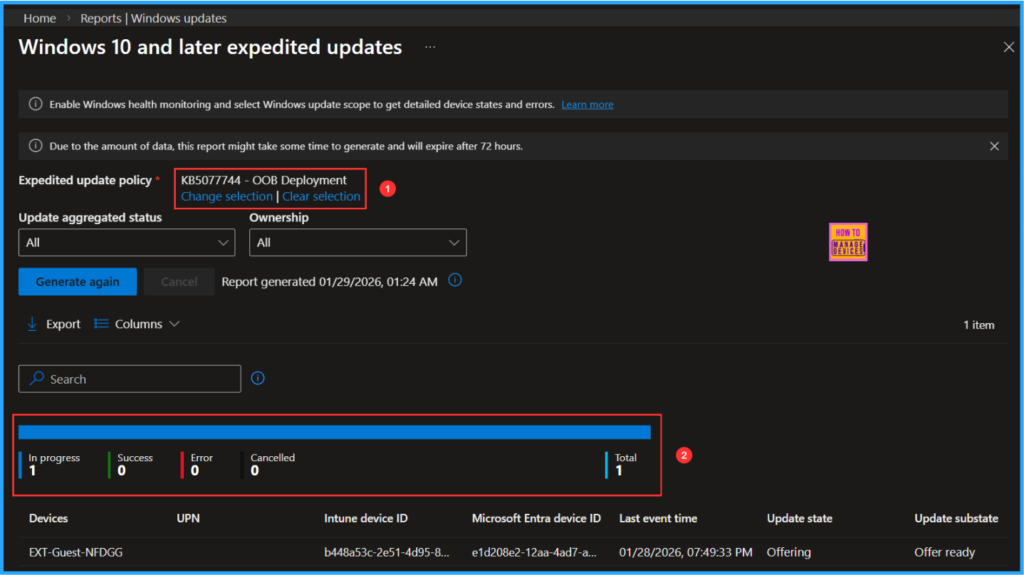
The policy has been deployed to the Microsoft Entra ID group. The policy will take effect as soon as the device is synced. Follow the steps below to generate a report on the status of Windows feature updates and monitor the profile deployment status in the Intune Portal.
- Navigate to Reports > Windows updates> Reports tab > Select Windows Expedite Update Report
Under the Expedited update policy, choose the Expedited update deployments as KB5077744 – OOB Update Deployment. Click on OK. Leave Update aggregated status and Ownership as “All” and click on Generate report.
Need Further Assistance or Have Technical Questions?
Join the LinkedIn Page and Telegram group to get the latest step-by-step guides and news updates. Join our Meetup Page to participate in User group meetings. Also, join the WhatsApp Community to get the latest news on Microsoft Technologies. We are there on Reddit as well.
Author
Vaishnav K has over 12 years of experience in SCCM, Intune, Modern Device Management, and Automation Solutions. He writes and shares knowledge about Microsoft Intune, Windows 365, Azure, Entra, PowerShell Scripting, and Automation. Check out his profile on LinkedIn.