
Key Takeaways
- Mark devices without an assigned compliance policy as compliant or non-compliant based on organizational security requirements.
- Configure the Compliance Status Validity Period to determine how long devices can go without successfully reporting their compliance status.
- Identify inactive devices that fail to communicate with the Intune service within the configured validity period.
- Improve organizational security by ensuring that enrolled devices meet the required compliance standards.
In this post, you will learn Manage Device Compliance Settings to Improve Security using Intune. The compliance policies protect organizational data by requiring users and devices to meet some requirements. Intune Compliance Policy for device help to protect company data; the organization needs to ensure that the devices used to access company apps and data comply with certain rules. By default, when Intune detects a device that isn’t compliant, Intune immediately marks the device as non-compliant.
Table of Contents
Table of Contents
Manage Device Compliance Settings to Improve Security using Intune
Device compliance policies help organizations ensure that devices accessing corporate applications and organizational data meet the required security standards. Administrators can define compliance requirements for different platforms and determine how Intune should treat devices that do not meet those requirements. Compliance policy settings are tenant-wide settings that determine how Intune’s compliance service interacts with your devices. These settings are distinct from those you configure in a device compliance policy.
- Create Intune Compliance Policy For Windows 365 Cloud PC And AVD
- Easiest Method to Enable MFA for Admins using Azure AD Conditional Access
- How to Configure Android Compliance Policies in Microsoft Intune
- Managing Windows Bitlocker Compliance Policy Using Intune | MS Graph | Grace Period
Manage Intune Compliance Policy Settings
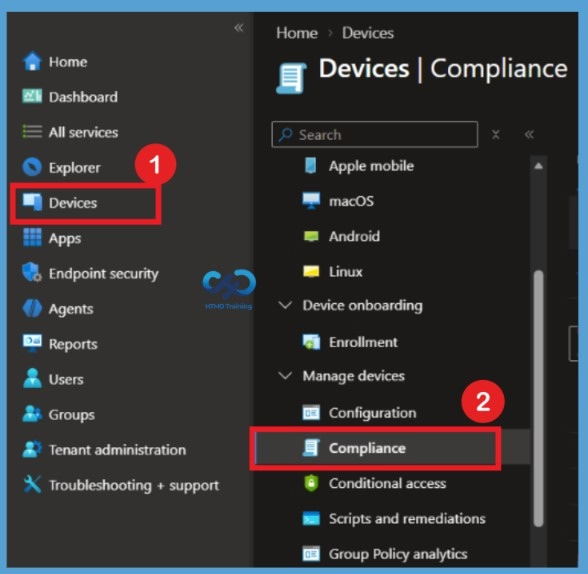
You can start creating compliance policies from the Intune admin center. The Devices Node and from the Endpoint Security node. The following steps will Create Intune Compliance Policy for Windows. To manage the compliance policy settings, the following steps provide you with details on how to configure compliance policy settings in Intune.
- Sign in to the Microsoft Intune admin center.
- Navigate to Endpoint security or Device > Device compliance.
Compliance Settings
After selecting Device compliance, you will see several options in the left navigation pane, including Policies, Notifications, Retire noncompliant devices, and Compliance settings. To manage the tenant-wide compliance configurations, select the Compliance settings option.

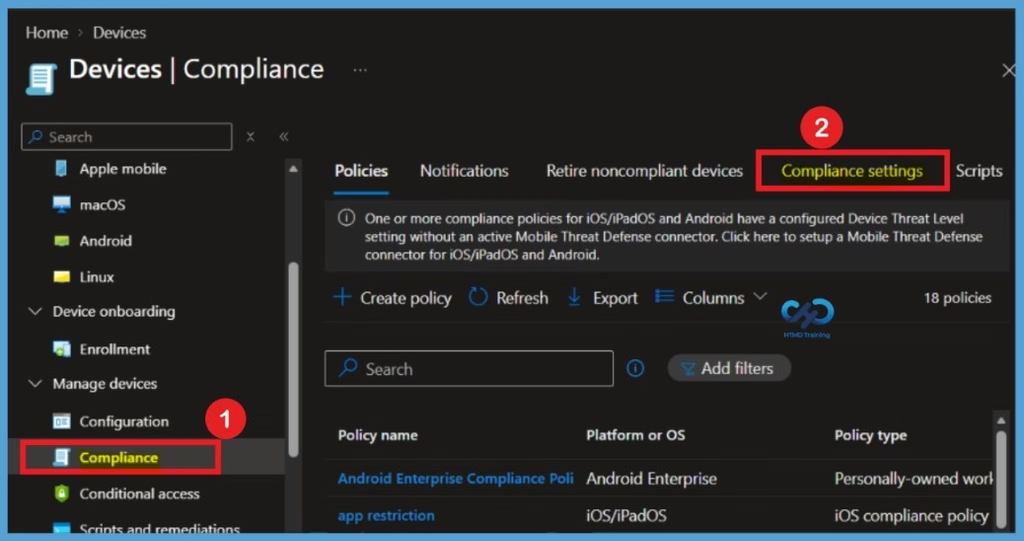
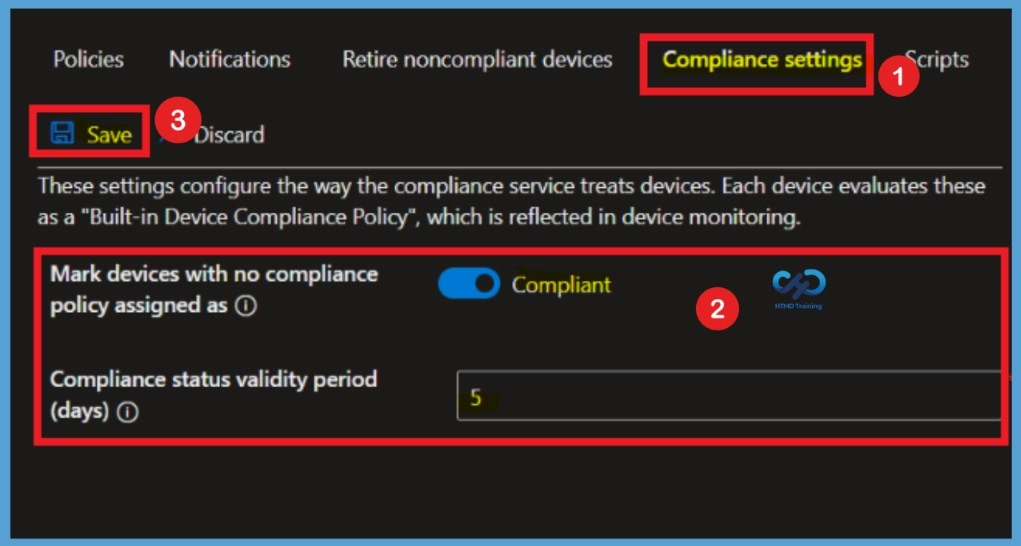
When you select Compliance settings, the page displays two tenant-wide configuration options: Mark devices with no compliance policy assigned as and Compliance status validity period (days). These settings determine how Intune evaluates devices without an assigned compliance policy and how frequently devices must report their compliance status. Compliance policy settings include the following settings, These settings configure how the compliance service treats devices. Each device evaluates these as a “Built-in Device Compliance Policy”, which is reflected in device monitoring.
- Mark devices with no compliance policy assigned as This setting determines how Intune treats devices that haven’t been assigned a device compliance policy.
- Compliance status validity period (days) Specify a period in which devices must successfully report on all their received compliance policies.
It is important to understand how it works and the available options to configure before you proceed to set it up. Here’s a detailed overview of the available compliance settings:
| Available Compliance Settings: | Info |
|---|---|
| Mark devices with no compliance policy assigned | Compliant (default): This security feature is off. Devices that aren’t sent a device compliance policy are considered compliant. |
| Compliance status validity period (days) | Specify when devices must successfully report on all their received compliance policies. If a device fails to report its compliance status for a policy before the validity period expires, it is treated as noncompliant. By default, the period is set to 30 days. You can configure a period from 1 to 120 days. |
Success Notification
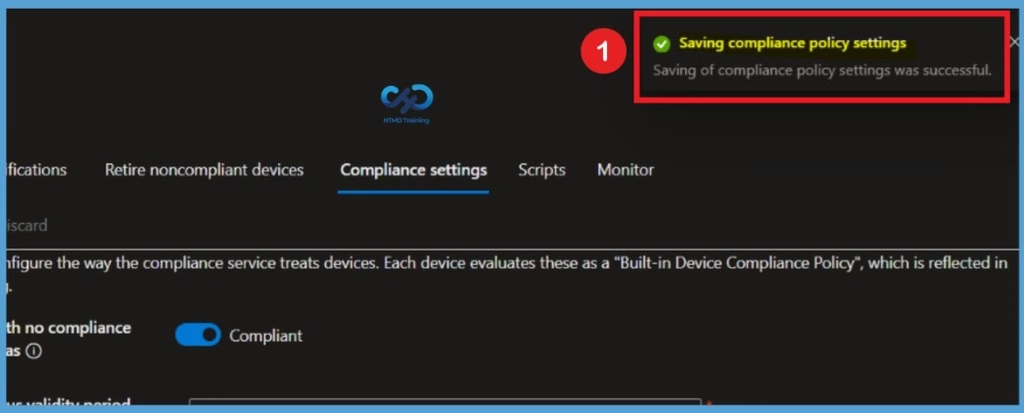
After clicking Save, Intune will save the configured compliance policy settings in the admin center. A notification will appear confirming that Intune is saving the compliance policy settings. Once the process is completed, you will receive a success notification indicating that the compliance policy settings have been saved successfully. The updated settings will now be applied at the tenant level and used by Intune when evaluating device compliance.
Monitor Device Compliance Policies Setting
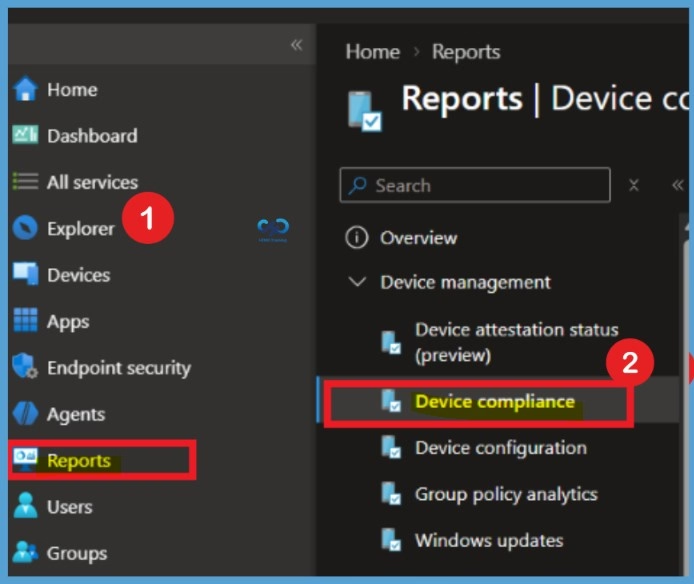
You can now monitor device compliance policy settings through the Reports section in the Microsoft Intune admin center. When you select Reports, >Device compliance option. Click on it to access the available compliance reports. These reports help administrators review device compliance information and identify devices that do not meet the organization’s compliance requirements.
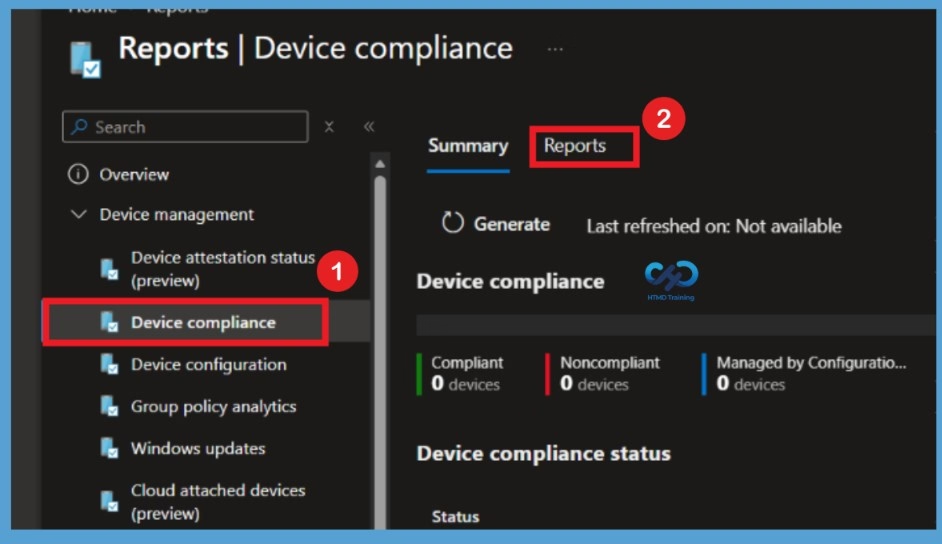
When you select Reports > Device compliance, the left navigation pane displays two sections: Summary and Reports. Select the Reports section to view the available device compliance reports. Here, you can find different reports that provide detailed information about device compliance status and policy evaluation results. These reports help administrators analyse compliance information and identify devices that require attention.
Report
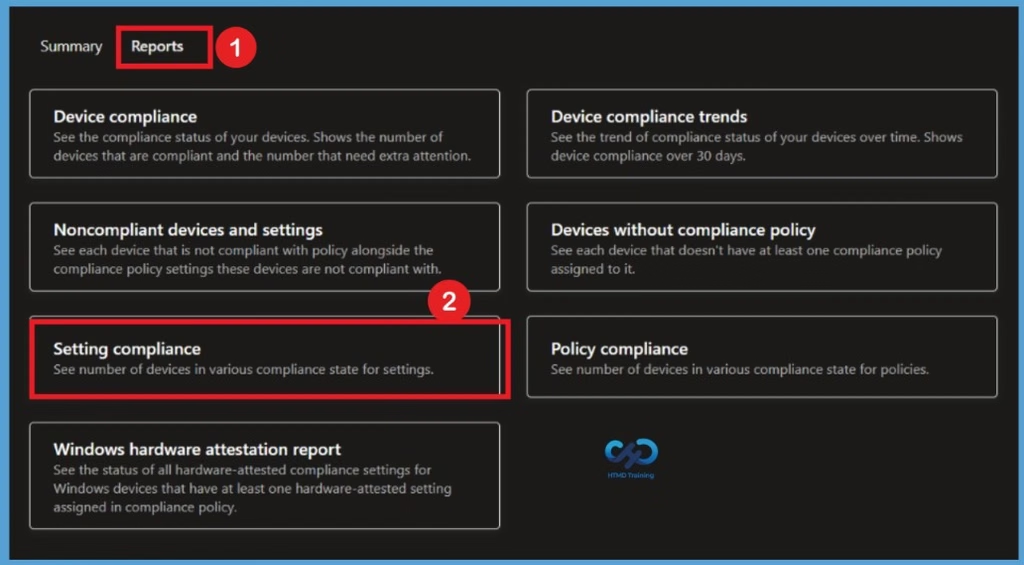
When you select the Reports section, you will see different device compliance reports, including Device compliance, Device compliance trends, Noncompliant devices, Devices without compliance policy, and Setting compliance. Select the Setting compliance report to view the compliance status of individual device settings. Here, you can see the number of devices in different compliance states, including compliant, noncompliant, and not evaluated devices. This report helps administrators identify compliance issues and understand how devices are evaluated against the configured compliance settings.
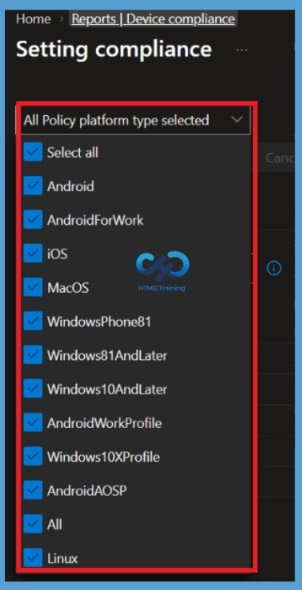
All Policy Platform Type
In the report section, you will find the All Policy platform type dropdown option. Click the dropdown arrow to view the available platforms, such as Android, Android AOSP, Android Enterprise, iOS/iPadOS, and macOS. You can select a specific platform to view its compliance results or keep All selected to monitor compliance settings across all supported platforms. For this example, I have kept the All option selected to view the compliance results across all platforms.
Generate Report
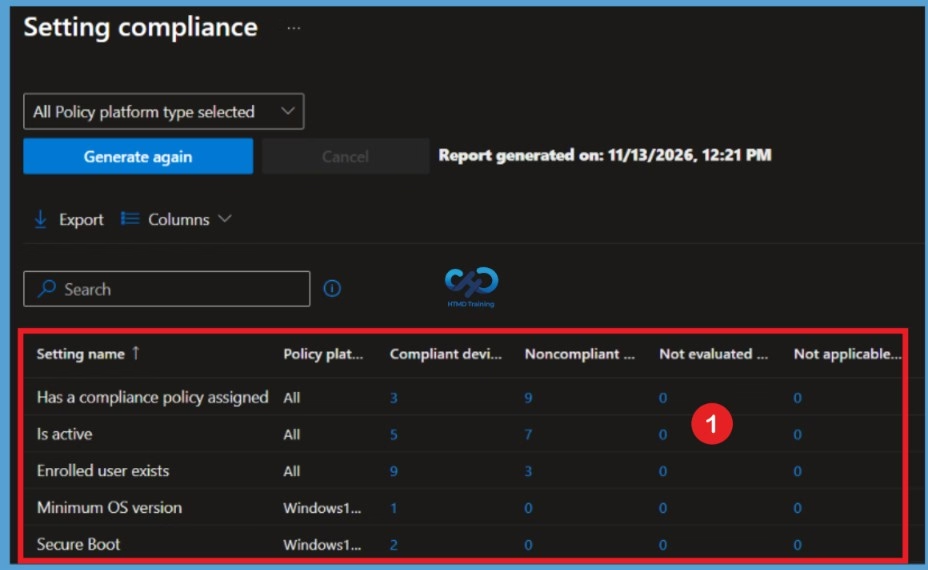
After clicking Generate report, Intune displays the Setting compliance results in a table. The report provides details about each compliance setting, including the policy platform, number of compliant devices, noncompliant devices, not evaluated devices, and not applicable devices.
You can review settings such as, Has a compliance policy assigned, Is active, Enrolled user exists, Minimum OS version, and Secure Boot to understand how devices are evaluated against compliance requirements. The report also provides Export and Columns options, allowing administrators to download the compliance results and customize the information displayed in the table.
| Setting | Description |
|---|---|
| Has a compliance policy assigned | Default policy. Devices must have at least one compliance policy assigned to be compliant. |
| Is active | Default policy. Device must regularly contact Intune to be considered compliant. |
| Enrolled user exists | Default policy. The user must exist and have a valid Intune license. |
| Antivirus | Require any Antivirus solution registered with Windows Security Center to be on and monitoring (e.g DigiCert, Microsoft Defender) |
| Microsoft Defender Antimalware | Require the Microsoft Defender service to be enabled. |
| Minimum OS version | Select the oldest OS version a device can have. The operating system version is defined as major.minor.build.revision. |
| Require Secure Boot to be enabled on the device | Require Secure Boot to be enabled on the device |
| Trusted Platform Module (TPM) | Require Trusted Platform Module (TPM) to be present |
Export the Setting Compliance Report
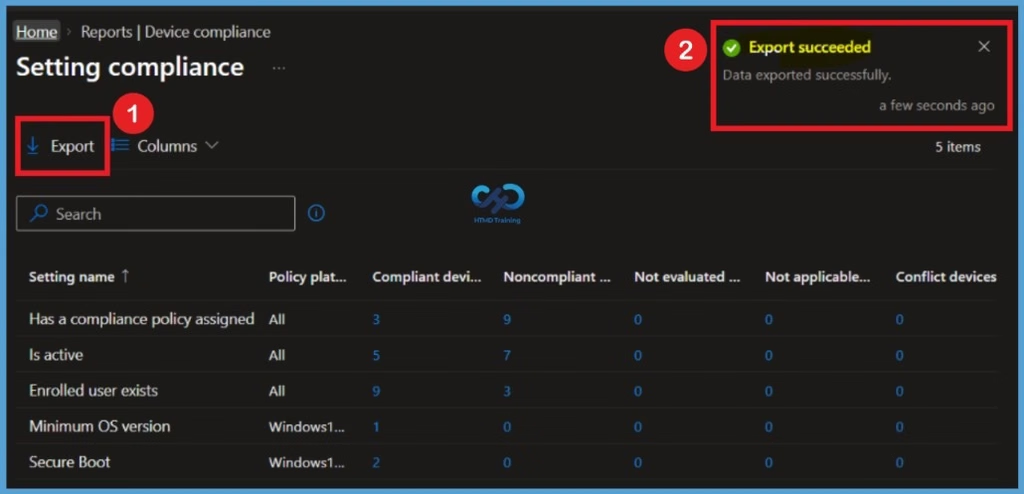
The Setting compliance report also provides an Export option that allows administrators to download the compliance results for further analysis and recordkeeping. Click on the Export option to export the report data. The exported information can be used to review device compliance states, identify noncompliant devices, and maintain compliance records for auditing and reporting purposes. This makes it easier for administrators to analyse compliance information outside the Microsoft Intune admin center.
Need Further Assistance or Have Technical Questions?
Join the LinkedIn Page and Telegram group to get the latest step-by-step guides and news updates. Join our Meetup Page to participate in User group meetings. Also, join the WhatsApp Community and the Whatsapp channel to get the latest news on Microsoft Technologies. We are there on Reddit as well.
Author
About Author – Jitesh, Microsoft MVP, has over six years of working experience in the IT Industry. He writes and shares his experiences related to Microsoft device management technologies and IT Infrastructure management. His primary focus is Windows 10/11 Deployment solution with Configuration Manager, Microsoft Deployment Toolkit (MDT), and Microsoft Intune.
Sadly, because Microsoft can’t leave anything alone for five minutes, your instructions are already out of date.
I have many Entra-hybrid joined computers that refuse to go into Intune and I cannot figure out why.
Windows Automatic enrollment is set up. MDM User Scope is ALL and MAM is None. Of about 140 PCs, only 97 are showing in Intune.
Any ideas?
Hi Cathy,
This article isn’t regarding Hybrid joining endpoints though.
If devices fail to enroll into Intune after hybrid joining, it’s usually due to stale enrollments or user credential issues.