
Key Takeaways
- Microsoft Intune supports enrollment type profiles for iOS/iPadOS devices.
- Administrators can configure different enrollment methods based on organizational requirements.
- The available options include user enrollment with Company Portal, account-driven user enrollment, and device enrollment with Company Portal.
- Administrators can allow users to select their device enrollment type.
Let’s see how to Configure User and Device Enrollment Options for Apple Devices in Intune. Microsoft Intune provides different enrollment options to help organizations manage Apple devices effectively. Administrators can configure enrollment type profiles to determine how users enroll their personal and corporate-owned iOS/iPadOS devices into Intune. With enrollment type profiles, organizations can control whether users enroll their devices through user enrollment, device enrollment, or a supported Company Portal enrollment method. These options help administrators define an appropriate enrollment experience based on organizational requirements.
Table of Contents
Table of Contents
Configure User and Device Enrollment Options for Apple Devices in Intune
Microsoft Intune allows administrators to create enrollment type profiles from the iOS/iPadOS enrollment section. During profile creation, administrators can configure the enrollment type, assign the profile to selected groups, and review the settings before creating it. In this article, we will explore how to create an iOS/iPadOS enrollment type profile in Microsoft Intune. We will also look at the available enrollment options and explain how administrators can configure and assign the profile to users or devices.
- Microsoft Intune Renames IOS/iPadOS To Apple Mobile After VisionOS And TvOS Support
- Enroll MacOS In Intune With Step By Step Guide
- Get Intune Environment Ready for iOS / Mac Devices Microsoft Endpoint Manager
- Microsoft Intune Expands macOS Enrollment with LAPS Integration
Apple Enrollment Type Profile Creation
By using Apple Enrollment Type Profile in Intune, organizations can automate the enrollment process for Apple devices and ensure that they are configured with the correct settings and restrictions. This feature provides organizations with the ability to manage Apple devices from one central location, making it easier to keep track of all devices and ensure that they are secure.
To create an Apple enrollment type profile in Microsoft Intune, sign in to the Microsoft Intune admin center using your administrator credentials. From the left navigation pane, select Devices and then navigate to Enrollment to access the available device enrollment options.

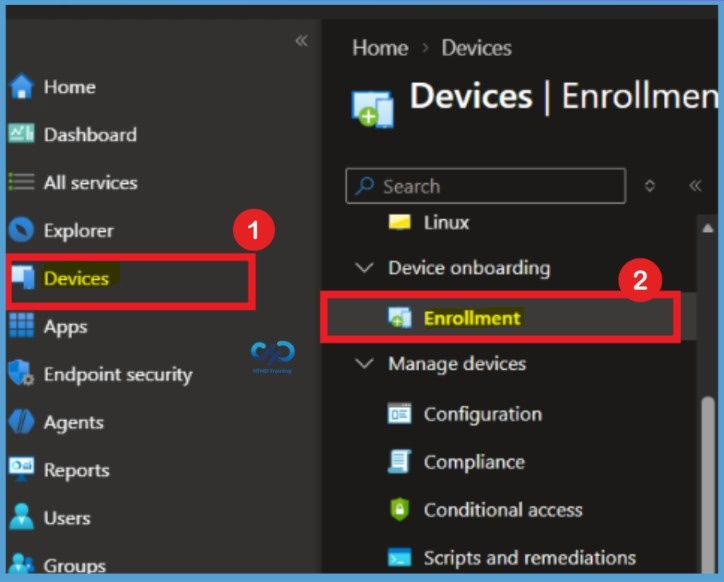
Navigate to Apple Enrollment Type Profiles in Microsoft Intune
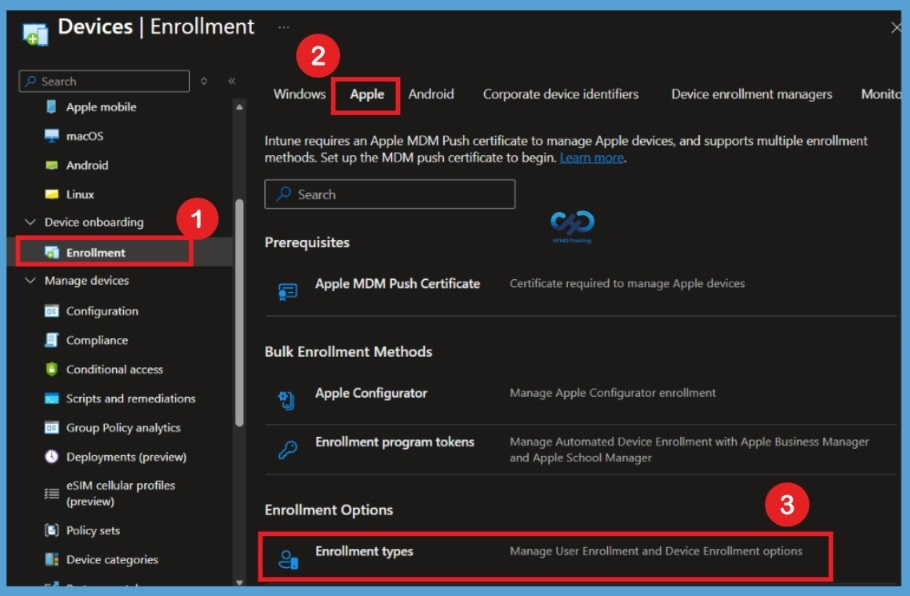
When you select Enrollment, you will see different platform options, including Windows, Apple, Android, and Corporate device identifiers. Select Apple to access the enrollment settings for iOS/iPadOS devices. On the Apple enrollment page, scroll down to locate the Enrollment type profiles section. Click on Enrollment type profiles to access the available enrollment type profile settings. From here, you can create and manage enrollment type profiles for Apple devices.
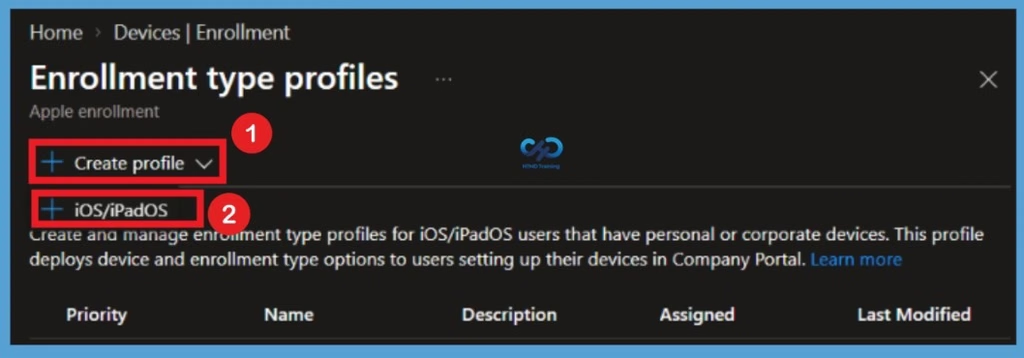
Create an iOS/iPadOS Enrollment Type Profile
When you open the Enrollment type profiles section, select the dropdown arrow next to Create profile. From the available options, select iOS/iPadOS. This option allows administrators to create and manage enrollment type profiles for iOS/iPadOS users with personal or corporate-owned devices. The profile deploys device and enrollment type options to users setting up their devices through the Company Portal.
Enter the Basic Details of the Enrollment Profile
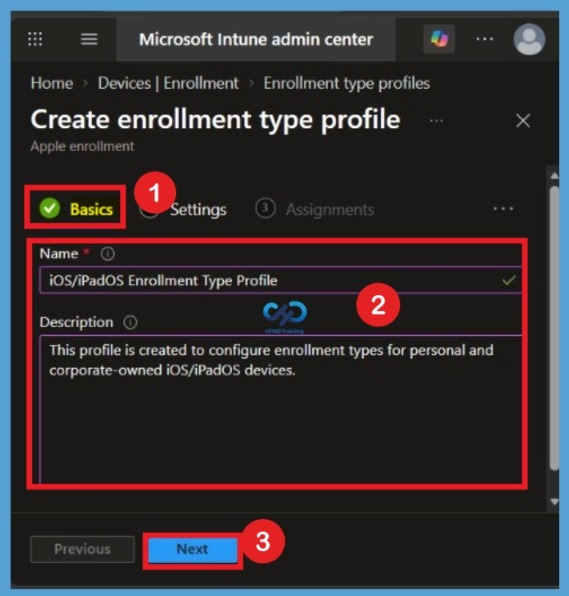
After selecting iOS/iPadOS, you will be directed to the Basics tab, where you need to enter the basic details required to create the enrollment type profile. Here, provide a suitable profile name and description to identify the purpose of the profile. For this configuration, enter iOS/iPadOS Enrollment Type Profile as the name and This profile is created to configure enrollment types for personal and corporate-owned iOS/iPadOS devices as the description. After entering these details, click Next to proceed to the Settings tab, where you can configure the enrollment type options.
Configure the Enrollment Type Settings
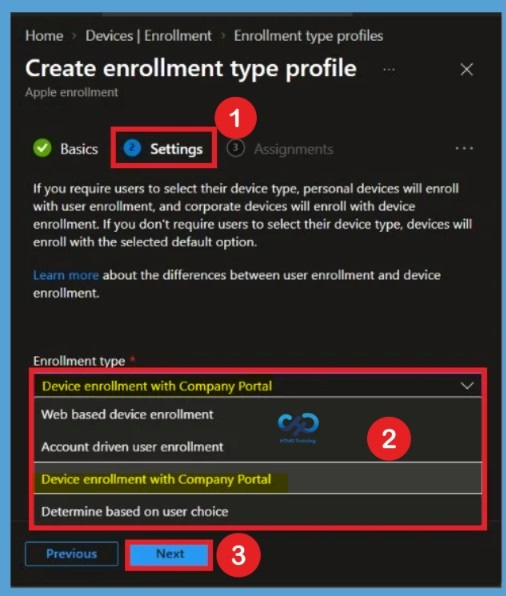
After entering the basic details, you will be directed to the Settings page. Here, you can configure how users enroll their personal and corporate-owned devices. If users are required to select their device type, personal devices will use User Enrollment, while corporate-owned devices will use Device Enrollment. If this option is not configured, devices will be enrolled using the default enrollment type selected in the profile.
Under the Enrollment type drop-down menu, you can find different options, including Web-based device enrollment, Account-driven user enrollment, Device enrollment with Company Portal, and Determine based on user choice. For this configuration, I selected Device enrollment with Company Portal and clicked Next to continue. In the Microsoft Intune admin center. When you create the enrollment profile for iOS/iPadOS, you have the following options:
| Configure the Enrollment Type Settings | Info |
|---|---|
| Device enrollment | This option is a typical enrollment for personal devices. The device is managed, not just specific apps or features. With this option, consider the following information: You can deploy certificates that apply to the whole device. Users must install updates. Only devices enrolled using Automated Device Enrollment (ADE) can receive updates using MDM policies or profiles. A user must be associated with the device. This user can be a device enrollment manager (DEM) account. |
| Determine based on user choice | Gives end users a choice when they enroll. Depending on their selection, User enrollment or Device enrollment is used. |
| User enrollment | : Starting with iOS 13 and newer. This option configures a specific set of features and organization apps, such as password, per-app VPN, Wi-Fi, and Siri. If you use User enrollment, and to help secure apps and their data, then we recommend also using app protection policies. |
Assign the Enrollment Profile to Groups
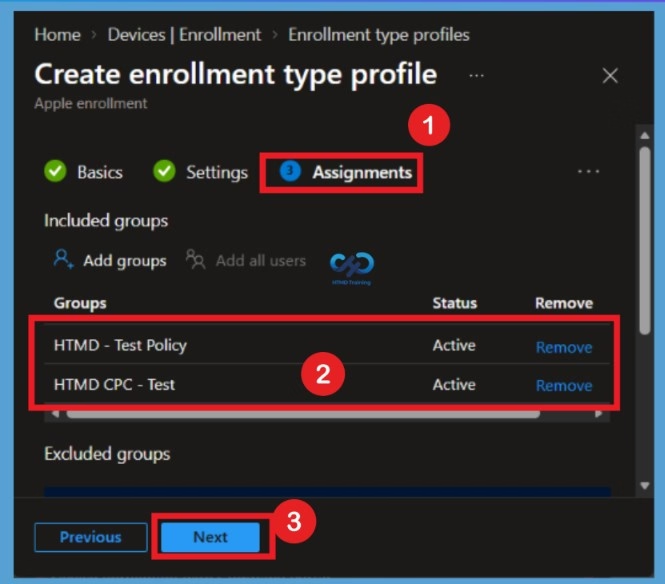
The next step is the Assignments section, where you can select the user or device groups to which you want to assign the enrollment profile. Assigning the profile to the appropriate groups ensures that the configured enrollment settings are applied to the targeted devices. Here, I selected HTMD test policy and HTMD CPC test groups for this configuration. You can select the required groups based on your organization’s enrollment requirements. After selecting the groups, click Next to continue.
Review and Create the Enrollment Profile
After completing the assignments, you will be directed to the Review + Create page. Here, you can review all the configuration details you entered during the profile creation process, including the basic details, enrollment type settings, and group assignments. If you need to make any changes, you can go back to the previous sections and edit the required settings. Once you have reviewed all the details and confirmed that the configuration is correct, click Create to complete the enrollment profile creation.
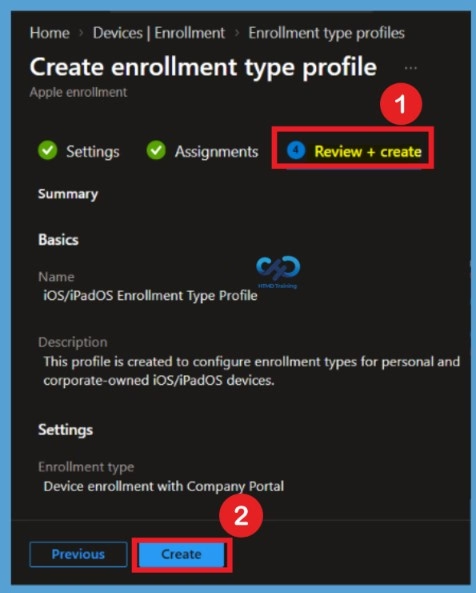
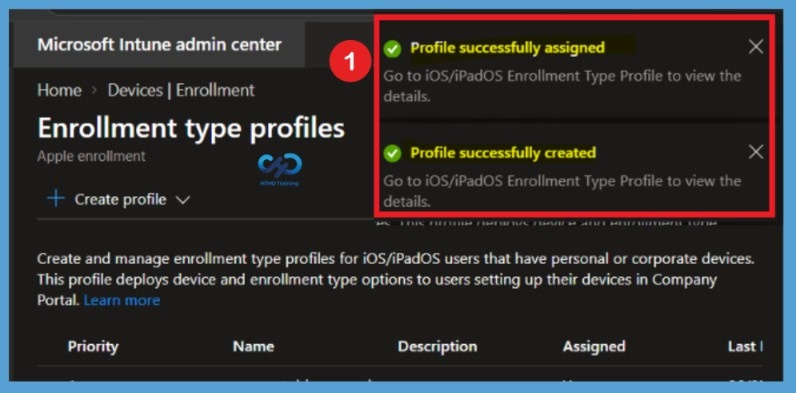
After clicking Create, you will receive a notification confirming that the enrollment profile has been successfully created. This notification indicates that the profile creation process is complete.
Verify the Enrollment Profile Creation
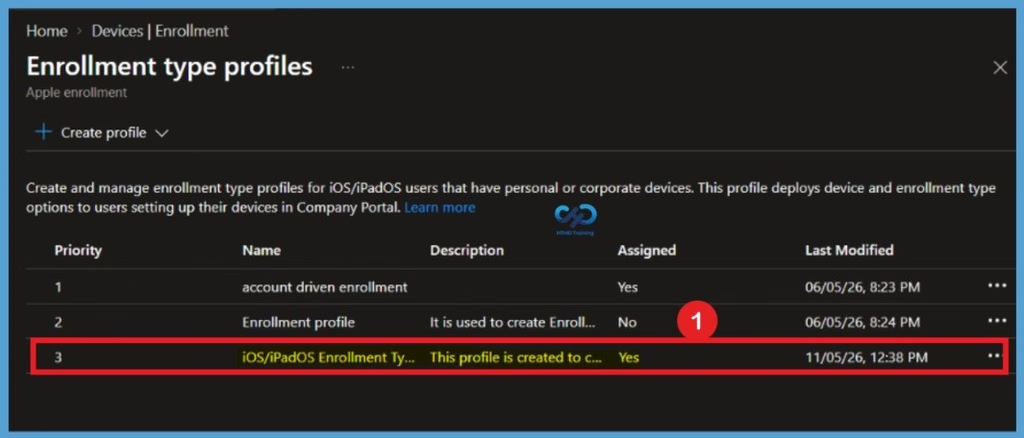
You can also verify whether the enrollment profile was created and assigned successfully. To do this, navigate to Devices > Enrollment > Enrollment type profiles in the Microsoft Intune admin center. In the profiles list, search for the profile name you created earlier iOS/iPadOS Enrollment Type Profile. Here, you can see that the newly created iOS/iPadOS enrollment type profile is listed successfully. You can also verify its assignment status to confirm that the profile has been assigned to the selected groups. This confirms that the enrollment profile has been created and assigned successfully.
Delete the Enrollment Type Profile
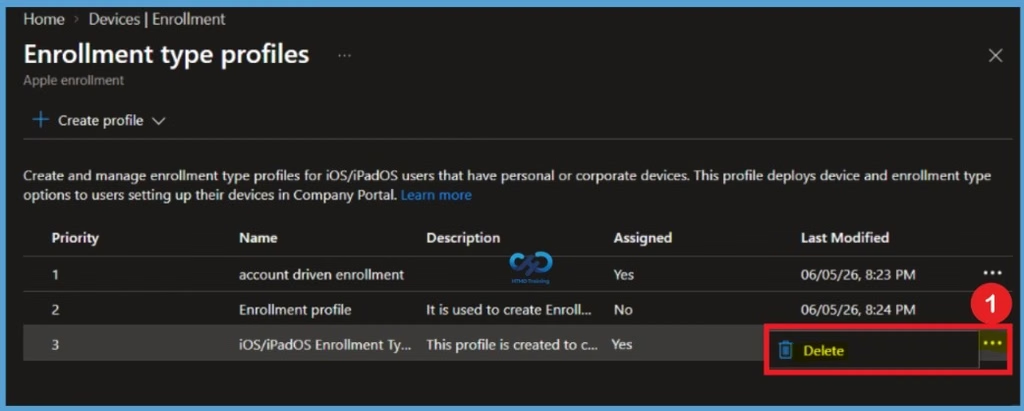
If you want to delete the enrollment profile, navigate to Devices > Enrollment > Enrollment type profiles in the Microsoft Intune admin center. Select the profile you created earlier, iOS/iPadOS Enrollment Type Profile. Here, you can see the 3-dot menu next to the profile. Click on it to view the available options. From the menu, select Delete to remove the enrollment profile. Confirm the deletion if prompted. Once completed, the profile will be removed from the enrollment type profiles list.
Need Further Assistance or Have Technical Questions?
Join the LinkedIn Page and Telegram group to get the latest step-by-step guides and news updates. Join our Meetup Page to participate in User group meetings. Also, join the WhatsApp Community and the Whatsapp channel to get the latest news on Microsoft Technologies. We are there on Reddit as well.
Author
About Author – Jitesh, Microsoft MVP, has over six years of working experience in the IT Industry. He writes and shares his experiences related to Microsoft device management technologies and IT Infrastructure management. His primary focus is Windows 10/11 Deployment solution with Configuration Manager, Microsoft Deployment Toolkit (MDT), and Microsoft Intune.
Hi,
In my environment we are not using DEP or ADE method. So can we still use this enrollment method or we have to first configure ADE?