
Key Takeaways
- Intune can prevent the Microsoft Edge First Run Experience from appearing on managed Windows devices.
- The Hide the First-run experience and splash screen setting is available through the Settings Catalog.
- The setting is Disabled by default and must be enabled to hide the Edge welcome experience.
- If you enable this policy, the First-run experience and the splash screen will not be shown to users when they run Microsoft Edge for the first time.
In this post, you will learn how to Disable Edge First Run Experience and Splash Screen using Intune for Managed Windows Devices. When the users open the Microsoft Edge for the first time, it will load a welcome page known as the First Run Experience. You can use the edge browser policy Hide First Run Experience so the First-run experience and the splash screen will not be shown to users when they run Microsoft Edge for the first time. For managed Windows devices, organizations may want to avoid showing this welcome screen and provide users with a more direct browsing experience.
Table of Contents
Table of Contents
Disable Edge First Run Experience and Splash Screen using Intune for Managed Windows Devices
The Hide the First-run experience and splash screen policy allows administrators to prevent the First Run Experience and splash screen from appearing when users launch Microsoft Edge for the first time. Once the policy is enabled and successfully applied to targeted devices, users can open Edge without going through the initial welcome screen. For the configuration options shown in the First Run Experience, the browser will default to the On the New Tab Page, the feed type will be set to MSN News and the layout to Inspirational.
For the configuration options are shown in the First Run Experience, the browser will default to the following:
| Policy Information |
|---|
| Existing user data from the edge HTML-based Microsoft Edge Legacy version will still be migrated over to the new Chromium-based Microsoft Edge. However, the user data from no other browser will be imported automatically. |
| On the New Tab Page, the feed type will be set to MSN News and the layout to Inspirational. |
| The user will still be automatically signed into Microsoft Edge if the Windows account is of AAD or MSA type. |
| Sync will not be enabled by default and users will be able to turn on sync from the sync settings. |
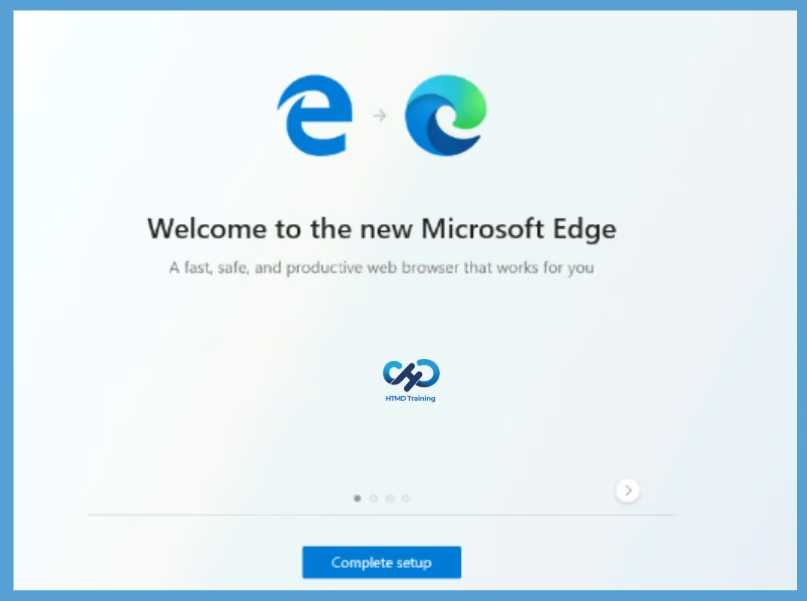
There are different ways to disable the Microsoft edge welcome page in Windows 10 or 11 devices. If you want to check for the method to disable first run experience using Registry. You can follow the post Disable First Run Experience in Microsoft Edge Chromium.

- Learn How to Enable Microsoft Edge Sleeping Tabs using Intune
- Enable Internet Explorer Mode in Microsoft Edge
- Configure Microsoft Edge as Default Browser using Intune
Disable Microsoft Edge First Run Experience Using Intune
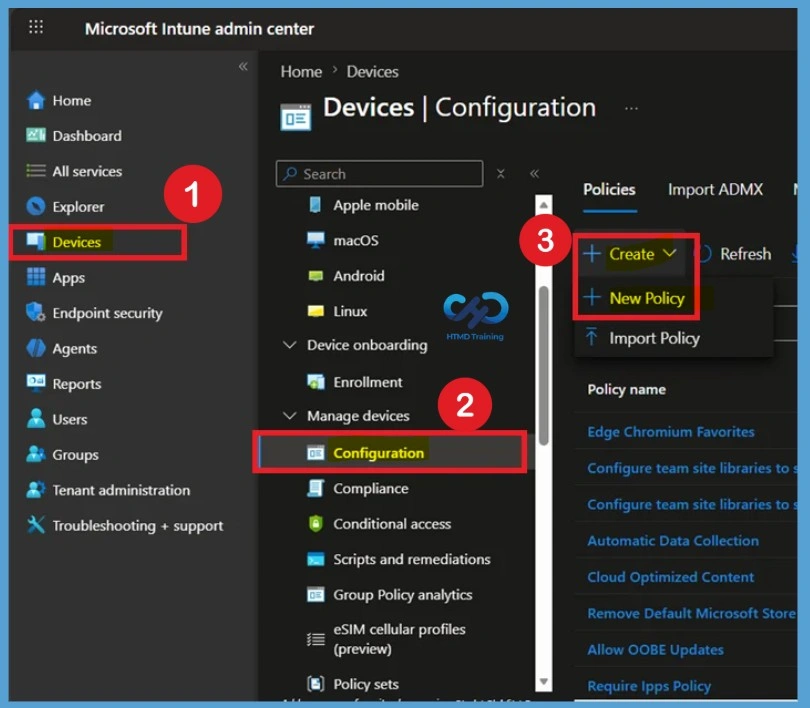
To create the policy, sign in to the Microsoft Intune admin center and navigate to Devices > Windows > Configuration profiles. Let’s follow the step below to disable first run experience in Microsoft Edge using Intune.
- Select Devices > Windows > Configuration profiles > Create profile.
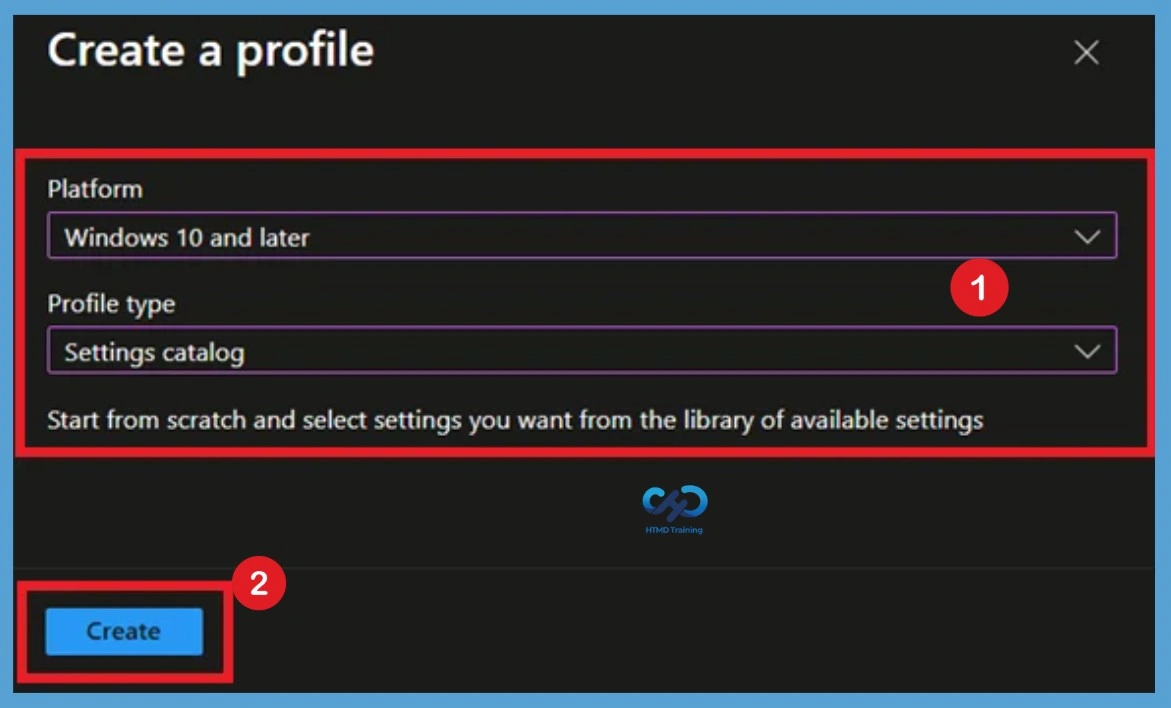
In Create Profile, Select Platform, Windows 10, and later and Profile, Select Profile Type as Settings catalog. Click on Create button.
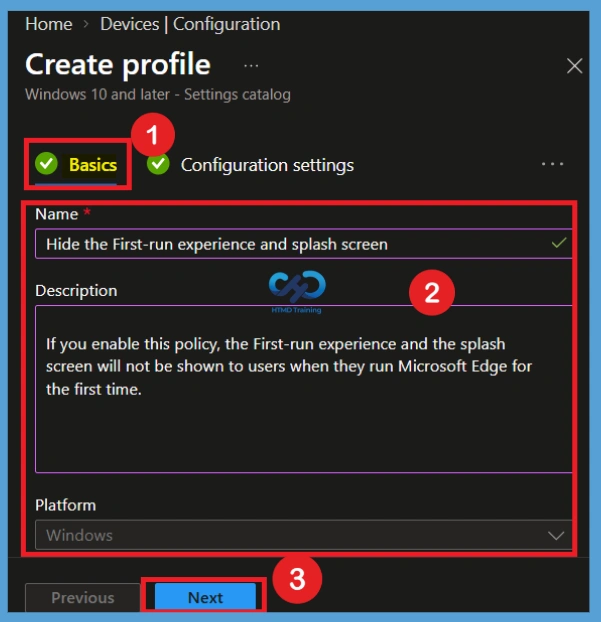
On the Basics page, enter a descriptive name for the profile, such as Hide the First-run experience and splash screen. You can also add a description explaining that the policy prevents the Microsoft Edge First Run Experience and splash screen from being displayed. Select Next to continue to the Configuration settings step.
- Name: Hide the First-run experience and splash screen
- Description: If you enable this policy, the First-run experience and the splash screen will not be shown to users when they run Microsoft Edge for the first time.
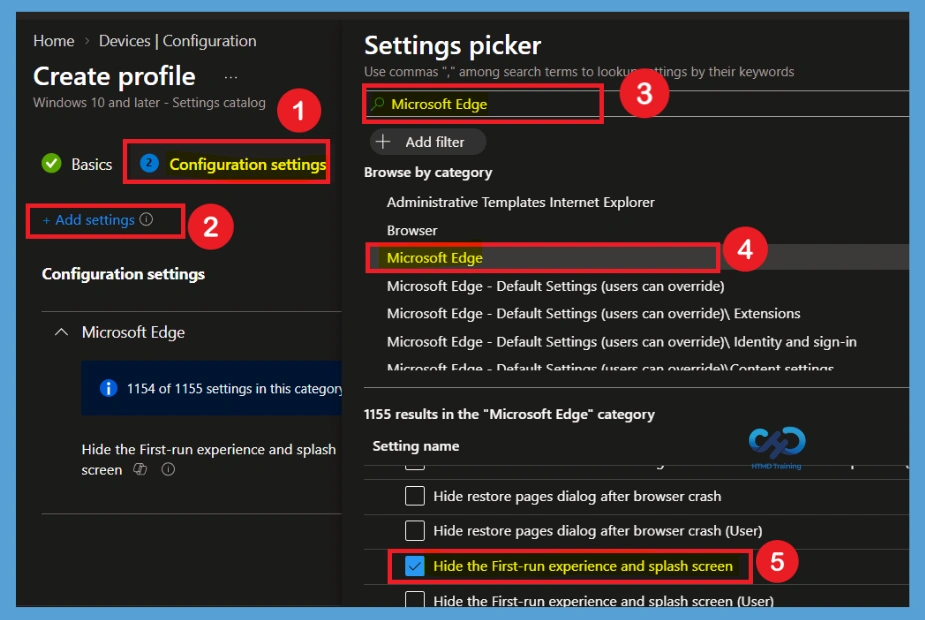
The next step is Configuration settings. Under Configuration settings, click Add settings to browse or search the Settings Catalog for the settings you want to configure. When you select Add settings, the Settings picker opens. Here, search for Microsoft Edge to view the available Edge policies. From the results, select Hide the First-run experience and splash screen. After selecting the required policy, close the Settings picker to continue with the configuration.
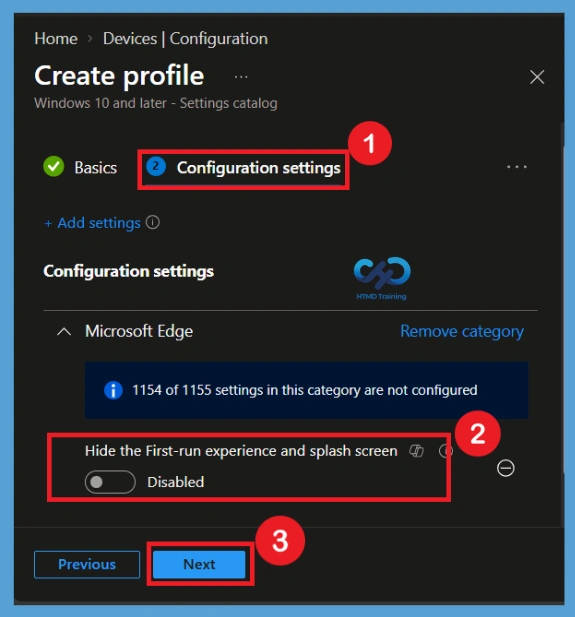
Defaulted Policy
After selecting the appropriate policy, you will be taken back to the Configuration settings page. Here, you can see that the Hide the First-run experience and splash screen policy has been added to the profile. By default, the policy is set to Disabled, which means the First Run Experience and splash screen will continue to be displayed to users.
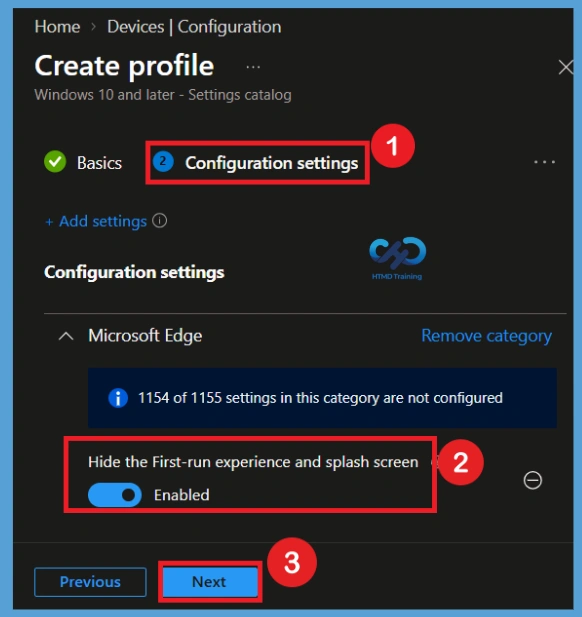
Enable the Policy
Since the policy is Disabled by default, you need to change the setting to Enabled to prevent the Microsoft Edge First Run Experience and splash screen from appearing. Select the Enabled option under Hide the First-run experience and splash screen. Once enabled, the policy will be applied to the devices. If you enable this policy, the First-run experience and the splash screen will not be shown to users when they run Microsoft Edge for the first time.
Scope Tags
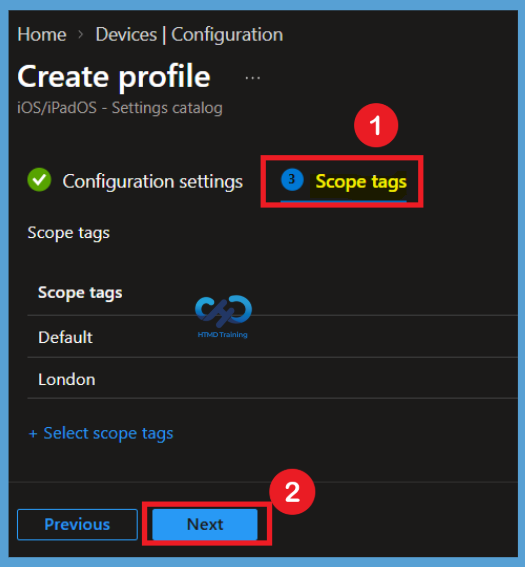
In Intune, Scope Tags are used to control who can view and modify a policy. The scope tag is not mandatory, so you can skip this section. Here I selected London for example. It functions as a tool for organisation and access management, but assigning it is optional. Click Next if they’re not required for your setup.
Assignments Tab
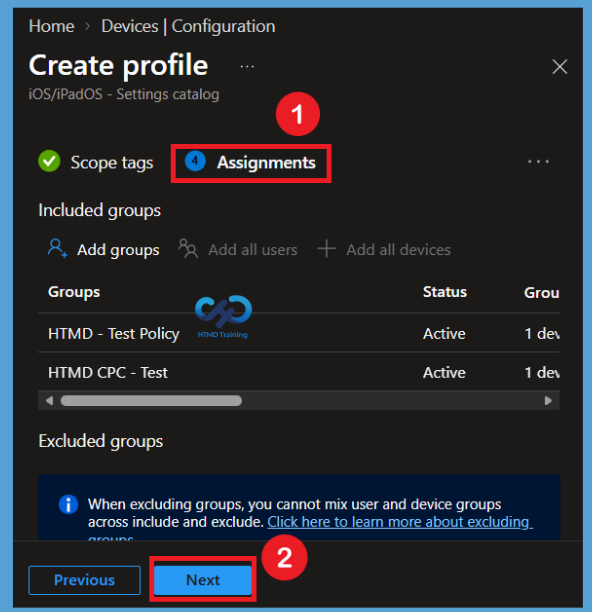
In the Assignments tab, you choose the users or devices that will receive the policy by clicking Add Group under Include Group, select the group that you want to target (HTMD – Test Policy and HTMD CPC Test) and then click Next to continue.
Review + Create
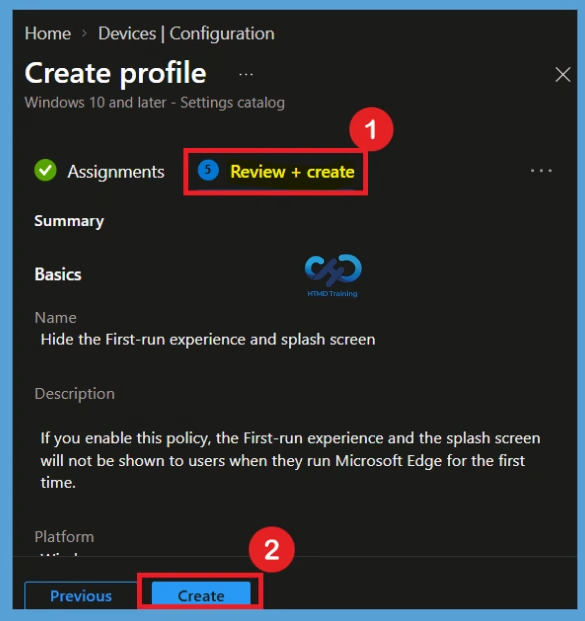
In Review + create, review your settings. When you select Create, your changes are saved, and the profile is assigned. A notification will appear automatically in the top right-hand corner with a message. Here you can see that Policy “Hide the First-run experience and splash screen” created successfully. The policy is also shown in the Configuration profiles list.
Your groups will receive your profile settings when the devices check-in with the Intune service. Once the policy applies to the devices, The First-run experience, and the splash screen will not be shown to users when they run Microsoft Edge for the first time.
Reporting – First Run Experience in Microsoft Edge
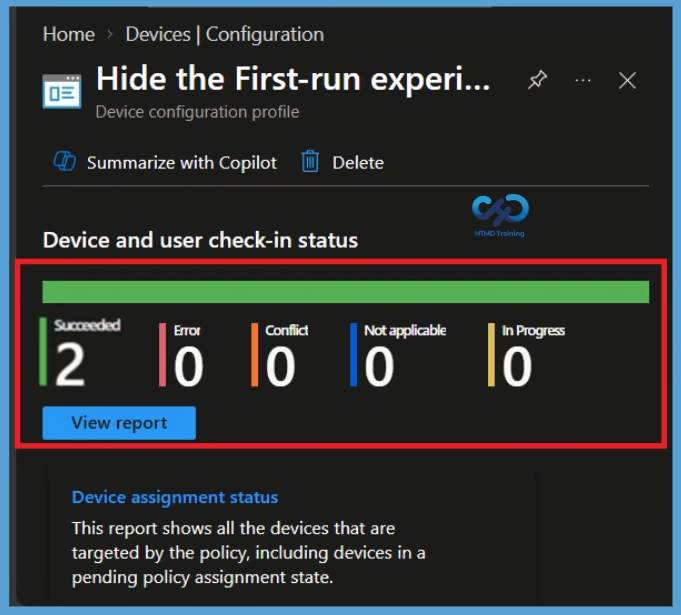
You can check Intune settings catalog profile report from Intune Portal, which provides an overall view of device configuration policies deployment status. To monitor the policy assignment, from the list of Configuration Profiles, select the policy, and here you can check the device and user check-in status. If you click View Report, additional details are displayed.
Client Side Verification
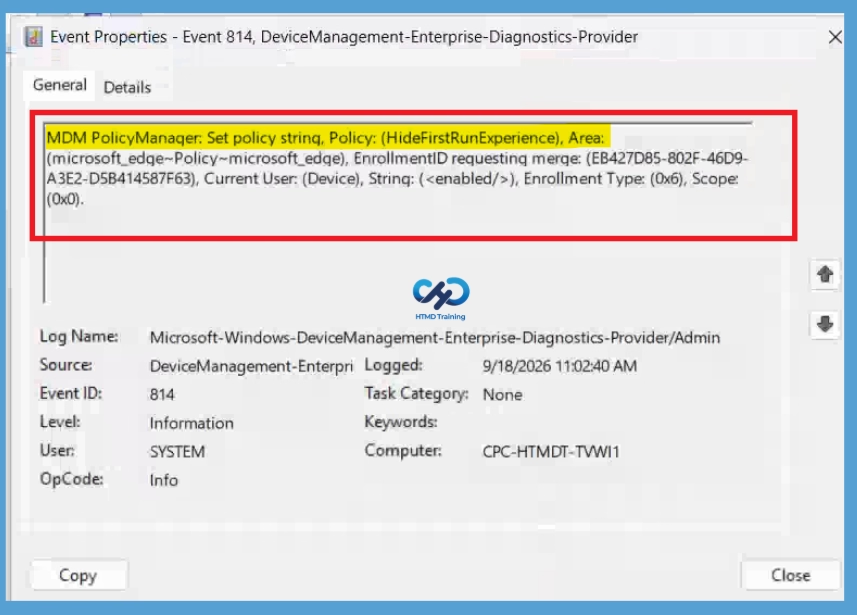
The Intune event ID indicates a string policy is applied on the Windows 10 or 11 devices. You can also see the exact value of the policy being applied on those devices. In the target device, you can check the Event log path to confirm through the path of Applications and Services Logs> Microsoft > Windows – Devicemanagement-Enterprise-Diagnostics-Provider >Admin. You can look at the Event ID 814 generated for the configured policies for managing apps. Here are the highlights from the Event logs.
MDM PolicyManager: Set policy string, Policy: (HideFirstRunExperience), Area: (microsoft_edgev80diff~Policy~microsoft_edge), EnrollmentID requesting merge: (A5552FF5-1D65-4248-9CE8-D2FA23AA067E), Current User: (Device), String: (), Enrollment Type: (0x6), Scope: (0x0).
Delete the Policy from Tenant
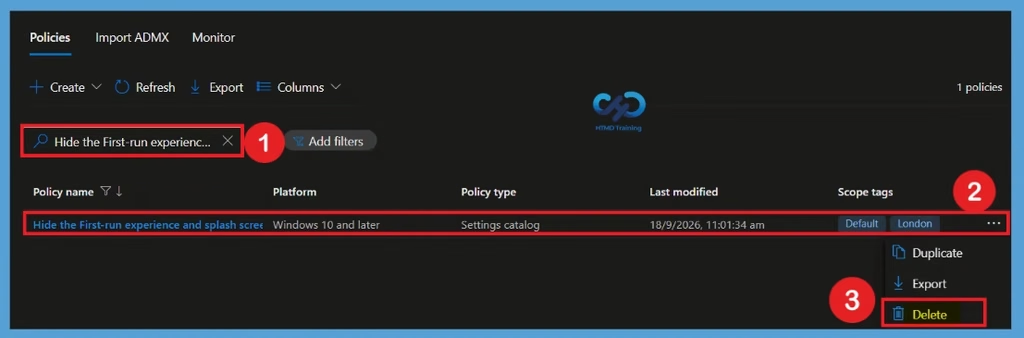
If the configuration profile is no longer required, remove all assigned groups before deleting it. Once the assignments have been removed, return to Devices > Windows > Configuration profiles, select the Disable First Run Experience in Microsoft Edge profile, open the available options, and select Delete. Confirm the deletion to permanently remove the profile from Intune.
Remove Assigned Groups from Policy
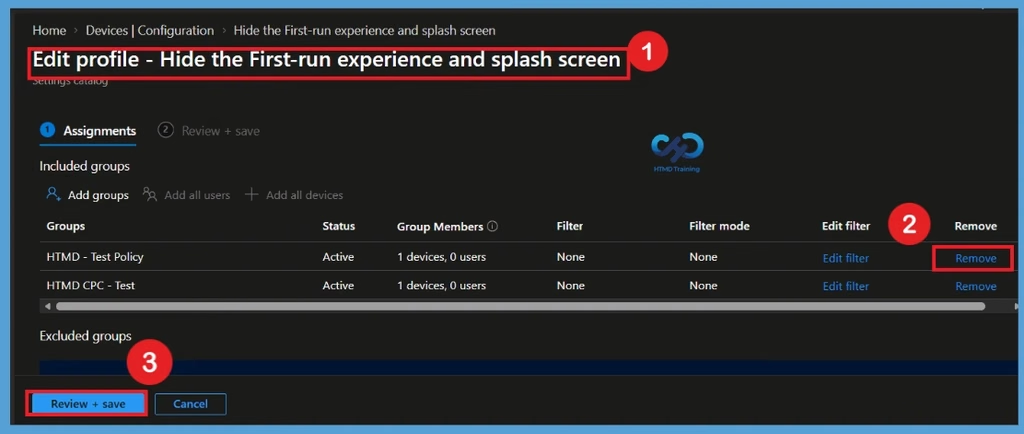
If the First Run Experience in Microsoft Edge policy is no longer required for specific users or devices, open the policy and navigate to Assignments. Remove the included Microsoft Entra groups, save the changes, and allow devices to check in with Intune. After synchronization, the policy is no longer targeted to those devices.
Need Further Assistance or Have Technical Questions?
Join the LinkedIn Page and Telegram group to get the latest step-by-step guides and news updates. Join our Meetup Page to participate in User group meetings. Also, join the WhatsApp Community and the Whatsapp channel to get the latest news on Microsoft Technologies. We are there on Reddit as well.
Author
About Author – Jitesh, Microsoft MVP, has over six years of working experience in the IT Industry. He writes and shares his experiences related to Microsoft device management technologies and IT Infrastructure management. His primary focus is Windows 10/11 Deployment solution with Configuration Manager, Microsoft Deployment Toolkit (MDT), and Microsoft Intune.
Hi,
Am a follower your blog & really awesome + helpful for real time experience.
Is there any way to disable edge / edge stable version using CSP policy or template policy using InTune (MECM)
Awesome guide! working for me!
was this Edge “Hide the First-run experience and splash screen” just added recently? I was looking into this the other week and could not find this setting anywhere.
This no longer works for us on first-run, making guest account kiosks super annoying since every user will always be “first-run” – open a second Edge and all settings are applied…