

Key Takeaways
- Configure the Allow Activity Continuation setting through the macOS Settings Catalog in Intune.
- Set Allow Activity Continuation to False to disable Handoff on managed Mac devices.
- Helps prevent unintended data sharing across Apple devices.
- Restricts activity continuation between managed Macs and other Apple devices.
This post covers Disable Handoff on macOS to Prevent Unintended Data Sharing using Intune Policy. Microsoft Intune provides organizations with several options to manage and control macOS devices through configuration profiles. One of these options allows administrators to control Apple features that may not be required in an enterprise environment. Handoff is built into the Apple operating system to simplify copying and pasting text and images between devices. With Handoff, you can start working on one device, then switch to another nearby device and pick up where you left off.
Table of Contents
Table of Contents
Disable Handoff on macOS to Prevent Unintended Data Sharing using Intune Policy
With Handoff, you can start something on one device (iPhone, iPad, iPod touch, Mac, or Apple Watch) and then pick it up on another device right where you left off. For example, you can start answering an email on your iPhone and then finish it in Mail on your Mac. Handoff lets users start an activity on one device and smooth resume the activity on another. Users control whether a device participates in Handoff by turning the feature on or off in the Settings app.
By following these steps in the guide, you can use Microsoft Intune to disable Handoff on macOS devices, preventing unintended file sharing through this feature. This approach enhances security posture and ensures that sensitive data remains under strict control.
- How to Install Fonts On MacOS Using Intune
- Best Enhancements In Microsoft Intune To Manage Apple Devices
- Intune Policy Device Assignment Status Report
- Intune Policy Per Setting Status Report
Disable Handoff on macOS to Prevent File Sharing using Intune
Let’s follow the steps to create macOS configuration profiles for disabling Handoff on macOS to Prevent File Sharing. To disable Allow Activity Continuation, first sign in to the Microsoft Intune admin center using your administrator credentials.

- Sign in to the Microsoft Intune Admin Center
- Select Devices > macOS > Configuration profiles, and click + New Policy. You can now able to Import and Export Settings Catalog Policy from the Intune Admin Center, by clicking Import Policy.
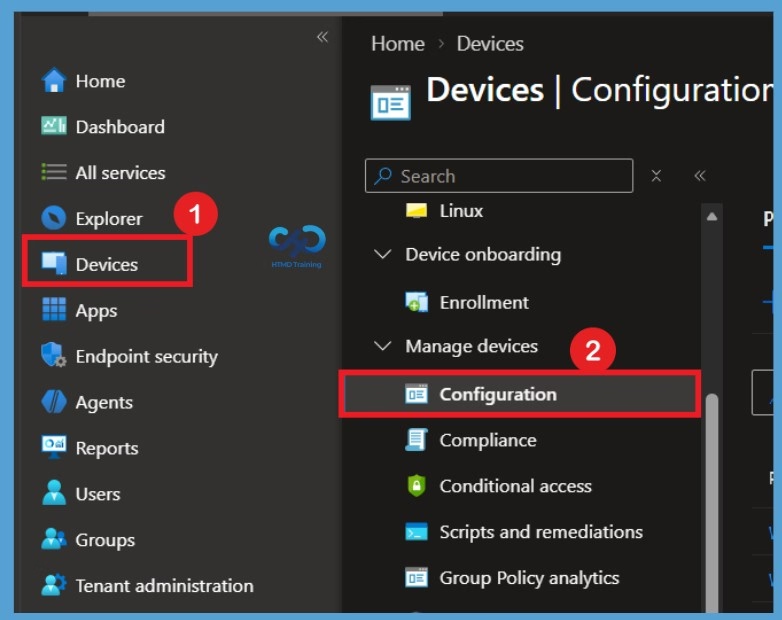
Create Profile
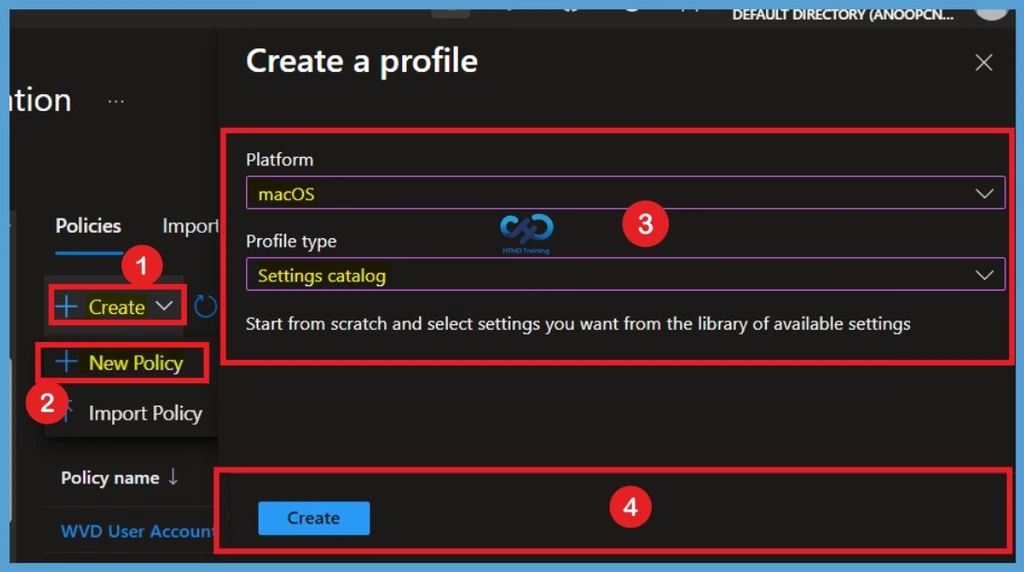
After selecting Configuration, go to the Policies section and click Create. From the available options, select New Policy to open the Create a Profile window. Here, select macOS as the platform and Settings Catalog as the profile type. Once you have made the required selections, click Create to proceed with the policy configuration.
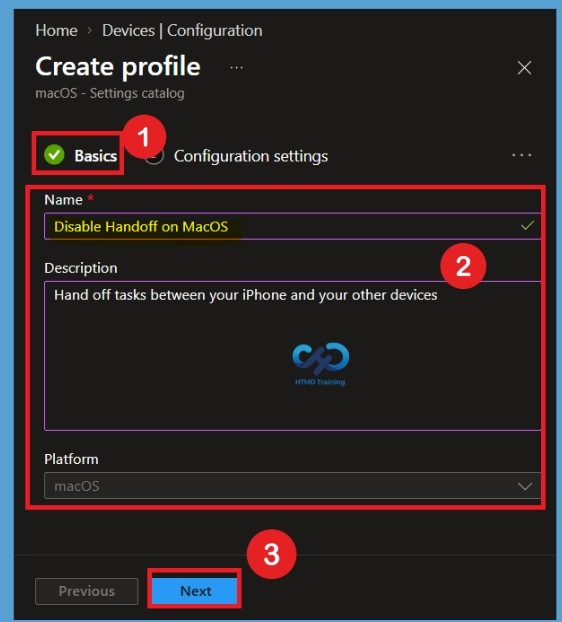
Purpose of Basics Tab
In Basics, enter a descriptive name for the policy. Name your policies so you can easily identify them later (For Example, Disable Handoff on macOS). Enter a description for the policy. This setting is optional but recommended. Select Next.
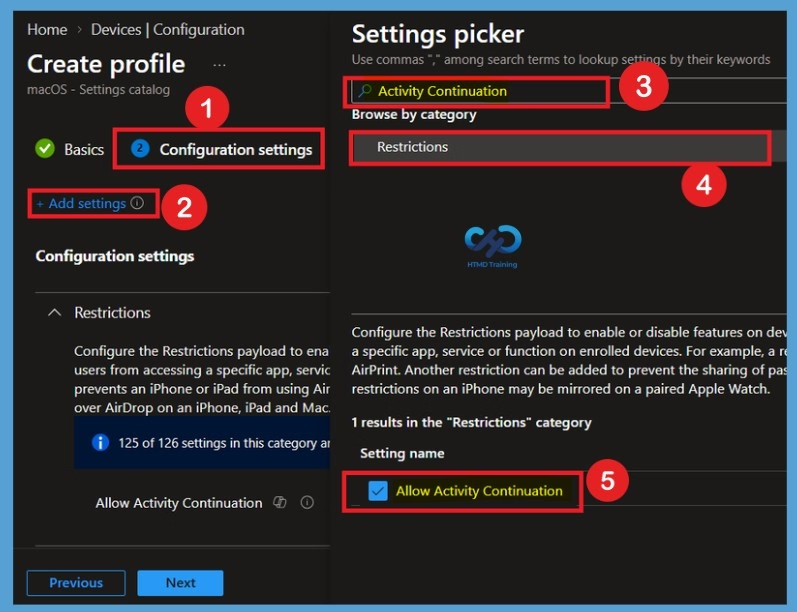
Configuration Settings for Allow Activity Continuation
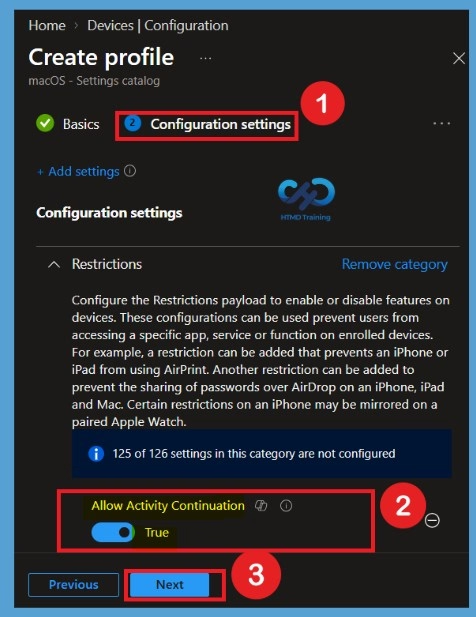
On the macOS Configuration settings tab, With the settings catalog, you can choose which settings you want to configure. Click on Add Settings to browse or search the catalog for the settings you want to configure. Search for “Allow Activity Continuation” or “Activity Continuation”. Select the Restrictions settings from Allow Activity Continuation from the search result.
Disabled State of the Policy – Enabled
After selecting the policy from the Settings Catalog, you can see the Allow Activity Continuation Setting in the Configuration settings tab. By default, the policy is set to Enabled, which allows users to continue supported activities across their Apple devices using Handoff. To disable this feature, change the setting from Enabled to Disable. This prevents activity continuation between the Mac and other Apple devices.
| Policy Settings | Info |
|---|---|
| Allow Activity Continuation– Enable | Users can use Handoff and activity continuation features across iOS/iPadOS and macOS devices. For example, starting an email on iPhone and continuing it on iPad or Mac. |
| Allow Activity Continuation– Disable | Blocks Handoff and prevents cross‑device activity continuation. This stops tasks from being transferred between Apple devices. |
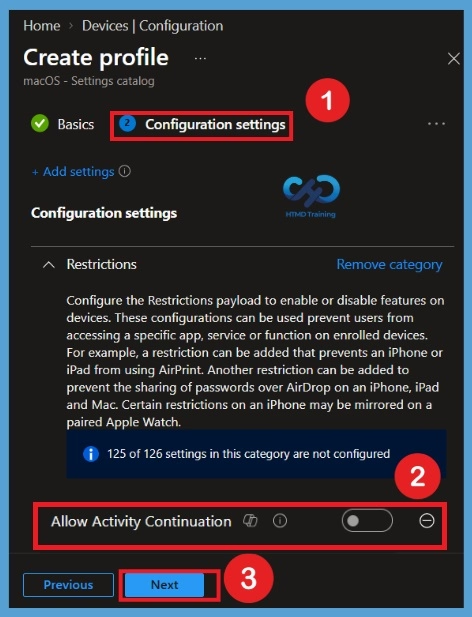
Disable Allow Activity Continuation
Now, our goal is to disable this policy. To do this, move the toggle switch to the left. You can see that the Allow Activity Continuation setting is now grayed out, indicating that the policy has been disabled. If false, disables activity continuation. Available in iOS 8 and later, and macOS 10.15 and later, click on Next.
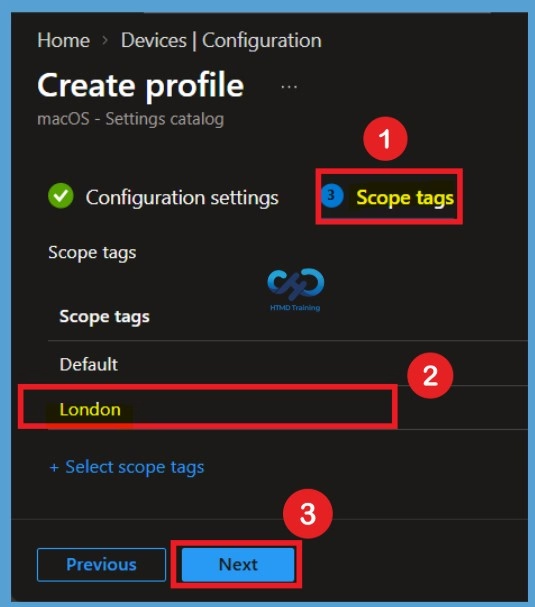
Scope Tags
In the Scope tags section, I select the London scope tag to apply the appropriate administrative scope to this policy. After selecting the required scope tag, click Next to continue with the policy configuration.
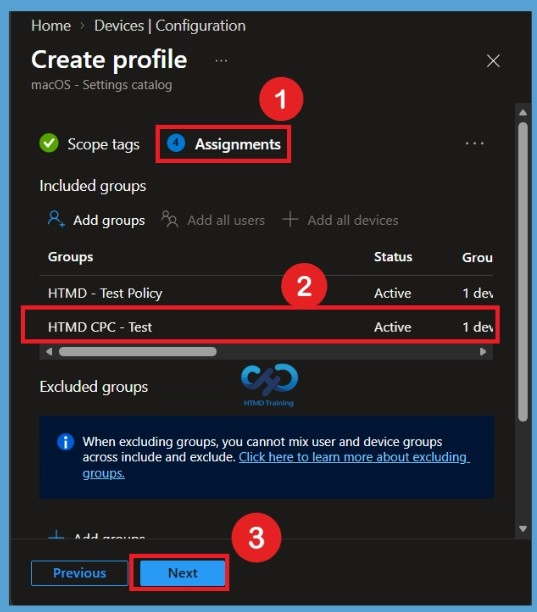
Assignments
Now, we need to assign the policy to the required groups. In the Assignments section, I have selected two groups, HTMD Test Policies and HTMD CPC Test, as examples. You can select the groups you want to target for this policy deployment. Once the required groups are selected, click Next to continue with the remaining configuration steps.
Review+ Create
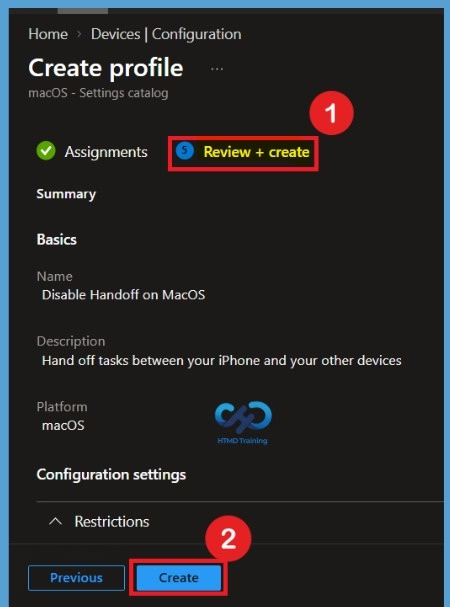
In Review + create, review your settings. When you select Create, your changes are saved, and the profile is assigned. A notification will appear automatically if you see it in the top right-hand corner. You can see that the Policy “Disable Handoff on macOS” was created successfully. The policy is also shown in the Configuration profiles list.
Note! Before deploying profiles in large groups or production, it’s always important to test any configuration changes or scripts in an environment with limited sets of devices before deploying to production devices.
Monitor Intune Policy to Disable Handoff on MacOS
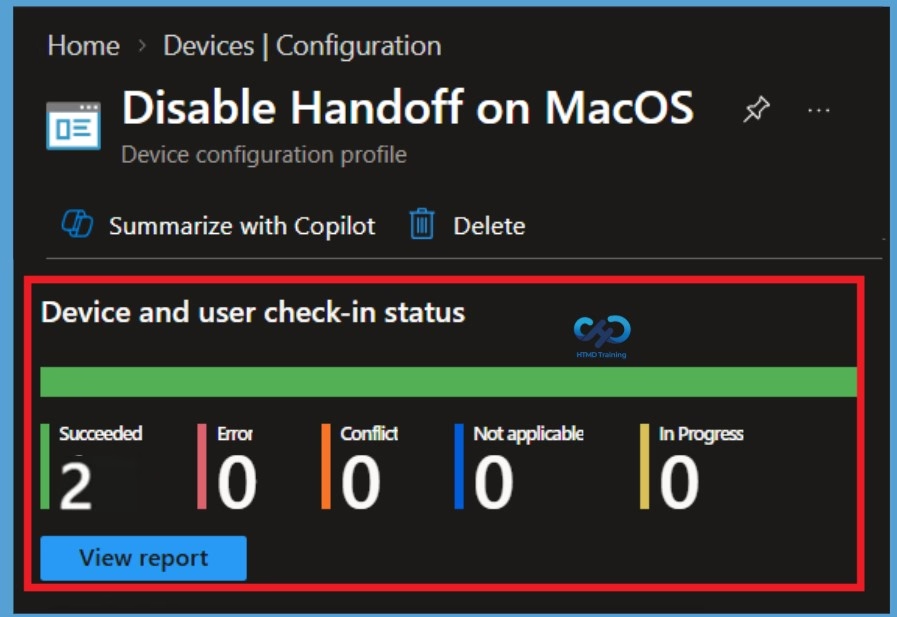
Once the Intune macOS restriction policy is deployed to macOS devices, it will take some time to apply, you can get the deployment status on the list of targeted devices by clicking on profile inside macOS > Configuration profiles. Once you click on the view report button, you can see the list of devices along with their details Device Name, Logged-in User, Check-in Status and Last check-in time.
Also, we can view the two different types of reports, and you can quickly check the update as devices/users check-in status reports.
End Result
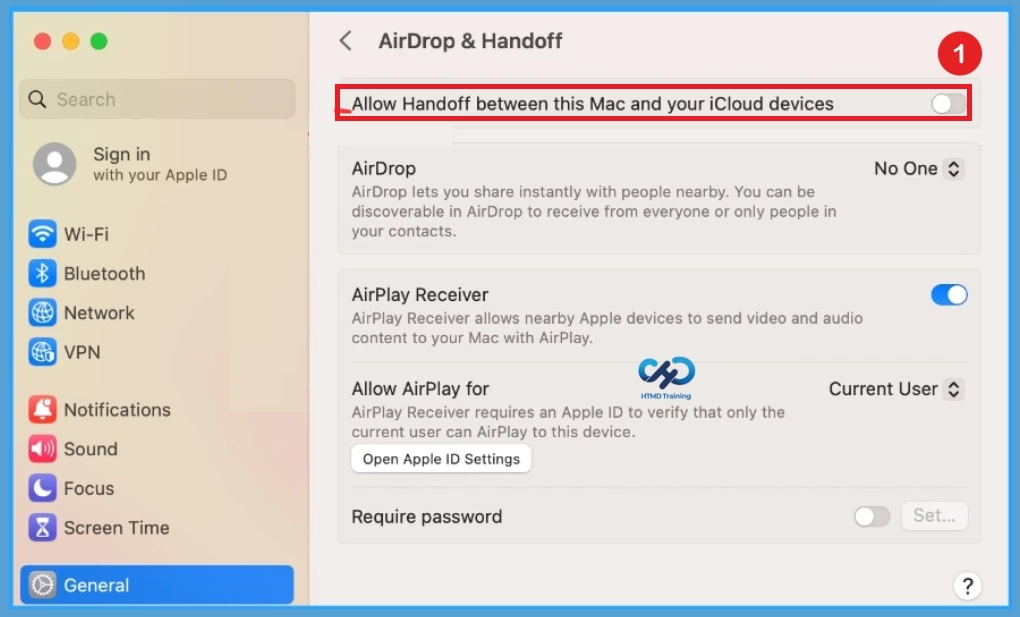
Once the user successfully log in to the macOS device, you can follow the steps below to check the profile status. The specific settings and options might vary based on the version of macOS you are using. You can also initiate the manual sync to speed up if the profile is not received.
- Click on the Apple icon at the top-left corner and select System Settings from the list of options.
- Click General in the sidebar, click Airdrop & Handoff on the right, then turn off Allow Handoff between this Mac and your iCloud devices. Now your iOS device won’t automatically share everything you do.
Need Further Assistance or Have Technical Questions?
Join the LinkedIn Page and Telegram group to get the latest step-by-step guides and news updates. Join our Meetup Page to participate in User group meetings. Also, join the WhatsApp Community and the Whatsapp channel to get the latest news on Microsoft Technologies. We are there on Reddit as well.
Author
About Author – Jitesh, Microsoft MVP, has over six years of working experience in the IT Industry. He writes and shares his experiences related to Microsoft device management technologies and IT Infrastructure management. His primary focus is Windows 10/11 Deployment solution with Configuration Manager, Microsoft Deployment Toolkit (MDT), and Microsoft Intune.