
Key Takeaways
- Browser Sign-in policy controls whether users can sign in to Microsoft Edge and access account-based services such as Single Sign-On (SSO).
- Browser sign-in and browser sync are separate features. Sync is controlled using the SyncDisabled policy.
- Enable Proactive Authentication is an obsolete Microsoft Edge policy and should not be used for new deployments.
- Proactive Authentication does not work independently of browser sign-in and is not supported in Microsoft Edge version 90 and later.
- Microsoft recommends using the Browser Sign-in policy to manage browser sign-in and Single Sign-On (SSO) behavior.
This policy helps IT administrators control how users access Microsoft Edge by managing browser sign-in and Single Sign-On (SSO) behavior. It allows admins to enforce consistent security and identity policies, reduce unnecessary sign-in prompts, and prevent unauthorized access to corporate resources.
Table of Content
Table of Contents
How to Manage Microsoft Edge Sign-In and SSO with Browser Sign-in Policy in Intune
If the BrowserSignin policy is set to Disable, users are not allowed to sign in to Microsoft Edge. In this scenario, the NonRemovableProfileEnabled policy must also be set to Disabled because it forces the creation of an automatically signed-in work or school profile, which conflicts with disabling browser sign-in. If both policies are configured, Microsoft Edge will Disable browser sign-in setting and behave as if NonRemovableProfileEnabled is disabled, ensuring that no automatic sign-in or forced profile is created.
Note – Enable Proactive Authentication policy is now obsolete and no longer works independently of browser sign-in. It is not supported in Microsoft Edge version 90 and later. If you need to manage browser sign-in behavior, Microsoft recommends using the BrowserSignin policy instead.
- Web to Browser Sign-in Enabled Policy in MS Intune
- Enable MS Edge Profile Switching Policy in Windows Environment for Controlled Site Access using Intune
- Disable Automatic Media Playback for Websites Policy in MS Edge Browser using Intune
How to Create Configuration Profile for Browser Sign-in Policy
If browser sign-in policy is enabled, users are allowed to sign in, but sync is not turned on automatically and must be enabled by the user. When browser sign-in is forced, users must sign in to a profile to use Microsoft Edge, while sync remains optional unless it is restricted by the administrator. By default, guest mode is turned off when sign-in is forced. If the policy is not configured, users can decide on their own whether to sign in to the browser.

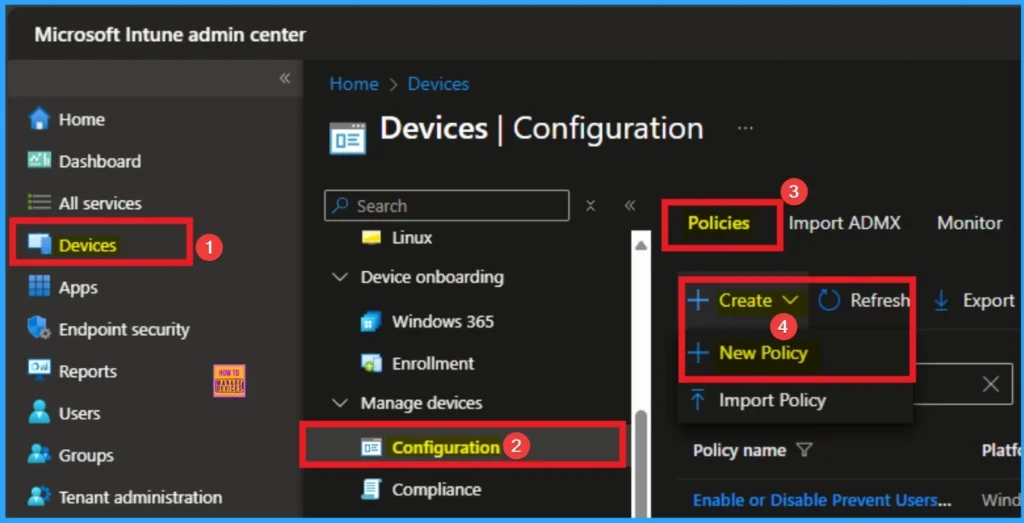
- To configure the policy, Sign in to Microsoft Intune Admin center. Then go to Devices > Configurations > Create > New Policy.
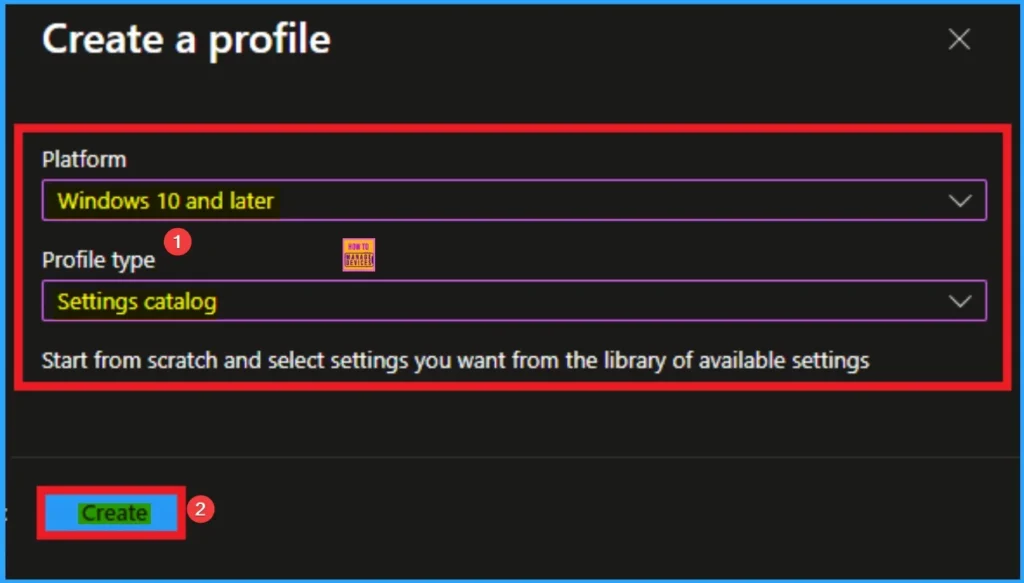
Profile Creation for Policy
Profile Creation is essential for Intune policy creation. This step helps to select accurate platform and profile type. Here, I selected Windows 10 and later as the Platform and Settings catalog as the profile type. Then click on the Create button.
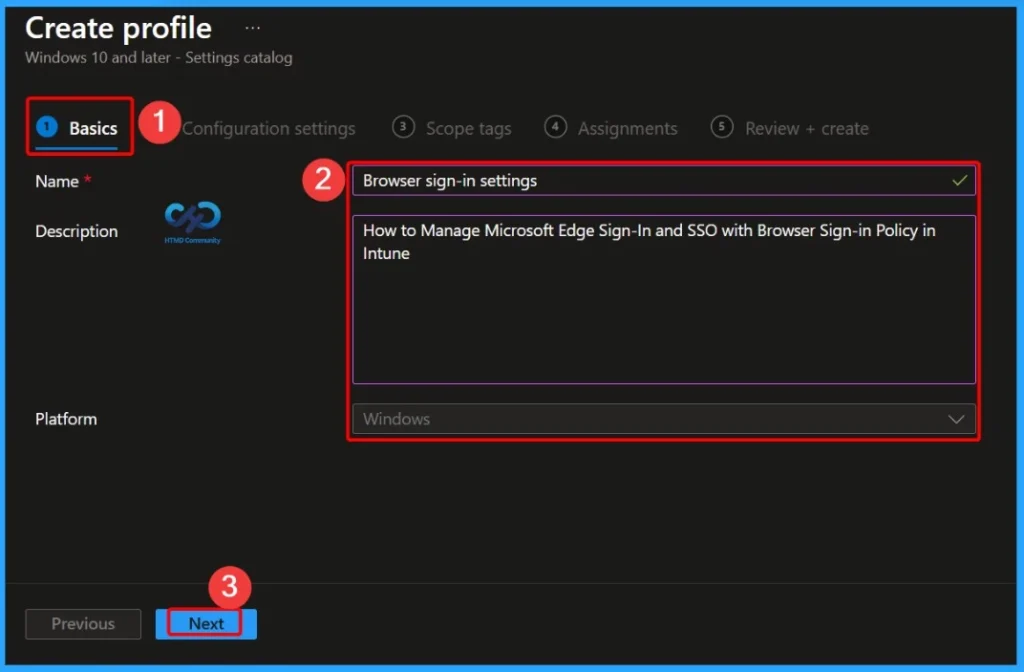
Basics – Browser Sign-In Policy Configuration
In the Basics settings tab, provide a clear name and description for the policy to help administrators easily identify its purpose. For example, naming the policy “Browser sign-in settings” with the description “How to Manage Microsoft Edge Sign-In and SSO with Browser Sign-in Policy in Intune” makes it clear that the policy is used to control Microsoft Edge browser sign-in and Single Sign-On behavior on Windows devices.
Select Specific Settings – Settings Picker
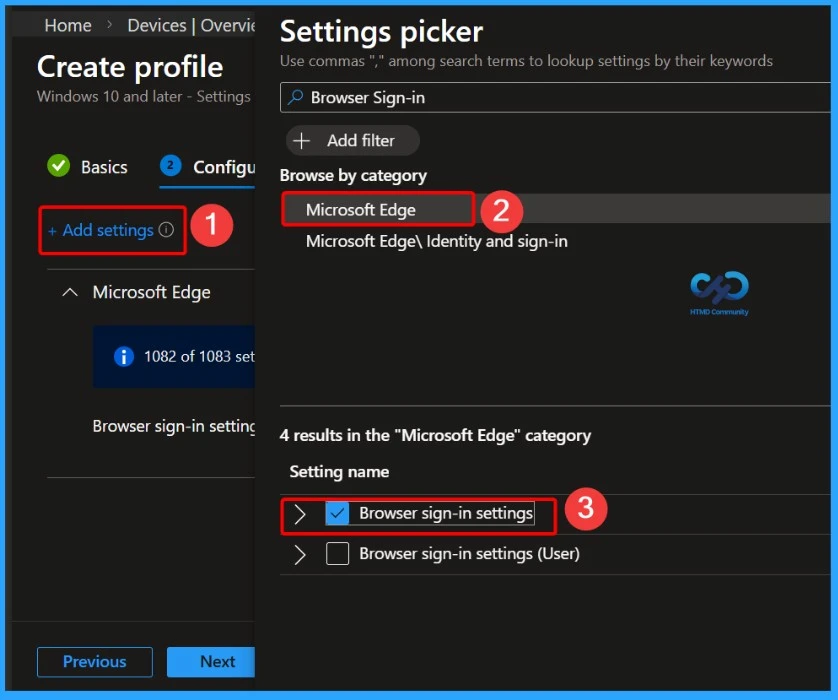
From the Configuration Settings tab you can select settings from different categories. Click on the +Add Settings get the Settings Picker. Here, I would like to select the settings by browsing by Category. I choose Microsoft Edge and choose Browser Sign in. From this sub-category, I choose Browser Sign in settings.
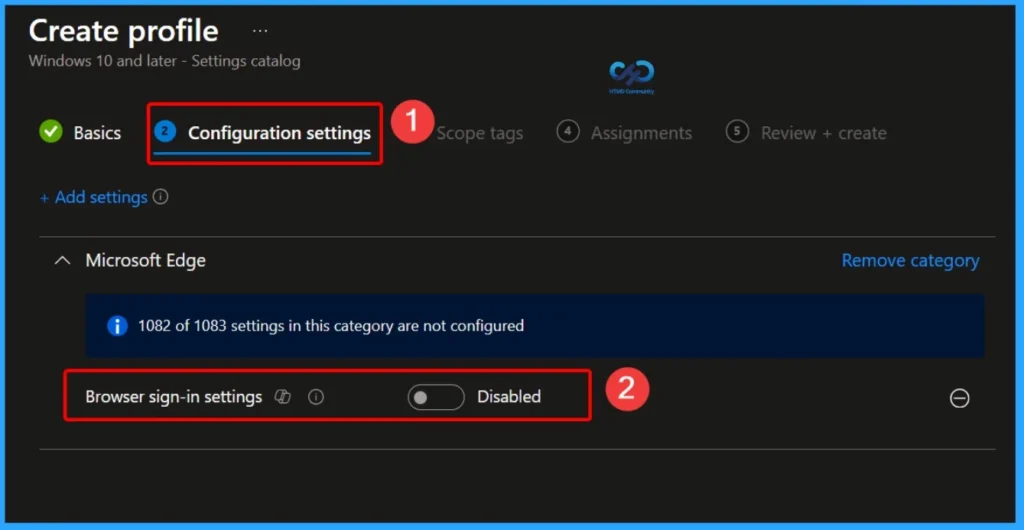
Disable Browser Sign-In (Disable – 0)
When the BrowserSignin policy is set to Disable (0), users are not allowed to sign in to Microsoft Edge with their work or personal accounts. This setting blocks access to account-based features such as Single Sign-On (SSO) and prevents the creation of signed-in browser profiles.
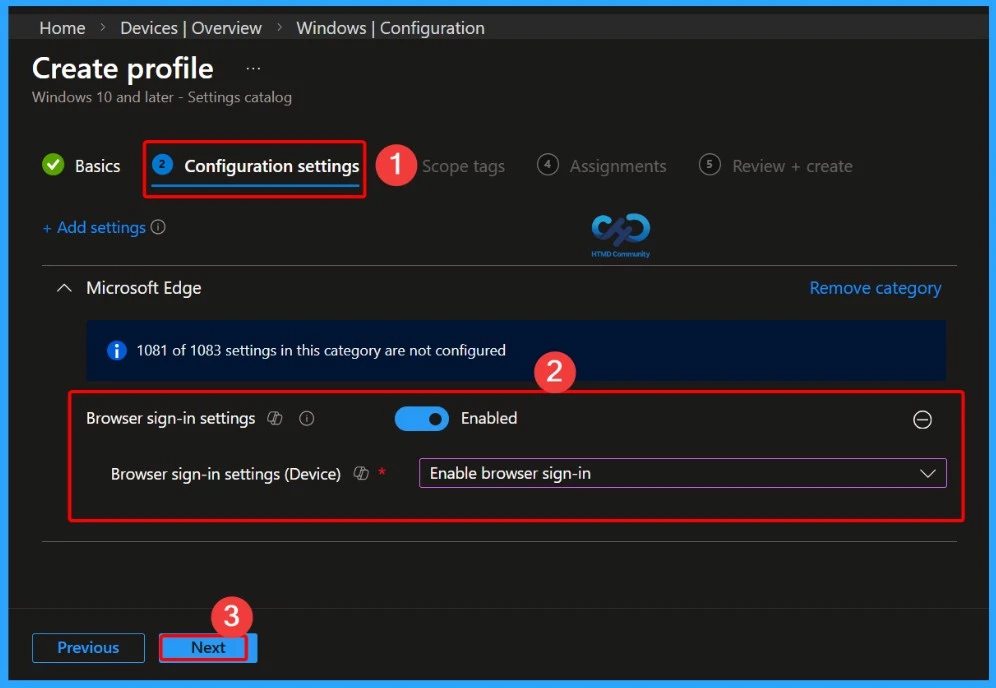
Enable Browser Sign-In (Enable – 1)
When the BrowserSignin policy is set to Enable (1), users are allowed to sign in to Microsoft Edge using their work or personal accounts. This enables access to account-based features such as Single Sign-On (SSO) to Microsoft services.
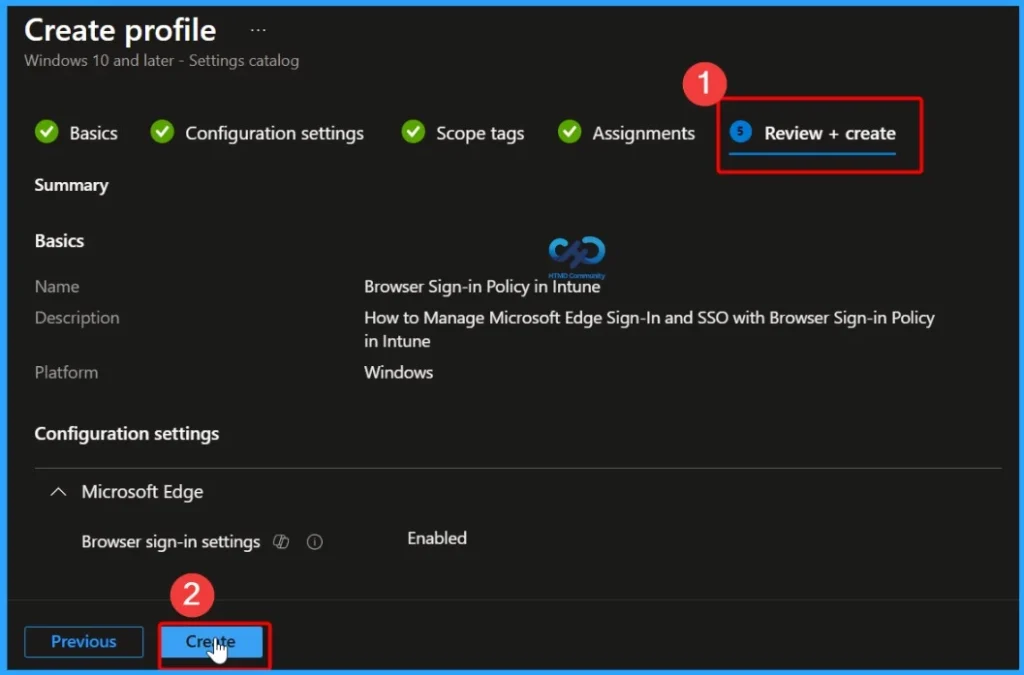
- Browser sign-in settings – Enabled
- Browser sign-in settings (Device) – Enable browser sign-in
| Settings | Value | Details |
|---|---|---|
| Disable | 0 | Browser sign-in is turned off. Users cannot sign in to the browser. |
| Enable | 1 | Browser sign-in is allowed. Users can choose to sign in |
| Force | 2 | Users are required to sign in to use the browser (applies to all profiles). |
Scope Tags
A scope tag in the Browser Sign-in policy is used only to control admin visibility and management access. It helps restrict which Intune administrators can view, edit, or manage the policy based on RBAC permissions.

Assign the Specific Group
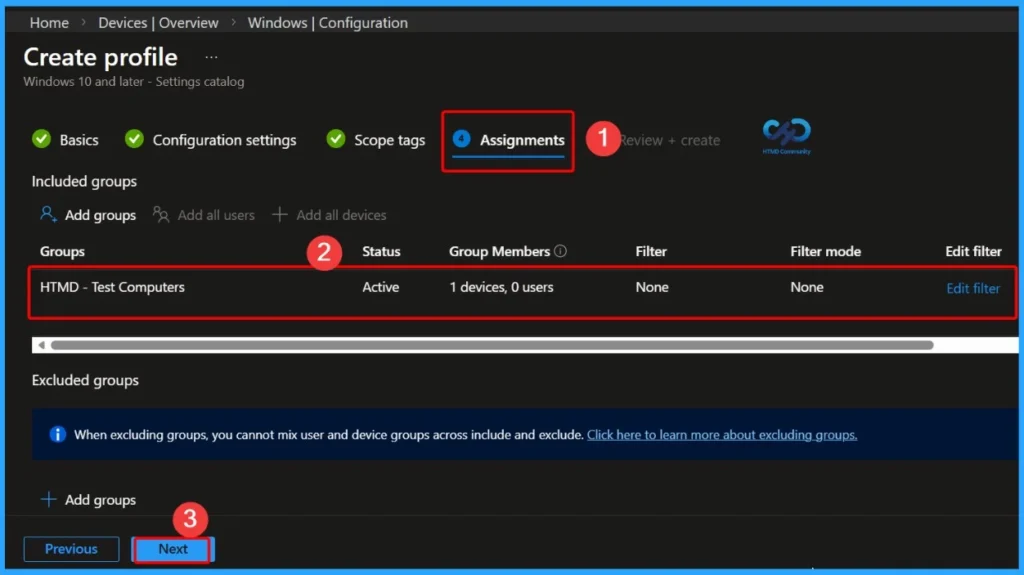
In Microsoft Intune, assignments in the Browser Sign-in policy determine which users or devices receive and enforce the policy. You can assign the policy to device groups, and based on the assignment, the browser sign-in setting (Disable, Enable, or Force) is applied on the targeted devices.
- Here i select 1 group that HTMD Test Computers
Complete the Policy Creation
After completing all the steps, go to the Review + Create tab to finalize the policy. Here, you can review all the configured settings before creating the policy. Once the policy is created successfully, a confirmation (success) message will be displayed.
Monitoring Status of the Policy
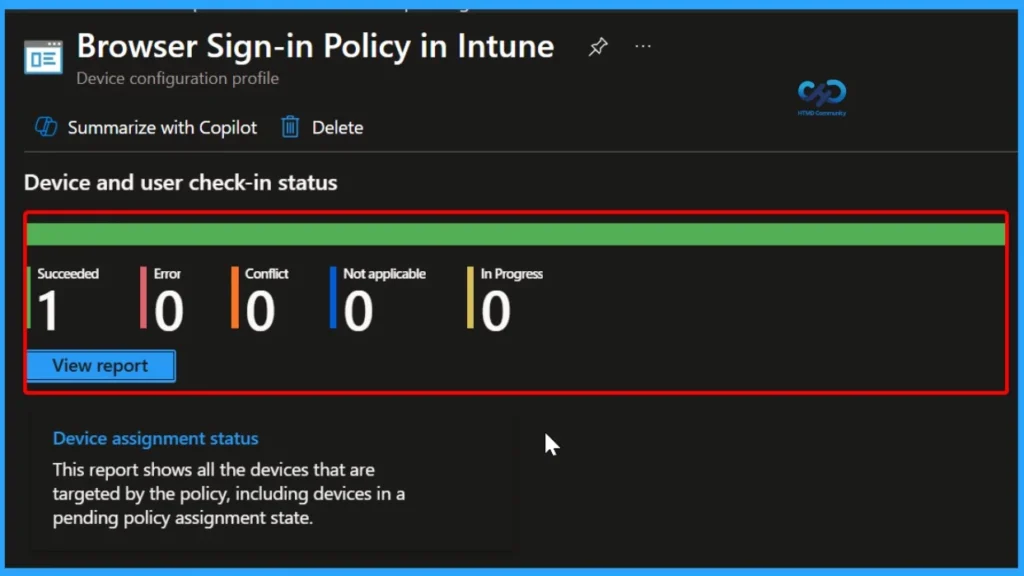
The Monitoring Status page helps you check whether the policy was applied successfully. Open the Intune admin portal, go to Devices > Configuration, and search for the policy. When you open it, the policy status shows Succeeded, which means it was applied without any issues.
Use Event Viewer for Client Side Verification
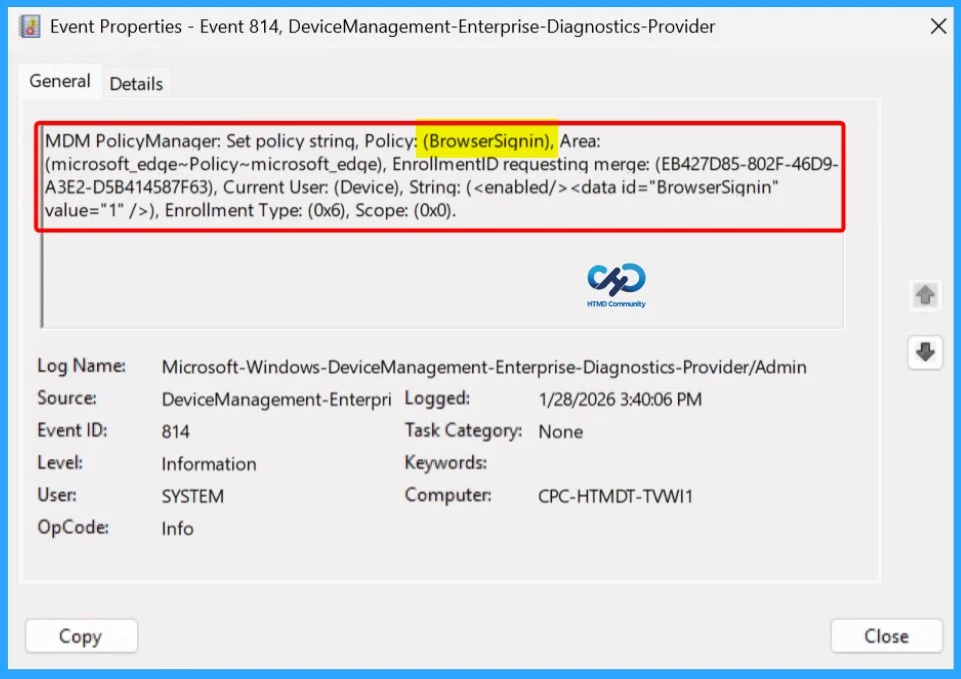
You can use Event Viewer to check the client side verification. To verify the policy is successfully configured to the client device, check the Event Viewer. Open Event Viewer: Go to Start > Event Viewer. Navigate to Logs: In the left pane, go to Application and Services Logs > Microsoft > Windows > DeviceManagement-Enterprise-Diagnostics-Provider > Admin.
- Filter for Event ID 814: This will help you quickly find the relevant logs.
MDM PolicyManager: Set policy string, Policy: (BrowserSignin), Area: (microsoft_edqe~Policy~microsoft_edge), EnrollmentID requesting merqe: (EB427D85-802F-46D9-A3E2-D5B414587F63), Current User: (Device), Strinq: (), Enrollment Type: (0x6), Scope: (0x0).
Removing the Assigned Group from the Policy
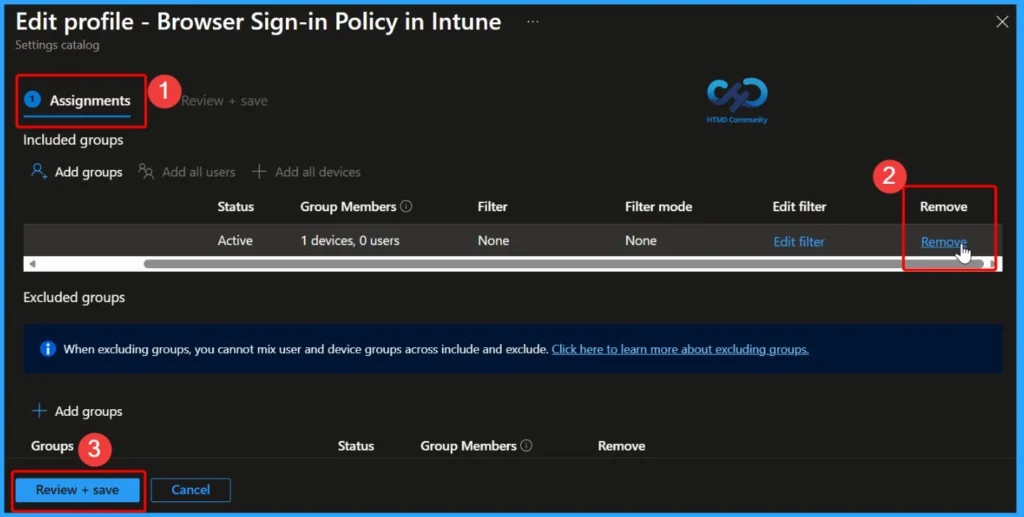
If you want to remove the Assigned group from the policy, it is possible from the Intune Portal. To do this, open the Policy on Intune Portal and edit the Assignments tab and the Remove Policy.
To get more detailed information, you can refer to our previous post – Learn How to Delete or Remove App Assignment from Intune using by Step-by-Step Guide.
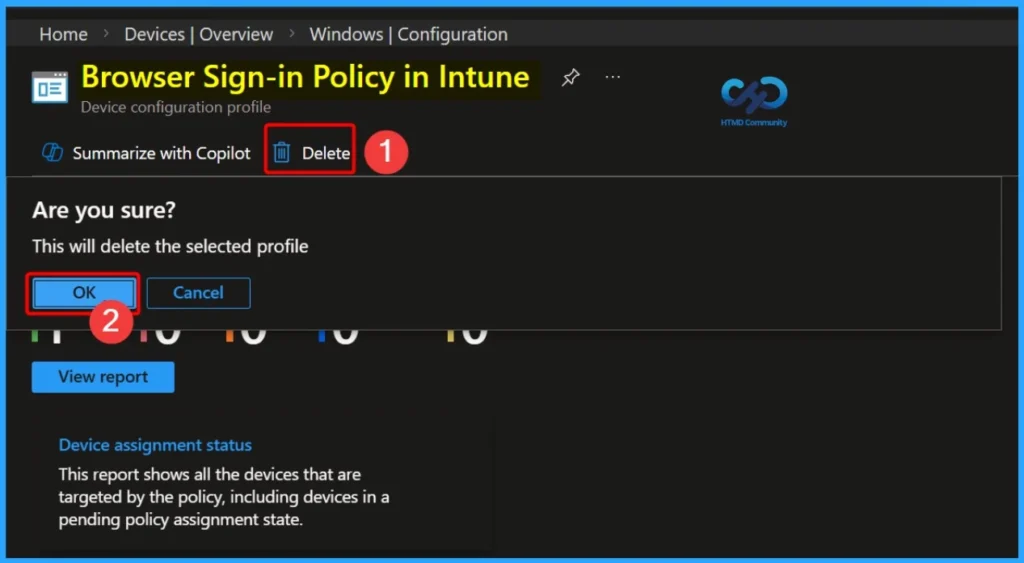
How to Delete the Policy
Policy deletion is needed for some reasons. It may be needed for some security reasons. From the Configuration section, you can delete the policy. It will completely remove from the client devices.
For detailed information, you can refer to our previous post – How to Delete Allow Clipboard History Policy in Intune Step by Step Guide.
Need Further Assistance or Have Technical Questions?
Join the LinkedIn Page and Telegram group to get the step-by-step guides and news updates. Join our Meetup Page to participate in User group meetings. Also, Join the WhatsApp Community to get the latest news on Microsoft Technologies. We are there on Reddit as well.
Author
Anoop C Nair has been Microsoft MVP for 10 consecutive years from 2015 onwards. He is a Workplace Solution Architect with more than 22+ years of experience in Workplace technologies. He is a Blogger, Speaker, and Local User Group Community leader. His primary focus is on Device Management technologies like SCCM and Intune. He writes about technologies like Intune, SCCM, Windows, Cloud PC, Windows, Entra, Microsoft Security, Career, etc.