





Security-Groups

Create Entra ID Dynamic Device Security Group for Windows BYOD and CYOD Devices using Microsoft Intune

Key Takeaways

  • Dynamic device security groups automatically manage Windows devices in Microsoft Entra ID.
  • Devices are grouped based on ownership type (Personal for BYOD, Company for CYOD).
  • No manual device addition is required – membership is fully automated.
  • Device attributes are assigned automatically during Intune enrollment.

Creating an Entra ID Dynamic Device Security Group for Windows BYOD and CYOD devices using Microsoft Intune means that it automatically groups Windows devices based on how they are owned and enrolled, without adding devices manually. BYOD (Bring Your Own Device) refers to personal devices owned by users, while CYOD (Choose Your Own Device) usually means company-approved devices that are controlled by the organization.

Table of Content

Create Entra ID Dynamic Device Security Group for Windows BYOD and CYOD Devices using Microsoft Intune

In Microsoft Intune, when a Windows device is enrolled, Entra ID automatically assigns device attributes such as ownership type (personal or company). A dynamic device security group uses these attributes to decide which devices belong to the group.

In this grouping personal Windows devices can be automatically added to a BYOD group, and company-owned Windows devices can be added to a CYOD group. These groups are then used in Intune to assign policies, apps, or restrictions, ensuring the right settings are applied to the right type of device without manual effort.

  • You can easily create the Create Entra ID Dynamic Device Security Group for Windows BYOD and CYOD Devices by following the below steps.
  • Sign in to Microsoft Intune admin center. Go to Groups > All groups > New Group
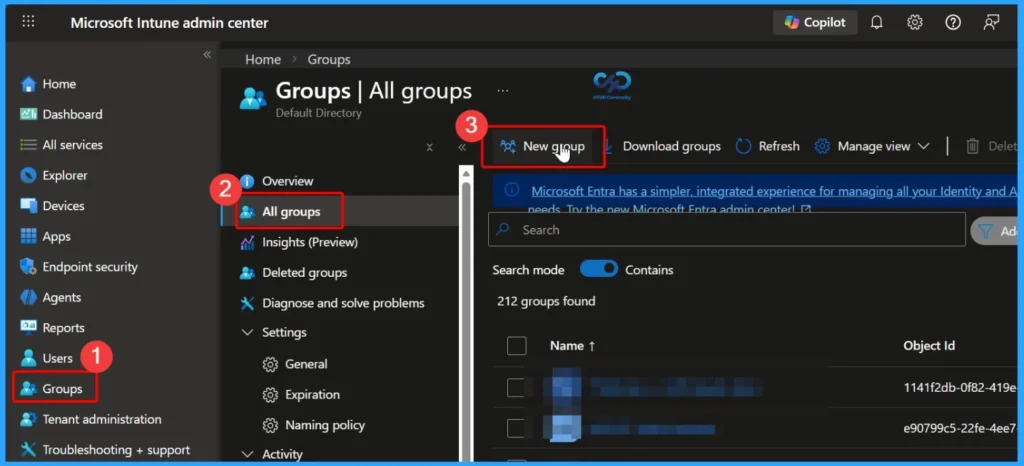
Create Entra ID Dynamic Device Security Group for Windows BYOD and CYOD Devices using Microsoft Intune - Fig.1
Create Entra ID Dynamic Device Security Group for Windows BYOD and CYOD Devices using Microsoft Intune – Fig.1

Configure Basic Details in the New Group Window

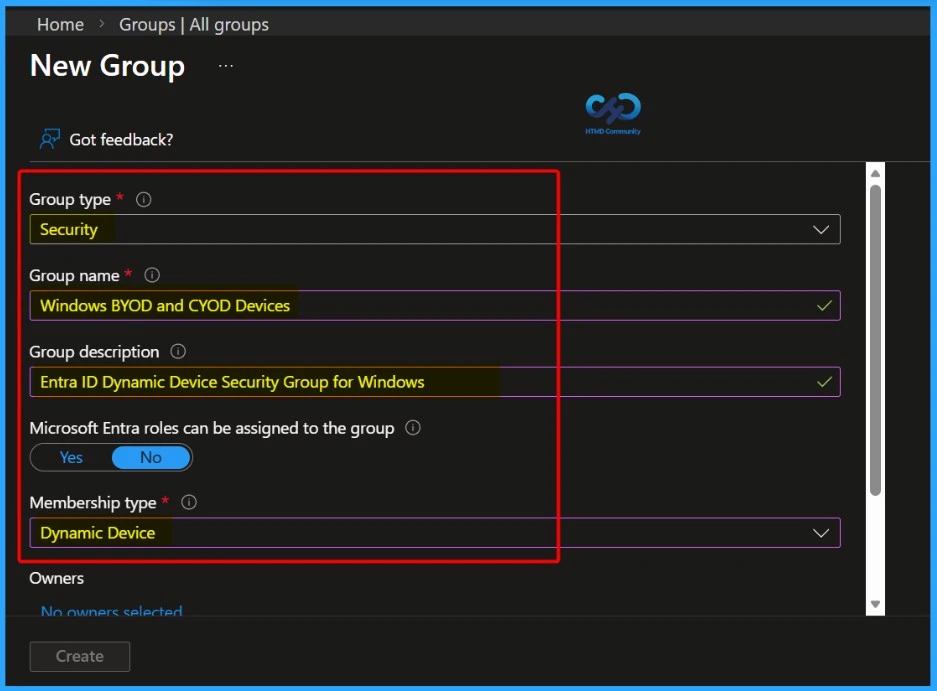
In the New group window, you need to fill in the basic information required to create the group. This includes selecting the Group type, entering a clear Group name, adding a meaningful Group description, and choosing the appropriate Membership type (such as Dynamic device).

Group TypeGroup NameGroup DescriptionMembership type
SecurityWindows BYOD and CYOD DevicesEntra ID Dynamic Device Security Group for WindowsDynamic Device
Create Entra ID Dynamic Device Security Group for Windows BYOD and CYOD Devices using Microsoft Intune – Table 1
Create Entra ID Dynamic Device Security Group for Windows BYOD and CYOD Devices using Microsoft Intune - Fig.2
Create Entra ID Dynamic Device Security Group for Windows BYOD and CYOD Devices using Microsoft Intune – Fig.2

Easily Add a Dynamic Device Query

In the New Group window, select Dynamic device as the membership type. Once this is selected, the Add dynamic query option becomes available. Click Add dynamic query to define the rule that determines which devices are automatically added to the group based on their attributes.
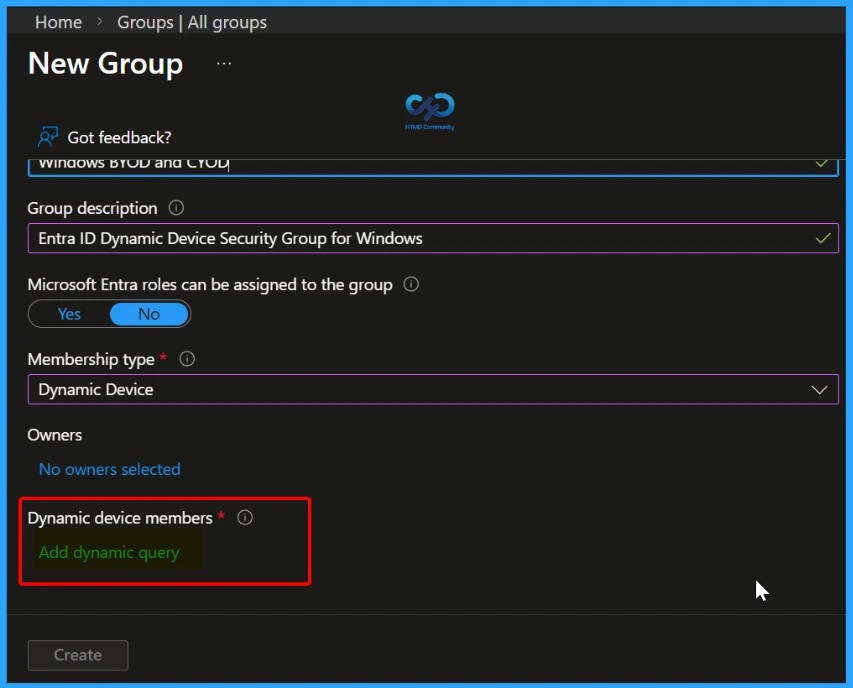
Create Entra ID Dynamic Device Security Group for Windows BYOD and CYOD Devices using Microsoft Intune - Fig.3
Create Entra ID Dynamic Device Security Group for Windows BYOD and CYOD Devices using Microsoft Intune – Fig.3

Create Dynamic Membership Rules

On the Configure Rule tab, add the dynamic membership expressions that define which devices should be included in the group. First, select the Property as deviceOwnership, set the Operator to Equals, and choose the Value as Company. Next, add another expression by selecting the Property DeviceOSType, set the Operator to Equals, and choose Windows as the value.

Rule Syntax – (device.deviceOwnership -eq “Company“) and (device.deviceOSType -eq “Windows”)
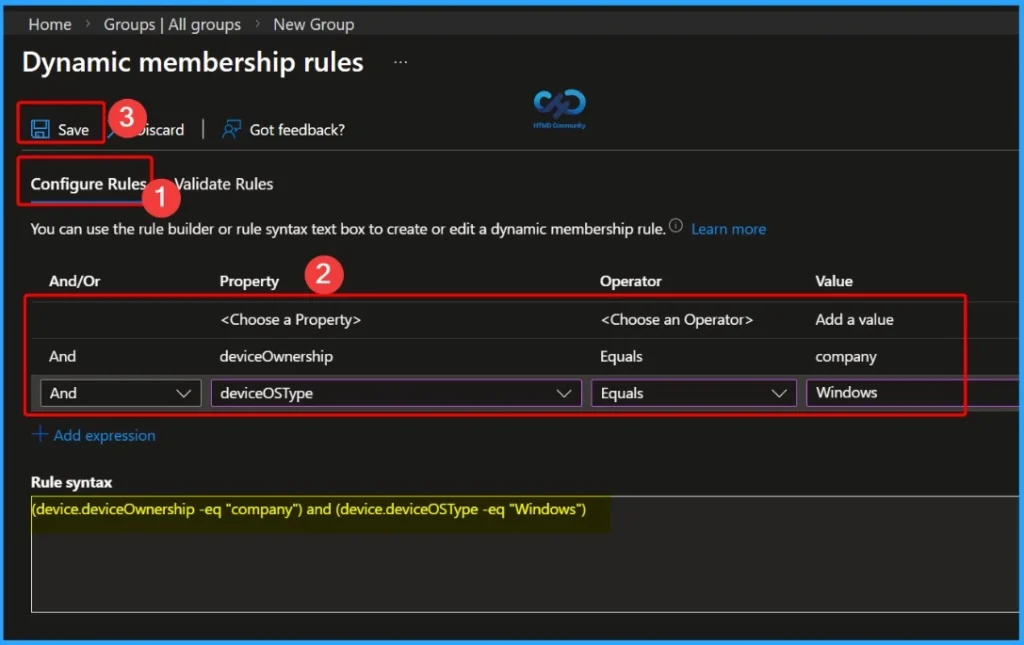
Create Entra ID Dynamic Device Security Group for Windows BYOD and CYOD Devices using Microsoft Intune - Fig.4
Create Entra ID Dynamic Device Security Group for Windows BYOD and CYOD Devices using Microsoft Intune – Fig.4

Notification – Dynamic Device Group Created Successfully

After clicking the Create button, a notification appears confirming that the group Windows BYOD and CYOD Devices has been created successfully. This message indicates that the dynamic device security group is now available in Microsoft Entra ID and will start automatically adding eligible Windows devices based on the configured rules.
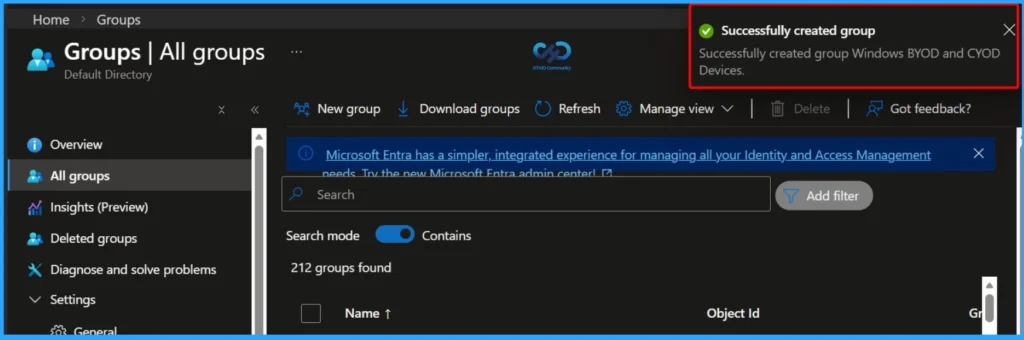
Create Entra ID Dynamic Device Security Group for Windows BYOD and CYOD Devices using Microsoft Intune - Fig.5
Create Entra ID Dynamic Device Security Group for Windows BYOD and CYOD Devices using Microsoft Intune – Fig.5

Verify the Created Dynamic Device Group

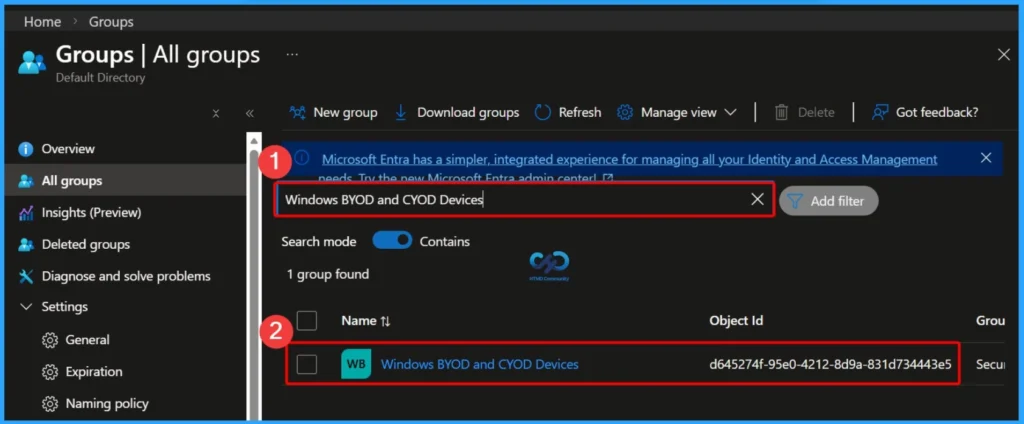
After creating the group, go to Groups > All groups in the Microsoft Entra ID portal. Use the search box to find the newly created group by name. Once you open the group, you can view important details, including the group name, Object ID, group type, membership type (Dynamic device), and related information. This confirms that the group has been created correctly and is ready for use.

NameObject IDGroup TypeMembership Type
Windows BYOD and CYOD Devicesd645274f-95e0-4212-8d9a-831d7SecurityDynamic
Create Entra ID Dynamic Device Security Group for Windows BYOD and CYOD Devices using Microsoft Intune – Table 2
Create Entra ID Dynamic Device Security Group for Windows BYOD and CYOD Devices using Microsoft Intune - Fig.6
Create Entra ID Dynamic Device Security Group for Windows BYOD and CYOD Devices using Microsoft Intune – Fig.6

View Dynamic Group Details and Membership Status

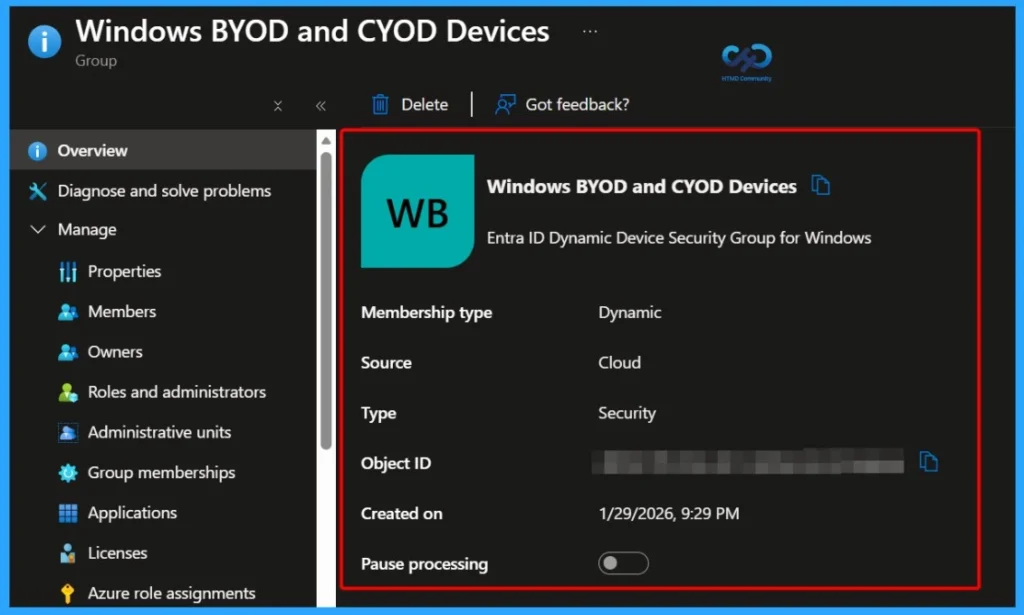
After selecting the group, you can view all the important details on the group overview page. This includes the Membership type, Source, Type, Object ID, Created on date, and the option to Pause processing. These details help you confirm the group configuration and manage how dynamic membership updates are processed.

Membership typeTypeObject IDCreated on
DynamicSecurityd645274f-95e0-4212-8d9a-831d71/29/2026, 9:29 PM
Create Entra ID Dynamic Device Security Group for Windows BYOD and CYOD Devices using Microsoft Intune – Table 3
Create Entra ID Dynamic Device Security Group for Windows BYOD and CYOD Devices using Microsoft Intune - Fig.7
Create Entra ID Dynamic Device Security Group for Windows BYOD and CYOD Devices using Microsoft Intune – Fig.7

View End Result and Membership Summary

In the end result, you can see other important details about the group, such as the total direct members, users, groups, and devices, along with additional membership-related information. These details help you understand how many objects are currently included in the group and confirm that the dynamic membership rule is working as expected.
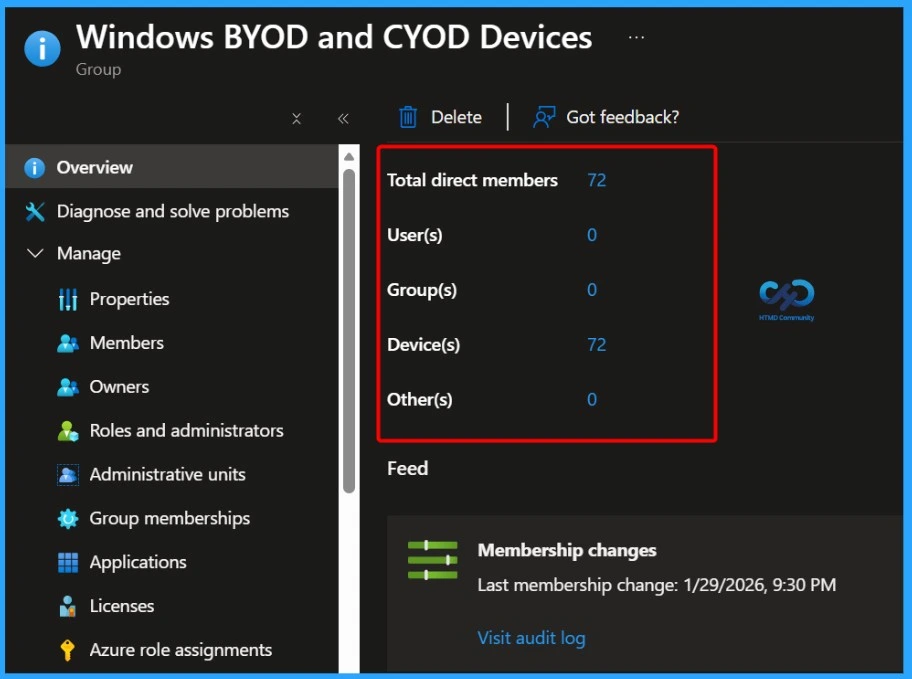
Create Entra ID Dynamic Device Security Group for Windows BYOD and CYOD Devices using Microsoft Intune - Fig.8
Create Entra ID Dynamic Device Security Group for Windows BYOD and CYOD Devices using Microsoft Intune – Fig.8

Need Further Assistance or Have Technical Questions?

Join the LinkedIn Page and Telegram group to get the latest step-by-step guides and news updates. Join our Meetup Page to participate in User group meetings. Also, join the WhatsApp Community  and the Whatsapp channel to get the latest news on Microsoft Technologies. We are there on Reddit as well.

Author

Anoop C Nair has been Microsoft MVP for 10 consecutive years from 2015 onwards. He is a Workplace Solution Architect with more than 22+ years of experience in Workplace technologies. He is a Blogger, Speaker, and Local User Group Community leader. His primary focus is on Device Management technologies like SCCM and Intune. He writes about technologies like Intune, SCCM, Windows, Cloud PC, Windows, Entra, Microsoft Security, Career, etc.

How to Automatically Add Devices to Intune Groups using Microsoft Entra Dynamic Device Groups 1

How to Automatically Add Devices to Intune Groups using Microsoft Entra Dynamic Device Groups

Key Takeaways

  • Automatically organize devices during enrollment.
  • Reduce manual device group assignments.
  • Improve consistency and scalability in device management.
  • Deploy applications and policies based on department or device role.

In this post let’s Learn How to Setup Dynamic Device Groups in Intune. Managing devices efficiently is a part of endpoint administration. Microsoft Intune provides several methods to organize and manage devices, and Device Categories remain a simple and effective option for assigning devices to the correct groups during enrollment.

How to Automatically Add Devices to Intune Groups using Microsoft Entra Dynamic Device Groups

By combining Device Categories with Dynamic Device Groups in Microsoft Entra ID, administrators can reduce manual effort and ensure devices receive the correct policies, applications, and configurations. This approach helps device management and improve deployment consistency across the organization.

How Do You Add Devices Automatically to Intune Groups using Microsoft Entra Dynamic Device Groups?

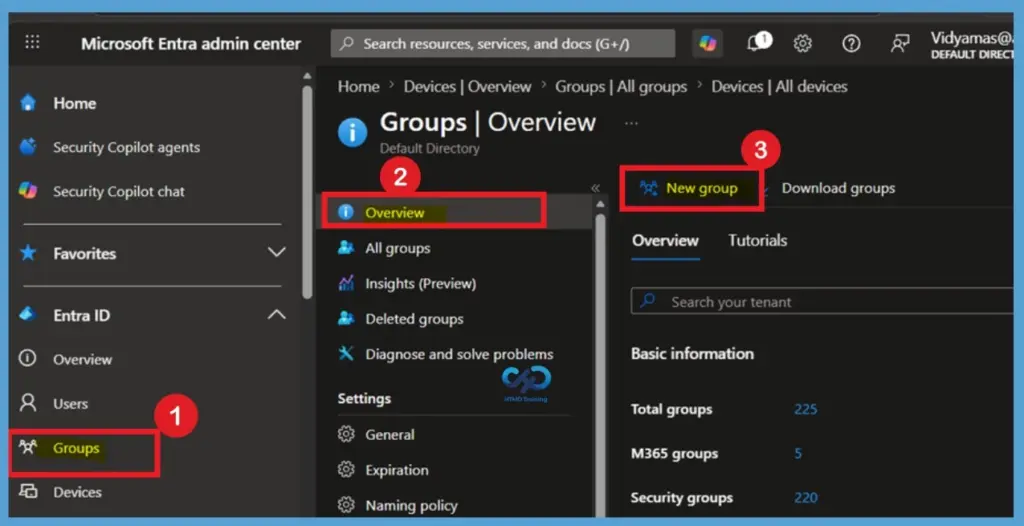
To automatically add devices to Intune groups, you first need to create a Dynamic Device Group in the Microsoft Entra admin center. Sign in to the Microsoft Entra portal, navigate to Groups > All Groups, and select New Group. Dynamic groups automatically manage membership based on rules, eliminating the need to manually add or remove devices.

In this example, we will create a security group that uses dynamic membership rules. Once the group is created, Microsoft Entra automatically evaluates devices against the configured rule and adds matching devices to the group. This makes device management more efficient and ensures devices are always assigned to the correct group.

How to Automatically Add Devices to Intune Groups using Microsoft Entra Dynamic Device Groups - Fig.1
How to Automatically Add Devices to Intune Groups using Microsoft Entra Dynamic Device Groups – Fig.1

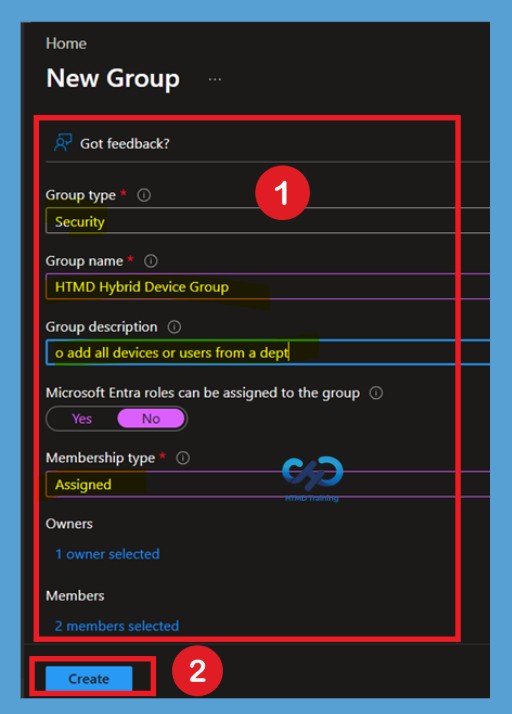
On the New Group page, select Security as the Group Type and provide a Group Name and Description. Under Membership Type, select Dynamic Device instead of Assigned. This enables Microsoft Entra to automatically manage group membership based on the rules you define.

  • After selecting Dynamic Device, create a membership rule that identifies the devices you want to include in the group.
  • Once the rule is validated and saved, select Create.
  • Microsoft Entra will begin processing the rule and automatically add devices that meet the specified criteria.
  • Whenever a new user joins the IT department, that user is automatically added to the Intune MDM group. Provisioning and de-provisioning groups is made easy with this.

Microsoft Entra ID provides 2 methods for creating dynamic membership rules: the Rule Builder and the Rule Syntax editor. The Rule Builder offers an easy-to-use graphical interface, while the Rule Syntax editor allows advanced administrators to create more complex queries. To automatically add Hybrid Microsoft Entra joined devices to a dynamic device group, select Add Dynamic Query, choose deviceTrustType as the property, set the operator to Equals, enter ServerAD as the value, and then save the rule.

More Details -> Create AAD Dynamic Groups Based On Domain Join Type Hybrid Azure AD And Azure AD

Learn How to Setup Dynamic Device Groups in Intune
Login to Microsoft Entra portal
Navigate to the Groups > All Groups >select New Group.
Group Type -> Security
Group Name ->HTMD Hybrid Device Group
Group Description -> To add all devices or users from a dept
Membership Type -> Dynamic User
LeHow to Automatically Add Devices to Intune Groups using Microsoft Entra Dynamic Device Groups – Table 1
How to Automatically Add Devices to Intune Groups using Microsoft Entra Dynamic Device Groups - Fig.2
How to Automatically Add Devices to Intune Groups using Microsoft Entra Dynamic Device Groups – Fig.2

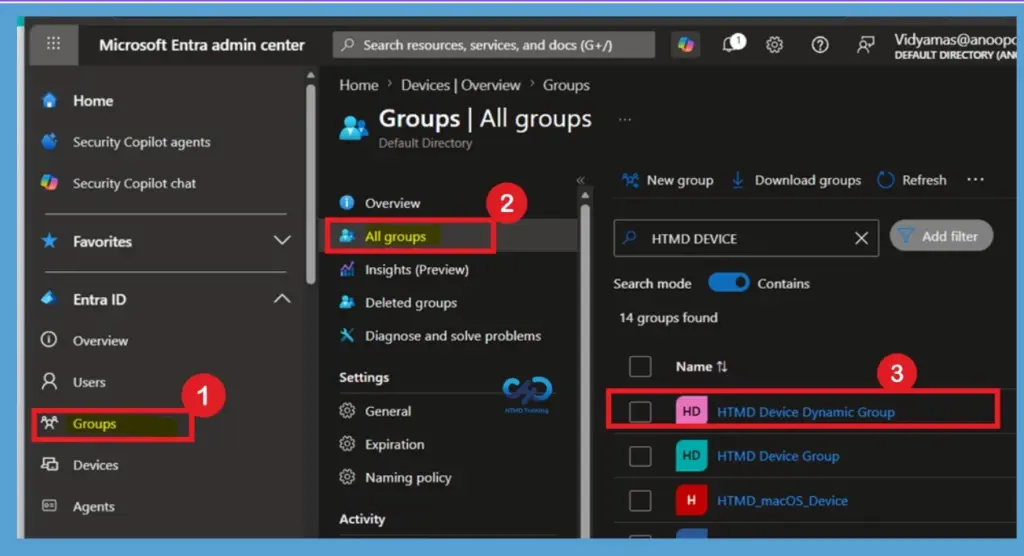
Access the Dynamic Device Group

Navigate to Groups > All Groups in the Microsoft Entra admin center and locate the Dynamic Device Group you want to manage. Select the group to review its settings and configure dynamic membership rules. Once selected, the group can automatically add devices that meet the specified criteria, reducing administrative effort and ensuring devices are organized.

How to Automatically Add Devices to Intune Groups using Microsoft Entra Dynamic Device Groups - Fig.3
How to Automatically Add Devices to Intune Groups using Microsoft Entra Dynamic Device Groups – Fig.3

Automatically Assign Devices to Intune Groups with Device Categories

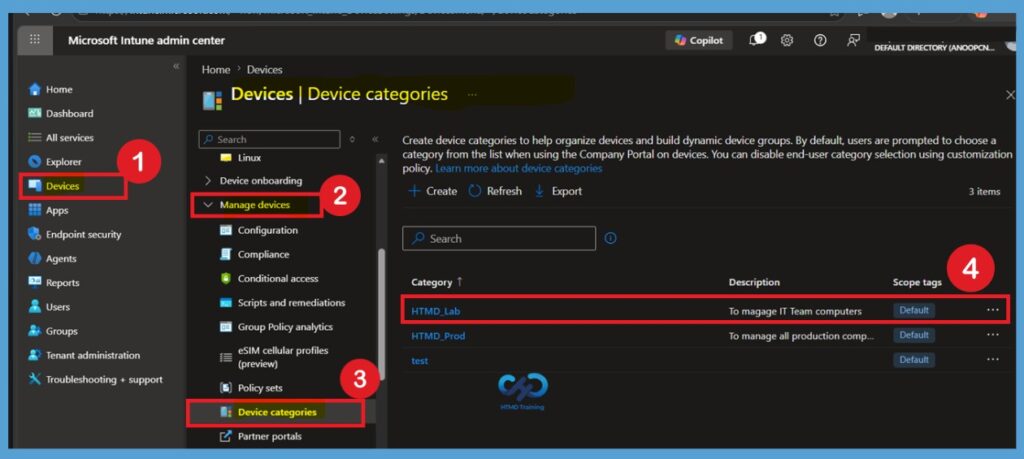
Microsoft Intune Device Categories help administrators organize devices and automatically assign them to the appropriate groups during enrollment. To create a device category, sign in to the Intune admin center and navigate to Devices > Manage Devices > Device Categories. Select Create, provide a category name and description, and then save the category.

Device Categories can represent departments, locations, or device purposes such as IT, HR, Finance, or Sales. When users enroll their devices through the Microsoft Intune Company Portal app, they can select the appropriate category. This category can then be used with Microsoft Entra dynamic device groups to automatically group devices and simplify policy and application assignments.

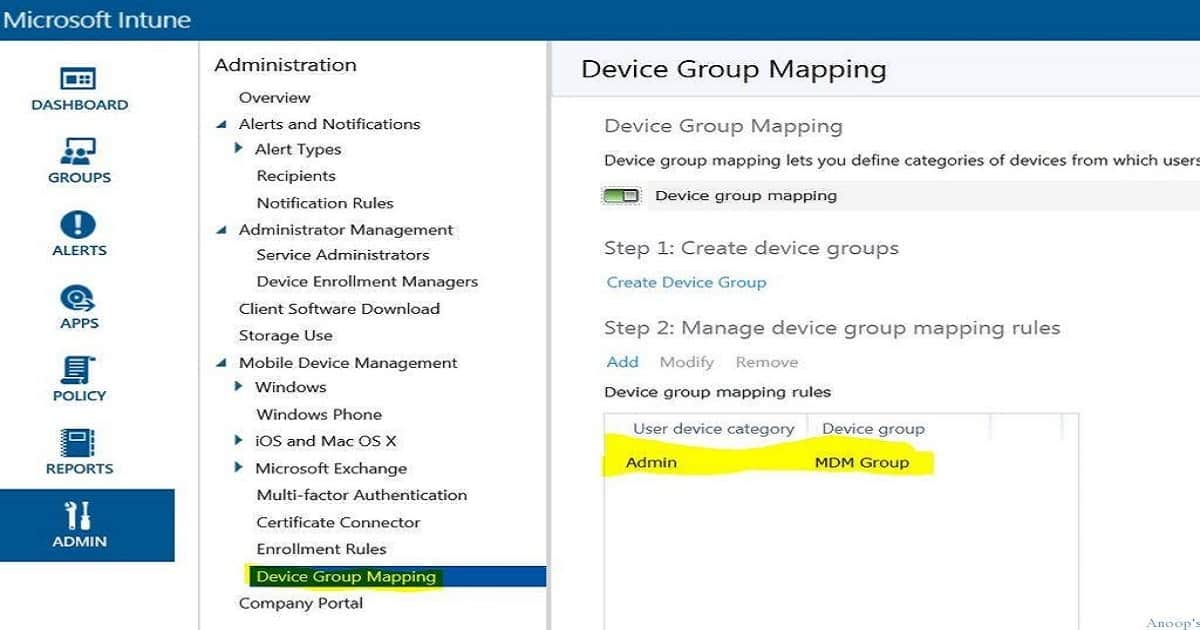
  • I have created only one category, “ADMIN,” for users. You are free to make an Intune device category for each department!!

More details on AAD Groups Based On Intune Device Categories.

How to Automatically Add Devices to Intune Groups using Microsoft Entra Dynamic Device Groups - Fig.4
How to Automatically Add Devices to Intune Groups using Microsoft Entra Dynamic Device Groups – Fig.4

Need Further Assistance or Have Technical Questions?

Join the LinkedIn Page and Telegram group to get the latest step-by-step guides and news updates. Join our Meetup Page to participate in User group meetings. Also, Join the WhatsApp Community and WhatsApp Channel to get the latest news on Microsoft Technologies. We are there on Reddit as well.

Author

Anoop C Nair has been Microsoft MVP from 2015 onwards for 10 consecutive years! He is a Workplace Solution Architect with more than 22+ years of experience in Workplace technologies. He is also a Blogger, Speaker, and Local User Group Community leader. His primary focus is on Device Management technologies like SCCM and Intune. He writes about technologies like Intune, SCCM,  Windows,   Cloud PC, Windows, Entra, Microsoft Security, Career, etc.