
HTMD Community Free Python Intune Tool | HTMD – Microsoft Intune Reports Export Tool v1.0.I am truly proud and excited to share that HTMD has released its very first open-source community tool during the HTMD Community Conference 2025, hosted on 6 th December 2025 at the Microsoft Campus – Prestige Ferns Galaxy, Bengaluru.
This achievement is especially meaningful to me, as I invested significant effort, dedication, and countless hours into developing the HTMD – Microsoft Intune Reports Export Tool V1.0. Seeing it unveiled at the conference was both humbling and rewarding, as it represents not only a technical milestone but also the spirit of collaboration and innovation that defines our community.
The conference was a resounding success, bringing together passionate professionals and enthusiasts to celebrate community-driven growth. I am grateful to be part of this journey and excited to see how this tool empowers Intune admins worldwide.
This article demonstrates how the tool works and how it can empower Intune admins with simplified, automated reporting. It’s not just a release, it’s the result of dedication, collaboration, and a passion for building solutions that make a real difference.

Table of Contents
How Does the HTMD – Microsoft Intune Reports Export Tool V1.0 Help Intune Admins?
While Microsoft Intune is a powerful endpoint management solution, its native reporting capabilities are often limited. Admins frequently struggle to extract detailed, customised reports that provide actionable insights. The built-in options can be restrictive, requiring manual effort or complex workarounds to gather the data needed for compliance, troubleshooting, and audits.
This lack of flexibility means Intune admins spend significant time piecing together information from multiple sources. Whether it’s tracking device compliance, application deployment status, or user activity, the absence of comprehensive export features creates inefficiencies. Admins often face delays in responding to issues, difficulty in presenting data to stakeholders, and frustration in maintaining visibility across large environments.
- Download the PPT of the HTMD Community Conference 2024
- HTMD Community Conference 2025 Updated Agenda
- HTMD Community Conference 2025 – December 6th Saturday
The HTMD – Microsoft Intune Reports Export Tool V1.0 directly addresses these challenges. Designed with community needs in mind, it enables admins to easily export Intune reports in a structured, reusable format. By simplifying data extraction and reporting, the tool saves time, reduces manual effort, and empowers admins with the insights they need to manage Intune environments more effectively. This is not just a tool, it’s a solution built to bridge the reporting gap and make Intune administration smoother and more impactful
All Available Reports in Microsoft Intune Reports Export Tool v1.0
Here is the list of all available reports in the HTMD – Microsoft Intune Reports Export Tool v1.0. We have automated the process and made 178 reports accessible through the HTMD – Microsoft Intune Reports Export Tool v1.0. The table below helps you to understand the report category
| Category |
|---|
| Security & Antivirus |
| Apps & Application Management |
| Mobile Application Management |
| Device Management & Inventory |
| Device Compliance |
| Configuration Policies |
| Device Assignment & Status |
| Compliance Policy Reports |
| Windows Updates |
| Enrollment & Autopilot |
| Endpoint Analytics – Device Performance |
| Endpoint Analytics – Application Performance |
| Endpoint Analytics – Startup Performance |
| Endpoint Analytics – Resource Performance |
| Endpoint Analytics – Battery Health |
| Endpoint Analytics – Work from Anywhere |
| Endpoint Analytics – Anomalies |
| Scripts & Proactive Remediations |
| Endpoint Privilege Management |
| Device Settings & Configuration |
| Co-management & Cloud Attached |
| Group Policy Analytics |
| Security Tasks & Monitoring |
| Users & Remote Assistance |
The detailed report names and their descriptions have been added to the GitHub repository. You can check it to understand which reports are available through the HTMD – Microsoft Intune Reports Export Tool v1.0.
Prerequisites and Setup Guide
Let me tell you the prerequisites of the tool before I explain how it works. The HTMD – Microsoft Intune Reports Export Tool v1.0 needs the latest version of Python (3.8 or higher – Recommended: 3.11+) installed on your machine. The tool will work on Windows 10/11, Linux, and macOS operating systems. Python can be downloaded from https://www.python.org/downloads/.
- Best Guide to Update the Python Application with Enterprise App Management in Intune
- Microsoft 365 Copilot in Excel with Python | Unformatted Data XLOOKUP SUMIF and Restricted Formatting
- Create and Deploy Python Application with the Intune Enterprise App Catalog App
You need certain Python Modules to be installed on your machine, such as requests, pandas, tkinter, pyautogui and openpyxl. However, the tool will automatically install these modules if not installed. However, the modules can be simply installed using the Python command pip install requests pandas pyautogui openpyxl
| Python Modules | Description |
|---|---|
| requests | HTTP requests to Microsoft Graph API |
| pandas | Data processing and CSV handling |
| tkinter | GUI framework – usually included with Python |
| pyautogui | PowerBI automation |
| openpyxl | Excel export support |
HTMD Community Free Python Intune Tool | HTMD – Microsoft Intune Reports Export v1.0 Tool. Table-02
Required Permissions to Run the Tool
This tool is designed as an interactive end-user application that authenticates with your corporate account and exports data based on your existing Intune permissions. By leveraging delegated permissions, it ensures that you only see data you are already authorised to access, eliminates the need for tenant-wide admin consent, supports corporate authentication, and aligns with least-privilege security principles for compliance and safety.
- How to Track User Registration Details in Entra ID using Microsoft Graph API
- How to Export Privileged Identity Management Role Assignments in Entra ID using PowerShell
- PowerShell Script to Track Upcoming Microsoft Entra App Secret Expirations
To configure the application, first go to https://entra.microsoft.com/. Under Entra ID App registrations, either select your existing application or create a new one. In the Authentication section, add a Redirect URI with the platform set to Web and the URI as http://localhost:8080/callback. You must create an app registration secret key and note down the client secret key value, as well as the client ID and tenant ID.
Next, go to API permissions, click Add a permission, and select Microsoft Graph. Choose Delegated permissions and add the required permissions: DeviceManagementConfiguration.Read.All, DeviceManagementManagedDevices.Read.All, DeviceManagementApps.Read.All, DeviceManagementServiceConfig.Read.All, User.ReadBasic.All, Group.Read.All, and Directory.Read.All. Once added, click Add permissions and then Grant admin consent for [Organisation]. Note that admin consent is mandatory for all permissions.
| Permission | Description |
|---|---|
| DeviceManagementConfiguration.Read.All | Read Intune device configuration profiles and settings. |
| DeviceManagementManagedDevices.Read.All | Read properties and details of managed devices in Intune. |
| DeviceManagementApps.Read.All | Read information about mobile and PC applications managed by Intune. |
| User.ReadBasic.All | Read basic profile information of users (name, email, photo). |
| Group.Read.All | Read group properties and memberships across the directory. |
| Directory.Read.All | Read directory data such as users, groups, and organisational details. |
- Add Microsoft Entra Users to Group Membership using Microsoft Graph API and PowerShell Script
- Get Information Last Password Change for an Entra ID User using Microsoft Graph API
- Create Microsoft Entra ID Users with PowerShell Script
How to Use HTMD – Microsoft Intune Reports Export Tool v1.0.
Let’s learn how the HTMD – Microsoft Intune Reports Export Tool v1.0 works and how to use it. To get started, you must have the latest version of Python installed, either Visual Studio Code or PyCharm set up on your laptop, and the required permissions assigned to your Entra ID app registrations.
Download the HTMD - Microsoft Intune Reports Export Tool v1.0 : GitHub repository Download the HTMD – Microsoft Intune Reports Export Tool v1.0.py code from the GitHub repository and run it with the required permissions. Copy and paste the code into Visual Studio Code. Add the client_id, client_secret, and tenant_id to the code you obtained from the Entra ID App. You can locate them in the code by searching for client_id.
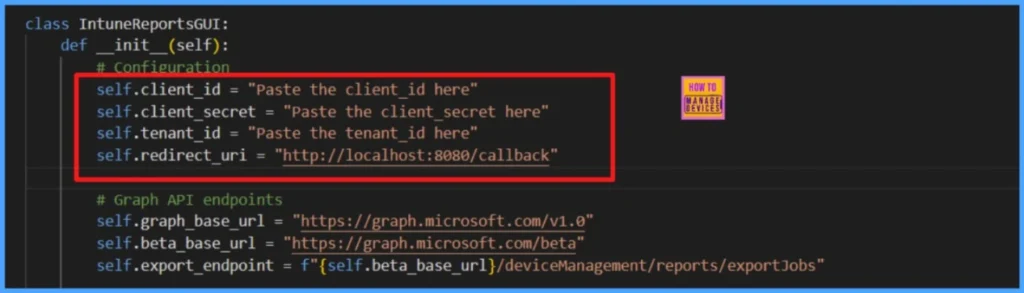
Execute the code once you paste the client_id, client_secret, and tenant_id. The code will check for the required Python packages and install them if necessary. Once the packages are installed, the HTMD – Microsoft Intune Reports Export Tool v1.0 GUI will open and prompt you to log in with your corporate credentials.
- Click Sign in with Corporate Account. You will be prompted to enter your username and password in the web portal, and then complete the login using MFA.
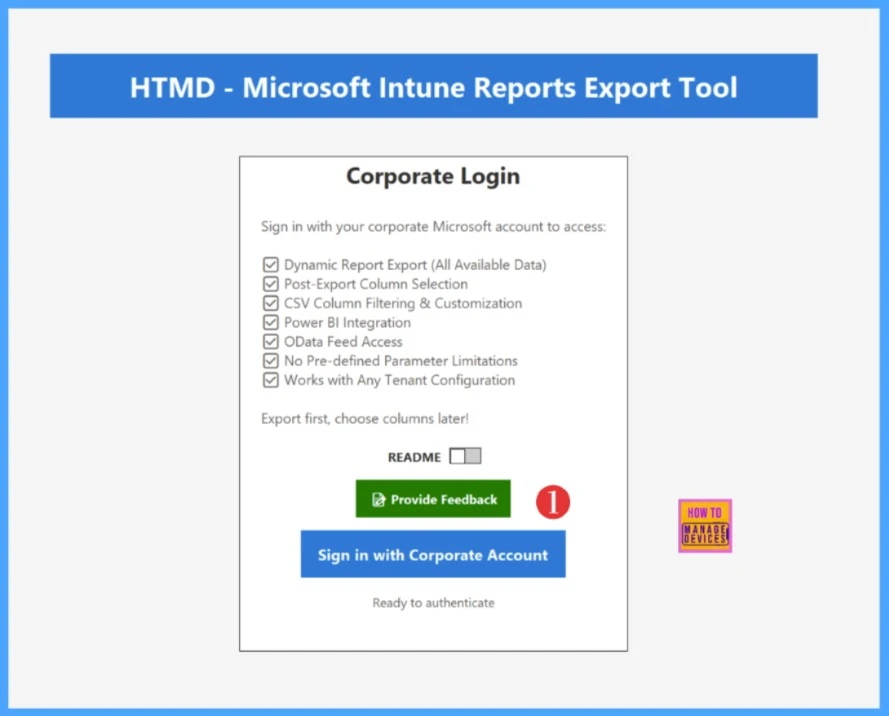
NOTE! You can click on README to learn more about the toolYou will get an Authentication Successful message when you log in successfully. You can close this window and return to the HTMD – Microsoft Intune Reports Export v1.0 Tool.
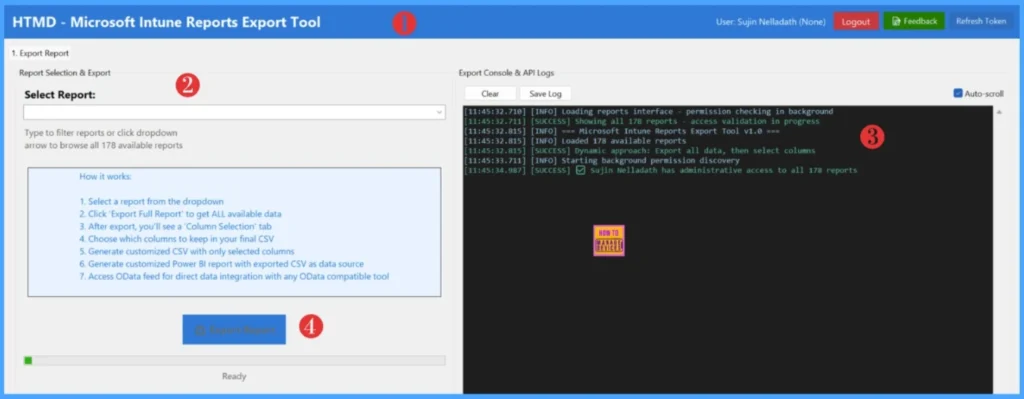
The HTMD – Microsoft Intune Reports Export v1.0 Tool features an intuitive graphical interface designed for efficient data extraction and management. The main dashboard provides comprehensive control over report selection, export operations, and real-time monitoring of API interactions. Below is a detailed breakdown of all available controls and their functions to help you navigate the tool effectively.
- User Display: Shows the logged-in user’s name and email address
- Refresh Token: Click to refresh your authentication token when it expires
- Feedback: Click to provide feedback about the tool
- Logout: Click to sign out of your current session
- Select Report: Dropdown menu that lists all 178 available Microsoft Intune reports. You will only be able to access reports based on your permissions and tenant configuration
- Report Description: Shows contextual information about available reports and your access level.
- Export Report: Click to export the selected report with all available data. This begins the export process and retrieves complete data from the Microsoft Graph API
- Clear: Clears the export console and API logs
- Save Log: Saves the current console output and API logs to a file for troubleshooting
- Auto-scroll: Checkbox to automatically scroll the console as new log entries appear.
- Progress Bar: Shows the status of current export operations
- Progress Label: Displays current operation status (Ready, Authenticating, Exporting, etc.)
- Export Console: Real-time display of API calls, authentication status, and export progress with color-coded messages (success, error, warning, info).
- Select a report from the dropdown
- Click “Export Report” to retrieve all available data
- After export completes, a “Column Selection” tab appears
- Choose which columns to include in your final CSV export
- Generate customised reports with only selected data columns.
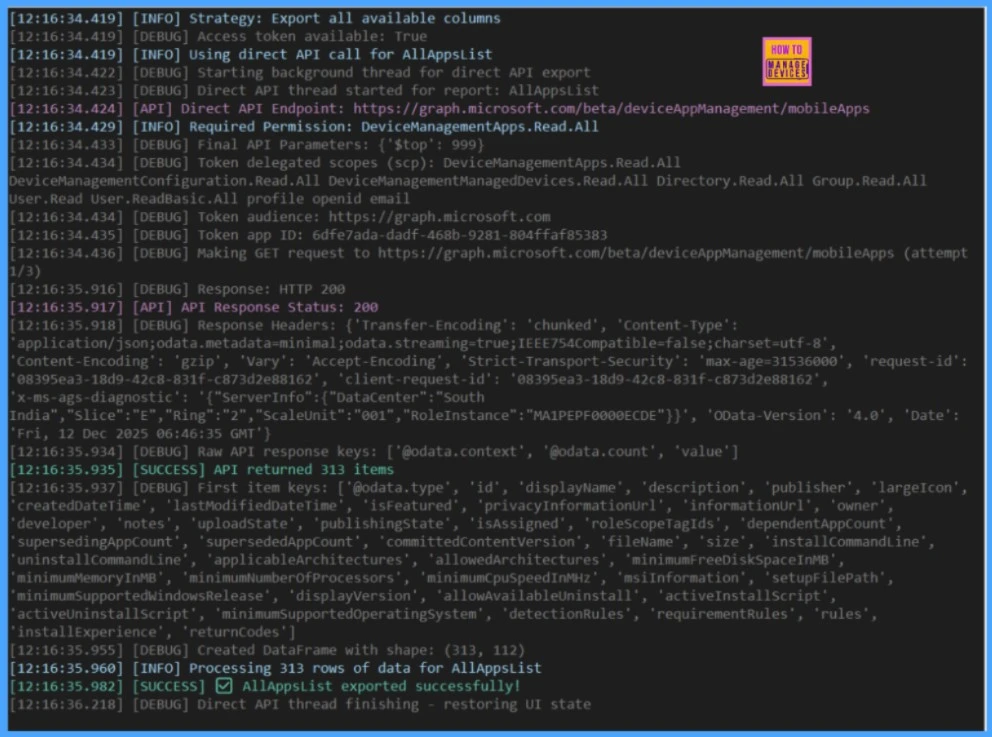
Select the report you would like to export. You can also type the report name and click Export Report to go to the second page. Some reports may require input; simply provide the input and proceed further. I am selecting the AllAppsList report. The logs will appear in the export console & API logs panel. You can save the logs if you need them.
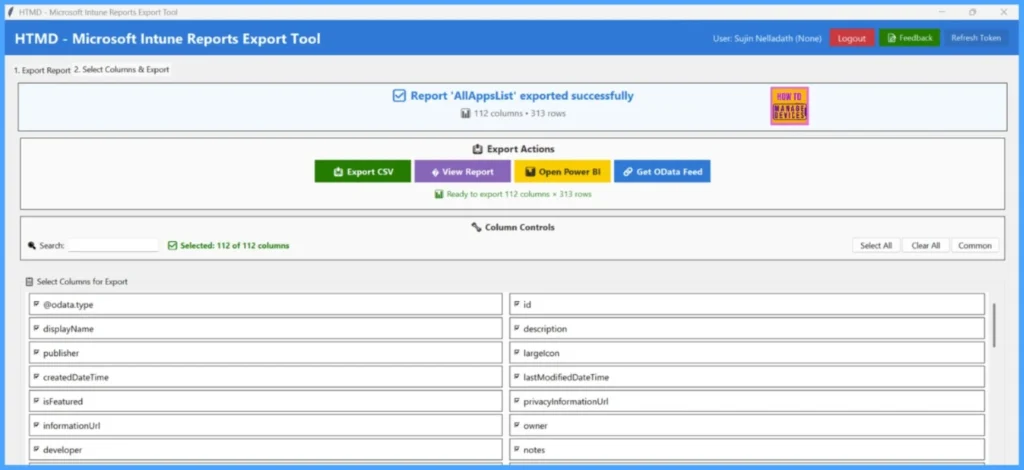
After successfully exporting a report from the first tab, the tool automatically creates a second tab, “Column Selection & Export,” that provides granular control over your final data output. This tab displays the complete export results and allows you to customise which data columns to include in your final CSV file.
- Success Message: Displays confirmation that your selected report (e.g., “AllAppsList”) has been exported successfully with a checkmark indicator
- Data Statistics: Shows the total number of columns and rows retrieved (e.g., “112 columns • 313 rows”), giving you immediate visibility into the scope of your exported data
- Export CSV: Generates and downloads a CSV file containing only the columns you have selected from the available data
- View Report: Opens a preview window displaying the actual report data in a tabular format for review before final export
- Open Power BI: Launches Microsoft Power BI Desktop and automatically loads your exported data for advanced analytics and visualisation
- Get OData Feed: Provides an OData connection string that allows direct data integration with other business intelligence tools and applications
- Status Indicator: Shows “Ready to export X columns • Y rows” reflecting your current column selections
- Search Box: Allows you to quickly find specific columns by typing column names or keywords, making it easier to navigate through large datasets
- Selection Counter: Displays “Selected: X of Y columns” showing how many columns are currently selected out of the total available
- Select All: Checkbox to select all available columns for export instantly
- Clear All: Checkbox to quickly deselect all columns and start fresh with your selection
- Common: Pre-selects commonly used columns based on the report type (e.g., deviceName, userPrincipalName Individual Checkboxes: Each available column is displayed with a checkbox, allowing you to select or deselect specific data fields
- Column Names: Shows the actual field names from the Microsoft Graph API response (e.g., @odata.type, displayName, publisher, createdDateTime)
- Two-Column Layout: Columns are organised in a dual-column layout for efficient use of screen space and easier browsing
- Real-time Selection: Column selections update immediately, and the counter reflects changes in real-time.
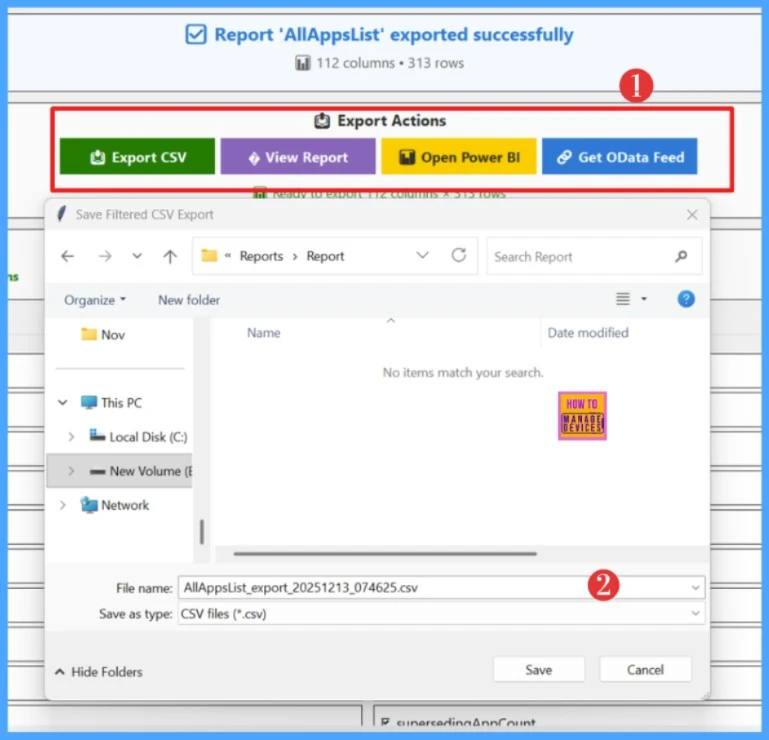
As mentioned above, you can click Export CSV to save the file to your local machine. You can use the View Report button to review the report before exporting.
Video – How to Use HTMD – Microsoft Intune Reports Export Tool v1.0.
Here is the video explanation of how to use the HTMD – Microsoft Intune Reports Export Tool v1.0 and how it works. The video will help you gain a better understanding of the tool.
Your Feedback is Important to Us
The HTMD – Microsoft Intune Reports Export v1.0 Tool is our first initiative in developing a community-driven Microsoft Intune tool. We would greatly appreciate your feedback to help us improve it.
You can share your thoughts by clicking the Feedback Form included in the tool. If you encounter any issues while using it, please fill out the form and let us know. Currently, the tool automates 178 reports. If you feel additional reports should be automated, we encourage you to suggest them through the Feedback Form
HTMD – Microsoft Intune Reports Export v1.0 Tool Feedback form : Click hereHTMD Developers
The HTMD – Microsoft Intune Reports Export v1.0 Tool is a result of significant effort, dedication, and countless hours. I want to thank our HTMD Developers, Kaveri P K and Nileena K R, for your continuous dedication and support. The development of the HTMD – Microsoft Intune Reports Export Tool v1.0 would not have been possible without their contributions.
I want to express my gratitude to Anoop Nair and Gowdhaman Karthikeyan (GK) for their continuous support and guidance. Their dedication to building community-driven solutions, refining automation workflows, and upholding technical excellence has been truly instrumental in bringing this tool to life.

Need Further Assistance or Have Technical Questions?
Join the LinkedIn Page and Telegram group to get the latest step-by-step guides and news updates. Join our Meetup Page to participate in User group meetings. Also, join the WhatsApp Community to get the latest news on Microsoft Technologies. We are there on Reddit as well.
Author
About the Author: Sujin Nelladath, a Microsoft Graph MVP with over 11 years of experience in SCCM device management and Automation solutions, writes and shares his experiences with Microsoft device management technologies, Azure, DevOps and PowerShell automation