
Key Takeaways
- Identify which administrator or application created a Device Configuration Policy.
- Track when a Device Configuration Policy was deleted.
- Use Category and Activity filters to narrow down relevant audit events.
- Use the Object ID and Correlation ID to help investigate specific activities.
Microsoft Intune Audit Logs provide administrators with visibility into important activities performed within the Intune environment. Actions such as creating, editing, deleting, assigning, and performing remote actions on managed resources can generate audit events that administrators can review. This makes audit logs useful when investigating unexpected configuration changes or determining which administrator initiated a particular action.
Table of Contents
Table of Contents
Intune Audit Logs Track Who Created Deleted Device Configuration using Intune
In this post, we’ll explore how to use Intune Audit Logs to identify who created or deleted a Device Configuration Policy. By filtering the audit records for specific Device Configuration activities, administrators can view details such as the date and time of the action, the user or application that initiated it, the activity performed, and the affected policy.
Intune Audit Logs are constructive to track who did what in your Intune environment. The Audit Logs will help you get answers for most of the unforeseen issues in the environment. This post will track who created or deleted device configuration profiles.
- Easily Manage Device Power Options Using Intune
- 63 Episodes Of Free Intune Training For Device Management Admins
- How to Create Intune Audit Credential Validation Policy
- Securing SMB Communication with Intune using Digitally Sign Communications Policy
| Users with the following Permissions can Review Audit Logs |
|---|
| Global Administrator |
| Intune Service Administrator |
| Administrators assigned to an Intune role with Audit data – Read permissions |
Who Created Device Configuration Policy
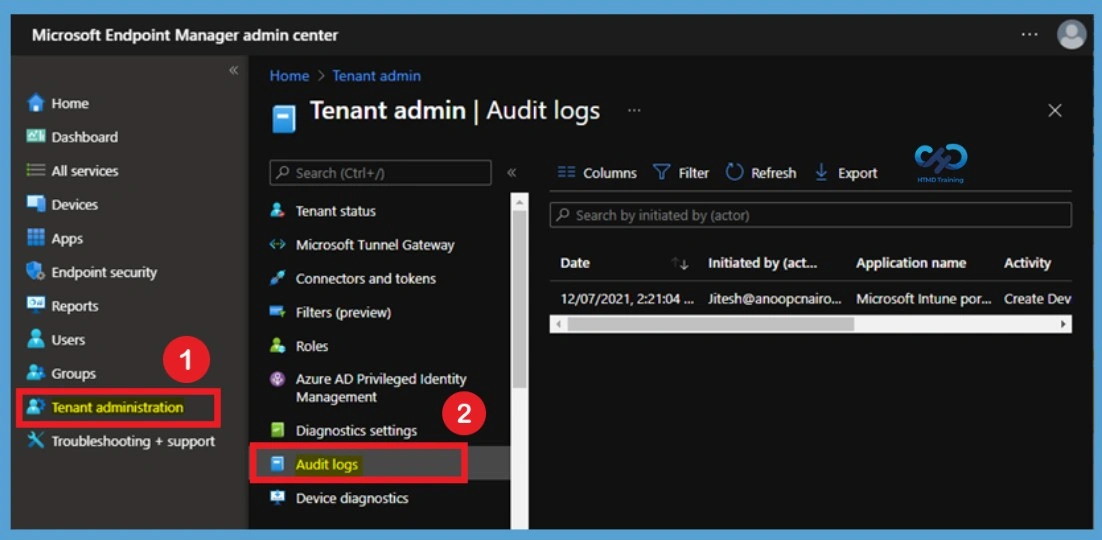
You can find audit logs in the Intune Admin center portal. Sign in to the Microsoft Intune admin center using an account that has permission to view Intune audit data. Once signed in, you can access the administrative monitoring and reporting features available for your tenant, including Audit Logs. The audit records can help you investigate configuration changes and determine which user, or application performed a particular action. You can review audit logs in the monitoring group for each Intune workload.

- Sign in to the Intune Admin center portal
- Select Tenant administration > Audit logs.
Filter
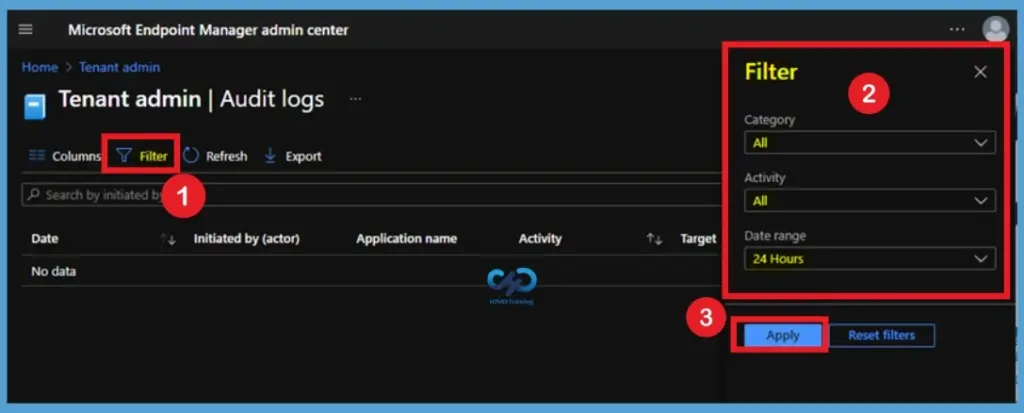
Intune Audit Logs help administrators track actions taken on device configuration policies. It shows that you can apply filters by category, activity, and date range to quickly narrow down results. Once applied, the filtered logs reveal details.
- To filter the results, select Filter and refine the results using the following options and Select Apply.
- Category: such as Compliance, Device, and Role.
- Activity: the options listed here are restricted by the option chosen under Category.
- Date range: you can choose logs for the previous month, week, or day.
Select Device Configuration under Category
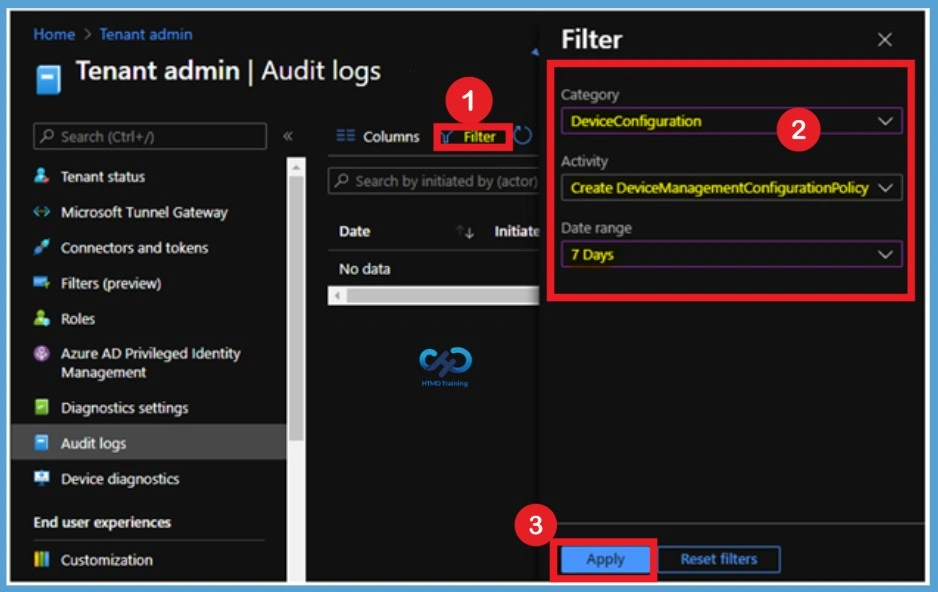
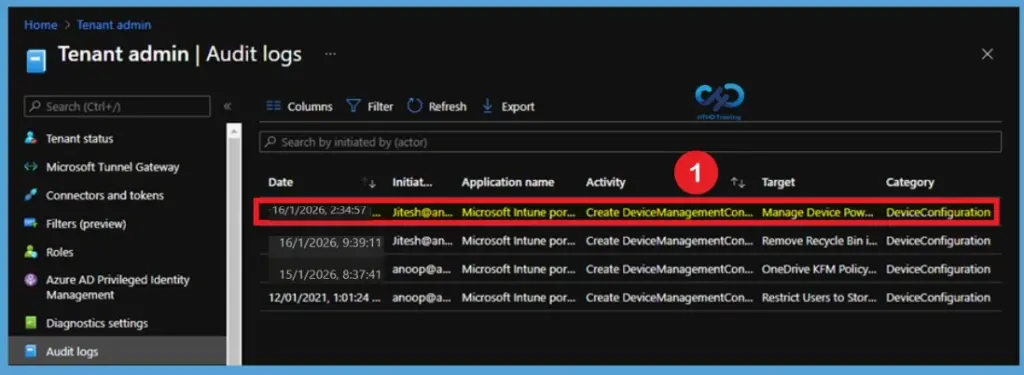
Under the Category filter, select DeviceConfiguration. This category limits the audit results to activities associated with device configuration policies and profiles. Selecting the correct category is important because it prevents unrelated audit activities from appearing in the results and makes it easier to identify the policy creation event you are looking for. Let’s check who has created and deleted the device configuration profile. You need to click on Filter and select the following options to get the details for created device configuration policy and click Apply –
- Category > DeviceConfiguration
- Activity > Create DeviceManagementConfigurationPolicy
- Date range > 7 Days
Select the Date Range
Once any of the actions are performed by users, you can directly visit audit logs to see recent actions. I have also noticed that Audit logs in the Intune portal are very short-lived or removed immediately. The following are some of the categories available for Intune portal audit logs. You can select an item in the list to see the activity details.
- Date – Date of the activities.
- Initiated by (actor) – Who Initiated the Action? Admin or Application?
- Application name – The API name of the application.
- Activity – The API details with the Object ID.
- Target – Profile Name
- Category – Selected Actions
Activity details: Audit log
Activity
Date: Tue, 07 Dec 2021 08:51:04 GMT
Name: Create device configuration 2.0 (beta)
CorrelationID: 561f9ab9-7a1d-4ee3-b12f-93f06c4a0532
Category: DeviceConfiguration
Component: DeviceConfiguration
Activity Status
Status: Success
Operation Type: Create
Activity Type: Create DeviceManagementConfigurationPolicy
Initiated By (Actor)
Type: ItPro
Upn: Jitesh@HTMD.onmicrosoft.com
Application: Microsoft Intune portal extension
ApplicationID: 5926fc8e-304e-4f59-8bed-58ca97cc39a4
Scope Tag(s)
Tag(s):
Target(s)
Target
Type: DeviceManagementConfigurationPolicy
Name: Manage Device Power Options - HTMD Windows 10 Devices
ObjectID: 56cec9e0-9742-43c6-ad69-f23a5c7b4885
Modified Properties
Property: Name
New Value: Manage Device Power Options - HTMD Windows 10 Devices
Old Value:
Property: Description
New Value:
Old Value:
Property: Platforms
New Value: Windows10
Old Value:
Property: SettingCount
New Value: 2
Old Value:
Property: DeviceManagementAPIVersion
New Value: 5021-10-06
Old Value:
Who Deleted Device Configuration Policy
Similarly, you can click on Filter to check the deletion of device configuration profiles from Intune portal. Here, you need to select Filter’s options to get the details of who has deleted device configuration profiles. Select the following options to get the details for created device configuration policy and click Apply –
- Category> Device Configuration
- Activity > Delete DeviceManagementConfigurationPolicy
- Date range > 1 Month
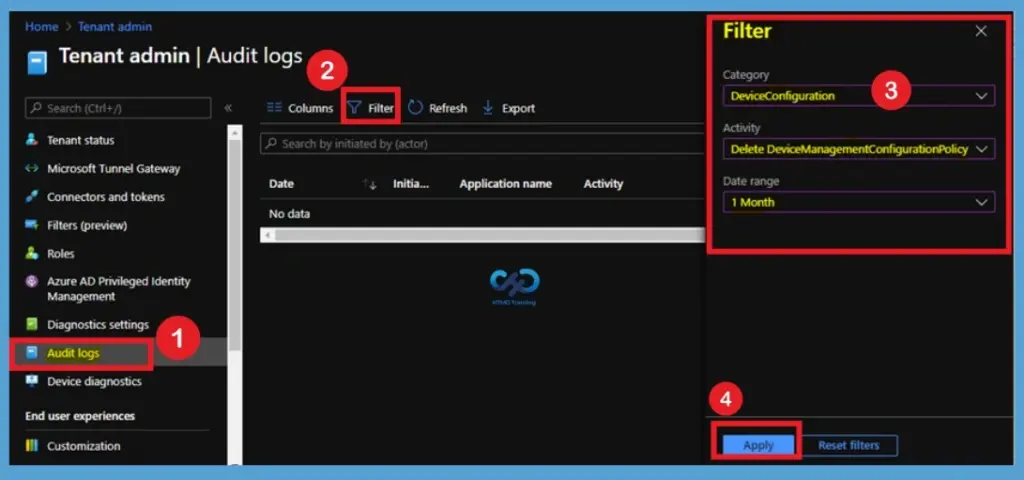
After configuring the Category, Activity, and Date range filters, select Apply to display the matching audit records. Intune will then show the activities that meet the selected criteria. Review the results and look for the device configuration policy that you want to investigate. The following are some of the categories available for Intune portal audit logs. You can select an item in the list to see the activity details.
| Audit logs categories | Info |
|---|---|
| Date | Date of the activities. |
| Initiated by (actor) | Who Initiated the Action? Admin or Application? |
| Application name | The API name of the application. |
| Activity | The API details with the Object ID. |
| Target | Profile Name |
| Category | Selected Actions |
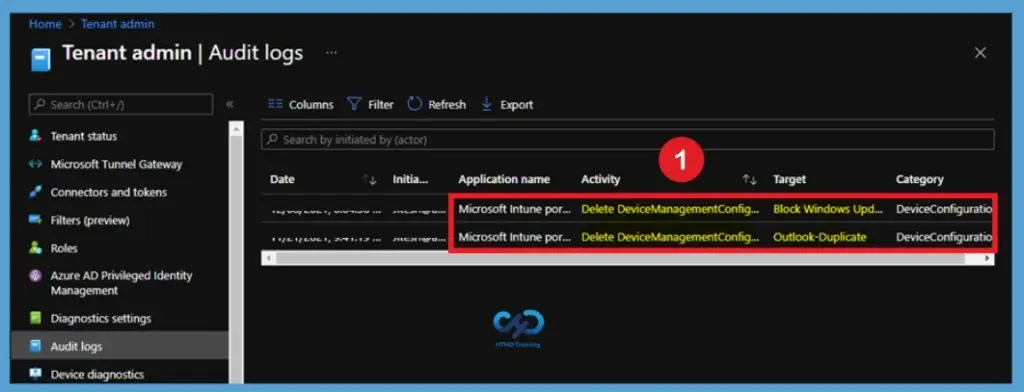
Open the Audit Log Activity Details
Select the relevant audit event from the results to open its activity details. The details provide important information about the operation, including the date and time of the activity, operation type, activity type, and status. Most importantly, you can review the Initiated By section to identify the administrator or application that created the policy. Here you can see the activity details for the delete device management configuration profiles.
Activity details: Audit log
Activity
Date: Wed, 08 Dec 2021 12:34:36 GMT
Name: Delete device configuration 2.0 (beta)
CorrelationID: f6fb0ee1-0d30-4c7e-9d50-e262b313435f
Category: DeviceConfiguration
Component: DeviceConfiguration
Activity Status
Status: Success
Operation Type: Delete
Activity Type: Delete DeviceManagementConfigurationPolicy
Initiated By (Actor)
Type: ItPro
Upn: Jitesh@HTMD.onmicrosoft.com
Application: Microsoft Intune portal extension
ApplicationID: 5926fc8e-304e-4f59-8bed-58ca97cc39a4
Scope Tag(s)
Tag(s):
Target(s)
Target
Type: DeviceManagementConfigurationPolicy
Name: Block Windows Updates - HTMD Devices
ObjectID: 80c117fc-1688-484f-a405-ebf86f37707a
Modified Properties
Property: Name
New Value: Block Windows Updates - HTMD Devices
Old Value:
Property: Description
New Value:
Old Value:
Property: Platforms
New Value: Windows10
Old Value:
Property: SettingCount
New Value: 1
Old Value:
Property: DeviceManagementAPIVersion
New Value: 5021-10-06
Old Value: 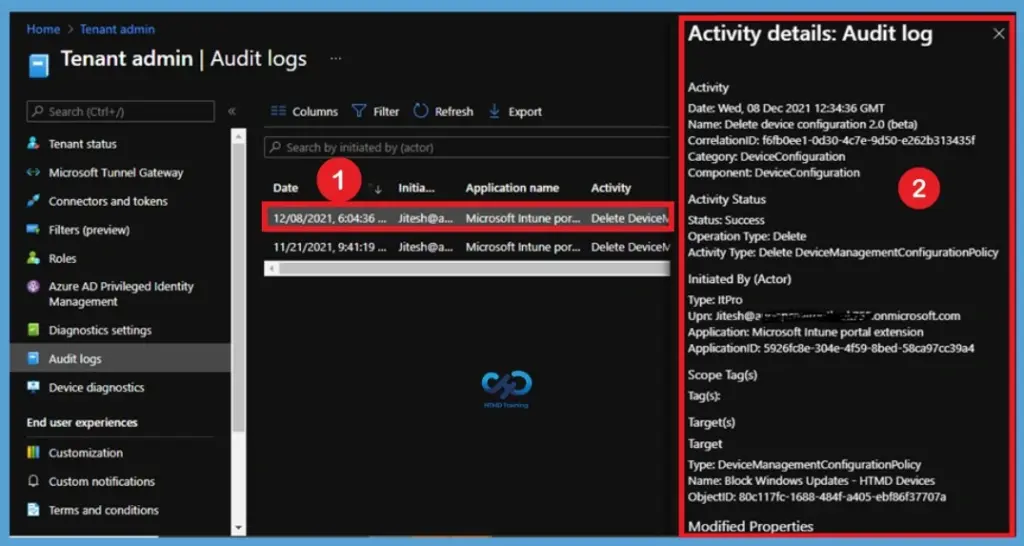
Need Further Assistance or Have Technical Questions?
Join the LinkedIn Page and Telegram group to get the latest step-by-step guides and news updates. Join our Meetup Page to participate in User group meetings. Also, join the WhatsApp Community and the Whatsapp channel to get the latest news on Microsoft Technologies. We are there on Reddit as well.
Author
About Author – Jitesh, Microsoft MVP, has over six years of working experience in the IT Industry. He writes and shares his experiences related to Microsoft device management technologies and IT Infrastructure management. His primary focus is Windows 10/11 Deployment solution with Configuration Manager, Microsoft Deployment Toolkit (MDT), and Microsoft Intune.