
Let’s discuss Step-by-Step Intune Configuration to Kill RDP Password Saving on All Endpoints. Microsoft provide Do Not Allow Password Saving policy to controls whether users can save their passwords for Remote Desktop connections within the Remote Desktop Connection (RDC) client application.
If you Enable this policy, the “Allow me to save credentials” checkbox in the RDC client will be unavailable (greyed out), and users will be prevented from saving their passwords for RDP sessions. They will have to enter their credentials every time they connect.
Security Risk Mitigation is primary reason to enable this policy. If a user’s machine is lost, stolen, or compromised by malware (even if the user’s account is locked), an attacker could simply open the saved RDP connection to gain unauthorized access to the corporate network resources, potentially bypassing multi-factor authentication (MFA) if the connection was established prior to an MFA session expiring.
By preventing password saving, organizations ensure that users must satisfy any dynamic authentication requirements, like time-based One-Time Passwords (OTPs) or MFA prompts, for every connection, not just the first one.

Table of Contents
Step-by-Step Intune Configuration to Kill RDP Password Saving on All Endpoints
This polic is Crucial for data protection and regulatory compliance. System administrators connecting to sensitive Domain Controllers or Database Servers must enter their credentials for every session. This guarantees that access is immediately revoked if the admin workstation is compromised or left unattended, preventing unauthorized access to critical infrastructure.
- New way to Take RDP of Windows PC from Windows PC using Windows App
- How New TURN Relay IP Range Enhances RDP Shortpath for AVD and Windows 365
- RDP Port 3389 is Disabled by Default for All Newly Provisioned Windows 365 Cloud PCs
Configure Policy from Intune Portal
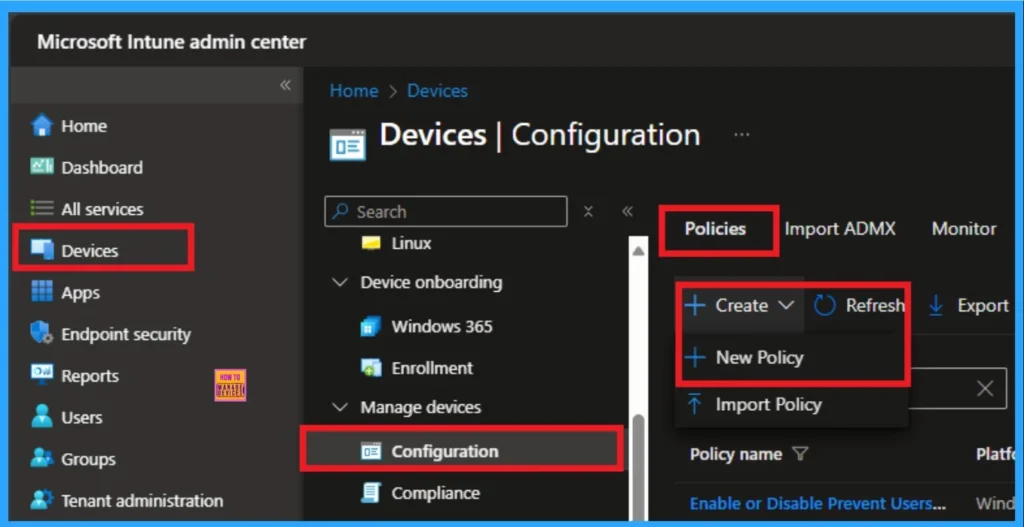
This policy setting allows Web-based programs to install software on the computer without notifying the user. Sign in to the Microsoft Intune Portal with Credentials. Navigate to Devices > Configuration > + Create > New Policy.
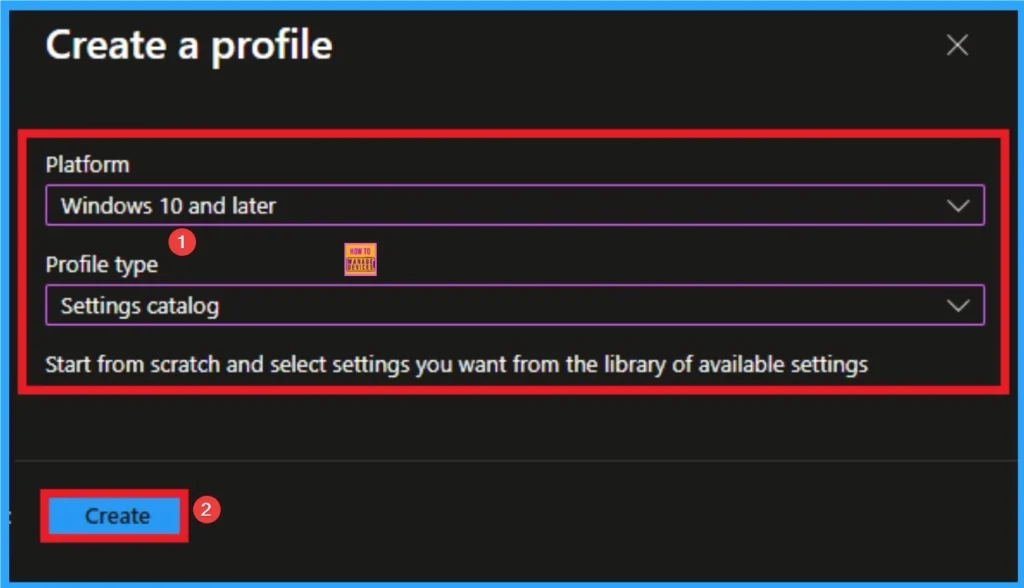
Profile Choosing Step
After that you can choose appropriate platform and profile type. This is necessary step for policy creation and you cannot change profile and platform after creating profile. Here I would like to configure the policy to Windows 10 and later platform and settings catalog profile. Then click on the Create button.
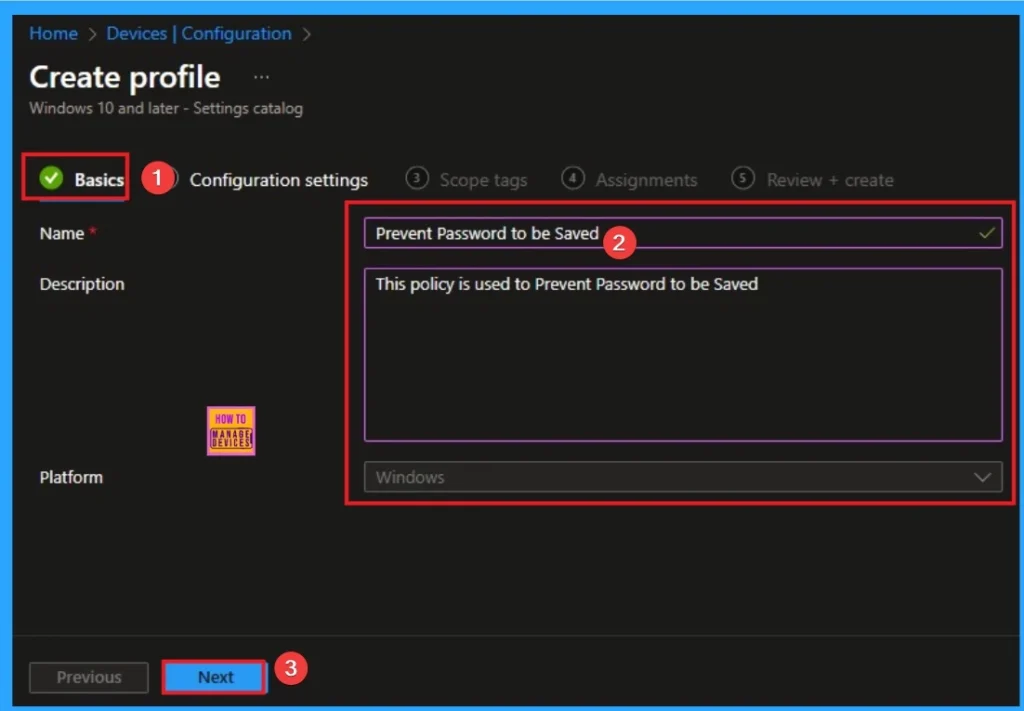
Begin Policy with Basic Tab
Basic Tab is the first tab that helps users to give identity for policy. For this you can add Name and description for the settings you want to select for policy creation. Here is Name is mandatory and description is optional. After adding this click on the Next button.
Configure Cross Device Participation Policy
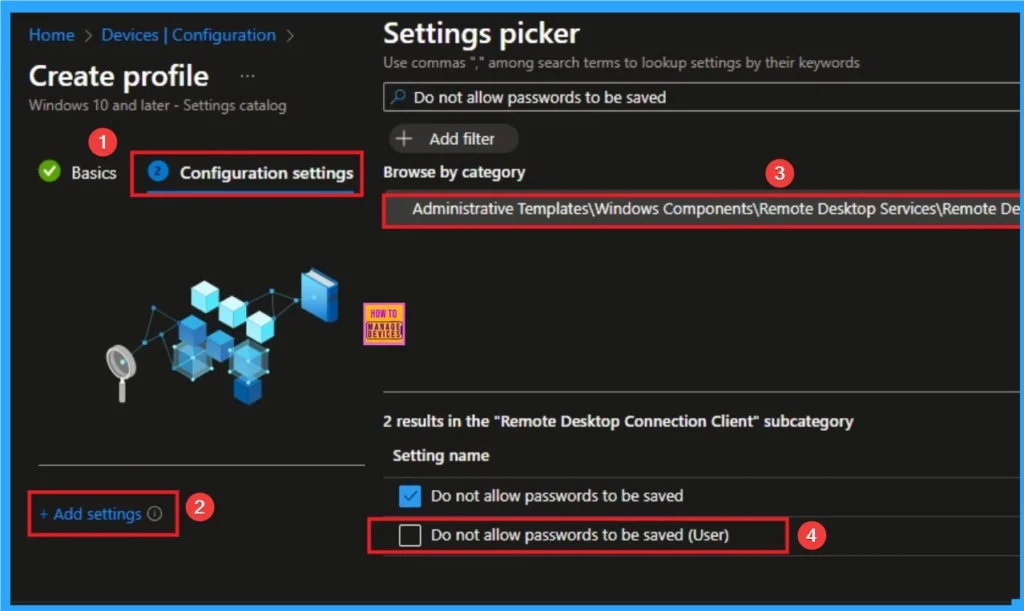
After that you will get Configuration settings tab which helps you to access specific settings. To get the settings click on the +Add settings hyperlink and select specific settings from Settings Picker. Here, I would like to select the settings by browsing by Category. I choose Administrative Templates\System\Group Policy\Continue experiences on this device.
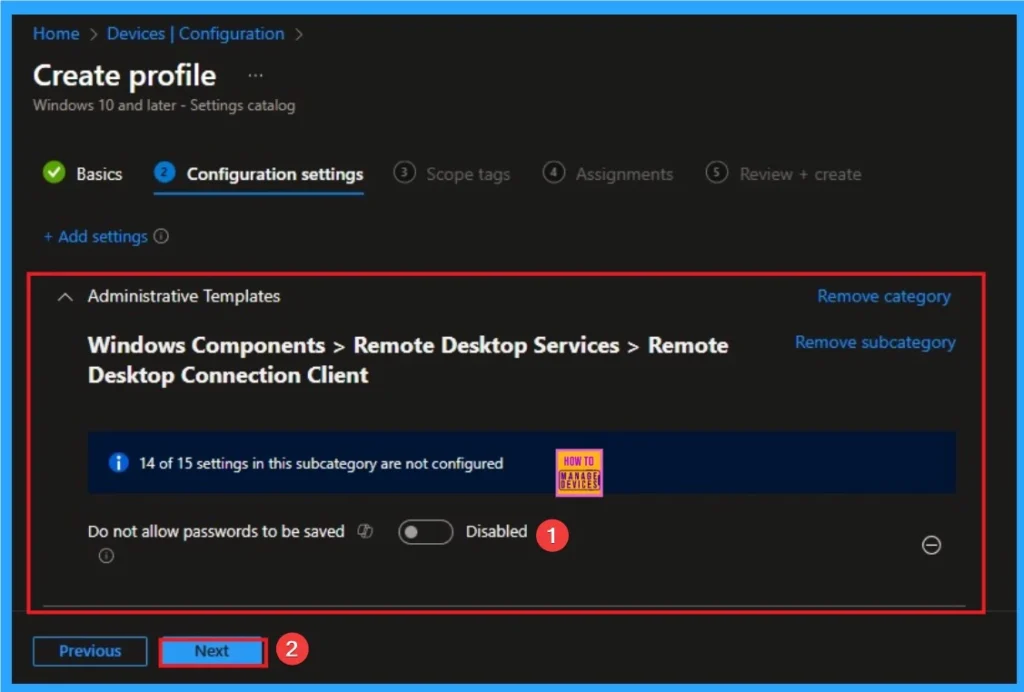
Disable RDP Password Saving
By deafult RDP Password Saving policy is daisabled. If you want to go with this policy, clcik on the Next button. Otherwise enable the policy.
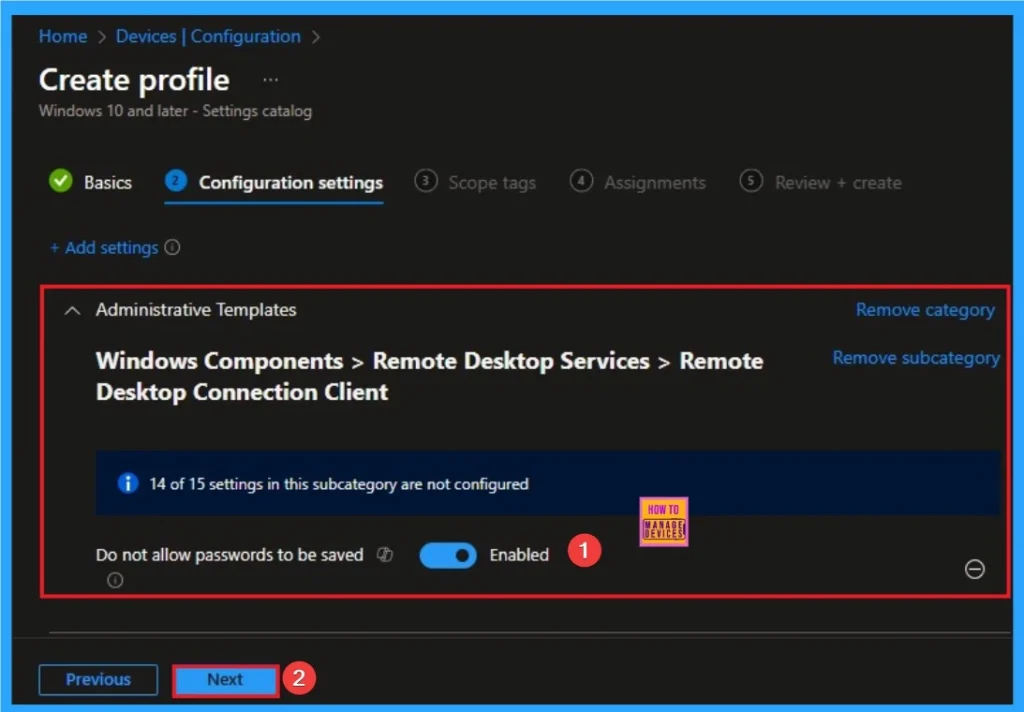
Eanable RDP Password Saving
Here I would like to Enable RDP Password Saving policy. So i toggle the pane to the right side for enabling this policy. Click on the Next button.
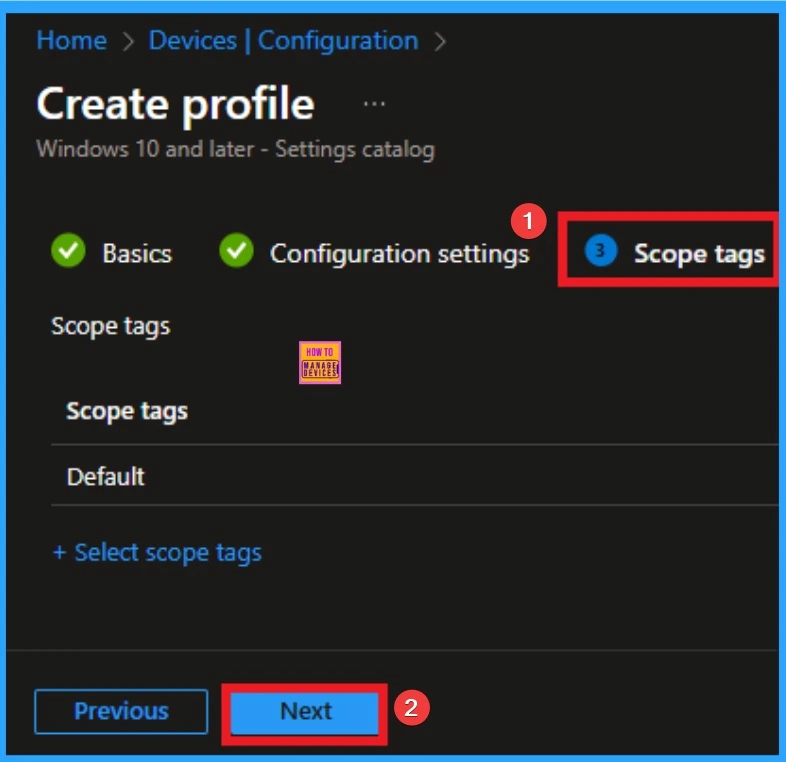
Adding Scope Tags
Scope Tag is not a mandatory step for policy creation. But you can add Scope tags for visibility restrictions. Here, I don’t add scope tags for Enterprise IP Range Policy. Click on the Next button.
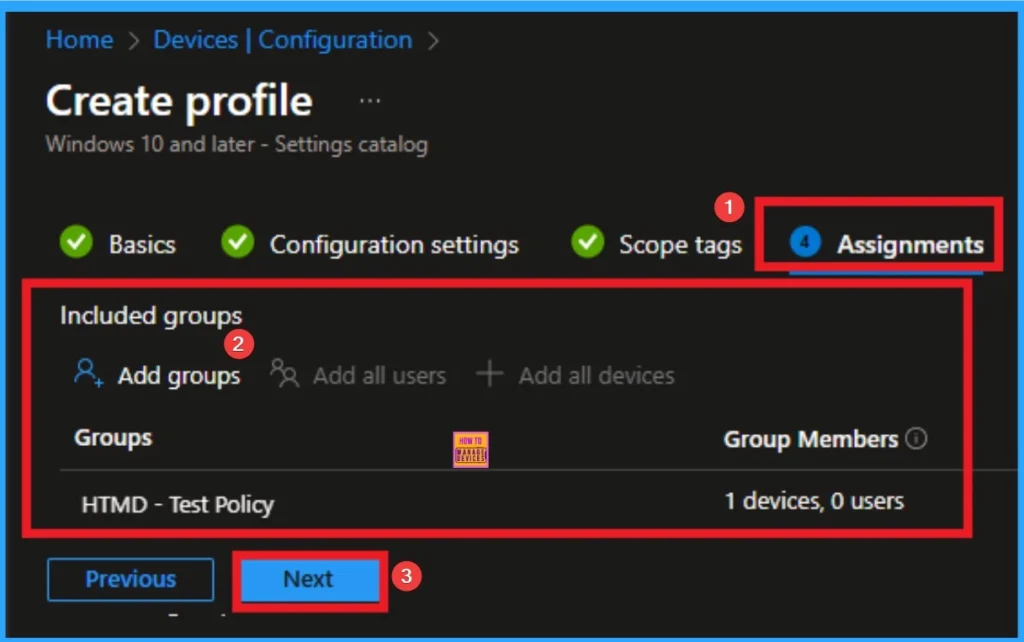
Selecting Group from the Assignment Tab
To assign the policy to specific groups, you can use the Assignment Tab. Here I click, +Add groups option under Included groups. I choose a group from the list of groups and click on the Select button. Again, I click on the Select button to continue.
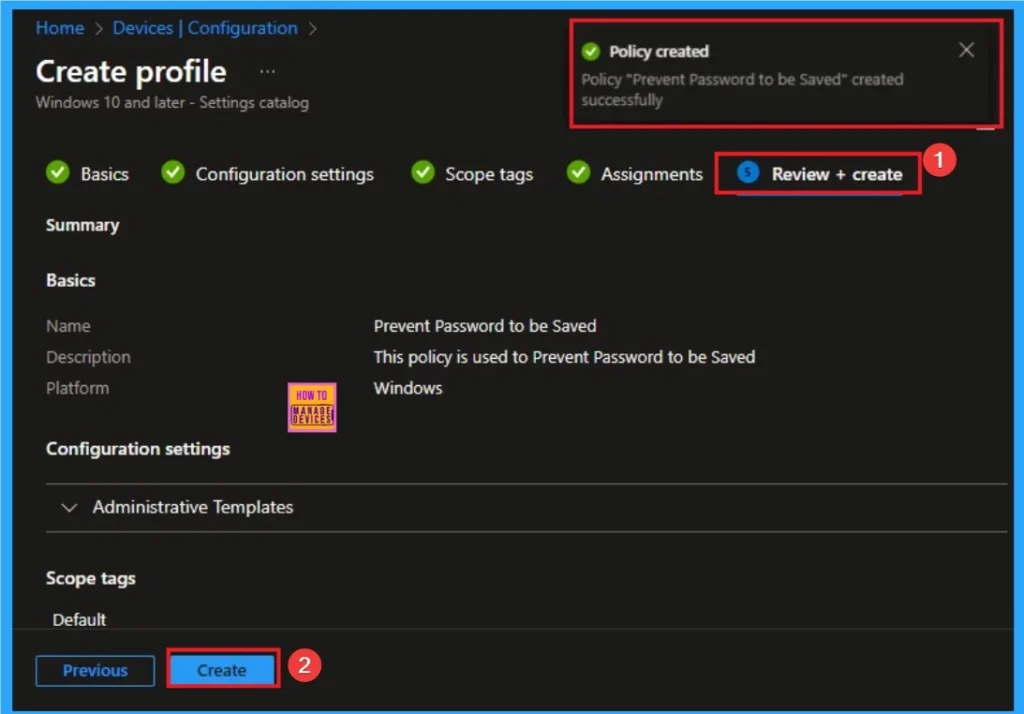
Finalize Policy
This is the Fina step for policy creation. You can review all the details on this tab and avoid misconfiguration. After verifying all the details, click on the Create Button. After creating the policy, you will get a success message.
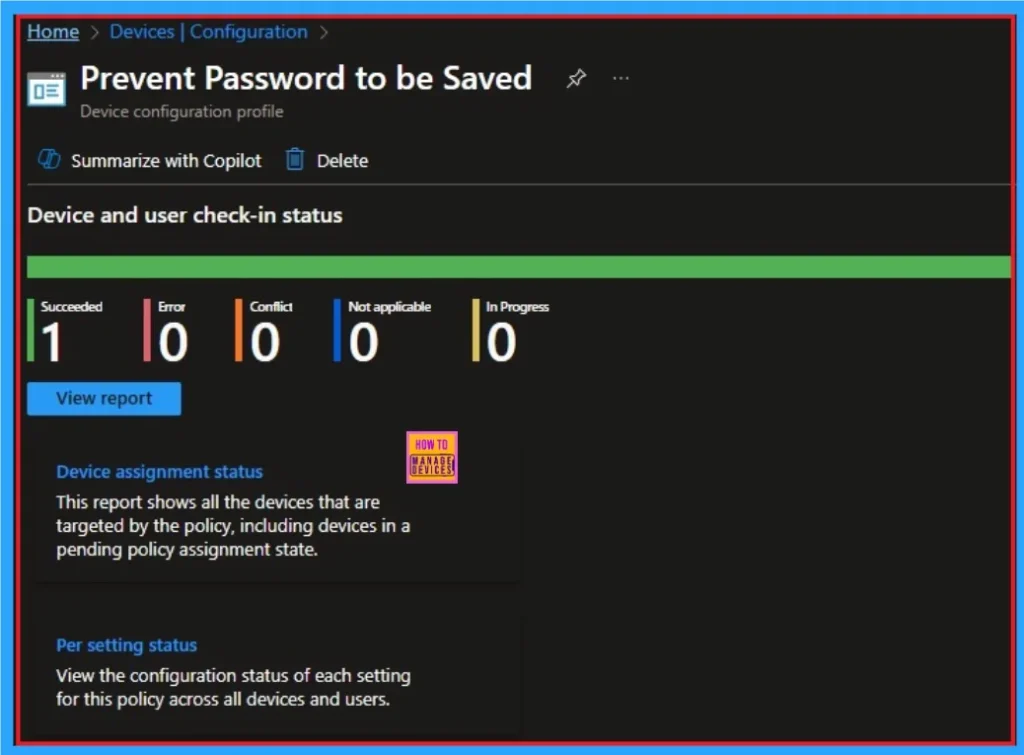
Device Check-in Status
Device Check-in Status Page shows if the Policy is succeeded or Not. Before checking this, you can sync the device on Company Portal for Faster policy deployment. Then Go to Devices > Configuration > Search for the Policy. Here, the policy shows as successful.
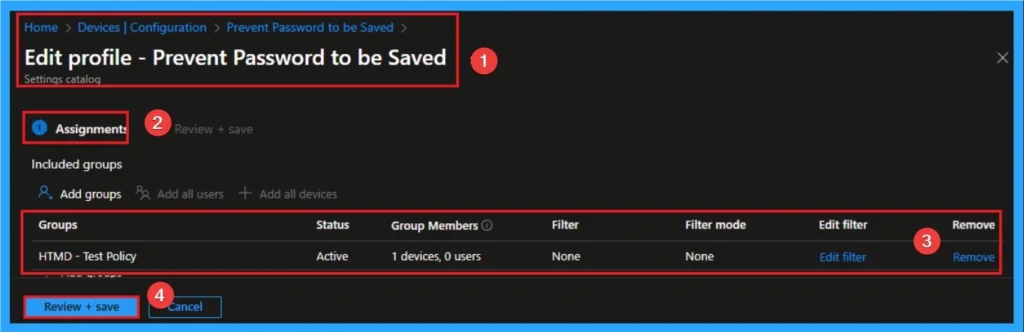
Removing the Assigned Group from Windows Cross Device Participations Policy Settings
If you want to remove the Assigned group from the policy, it is possible from the Intune Portal. To do this, open the Policy on Intune Portal and edit the Assignments tab and the Remove Policy.
To get more detailed information, you can refer to our previous post – Learn How to Delete or Remove App Assignment from Intune using by Step-by-Step Guide.
How to Windows Cross Device Participation Policy
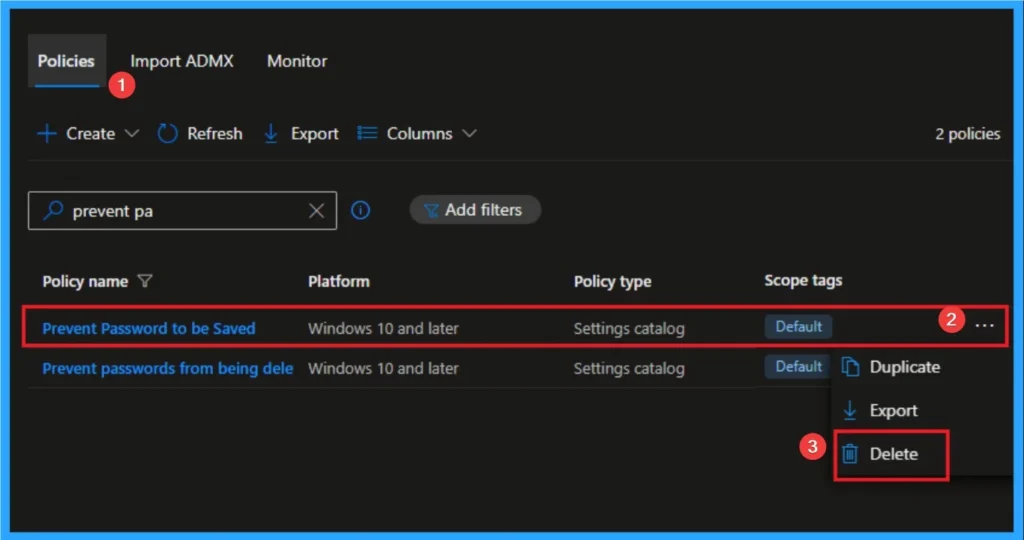
You can easily delete the Policy from the Intune Portal. From the Configuration section, you can delete the policy. It will completely remove it from the client devices.
For detailed information, you can refer to our previous post – How to Delete Allow Clipboard History Policy in Intune Step by Step Guide.
Need Further Assistance or Have Technical Questions?
Join the LinkedIn Page and Telegram group to get the step-by-step guides and news updates. Join our Meetup Page to participate in User group meetings. Also, Join the WhatsApp Community to get the latest news on Microsoft Technologies. We are there on Reddit as well.
Author
Anoop C Nair has been Microsoft MVP for 10 consecutive years from 2015 onwards. He is a Workplace Solution Architect with more than 22+ years of experience in Workplace technologies. He is a Blogger, Speaker, and Local User Group Community leader. His primary focus is on Device Management technologies like SCCM and Intune. He writes about technologies like Intune, SCCM, Windows, Cloud PC, Windows, Entra, Microsoft Security, Career, etc