
Key Takeaways
- Uses Trusted Platform Module (TPM) attestation to verify that Windows devices meet security requirements during enrollment.
- Confirms that only securely enrolled devices are recognized and reported as trusted.
- Helps identify devices with security issues or signs of compromise before they access organizational resources.
- Assists organizations in meeting industry regulations by validating secure device enrollment.
- Creates a more trusted and secure organizational infrastructure by verifying device integrity during the enrollment process.
Intune Device Attestation Status Report to Verify Device Trust and Monitor Attestation Status! To use Windows enrollment attestation, devices should have the latest Windows updates installed for the best success rate. The feature is supported on Windows 11 (version 10.0.22000.2713 or later, 10.0.22621.2792 or later, or 10.0.22631.2792 or later). Devices must also have TPM 2.0 or later, and only physical Windows devices are supported. Virtual machines aren’t supported for enrollment attestation.
Table of Content
Table of Contents
Intune Device Attestation Status Report to Verify Device Trust and Monitor Attestation Status
Windows enrollment attestation in Intune verifies a device’s identity and security using its Trusted Platform Module (TPM) during the Intune enrollment process. If the device is deployed using Windows Autopilot, TPM attestation may already occur during Autopilot pre-provisioning (White Glove) or Shared Device Mode (SDM).
| Deployment Stage | TPM Attestation Occurs |
|---|---|
| Windows Autopilot Pre-Provisioning (White Glove) | TPM attestation is performed before the device is handed to the user. |
| Shared Device Mode (SDM) | TPM attestation is performed while setting up shared devices. |
| Intune Device Enrollment | Intune performs TPM attestation again during device enrollment to verify the device is trusted and secure. |
- List of Intune Default Reports Reporting Strategies Advanced Reporting Options
- Intune Report for AAD Joined Vs Hybrid AAD Joined Devices using KQL Query
- MDM Lifecycle Management with Microsoft Intune From Enrollment to Retirement
- Intune Supported Enrollment Methods for Windows iOS Android MacOS Linux ChromeOS
- Learn Intune Beginners Guide MDM MAM MIM
Device Attestation Status
Sign in to the Microsoft Intune admin center and go to Reports. Under the Device Management section, select Device attestation status (Preview) to view the attestation status of enrolled Windows devices. This report helps you monitor whether devices have successfully completed TPM-based attestation during enrollment.
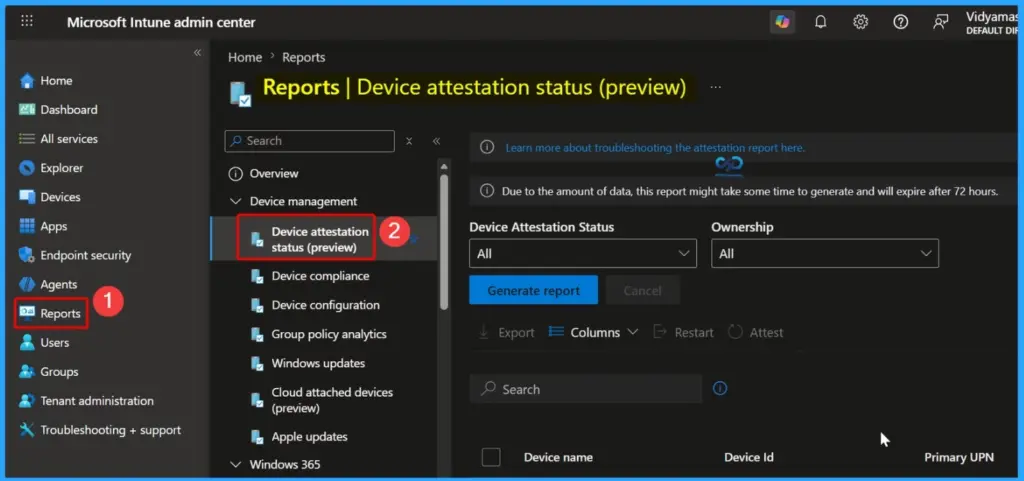
Device Attestation Status Categories
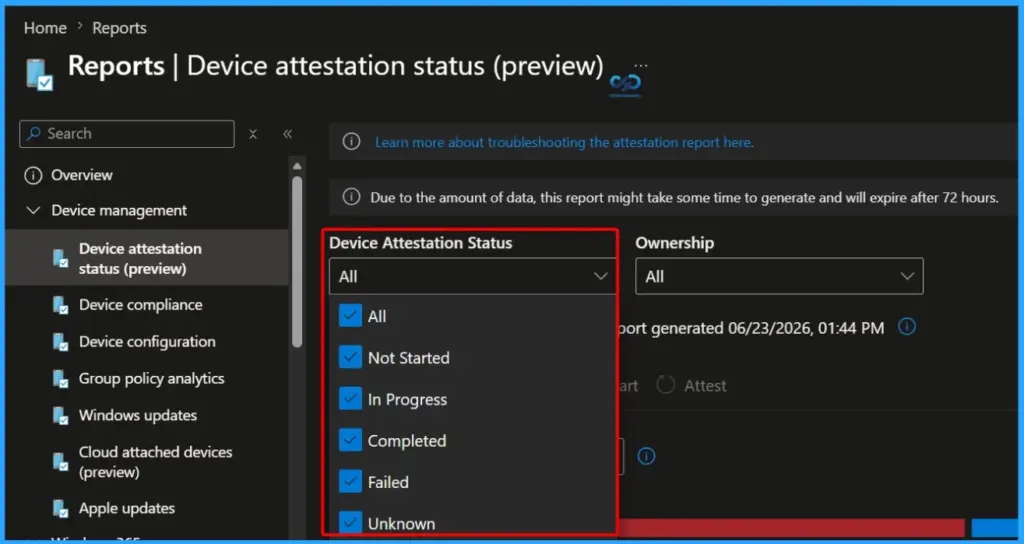
The Device Attestation Status report displays the current attestation state of enrolled Windows devices. You can use these status categories to quickly identify whether device attestation has started, is in progress, completed successfully, failed, or if the status is unknown.

| Status |
|---|
| All |
| Not Started |
| In Progress |
| Completed |
| Failed |
| Unknow |
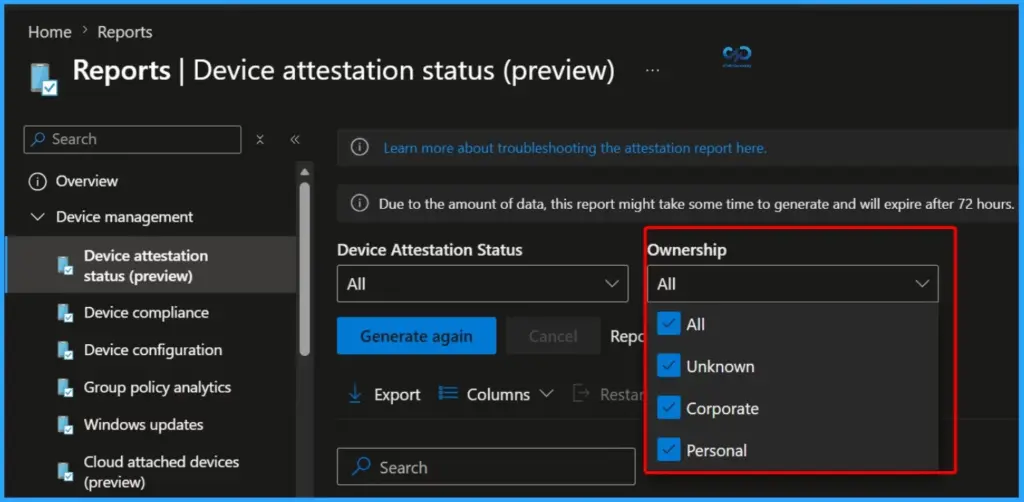
Device Ownership Filter in Device Attestation Status Report
The Ownership filter in the Device Attestation Status report lets you view devices based on their ownership type. This helps administrators quickly filter attestation results for all devices, corporate-owned devices, personally owned devices, or devices whose ownership hasn’t been identified.
Generate or Regenerate the Device Attestation Status Report
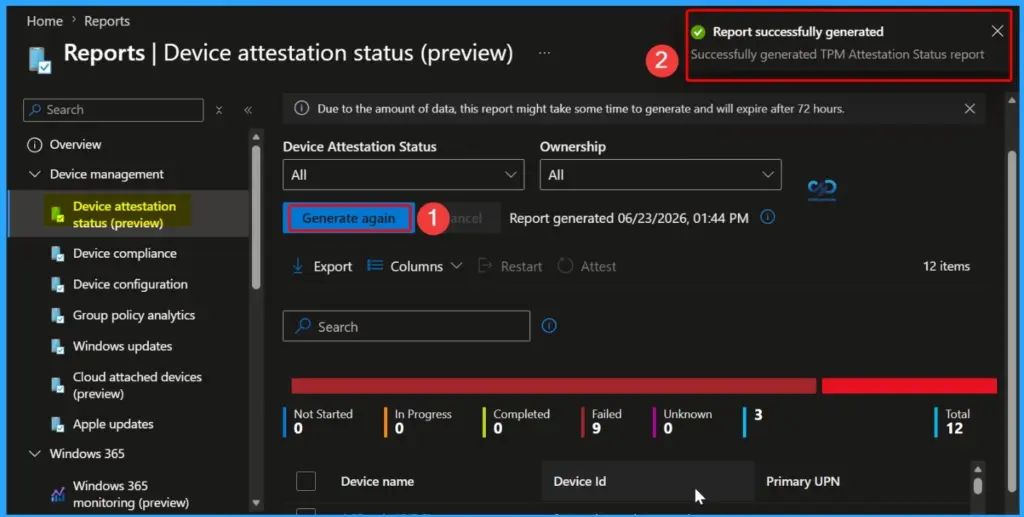
Click Generate (or Generate again if a report already exists) to create the latest Device Attestation Status report. Intune collects the current attestation information from enrolled Windows devices and generates the report based on the selected filters, such as Device Attestation Status and Ownership.
- Once the report is ready, a “Report successfully generated” notification appears, confirming that the latest TPM attestation status report is available for review.
View Detailed Device Information
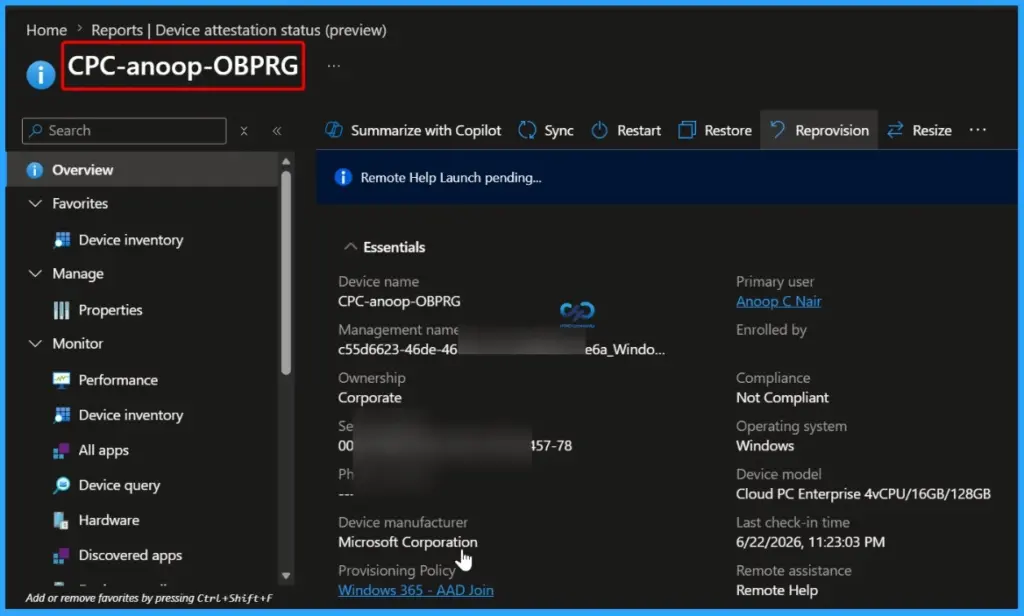
Select a device from the Device Attestation Status report to view its detailed information. The device details page provides useful information such as the Device Name, Management Name, Ownership, Device Manufacturer, Primary User, Compliance Status, Operating System, Device Model, Last Check-in Time, Remote Assistance status, and other management details.
Available Actions and Customizable Columns in the Device Attestation Status Report
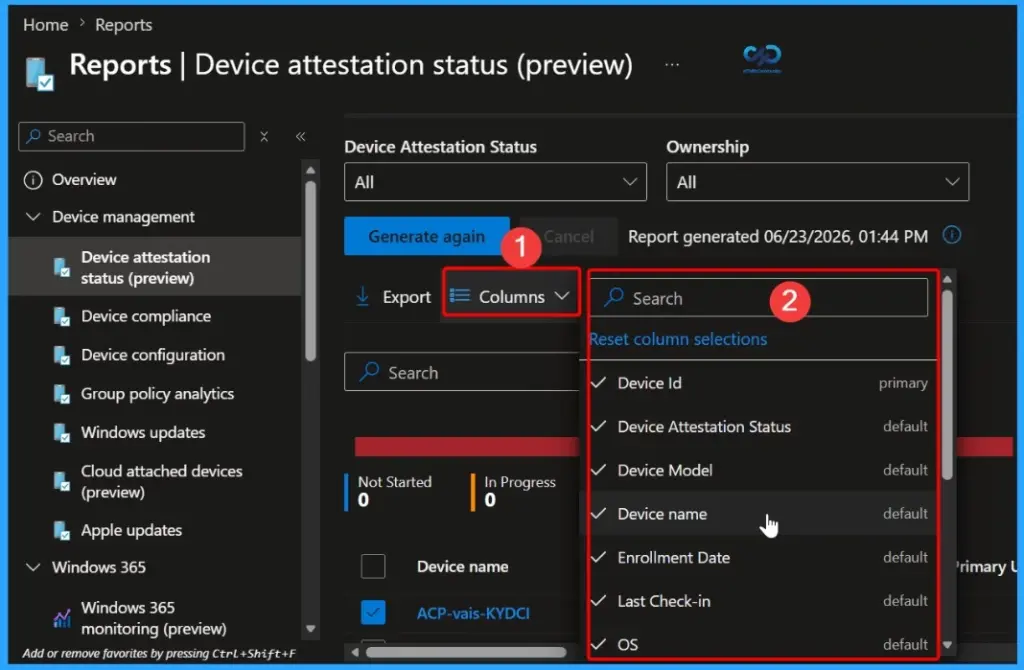
The Device Attestation Status report provides four actions at the top of the page: Export, Columns, Restart, and Attest. The Columns option lets you customize the information displayed in the report by selecting the fields you want to view.
- Device ID
- Device Attestation Status
- Device Model
- Device name
- Enrollment Date
- Last Check-in
- OS
Reboot Selected PCs
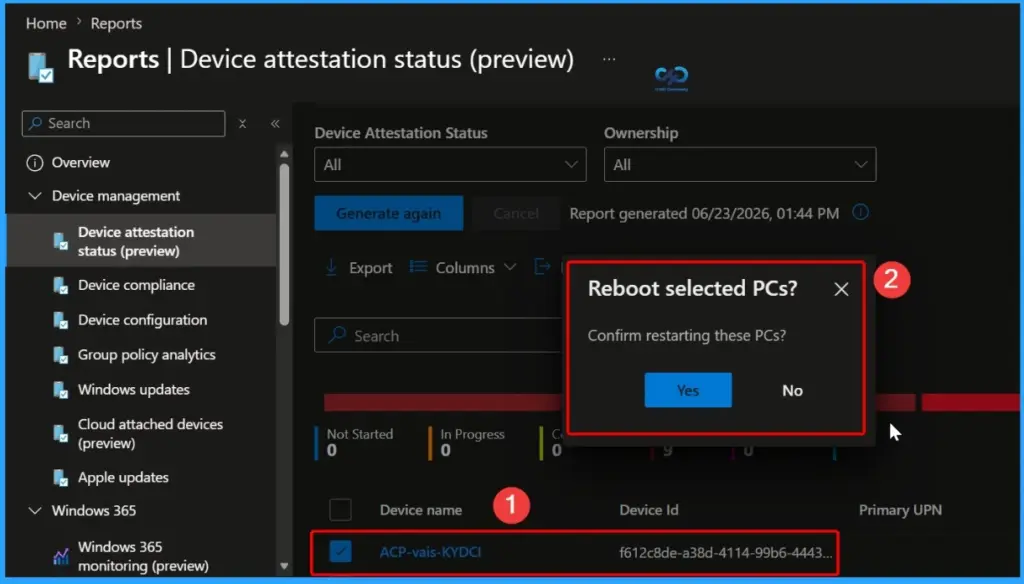
After selecting a device and clicking Restart, Intune displays a confirmation dialog asking whether you want to reboot the selected device. Click Yes to restart the device or No to cancel the action. Once the device restarts, it can retry the device attestation process, which may help resolve temporary attestation issues or failures.
Initiate Device Attestation
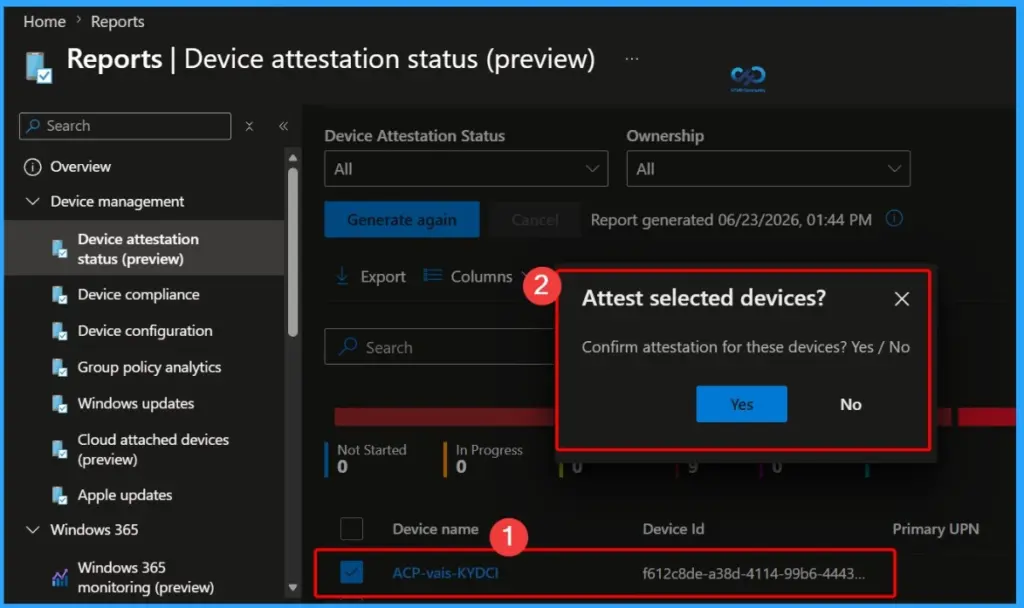
To manually start the attestation process, select one or more devices from the Device Attestation Status report and click Attest. Intune displays a confirmation dialog asking whether you want to initiate device attestation for the selected devices. Click Yes to start the attestation process or No to cancel the action.
Export the Device Attestation Status Report
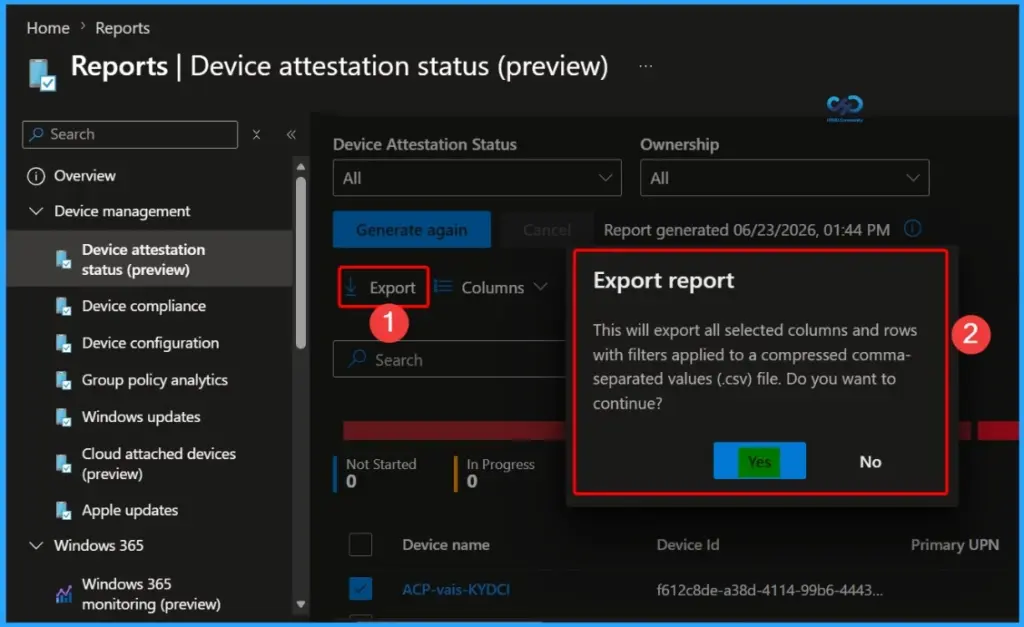
To export the Device Attestation Status report, click Export on the report page. Intune displays a confirmation dialog informing you that all the selected columns and filtered rows will be exported to a compressed CSV (.csv) file. Click Yes to continue with the export or No to cancel the operation.
Exported Device Attestation Status Report
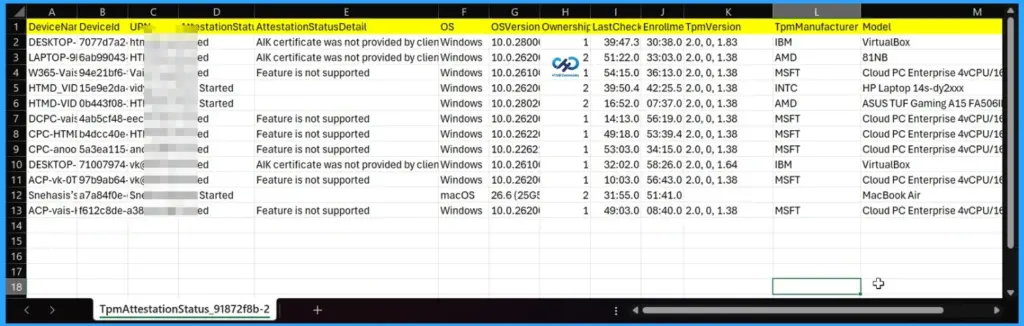
After the export is complete, Intune downloads the Device Attestation Status report as a CSV (.csv) file. The exported report includes detailed information for each device, such as the Device Name, Device ID, User Principal Name (UPN), Attestation Status, Attestation Status Details, Operating System, OS Version, Ownership, Last Check-in Time, Enrollment Time, TPM Version, TPM Manufacturer, and Device Model.
Need Further Assistance or Have Technical Questions?
Join the LinkedIn Page and Telegram group to get the latest step-by-step guides and news updates. Join our Meetup Page to participate in User group meetings. Also, join the WhatsApp Community and the Whatsapp channel to get the latest news on Microsoft Technologies. We are there on Reddit as well.
Author
About Author – Jitesh, Microsoft MVP, has over six years of working experience in the IT Industry. He writes and shares his experiences related to Microsoft device management technologies and IT Infrastructure management. His primary focus is Windows 10/11 Deployment solution with Configuration Manager, Microsoft Deployment Toolkit (MDT), and Microsoft Intune.
Hi Any script to auto enabled the Secure Boot feature on various models devices via Intune?