
Key Takeaways
- Microsoft Intune has built-in audit logs to track administrative changes.
- Audit logs record actions like create, edit, delete, assign, and remote device actions.
- Every change automatically generates an audit event.
- Logs show who made the change, what was changed, and when it happened.
- Auditing is enabled by default and cannot be disabled.
- Users with the Intune Administrator role in Microsoft Entra ID can view audit logs.
Audit logs in Microsoft Intune are very helpful for IT admins because they show all the important changes made in the system. If an app deployment fails, a policy is changed by mistake, or a device setting is modified, admins can easily check who made the change, what was changed, and when it happened. This makes troubleshooting faster and avoids confusion within the team.
Table of Content
Table of Contents
How to Track Who Modified an Intune App Deployment Using Audit Logs
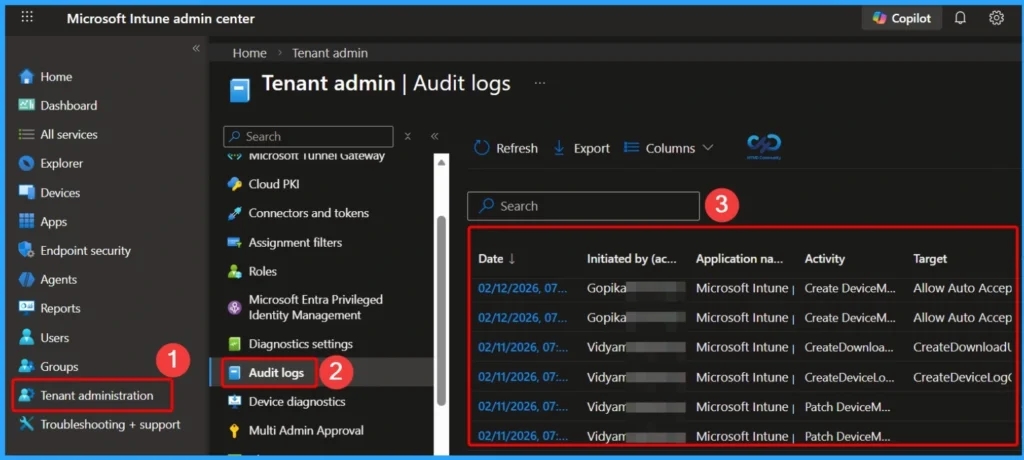
you can easily review audit logs from the monitoring section for different workloads such as compliance policies or Conditional Access. To view the logs, first sign in to the Microsoft Intune admin center. Then go to Tenant administration and select Audit logs. You will see a list of recorded activities. Click on any log entry to view detailed information about the action, including what was done and who performed it.
- Intune Device Action Status Report | Endpoint Manager
- 63 Episodes Of Free Intune Training For Device Management Admins
- Intune Logs Event IDs IME Logs Details for Windows Client Side Troubleshooting
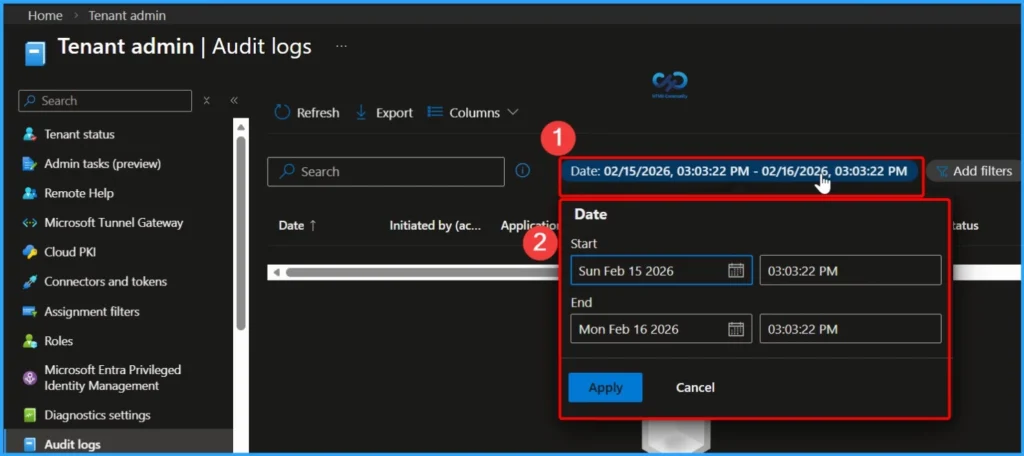
How to Filter Audit Logs by Date and Time in Microsoft Intune
If there are many entries in the audit logs, you can easily narrow down the results by filtering them by date and time in Microsoft Intune. Select the Date option and choose a start and end date. This allows you to view logs from a specific time period, such as the previous day, week, or month, making it easier to find the exact activity you are looking for.
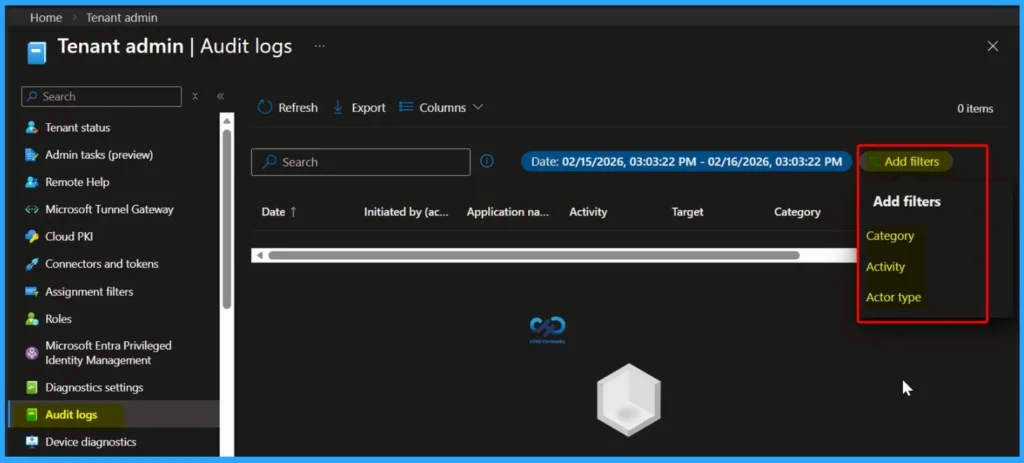
How to Use Add Filters in Intune Audit Logs
In Microsoft Intune audit logs, the Add Filters option helps you quickly find specific events. When you click Add Filters, you will see three options: Category, Activity, and Actor type. The screenshot below shows more details.

| Add Filters |
|---|
| Category |
| Activity |
| Actor Type |
How to Filter Audit Logs by Category in Intune
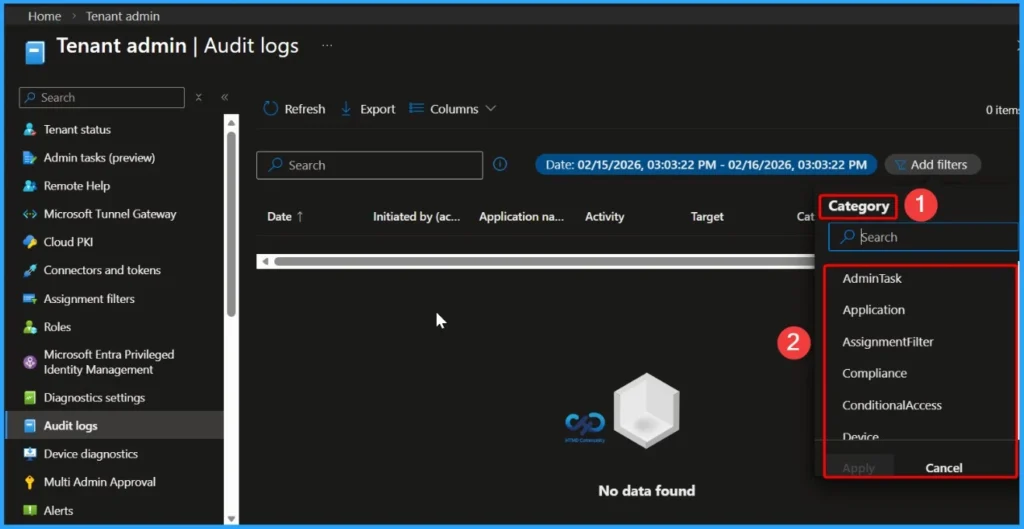
You can filter audit logs by category to quickly find specific types of activities. Select Add filters and choose Category. Then, pick a category from the list,the list is given below. click Apply to view the filtered results. This helps you focus only on the relevant log entries.
- Category
- Search
- AdminTask
- Application
- AssignmentFilter
- Compliance
- ConditionalAccess
- DeviceConfiguration
- Devicelntent
- DevicelntentSetting
- Devicelnventory
- EBookManagement
- Enrollment
- GroupPolicyAnalytics
- Other
- RemoteHelp
- Role
- SoftwareUpdates
How to Filter Audit Logs by Activity in Intune
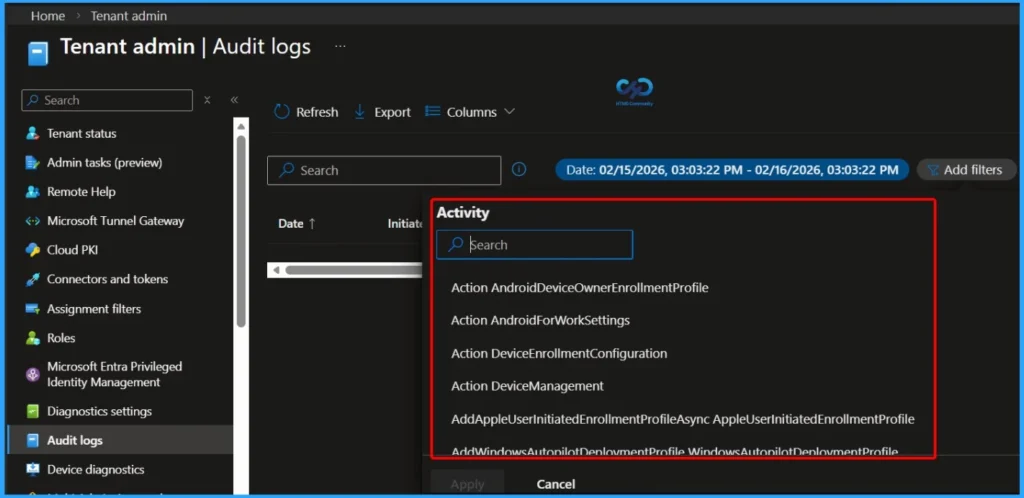
You can also filter audit logs based on specific activities. Select Add filters and choose Activity. The list of available activities will depend on the Category you selected earlier. After choosing the required activity, click Apply to see the filtered results.
- Filter Audit Logs by Activity
- Action AndroidDeviceOwnerEnrollmentProfile
- Action AndroidForWorkSettings
- Action DeviceEnrollmentConfiguration
- Action DeviceManagement
- AddAppleUserInitiatedEnrollmentProfileAsync AppleUserInitiatedEnrollmentProfile
- AddWindowsAutopilotDeploymentProfile WindowsAutopilotDeploymentProfile
- AddWindowsAutopilotDeploymentProfileAssignment WindowsAutopilotDeploymentProfile
- ApproveElevationRequest PrivilegeManagementElevationRequest
- AssignUser WindowsAutopilotDeviceIdentity
- Commit Content MobileApp
- Create AndroidDeviceOwnerEnrollmentProfile
- Create AppleEnrollmentProfileAssignment
- Create ApprovalRequest
- Create ClientCertificate
- Create ComplianceManagementPartner
- Create DeviceAndAppManagementAssignmentFilter
- Create DeviceAndAppManagementRoleAssignment
- Create DeviceCategory
- Create DeviceCompliancePolicy
- Create DeviceCompliancePolicyAssignment
- Create DeviceConfiguration
- Create DeviceConfigurationAssignment
- Create DeviceEnrollmentConfiguration
- Create DeviceManagementCompliancePolicy
- Create DeviceManagementConfigurationPolicy
- Create DeviceManagementConfigurationPolicyAssignment
- Create DeviceManagementIntent
- Create DeviceManagementReusablePolicySetting
- Create GroupPolicyConfiguration
- Create GroupPolicyDefinitionValue
- Create GroupPolicyMigrationReport
- Create GroupPolicyPresentationValue
- Create IntuneBrandingProfile
- Create ManagedDeviceCleanupRule
- Create ManagedDeviceMobileAppConfiguration
- Create MobileApp
- Create MobileAppAssignment
- Create MobileAppCategory
- Create MobileAppContentScript
- Create MobileAppRelationship
- Create MobileThreatDefenseConnector
- Create NotificationMessageTemplate
- Create OperationApprovalPolicy
- Create RemoteAssistanceSettings RemoteAssistanceSettings
- Create RoleDefinition
- Create RoleScopeTag
- Create RoleScopeTagAutoAssignment
- Create TermsAndConditions
- Create TermsAndConditionsGroupAssignment
- Create VppToken
- Create Windows Autopilot Deployment Profile. WindowsAutopilotDeploymentProfile
- Create WindowsAutopilotDeploymentProfileAssignment
- Create WindowsDriverUpdateProfile
- Create WindowsFeatureUpdateProfile
- Create WindowsQualityUpdatePolicy
- Create WindowsQualityUpdateProfile
- Create localized message NotificationMessageTemplate
- CreateAppProtection ManagedAppPolicy
- CreateDeviceLogCollectionRequest ManagedDevice
- CreateDownloadUrl ManagedDevice
- CreateImportedCorporateDevice ImportedDeviceIdentity
- CreateImportedWindowsAutopilotDeviceIdentity ImportedWindowsAutopilotDeviceIdentity
- CreateMultiTokenDepOnboardingSetting DepOnboardingSetting
- CreateMultiTokenEnrollmentProfile EnrollmentProfile
- Delete DeviceAndAppManagementAssignmentFilter
- Delete DeviceAndAppManagementRoleAssignment
- Delete DeviceCompliancePolicy
- Delete DeviceCompliancePolicyAssignment
- Delete DeviceConfiguration
- Delete DeviceConfigurationAssignment
- Delete DeviceManagementConfigurationPolicy
- Delete DeviceManagementConfigurationPolicyAssignment
- Delete DeviceManagementIntent
- Delete DeviceManagementReusablePolicySetting
- Delete GroupPolicyConfiguration
- Delete GroupPolicyMigrationReport
- Delete ManagedAppRegistration
- Delete ManagedDevice
- Delete MobileApp
- Delete MobileAppAssignment
- Delete MobileAppCategory
- Delete MobileAppContentScript
- Delete MobileAppRelationship
- Delete MobileThreatDefenseConnector
- Delete OperationApprovalPolicy
- Delete RoleDefinition
- Delete VppToken
- Delete WindowsDriverUpdateProfile
- Delete WindowsFeatureUpdateProfile
- Delete WindowsQualityUpdatePolicy
- DeleteAppleEnrollmentProfileAssignment AppleEnrollmentProfileAssignment
- DeleteApplePushNotificationCertificate ApplePushNotificationCertificate
- DeleteMultiTokenDepToken DepOnboardingSetting
- DeleteMultiTokenEnrollmentProfile EnrollmentProfile
- DeleteMultiTokenImportedAppleDevice ImportedAppleDeviceIdentity
- DeleteWindowsAutopilotDeploymentProfile WindowsAutopilotDeploymentProfile
- DeleteWindowsAutopilotDeploymentProfileAssignment WindowsAutopilotDeploymentProfileAssignment
- DeleteWindowsAutopilotDeviceIdentity WindowsAutopilotDeviceIdentity
- Demoting DEM user User
- DenyElevationRequest PrivilegeManagementElevationRequest
- Get AndroidDeviceOwnerEnrollmentProfile
- Get DeviceConfiguration
- GetDecryptedTokenValue AndroidDeviceOwnerEnrollmentProfile
- ListDecryptedTokenValue AndroidDeviceOwnerEnrollmentProfile
- MacOS RemoteHelpSession
- Modify Windows Autopilot Deployment Profile. WindowsAutopilotDeploymentProfile
- OptInAction DeviceAndAppManagementAssignmentFilter
- Other ManagedAppPolicy
- Patch AdminConsent
- Patch AndroidForWorkSettings
- Patch DataProcessorServiceForWindowsFeaturesOnboarding
- Patch DeviceAndAppManagementAssignmentFilter
- Patch DeviceCompliancePolicy
- Patch DeviceConfiguration
- Patch DeviceConfigurationAssignment
- Patch DeviceEnrollmentConfiguration
- Patch DeviceManagementConfigurationJustInTimeAssignmentPolicy
- Patch DeviceManagementConfigurationPolicy
- Patch DeviceManagementConfigurationPolicyAssignment
- Patch DeviceManagementIntent
- Patch DeviceManagementIntentAssignment
- Patch DeviceManagementReusablePolicySetting
- Patch DeviceManagementSettings
- Patch EnrollmentTimeDeviceMembershipTarget
- Patch ImportedAppleDeviceIdentity
- Patch IntuneBrandingProfile
- Patch ManagedDevice
- Patch MobileApp
- Patch MobileAppAssignment
- Patch MobileThreatDefenseConnector
- Patch NotificationMessageTemplate
- Patch RoleDefinition
- Patch VppToken
- Patch WindowsFeatureUpdateProfile
- Patch WindowsQualityUpdatePolicy
- Patch WindowsQualityUpdateProfile
- PatchApplePushNotificationCertificate ApplePushNotificationCertificate
- PatchDataSharingConsent DataSharingConsent
- PatchMultiTokenEnrollmentProfile EnrollmentProfile
- Patching Device Category Settings DeviceCategory
- Promote user to DEM Manager Role User
- PutDataSharingConsent DataSharingConsent
- RemoveReference MobileApp
- Rename device ManagedDevice
- Renew Url MobileApp
- Request Approved ApprovalRequest
- Request Cancelled ApprovalRequest
- Request Deleted ApprovalRequest
- Search AndroidDeviceOwnerEnrollmentProfile
- Search CloudCertificationAuthority
- Send test email NotificationMessageTemplate
- SetMultiTokenDefaultProfile DepOnboardingSetting
- SetReference ManagedDevice
- SetReference MobileApp
- Status Change ApprovalRequest
- SyncMultiTokenDEPDevicesProfilesAndAccountDetails DepOnboardingSetting
- SyncWindowsAutopilotDevices WindowsAutopilotSettings
- UnassignUser WindowsAutopilotDeviceIdentity
- Update Assignment DeviceCompliancePolicy
- Update Assignment ManagedDeviceMobileAppConfiguration
- Update GroupPolicyConfiguration
- Update GroupPolicyConfigurationAssignment
- Update localized message NotificationMessageTemplate
- UpdateAppProtection ManagedAppPolicy
- UpdateAppProtectionMobileAppIdentifierDeployments ManagedAppPolicy
- UpdateDeviceConfiguration OrganizationalMessageDetail
- UpdateDevicePrimaryUsers ManagedDevice
- UpdateDeviceProperties WindowsAutopilotDeviceIdentity
- UpdateWindowsDriverUpdateProfileAssignmentsAsync WindowsDriverUpdateProfile
- UpdateWindowsFeatureUpdateProfileAssignmentsAsync WindowsFeatureUpdateProfile
- UpdateWindowsQualityUpdatePolicyAssignmentsAsync WindowsQualityUpdatePolicy
- UpdateWindowsQualityUpdateProfileAssignmentsAsync WindowsQualityUpdateProfile
- UploadMultiTokenDepToken DepOnboardingSetting
- Windows RemoteHelpSession
- WipeManagedAppRegistration ManagedAppRegistration
- assignDeviceHealthScript DeviceHealthScript
- assignDeviceManagementScript DeviceManagementScript
- cleanWindowsDevice ManagedDevice
- createDeviceComplianceScript DeviceComplianceScript
- createDeviceCustomAttributeShellScript DeviceManagementScript
- createDeviceHealthScript DeviceHealthScript
- createDeviceManagementScript DeviceManagementScript
- createDeviceShellScript DeviceManagementScript
- createSingleDeviceQuery DeviceManagement
- decryptcredential ManagedDevice
- deleteDeviceHealthScript DeviceHealthScript
- deleteDeviceManagementScript DeviceManagementScript
- getFileVaultKey ManagedDevice
- initiateOnDemandProactiveRemediation ManagedDevice
- locateDevice ManagedDevice
- patchDeviceCustomAttributeShellScript DeviceManagementScript
- patchDeviceHealthScript DeviceHealthScript
- patchDeviceManagementScript DeviceManagementScript
- pauseConfigurationRefresh ManagedDevice
- rebootNow ManagedDevice
- remoteLock ManagedDevice
- retire ManagedDevice
- rotateFileVaultKey ManagedDevice
- rotateLocalAdminPassword ManagedDevice
- sendCustomNotificationToCompanyPortal DeviceManagement
- sendCustomNotificationToCompanyPortal ManagedDevice
- syncDevice ManagedDevice
- triggerConfigurationManagerAction ManagedDevice
- updateExclusionSecurityGroups ManagedAppPolicy
- updateSecurityGroups ManagedAppPolicy
- windowsDefenderScan ManagedDevice
- wipe ManagedDevice
How to Filter Audit Logs by Actor Type in Intune
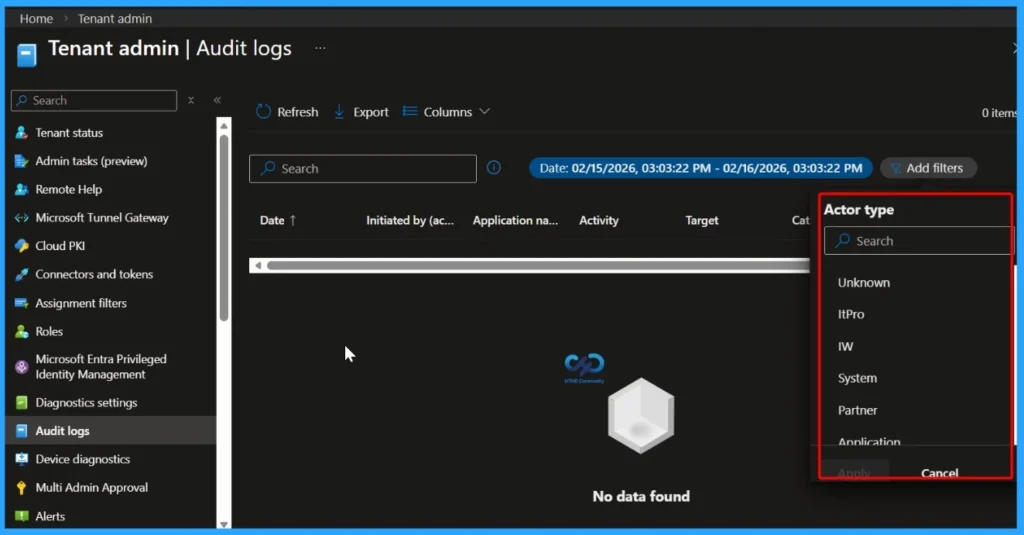
You can filter audit logs based on Actor Type to see who performed a specific action. Select Add filters and choose Actor type, then pick from the available options such as Unknown, ItPro, IW (Information Worker), System, Partner, Application, or GuestUser.
- Actor Type
- Unknown
- ItPro
- IW
- System
- Partner
- Application
- GuestUser
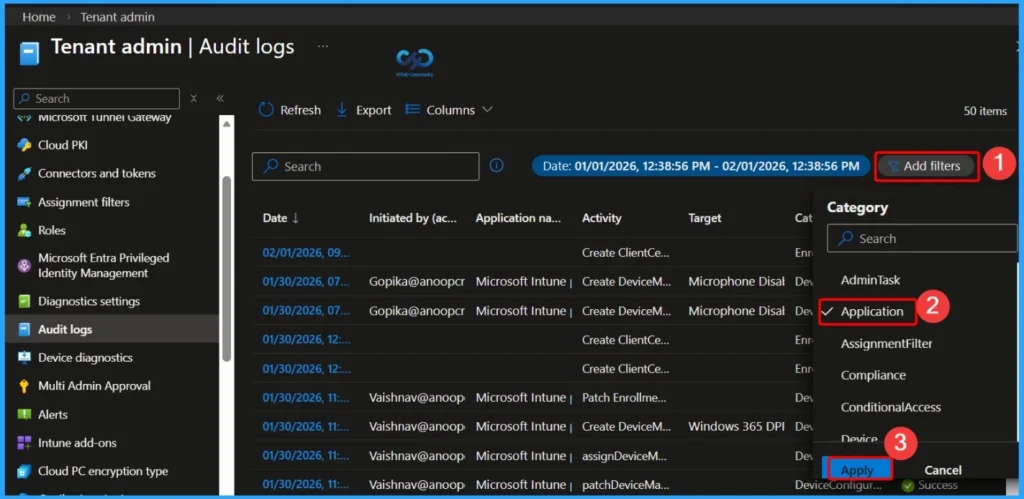
Selecting Application as the Filter Category
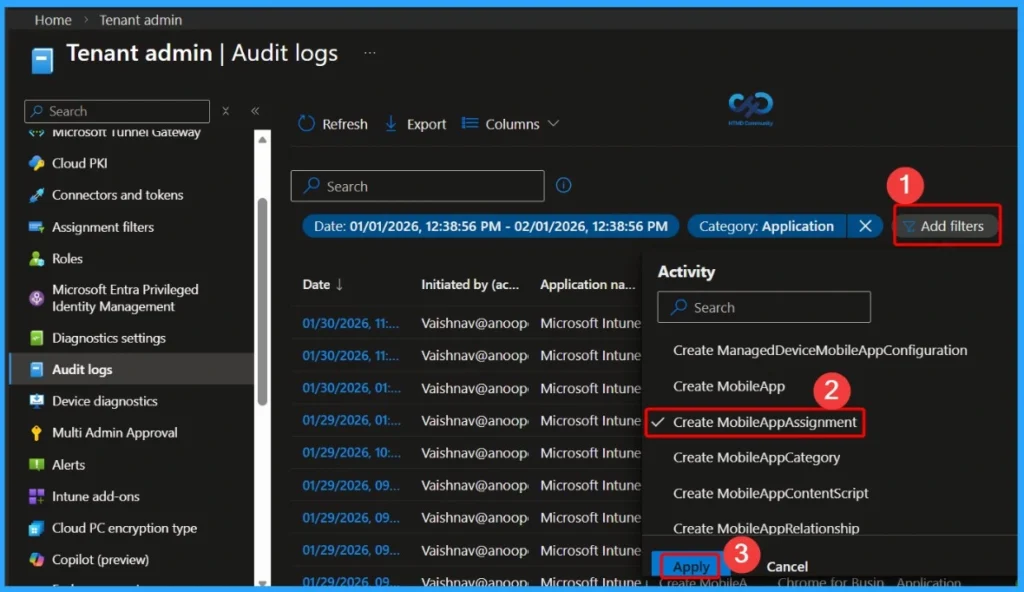
You can get results by selecting Application as the filter category. Go to Add filters, choose Application, and then click Apply. This will display only the audit log entries related to application-related activities, making it easier to track changes connected to app deployments or configurations.
Create Mobile App Assignment
you can filter specific actions related to app deployments. Go to Add filters, select Activity, and choose Create mobile app assignment from the list. Then click Apply. This will show only the log entries where a new mobile app assignment was created, helping you track who assigned the app and when the assignment was made.
View Applied Filters and Results in Intune Audit Logs
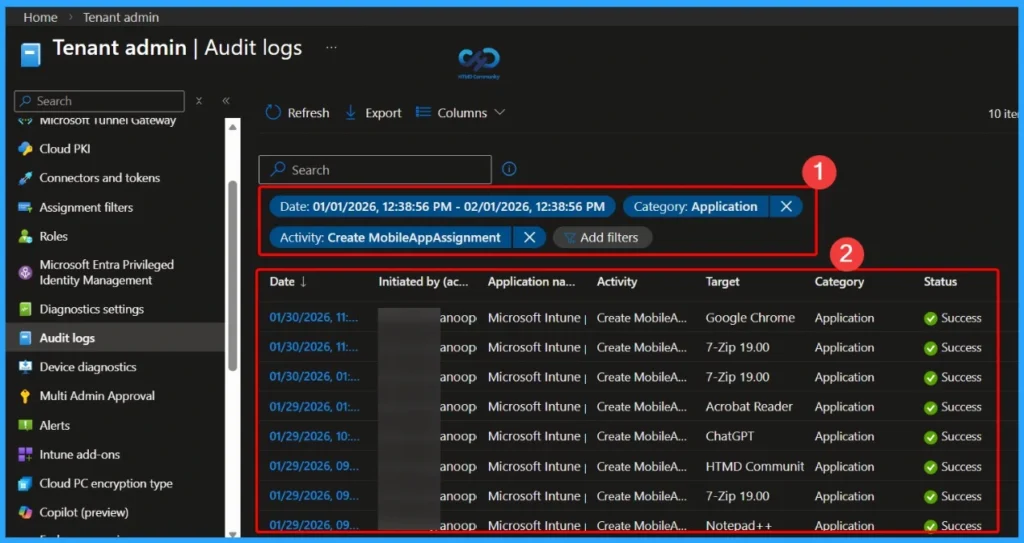
In Microsoft Intune audit logs, you can easily see which filters are currently applied. These filters are shown at the top of the page, so you can quickly confirm what you are searching for. The screenshots below display the filtered results, and the table shows the log entries that match the selected filters.
- This helps you make sure you are reviewing the correct audit information without any confusion.
| Date and Time Filter | Category | Activity |
|---|---|---|
| 01/01/2026, 12:38:56 PM – 02/01/2026, 12:38:56 PM | Application | Create MobileAppAssignment |
How to View Detailed Activity Information in Intune Audit Logs
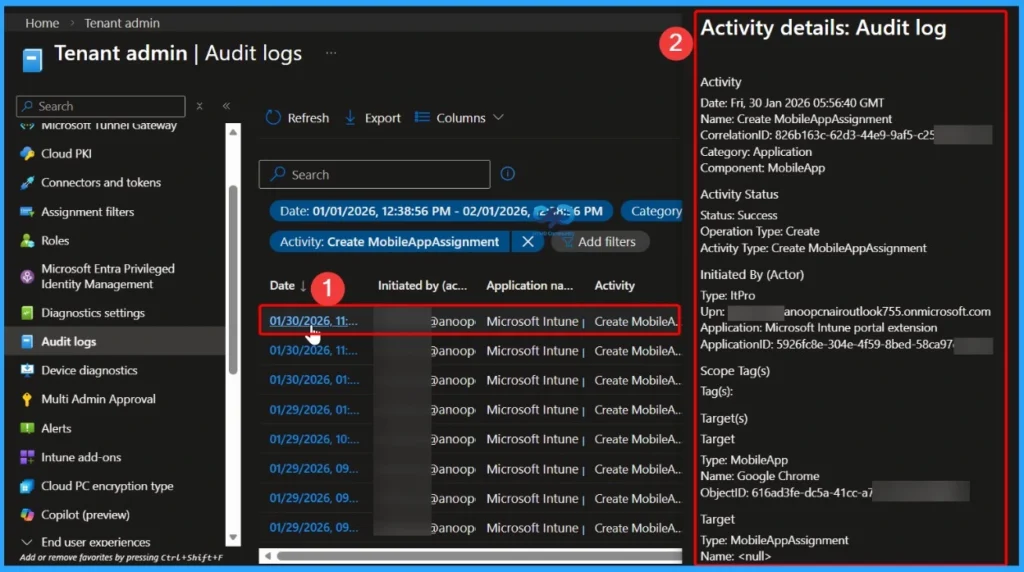
In Microsoft Intune audit logs, you can view detailed information about a specific event by clicking the date hyperlink in the log entry. Once you select the hyperlink, a detailed pane opens showing important information such as the activity name, activity status, initiated by (who acted), scope tags, target, and other related details. This helps administrators clearly understand what action was performed and review all associated information in one place.
Activity details: Audit log
Activity
Date: Fri, 30 Jan 2026 05:56:40 GMT
Name: Create MobileAppAssignment
CorrelationID: 826b163c-62d3-44e9-9af5-c2534fba2c38
Category: Application
Component: MobileApp
Activity Status
Status: Success
Operation Type: Create
Activity Type: Create MobileAppAssignment
Initiated By (Actor)
Type: ItPro
Upn: Vaishnav@anoopcnairoutlook755.onmicrosoft.com
Application: Microsoft Intune portal extension
ApplicationID: 5926fc8e-304e-4f59-8bed-58ca97cc39a4
Scope Tag(s)
Tag(s):
Target(s)
Target
Type: MobileApp
Name: Google Chrome
ObjectID: 616ad3fe-dc5a-41cc-a7e9-50be4ddf9f6a
Target
Type: MobileAppAssignment
Name:
ObjectID: 8131fb02-0a2b-421c-9082-f50616d5b2f6_1_0
Modified Properties
Property: Target.Type
New Value: GroupAssignmentTarget
Old Value:
Property: Settings.Type
New Value: Win32LobAppAssignmentSettings
Old Value:
Property: Id
New Value: 8131fb02-0a2b-421c-9082-f50616d5b2f6_1_0
Old Value:
Property: Intent
New Value: Required
Old Value:
Property: Target.GroupId
New Value: 8131fb02-0a2b-421c-9082-f50616d5b2f6
Old Value:
Property: Target.DeviceAndAppManagementAssignmentFilterId
New Value:
Old Value:
Property: Target.DeviceAndAppManagementAssignmentFilterType
New Value: None
Old Value:
Property: Settings.Notifications
New Value: ShowAll
Old Value:
Property: Settings.DeliveryOptimizationPriority
New Value: NotConfigured
Old Value:
Property: Source
New Value: Direct
Old Value:
Property: SourceId
New Value:
Old Value:
Property: DeviceManagementAPIVersion
New Value: 5025-09-03
Old Value:
Delete Mobile App Assignment Filter in the Activity Category
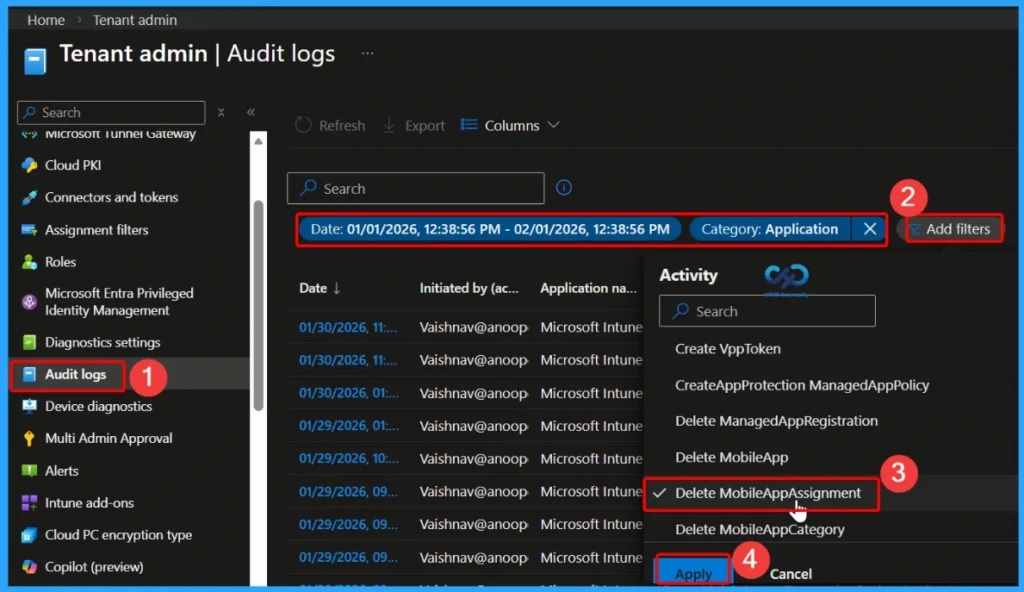
The Delete Mobile App Assignment filter under the Activity category helps administrators quickly identify and track app assignment removal actions. By selecting this filter in the Activity tab, you can view records specifically related to deleted mobile app assignments.
Activity Log Filters – Date, Category, and Activity
Here, you can see three key filters configured to refine the activity log results. The selected Date and Time range is 01/01/2025, 12:38:56 PM – 02/01/2026, 12:38:56 PM, ensuring that only activities within this specific period are displayed. Under Activity, the filter is set to Delete MobileAppAssignment, and the Category is selected as Application.
By applying these filters, the results section displays only the relevant records that match the defined criteria. This helps administrators quickly identify and review mobile app assignment deletion activities without manually searching through unrelated logs.
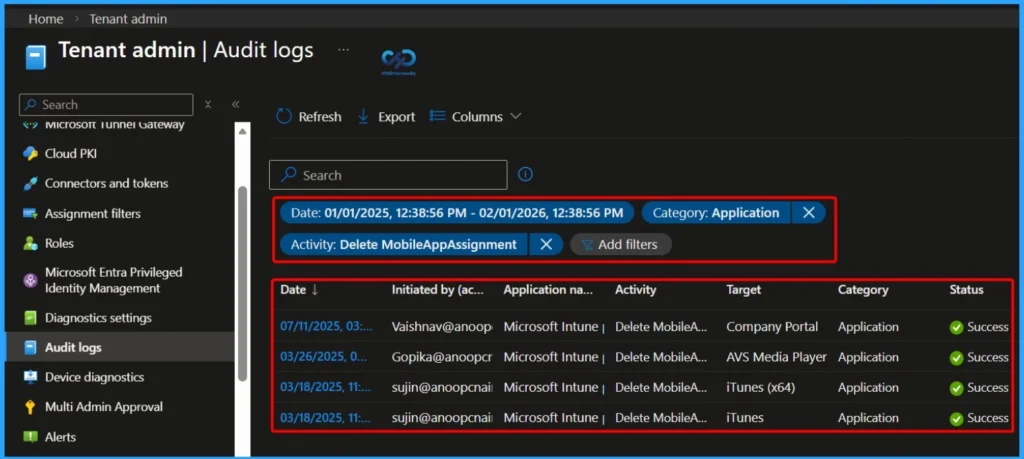
Result of the Delete MobileAppAssignment Audit Log
Here you can see the result of the Delete Mobile App Assignment filter in the Activity log. The displayed records show only the actions related to mobile app assignment deletions based on the selected Date, Category, and Activity filters. This helps administrators quickly review the relevant audit details, confirm the status of the deletion, and ensure that the operation was completed successfully without going through unrelated log entries.
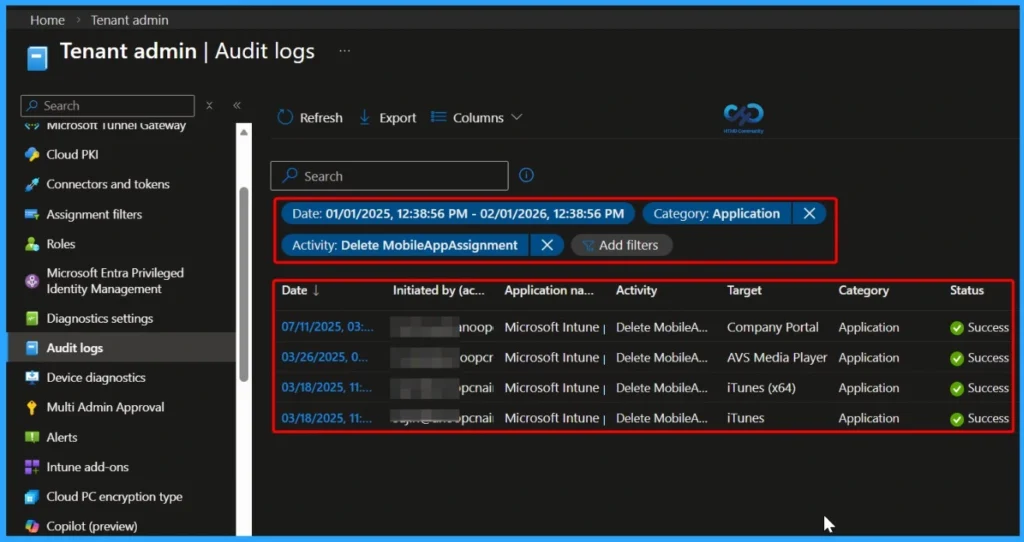
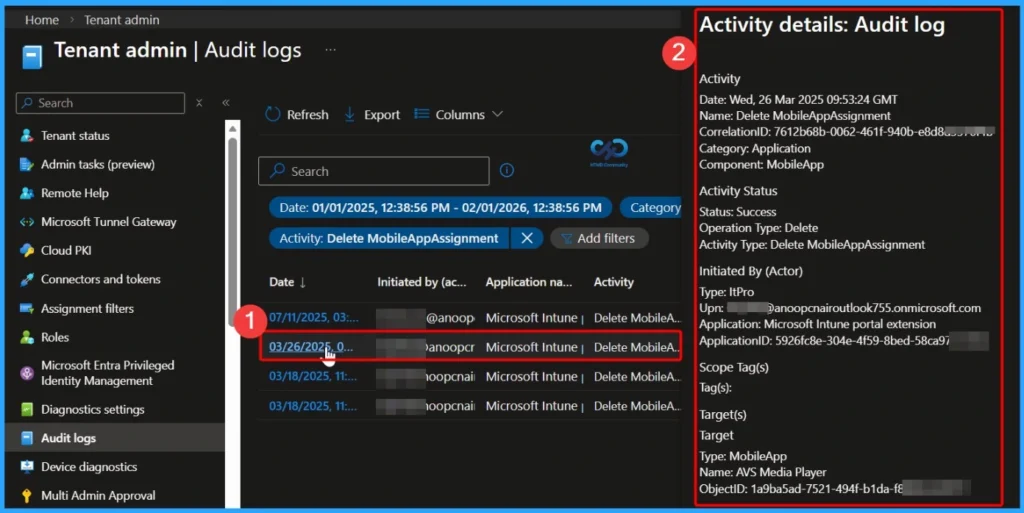
Activity Log Filters – Delete MobileAppAssignment – Audit Log Details
The Delete MobileAppAssignment filter under the Activity Log provides detailed audit information related to mobile app assignment deletion. Based on the selected filters (Date, Category: Application, and Activity: Delete MobileAppAssignment), the following audit log details are displayed.
Need Further Assistance or Have Technical Questions?
Join the LinkedIn Page and Telegram group to get the latest step-by-step guides and news updates. Join our Meetup Page to participate in User group meetings. Also, join the WhatsApp Community and the Whatsapp channel to get the latest news on Microsoft Technologies. We are there on Reddit as well.
Author
About Author – Jitesh, Microsoft MVP, has over six years of working experience in the IT Industry. He writes and shares his experiences related to Microsoft device management technologies and IT Infrastructure management. His primary focus is Windows 10/11 Deployment solution with Configuration Manager, Microsoft Deployment Toolkit (MDT), and Microsoft Intune.
By usign the filter you can select a time range to go back up to a year.