
Key Takeaways
- The Bulk device actions workflow now includes a Device type selection in the Basics step.
- For Windows devices, select Physical devices before choosing the required device action.
- Intune displays action-specific information or warnings before the action is submitted.
- Most bulk actions support up to 100 devices, although the supported device limit can vary by action.
Let’s check the Bulk Device Actions in Intune, aka Endpoint Manager. Also, a lot of details on Intune Remote Actions. You can restart, rename, Sync, and perform more by using remote actions from the Intune portal. Intune gives admins the ability to run device actions remotely. The Bulk Devices Actions gives you the ability for the devices you manage and lets you activate remote tasks on those devices. Bulk actions are an efficient way to complete certain device actions to multiple sections simultaneously instead of completing the same action multiple times.
Table of Contents
Table of Contents
Perform Bulk Device Actions in Intune Remote Actions
The Bulk device actions experience allows administrators to select the operating system, device type, and required device action before selecting the target devices. Depending on the selected platform and device type, Intune provides supported actions such as Restart, Sync, Rename, Delete, Retire, Wipe, collect diagnostics, Autopilot Reset, and other platform-specific remote actions.
A few of the remote action options from the Microsoft Intune bulk device actions list (like, Delete, Restart) should appear for every device you select. The Bulk device remote action is for the following types of devices –
| Supported Device |
|---|
| Android (Device Administrator / Full Managed / Dedicated / Work Profile) |
| iOS / iPadOS |
| macOS |
| Windows |
| Windows Holographic |
Perform Bulk Device Actions in Intune
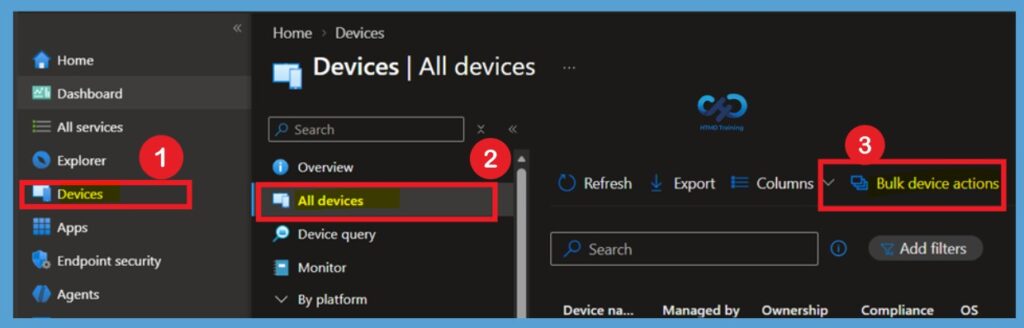
Sign in to the Microsoft Intune admin center and navigate to Devices > All devices. From the All devices page, select Bulk Device Actions to open the bulk device action workflow. This option allows administrators to initiate supported remote actions for multiple managed devices from a single location rather than opening each device individually.

You can use Bulk Device Actions when the same operation needs to be performed on several devices at once. The available actions and device selection options depend on the operating system and device type being managed. Intune provides a guided workflow that starts with the action configuration and then allows you to select the devices that should receive the action.
Note: You can also select the Bulk Device Actions option By platform.
Configure the Basics
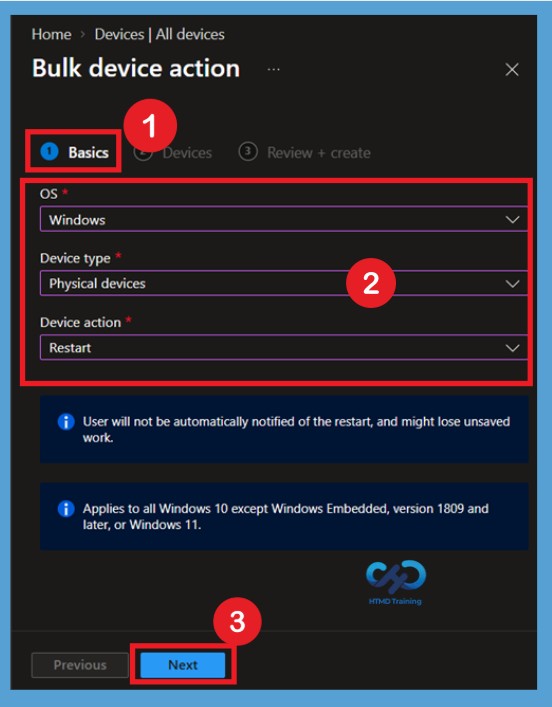
On the Bulk device action page, remain on the Basics tab and configure the required options. Under OS, select the operating system of the devices on which you want to perform the action. Next, under Device type, select the appropriate device type. For example, when performing a Restart action for Windows computers, select Windows as the OS and Physical devices as the device type.
After selecting the OS and device type, open the Device action dropdown and select the required remote action. In this example, select Restart. The available actions can change depending on the OS and device type selected, so not every remote action is available for every platform. Intune can also display an informational message or warning based on the selected action.
- For a Windows Restart action, Intune warns that users are not automatically notified about the restart and may lose unsaved work. Review this information before continuing and select Next.
| Intune supports the following remote management bulk device actions |
|---|
| Autopilot reset |
| Collect diagnostics |
| Delete |
| Rename |
| Restart |
| Retire |
| Sync |
| Wipe |
| Custom notifications |
| Update cellular data plan |
| Reprovision |
| Restore |
Devices Tab
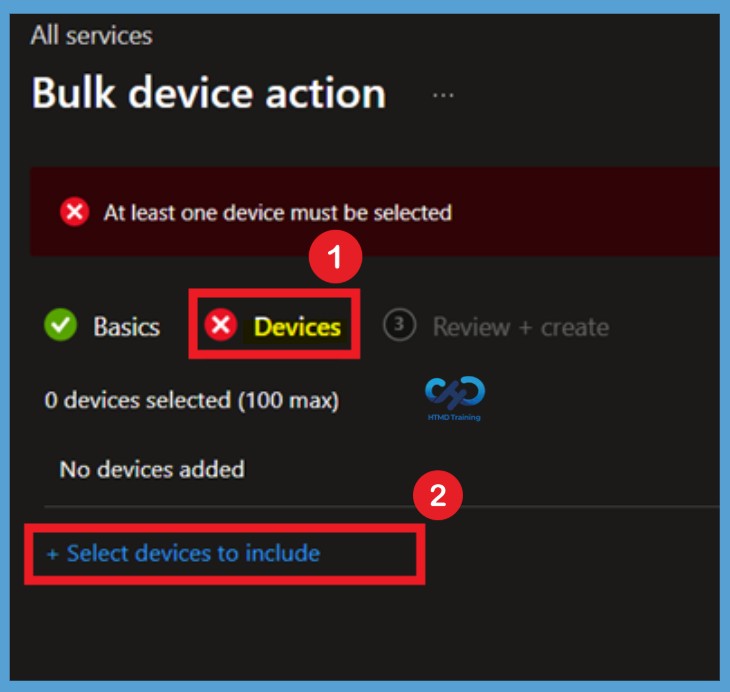
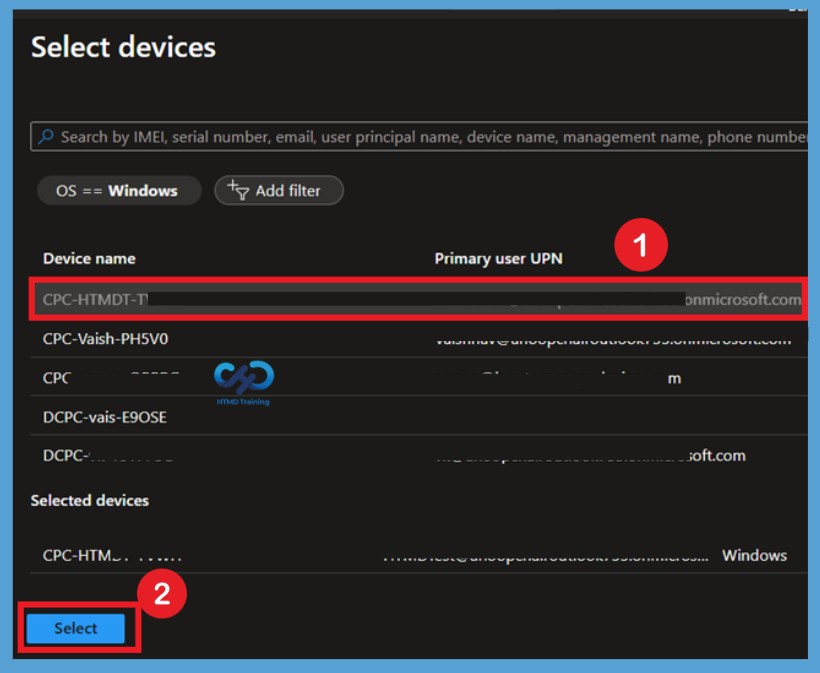
On the Devices tab, select + Select device to include to open the device selection pane. From the available device list, select the devices on which you want to perform the configured action. Intune provides search options that can help you locate specific devices using available identifiers such as device name, serial number, user principal name, email address, or IMEI where applicable.
You can see 1 device selected for the restart action on the Devices page. Select up to a maximum number of devices that the action supports and click Next.
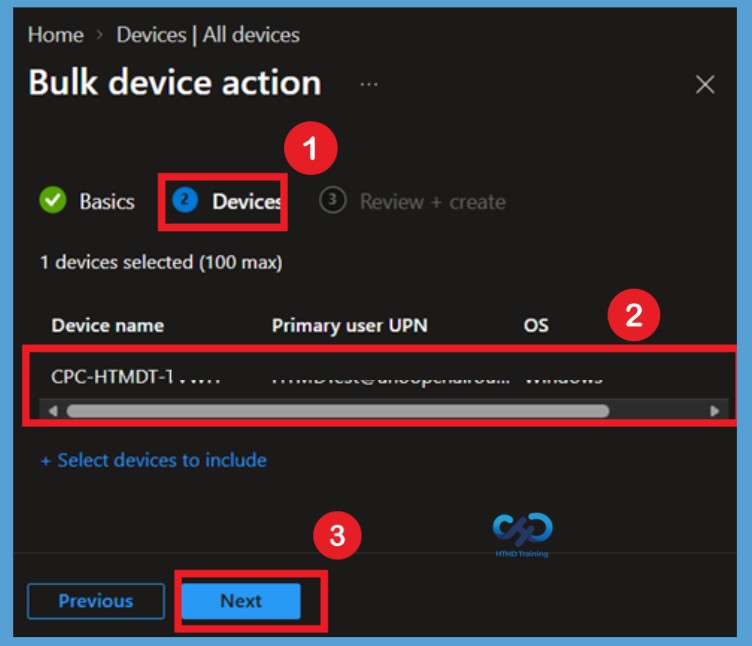
Most bulk actions support up to 100 devices, although the maximum number can vary depending on the remote action. Once the device selection is confirmed, select to continue to the review stage.
Review + create
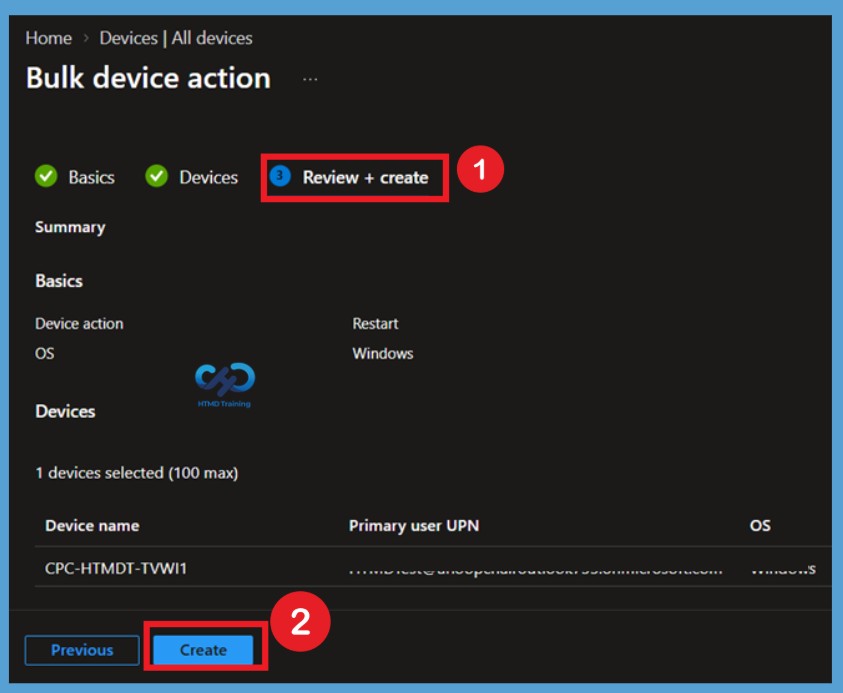
On the Review + create tab, carefully review the configuration before initiating the bulk action. Verify the selected OS, Device type, Device action, and the list of devices selected for the operation. This step is particularly important for actions such as Restart, Wipe, Delete, or Retire because these actions can have a direct impact on the selected devices or their users.
After confirming that all the details are correct, select Create to initiate the bulk device action. Intune processes the request and displays a notification in the upper-right corner confirming that the action was successfully initiated.
- A notification will appear automatically in the top right-hand corner with a message “Successfully initiated Restart on all devices” Initiated Restart with 1 devices from Intune.
Autopilot Reset
You can reset devices with Windows Autopilot reset process. Resetting in this way avoids the need for IT staff to visit each machine to start the process. Windows Autopilot Reset takes the device back to a business-ready state, allowing the next user to sign in and get productive quickly and simply.
Specifically, Windows Autopilot Reset:
- Removes personal files, apps, and settings.
- Reapplies a device’s original settings.
- Sets the region, language, and keyboard to the original values.
- Maintains the device’s identity connection to Azure AD.
- Maintains the device’s management connection to Intune.
Collect Diagnostics
The diagnostic logs contain MDM event logs, Intune Management Extension logs, registry values, etc. These are helpful logs for Intune admins to understand the exact issue with Windows 10, and 11 or Cloud PC devices. The Collect diagnostics bulk device action collects diagnostic logs from up to 25 Windows devices at a time. Learn more details about Step-by-Step Guide to Collect Windows Device Diagnostics Logs in Microsoft Intune. This is helpful to collect Intune logs from Windows 10 and Windows 11.
Delete
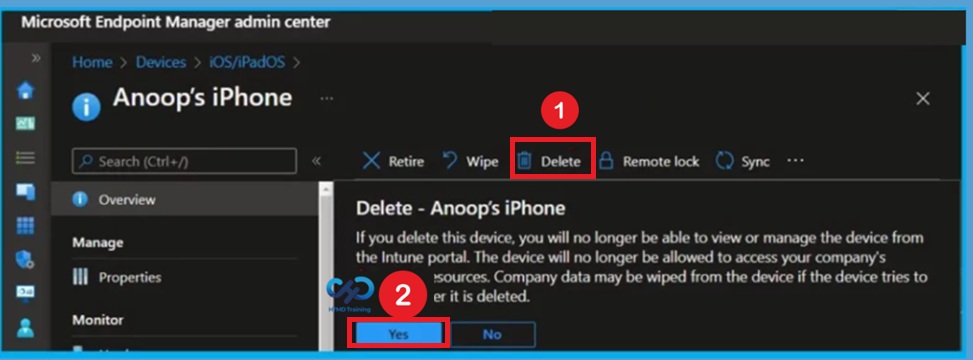
If you want to remove devices from the Intune portal, you can use bulk delete options. The next time the device checks in, any company data on it will be removed as Intune also retires a device when deleting it from the console. You can configure Intune to automatically remove devices that appear to be inactive, stale, or unresponsive. Learn more here Automatically Cleanup Intune Device.
Rename
You can use the Rename device action to rename a device enrolled in Intune. When you use this action, the device’s name is changed in Intune and on the device. You can choose to rename devices in bulk based on the device platform. The bulk rename option uses the same rules as renaming a single device. You can check the detailed process here, Rename Device in Intune.
Retire
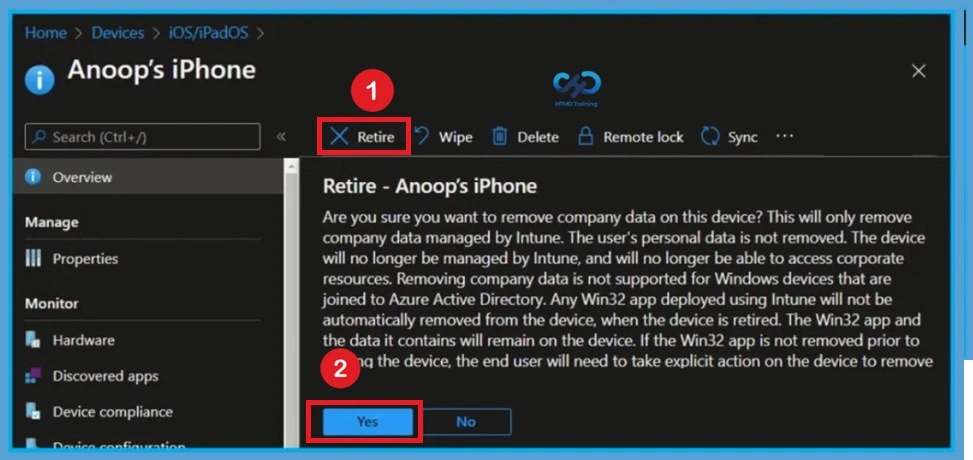
The Retire action removes managed app data (where applicable), settings, and email profiles assigned by using Intune. The device is removed from Intune management. Removal happens the next time the device checks in and receives the remote Retire action.
Sync
The Sync device action forces the selected device to check in with Intune immediately. When a device checks in, it immediately receives any pending actions or policies that have been assigned to it. The sync remote action is useful if you want to immediately validate and troubleshoot the assigned policies without waiting for the next scheduled check-in.
Wipe
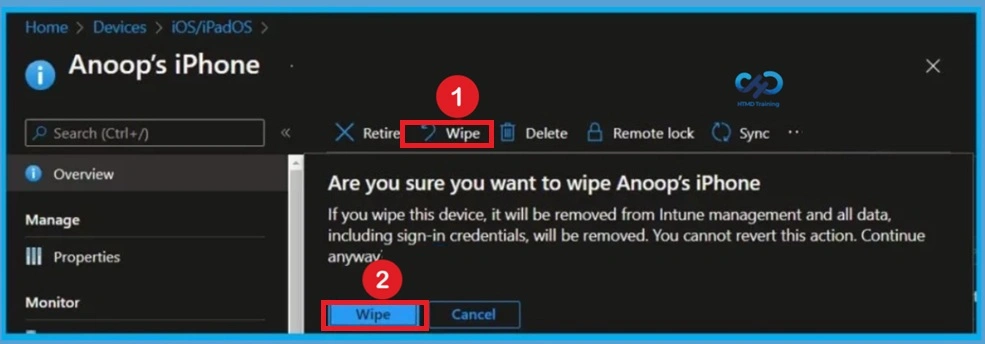
The Wipe action restores a device to its factory default settings. The user data is kept if you choose the Retain enrollment state and user account checkbox. Otherwise, all data, apps, and settings will be removed.
| Wipe action | Retain enrollment state and user account | Removed from Intune management | Description |
|---|---|---|---|
| Wipe | Not checked | Yes | Wipes all user accounts, data, Intune policies, and settings. Resets the operating system to its default state and settings. |
| Wipe | Checked | No | Wipes all Intune Policies. Keeps user accounts and data. Resets user settings back to default. Resets the operating system to its default state and settings |
Send Custom Notifications
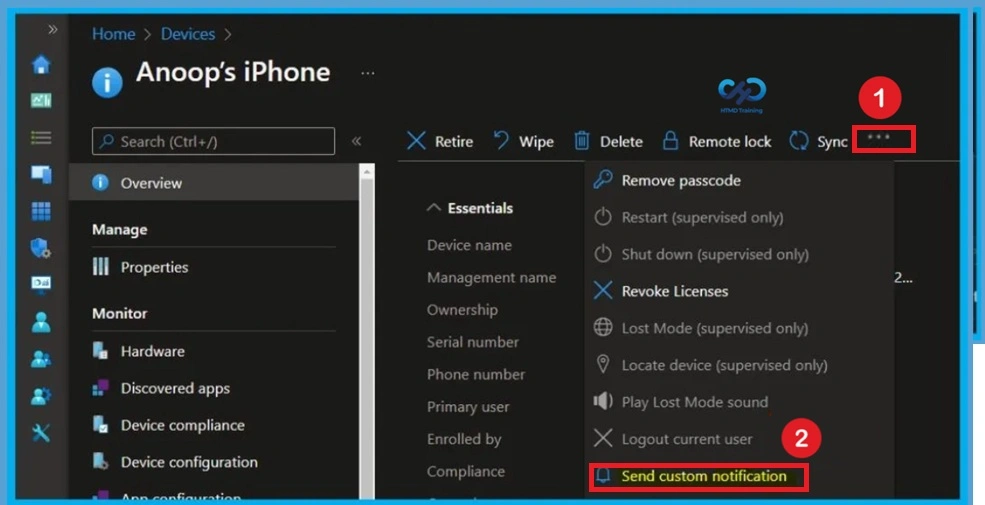
Send Custom Notifications > On a device, users see custom notification messages sent by Intune as a standard push notification from the Company Portal app or the Microsoft Intune app. These notifications are similar to the push notifications users receive from other apps on the device.
On iOS/iPadOS devices, if the Company Portal app is open when the notification is received, the notification displays in the app instead of being a push notification.
Reprovision
The Reprovision remote action deletes a user’s current Cloud PC and creates a brand new Cloud PC for the same user. When a Cloud PC user requires a fresh start, you can consider using the Cloud PC Reprovisioning remote action.
Read More: how to reprovision Cloud PC from the Microsoft Endpoint Manager Admin Center portal.
Restore
With Restore action, you can quickly restore Cloud PC using Point-in-Time restore. You can either restore a single Cloud PC or restore multiple Cloud PCs. Before you restore a Cloud PC, you must configure point-in-time restore settings. The restore settings that you define allow the users in a group to use the point-in-time restore feature.
Learn how to Backup and Restore Windows 365 Cloud PC
Need Further Assistance or Have Technical Questions?
Join the LinkedIn Page and Telegram group to get the latest step-by-step guides and news updates. Join our Meetup Page to participate in User group meetings. Also, join the WhatsApp Community and the Whatsapp channel to get the latest news on Microsoft Technologies. We are there on Reddit as well.
Author
About Author – Jitesh, Microsoft MVP, has over six years of working experience in the IT Industry. He writes and shares his experiences related to Microsoft device management technologies and IT Infrastructure management. His primary focus is Windows 10/11 Deployment solution with Configuration Manager, Microsoft Deployment Toolkit (MDT), and Microsoft Intune.