
Key Takeaways
- Microsoft Intune allows administrators to revoke Apple VPP app licenses to manage purchased app licenses efficiently.
- Administrators can access the App licenses page from the Microsoft Outlook overview page under Monitor.
- The Revoke all licenses option allows administrators to initiate revocation of all associated app licenses for Microsoft Outlook.
- Administrators can enable user notifications when an app is no longer assigned to them
Let’s check, Revoke Apple VPP App Licenses to Manage Purchased Apps using Microsoft Intune. Revoking app licenses for iOS/iPadOS involves removing the license assignment from users or devices, thereby revoking their access to the licensed app. It’s important to note that when you revoke a license, it doesn’t uninstall the app from the user’s device. It simply prevents the user from accessing the app. If you want to remove the app from the user’s device completely, you can consider using app uninstallation policies or device wipe actions available within Intune.
Table of Contents
Table of Contents
Revoke Apple VPP App Licenses to Manage Purchased Apps using Microsoft Intune
By revoking the app license assignment, you effectively remove access to the licensed app for the selected users or devices. They will no longer be able to use the app on their enrolled iOS or iPadOS devices. Revoking app licenses allows you to manage app access and ensure compliance within your organization. You can easily adjust license assignments as needed, granting or revoking access based on user or device requirements.
Revoking app licenses for iOS/iPadOS involves the process of removing assigned licenses from users or devices, effectively terminating their access to the licensed app. To accomplish this, you can check to Manage User Or Device License For Apple Apps Using Intune.
- How To Schedule IOS Automatic Updates Using Intune Policies
- New Intune Settings for iOS iPadOS Web Clip App Deployment
- Intune Compliance Report for Device Settings
- Configure Intune Enrollment Setup for iOS macOS Devices
Revoke App Licenses for Apple VPP using Intune
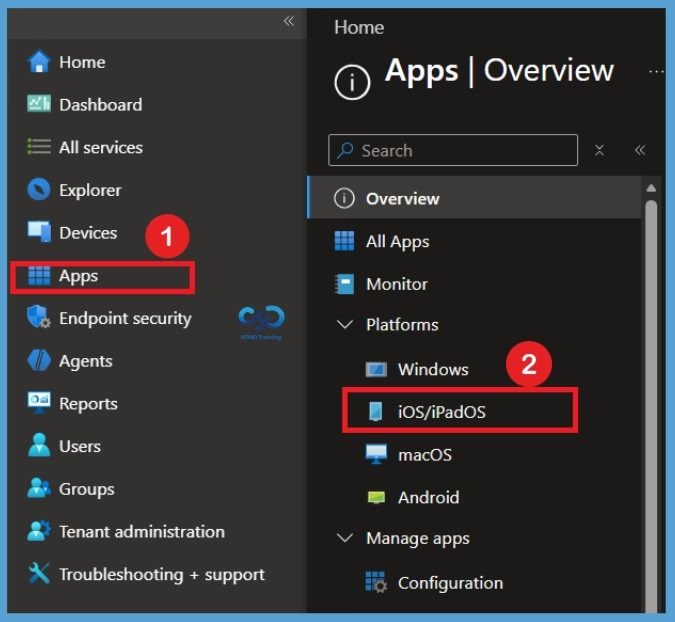
Here is a step-by-step guide to revoking app licenses for iOS/iPadOS using Microsoft Intune. First, sign in to the Microsoft Intune admin center using your credentials. Navigate to Apps > iOS/iPadOS apps from the left navigation pane. The iOS/iPadOS apps page displays the list of applications available in your Intune environment.

- Sign in to the Microsoft Intune admin center
- Select Apps > iOS/iPadOS or macOS.
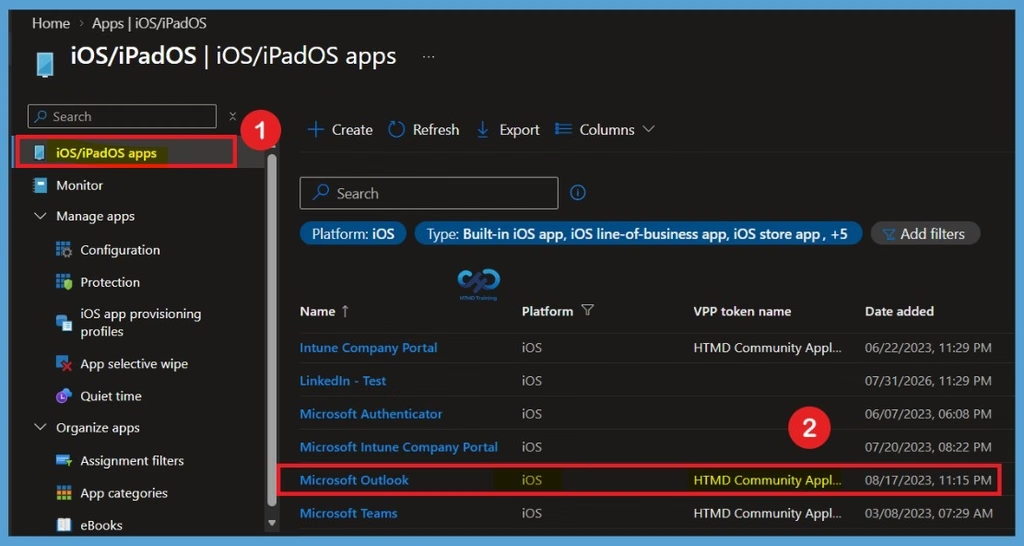
When you select Apps > iOS/iPadOS apps, you will see different types of applications available in Microsoft Intune. From this list, select the required Volume Purchase Program (VPP) app to manage its license assignments. In this example, I selected Microsoft Outlook, which is listed as a VPP app. Selecting the app opens its details page, where you can access the available monitoring options and manage its assigned app licenses.
Open the App Licenses Page for Microsoft Outlook
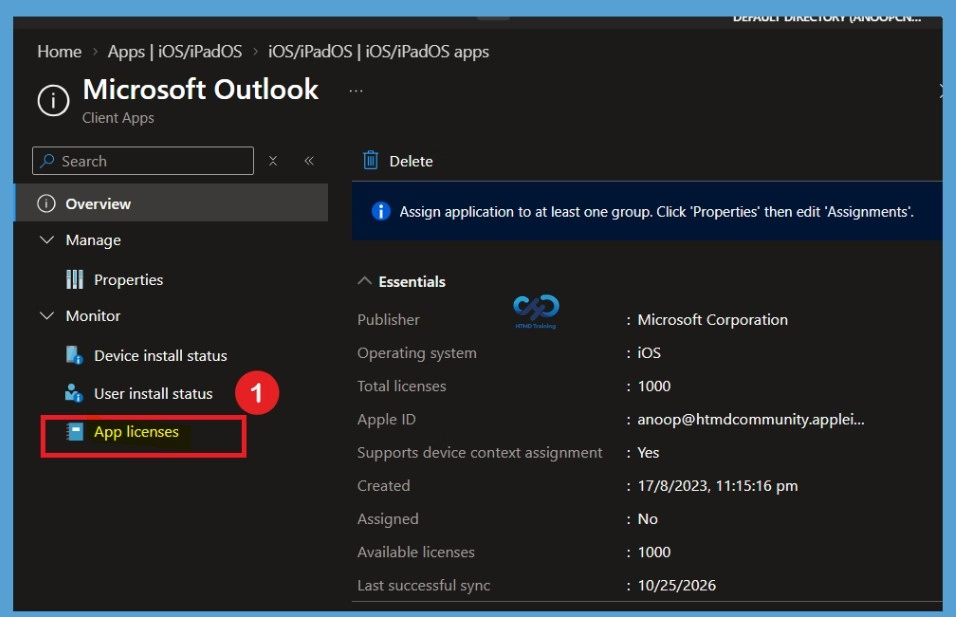
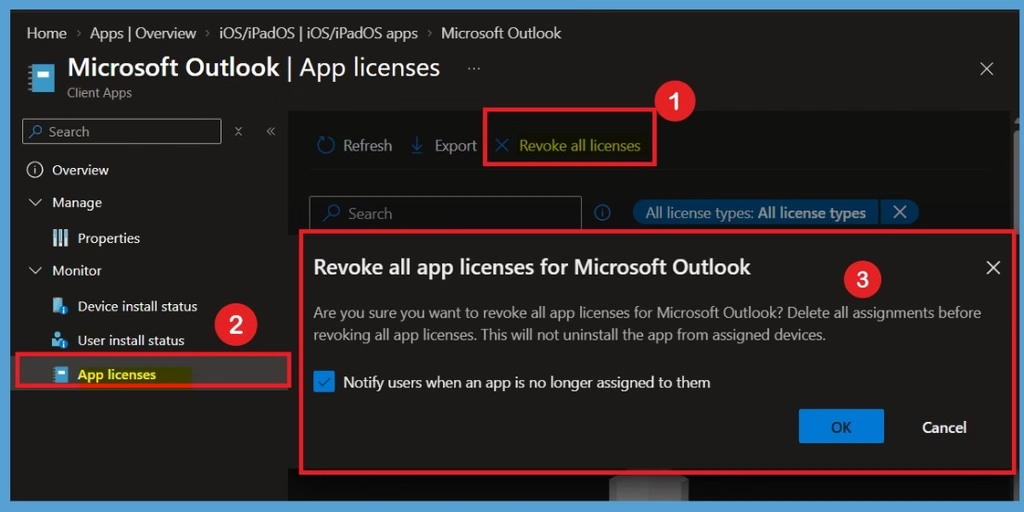
When you click on Microsoft Outlook, you will be taken to the Microsoft Outlook overview page. Here, you can find different options and properties related to the application, including Device install status, User install status, and App licenses. To manage the assigned licenses, we need to focus on the App licenses option under the Monitor section. Click on App licenses to view the license details associated with Microsoft Outlook. This page helps you identify the users or devices to which the app licenses are assigned. You can then select the required user or device to proceed with the license revocation process.
Revoke All Microsoft Outlook App Licenses Using Intune
You can revoke all associated iOS/iPadOS or macOS volume-purchase program (VPP) app licenses based on a given device, user, or app. But there are some differences between iOS/iPadOS and macOS platforms. Let’s check the details shared by Microsoft.
| Action | iOS/iPadOS | macOS |
|---|---|---|
| Remove App Assignment | Removing an app assignment is a prerequisite to revoking an app license. When you remove an app assignment for a user, Intune does not reclaim the user or device license until you change the assignment to Uninstall. If the app assignment is removed while the app is installed and never assigned as Uninstall, it will remain installed, but it will no longer be offered for installation to the user or device. | Removing an app assignment is a prerequisite to revoking an app license. When you remove an app assignment for a user, Intune does not reclaim the user or device license until you change the assignment to Uninstall. If the app assignment is removed while the app is installed and never assigned as Uninstall, it will remain installed, but it will no longer be offered for installation to the user or device. |
| Revoke App License | After changing the app assignment to Uninstall, you can reclaim an app license from the user or device using the Revoke license action. You must change the assignment to Uninstall to remove the app from the device and revoke the app license. | After changing the app assignment to Uninstall, you can reclaim an app license from the user or device using the Revoke license action. The macOS app with revoked license remains usable on the device, but cannot be updated until a license is reassigned to the user or device. According to Apple, such apps are removed after a 30-day grace period. You must change the assignment to Uninstall to remove the app from the device and revoke the app license. |
Once you click on Revoke licenses, A prompt will appear asking you to confirm Revoke license for user. Are you sure you want to revoke the license for user? Delete associated assignments before a VPP license. This will not uninstall the app from assigned devices. You will also get a checkbox to confirm, Notify Users when app is no longer assigned to them. You can select the option if you wish and OK to proceed.
It is important to understand how Microsoft Intune manages Apple VPP app licenses when user assignments or device management status changes. When an employee leaves the organization or is removed from an assigned group, license reclamation depends on the app assignment and licensing configuration. Assigning a purchased app with the Uninstall intent can help remove the app from the device and reclaim its license when the applicable conditions are met.
- However, removing a device from Intune management does not automatically reclaim its associated app licenses.
- Administrators should also review license assignments when a user account is deleted from Microsoft Entra ID to ensure that licenses are reclaimed appropriately and can be reused when available.
Need Further Assistance or Have Technical Questions?
Join the LinkedIn Page and Telegram group to get the latest step-by-step guides and news updates. Join our Meetup Page to participate in User group meetings. Also, join the WhatsApp Community and the Whatsapp channel to get the latest news on Microsoft Technologies. We are there on Reddit as well.
Author
About Author – Jitesh, Microsoft MVP, has over six years of working experience in the IT Industry. He writes and shares his experiences related to Microsoft device management technologies and IT Infrastructure management. His primary focus is Windows 10/11 Deployment solution with Configuration Manager, Microsoft Deployment Toolkit (MDT), and Microsoft Intune.
If the license isn’t reclaimed when the device is removed from Intune management, does that mean the user needs to be deleted in order to reclaim that license, or can that user be set to ‘disabled’ instead?
Why would I see no assigned users, no users showing the app installed and all licenses revoked but it still shows that there are x number of licenses used in both Intune and ABM. How do I force the reclaim of the license so I can delete the app all together?