
In this article am going to discuss how to set up Windows 365 Cloud Apps using Microsoft Intune. This feature became generally available during Microsoft Ignite 2025. Windows 365 Cloud Apps let organizations stream individual apps (like Word, Outlook, PowerPoint) from the cloud to users’ devices, instead of a full desktop, ideal for shift workers or task-based roles, using shared Windows 365 Frontline PCs, offering cost savings and simplified delivery via Intune. Users access these apps through the Windows App or a browser, appearing like local apps but running remotely, with synchronized settings for a consistent experience.
In this context, Microsoft launched Windows 365 Cloud Apps with an objective to make end-user access simpler through a centralized application in which end users can access and interact with their Cloud Apps straight from Windows, macOS, iOS devices, Android devices, and web browsers. To begin with, you need a Windows 365 Frontline license and confirm Entra ID integration with your tenant.
After ensuring all requirements have been met, you can create a provisioning policy in Intune and publish the Windows 365 Cloud App. As soon as you publish this application, Microsoft will make it available for deployment. Therefore, you can simply assign this application to user groups. Make all the necessary settings regarding application deployment andthe devices you want it to reach. Additionally, you can personalize your application by adding it to your company portal and requiring all devices to have this application.
Once deployed, the Windows 365 Apps will appear to users, who can easily access their Cloud Apps. Intune supports viewing the status of installations and solving any problems during deployment. Through Cloud Apps, firms can offer a unified and safe experience when accessing Cloud Apps, regardless of platform. Such a system ensures that companies have the latest way for their staff to access Windows 365 Cloud Apps using Intune.

Table of Contents
Prerequisites for Windows 365 Cloud Apps
The table below describes the prerequisites for Windows 365 Cloud Apps, including licensing, image requirements, and supported app discovery methods. Meeting these prerequisites ensures successful app creation, discovery, and deployment through Intune.
| Scenario | Prerequisite | Description |
|---|---|---|
| License Requirement | Windows 365 Frontline License | A Windows 365 Frontline license is required to create Windows 365 Cloud Apps. |
| Custom Applications | Custom Image (Optional) | Required if you want to create Cloud Apps from applications that are not preinstalled in Windows 365 gallery images. |
| App Discovery Method | PowerShell App Scanning | When a custom image is uploaded, Windows 365 Cloud Apps uses a PowerShell script to scan the Start Menu and discover installed apps. |
| Security Policies | PowerShell Authentication Restrictions | If tenant security policies enforce additional authentication for PowerShell, app discovery will fail. |
| Image Compatibility | Supported Custom Image | If the uploaded custom image is not supported by Windows 365, Cloud Apps will not discover applications. |
| Alternative App Source | Autopilot Device Preparation Policy (public preview) | Cloud Apps can also be created using an Autopilot Device Preparation policy instead of a custom image. |
- Seamless Provisioning of Windows 365 Cloud PCs for External Identities with Intune
- Best Guide to Invite B2B Guest Users to Entra ID using Intune
- How to Enhance Windows365 AI-Enabled Endpoint Management using Copilot in Intune
- How Autopilot Device Preparation Improves Windows 365 Cloud PC Readiness
Create a Provisioning Policy for Windows 365 Cloud Apps
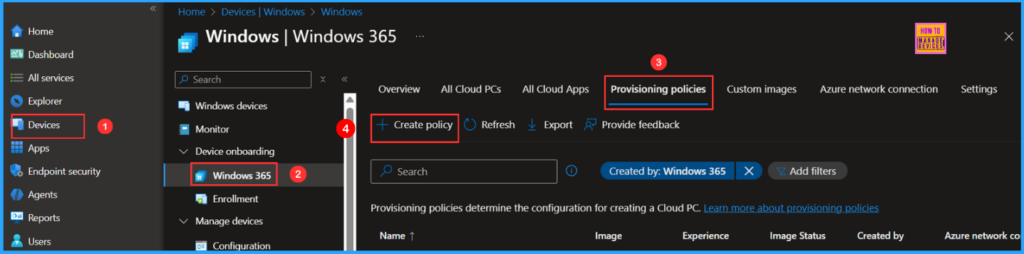
To create a Windows 365 Provisioning Policy for Windows 365 Cloud Apps, log in to the Microsoft Intune Admin Center using your administrator credentials.
- Navigate to > Devices > Device onboarding > Windows 365
- Click on Provisioning policies > +Create policy
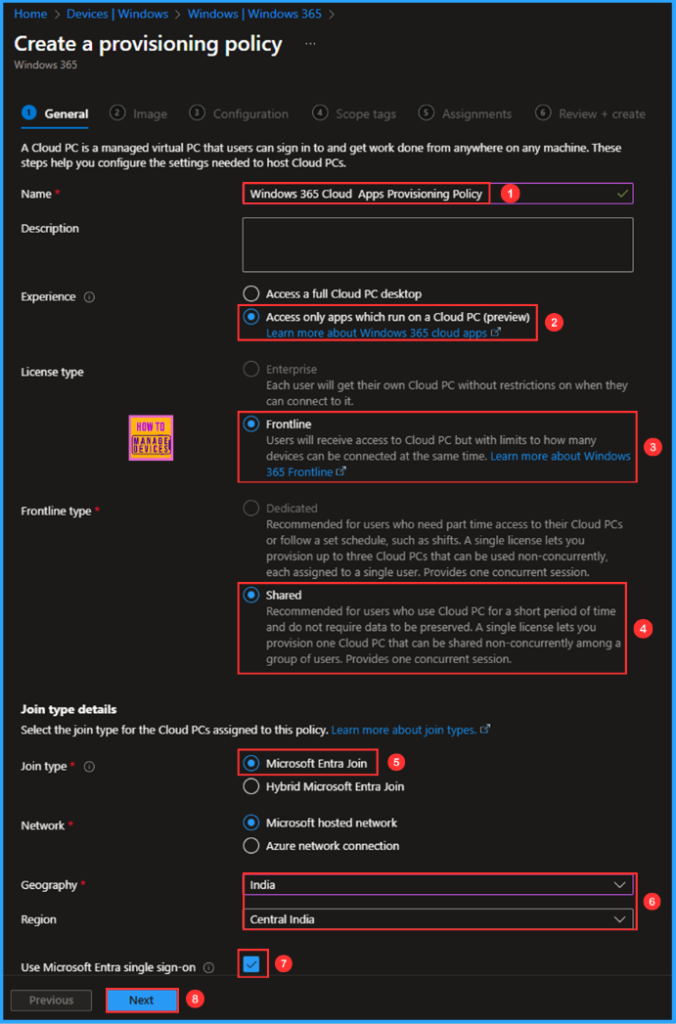
In the General tab, you can now add the following settings. Windows 365 Cloud Apps enable administrators to provide users with secure access to specific applications hosted on a Cloud PC without the need for a dedicated Cloud PC for each user. These apps operate on Windows 365 Frontline Cloud PCs in shared mode.
- Name: Windows 365 Cloud Apps Provisioning Policy
- Description: Optional
- Experience: Access only apps which run on a Cloud PC
- License type: Frontline (Ensure that you have a valid Frontline license available in your tenant)
- Frontline type: Shared
- Join type: Microsoft Entra Join
- Network: Microsoft hosted network
- Geography: India
- Region: Central India
- Use Microsoft Entra single sign-on: Yes (Check the box)
You can choose an image to create the Frontline Cloud PC or create a new custom image. I will select the latest available Gallery image, which is Windows 11 Enterprise + Microsoft 365 Apps 25H2. You can also view the available apps in this specific image.
Note: Cloud Apps do not currently identify applications in Appx, MSIX, or Windows Store formats. Consequently, Microsoft Teams is not available as a Cloud App. In future developments, you will be able to discover and publish Appx or MSIX apps as Cloud Apps.
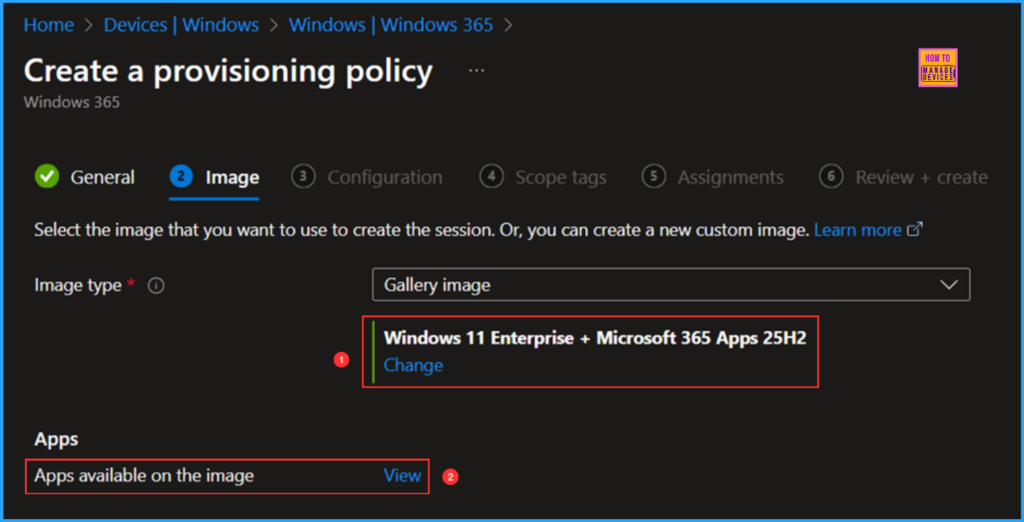
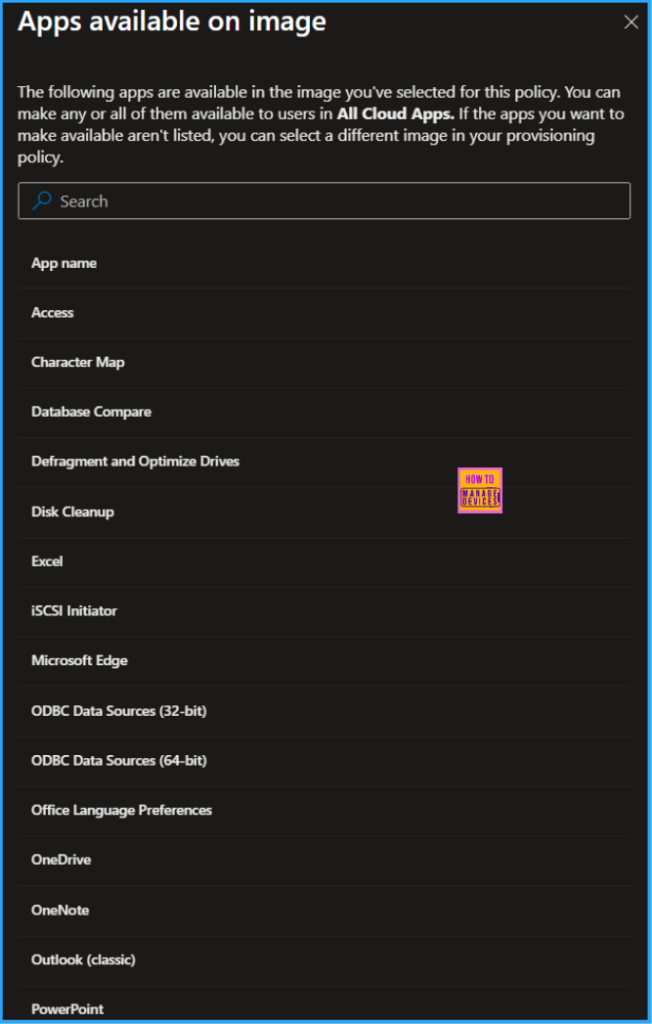
Here are the Apps available on this Windows 11 Enterprise + Microsoft 365 Apps 25H2 Gallery Image. The apps shown in the selected image for this policy are available for use. You can choose to make any or all of these apps accessible to users in All Cloud Apps. If the apps you wish to make available are not listed, you can select a different image in your provisioning policy.
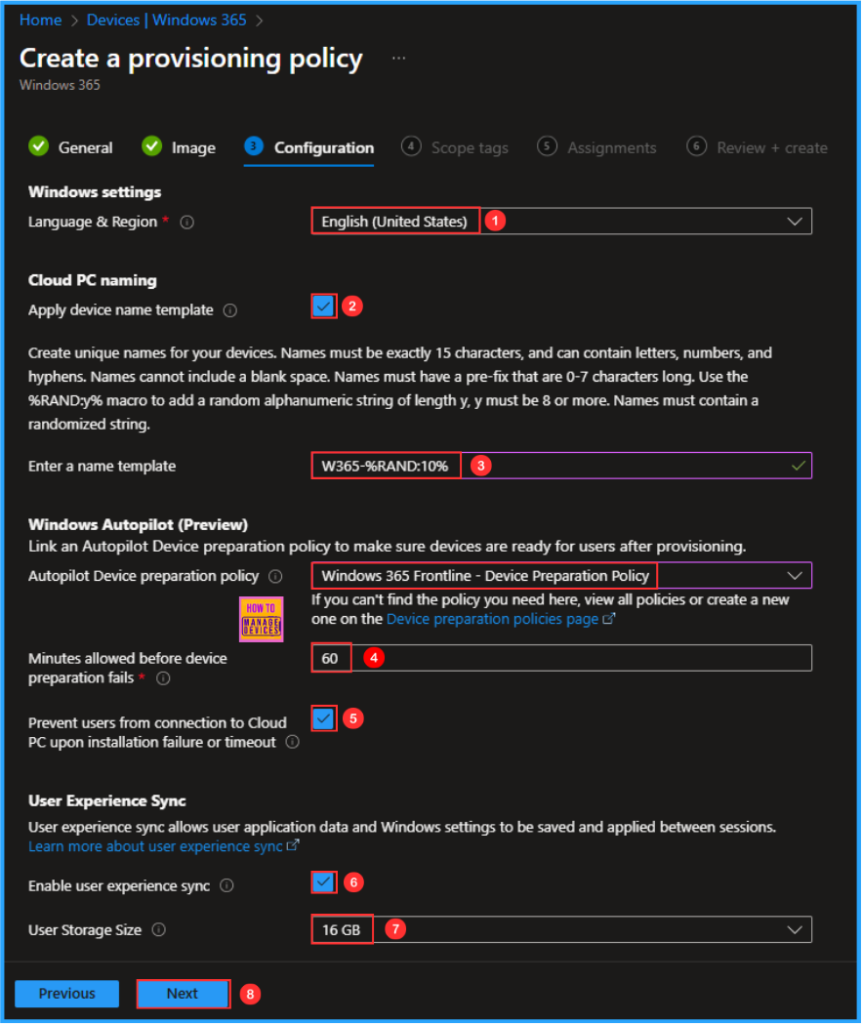
The next tab focuses on Windows settings, Cloud Apps naming, Windows Autopilot (Preview) and User Experience Sync. Select the options listed below.
- Language & Region: English (United States)
- Apply device name template: Yes (Check the box)
- Enter a name template: W365-%RAND:10% (A maximum of 15 characters is allowed)
- Windows Autopilot (Preview): Windows 365 Frontline – Device Preparation Policy (This is Optional here, I have selected a pre-created DPP)
- Minutes allowed before device preparation fails: 60
- Prevent users from connection to Cloud PC upon installation failure or timeout: Yes (Check the box)
- Enable User Experience Sync: Yes (Check the box)
- User Storage Size: 16 GB (Sizes available range from 4 GB to 64 GB)
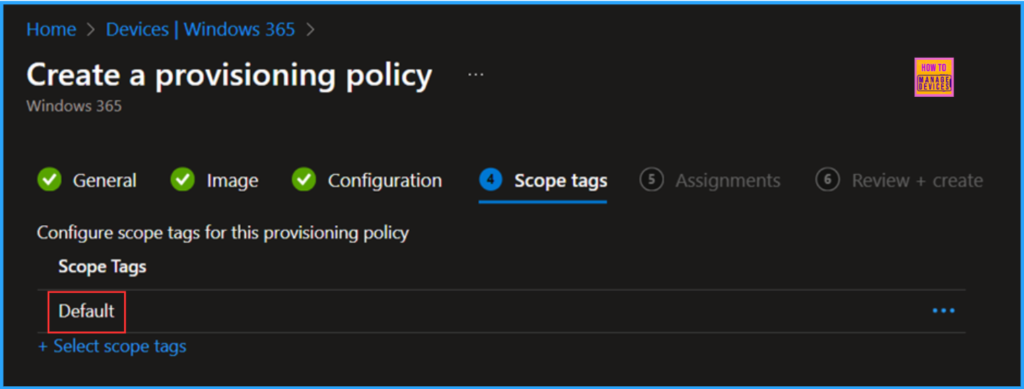
On the next page, keep the Scope tags set to Default. If your tenant has custom scope tags, select them based on your policy needs, and then click Next.
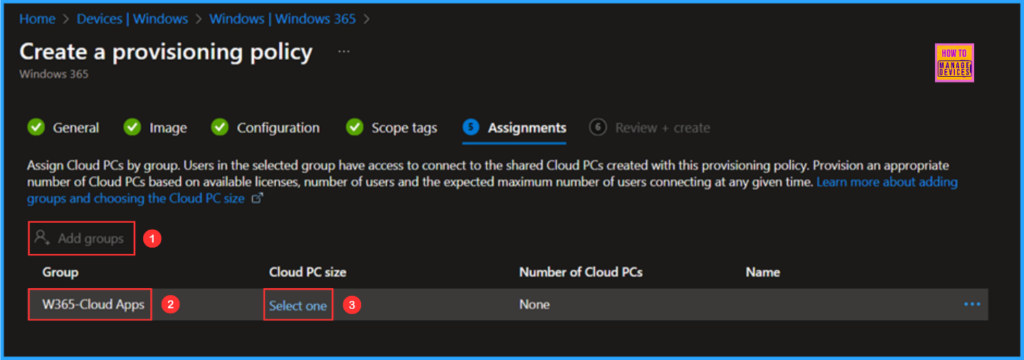
In this section, select the group or groups of users who will receive Windows 365 Cloud Apps. I will assign the policy to the W365-Cloud Apps group. To do this, click on Add groups and choose the appropriate user group. Then, click on the Select one hyperlink under the Cloud PC size option.
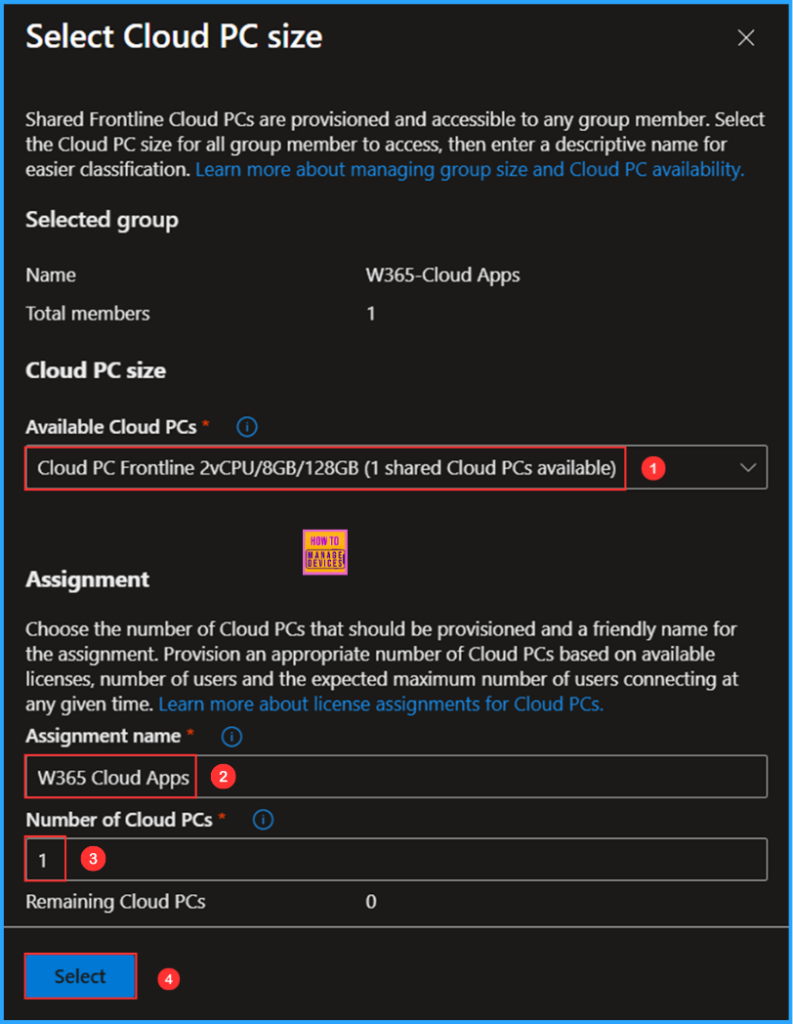
Choose the size of your Cloud PC based on your available Windows 365 Frontline license. Any member of the group can access shared Frontline Cloud PCs. Select a Cloud PC size for all group members to use and provide a descriptive name for easier identification.
- Available Cloud PCs: Cloud PC Frontline 2vCPU/8GB/128GB (1 shared Cloud PCs available)
- Assignment name: W365 Cloud Apps
- Number of Cloud PCs: 1
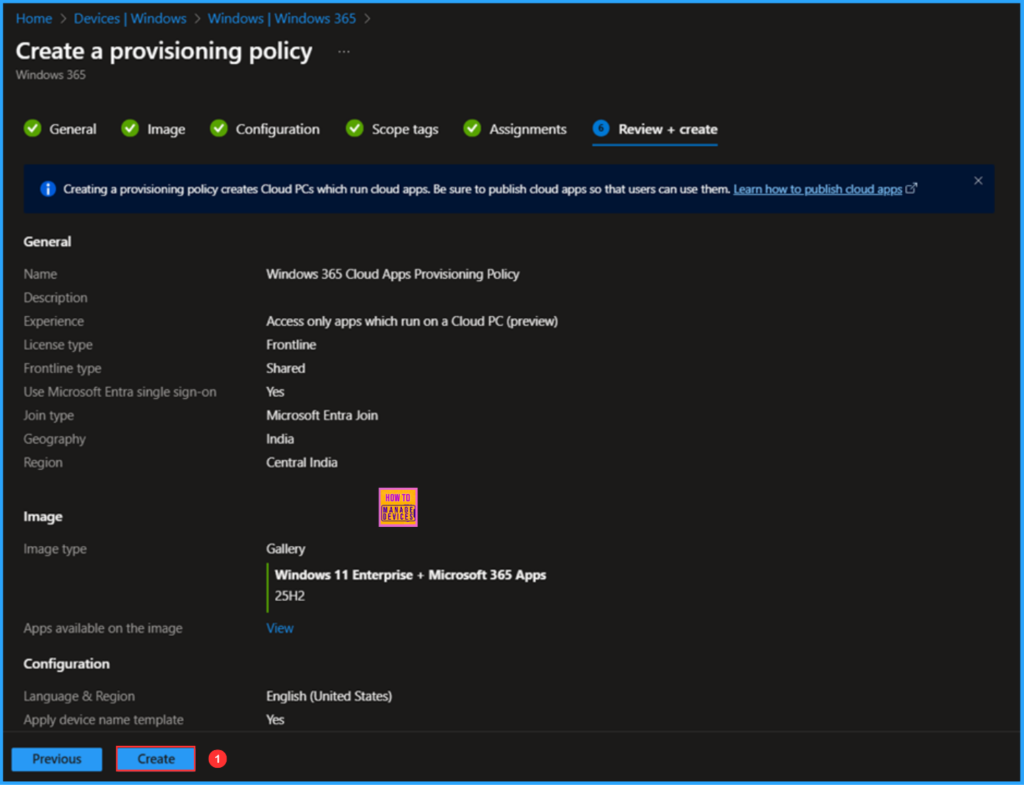
On the Review + create page, review all settings for the Windows 365 Cloud Apps Provisioning Policy. After confirming, click Create to deploy the policy.
- How Windows 365 for Agents Performs Intelligent PowerPoint Editing in Cloud PC
- How to Create Elevate as Current User EPM Rules Policy using Intune
- How to Fix End of Support Warning of Windows 365 Provisioning Policy in Intune
- How Windows 365 Frontline Shared Makes Non-Persistent Cloud PCs Easier to Manage
Publish the Cloud Apps
The new Provisioning Policy for Windows 365 Cloud Apps has been deployed to the W365-Cloud Apps user group. Please allow some time for the policy to take effect. Initially, it will create a Cloud PC with the following specifications: Frontline Shared 2vCPU/8GB/128GB (W365-VNM1S05DC1), which will provide access to the Cloud app experience in shared mode.
Multiple users assigned to this group will be able to access Windows 365 Cloud Apps without needing individual Cloud PCs. To monitor the status of the Cloud Apps creation and deployment, please follow the steps outlined below in the Intune Portal.
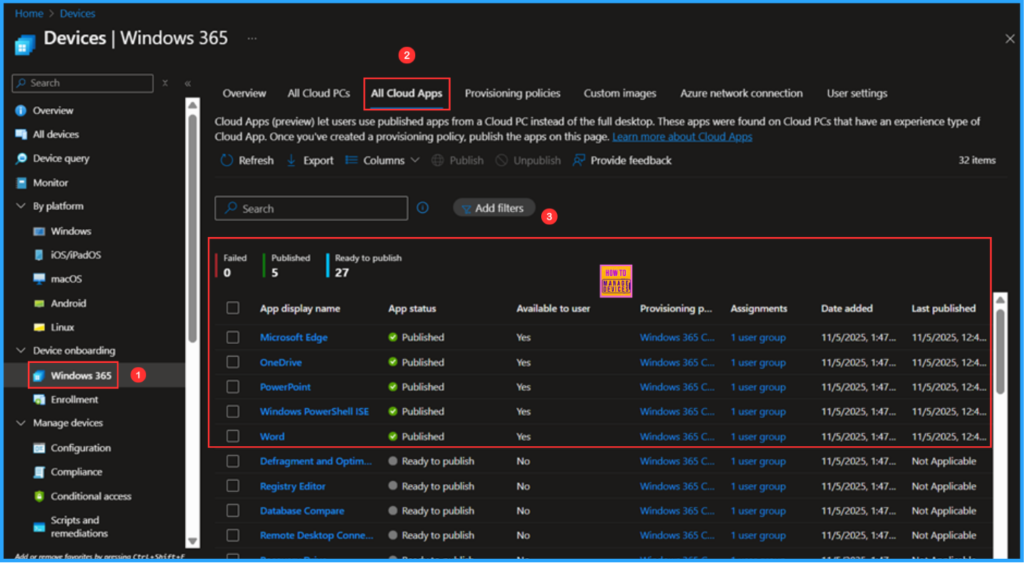
- Navigate to Devices > Device onboarding > Windows 365 > All Cloud Apps > View the available apps, select a few from the list, and click on Publish.
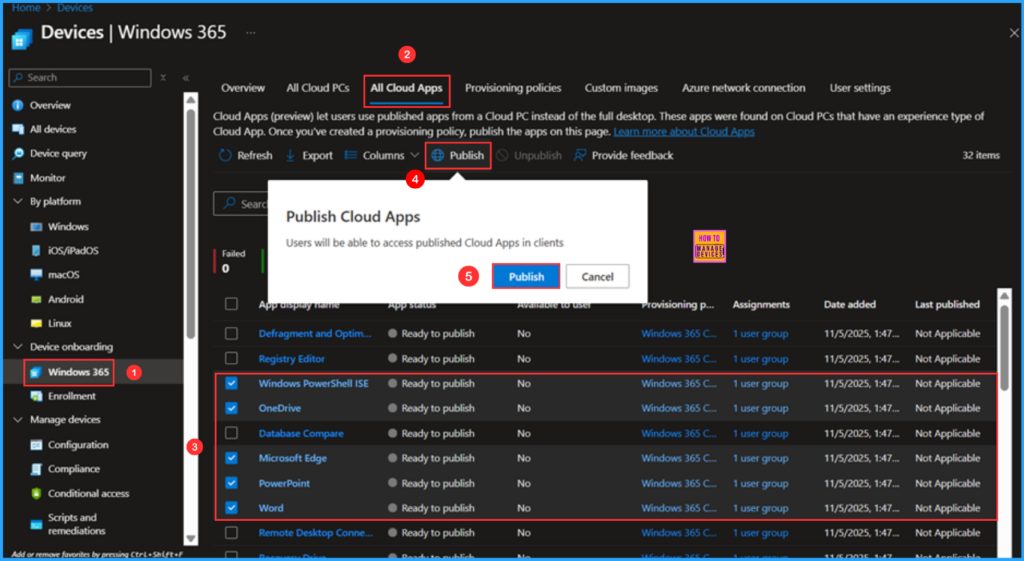
Users will be able to access published Cloud Apps in clients. The selected Apps, including Microsoft Edge, OneDrive, PowerPoint, Windows PowerShell ISE, and Word, have changed status from Ready to publish to Publishing and then to Published.
Windows 365 Cloud Apps End User Experience
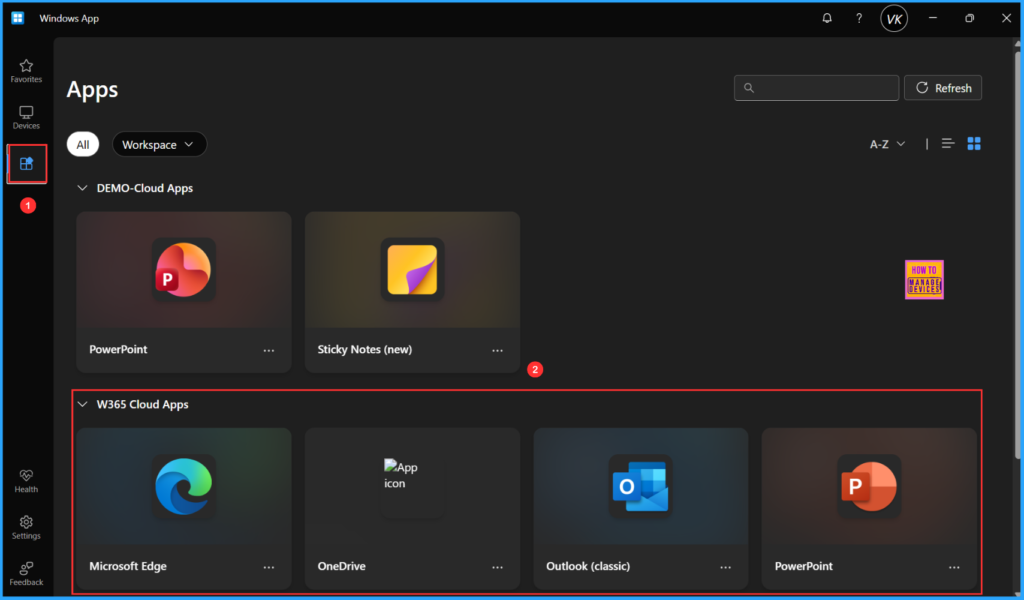
It’s time to check our Windows 365 Cloud Apps experience. You can either use the Windows App or access the URL https://windows.cloud.microsoft.com through a browser. Log in with your Windows 365 Cloud Apps user credentials (corporate user credentials). In the Windows app, you will notice a new tab labelled Apps. Click on this tab to view all the published applications available to users, organized by the categories we created in Intune.
Users can click on any of the published apps and use them just like their local applications. Additionally, user data will be synced via OneDrive, which indicates that our deployment is functioning correctly. One last thing, Enhanced user experience for Cloud Apps is currently in public preview. It includes better support for Windows Snap, full-screen mode, improved DPI scaling, and a more polished look with improved borders, shadows, and Windows theme integration.
I hope this article was helpful for you and your organisation. Thank you for taking the time to read it till the end. This may be my last post of the year. Wishing you a great year ahead! Keep supporting the HTMD Community, and we look forward to seeing you in the next post.
Need Further Assistance or Have Technical Questions?
Join the LinkedIn Page and Telegram group to get the latest step-by-step guides and news updates. Join our Meetup Page to participate in User group meetings. Also, join the WhatsApp Community to get the latest news on Microsoft Technologies. We are there on Reddit as well.
Author
Vaishnav K has over 12 years of experience in SCCM, Intune, Modern Device Management, and Automation Solutions. He writes and shares knowledge about Microsoft Intune, Windows 365, Azure, Entra, PowerShell Scripting, and Automation. Check out his profile on LinkedIn.