
Key Takeaways
- The Settings agentic experience allows users to search using natural language.
- It uses an AI model to provide smarter and more relevant search suggestions.
- If the policy is enabled, the AI-powered search feature is disabled.
- If the policy is disabled, users can access the intelligent agentic search experience.
Hey, let’s discuss about how to Controlling the Settings Agentic Search Experience in Windows using Intune. The Settings agentic experience improves search inside the Settings app by allowing users to type in natural language. When it is turned on, it uses an AI model to give smarter and more relevant search suggestions.
Table of Contents
Table of Contents
Controlling the Settings Agentic Search Experience in Windows using Intune
This policy lets you control whether this feature is available on a device. If the policy is enabled, the agentic (AI-based) search is turned off, and users will only see basic indexed and semantic search results. If the policy is disabled, the intelligent agentic search experience remains available for users.
- Remove Search Link from Start Menu to Restrict Search UI Elements in Windows using Intune Policy
- How to Configure New Windows App Settings for Windows 365 using Intune
- Intune Agentic AI Enablement Roadmap for 2026
- Force Authentication Before AutoFill on iOS and iPadOS using Intune Policy
How to Create a Profile
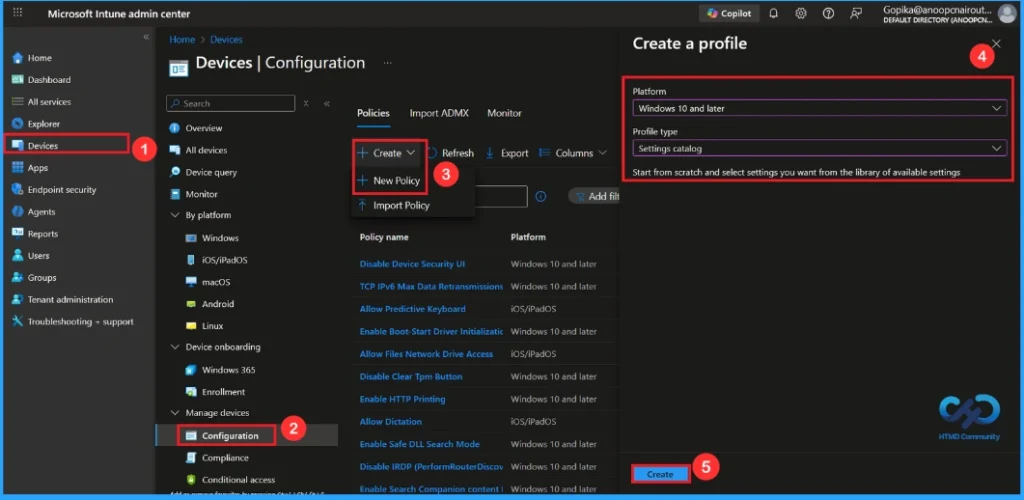
First, sign in to the Microsoft Intune admin center. Then, go to Devices > Configuration > Create > New policy. In the next window, select the platform and profile type. Then click Create to continue.
| Steps | Details |
|---|---|
| Platform | Windows 10 and later |
| Profile Type | Settings Catalog |
Name and Description
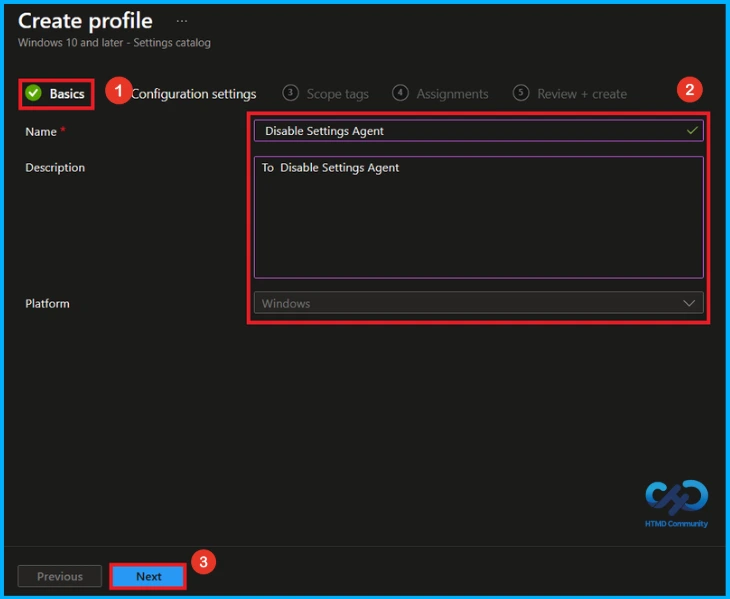
You need to enter some basic details, such as the name and a description. For example, I entered the name as Disable Settings Agent. In the description, I enter To Disable Settings Agent. After filling in the details, click Next to continue.

Configure Settings Agent Policy
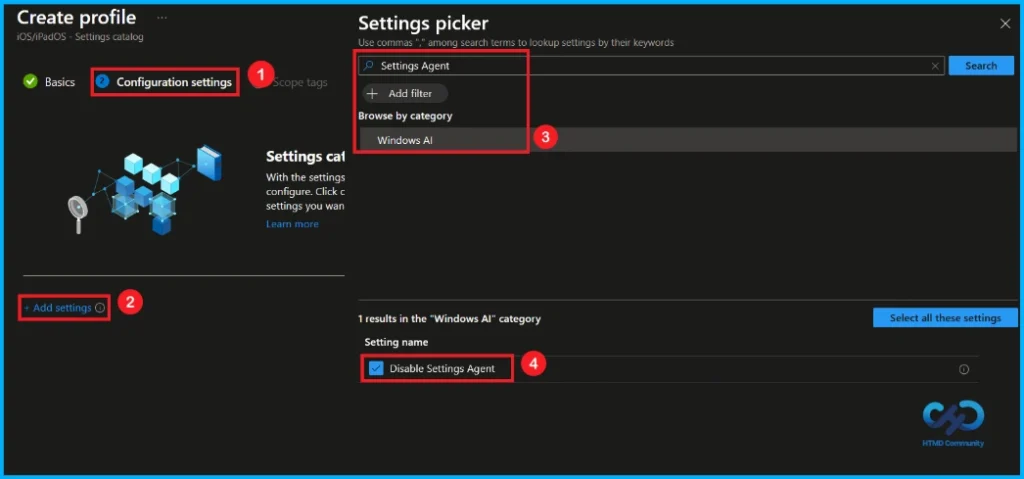
On this page, we click on the + Add Settings hyperlink. Then you will get a settings picker that will show different types of categories to select specific settings. Here, I choose to Windows AI the category and select the Disable settings Agent.
Once you have selected this settings and closed the Settings picker. You will see it on the Configuration page. Here we have only two settings: Enable or Disable. By default, it will be set to Enable. If you want to enable these settings, click on the Next button.
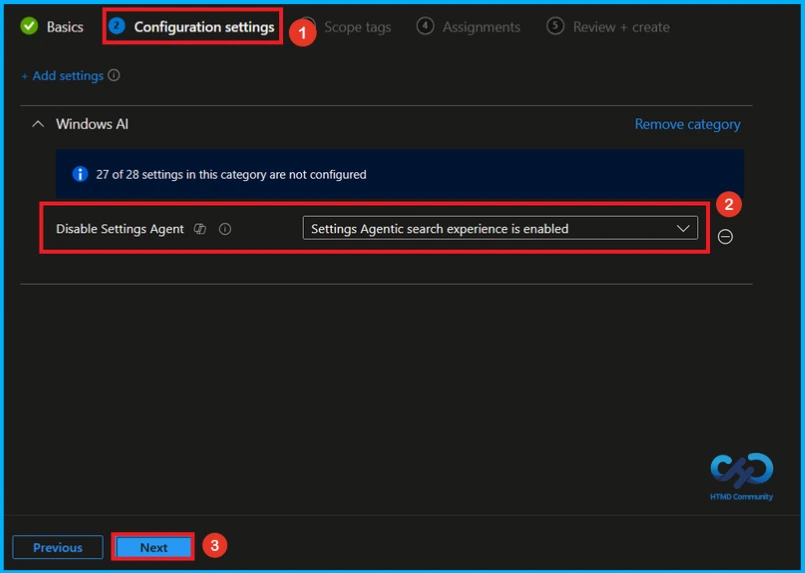
Disable Settings Agent
If you want to disable the policy, you can easily do that for that. Disable the policy by clicking the drop down menu and select settings agentic sear experience is not enabled. Now disabled, then click on the next to continue with the procedure.
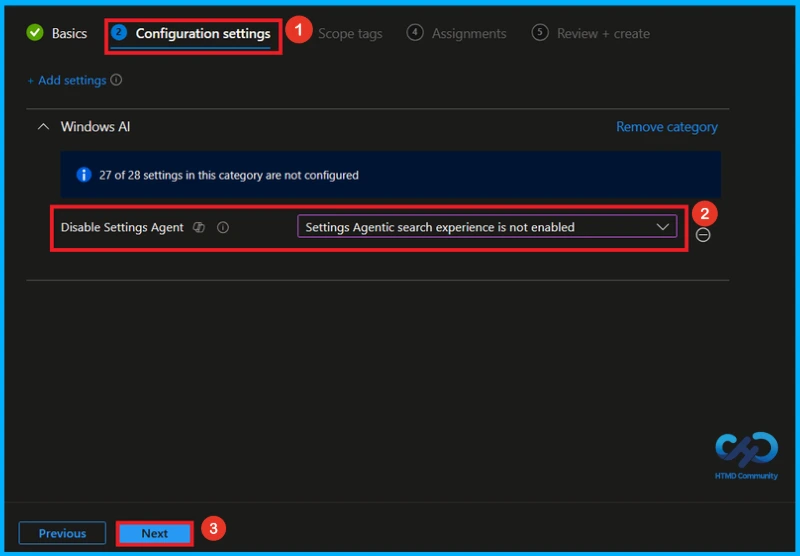
What is Scope Tags
The next step is Scope tags, which help you organize and manage access to the policy, such as for the department or location. This section is optional, so if you don’t want to apply the Scope tags, just click Next to continue.
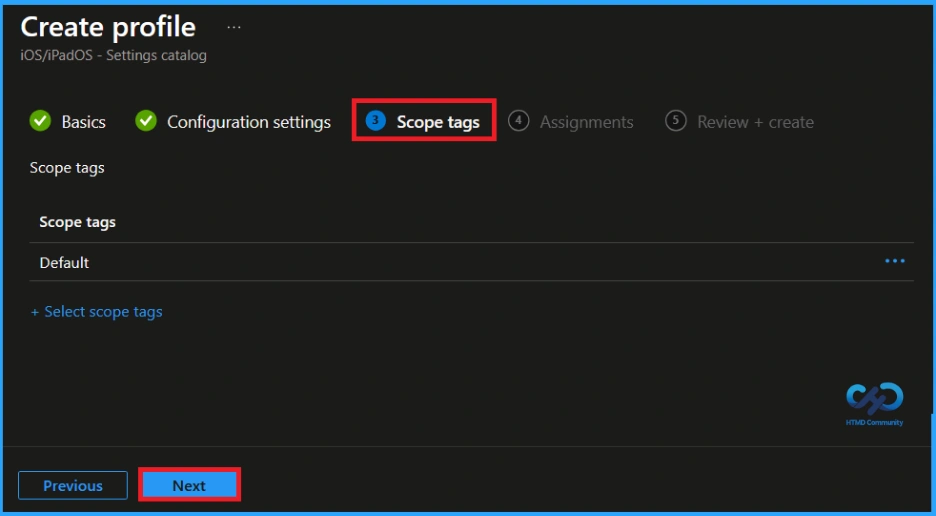
Assignments Tab
In this step, you have to decide which group you want to deploy the policy to. First, click on Add groups under the Include groups section, and select the group(HTMD – Test Policy) to which you want to apply the policy. Then, click Next to continue.
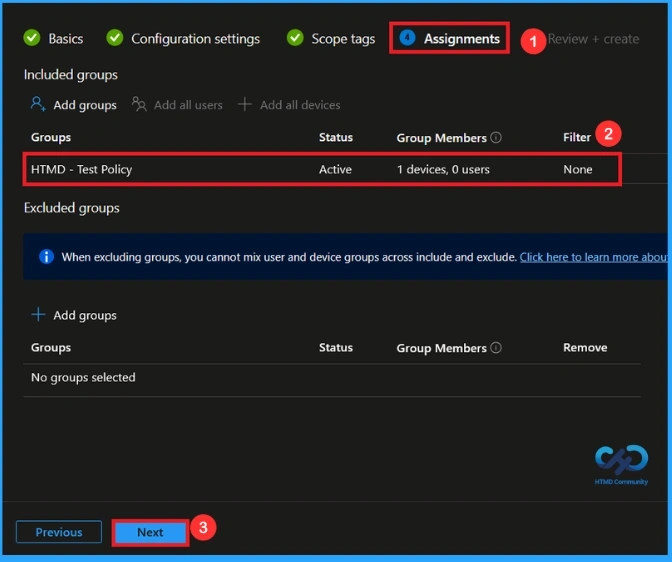
Final Step of Policy Creation
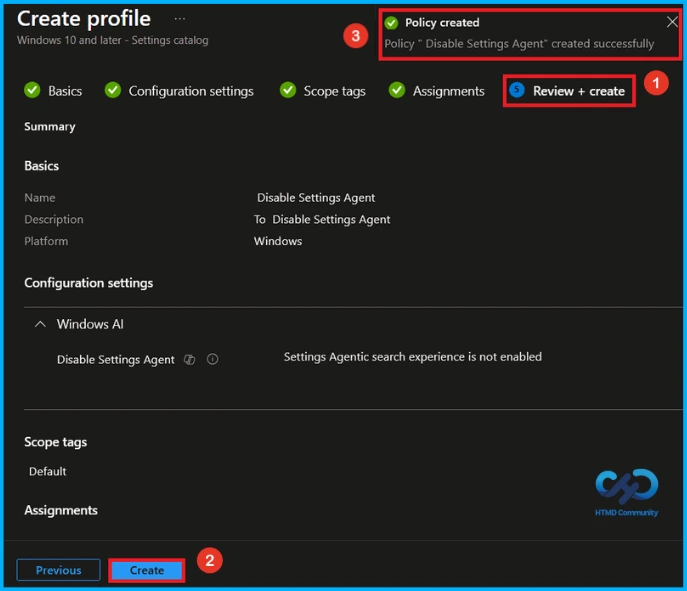
You will reach this section after completing the Assignment step. This section acts like a summary page, showing all the steps, you have previously completed. If you notice any mistakes, this is your final chance to edit them. If everything looks correct, click on the Create button. Then you can see a notification “Disable Settings Agent created successfully”.
Device and user Check in Status
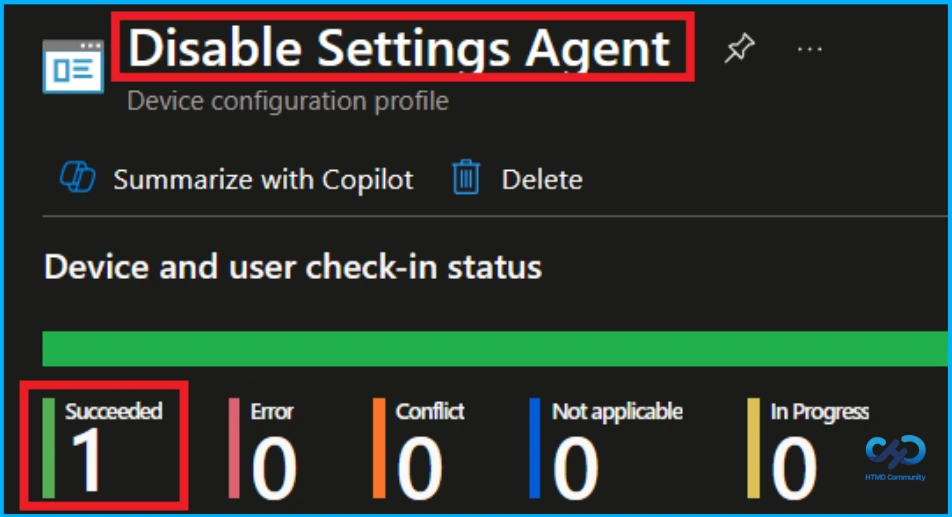
We can check a policy’s status in the Intune Portal. Generally, it takes about 8 hours for policies to be created. Use the manual sync option to reduce the configuration delay in the Company Portal app on the device, then check the status again. Navigate to Devices> Configuration. Click on the Disable Settings Agent.
Client Side Verification
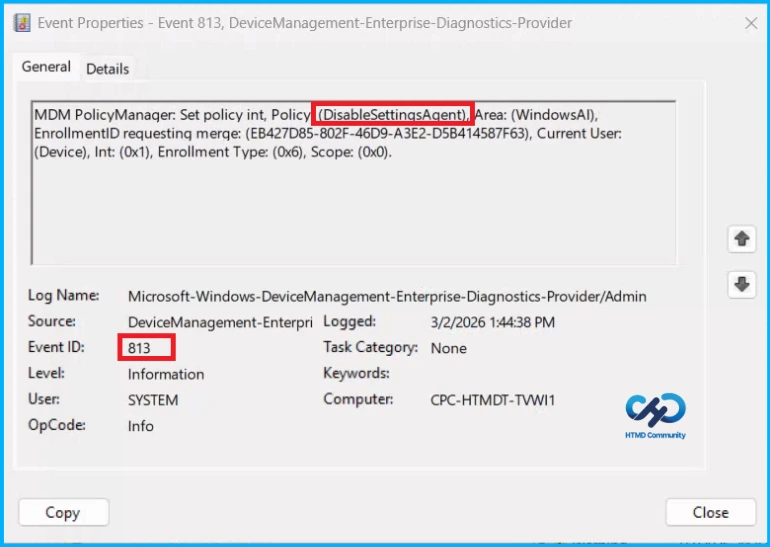
To confirm if a policy has been applied, use the Event Viewer on the client device. Go to Applications and Services Logs > Microsoft > Windows > Device Management > Enterprise Diagnostic Provider > Admin. Use the Filter Current Log option and search for Intune event 813.
MDM PolicyManager: Set policy int, Policy (DisableSettingsAgent) Area: (WindowsAl),
EnrollmentlD requestinq merqe: (EB427D85-802F-46D9-A3E2-D5B414587F63), Current User:
(Device), Int: (0x1), Enrollment Type: (0x6), Scope: (0x0).
How to Remove Assigned Group from Settings Agent Policy
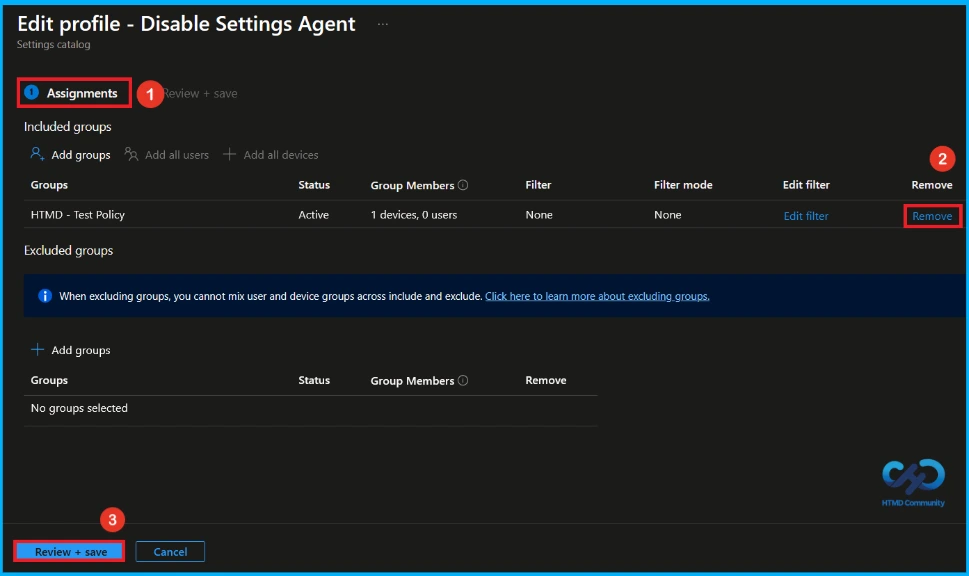
Sometimes, we need to remove a group from a policy assignment for security updates. Open the policy from the Configuration tab and click on the Edit button on the Assignment tab. Click on the Remove button on this section to remove the policy. Click Review + Save after making the change.
For detailed information, you can refer to our previous post – Learn How to Delete or Remove App Assignment from Intune using by Step-by-Step Guide.
How to Delete Settings Agent Policy from Intune
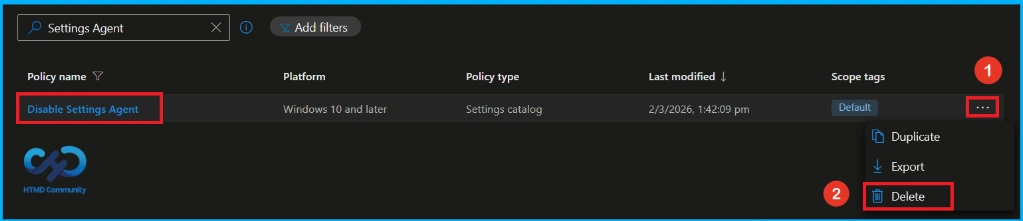
To delete an Intune policy for security or operational reasons. Search the Policy(Turn off access to the store). Click the three dots, then click the Delete option.
For detailed information, you can refer to our previous post – How to Delete Allow Clipboard History Policy in Intune Step by Step Guide.
Windows Configuration Service Provider (CSP)
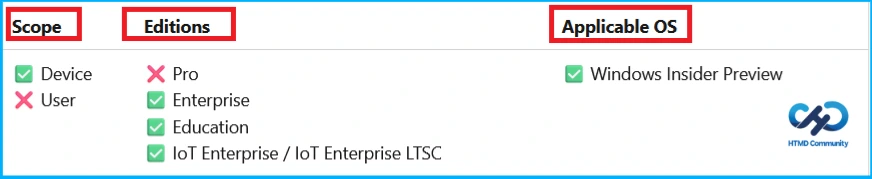
The Policy Configuration Service Provider (CSP) is a feature used by organisations to manage and control settings on Windows 10 and 11 devices. It explains what each policy does, what settings or values can be used, and how it connects to older Group Policy settings (Group Policy Mapping details).
| Value | Description |
|---|---|
| 0(Default) | Settings Agentic search experience is enabled. |
| 1 | Settings Agentic search experience isn’t enabled. |
Description framework properties
- Format – Int
- Access type – Add, Delete, Get, Replace
- Default value – 0
Group Policy Mapping
| Name | Value |
|---|---|
| Name | DisableSettingsAgent |
| Friendly Name | Disable Settings agentic search experience |
| Location | Computer Configuration |
| Path | Windows Components > Windows Al |
| Registry Key Name | SOFTWARE\Policies\Microsoft\Windows\WindowsAl |
| Registry Value Name | DisableSettingsAgent |
| ADMX File Name | WindowsCopilot.admx |
Need Further Assistance or Have Technical Questions?
Join the LinkedIn Page and Telegram group to get the latest step-by-step guides and news updates. Join our Meetup Page to participate in User group meetings. Also, join the WhatsApp Community and the Whatsapp channel to get the latest news on Microsoft Technologies. We are there on Reddit as well
Author
Anoop C Nair is a Workplace Technology solution architect with 25+ years of experience. Microsoft Certified Trainer. Microsoft MVP from 2015 onwards for consecutive 11+ years! He is a blogger, Speaker, and Founder of HTMD Community and HTMD Conference. His main focus is on Device Management technologies like Intune, Windows, and Cloud PC. He writes about technologies like Intune, SCCM, Windows, Cloud PC, Entra, and Microsoft Security.