
Key Takeaways
- Microsoft introduces Software Compliance Policy in Intune to detect applications that can restricted local AI agents.
- Windows devices can automatically become non-compliant when restricted applications are detected.
- Organizations can use Conditional Access policies to restrict access based on device compliance status.
- Users can regain access to organizational resources after removing the restricted application and passing a new compliance check.
In this post we are discussing about Software Compliance Policy in Intune Helps Detect and Block Unauthorized AI Agents. Microsoft Ignite session Introduced a new Software Compliance Policy capability in Microsoft Intune to help organizations detect and restrict applications that can host unwanted local AI agents on Windows devices. As organizations look to control the use of AI agents within their environments, this capability provides administrators with a way to identify restricted software and enforce device compliance before users start interacting with those agents.
Table of Contents
Table of Contents
Software Compliance Policy in Intune Helps Detect and Block Unauthorized AI Agents
The new Software Compliance Policy allows administrators to discover applications that could host restricted agents using software discovery rules. These applications can be identified using their MSI Product Code or Package Full Name. When Intune detects a restricted application installed on a Windows device, it can automatically mark the device as non-compliant.
One of the main benefits of this capability is that organizations can enforce protection even before users launch an AI agent or start a session with it. Administrators can use existing Conditional Access policies based on device compliance status to restrict access to organizational resources. They can also configure actions such as sending notifications users to remove the restricted application.
- Updated Guidance for Interpreting Microsoft Intune Compliance Policy Reports
- How to Find Windows Devices without Compliance Policy using Intune Copilot Explorer
- How to Troubleshoot SyncML 500 Errors in Microsoft Intune Compliance Policy Reports
Let’s Get Started
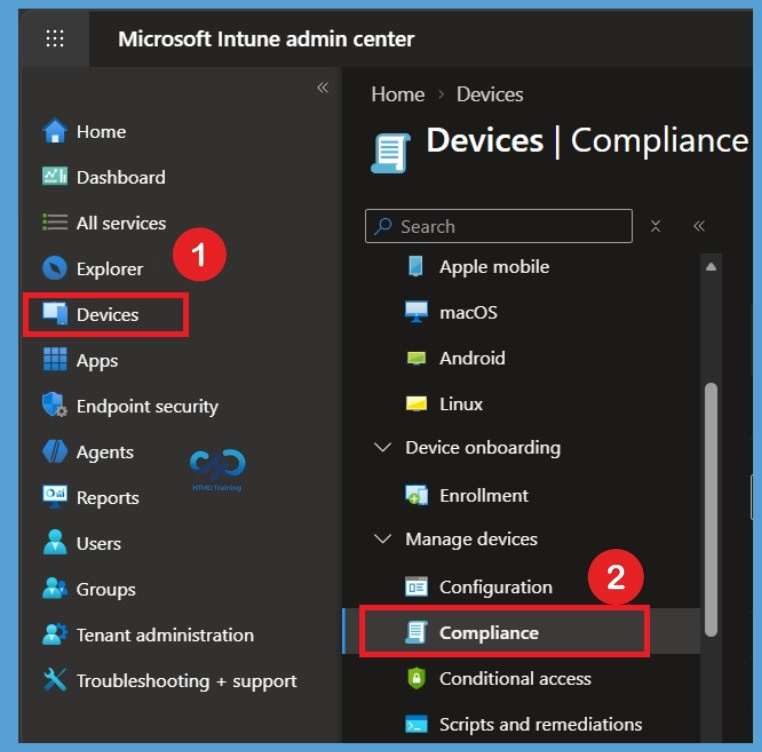
This Demo is specifically about creating a Software Compliance Policy in Microsoft Intune to detect and restrict ChatGPT Desktop on Windows devices. To begin, sign in to the Microsoft Intune admin center and navigate to Devices > Compliance Policies. Click on Create Policy to start configuring a new compliance policy.
Create a Policy
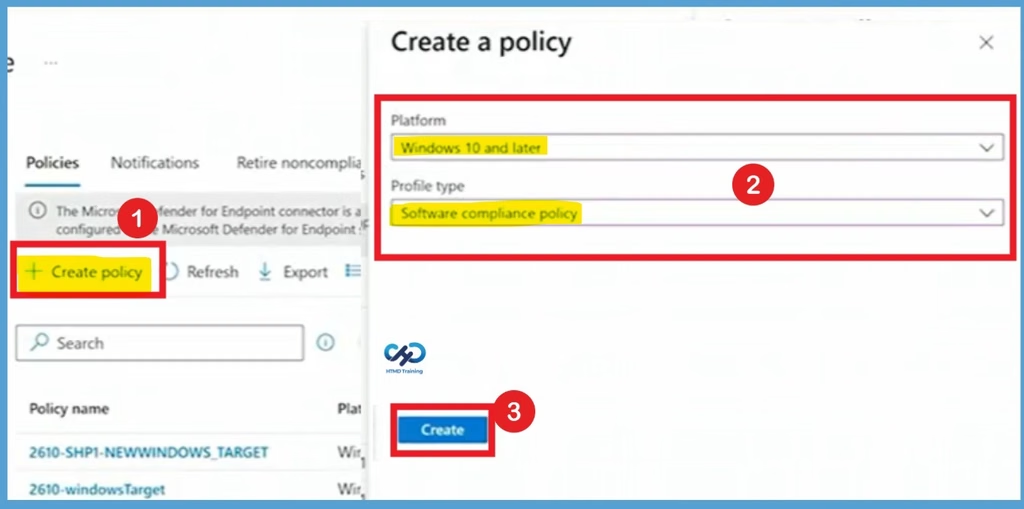
Click on the + Create Policy option to open the Create a Policy window. Under the Platform dropdown, select Windows 10 and later, and then select Software Compliance Policy as the Profile type. After selecting both options, click Create to proceed with the policy configuration.
Enter the Basic Policy Details
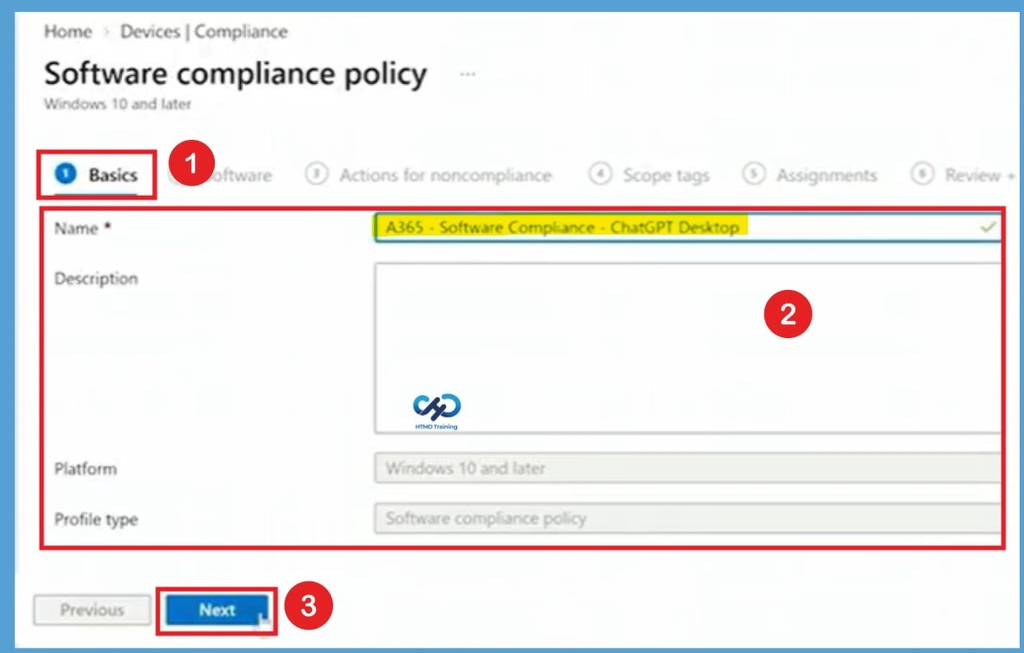
In the Basics section, provide a suitable name for the compliance policy. In this demo, the policy name is configured as A365 Software Compliance ChatGPT Desktop. This name helps administrators easily identify the policy when managing multiple compliance policies in the Intune admin center. After entering the policy name, click Next to continue to the software configuration section.
Configure the ChatGPT Desktop Software Details
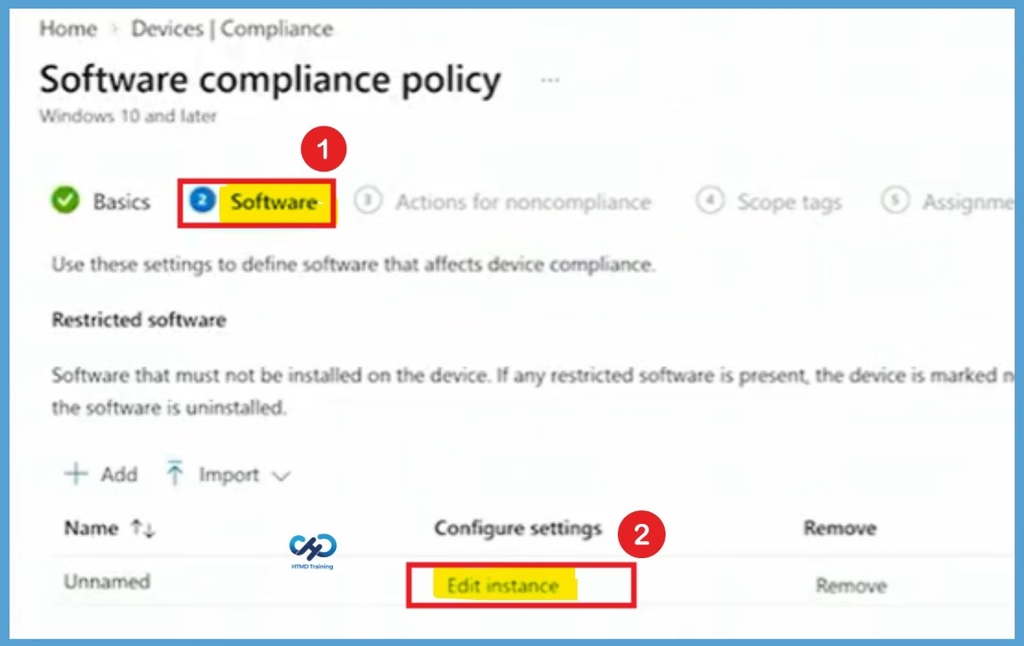
After completing the Basics section, click Next to proceed to the Software section. Here, you can find the Restricted Software section, where the software instance is initially displayed with the name Unnamed. Under the Configuration, click on the Edit Instance option to open the software instance configuration window.
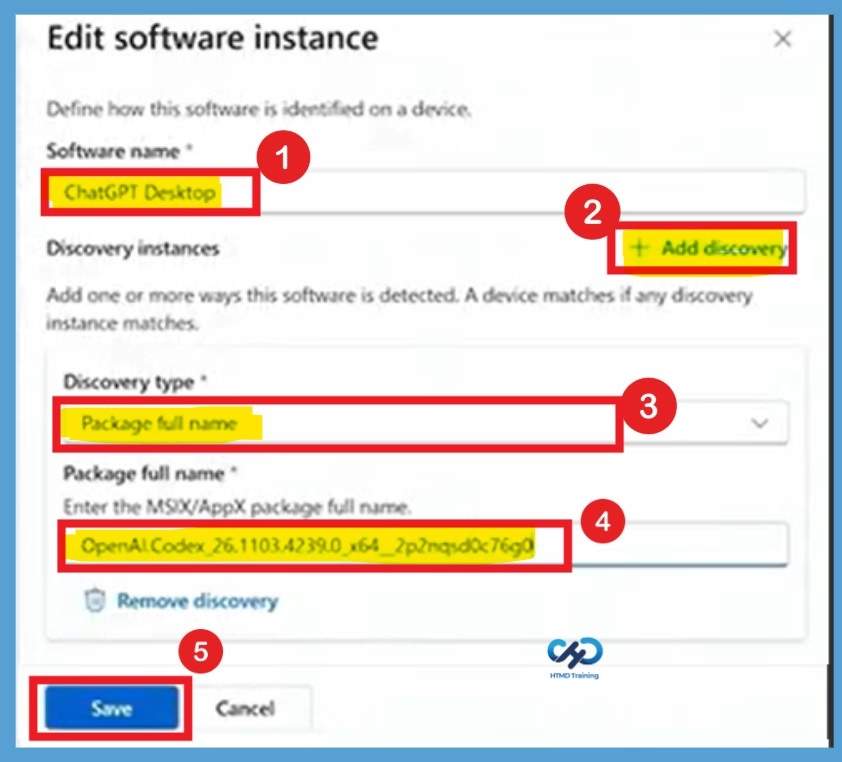
After clicking Edit Instance, the Edit Software Instance window appears. Under the Name section, enter ChatGPT Desktop as the software name to identify the restricted application clearly. Next, click on + Add Discovery to configure the application detection rule. In the Discovery Type as Package Full Name. Then in the Package Full Name and enter the corresponding package full name of the ChatGPT Desktop application (OpenAlCodex 26.1103.4239.0_x64_2p2nqsd0<76g0).
- After providing the required details, click Save to save the software instance configuration.
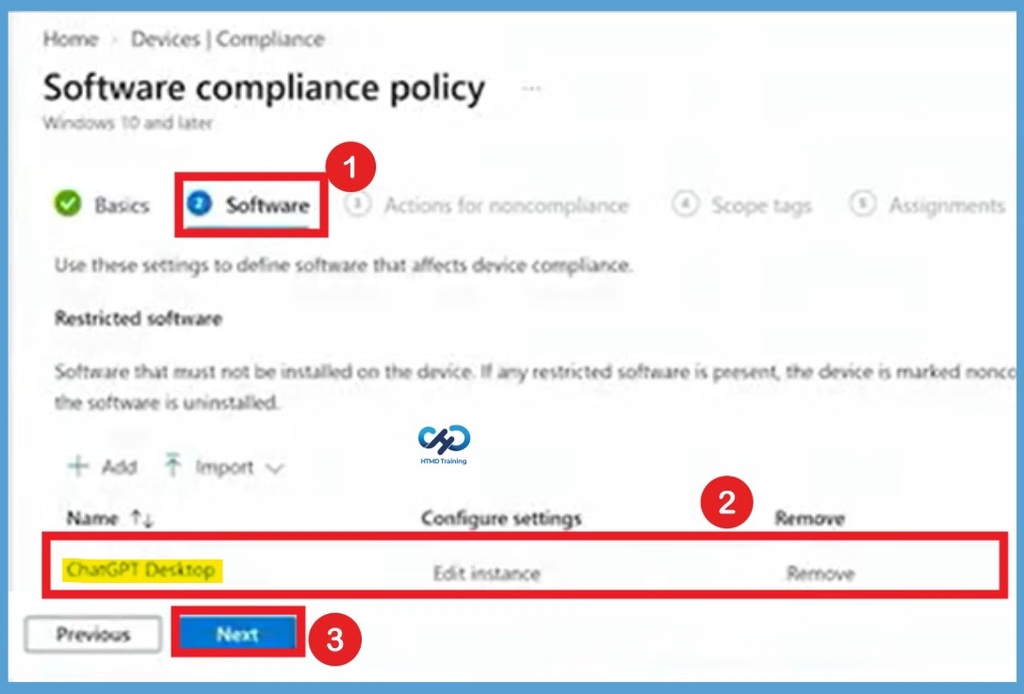
After saving the software instance configuration, you will return to the Software section. Here, you can now see ChatGPT Desktop displayed under the Restricted Software section instead of the previous Unnamed entry. Verify that the software name appears correctly and click Next to proceed with the policy configuration and continue to the Actions for non-compliance section.
Configure Actions for Non-Compliance
Here, you can see that Mark device non-compliant is selected as the default action. You can also configure an additional action by selecting Send email to end user. Under the Immediately option, the value is set to 0, indicating that the notification action will be get immediately as Notification Message Templates.
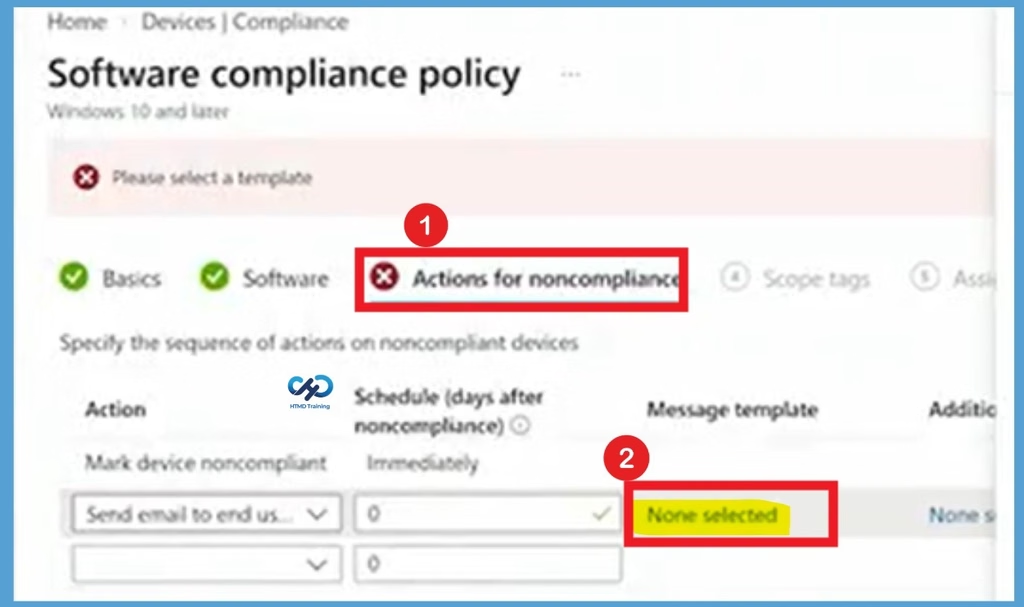
Notification Message Templates
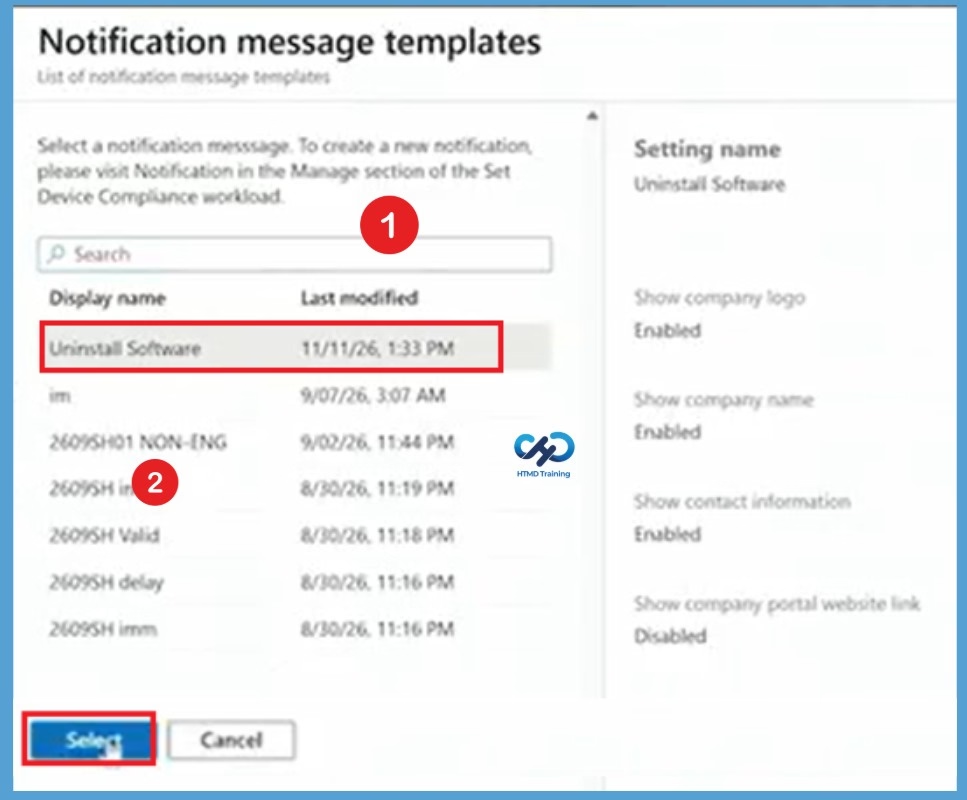
In this window, locate the notification template with the display name Uninstall Software and select it. Next, click Select to apply the template to the compliance policy. Once selected, the Notification Message Templates window will close, and you will return to the Actions for non-compliance section.
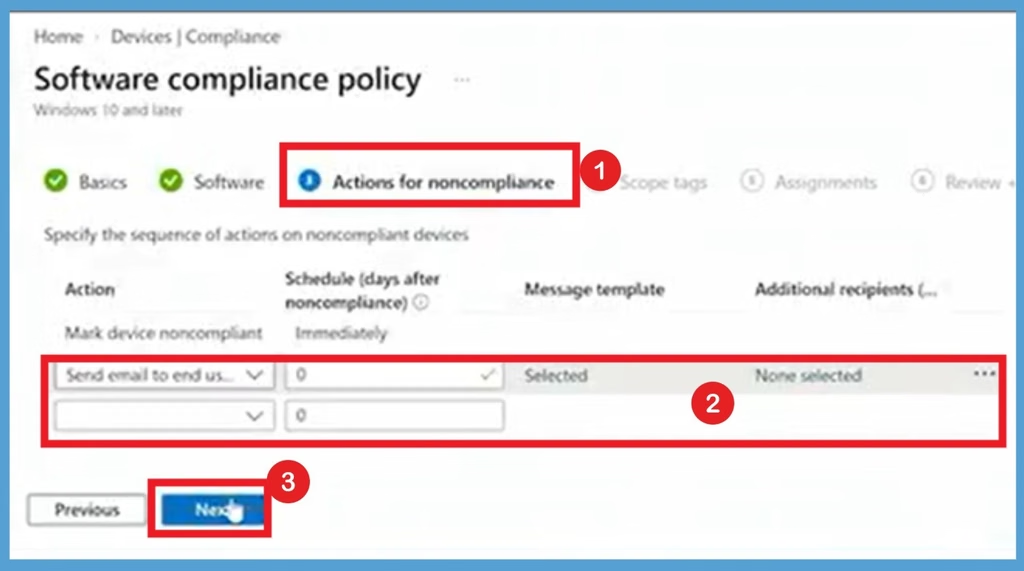
After selecting the notification template, you will return to the Actions for non-compliance section. Here, verify that Mark device non-compliant and Send email to end user are configured correctly. The notification action should be set to Immediately, with the value set to 0, and the Uninstall Software notification template should be selected. Once all the settings are configured and verified, click Next.
Review and Create the Software Compliance Policy
After completing the Scope tags and Assignments sections, proceed to the Review + Create tab. Here, you can review the summary of all the configured policy details, including the settings entered in the Basics, Software, Actions for non-compliance, Scope tags, and Assignments sections. Verify that all the configurations are correct and click Create to complete the process. The Software Compliance Policy will now be successfully created in Microsoft Intune.
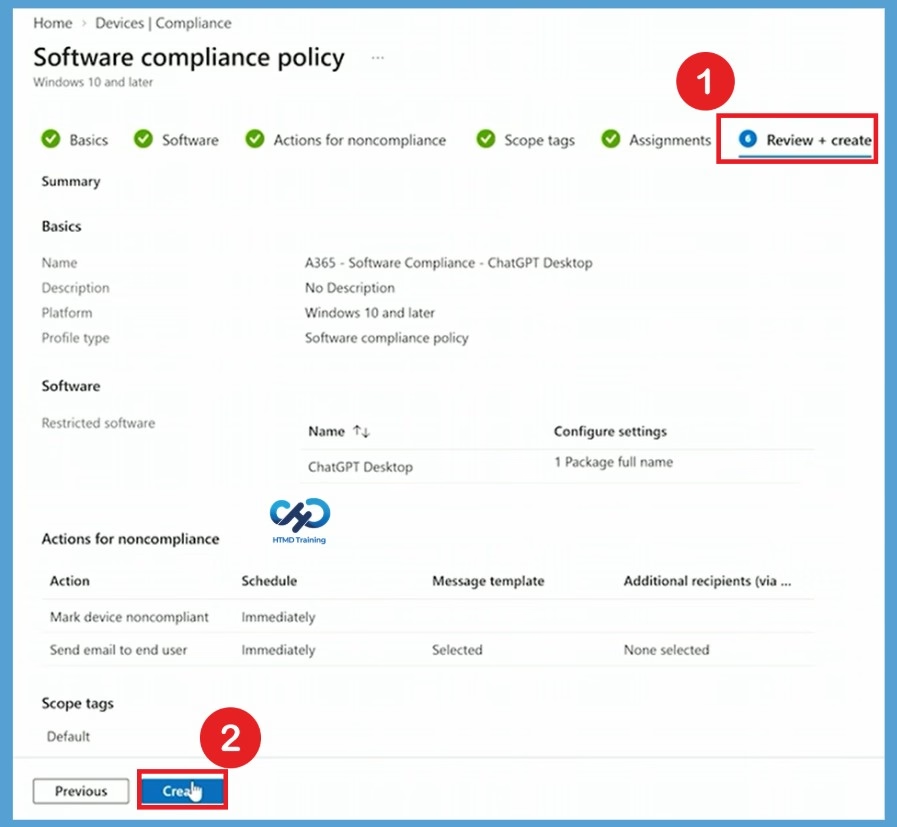
Verify the Restricted Software Notification in Company Portal
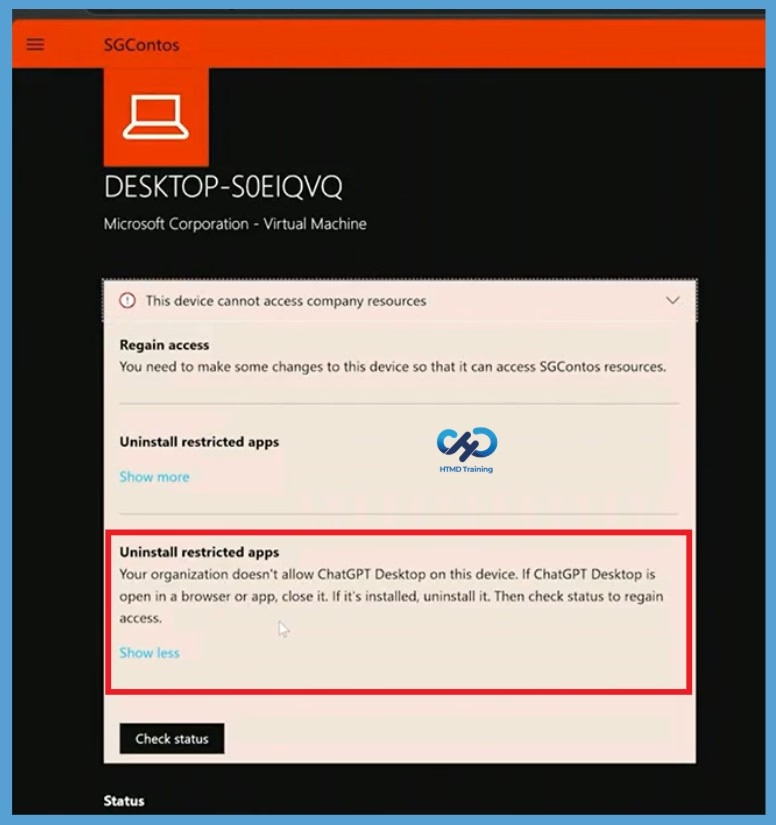
After the Software Compliance Policy is applied, sign in to the targeted Windows device and open the Microsoft Company Portal app. The device displays a notification stating This device cannot access company resources. Under the Regain access section, users can see the Uninstall restricted apps message explaining that the organization does not allow ChatGPT Desktop on the device. The notification instructs users to close ChatGPT Desktop if it is running, uninstall the application if it is installed, and check the device status again to regain access to organizational resources.
Uninstall ChatGPT Desktop from Windows Settings
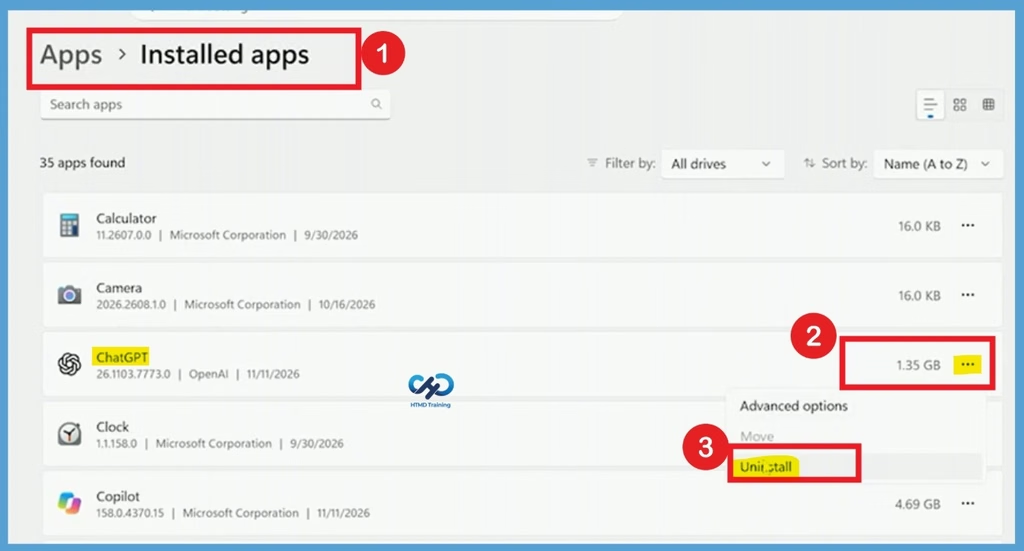
To resolve the compliance issue, open the Windows Settings application and navigate to Apps > Installed apps. Locate ChatGPT in the installed applications list, click the 3-dot menu next to the application, and select Uninstall. After uninstalling the restricted application, return to Company Portal and click Check status to trigger another compliance check. Once Intune reevaluates the device and confirms that the restricted software is no longer detected, the device can regain access to organizational resources, provided it meets the other compliance requirements.
Need Further Assistance or Have Technical Questions?
Join the LinkedIn Page and Telegram group to get the latest step-by-step guides and news updates. Join our Meetup Page to participate in User group meetings. Also, join the WhatsApp Community and the Whatsapp channel to get the latest news on Microsoft Technologies. We are there on Reddit as well.
Author
Anoop C Nair is Workplace Technology solution architect with 25+ years of experience in global enterprise organizations such as JP Morgan, Capgemini, etc. He is Microsoft Certified Trainer. Microsoft MVP from 2015 onwards for consecutive 11 years! He also conducts Intune and modern workplace tech training for enterprise organizations. He is Blogger, Speaker, and Founder of HTMD Community and HTMD Conference. His focus is on Device Management technologies such as Intune, Windows, Cloud PC. He writes about technologies like Intune, SCCM, Windows, Cloud PC, Windows, Entra, Microsoft Security.