
Today we are discussing Blocking User Access to Spotlight Personalization Features using Intune Policy. This policy relates to controlling a feature called Windows Spotlight Collection, which normally downloads and displays daily images from Microsoft on a user’s desktop.
In some environments, especially personal or home systems, this may appear harmless as it only shows background wallpapers that change periodically. However, at an enterprise level, every feature that collects data from systems must be evaluated carefully to avoid unauthorized sharing of information. So, this setting appears simple but has privacy, security, and compliance impacts.
Windows Spotlight works by communicating with Microsoft servers to pull images and personalized recommendations. The communication and data exchange process can include telemetry, usage statistics, and behavioral data.
Therefore, disabling Spotlight Collection is considered a security-aligned option. Disabling such settings is to limit unnecessary communication between organizational assets and external servers. In cybersecurity, any attempted reduction in unnecessary sharing of data helps lower the attack surface.

Blocking User Access to Spotlight Personalization Features using Intune Policy Eliminating
For organizational benefits, disabling Spotlight reduces network bandwidth consumption, but more importantly prevents telemetry-based personalization services. According to CIS the importance of minimizing attack surfaces and disabling Windows Spotlight Collection supports this by shutting down a non-business function that communicates externally.
- Enable Drop Feature in Edge Browser Using Microsoft 365 Admin Center Configuration Policy
- Microsoft Edge Drop to Share files in Windows Android and iOS
- Discover Features in Microsoft Edge Browser
Create a Profile
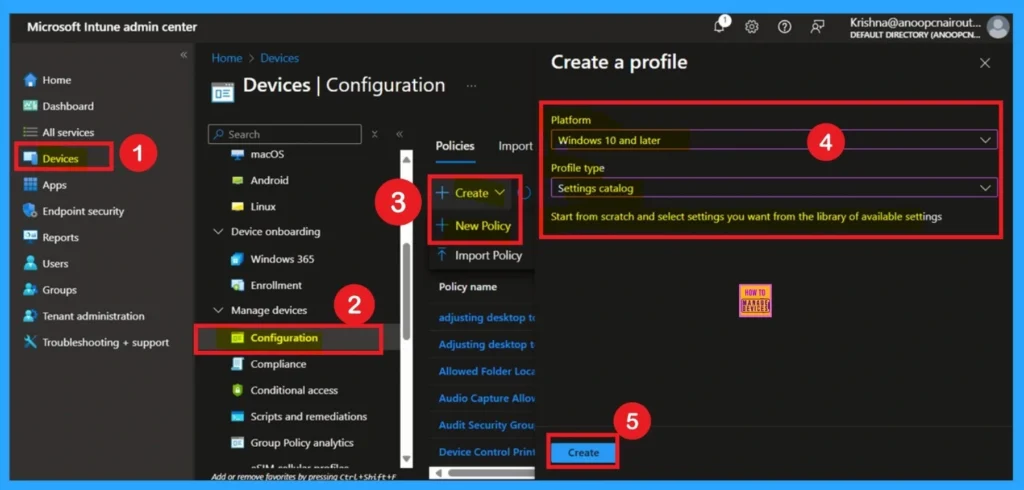
For creating a profile in Intune, you have to do some steps by sign in to Microsoft Intune Admin center you can easily configure this policy. Go to the Intune Admin Center portal. Go to Devices > Windows > Configuration > Create > New Policy. In this window, you can create the profile for this policy. For this, you have to select the platform and profile.
- Here, I choose Windows 10 and Later as Platform and Settings Catalog as Profile Type.
- Then click on the Next Create Button.
Basic Details
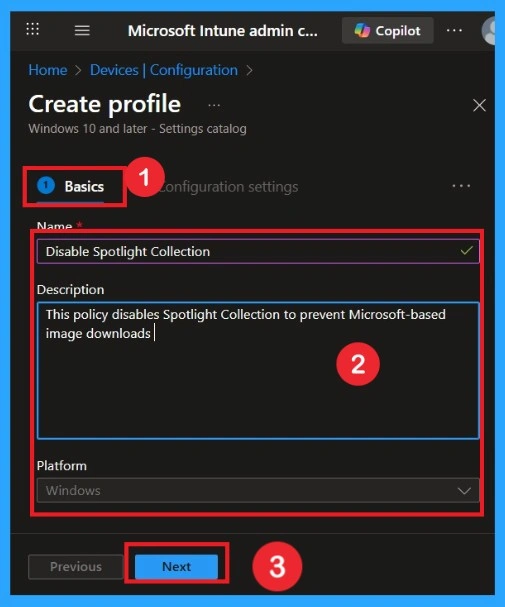
Enter a proper profile name such as “Disable Windows Spotlight Collection” so that administrators can quickly identify the policies. Add a short description mentioning compliance and privacy reasons, then proceed to the configuration settings page. Making the profile name clear helps future admins recognize why the policy was created.
Configuration settings
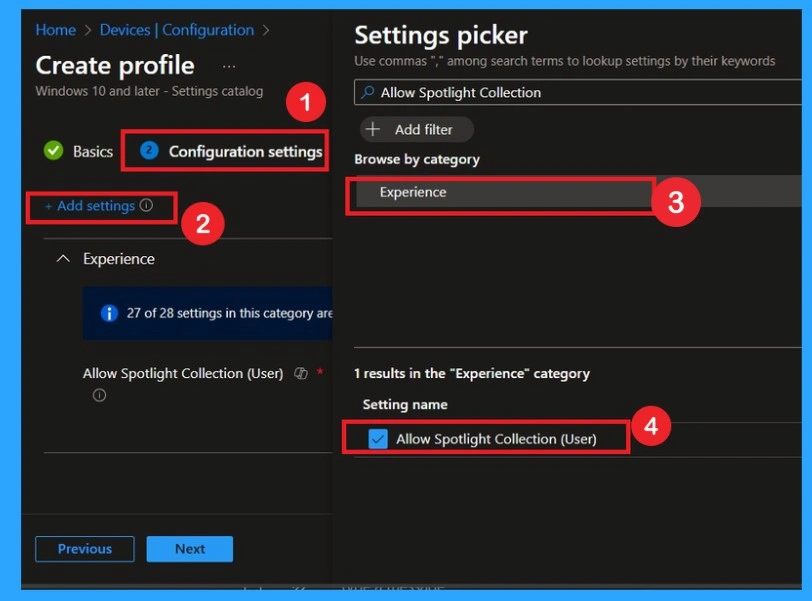
In the Configuration settings page, click the + Add settings option. A Settings picker window will appear. In the search bar, you can type either the policy name or the policy category. In this case, I searched for Allow Spotlight Collection. The search results show that this policy belongs to the Experience category. So, I clicked on Experience, and then the Allow Spotlight Collection policy became visible.
- I selected it and then closed the settings picker window.
Enabled the Policy
After selecting the Allow Spotlight Collection policy from the Settings picker, you can close the Settings picker window. Once closed, you will be taken back to the Configuration Settings main page. Here, you will notice that there are no enable or disable toggle buttons because the default value is already applied. This means the Allow Spotlight Collection setting is currently enabled. If you want to continue with this configuration, just click Next.

Block the Settings
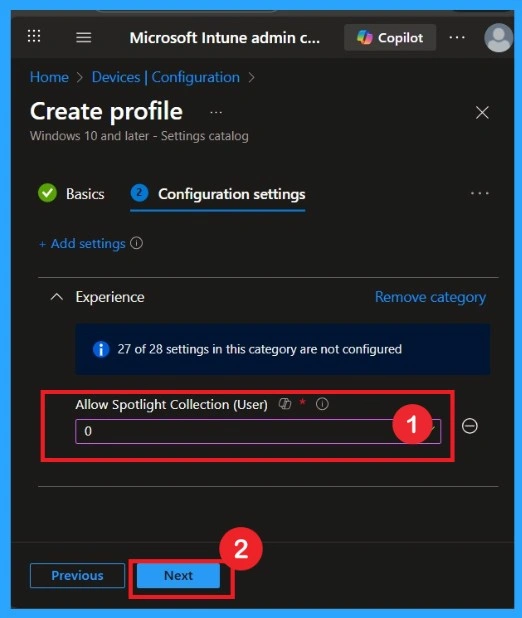
After selecting the policy, you will not see an enable disable toggle button. Instead, you will see a text box for the Allow Spotlight Collection setting. Since we want to disable this setting, we need to enter the value 0 in the text box. Once the value is added, click Next to continue.
| Policy Settings | Value |
|---|---|
| To Enable Allow Spotlight Collection setting | Value 1 |
| To Block Allow Spotlight Collection setting | Value 0 |
Scope Tags
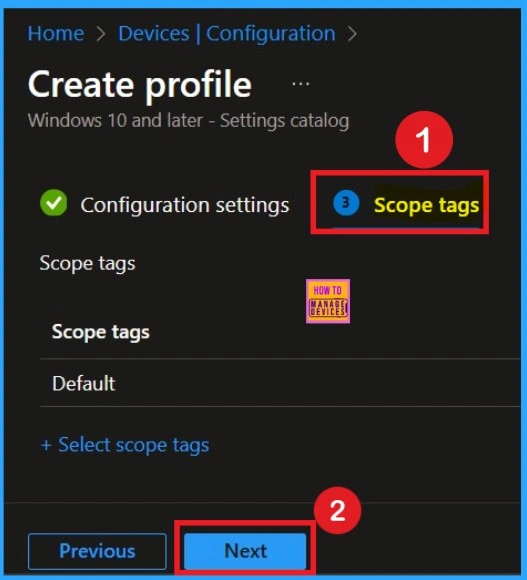
If your organization uses scope tags to maintain visibility among specific administrative groups, assign an appropriate tag here. If you do not use tagging, simply leave this part unchanged and move forward. Here I skipped this Section.
Assignments
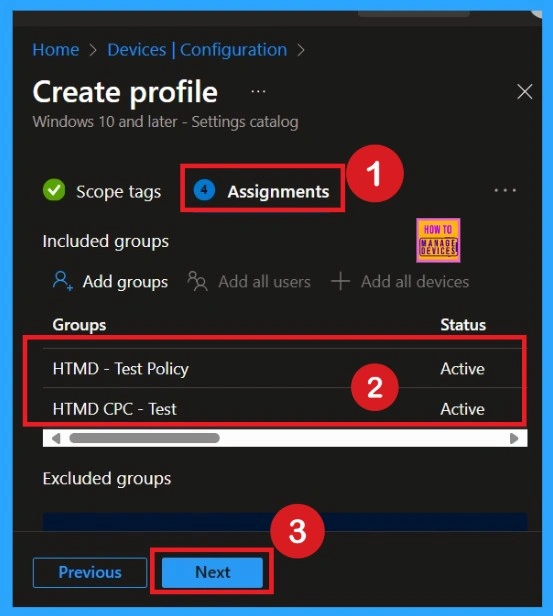
In the Assignments section, you choose which users or devices will receive this policy. You can target specific security groups, device groups, or even assign it to All Devices if you want organization-wide protection.
Review + Create
Once the assignments are complete, you’ll reach the Review +Create stage, which is the final step in policy creation. Here, you can review all the details of the policy, including the basic information and configuration settings.
- If you’re satisfied with the summaries and settings, click the Create button to finalize the process.

Monitoring Status
When you create a new policy for a device, it typically takes up to 8 hours for the policy to apply automatically. However, you can speed up this process by manually syncing the policy. After syncing, you can confirm that the policy has been successfully applied by checking in Intune.
- To do this, go to Device > Configuration and select the policy.
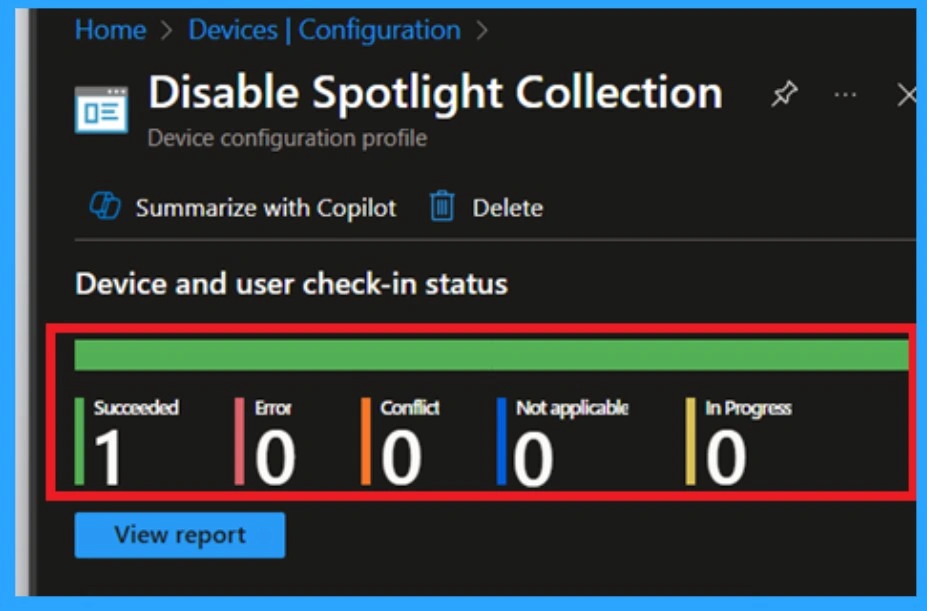
End User Result
After application, users will no longer see Spotlight Collection as an Option under Personalization settings. This ensures they cannot download daily images from Microsoft. The user experience remains controlled, aligning with organizational security, privacy.
Remove Assigned Groups
To remove assigned groups from the policy, open Microsoft Intune admin center and go to Devices > Configuration Profiles. Search and click the policy name that you want to remove. Then select Assignments and click Edit. Remove the previously assigned groups and save the change. When you remove the assignment, the policy will stop applying to devices in that group.
To get more detailed information, you can refer to our previous post – Learn How to Delete or Remove App Assignment from Intune using by Step-by-Step Guide.
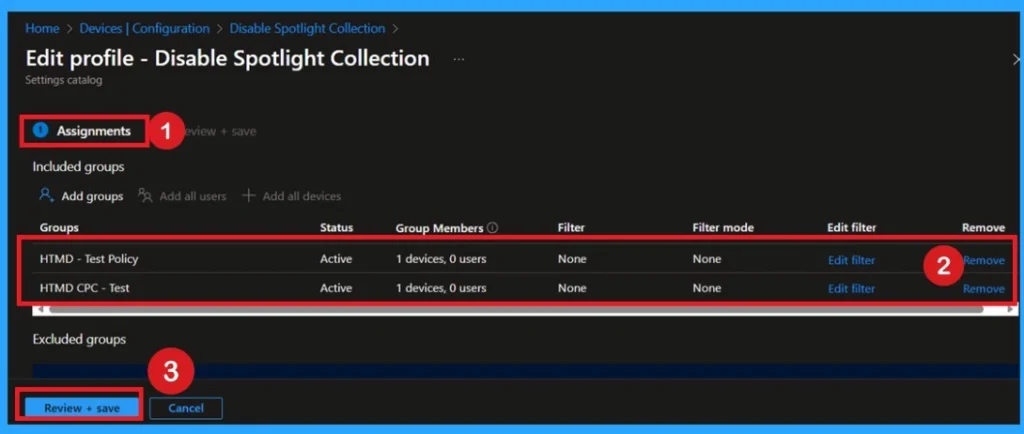
Delete the Policy Permanently
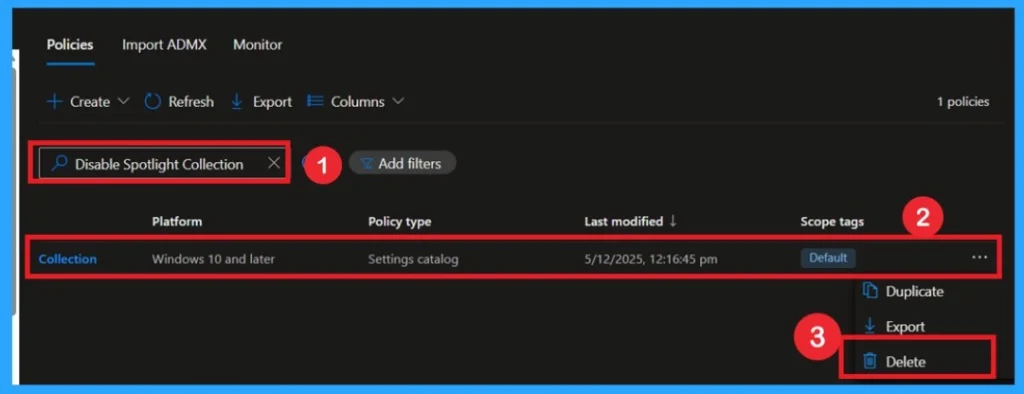
You can easily delete the Policy from Intune Portal from the Configuration section you can delete the policy. It will completely remove from the client devices. To delete the policy completely, go to Configuration Profiles again, search for the same policy, and click on it. Then choose Delete from the top menu and confirm the deletion to remove it permanently from Intune. Once deleted, the policy will no longer appear in the list or apply to any device.
For detailed information, you can refer to our previous post – How to Delete Allow Clipboard History Policy in Intune Step by Step Guide.
Need Further Assistance or Have Technical Questions?
Join the LinkedIn Page and Telegram group to get the step-by-step guides and news updates. Join our Meetup Page to participate in User group meetings. Also, Join the WhatsApp Community to get the latest news on Microsoft Technologies. We are there on Reddit as well.
Author
Anoop C Nair has been Microsoft MVP for 10 consecutive years from 2015 onwards. He is a Workplace Solution Architect with more than 22+ years of experience in Workplace technologies. He is a Blogger, Speaker, and Local User Group Community leader. His primary focus is on Device Management technologies like SCCM and Intune. He writes about technologies like Intune, SCCM, Windows, Cloud PC, Windows, Entra, Microsoft Security, Career, etc