

Key Takeaways
- Automatic Device Grouping – Autopilot devices automatically join Microsoft Entra dynamic groups.
- Less Manual Work – Reduces the need for manual device assignments.
- Automatic App & Policy Deployment – Intune deploys apps, policies, and configurations automatically.
- Better Enrollment Experience – ESP ensures required apps and policies are installed before desktop access.
- Scalable Device Management – Supports automated and efficient enterprise device management.
Windows Autopilot Devices Dynamic Groups with Microsoft Entra ID and Intune! In the previous post, we discussed the basics of Windows AutoPilot deployment. In this post, we will focus on a practical enterprise scenario: creating Microsoft Entra ID (formerly Azure AD) dynamic device groups for Windows Autopilot devices and using them with Microsoft Intune.
Table of Content
Table of Contents
What are Microsoft Entra ID Dynamic Device Groups, and why are they Useful for Windows Autopilot and Intune?
Microsoft Entra ID Dynamic Device Groups (formerly Azure AD Dynamic Device Groups) automatically add devices to groups based on specific device attributes, such as Group Tag, Order ID, or other enrollment properties.
Similar to dynamic device collections in Configuration Manager (SCCM), these groups help organizations automatically target applications, compliance policies, configuration profiles, and security settings through Microsoft Intune.
This reduces manual administration, improves deployment consistency, and supports scalable device management in modern Windows Autopilot environments.

Windows Autopilot Devices Dynamic Groups with Microsoft Entra ID and Intune
This automation simplifies device management, reduces administrative effort, and helps ensure that the right resources are assigned during the enrollment process. While this post focuses on using dynamic groups with Windows Autopilot, it does not cover the detailed steps for creating Microsoft Entra dynamic membership rules.
- Beginners Guide Setup Windows AutoPilot
- Where is the AutoPilot Assign Profile Button in Intune Portal
- Windows AutoPilot End to End Process Guide
Video Tutorial – Windows AutoPilot Profile AAD Dynamic Device Groups
The following video will explain how dynamic security policies and apps can be deployed to Windows AutoPilot devices.
Create a Windows Autopilot Deployment Profile for the Sales Team
In this example, we will create a Windows Autopilot Deployment Profile to customise the Out-of-Box Experience (OOBE) for end users. Deployment profiles help automate device provisioning by defining how devices are configured during enrollment.
In this scenario, a profile named “Sales Team Profile” is created for devices used by the Sales and Marketing departments. This profile can later be used with Microsoft Entra ID dynamic device groups to automatically target applications, policies, and configurations during device enrollment.
- Create the Deployment Profile
- Sign in to the Microsoft Intune admin center.
- Navigate to Devices > Windows > Device onboarding > Enrollment > Windows Autopilot > Deployment Profiles.
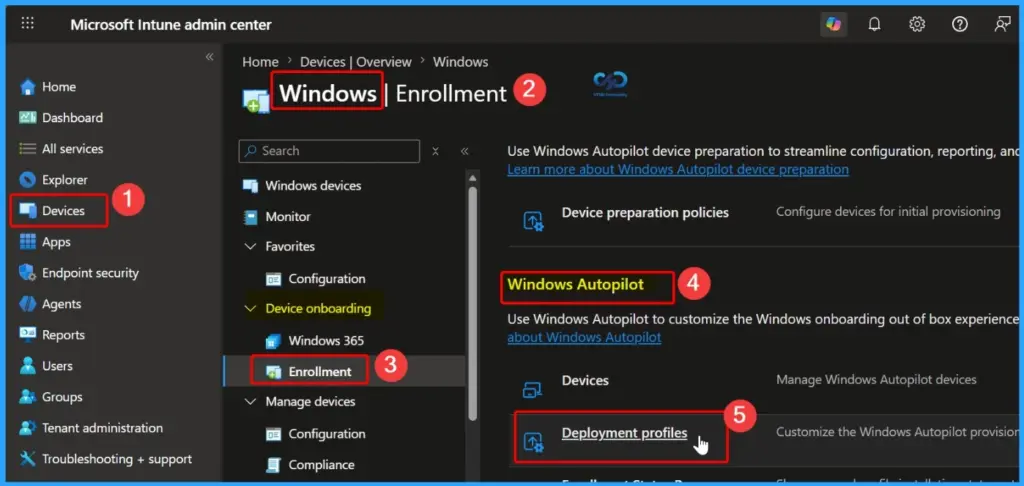
Create the Windows Autopilot Deployment Profile
To create a new Windows Autopilot deployment profile, navigate to Windows Autopilot Deployment Profiles in the Microsoft Intune admin center and select Create Profile > Windows PC. Enter Sales Team Profile as the profile name, then select Out-of-Box Experience (OOBE) to configure the required enrollment settings.
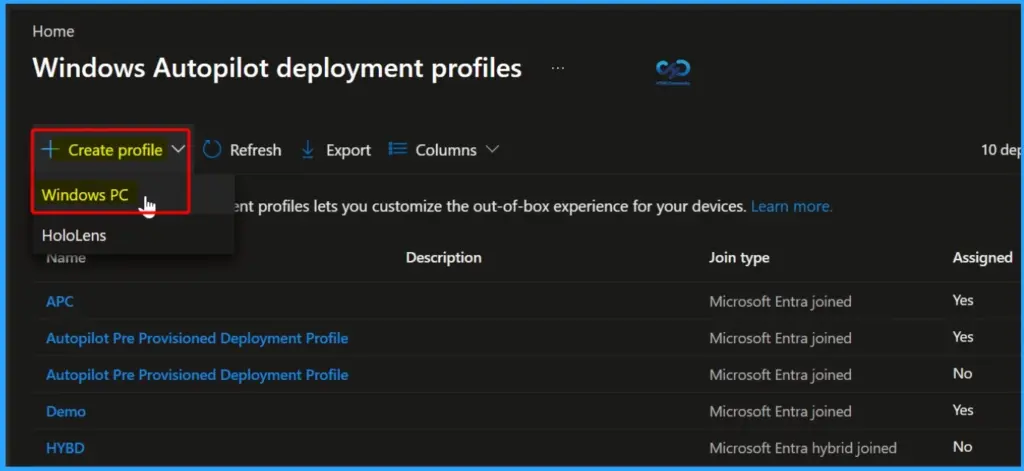
Configure the Basic Settings for the Windows Autopilot Profile
In the Basics tab, enter a meaningful name and description for the Windows Autopilot deployment profile. In this example, the profile is named Sales Team Profile and is intended for devices assigned to the Sales and Marketing departments. Providing a clear profile name and description makes it easier to identify and manage deployment profiles in Microsoft Intune.
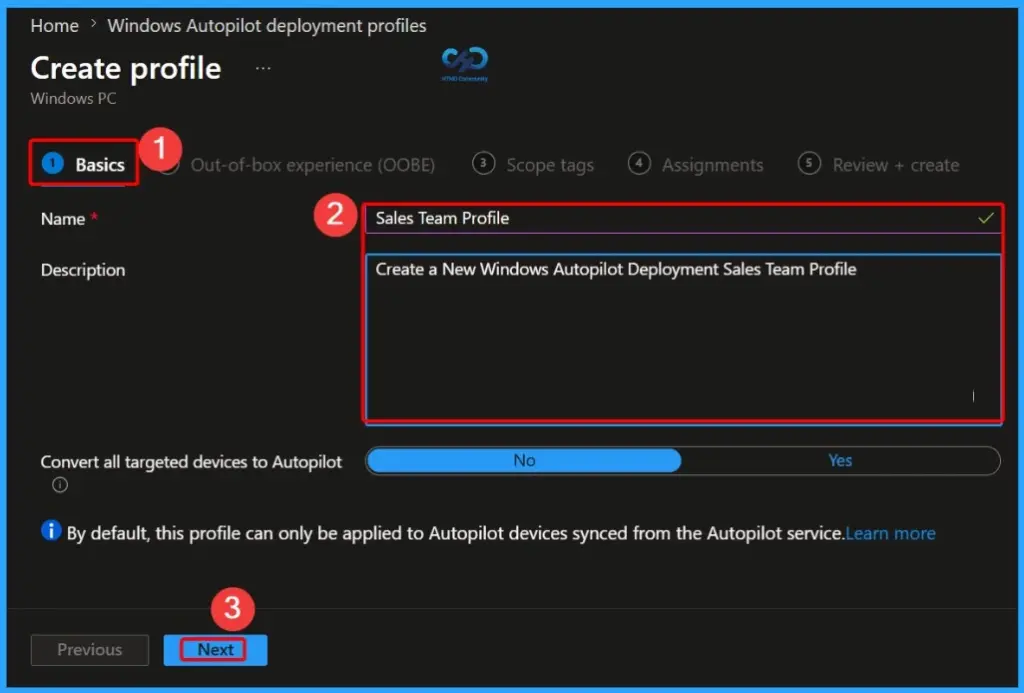
Configure the Out-of-Box Experience (OOBE) Settings
The Out-of-Box Experience (OOBE) page allows administrators to customise how users experience Windows Autopilot enrollment. In this example, the deployment profile is configured with User-Driven deployment mode and Microsoft Entra Joined as the join type.
To simplify the enrollment process and reduce user interaction, the Microsoft Software License Terms (EULA) and Privacy Settings are set to Hide. These settings help provide an easy onboarding experience while ensuring devices are automatically enrolled and configured according to organisational requirements.
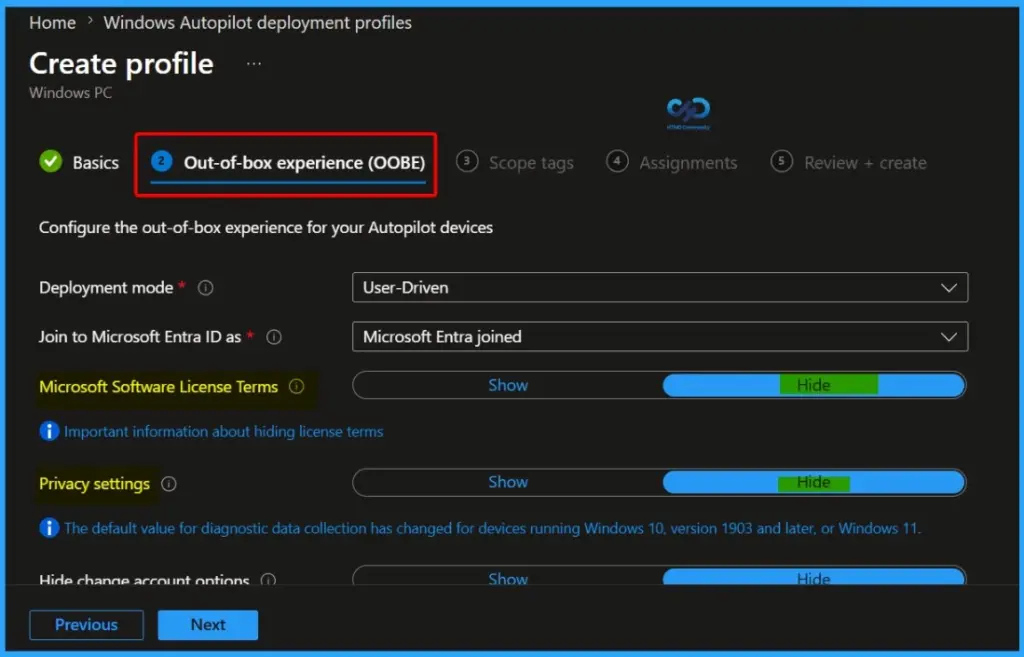
OOBE Customization Settings
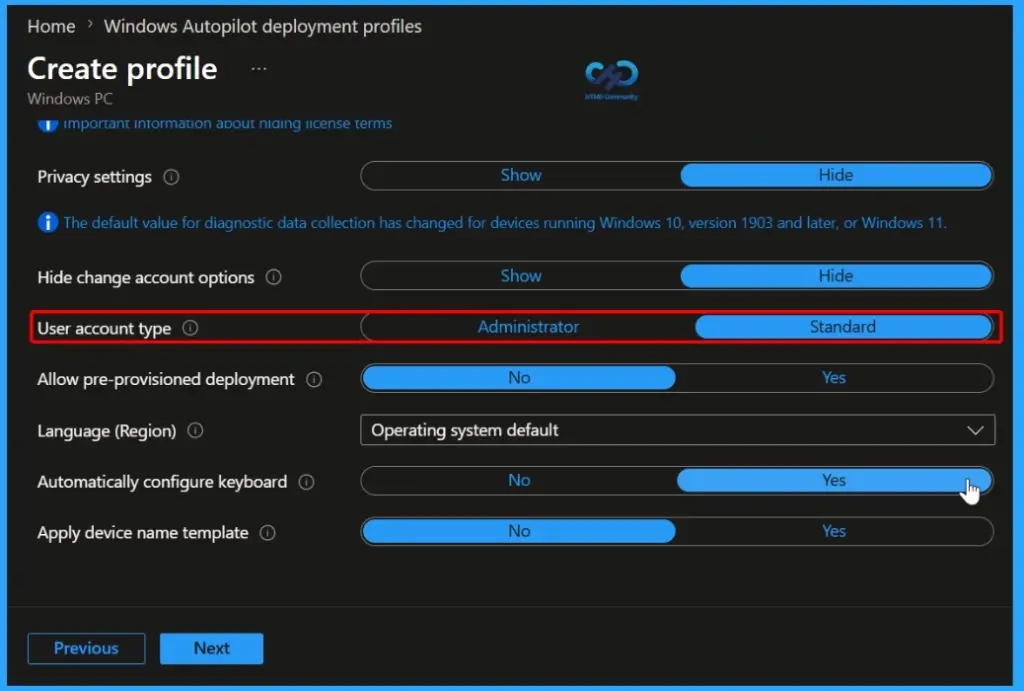
The User Account Type setting determines the level of permissions assigned to users when they sign in to a Windows Autopilot device for the first time. For this deployment profile, select Standard User to follow Microsoft’s security best practices.
Create Microsoft Entra ID Dynamic Device Groups for Windows Autopilot Profiles
After creating the Windows Autopilot Deployment Profile, you can automatically group devices by creating a Microsoft Entra ID (formerly Azure AD) Dynamic Device Group. Dynamic groups use device attributes to automatically add or remove devices based on predefined membership rules. This approach eliminates manual group management and ensures that applications, configuration profiles, compliance policies, and security settings are assigned to the correct devices during enrollment.
For Windows Autopilot deployments, dynamic device groups are commonly created using the Group Tag (Order ID) value assigned to devices. When a device is imported into Windows Autopilot and assigned a specific Group Tag, it automatically becomes a member of the corresponding Microsoft Entra dynamic device group. This provides a scalable and automated method for managing departmental or role-based device deployments.
| Attribute | Property | Purpose |
|---|---|---|
| Group Tag | OrderID / PurchaseOrderID | Automatically groups devices based on a custom Autopilot Group Tag. |
| Device Physical IDs | devicePhysicalIDs | Identifies Windows Autopilot devices and supports dynamic membership rules. |
| ZTD ID | ZTDid | Uniquely identifies Windows Autopilot-registered devices. |
| Enrollment Profile | Autopilot Deployment Profile Assignment | Helps target devices assigned to specific deployment scenarios. |
Create a Microsoft Entra ID Dynamic Device Group for Windows Autopilot
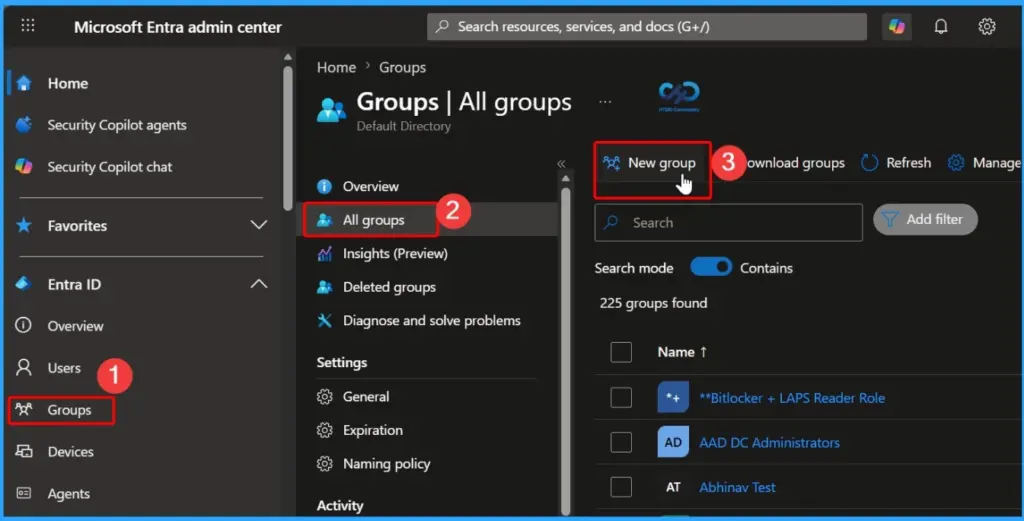
To create a new dynamic device group for Windows Autopilot devices, sign in to the Microsoft Entra admin center and navigate to Groups > All Groups. From the All Groups page, click New Group to start creating a new security group.
Configure the Group Settings
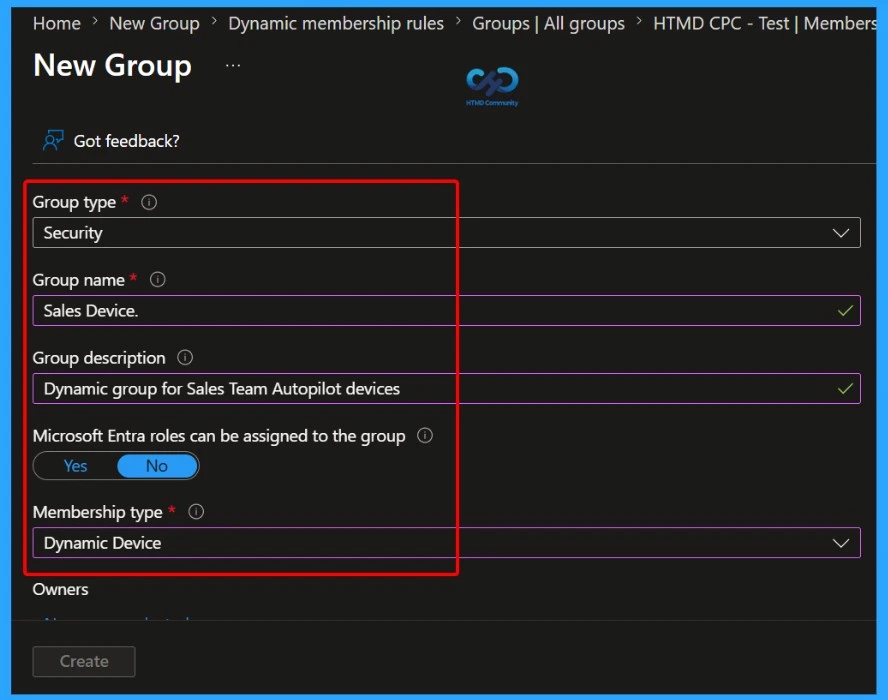
In the New Group section, select Security as the Group type and provide a meaningful name for the group, such as Sales Team Autopilot Group. Optionally, enter a description to identify the purpose of the group, for example, Dynamic group for Sales Team Autopilot devices. Next, set the Membership type to Dynamic Device, which allows Microsoft Entra ID to automatically add or remove devices based on the dynamic membership rules you define.
Add a Dynamic Membership Rule
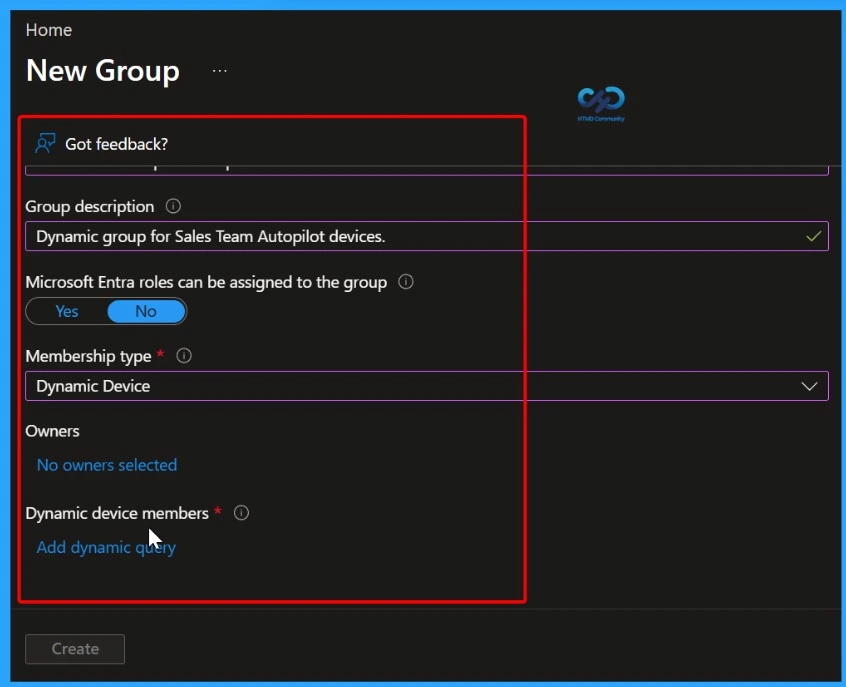
After configuring the group settings, click Add Dynamic Query to open the Dynamic Membership Rules page. This option allows you to define the criteria that Microsoft Entra ID uses to automatically determine group membership.
Configure the Dynamic Membership Rule
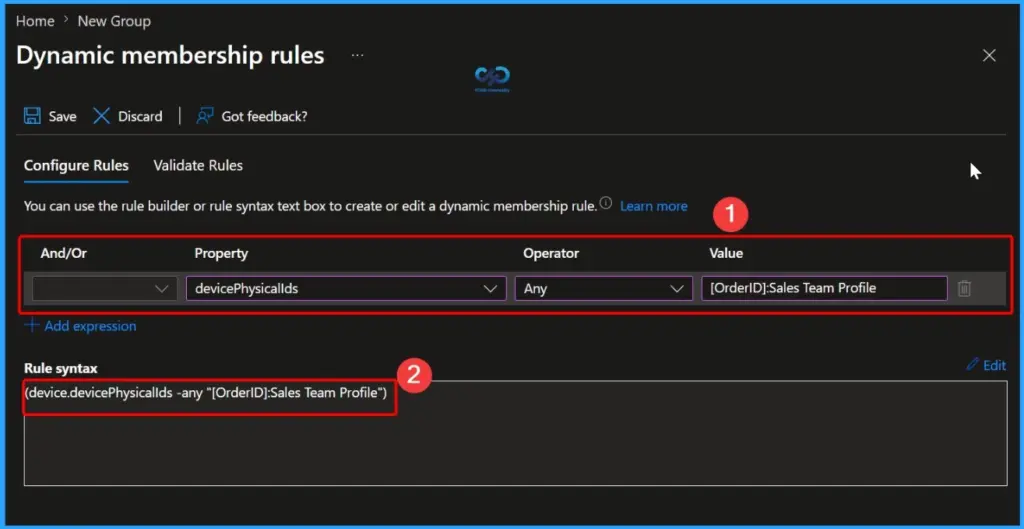
On the Dynamic Membership Rules page, create a rule to automatically add Windows Autopilot devices to the group based on their Group Tag (Order ID). Select device.devicePhysicalIds as the property, choose any as the operator, and enter [OrderID]:Sales Team Profile as the value. After configuring the rule, click Save to validate and store the membership criteria.
Autopilot Azure AD Dynamic Query ==> I recommend using the device.devicePhysicalIds.
- (device.devicePhysicalIds -any _ -contains “Sales Team Profile”)
- (device.devicePhysicalIds -any _ -contains “Sales Team”)
Assign Applications to Windows Autopilot Devices Using a Microsoft Entra Dynamic Device Group
After creating the Microsoft Entra ID Dynamic Device Group for your Windows Autopilot deployment profile, you can use the group to automatically deploy applications, security policies, compliance policies, and configuration profiles. This ensures that devices receive the required resources as soon as they enroll through Windows Autopilot, eliminating the need for manual assignments and improving deployment consistency.
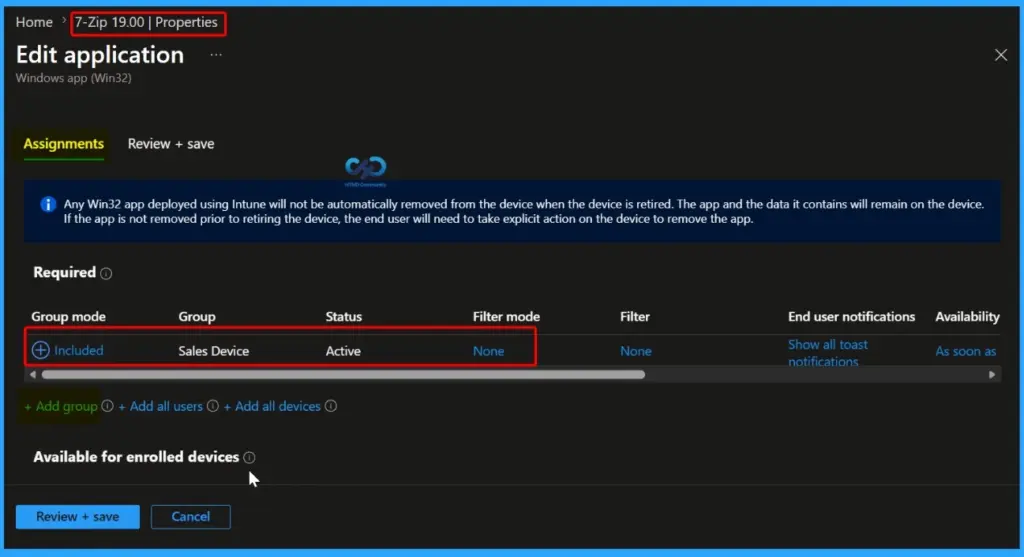
In this example, we will assign a required application named 7-Zip to the Sales Team Autopilot Group. Any device that becomes a member of this dynamic group will automatically receive the application during enrollment and provisioning.
- Sign in to the Microsoft Intune admin center.
- Navigate to Apps > All Apps.
- Select the application named 7-Zip.
- Open the Assignments tab.
- Click Add Group.
- For Assignment Type, select Required.
- Under Included Groups, select the Sales Team Autopilot Group dynamic device group.
- Click Select to confirm the group selection.
- Review the assignment settings and click Save.
Need Further Assistance or Have Technical Questions?
Join the LinkedIn Page and Telegram group to get the latest step-by-step guides and news updates. Join our Meetup Page to participate in User group meetings. Also, join the WhatsApp Community and the Whatsapp channel to get the latest news on Microsoft Technologies. We are there on Reddit as well.
Author
Anoop C Nair is a Workplace Technology solution architect with 25+ years of experience. Microsoft Certified Trainer. Microsoft MVP from 2015 onwards for consecutive 11+ years! He is a blogger, Speaker, and Founder of HTMD Community and HTMD Conference. His main focus is on Device Management technologies like Intune, Windows, and Cloud PC. He writes about technologies like Intune, SCCM, Windows, Cloud PC, Entra, and Microsoft Security.
How to create a dynamic device group for all compliant devices?