
Key Takeaways
- Centralized Security Visibility – Endpoint Security Reports provide a clear view of the security status of tenant-attached devices.
- Threat Detection – Reports help identify potential threats such as malware infections, security risks, and unauthorized access.
- Policy Monitoring – Administrators can regularly monitor whether devices are following company security and compliance policies.
- Proactive Remediation – Security issues can be identified and addressed early before they become major incidents.
Endpoint Security Reports in Microsoft Intune provide valuable visibility into the security and compliance status of tenant-attached devices. Administrators can use these reports to monitor device security, identify threats such as malware, and verify whether devices are meeting organizational security policies.
Table of Content
Table of Contents
Endpoint Security Antivirus Reports for Tenant-Attached Devices in Intune
Regularly reviewing Endpoint Security Reports helps administrators identify potential security issues early and take corrective action before they become major problems. This improves overall device security, supports compliance, and helps protect organizational data and resources.
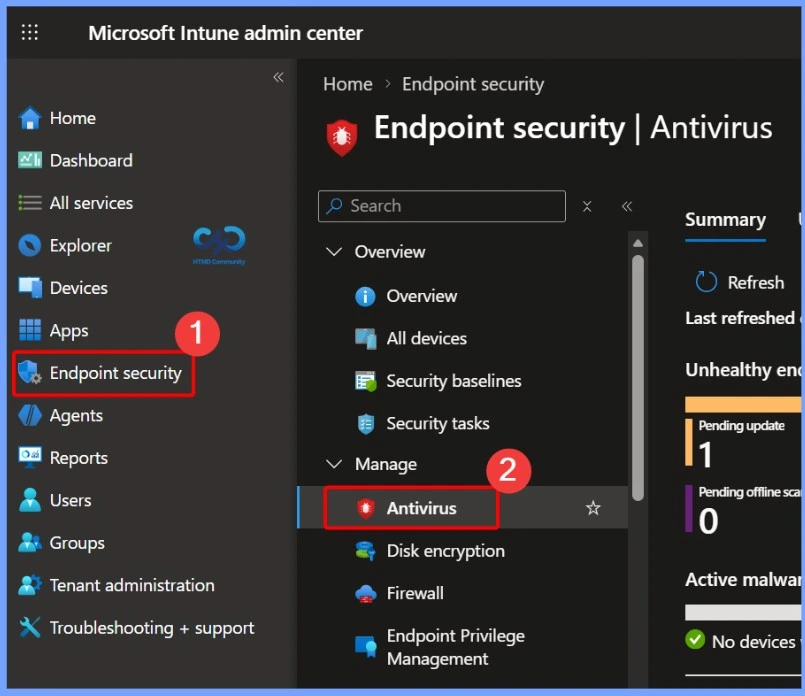
To check Endpoint Security Reports for tenant-attached devices in Microsoft Intune, navigate to the Endpoint Security section. From here, you can access different security areas, including Antivirus, Disk Encryption, Firewall, Endpoint Privilege Management, Endpoint Detection and Response, App Control for Business, Attack Surface Reduction, Account Protection, Device Compliance, and Conditional Access. Select the relevant security area to view and monitor the available reports and security information for your tenant-attached devices.
- Sign in to the Microsoft Intune admin center
- Click on the Endpoint security, and navigate to Antivirus.
- What Is Endpoint Security Configuration Management For Windows 10 Devices
- New Built-in LAPs Client For Windows 11 And 10 | Conflict With Old Version Of LAPs
- Easy Method To Force Safari Patch Updates On MacOS Using Intune
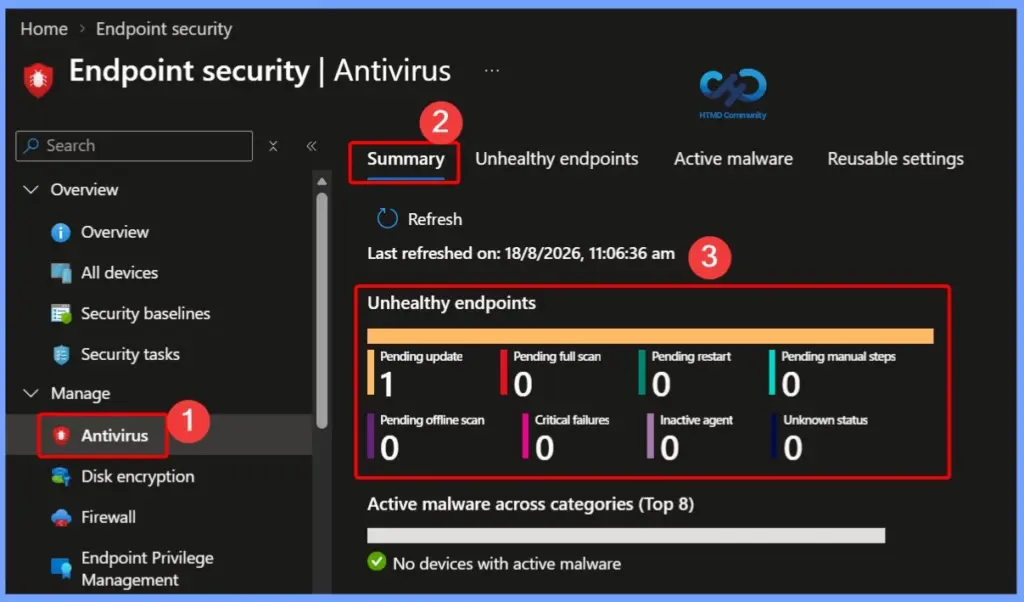
Monitor Antivirus Health and Active Malware
The Antivirus section in Microsoft Intune provides a summary of endpoint health and malware status. Administrators can review unhealthy endpoints, including devices with pending updates, pending scans, pending restarts, critical failures, inactive agents, or unknown status. The Active malware section also helps identify devices affected by active threats, allowing administrators to take timely corrective action.

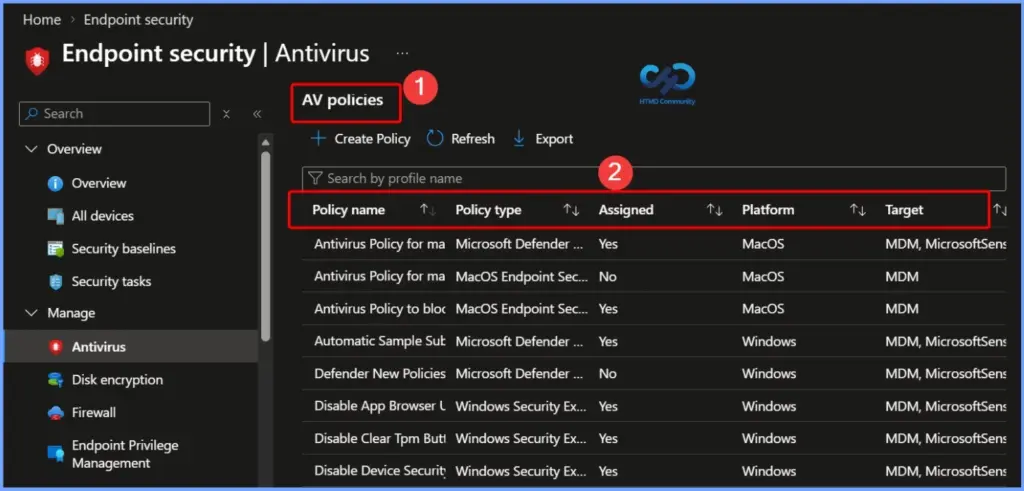
List of antivirus policies configured in Intune
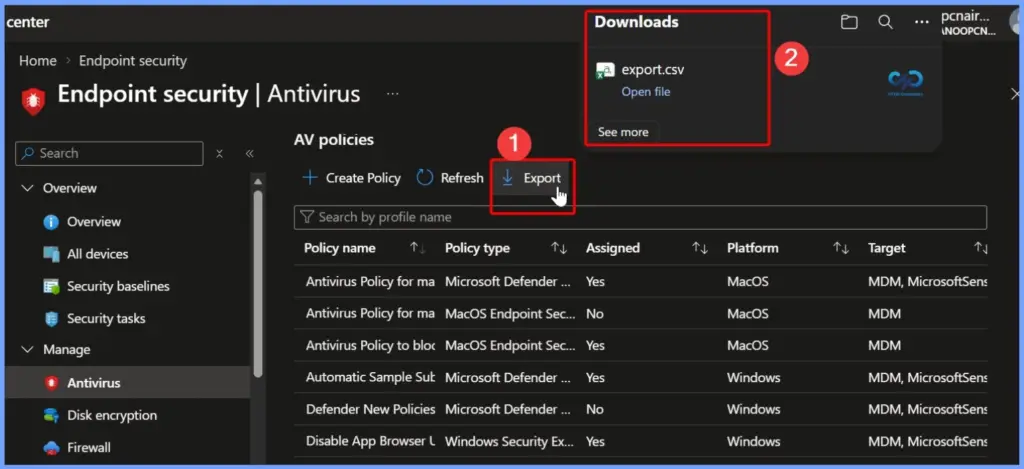
The Summary section also displays a list of antivirus policies configured in Intune. It provides an overview of the available policies, including their policy name, policy type, assignment status, platform, and target, making it easy for administrators to review and manage antivirus policy configurations across devices.
Create an Antivirus Policy in Intune
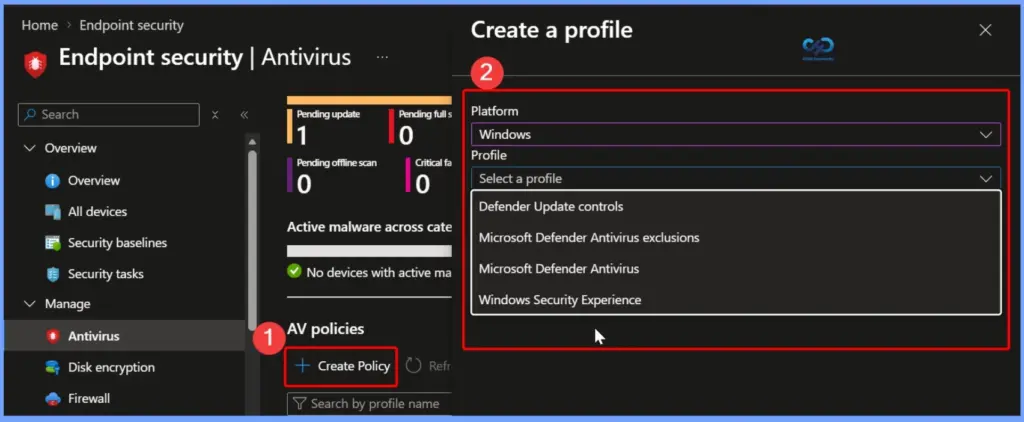
You can easily create an antivirus policy in Microsoft Intune by selecting + Create Policy. During the policy creation process, you need to specify the appropriate Platform and Profile type details before configuring the required antivirus settings.
Export Antivirus Policies from Microsoft Intune
You can easily export all antivirus policies from Microsoft Intune by clicking the Export button, as shown in the screenshot below. Once you select Export, Intune generates a CSV file containing the antivirus policy details, which you can download for reporting, review, or documentation purposes.
Monitor Unhealthy Windows Endpoints in Microsoft Intune
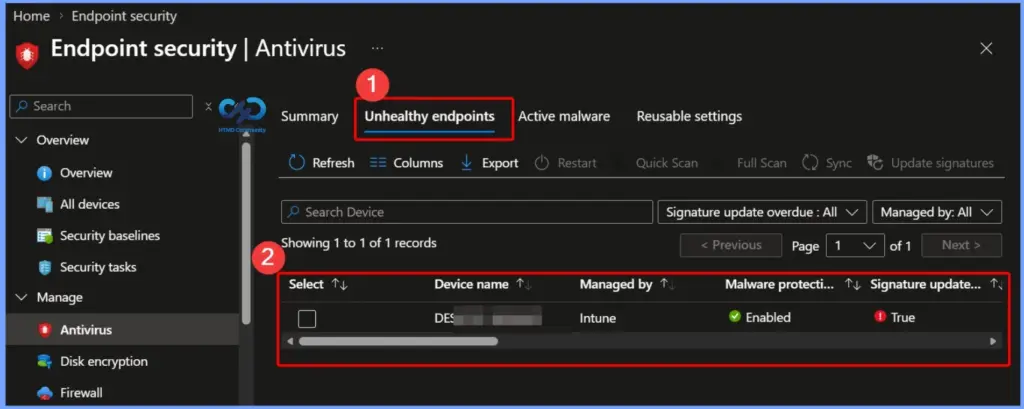
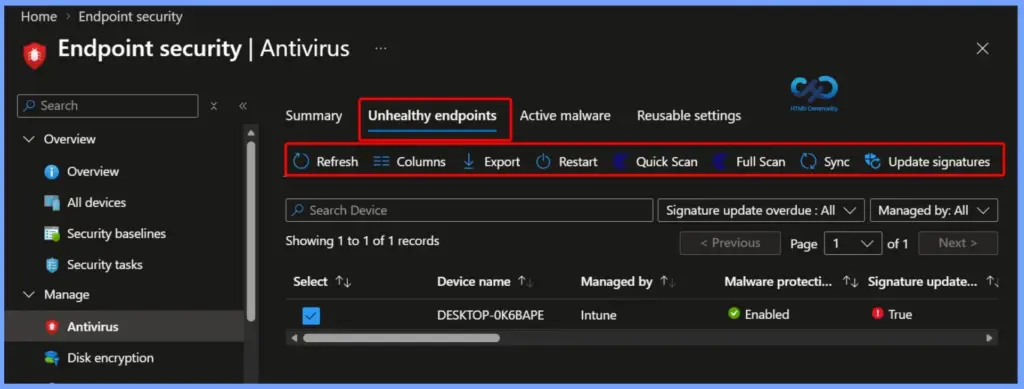
The Unhealthy endpoints page in Microsoft Intune provides antivirus status information for MDM-managed Windows devices. This information is reported by Microsoft Defender Antivirus running on the device and is shown as Threat agent status. You can select Columns to view all available details in the report.
The Unhealthy endpoints report provides the Threat agent status of devices and users that require attention. It shows whether malware protection, real-time protection, and network protection are enabled or disabled, along with additional details useful for troubleshooting. You can filter devices using the Managed By column, such as MDM, Co-managed, or ConfigMgr (tenant-attached devices), and export the report as a CSV file for further analysis.
Viewing Active Malware in Microsoft Intune
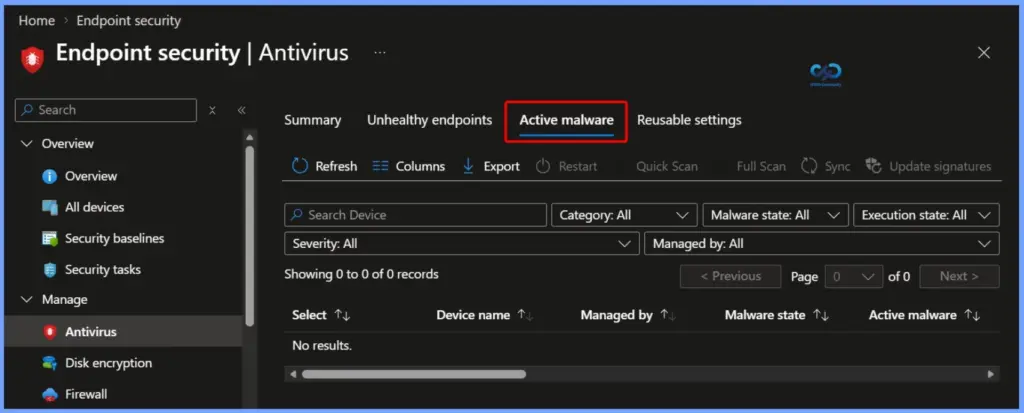
To check for active threats across your managed devices, navigate to Endpoint security > Antivirus in the Microsoft Intune admin center and select the Active malware tab. This view allows administrators to monitor detected malware instances, filter results by severity or execution state, and trigger remote remediation actions such as Quick Scan, Full Scan, or updating antivirus signatures directly on affected endpoints.
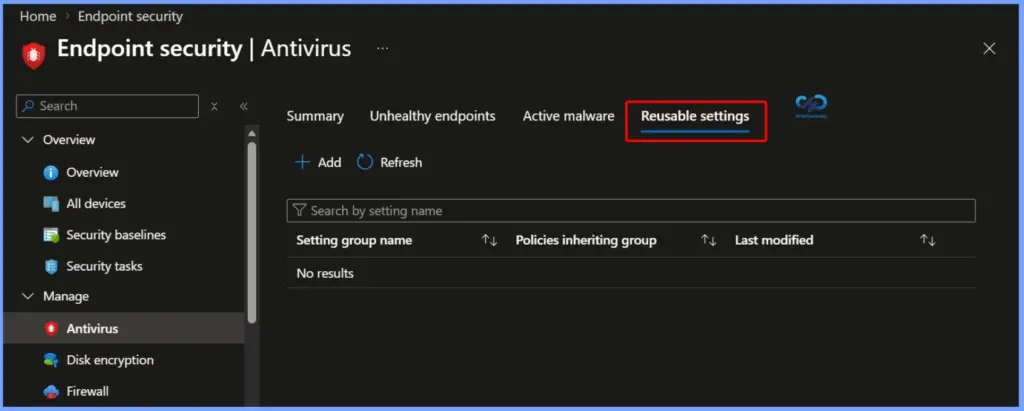
Overview of Firewall Reusable Settings in Microsoft Intune
The Reusable settings feature in Microsoft Intune simplifies network management by allowing IT administrators to define target endpoints once and apply them across multiple firewall policies.
- Centralized Endpoint Grouping: Create a reusable group containing remote IP addresses, IP ranges, or Fully Qualified Domain Names (FQDNs).
- Policy Inheritance: Attach the setting group to multiple Firewall rule policies. Each policy can be configured to Allow or Block traffic to all endpoints in that group.
- Automatic Updates: Editing the endpoints in a single reusable setting group automatically updates all linked firewall policies without having to modify them individually.
- Reduced Security Risks: By using the Firewall CSP with reusable settings groups, admins can easily manage non-domain systems, standardize rules, and reduce overall network security threats.
Remote Device Actions for Unhealthy Endpoints
Beyond monitoring system status, the toolbar on the Unhealthy endpoints tab allows administrators to perform key remote management tasks directly on affected devices:
- Refresh & Sync: Updates the current portal view and forces the endpoint to sync immediately with Intune to fetch the latest security policies.
- Scan & Update: Triggers a Quick Scan or Full Scan to detect threats, or selects Update signatures to download the latest virus definitions on devices with outdated security files.
- Restart: Remotely reboots selected devices to complete required updates or apply pending system fixes.
- Data Management: Uses Columns to customize displayed device details or Export to save device status data for offline analysis and reporting.
Need Further Assistance or Have Technical Questions?
Join the LinkedIn Page and Telegram group to get the latest step-by-step guides and news updates. Join our Meetup Page to participate in User group meetings. Also, join the WhatsApp Community and the Whatsapp channel to get the latest news on Microsoft Technologies. We are there on Reddit as well.
Author
Jitesh, Microsoft MVP, has over six years of working experience in the IT Industry. He writes and shares his experiences related to Microsoft device management technologies and IT Infrastructure management. His primary focus is Windows 10/11 Deployment solution with Configuration Manager, Microsoft Deployment Toolkit (MDT), and Microsoft Intune.