
Key Takeaways
- Automatically group Azure Virtual Desktop (AVD) devices using Microsoft Entra ID membership rules.
- Use the read-only systemLabels attribute in dynamic membership rules when supported label values are available.
- Devices are automatically added or removed based on matching attribute values.
- Use Microsoft Entra ID dynamic security groups for AVD device grouping and Intune policy assignments.
- Verify the actual systemLabels values and test membership rules before deploying them in production.
Microsoft Entra ID allows you to create dynamic device groups for Azure Virtual Desktop (AVD) using device attributes such as systemLabels. You cannot manually configure this read-only property in Intune. You can use it in a dynamic membership rule when the device has the required label. Use a dynamic security group to group AVD session-host devices and target supported Intune policies or applications.
Table of Content
Table of Contents
Create an AVD Dynamic Device Group using the systemLabels Property in Microsoft Entra ID
Microsoft Entra ID automatically evaluates device attributes and updates dynamic group membership when devices meet or no longer meet the defined conditions. For AVD device grouping, verify the actual systemLabels value and test the membership rule before using it. Unlike SCCM device collections, Entra dynamic groups use cloud-based directory attributes. For Intune app and policy targeting, assignment filters may be a better option when you only need to refine targeting within an assigned group.
- How to Create Efficient Rules for Dynamic Membership Groups in Entra ID
- Entra Source IP Anchoring with Global Secure Access to Improve the Security Management of SaaS Apps
- Entra ID Auth Methods WHfB Authenticator push Authenticator passwordless Authenticator passkey
- Microsoft Moves Per-User Multifactor Authentication to Entra ID for Easier Management
Create an Azure Virtual Desktop (AVD) Dynamic Device Group Using systemLabels
Follow these steps to create a dynamic device group in Microsoft Entra ID. This group automatically identifies AVD devices based on the systemLabels property, allowing you to target specific devices for supported management tasks.
- Steps to Create the Dynamic Group
- Open the Microsoft Entra admin center and sign in using an account with the required permissions.
- A Groups Administrator role is sufficient to create a dynamic group.
- Navigate to Groups: Select Microsoft Entra ID > Groups > All groups > New Group.
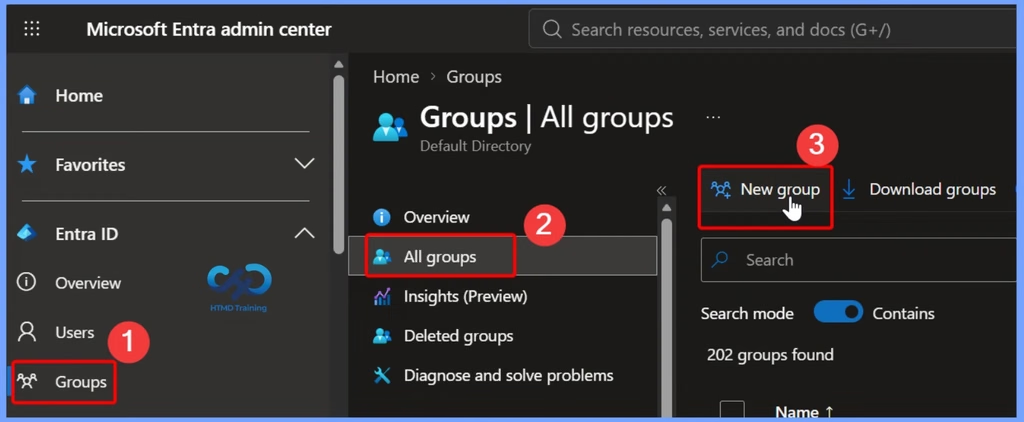
Configure the New Dynamic Device Group
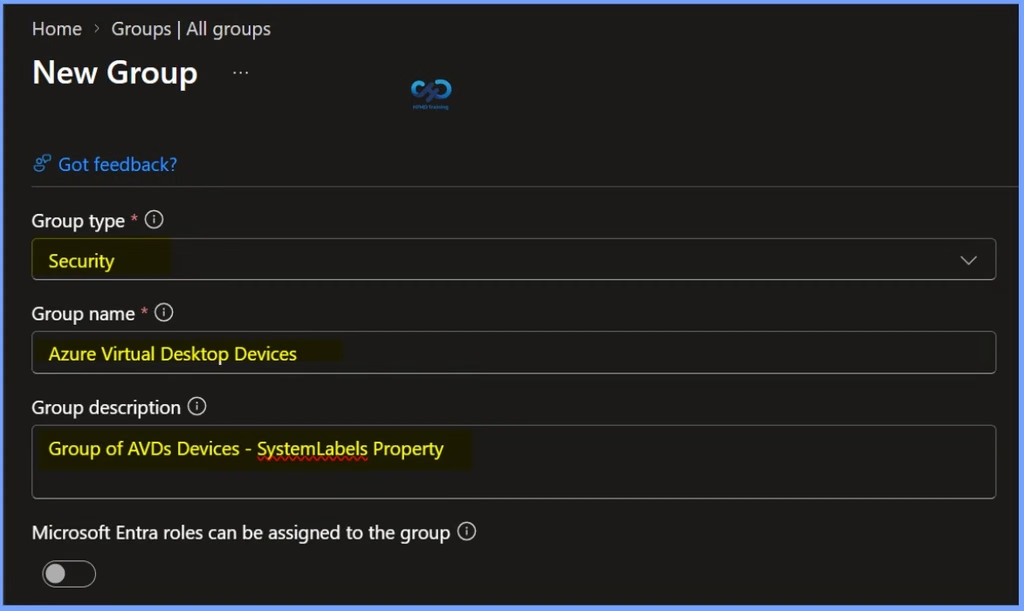
On the New Group page in the Microsoft Entra admin center, enter the required details to create a dynamic device group for Azure Virtual Desktop (AVD). The group type, group name, and membership type are the key fields to configure.

- Group type: Select Security from the drop-down menu.
- Group name: Enter Azure Virtual Desktop Devices.
- Group description: Enter Group of AVD Devices – systemLabels Property.
- Microsoft Entra roles can be assigned to the group: Select No.
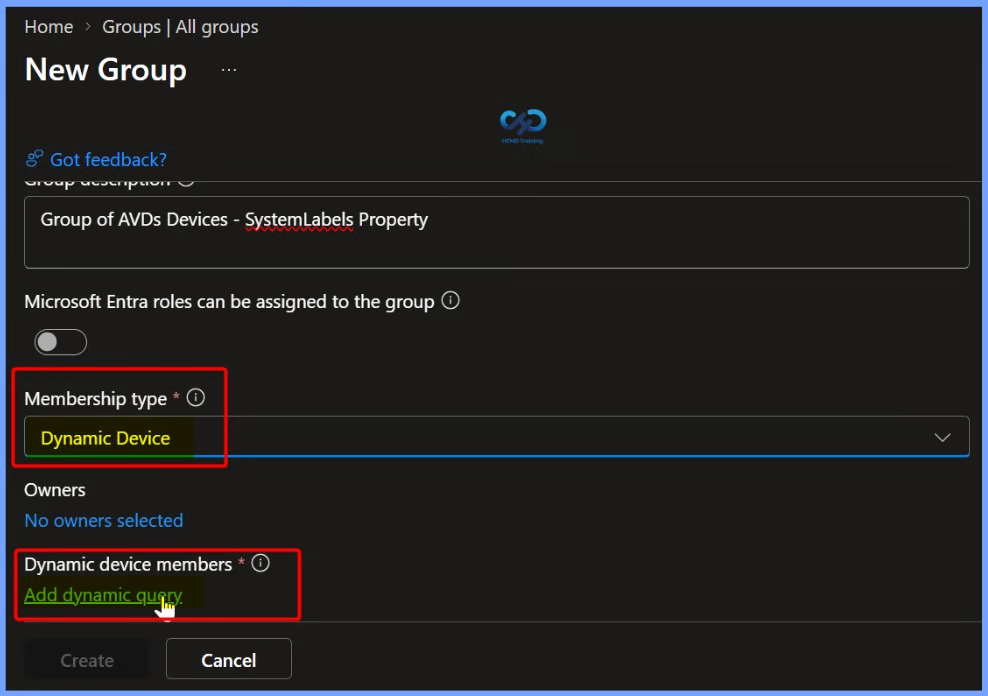
Configure Dynamic Device Membership
Select Dynamic Device as the Membership type to automatically group devices based on defined attributes. Then, under Dynamic Device Members, click Add dynamic query to configure the membership rule for Azure Virtual Desktop devices.
Configure Dynamic Membership Rules Using systemLabels
On the Dynamic Membership Rules blade, select the systemLabels property and check the available operators. If Contains is available, select it and enter AzureVirtualDesktop as the value to target AVD devices, or CloudPC to target Windows 365 Cloud PCs.
If the Contains operator is not available in your current rule builder, use the text-based rule editor and verify the supported syntax for systemLabels before saving the query.
| Device attribute | Values | Rules [For Example] |
|---|---|---|
| systemLabels | Any string matching the Intune device property for tagging Modern Workplace devices | (device.systemLabels -contains “AzureVirtualDesktop“) |
| systemLabels | Any string matching the Intune device property for tagging Windows 365 Cloud PC | (device.systemLabels -contains “CloudPC“) |
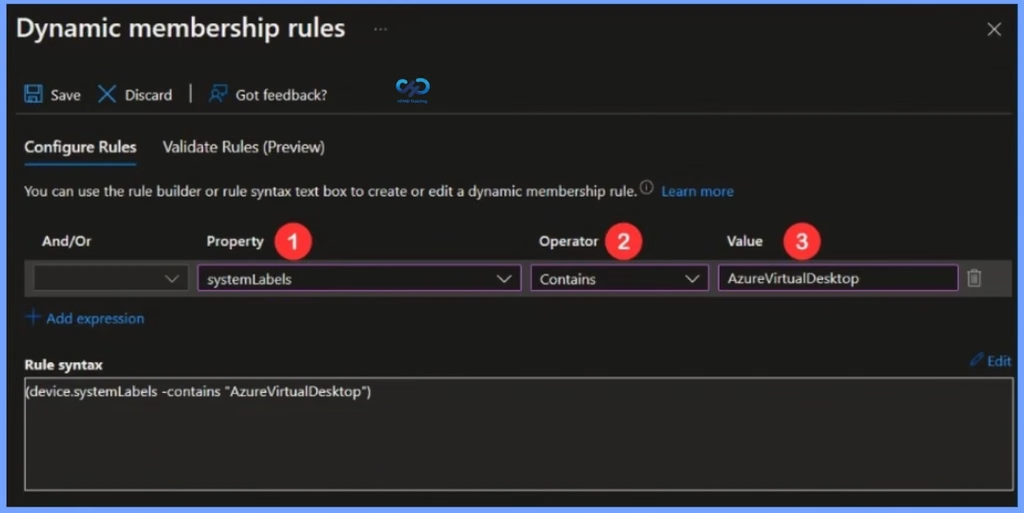
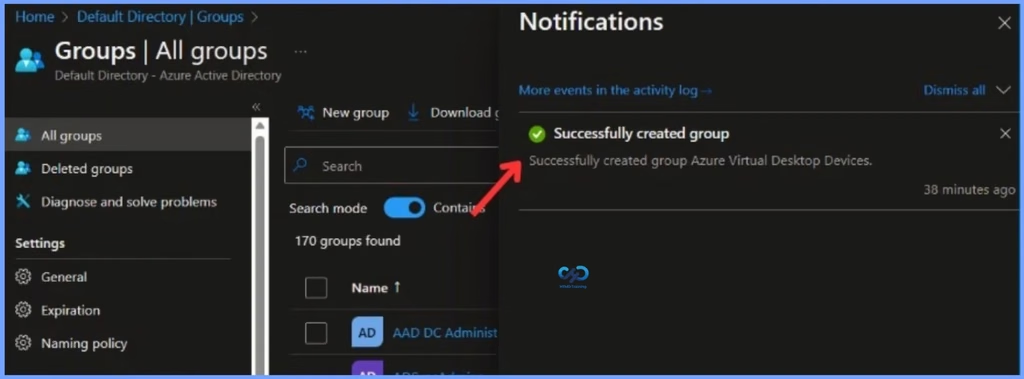
The Validate Rules tab will run your query against your selected target users or devices and confirm if they meet the requirements to be a group member or not. Click the Save and Create button to complete the process of building an Entra ID dynamic device group. A notification will appear with a message: Successfully created group Azure Virtual Desktop Devices.
Entra ID will evaluate the dynamic query periodically and automatically include AVD devices that match the specified system label in the group. This allows you to dynamically manage the membership of the group based on the properties of the AVD devices.
Need Further Assistance or Have Technical Questions?
Join the LinkedIn Page and Telegram group to get the latest step-by-step guides and news updates. Join our Meetup Page to participate in User group meetings. Also, join the WhatsApp Community and the Whatsapp channel to get the latest news on Microsoft Technologies. We are there on Reddit as well.
Author
Jitesh, Microsoft MVP, has over six years of working experience in the IT Industry. He writes and shares his experiences related to Microsoft device management technologies and IT Infrastructure management. His primary focus is Windows 10/11 Deployment solution with Configuration Manager, Microsoft Deployment Toolkit (MDT), and Microsoft Intune.
I’ve looked at multiple AVD instances we run and none of them have the systemLabels attribute populated. Would love to use this but without more info from MS on what causes this to be populated we’re a bit stuck.
So what are all the value systemLabels attribute supports?
I cannot find anywhere from MS Docs.
Thanks,
Go to Microsoft Entra Admin Centre
– You will need to add a Device query to see the systemlable
I’ve found that
(device.devicePhysicalIds -any (_ -contains “[AzureResourceId]”))
seems to work by default whereas systemLabel does not.