
Key Takeaways
- Disabling browser notifications helps reduce unwanted pop-ups, alerts, and sounds that can interrupt users while they work.
- Blocking unnecessary notifications can help users stay focused and improve productivity during their daily tasks.
- Microsoft Intune provides a centralized way for administrators to manage browser notification settings on managed Windows devices.
- Administrators can configure Microsoft Edge to prevent websites from displaying desktop notifications.
Let’s learn how to disable browser notifications from Intune. Disabling browser notifications is an effective way to improve focus and reduce distractions while browsing the internet. With Intune, admins can easily manage and disable browser notifications for Microsoft Edge, Google Chrome, and Firefox, maybe more. By creating a configuration profile in the Intune admin center, specific policies related to browser notifications can be adjusted. Browser notifications, although helpful in certain scenarios, can often become overwhelming, constantly getting attention with pop-ups and sound alerts.
Table of Contents
Table of Contents
Disable Browser Notifications to Reduce Distractions by using Microsoft Intune
By disabling these notifications, users can experience a more serene and uninterrupted browsing experience. Once the configuration profile is applied and assigned to relevant user or device groups, the specified policies will take effect, preventing unwanted browser notifications from interrupting user’s workflows and ensuring a more focused and productive browsing experience. This centralized approach to managing browser notifications through Intune simplifies the administrative process and enhances the overall user experience on managed devices.
- Secure Microsoft Edge Browser Using Intune Security Policies
- Disable Microsoft Edge First Run Experience Using Intune
- How to Configure Files, Folders and Registry Keys Access Auditing Application Policy in Intune
- Control One Settings Service Logging in Windows using Intune
Disable Browser Notifications from Intune
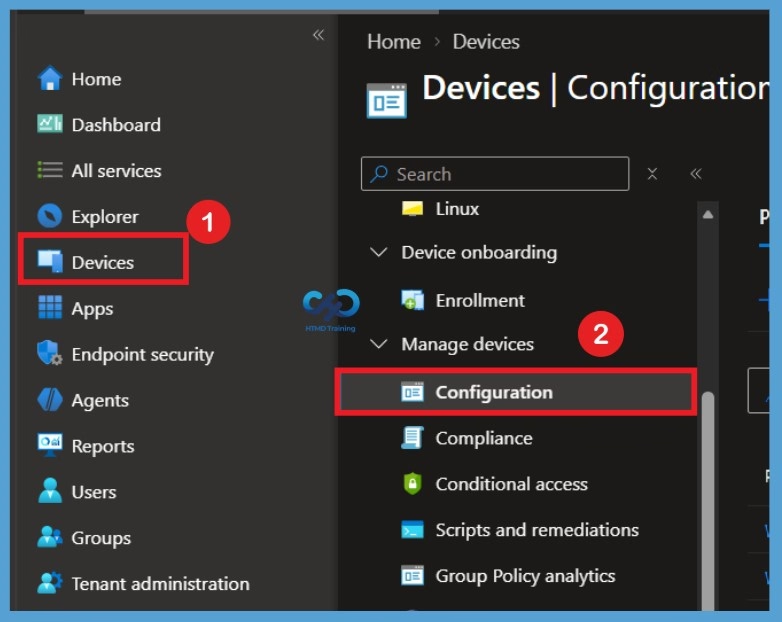
To begin, open Microsoft Intune and sign in with your administrator credentials. Once logged in, navigate to the Devices section and select Configuration Profiles. In this section, click on the + Create Policy option to create a new configuration profile
- Sign in to the Microsoft Intune Admin portal
- Select Devices > Configuration profiles > Create profile.
Create Profile
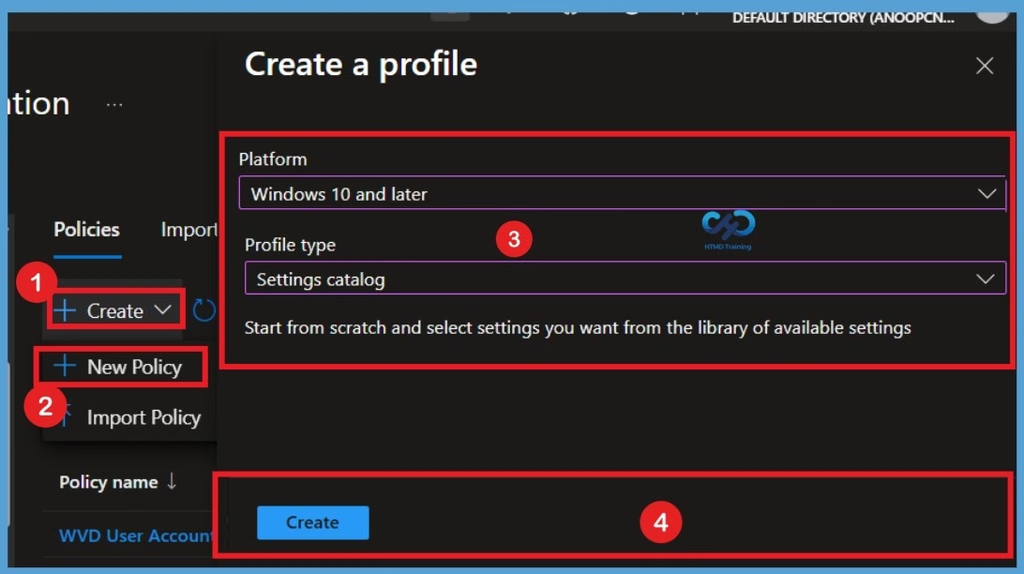
After selecting Configuration, go to the Policies section and click Create. From the available options, select New Policy to open the Create a Profile window. Here, select Windows and 10 Later as the platform and Settings Catalog as the profile type. Once you have made the required selections, click Create to proceed with the policy configuration.

Basic Tab for Disable Browser Notifications
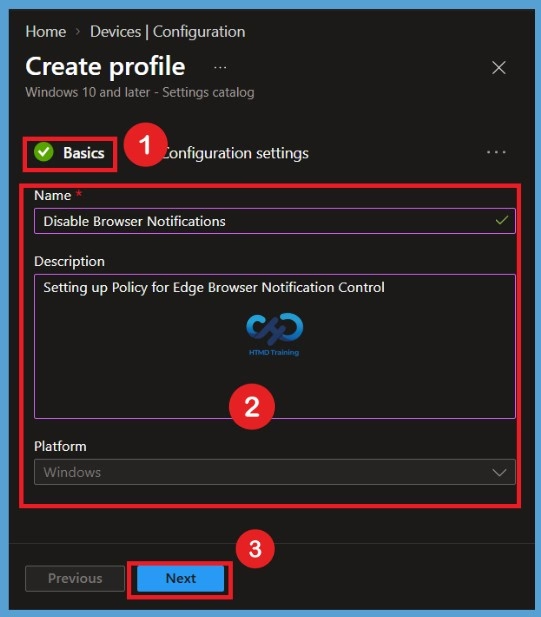
In the Basics tab, enter a name for the configuration profile. For example, enter Disable Browser Notifications in the Name field. You can also add a description explaining the purpose of the policy, such as Setting up Policy for Edge Browser Notification Control. Once the required details are entered, click Next to continue.
Configuration Settings
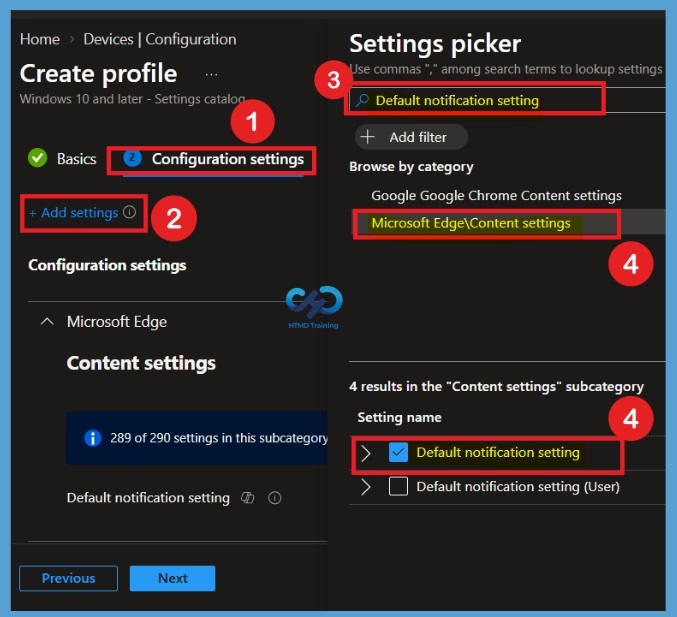
On the Configuration settings tab, With the settings catalog, you can choose which settings you want to configure. Click on Add Settings to browse or search the catalog for the settings you want to configure. Search for “notification setting or “default notification setting”. Select the search result for “Microsoft Edge\Content settings” You may find similar settings, device or use, and for different browsers you are using (Chrome), You can proceed to configure with the same settings option as added below. You will find the search results for notification setting, select “Default notification settings” and close the pane.
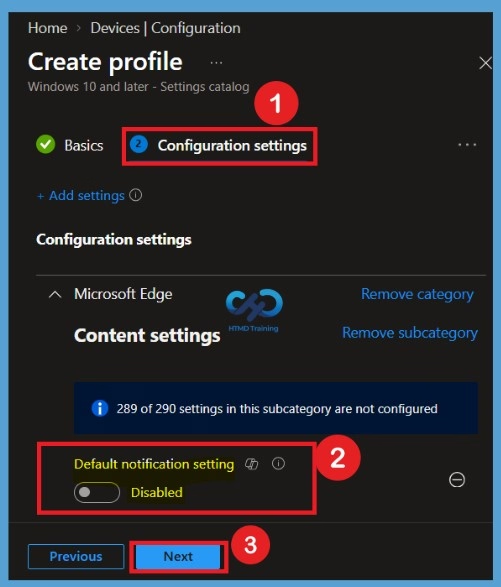
Defaulted State of Policy
After selecting the Disable Browser Notifications setting, the policy is set to Disabled by default. This means the setting is not enabled initially, You can allow them by default (1), deny them by default (2), or have the user be asked each time a website wants to show a notification (3).
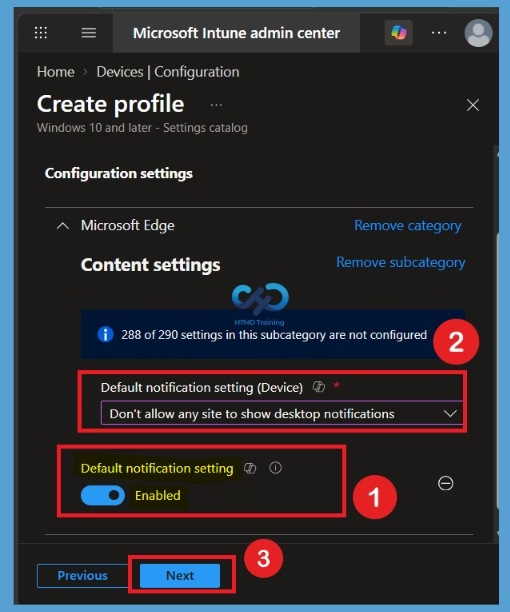
The next step is to expand Content settings and toggle “Default notification setting” to Enabled. Once you enable the option, A default notification setting (Device) will appear with the drop-down option. You will get notice the following options in the default notification setting (Device), Here, I choose, don’t allow any site to show desktop notifications from the list and click on Next.
- Allow sites to show desktop notifications
- Don’t allow any site to show desktop notifications
- Ask every time a site wants to show desktop notifications
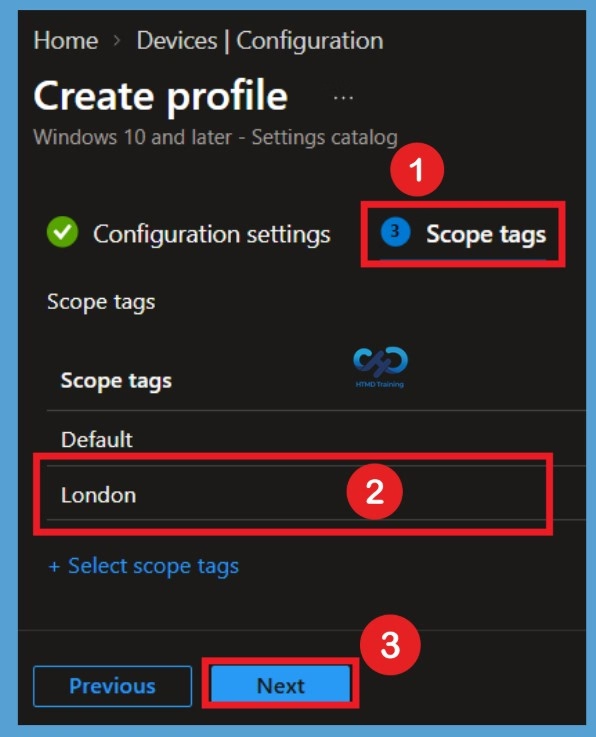
Configure Scope Tags
Using Scope tags, you can assign a tag to filter the profile to specific IT groups. For this policy, I select the London scope tags example. After selecting the required scope tag, review the selection and click Next to continue to the Assignments tab.
Assign the Policy to Groups
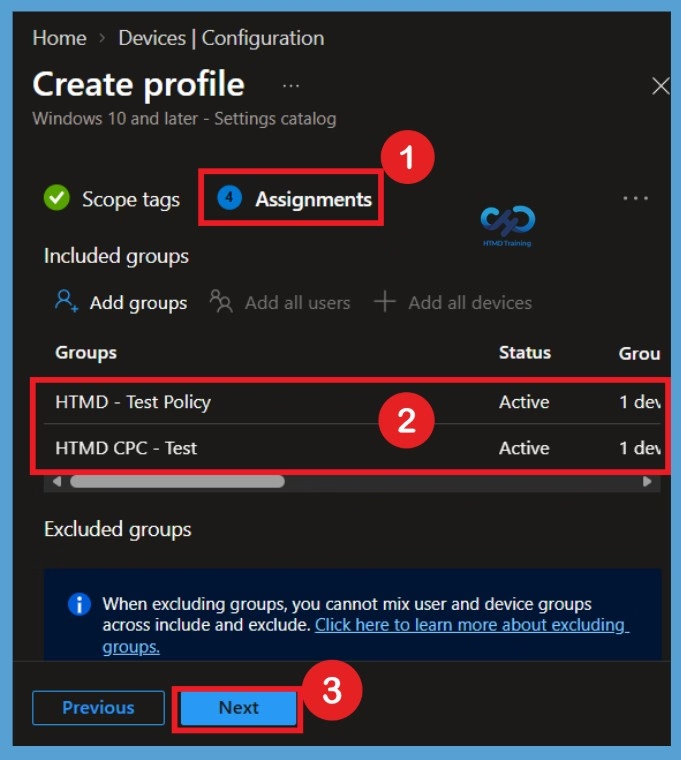
On the Assignments tab, you can select the users or devices that should receive the browser notification policy. Under Included groups, select Add groups and choose the required groups from the available list. For this configuration, select HTMD CPC Test and HTMD Test Policy as the included groups. These groups will receive the policy once it is successfully created and deployed.
After selecting the required groups, review the assignments to make sure the correct groups are included. Once everything is confirmed, click Next to continue to the Review + create tab.
Review + Create
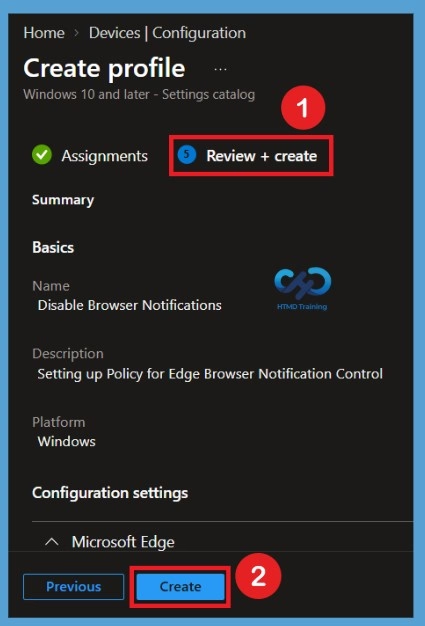
In the Review + Create tab, you need to review your settings. After clicking Create, your changes are saved, and the profile will be assigned to the added devices group. A notification will appear automatically if you see it in the top right-hand corner. One can easily see that the Policy “Disable Browser Notifications” was created successfully. Also, if you check the Configuration Profiles list, the Policy is visible there.
Note! The device groups will receive your profile settings when the devices check in with the Intune service. The Policy applies to the device.
Monitor Browser Toast Notification Policy Deployment
Intune provides several features to monitor and manage device configuration profiles. By monitoring the status of your profiles, you can ensure that your devices are configured correctly and that any issues are addressed promptly.
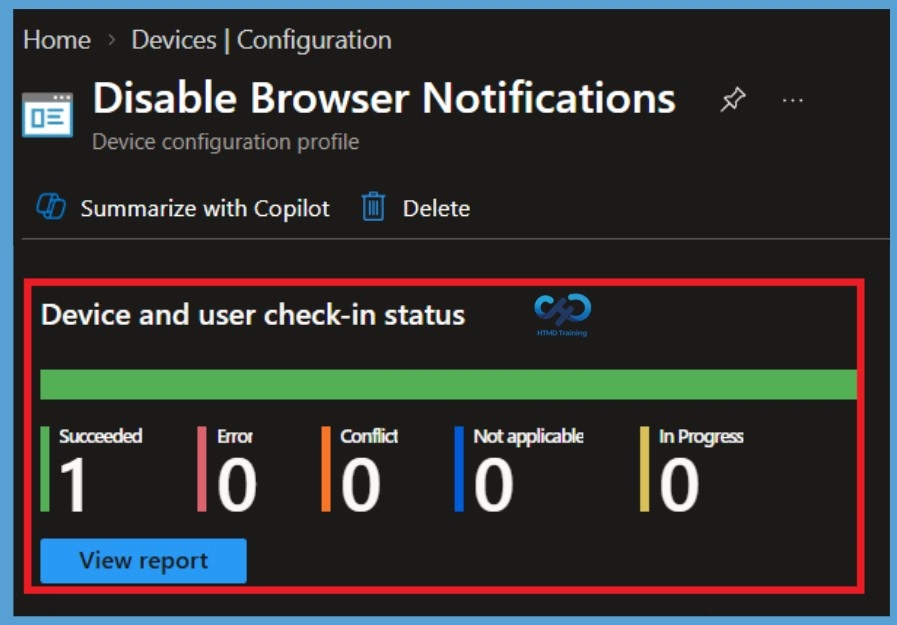
To monitor Intune policy assignment, from the list of Configuration Profiles, select the policy you targeted, and here you can check the device and user check-in status. If you click View Report, additional details are displayed. Additionally, you can quickly check the update as devices/users check-in status reports:
Track Event Log for Intune Policy Deployment
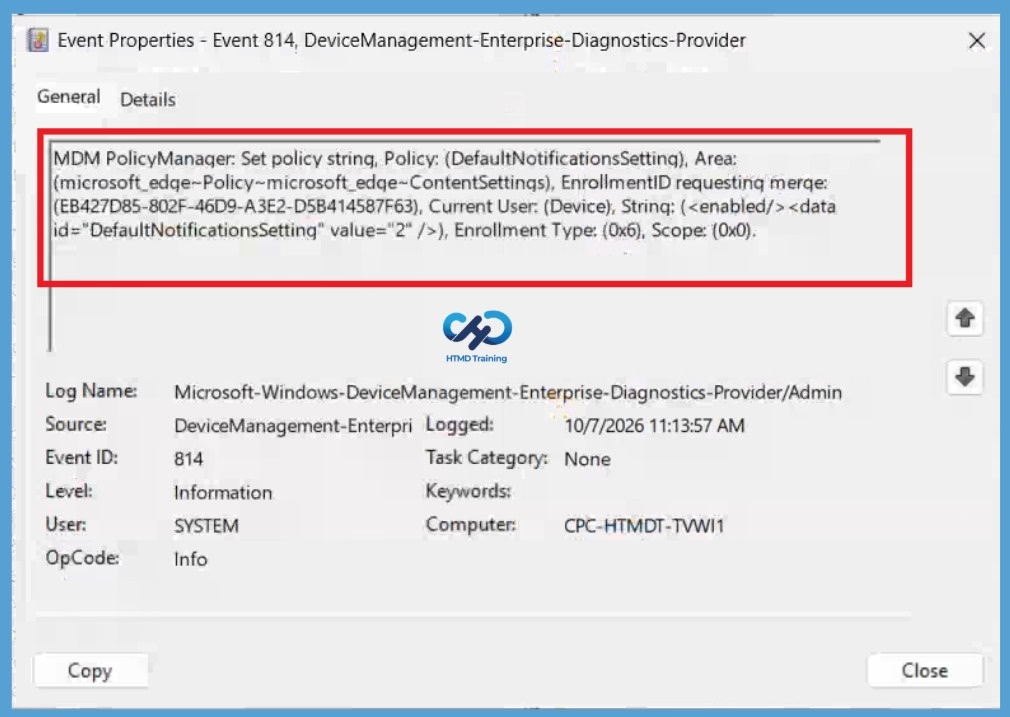
Intune event IDs 813 or 814 can indicate that a string policy has been applied to Windows 10 or 11 devices. These event IDs can provide valuable information about the policy that has been applied, including the exact value of the policy enforced on those devices. In the case of the policy mentioned earlier, which enforces idle session time limits, event ID 814 would be used to indicate that the string policy has been applied, and you can view the specific value of the policy.
To confirm this, check the Event log path > Applications and Services Logs > Microsoft > Windows >Devicemanagement-Enterprise-Diagnostics-Provider > Admin.
| Policy Info |
|---|
| MDM PolicyManager: Set policy string, Policy: (DefaultNotificationsSetting), Area: (microsoft_edge~Policy~microsoft_edge~ContentSettings), EnrollmentID requesting merge: (FFCDEF31-E97E-4DBE-BE54-1410A26176CC), Current User: (Device), String: (), Enrollment Type: (0x6), Scope: (0x0). |
Remove a Device Group from the Policy
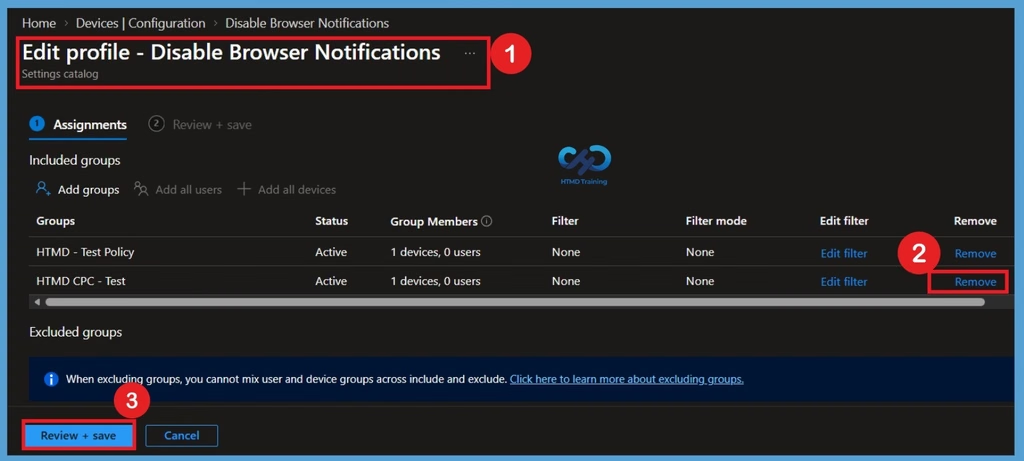
If you no longer want the policy to apply to a particular device group, you can remove the group from the policy assignment. Open Devices > Windows > Configuration profiles and select the Disable Browser Notifications policy. Open Assignments and locate the group under Included groups. Select the group you want to remove and choose Remove or remove it from the assignment list. Save the changes to update the policy assignment.
Permanently Delete the Policy from the Tenant
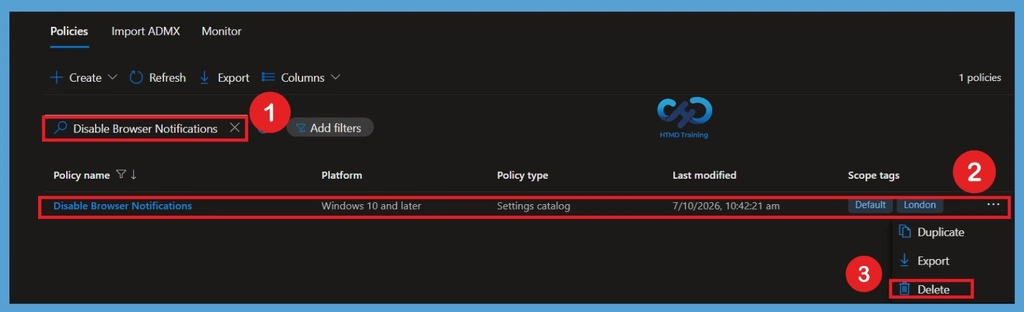
If the policy is no longer required, you can permanently remove the configuration profile from the Intune tenant. Go to Devices > Configuration profiles and select the disabled Browser Notifications policy. From the policy overview page, select Delete and confirm the deletion when prompted. Before deleting the policy, make sure that it is no longer required and review its assignments. Deleting the configuration profile removes the policy from Intune.
Need Further Assistance or Have Technical Questions?
Join the LinkedIn Page and Telegram group to get the latest step-by-step guides and news updates. Join our Meetup Page to participate in User group meetings. Also, join the WhatsApp Community and the Whatsapp channel to get the latest news on Microsoft Technologies. We are there on Reddit as well.
Author
About Author – Jitesh, Microsoft MVP, has over six years of working experience in the IT Industry. He writes and shares his experiences related to Microsoft device management technologies and IT Infrastructure management. His primary focus is Windows 10/11 Deployment solution with Configuration Manager, Microsoft Deployment Toolkit (MDT), and Microsoft Intune.