
Key Takeaways
- Microsoft Intune allows administrators to enable and configure screen saver settings on managed macOS devices.
- Administrators can configure screen saver inactivity time, password requirements, password delay, and screen saver module settings.
- The Login Window Idle Time setting controls when the screen saver activates after a specified period of inactivity.
- Enabling Ask for Password helps improve device security by requiring users to enter their password when unlocking or stopping the screen saver, based on the configured password delay.
Let’s learn how you can enable Screen Saver for macOS using Intune. Activating Screen Saver enables the functionality of desktop screensavers. If you choose to deactivate this preference, screensavers will not initiate. Enabling a screen saver for macOS using Intune involves creating a Configuration Profile within the Intune Admin portal, specifically designed for macOS devices. This profile allows administrators to define screen saver settings, such as activation time and password protection, and then deploy these settings to managed macOS devices or user groups.
Table of Contents
Table of Contents
Enable Screen Saver for macOS using Intune to Improve Device Security
Intune provides a streamlined approach to enforcing screen saver policies across the organization’s macOS fleet, enhancing both security and device management capabilities. This centralized control ensures that screen savers are configured consistently. Once the screen saver is enabled on macOS, it will activate after the specified period of inactivity. If you have chosen to require a password, users will need to enter their password to exit the screen saver.
- Best Way To Set Wallpaper In MacOS Using Intune
- Upgrade To MacOS Sonoma And Intune Management
- Managing AirDrop As An Unmanaged Drop Target In IOS Using Intune
- Best Enhancements In Microsoft Intune To Manage Apple Devices
Enable Screen Saver for macOS using Intune
The following steps will help you to Enable Screen Saver for macOS, managed by Microsoft Intune. This allows admins to control the idle time, and password requirements for keeping the device secure. Sign in to the Microsoft Intune Admin portal.
- Select Devices > Configuration profiles > Create profile or navigate directly to macOS > Configuration profiles.
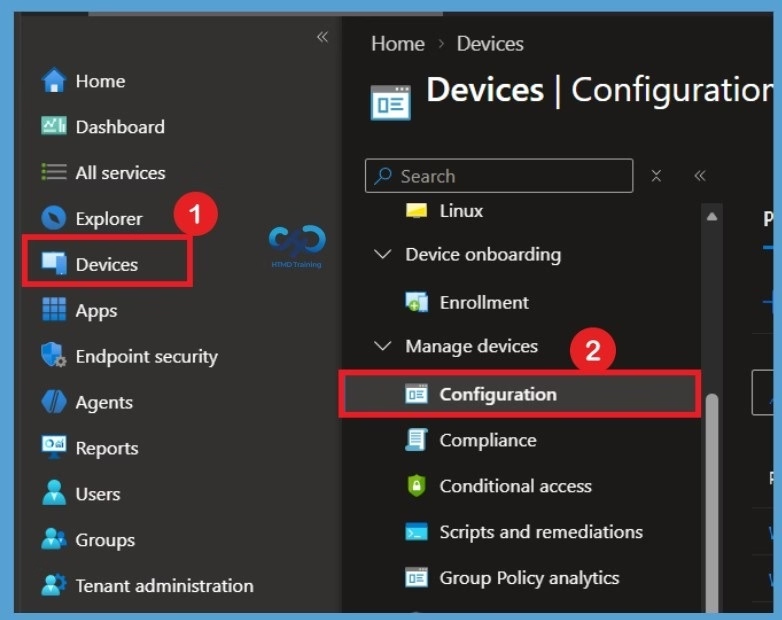
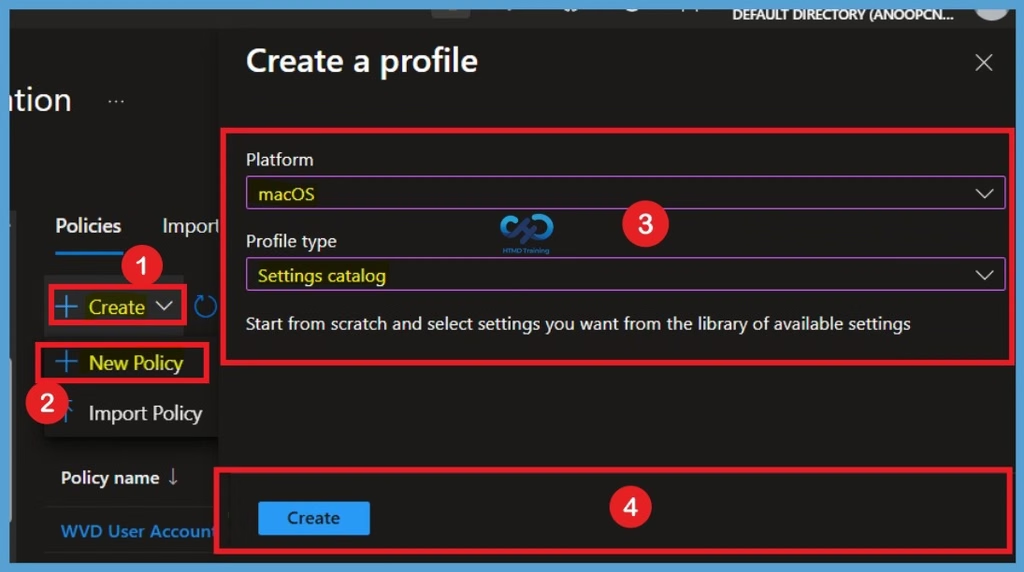
After selecting Configuration, go to the Policies section and click Create. From the available options, select New Policy to open the Create a Profile window. Here, select macOS as the platform and Settings Catalog as the profile type. Once you have made the required selections, click Create to proceed with the policy configuration

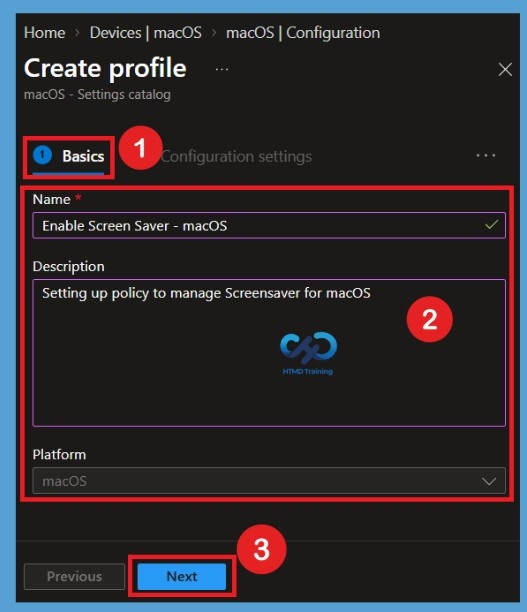
Basics Tab
In the Basics tab, enter Enable Screen Saver – macOS as the profile Name and provide the Description as Setting up a policy to manage screen saver settings for macOS devices using Microsoft Intune. After entering the required details, click Next to proceed to the Configuration settings tab.
Configuration Settings
On the Configuration settings tab, With the settings catalog, you can choose which settings you want to configure. Click on Add Settings to browse or search the catalog for the settings you want to configure. Search for “Screensaver“. Here you can see the search appears from the two category, System Configuration> Screensaver and User Experience > Screensaver User. Selected “System Configuration > Screensaver” from the search result. Select “Ask for password”, and login Window Idle Time from the list and close the pane.
| Screen Saver Settings Name | Info |
|---|---|
| Ask For Password | If true, the user is prompted for a password when the screen saver is unlocked or stopped. When you use this prompt, you must also provide Ask for Password Delay. Available in macOS 10.13 and later. |
| Ask For Password Delay | The number of seconds to delay before the password will be required to unlock or stop the screen saver (the grace period). A value of 2147483647 (for example, 0x7FFFFFFF) disables this requirement. To use this option, you must set Ask For Password to true. Available in macOS 10.13 and later. |
| Login Window Idle Time | The number of seconds of inactivity before the screen saver activates (0 = Never activate). |
| Login Window Module Path | The full path to the screen-saver module to use. |
| Module Name | The name of the screen saver module. |
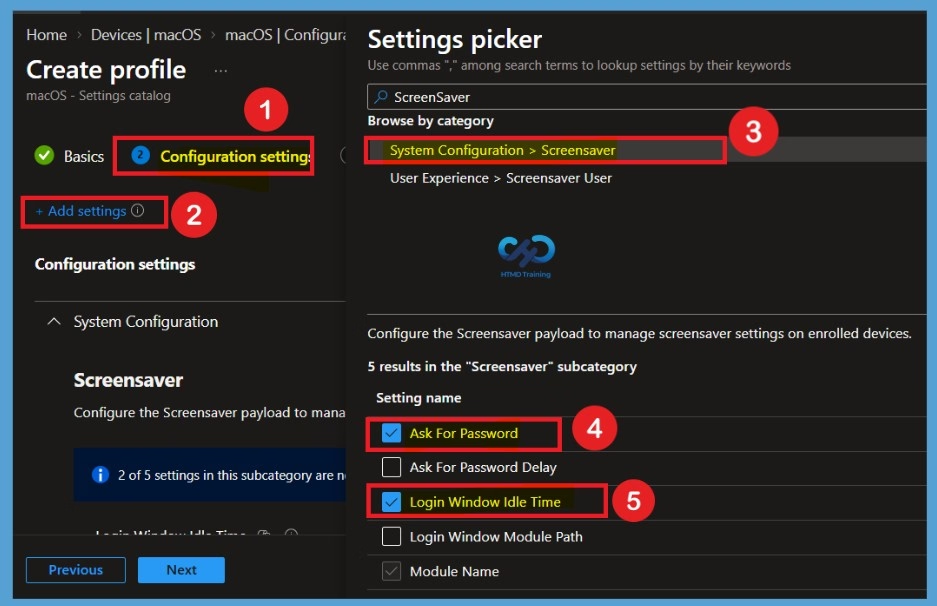
Configure the Screen Saver Settings
After selecting Login Window Idle Time and Ask for Password from the Settings picker, close the picker window to view the selected settings. By default, Ask for Password is set to False, while the Login Window Idle Time and Module Name fields are left unconfigured. You can keep these default settings or configure them according to your organization’s requirements. To enable password protection, change Ask for Password to True and enter the required values for the other settings.
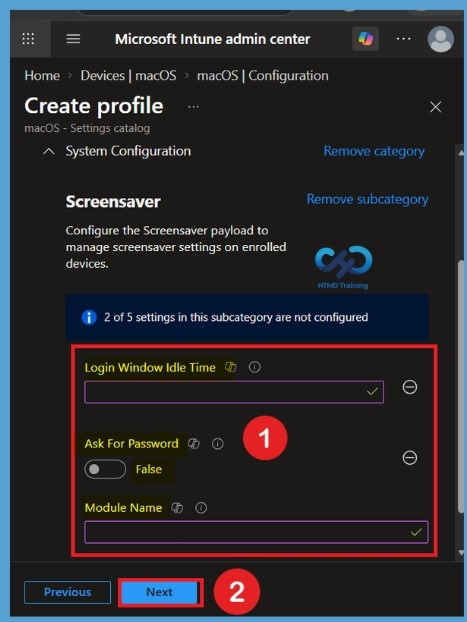
Enable Password Protection for the Screen Saver
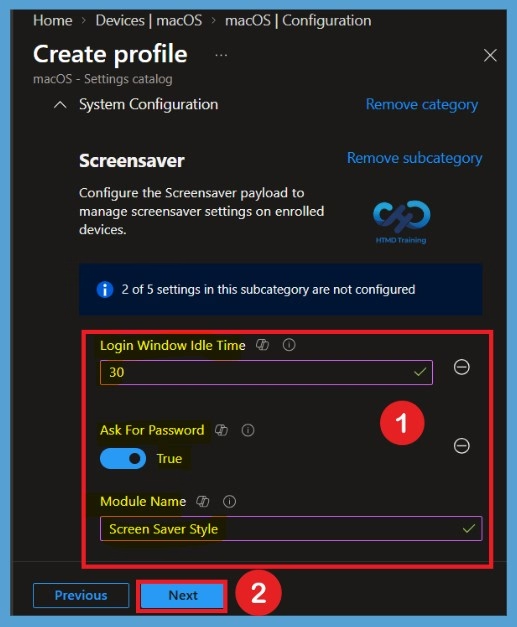
To improve device security, enable Ask for Password by setting it to True. This requires users to enter their password when unlocking or stopping the screen saver, subject to the configured password delay. In this example, Login Window Idle Time is set to 30 seconds, and Module Name is configured as Screen Saver Style. Once you have configured the required settings, click Next to continue.
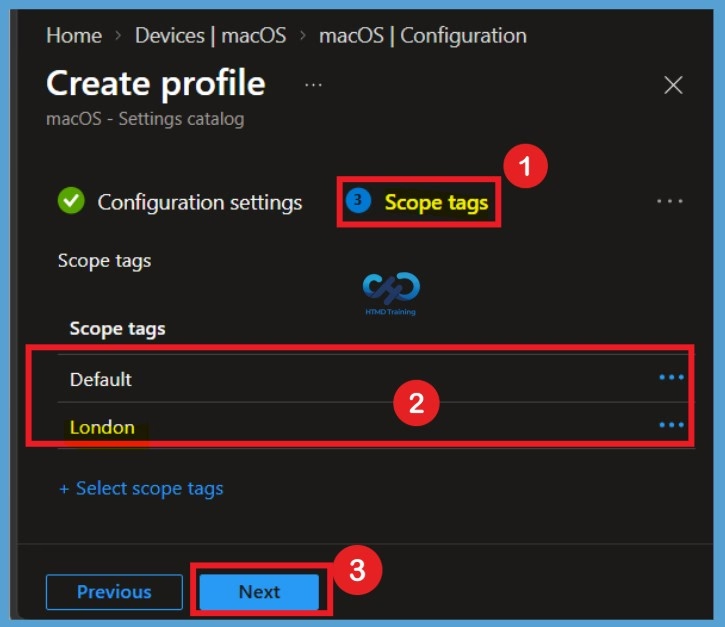
Configure Scope Tags
On the Scope tags page, you can assign scope tags to control the visibility of the configuration profile for administrators based on their assigned role and permissions. In this example, the London scope tag is selected. After selecting the required scope tag, click Next to continue to the Assignments page.
Assignments
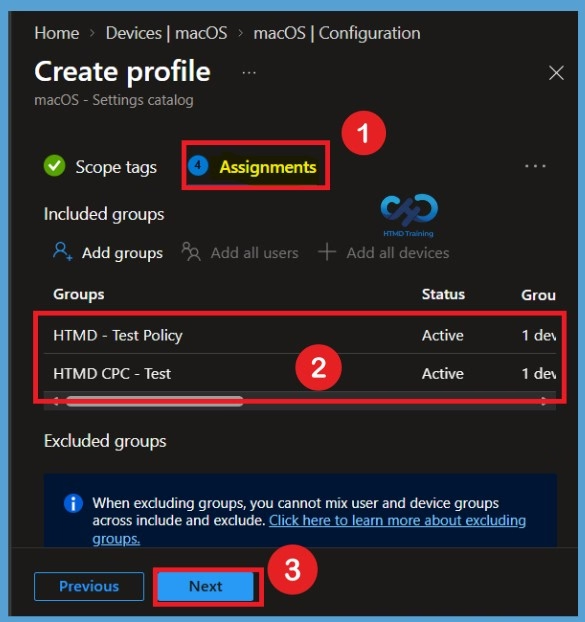
On the Assignments page, you can assign the configuration profile to specific user or device groups to determine which managed macOS devices receive the screen saver settings. Under Included Groups, click Add Groups and select the required groups. In this example, HTMD CPC Test and HTMD Test Policy are selected as the included groups. Once you have selected the groups, click Next to continue to the Review + Create page.
Review + Create
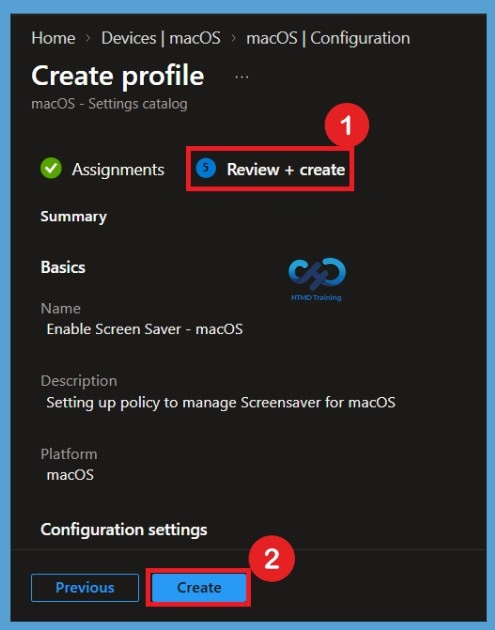
In the Review + Create tab, you need to review your settings. After clicking Create, your changes are saved, and the profile will be assigned to the added devices group. A notification will appear automatically if you see it in the top right-hand corner. One can easily see that the Policy “Enable Screen Saver” was created successfully. Also, if you check the Configuration Profiles list, the Policy is visible there with the tag NEW.
Note! The device groups will receive your profile settings when the devices check in with the Intune service. The Policy applies to the device.
Monitor Screen Saver Policy Deployment
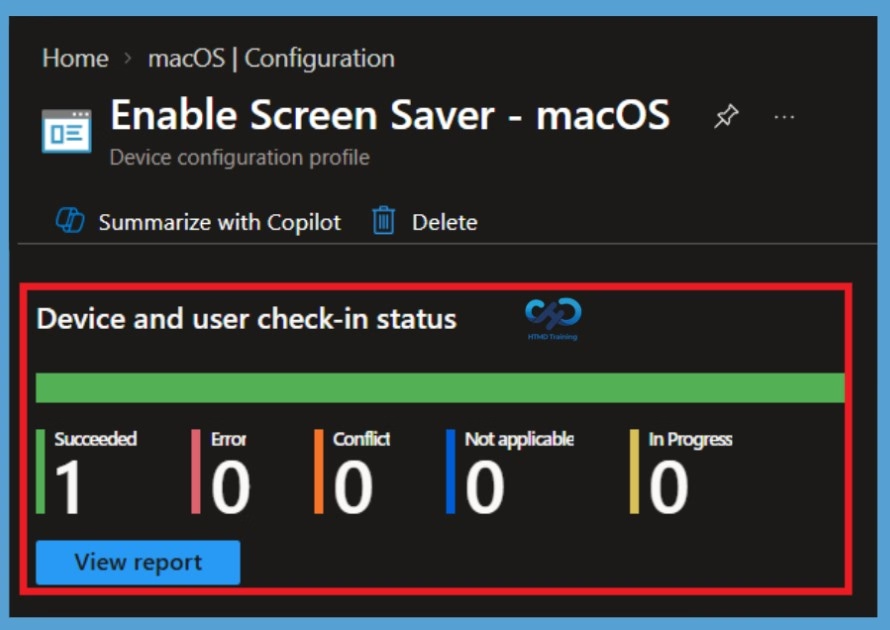
Intune provides several features to monitor and manage device configuration profiles. Once the configuration profile is applied, To monitor Intune policy assignment, from the list of Configuration Profiles, select the policy you targeted, and here you can check the device and user check-in status. If you click View Report, additional details are displayed. Additionally, you can quickly check the update as devices/users check-in status reports:
Need Further Assistance or Have Technical Questions?
Join the LinkedIn Page and Telegram group to get the latest step-by-step guides and news updates. Join our Meetup Page to participate in User group meetings. Also, join the WhatsApp Community and the Whatsapp channel to get the latest news on Microsoft Technologies. We are there on Reddit as well.
Author
About Author – Jitesh, Microsoft MVP, has over six years of working experience in the IT Industry. He writes and shares his experiences related to Microsoft device management technologies and IT Infrastructure management. His primary focus is Windows 10/11 Deployment solution with Configuration Manager, Microsoft Deployment Toolkit (MDT), and Microsoft Intune.
Hi Anoop,
How do I set a screensaver for a Mac using around 10 JPG images? I have gone through many articles but nothing has helped. Can you suggest any steps?
For Windows, I used IrfanView to convert JPG images to a screensaver format (.scr).