
Let’s discuss Network Protection Blocks DeepSeek on MacOS using Intune Enforcement Level Policy. Using the MacOS Settings catalog, you can block the DeepSeek AI Assistant Website in MacOS devices. Blocking the DeepSeek AI Assistant website from your MacOS devices is very important.
The news of DeepSeek AI Assistant being banned regarding national security was serious in the IT Industry last month. According to the update, organizations started uninstalling DeepSeek and removing or blocking its app from their tenants.
Blocking DeepSeek and its associated website is crucial in every organization. We have already discussed blocking DeepSeek using different methods in Inune’s managed devices. By using different methods, you can protect your managed devices.
In this blog post, I will share my experience blocking the DeepSeek AI Assistant Website in MacOS using the Enforcement Level Policy in Intune. You can successfully block DeepSeek from your Mac Devices with the settings catalog.

Table of Contents
How Does the Enforcement Level Policy Help Block the DeepSeek Website?
The enforcement-level policy can help block the DeepSeek website by setting specific rules and restrictions on managed devices.
Network Protection Blocks DeepSeek on MacOS using Intune Enforcement Level Policy
MacOS policy deployment is very easy, like Windows policy deployment. You can choose Settigs Catalog Policy to block DeepSeek AI Assistant for this. The Enforcement Level policy helps you block DeepSeek on your Mac device.
- How to Block Deepseek App usage MS Defender for Cloud Apps
- New Cloud Based Microsoft Defender App for Home Users | Step by Step User Guide
- MS Intune Simplifying macOS Management with Payloadless Packages Running Scripts with Admin Rights
Advantages of Enforcement Level Policy
The Enforcement Level policy in settings determines the overall security level and dictates whether a policy is configured to block or permit the execution of unapproved files.
Steps to Configure Enforcement Level in Settings Catalog
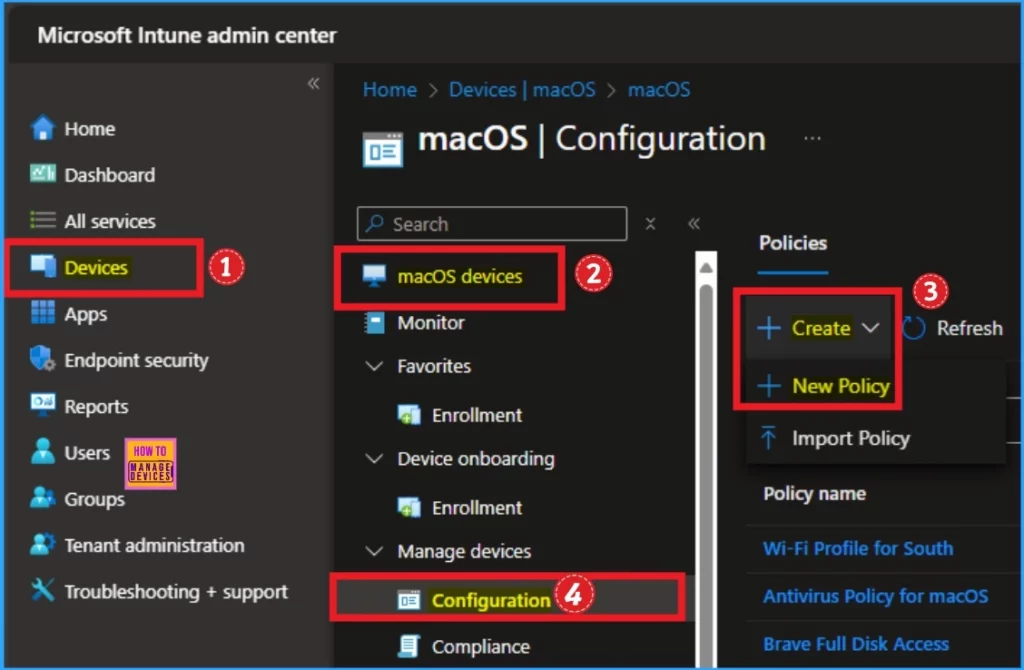
You can configure the Enforcement Level policy using the Settings Catalog or from the Intune admin center. To start the deployment, open the Microsoft Intune admin center. Then go to Devices > macOS Devices > Configuration > Create > New Policy.
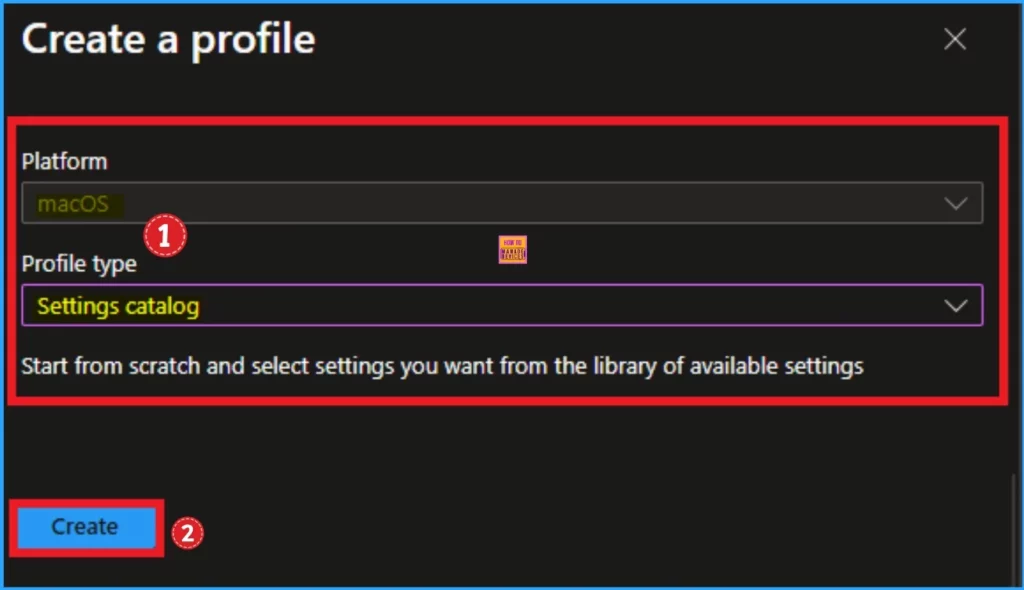
Create a Profile
To create the profile, we have to specify the platform and profile type. Here, we already select the platform (macOS) and the profile type, Settings Catalog. Click on the Create button.
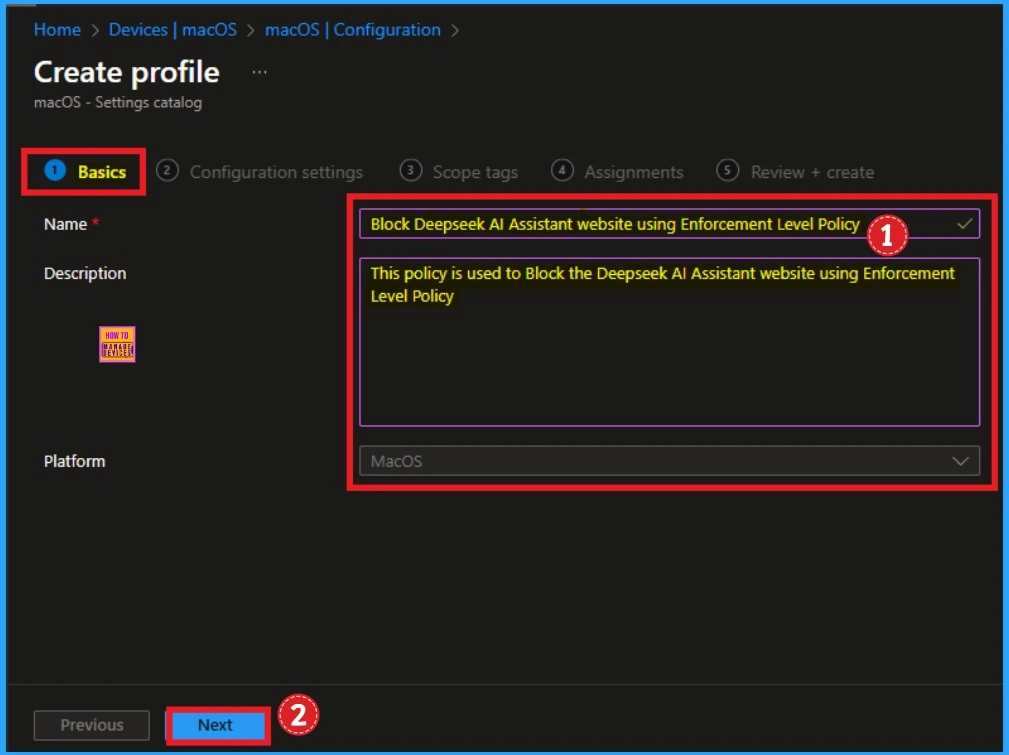
On the Basic tab, you can specify the Policy name and associated description. The name field is very important and mandatory. You should enter a valid name according to the policy. A description is not necessary, but it is good to add. After that, click on the Next button.
Configuration Settings
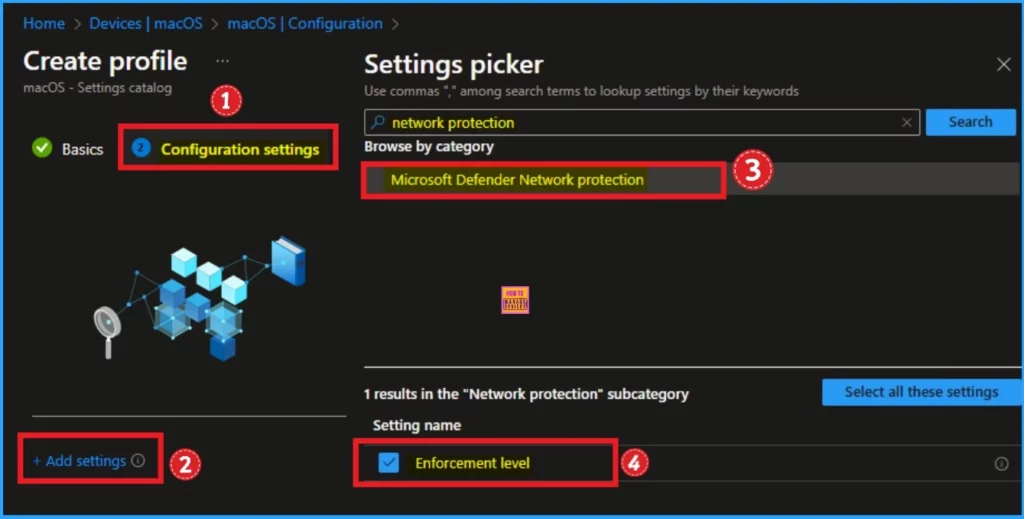
From the Configuration Settings tab, you can select the Enforcement level policy to access this policy. Click on the +Add settings hyperlink. Then, you will get the Settings Picker, where you can search for settings and browse settings by category.
- Search for Network protection
- Select Microsoft Defender Network Protection
- Then select Enforcement Level
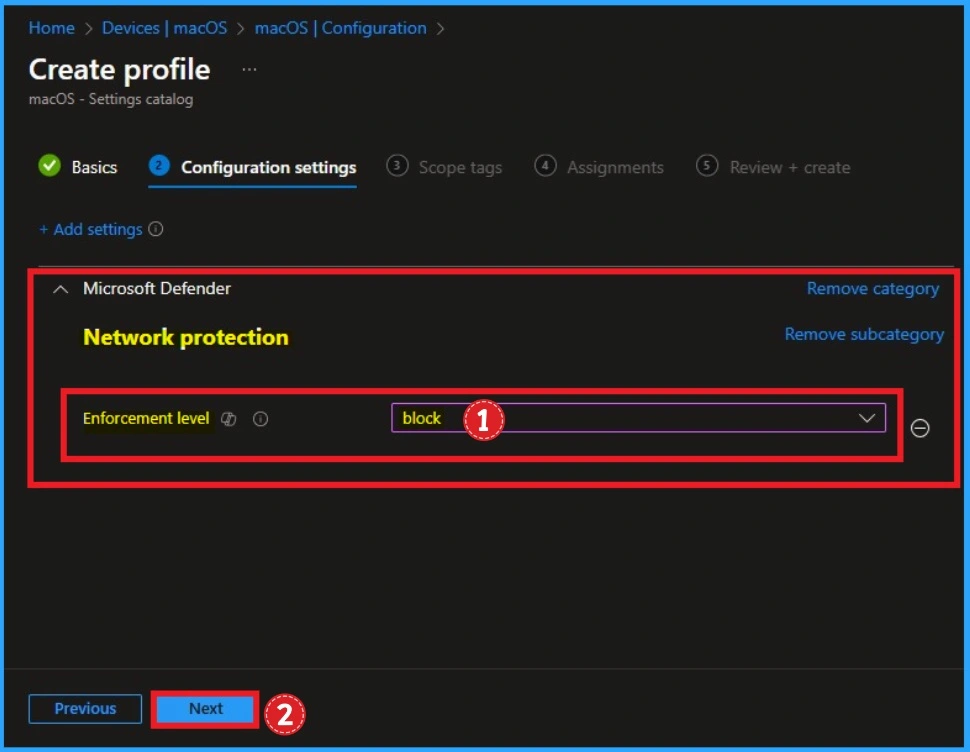
Then the Enforcement level policy is shown on the Configuration settings tab. This policy is related to Network protection and it is under Microsoft Defender. Click on the Next button.
macOS devices that are onboarded to Defender for Endpoint and have Network Protection enabled are also unable to access the DeepSeek website in any browser as the same Custom Network Indicator works across both Windows and macOS.
| Avaialble Value | Details |
|---|---|
| Disabled | It is used to disable Enforcement Level |
| Audit | Audit value used to monitor and log activities without enforcing the policy. |
| Block | Block value used to block the unapproved files to permitting them under certain conditions |
Scope Tags
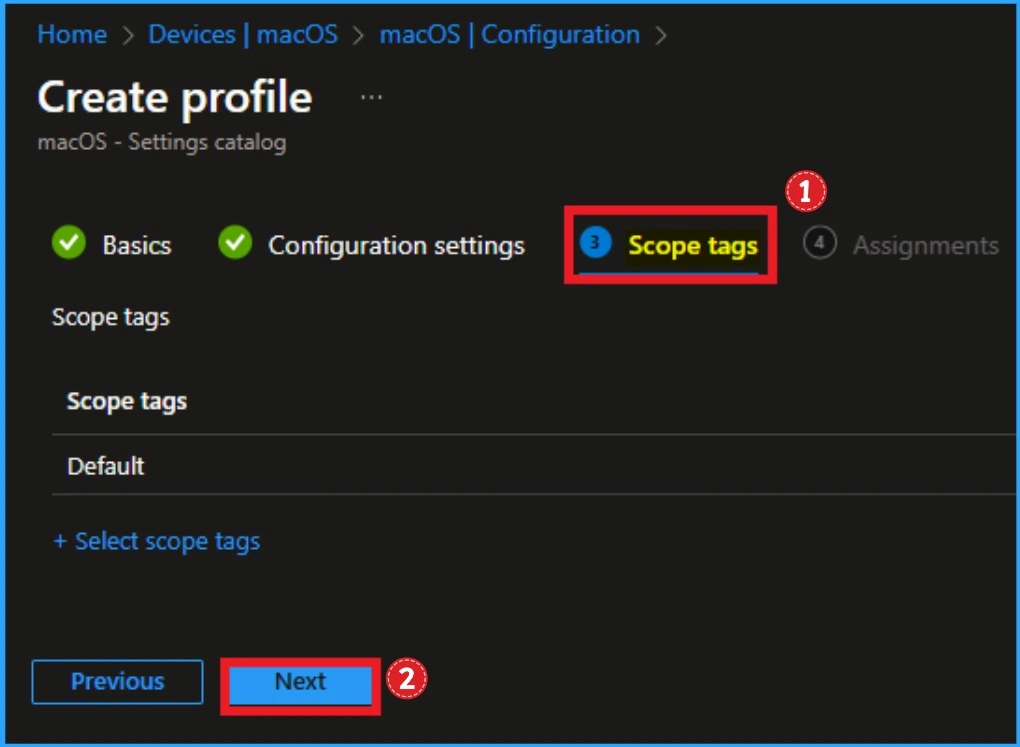
As you know that Scope tags are not mandatory to add Scope tag. But you can add the scope tags as your preferences. Here i am skipping this section and clcik on the Next button to continue.
Assignments Tab
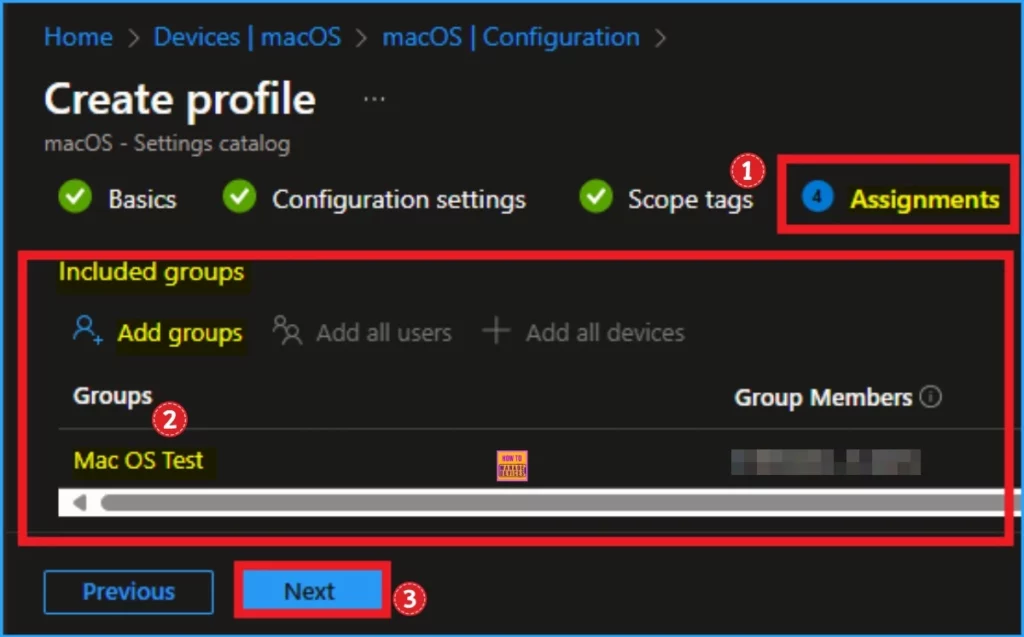
The assignments tab is very important for assigning the groups. The configuration policy is affected by assigned groups. Here, you can add specific groups to block DeepSeek, or if you want to block it from all devices or groups, you can select appropriate options like Add all users and Add all devices.
Here, I choose the Add Groups option under Included Groups and select the group from the list of groups. After selecting the group, click on the Select button and then the Next button.
Review + Create
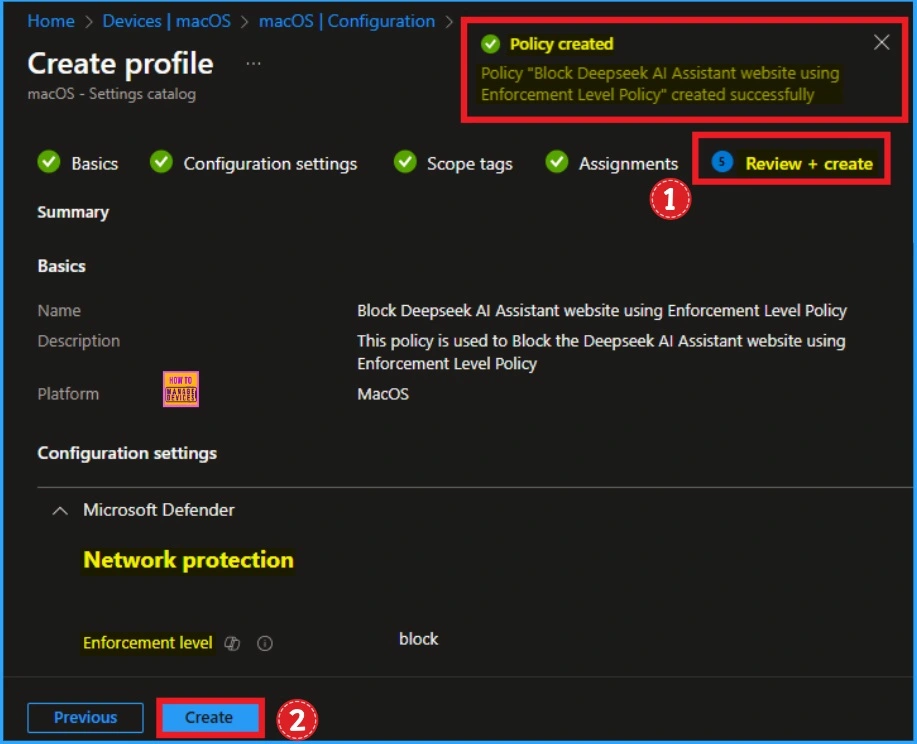
In this section, you can verify all the previous details to a successful result. if you want to make any changes, click on the previous button, or you can continue. Click on the create button then you will get the success message.
Monitoring Status
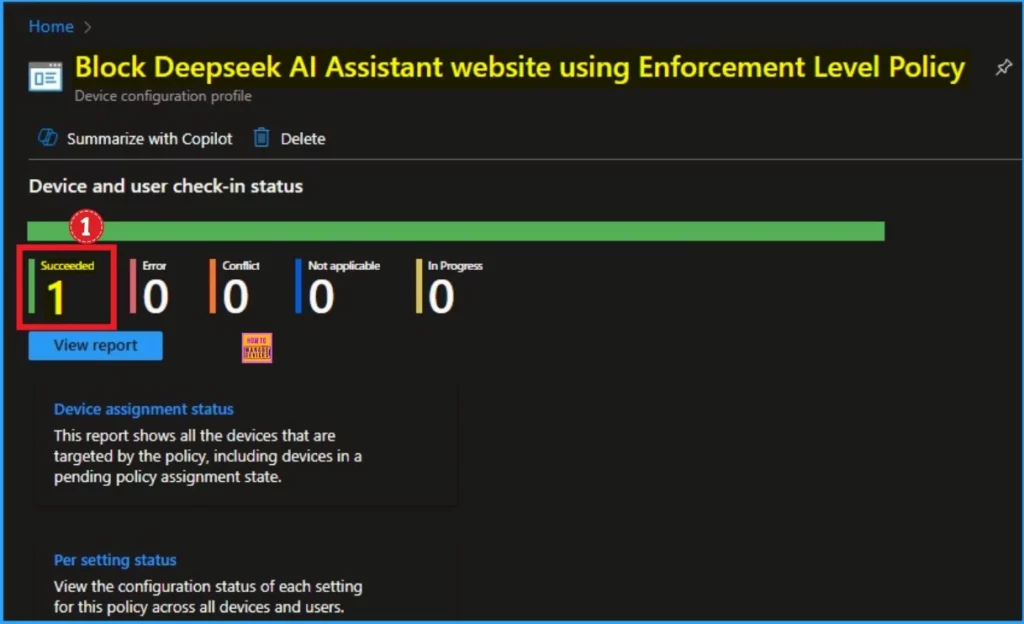
After the policy is created, you can sync the device on the company portal for faster deployment. After that, you can check the Monitoring status on the Intune Portal. To check the status, Go to Devices > macOS devices > Configuration. Then search for the policy name. Here, you can see the Succeeded as 1.
End User Experience
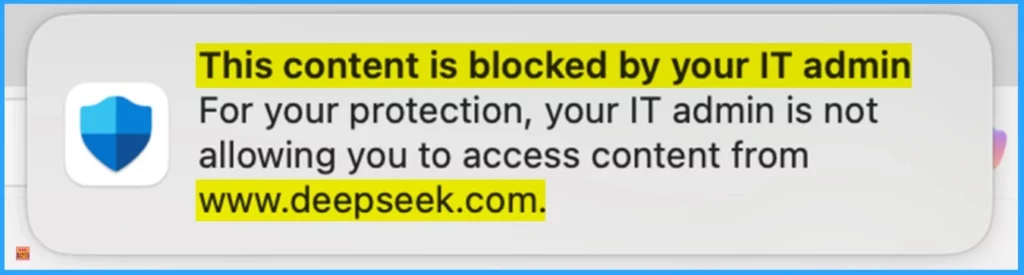
After the deploying the policy you can check if the policy is worked or not on the Assigned device. To check that you can browser the DeepSeek website on the browser. Then the user can’t reach the website. Look at the below screenshot.
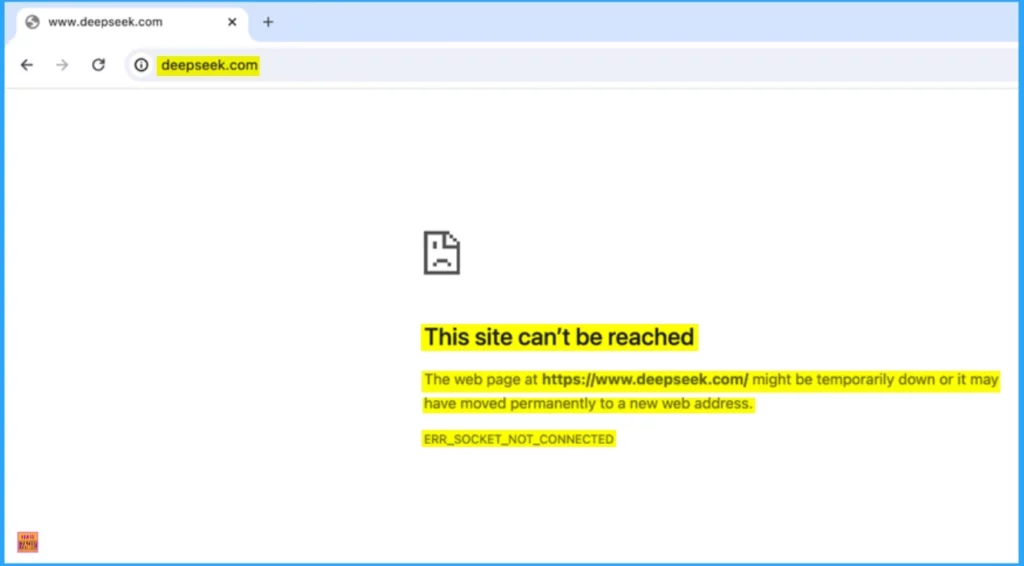
Then, you will get the message below from Microsoft Defender. The message is, “Your IT admin blocks this content for your protection. Your IT admin is not allowing you to access content from www.deepseek.com.” Look at the window below.
Need Further Assistance or Have Technical Questions?
Join the LinkedIn Page and Telegram group to get the latest step-by-step guides and news updates. Join our Meetup Page to participate in User group meetings. Also, Join the WhatsApp Community to get the latest news on Microsoft Technologies. We are there on Reddit as well.
Resource
Blocking and removing apps on Intune managed devices (Windows, iOS/iPadOS, Android and macOS)
Author
Anoop C Nair has been Microsoft MVP from 2015 onwards for 10 consecutive years! He is a Workplace Solution Architect with more than 22+ years of experience in Workplace technologies. He is also a Blogger, Speaker, and Local User Group Community leader. His primary focus is on Device Management technologies like SCCM and Intune. He writes about technologies like Intune, SCCM, Windows, Cloud PC, Windows, Entra, Microsoft Security, Career, etc.
How can I block other Top level domains such as .de .fr .es?
I added them to the defender indicators but still not working.
Great walkthrough on using Intune’s Settings Catalog to enforce network protection on macOS. I especially like the practical focus on blocking DeepSeek at the policy level, since many teams are looking for clear ways to reduce app and web risk across managed devices. The step-by-step screenshots and deployment flow make it easy to follow, even for admins who are newer to macOS management. For teams that also need a more visual or creative way to engage users, resources like BestColoringPages.ai are a fun example of how simple AI tools can deliver quick, useful experiences.
Really clear walkthrough — the Settings Catalog route for setting the Enforcement Level to Block is much easier to follow than I expected, and the end-user experience screenshots show exactly what staff will actually see. We rolled out the same Network Protection policy last month and the Defender block-page message confused a few users at first, so a heads-up in the comms plan helps. Side note: when I wrote up our internal guide I used renderflowai.com to generate the diagrams and header illustrations in minutes instead of waiting on our design team, which sped the whole thing up a lot.
Thanks for breaking down the Audit vs Block values in that table — we ran Audit for two weeks before switching to Block and it made the rollout much smoother with management. Completely off topic, but while reading this over lunch I finally grabbed a bag I’d been chasing for months: restockalerts.com emailed me the moment it restocked online, so I skipped the reseller markup entirely. Nice when tech actually saves you money for a change.
I’ve been trying to get the Enforcement Level policy to block DeepSeek on Macs but the settings catalog path felt a bit hidden, so the step-by-step profile creation you outlined is exactly what I needed to confirm I was on the right track. — Tuoverse
Great walkthrough on using Intune’s Settings Catalog to block DeepSeek on macOS with an enforcement-level policy. The step-by-step flow makes it easier to follow, especially for admins who need a practical way to tighten network protection across managed devices. For anyone interested in streamlining security-related workflows or content-related tasks, I also recommend checking out AI Vocal Remover—it’s a useful tool worth exploring.
This is a useful approach for organizations looking to strengthen network protection and manage AI tools on macOS devices.
This is a timely and practical guide. Blocking DeepSeek on managed macOS devices is becoming a critical requirement for many organizations, and your walkthrough of the Enforcement Level Policy via the Settings Catalog makes it very approachable. The step-by-step breakdown, from creating the profile to the end-user experience, is exactly what IT admins need to implement this quickly and effectively. It’s great to see a clear focus on the security implications and a straightforward configuration path. For anyone looking to expand their toolkit on AI governance, this is a solid resource. By the way, if you’re also exploring creative ways to manage content, you might find this tool interesting for generating audio assets: AI Rap Generator. Thanks for sharing this detailed deployment method.
It’s interesting that Network Protection’s Enforcement Level policy can be applied to macOS via the Settings Catalog, since many assume this capability is Windows-only. Given the national security concerns around DeepSeek, does this method also cover associated domains beyond the main website, or would admins need to add those separately?
The sentence about the same Custom Network Indicator working across Windows and macOS seems especially important to the setup. A short prerequisite checklist linking to that indicator configuration would make it clearer how the domain-specific rule relates to the Enforcement Level setting shown here. I also like that the walkthrough checks the result on the assigned device after checking deployment status.