
How to Enable Zero Trust macOS Management with Intune Platform SSO and Cloud Managed Admin Passwords. Managing macOS devices is now easier and more secure with the latest updates in Microsoft Intune.
Two major improvements make a big difference: Platform Single Sign-On (SSO), which allows users to sign in once and access everything without repeatedly typing their password, and Cloud LAPS, which securely manages the local admin password on each Mac.
In this post, we will look at the improved enrollment process and how these new features help increase security while making setup faster and simpler for macOS devices in your organization. The process begins by creating an enrollment profile in Intune. While configuring the profile, administrators now have the flexibility to create a dedicated local admin account that is fully managed.
You can choose whether the admin account should be visible or hidden from the user’s list of accounts, ensuring clean separation between end-user identities and IT-managed administrator credentials. Additionally, naming conventions for usernames and display names can be standardized to maintain consistency across devices.

Table of Contents
How to Enable Zero Trust macOS Management with Intune Platform SSO and Cloud Managed Admin Passwords
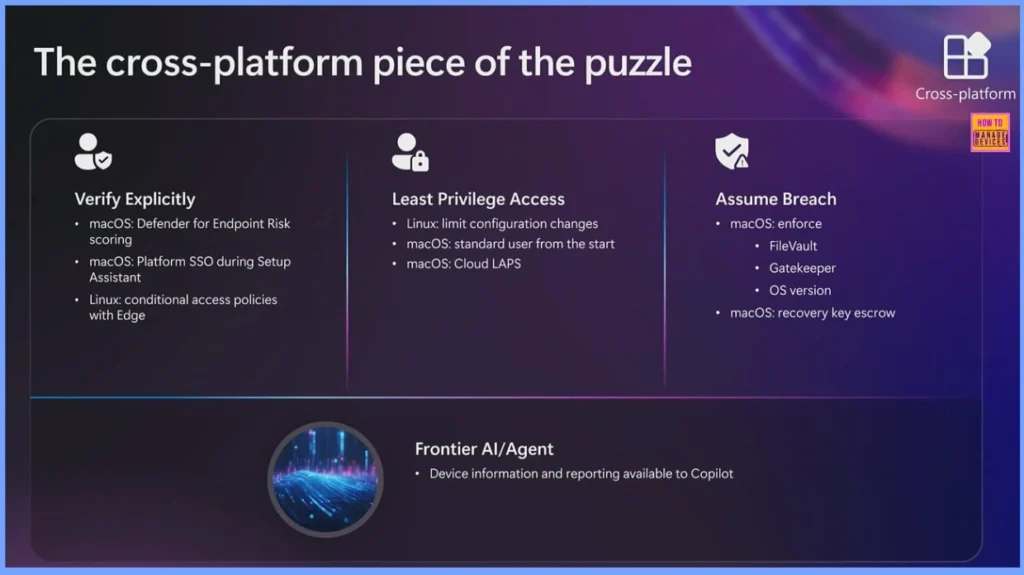
Microsoft Intune supports strong security across different platforms like macOS and Linux. It highlights three main Zero Trust principles. First, Verify Explicitly that macOS devices get better protection with Defender risk scoring and Platform SSO during setup, while Linux devices benefit from conditional access using Edge. Second, Least Privilege Access, Linux devices have limits on configuration changes, and macOS now starts users as standard accounts with Cloud LAPS managing admin passwords securely.
- Third, Assume Breach — Intune can enforce key security features on macOS, such as FileVault, Gatekeeper, OS version compliance, and secure recovery key management.
- Additionally, Frontier AI/Agent helps by sending device information and reports to Copilot, enabling smarter insights and more secure decisions.
- Together, these capabilities strengthen cross-platform security and device management.
| Verify Explicitly | Least Privilege Access | Assume Breach | Frontier Al/Agent |
|---|---|---|---|
| macOS: Defender for Endpoint Risk scoring | macOS: standard user from the start | macOS: enforce FileVault Gatekeeper OS version | Device information and reporting available to Copilot |
| macOS: Platform SSO during Setup Assistant | macOS: Cloud LAPS | macOS: recovery key escrow | |
| Linux: conditional access policies with Edge | Linux: limit configuration changes |
- How To Control Enterprise App Trust On IOS Devices Using Intune
- How to setup Microsoft Enterprise SSO plug-in for Apple macOS Devices using Intune
How to Troubleshoot Microsoft Enterprise SSO Plug-in on macOS using Intune - macOS Devices Migration Framework to Intune from Jamf Kandji JumpCloud Platforms
Creating the Enrollment Profile in Intune
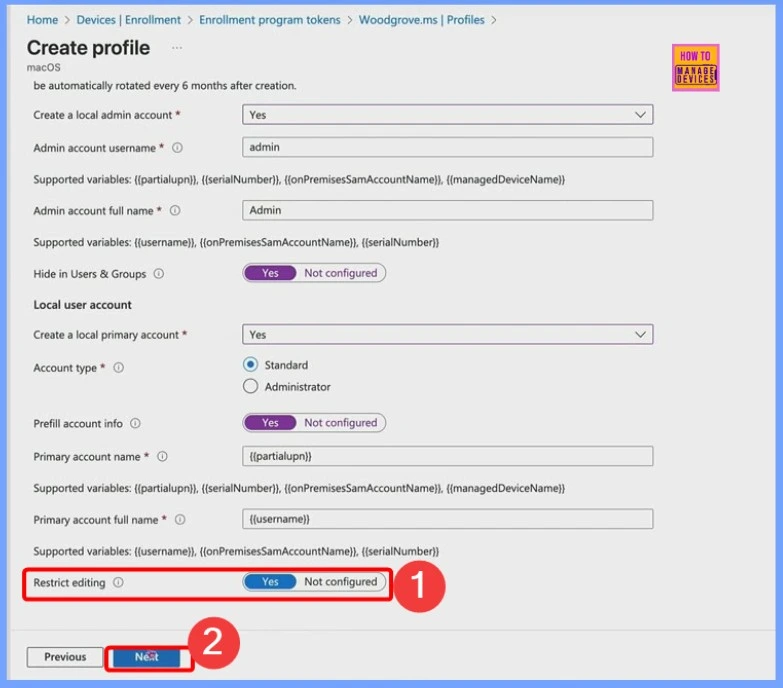
We begin the setup by creating an enrollment profile in Intune. In the Account settings tab, select Yes to create a local admin account and choose Yes again to hide this account from the Users & Groups list, keeping it invisible to end users. Next, enable the option to create a local profile account for the user and set the Account type to Standard, ensuring the user does not receive admin rights by default.

Enabling Restrictions and Prefilling Account Information
To proceed, first enable the Restrict Editing option and prefill the account information. Once these settings are configured, click Next to continue. This ensures that the necessary restrictions are applied before moving forward, maintaining proper control and security.
Enabling Platform SSO and Passwordless Login
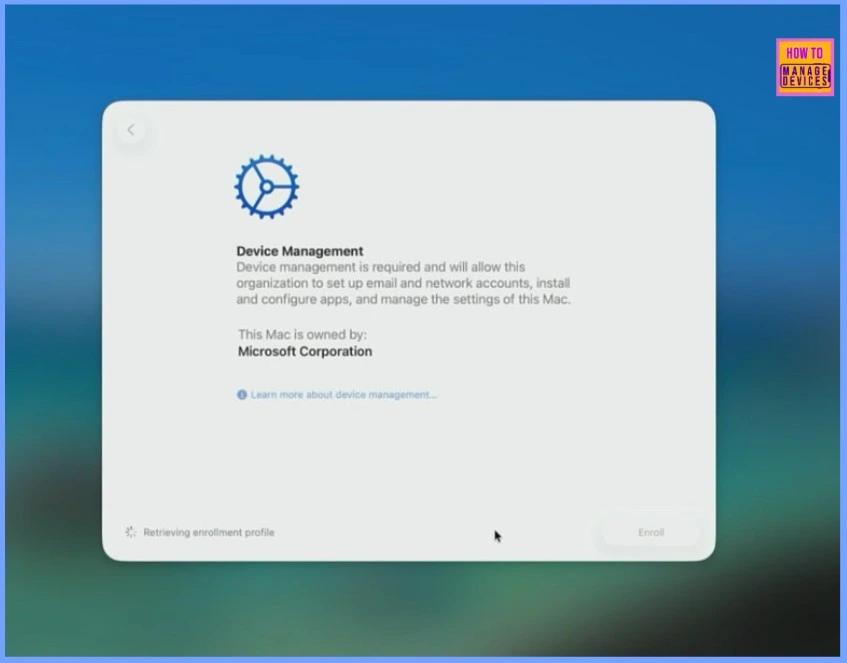
During the enrollment process, Platform SSO activates immediately. Users can authenticate using passkeys without entering a traditional password, making setup faster and more secure. Once the device is authenticated and registered with the cloud, macOS automatically signs in with a standard user account. This ensures users work with limited privileges by default, improving security by preventing unnecessary admin access.
Single Sign-On (SSO) for macOS
With Single Sign-On, you only need to sign in once to securely access your Mac and applications. Your Mac and macOS account are automatically registered with your organization’s identity provider for seamless authentication. Once signed in, you can access both organizational apps and personal data anytime your Mac is unlocked, making your workflow faster and more secure.
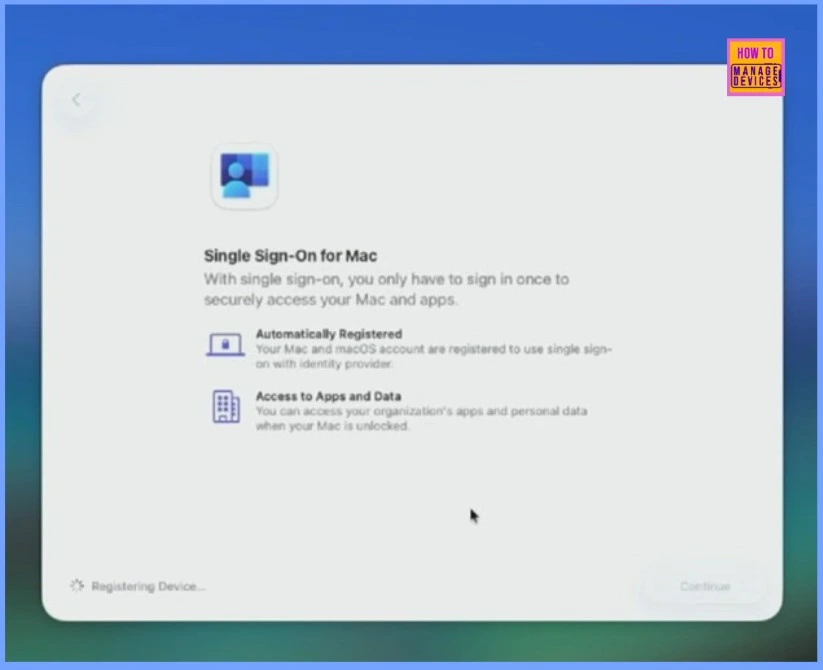
Seamless Enrollment with Platform SSO
During enrollment, Platform SSO is activated immediately. Users can sign in using passkeys without needing to type a traditional password, making the setup process faster and more secure. Once the device is authenticated and registered with the cloud, macOS automatically signs in with a standard user account, ensuring that users do not have admin rights by default and improving overall security.
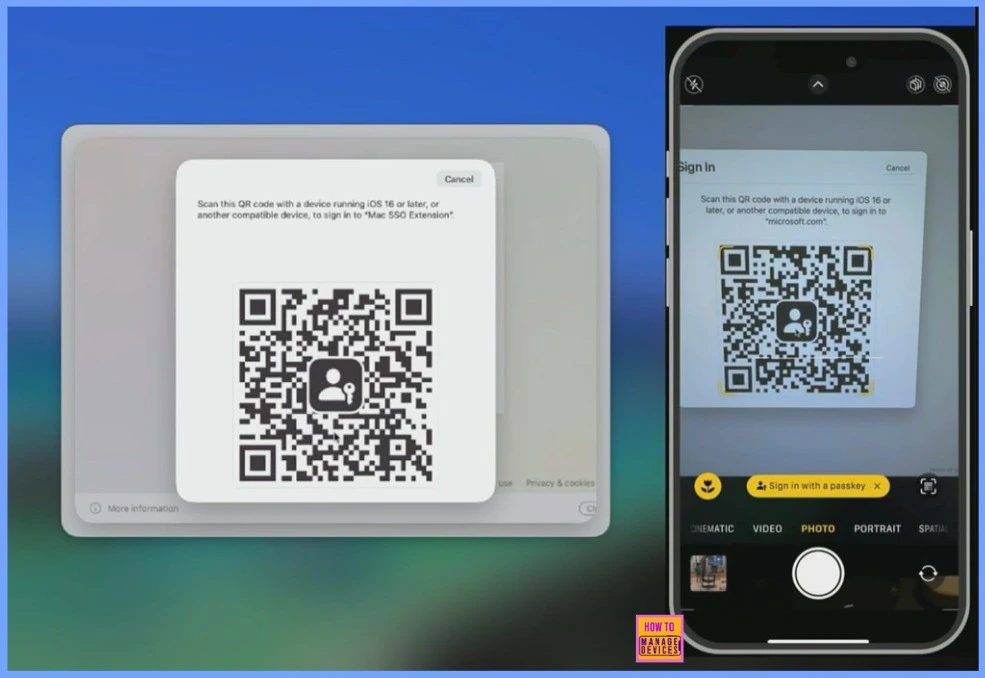
Accessing Apps with Single Sign-On
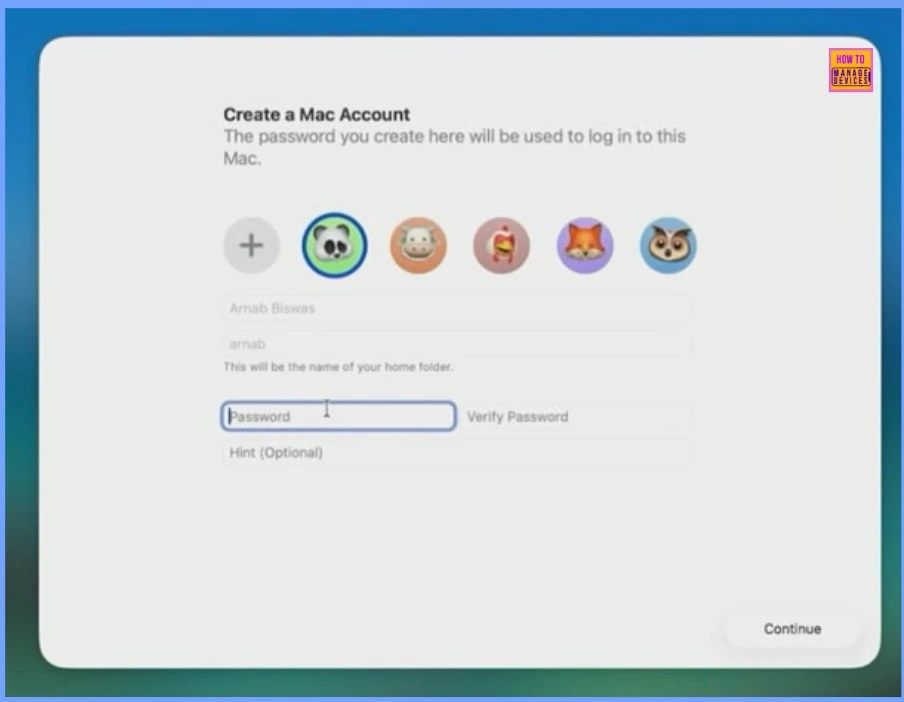
Once the user profile loads, the user enters their password and the device is ready for use. All productivity apps are immediately available, and Single Sign-On (SSO) works across the device. This allows users to start working quickly without repeatedly signing in to each app, providing a seamless and productive experience.
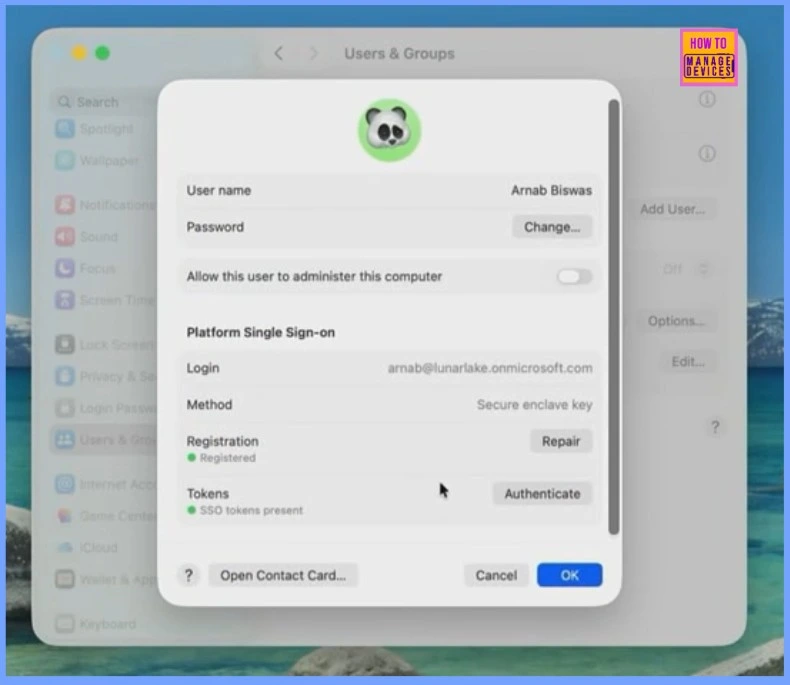
Verifying User Page Visibility
Let’s go and check the users page. Since we chose to hide the admin, it should no longer be visible. As we go through the page, we can confirm that the admin is indeed hidden, while the user profile remains accessible.
Quick Access to Outlook with SSO
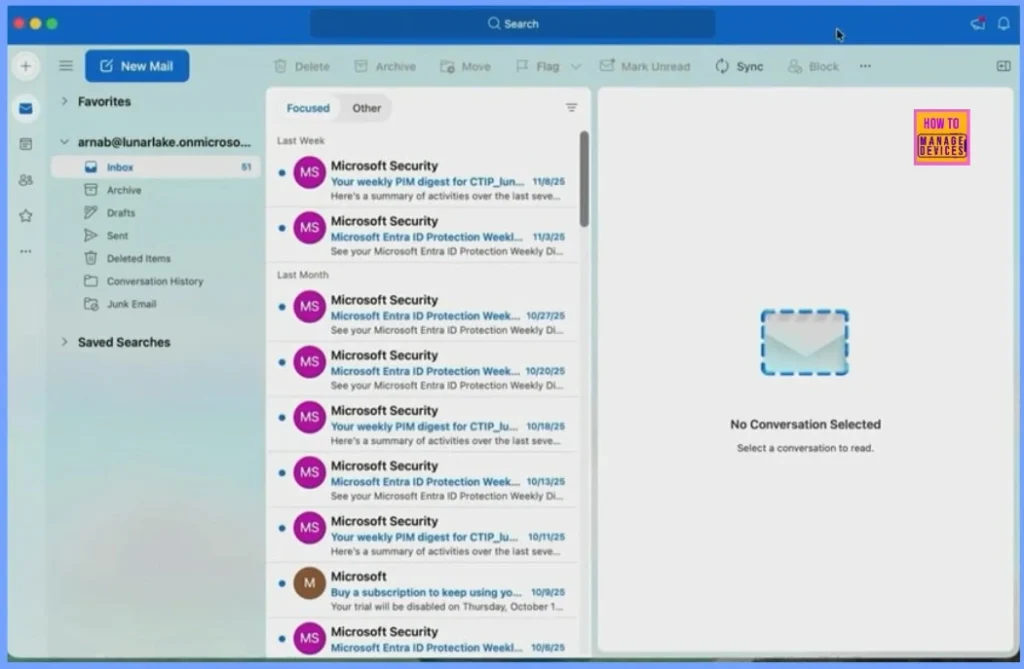
Opening Outlook is simple and fast. When you launch the app, the Single Sign-On (SSO) process automatically signs you in. You only need to click Continue, and you are ready to start working. This shows how seamless access to productivity apps can be with Intune-managed macOS devices.
Centralized Management of Recovery and Admin Passwords
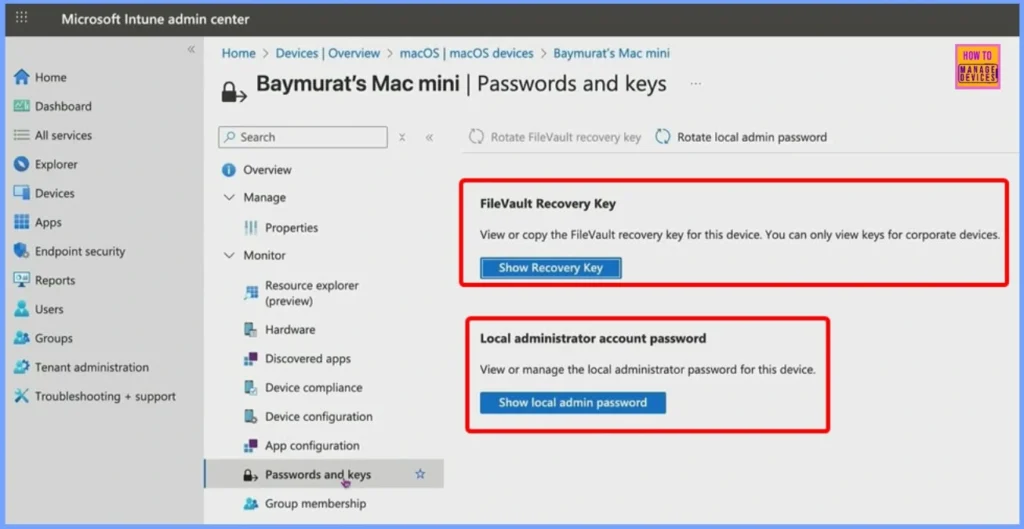
In addition to enrollment and app access, Intune provides centralized management for macOS devices through the admin console. From a single interface, IT can manage recovery keys for FileVault and other security features, ensuring that encrypted data can be recovered when needed.
Administrators can also manage local admin passwords securely using Cloud LAPS, allowing password rotation, reset, and retrieval without exposing credentials to end users. This unified management approach makes macOS device administration simpler, more secure, and fully integrated, reducing manual work while maintaining strong security across all devices.
Need Further Assistance or Have Technical Questions?
Join the LinkedIn Page and Telegram group to get the latest step-by-step guides and news updates. Join our Meetup Page to participate in User group meetings. Also, join the WhatsApp Community to get the latest news on Microsoft Technologies. We are there on Reddit as well.
Author
Anoop C Nair has been Microsoft MVP for 10 consecutive years from 2015 onwards. He is a Workplace Solution Architect with more than 22+ years of experience in Workplace technologies. He is a Blogger, Speaker, and Local User Group Community leader. His primary focus is on Device Management technologies like SCCM and Intune. He writes about technologies like Intune, SCCM, Windows, Cloud PC, Windows, Entra, Microsoft Security, Career, etc.