

Key Takeaways
- The authentication issue was introduced by the January 13, 2026 Patch Tuesday cumulative updates and affects the Windows App when connecting to Azure Virtual Desktop and Windows 365.
- The problem is client-side, meaning the Windows App fails during the sign-in process, while the AVD and Windows 365 services themselves remain healthy.
- Only devices that installed the specific January 2026 updates are affected, which is why identifying the installed KB and OS build is important.
- Microsoft has officially acknowledged the issue and is actively working on a permanent fix.
- Released Out-Of-Band Fix KB5077744 to Fix the Issue
Hey, there today on the topic of How to Fix Windows App Authentication Error 0x80080005 for AVD and Windows 365 After January Updates. After the latest Patch Tuesday updates, users began reporting issues with the Windows App failing to authenticate Azure Virtual Desktop and Windows 365 sessions.
Microsoft has confirmed that this issue is caused by specific cumulative updates released during the January Patch Tuesday. These updates introduced a problem in the Windows App that affects how sign-in works. Because of this, the sign-in process fails before a session can start, and users may see authentication errors or repeated login prompts even when the correct credentials are entered.
So, now this issue is affecting several Windows versions, including Windows 11, Windows 10, and Windows Server when they are used to connect as client devices. Since many users rely on Azure Virtual Desktop and Windows 365 for their daily work, this sign-in problem can stop them from accessing their desktops and apps.
The most common error seen is 0x80080005, which usually appears right after clicking the Connect button in the Windows App. This shows that the problem happens before the desktop session starts and is caused by the Windows App’s sign-in process, not by any issue with Azure Virtual Desktop settings.

Table of Contents
How to Fix Windows App Authentication Error 0x80080005 for AVD and Windows 365 After January Updates
This issue is more serious because it affects many supported Windows versions, including different releases of Windows 11, Windows 10 22H2, and Windows Server when used as a client. Since many organizations install updates on a fixed schedule, the issue can impact a large number of users at the same time.
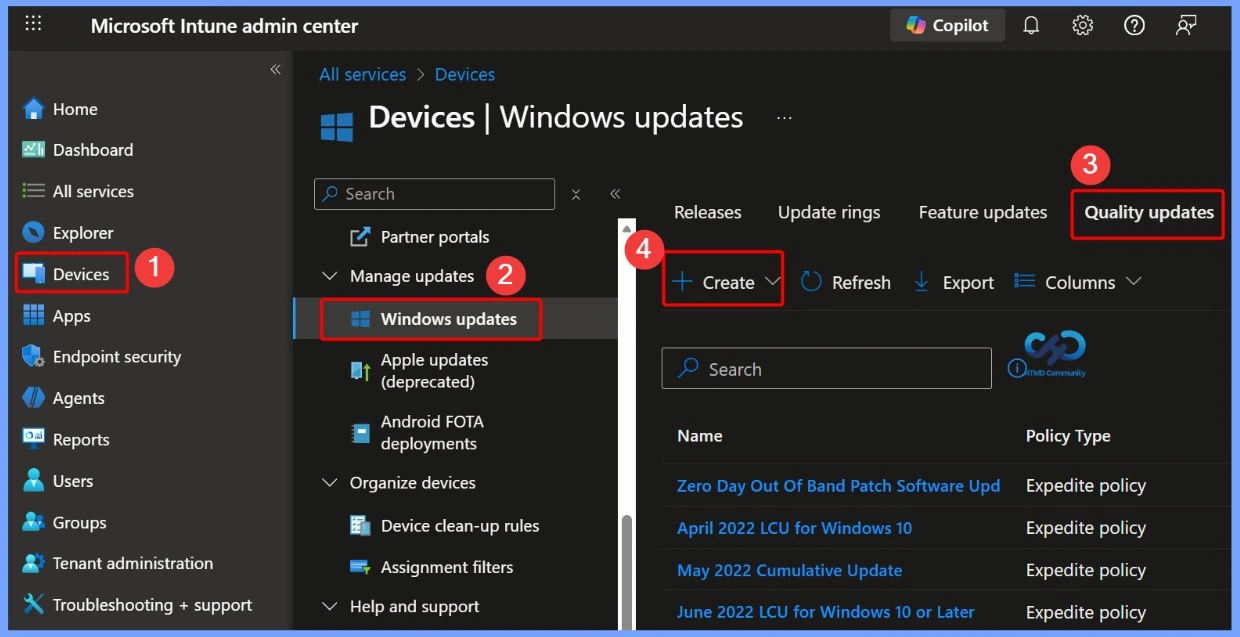
The screenshot below shows the Microsoft Intune admin center in the Windows updates > Quality updates section. With this IT admins can manage cumulative updates, including the ones that caused the January 2026 Windows App sign-in problem.
- How to Enable Token Protection in Entra Conditional Access for Windows App to Secure AVD and Windows 365
- Known Issue Error 0x800f0982 and Fix for Windows Server OS
- Restrict Windows App Access to Read or Send Messages for Data Protection using Intune
Issue Explanation
When these updates are done and the users experienced their account is locked or that there is something wrong with their password. When users try to connect to Azure Virtual Desktop or Windows 365. Even when the correct username and password are entered, the app shows an authentication error and does not start the remote session.
But actually, the issue is not related to user accounts or credentials but is caused by a problem in the Windows App itself. To reduce the impact, Microsoft has officially acknowledged the issue on the Windows Release Health dashboard and shared temporary solutions. One commonly used workaround is switching to the classic Remote Desktop Client.
- Here we can assume that the problem is caused by a bug in the updated Windows App, not by the user account or the AVD service.
- Error code 0x80080005 means the app failed to complete the sign-in process.
- When you click Connect, the Windows App stops working properly before the remote desktop can open.
- Understand that this does not mean your password is wrong or your account is blocked.
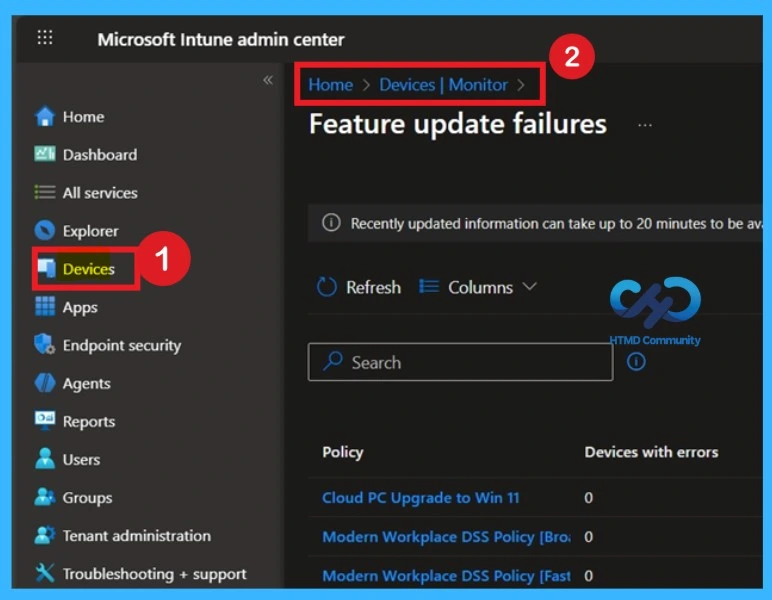
The screenshot shows the Feature update failures view in the Intune admin center, which helps IT admins track issues across updates. For that, go to Devices> Monitor >Feature update failure.
Affected Windows Updates
This issue happens after the Windows updates released by Microsoft in January 2026 for different versions of Windows. After installing these updates, some changes were made to the Windows App that affected how it handles sign-in when connecting to Azure Virtual Desktop and Windows 365. As a result, devices that received these updates started facing authentication problems after the updates.
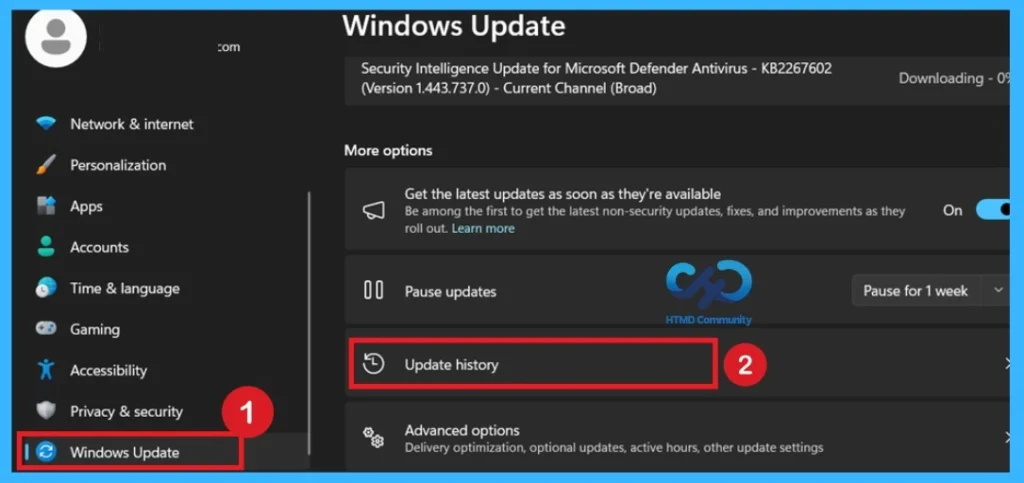
- You can check the latest updates through Windows Settings> Windows Update> Update History.
| Windows Updates |
|---|
| KB5074109 for Windows 11 versions 24H2 and 25H2 |
| KB5073455 for Windows 11 versions 22H2 and 23H2 |
| KB5073724 for Windows 10 version 22H2. |
| Windows Server 2019, 2022, and 2025 |
Workarounds for the Issue
While Microsoft works on the issue to fix for the Windows App authentication issue, there are temporary solutions that help user to solve this situation. These workarounds allow access to Azure Virtual Desktop and Windows 365 even when the Windows App fails to sign in.
- In this sign in issue Microsoft released an update on January 17, 2026, called KB5077744
- This update fixes the issue caused by the January security update and allows users to sign in to Azure Virtual Desktop and Windows 365 again.
- It can be downloaded from the Microsoft Update Catalog.
You can Use the Classic Remote Desktop Client (MSRDC)
The older Remote Desktop app (red icon) works differently from the Windows App. The January 2026 update has issue with the Windows App’s sign-in process, but the classic client is not affected. Using this app, users can connect to Azure Virtual Desktop or Windows 365 without any errors.
Use the Web Client
Users can also access their desktops through a browser by going to windows.cloud.microsoft. This method bypasses the Windows App completely and uses browser-based sign-in, which is not affected by the update. It’s a quick way to access your Windows apps if any issues happen.
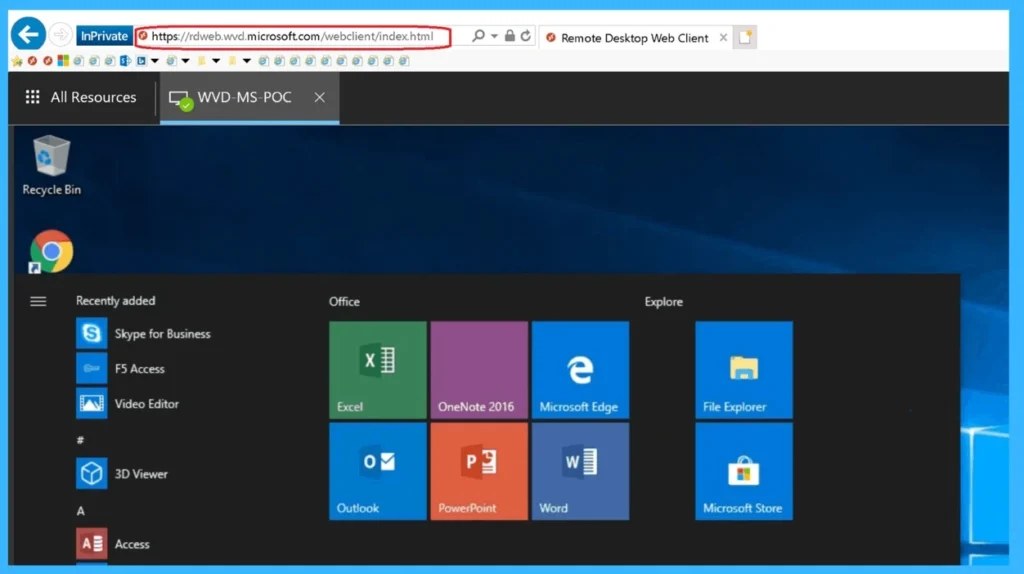
- The screenshot below shows a successful Azure Virtual Desktop session launched through the Web Client, confirming that users can solve the Windows App issue by connecting via a browser or theclassic client when Microsoft releases a permanent fix.
See Related Blog Post: How to Connect AVD Remote Desktop Resources Client or Browser?
Known Issue Rollback (KIR)
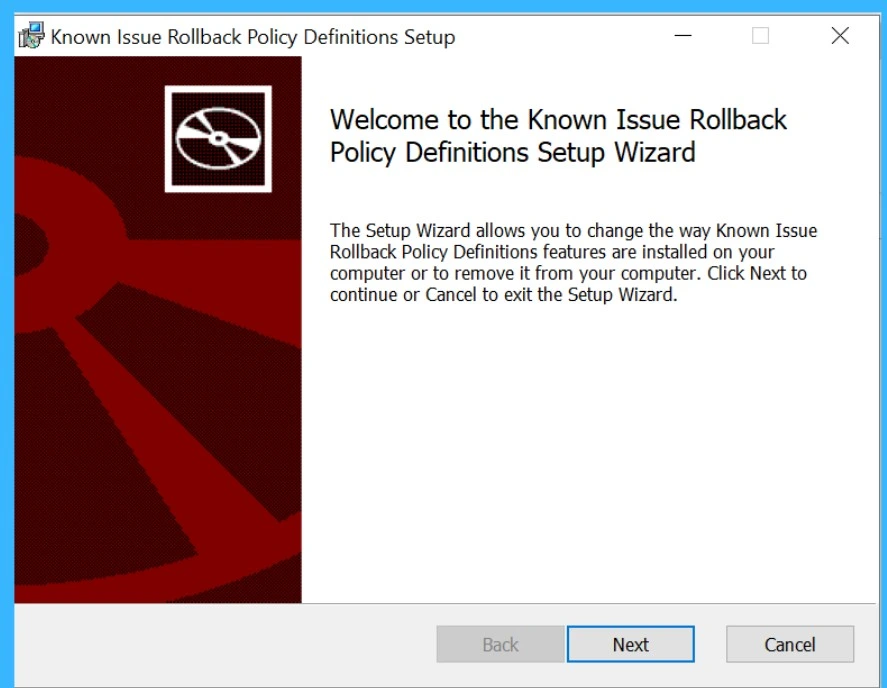
For home or personal devices, Microsoft automatically applies a Known Issue Rollback through Windows Update. This disables the part of the update that caused the sign-in problem. So, in this case we can do Restart our system is sometimes helpful. For company-managed devices, IT administrators need to install a special Group Policy package provided by Microsoft.
- Microsoft has released an Out-of-Band update (KB5077744) to restore sign-in functionality. For managed devices, admins should deploy the update using standard management tools.
See More : Fix Windows Bugs using Known Issue Rollback KIR – Group Policy and WMI Filter
Need Further Assistance or Have Technical Questions?
Join the LinkedIn Page and Telegram group to get the latest step-by-step guides and news updates. Join our Meetup Page to participate in User group meetings. Also, Join the WhatsApp Community to get the latest news on Microsoft Technologies. We are there on Reddit as well.
Author
Anoop C Nair has been Microsoft MVP from 2015 onwards for 10 consecutive years! He is a Workplace Solution Architect with more than 22+ years of experience in Workplace technologies. He is also a Blogger, Speaker, and Local User Group Community leader. His primary focus is on Device Management technologies like SCCM and Intune. He writes about technologies like Intune, SCCM, Windows, Cloud PC, Windows, Entra, Microsoft Security, Career, etc