
Key Takeaways
- The restore experience is improved in Windows 11 to make device setup easier.
- Users can restore apps, settings, and preferences from previous backups using Windows Backup.
- The restore option can appear during device setup or after the first sign-in.
- Restore policies can also be managed through Group Policy for enterprise.
In this post we are discussing New Windows 11 OOBE Restore Feature Helps Users Recover Apps and Settings Quickly. Microsoft has introduced improvements to the restore experience in Windows 11, making it easier for users to move to a new PC. The update focuses on the Out-of-Box Experience (OOBE), where users can now restore their previous device setup during the initial device configuration.
Table of Contents
Table of Contents
New Windows 11 OOBE Restore Feature Helps Users Recover Apps and Settings Quickly
With this feature, users can restore apps, settings, and preferences from their previous device using Windows Backup. The restore option appears after the user signs in during the setup process, allowing them to quickly bring back their familiar environment instead of starting from scratch.
For organizations managing devices with Microsoft Intune, administrators can enable this restore experience through policy settings. This ensures the restore option is available during device enrollment, helping users quickly recover their data and continue working with minimal setup time.
- How to Set Up Multi Admin Approval for Three New Device Actions in Intune
- Best Method to Create Windows 11 System Image Backup
- How to Backup and Restore Windows 365 Cloud PC | Point-in-time Restore Option
- Best Method to Enable and Disable Windows 365 Cloud PCs Redirections using Intune
- Prevent Users from Changing Important Windows Device Settings using Intune
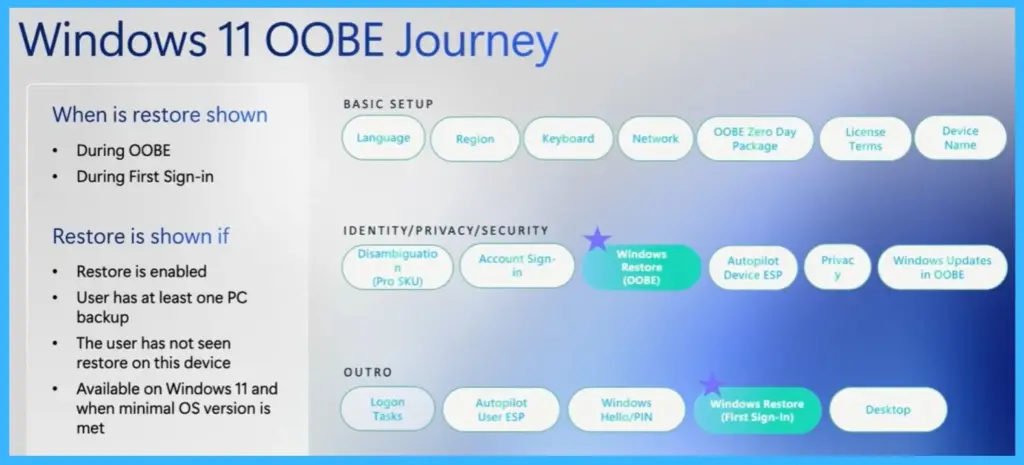
Windows 11 OOBE Journey
The Windows 11 Out-of-Box Experience (OOBE) shows the steps a user goes through while setting up a new device. During this process, users select basic settings such as language, region, keyboard layout, and network connection before signing in to their account. After the account sign-in step, the Windows Restore experience can appear if a previous backup is available.

This allows users to restore their apps, settings, and preferences from an earlier device instead of starting from scratch. The restore option can appear during OOBE or later during the first sign-in experience. For organizations managing devices through Microsoft Intune, restore policies can be applied during the enrollment process.
- These policies are typically applied during the Enrollment Status Page (ESP), ensuring the restore experience is ready before the user completes the setup.
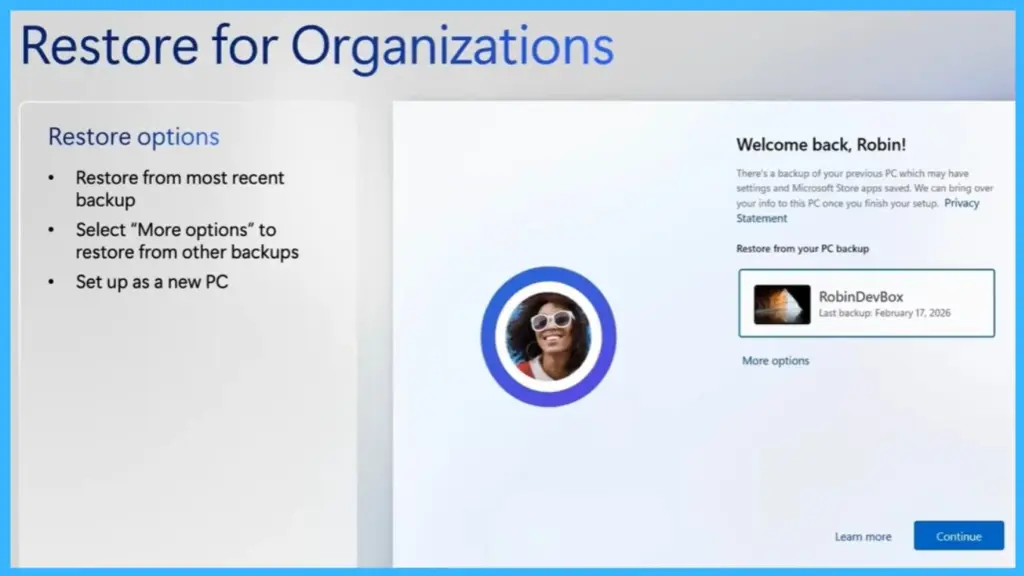
Restore Experience for Organizations
Organizations can provide users with an easier way to move to a new device by enabling the restore experience. Using Windows Backup, users can restore data from a previous PC during the setup process. The restore screen gives users a few simple options. They can restore from the most recent backup, select More options to choose another available backup, or skip the restore and set up the device as a new PC. This flexibility allows users to decide how they want to configure their new device.
Configuring Windows Restore Using MDM and Group Policy
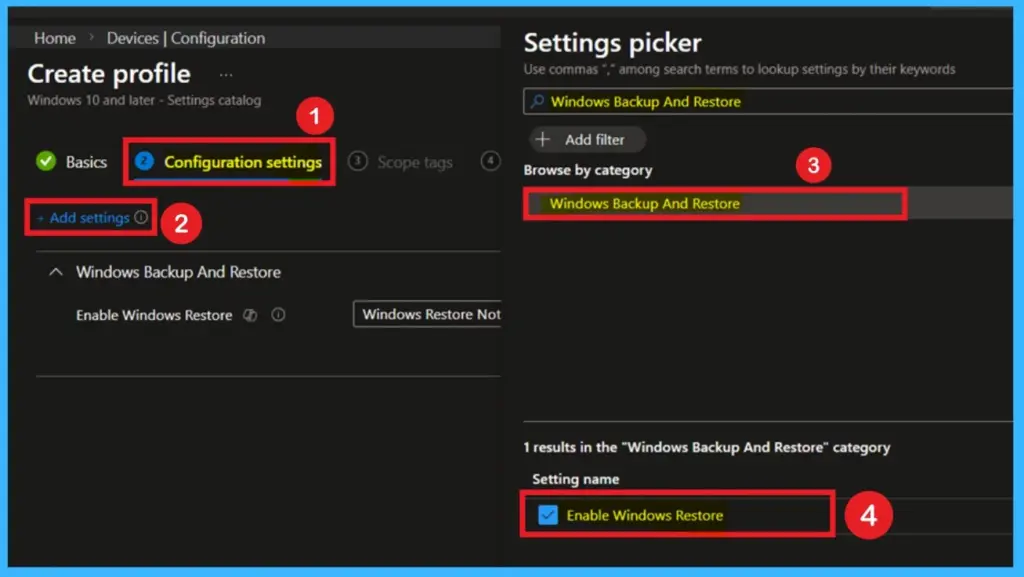
Organizations can manage the Windows restore experience using MDM policies in Microsoft Intune. With MDM policies, administrators can enable the Windows Backup and Restore setting so users can restore their previous device setup during the onboarding process. One important point is that the MDM policy is applied during each policy refresh. This means the configuration can be updated regularly and can also be scoped to specific users or device groups within the organization.
- Administrators can enable the setting by navigating to: Computer Configuration > Administrative Templates > Windows Components > Sync your settings > Enable Windows Restore.
| MDM Policy | Group Policy |
|---|---|
| Applied during each policy refresh | Policy can be configured via Group Policy in: Computer Configuration -> Administrative Templates -> Windows Components ->Sync your settings ->Enable Windows Restore |
| Can be scoped in Intune |
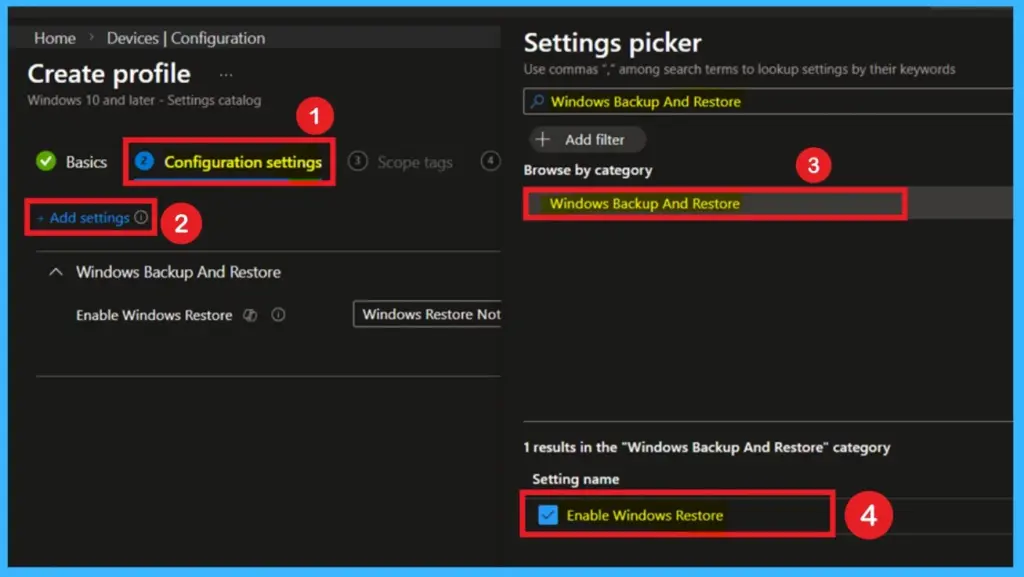
Windows Restore Enrollment Policy in Intune
The restore experience can also be controlled using the Windows Backup and Restore enrollment policy in Microsoft Intune. This policy determines whether users see the restore option when setting up their device.
Unlike MDM policies, the enrollment policy is applied only once during device enrollment.
This means the configuration takes effect when the device is first registered in the organization’s management. When enabled, users will see the restore page during the setup process if a previous PC backup is available.
Need Further Assistance or Have Technical Questions?
Join the LinkedIn Page and Telegram group to get the latest step-by-step guides and news updates. Join our Meetup Page to participate in User group meetings. Also, join the WhatsApp Community and the Whatsapp channel to get the latest news on Microsoft Technologies. We are there on Reddit as well.
Author
Anoop C Nair is a Workplace Technology solution architect with 25+ years of experience. Microsoft Certified Trainer. Microsoft MVP from 2015 onwards for consecutive 11+ years! He is a blogger, Speaker, and Founder of HTMD Community and HTMD Conference. His main focus is on Device Management technologies like Intune, Windows, and Cloud PC. He writes about technologies like Intune, SCCM, Windows, Cloud PC, Entra, and Microsoft Security