

Key Takeaways
- Intune can manage macOS devices with security, apps, and user setup.
- The Intune My Macs kit gives ready-made settings to make setup easy.
- The kit helps start a proof of concept quickly and successfully.
- Using the kit helps teams learn best practices for managing Macs with Intune.
Hey, let’s discuss Accelerate your Mac Management Proof of Concepts with Intune my Macs. Microsoft Intune offers a wide range of mature features for managing macOS devices, including security, compliance, applications, and user onboarding. However, many customers are not fully aware of these capabilities or how to use them together effectively. To simplify this, we created a starter kit called Intune My Macs. It helps users explore recommended macOS configurations and quickly set up a successful proof of concept with Intune.
Table of Contents
Table of Contents
Accelerate your Mac Management Proof of Concepts with Intune my Macs
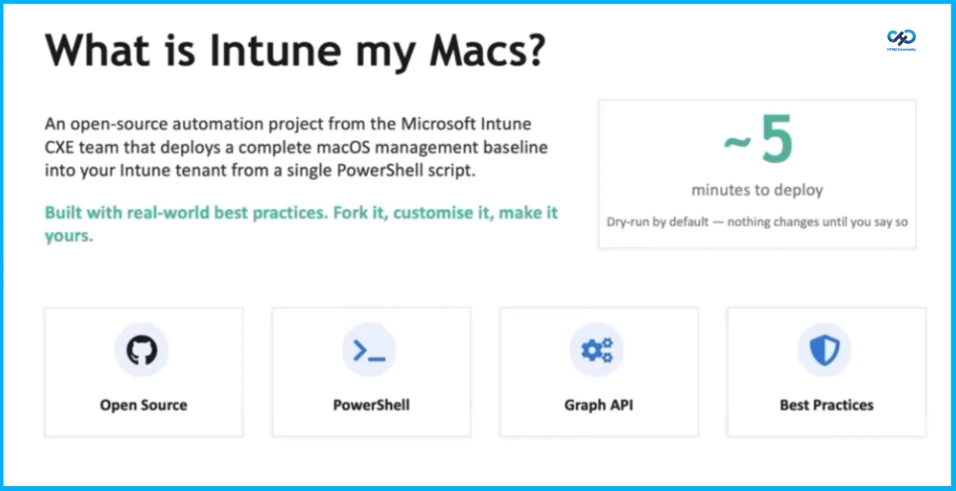
Intune my Macs is an open source project from the Microsoft Intune Customer Experience Engineering team that allows you to deploy a complete macOS proof of concept in minutes. This starter kit brings together over 31 enterprise-grade configurations identified by Apple’s Mac Evaluation Utility along with policies, scripts, and applications, all of which can be deployed using a single PowerShell script.
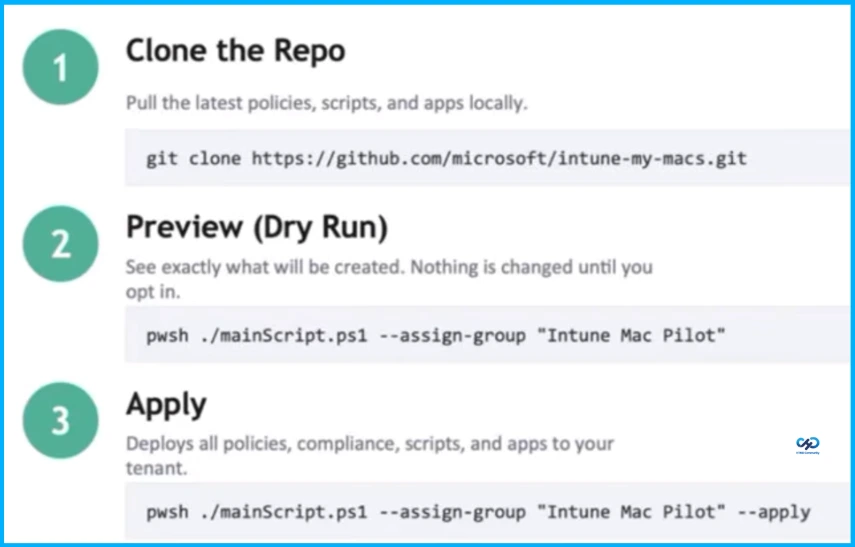
The project operates in dry-run mode by default, letting you preview exactly what will be created before committing any changes to your Intune tenant. When you’re ready, simply add the –apply flag to the command line to commit changes.
- Customise macOS LAPS Password Rotation in MS Intune Beyond 180 Days
- Microsoft Intune Expands macOS Enrollment with LAPS Integration
- Microsoft Intune Expands Apple Device Settings with AirPlay Controls and Adds macOS Defender Security Policies
What Gets Deployed
Intune My Macs offers a ready-to-use baseline of production-quality Intune configurations, eliminating the need to build everything from scratch. It helps you quickly evaluate macOS management with Intune and serves as a reference you can easily adapt to your environment.

| Category | Example Configuration |
|---|---|
| Security and configuration | FileVault encryption, firewall, gatekeeper, guest account restrictions, login windows hardening, screen saver lock, managed login items, NTP, Declarative Device management(DDM) |
| Compliance and scripts | macOS compliance policy, enrollment restrictions, Company Portal install, Dock customisation, Escrow Buddy, device scripts |
| Applications | Swift Dialog, Microsoft 365 apps, Teams, M365 Copilot, Intune Log Watch – deployed as PKG apps |
| Optional: Defender for Endpoint | MDE onboarding package, preferences configuration – add with the — mde flag Custom Attributes: hardware compatibility checks and reporting helpers |
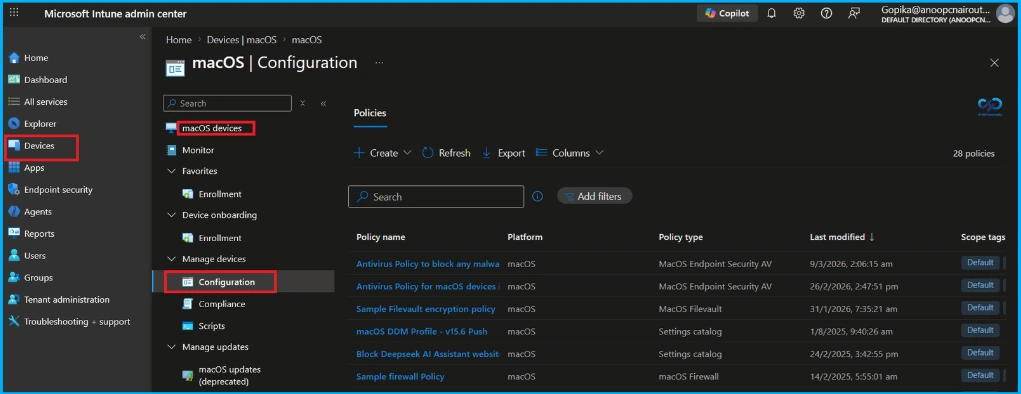
Rapid macOS Setup with Automated Deployment
Tasks that usually take significant time for research, setup, and testing can now be completed in about five minutes using this streamlined approach. The script automates key steps such as Microsoft Graph SDK authentication, policy creation, script deployment, application uploads, and optional configurations like group assignments and Microsoft Defender for Endpoint integration. It also includes an optional –mde flag to deploy a complete Defender setup on macOS, covering system extensions, privacy settings, network filters, and client installation.
How it Works
This starter kit uses XML manifest files to define each configuration artifact. The main PowerShell script reads these manifests, links the associated JSON/mobileconfig/script files, and creates the corresponding objects in Intune via the Microsoft Graph API. You can target specific artifact types using flags like –apps, –config, –compliance, –scripts, or –custom-attributes. A custom naming prefix (set with –prefix) keeps deployed objects identifiable, and the –remove-all flag lets you objects from a previous run based on that prefix.
Useful Flags
The given list highlights useful flags that help control deployment scope, customise naming, and manage cleanup through simple switches.
- –apps, –config, –compliance, –scripts, –custom-attributes – Limit import to specific artifact types
- –assign-group “Name” – Assign every object to an Entra ID group
- –prefix “[custom]” – Override the default naming prefix
- –mde – Include Defender for Endpoint content
- –remove-all – Delete previously created objects matching prefix
- –apply – Actually create objects (dry-run by default)
Need Further Assistance or Have Technical Questions?
Join the LinkedIn Page and Telegram group to get the latest step-by-step guides and news updates. Join our Meetup Page to participate in User group meetings. Also, join the WhatsApp Community and the Whatsapp channel to get the latest news on Microsoft Technologies. We are there on Reddit as well.
Author
Anoop C Nair is a Workplace Technology solution architect with 25+ years of experience. Microsoft Certified Trainer. Microsoft MVP from 2015 onwards for consecutive 11+ years! He is a blogger, Speaker, and Founder of HTMD Community and HTMD Conference. His main focus is on Device Management technologies like Intune, Windows, and Cloud PC. He writes about technologies like Intune, SCCM, Windows, Cloud PC, Entra, and Microsoft Security.