
Key Takeaways
- Verify Workload Management – Check whether each workload is managed by Microsoft Intune or Configuration Manager (SCCM).
- Monitor Co-Managed Devices – View all devices that are currently enrolled in co-management.
- Check Workload Transitions – Confirm that workloads have moved from ConfigMgr to Intune successfully.
- Find Management Issues – Identify devices with incorrect or unexpected workload assignments.
- Track Workload Status – See the management status of workloads like Compliance, Device Configuration, Windows Update, Endpoint Protection, Client Apps, and Microsoft 365 Apps.
Let’s explore the Intune Co-management Workloads Report available in the Microsoft Intune admin center. This built-in report provides an overview of co-managed Windows devices and shows which management authority is responsible for each workload.
Table of Content
Table of Contents
Use Intune Co-Management Workloads Report to Verify Workloads and Monitor Co-Managed Devices
Administrators can quickly verify whether workloads such as Compliance Policies, Device Configuration, Resource Access, Windows Update for Business, Endpoint Protection, Microsoft 365 Apps, and Client Apps are managed by Microsoft Intune or SCCM (ConfigMgr). The report helps validate workload transitions, monitor co-management status, and troubleshoot management assignments during cloud migration.
Related Posts – Intune Co-management Eligibility Report | Endpoint Manager
- Prohibit Access to Control Panel and PC Settings to Prevent Users from Modifying System Settings using Intune Policy
- Configure Windows Drive Access Restrictions using Intune Policy
- How to Configure Auto-Restart Warning Reminder Policy in Windows using Intune
- Intune User Policy Troubleshooting Tips For Prevent Changing Theme
- Intune Win32 App Deployment Troubleshooting Help Guide
- Intune Security Baseline Microsoft Defender Policy Troubleshooting Tips
- Troubleshoot Microsoft Edge Security Policy Deployment Issues
Access the Intune Co-Management Workloads Report
To view the Co-Management Workloads report, sign in to the Microsoft Intune admin center. In the left navigation pane, go to Reports > Cloud attached devices > Reports tab, and then select Co-Managed Workloads. This report provides an overview of co-managed devices and shows which management workloads are handled by Microsoft Intune or SCCM (ConfigMgr) for each device.


Open the Co-Managed Workloads Report in Microsoft Intune
The screenshot below shows how to access the Co-Managed Workloads report in the Microsoft Intune admin center. First, navigate to Reports and select Cloud attached devices (Preview) from the left pane. Next, open the Reports tab, and then select Co-Managed Workloads. This report displays all co-managed devices and shows whether each workload is managed by Microsoft Intune or SCCM (ConfigMgr), helping administrators verify workload ownership and monitor co-management status.
| Co-Managed Workloads Report in Microsoft Intune |
|---|
| Device workloads managed by Intune and SCCM |

Configure Filters and Generate the Co-Managed Workloads Report
The Co-Managed Workloads report allows administrators to filter devices based on specific workload management areas before generating the report. You can select the management authority for workloads such as Compliance, Resource Access, Device Configuration, Windows Update for Business, Endpoint Protection, Modern Apps, and Office Apps

Filter Devices by Management Authority
The Co-Managed Workloads report lets administrators filter devices based on the management authority for each workload. For example, the Endpoint Protection filter allows you to view devices managed by Microsoft Intune, Configuration Manager (SCCM), or All.
- Endpoint Protection
- All
- Intune
- SCCM

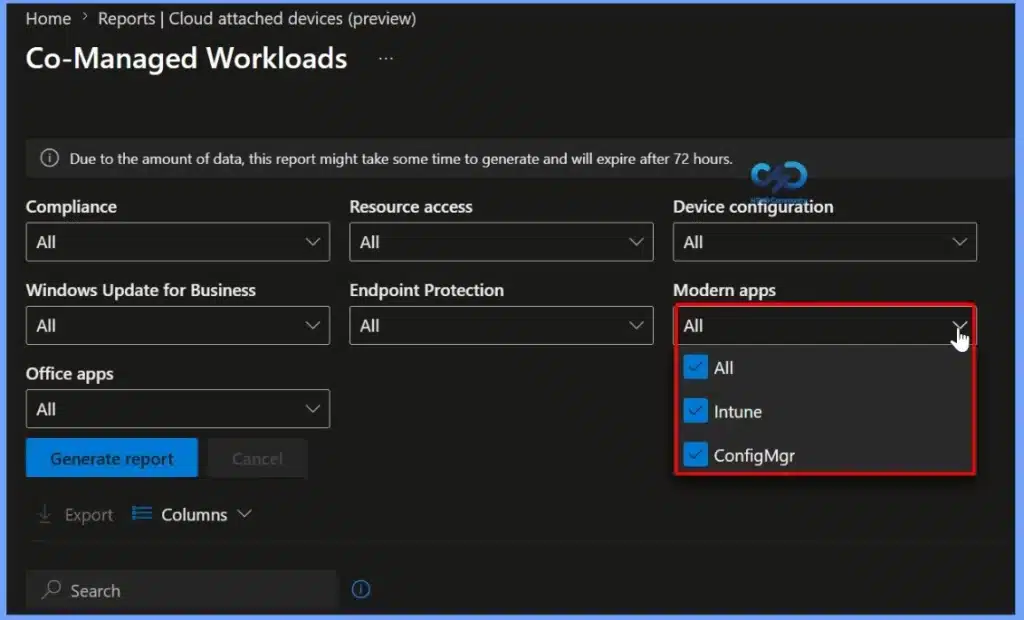
Filter Devices by Modern Apps Management
The Modern Apps filter in the Co-Managed Workloads report allows administrators to view devices by Modern Apps management authority. You can filter devices managed by Microsoft Intune, Configuration Manager (ConfigMgr), or select All to display every co-managed device.
Modern Apps
- All
- Intune
- SCCM
Filter Devices by Office Apps Management
The Office Apps filter in the Co-Managed Workloads report enables administrators to view devices based on the management authority for Microsoft 365 Apps (Office Apps). You can filter devices managed by Microsoft Intune, Configuration Manager (SCCM), or select All to display every co-managed device. This filter helps verify which platform is managing Office Apps, ensuring workload assignments are correct and simplifying monitoring and troubleshooting in a co-management environment.

Generate the Co-Managed Workloads Report
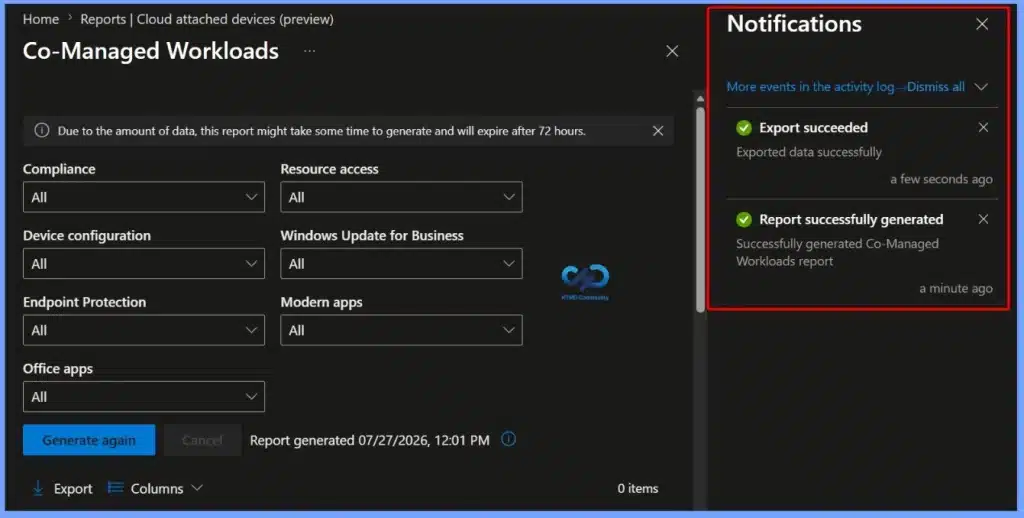
After selecting the required workload filters, click Generate report. Once the report is created successfully, a confirmation notification appears in the top-right corner indicating that the Co-Managed Workloads report has been generated.

Customise Report Columns
The Columns option allows administrators to customise the information displayed in the Co-Managed Workloads report. Click Columns to select or deselect the fields you want to include, such as Device Name, Compliance, Device Configuration, Endpoint Protection, Microsoft Entra Device ID, Modern Apps, and Office Apps.
| Columns |
|---|
| Device name Compliance Device configuration Endpoint Protection Microsoft Entra device ID Modern apps Office apps Resource Access Windows Update for Business |

Export the Co-Managed Workloads Report
The Export option allows administrators to download the Co-Managed Workloads report as a compressed CSV (.csv) file for offline review and analysis. The exported file includes all selected columns, rows, and any filters applied to the report. Click Export, then select Yes in the confirmation dialog to start the export.

Verify Report Generation and Export Status
After generating and exporting the Co-Managed Workloads report, you can verify the status in the Notifications pane. A successful report generation displays the message “Report successfully generated”, while a completed export shows “Export succeeded“.
Resources
- Co-managed workloads Intune report
- Intune Device Compliance Reports | Endpoint Manager
- Learn How to Collect Windows 10 Diagnostics Information from Intune Portal | Endpoint Manager
- How to Check Intune Service Release Version | Endpoint Manager
- How to Export All Devices Data from Intune Portal | Endpoint Manager
Need Further Assistance or Have Technical Questions?
Join the LinkedIn Page and Telegram group to get the latest step-by-step guides and news updates. Join our Meetup Page to participate in User group meetings. Also, join the WhatsApp Community and the Whatsapp channel to get the latest news on Microsoft Technologies. We are there on Reddit as well.
Author
Jitesh, Microsoft MVP, has over six years of working experience in the IT Industry. He writes and shares his experiences related to Microsoft device management technologies and IT Infrastructure management. His primary focus is Windows 10/11 Deployment solution with Configuration Manager, Microsoft Deployment Toolkit (MDT), and Microsoft Intune.