
Key Takeaways
- Remote PC connections are now generally available in Windows App on Windows, providing a new way to access Windows PCs remotely.
- Access multiple Windows resources from one app, including Windows 365, Azure Virtual Desktop, Microsoft Dev Box, and remote PCs.
- No work or school account is required to add a remote PC, making the feature accessible for additional remote access scenarios.
- Save and manage connections so frequently used remote PCs can be accessed again without setting them up each time.
In this post, we are discussing, Windows App Adds Remote PC Connections for a Unified Remote Access Experience. Microsoft has announced that Remote PC connections in Windows App on Windows are now generally available. This new capability allows users to connect directly to Windows PCs through the Windows App, providing another way to access remote devices alongside existing Windows cloud services.
Table of Contents
Table of Contents
Windows App Adds Remote PC Connections for a Unified Remote Access Experience
With the addition of Remote PC connections, users can now manage another important remote access scenario without switching between different applications. This new feature is designed for users who need remote access to physical or virtual Windows devices for work, testing, learning, and other everyday tasks. Users can add a remote PC using its PC name to save the connection and reconnect to it whenever needed.
- 4 Primary Ways to Connect Windows 365 on Windows and Microsoft Teams Optimizations on Windows App
- How to Create Screen Capture App Protection Policy for Windows 365 App using Intune
- How to Change Policy Assignments for Multiple Users using Microsoft Teams Admin Center
- Easy Method to Deploy Windows App Mob for iOS and iPadOS using Intune
What’s New
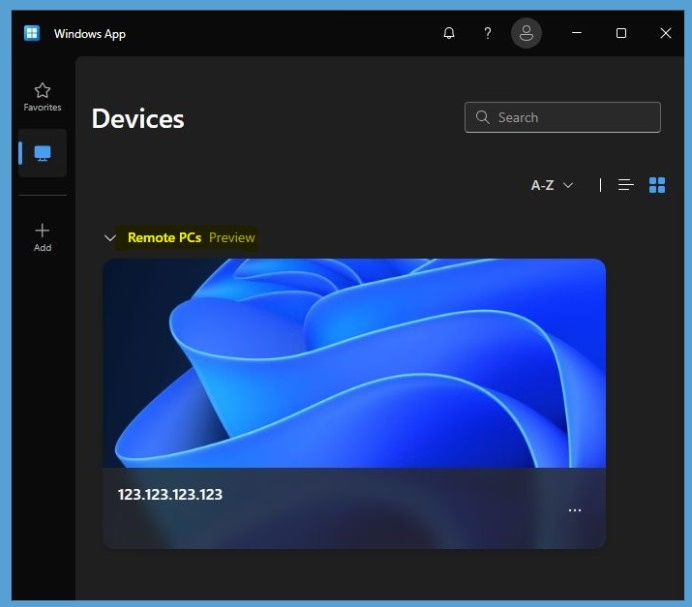
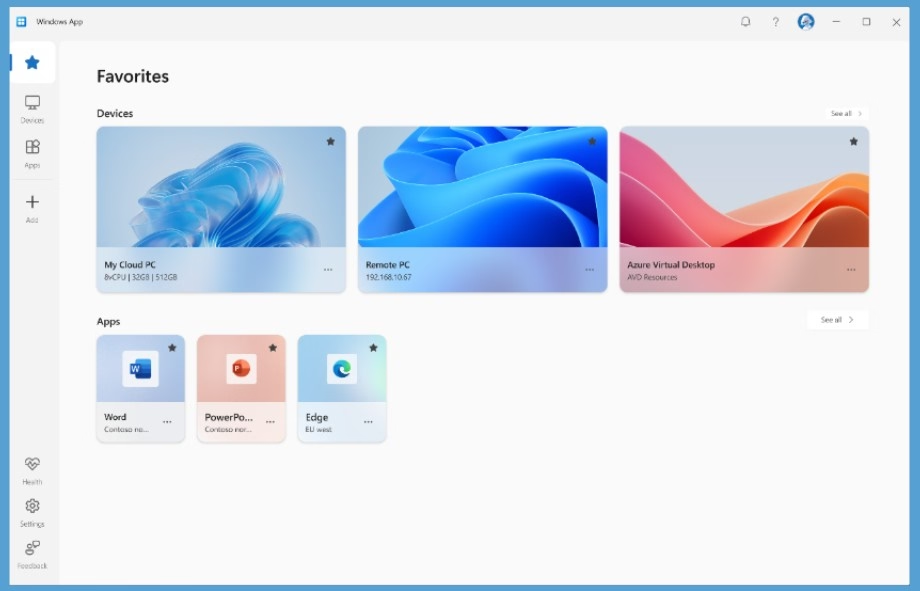
Now Remote PC support in Windows App on Windows. Users can now add a direct connection to a Windows PC by entering its PC name or IP address. Once added, the remote PC can be saved in Windows App and accessed again when required. Users can also customize display preferences and configure local resource redirection for their remote sessions. Frequently used remote PCs can be pinned to Favorites, making it easier to reconnect to important devices.
This new design it was one of the most requested features since Windows App was launched, and Microsoft has now made it generally available. With this update, users can connect to Windows 365 Cloud PCs, Azure Virtual Desktop, Microsoft Dev Box, and remote PCs or VMs from one place. Users can also create and save remote PC connections without needing a work or school account.

| Supported Connections |
|---|
| Windows 365 Cloud PCs |
| Azure Virtual Desktop |
| Microsoft Dev Box |
| Remote PCs or VMs |
Getting Started with Remote PC Connections
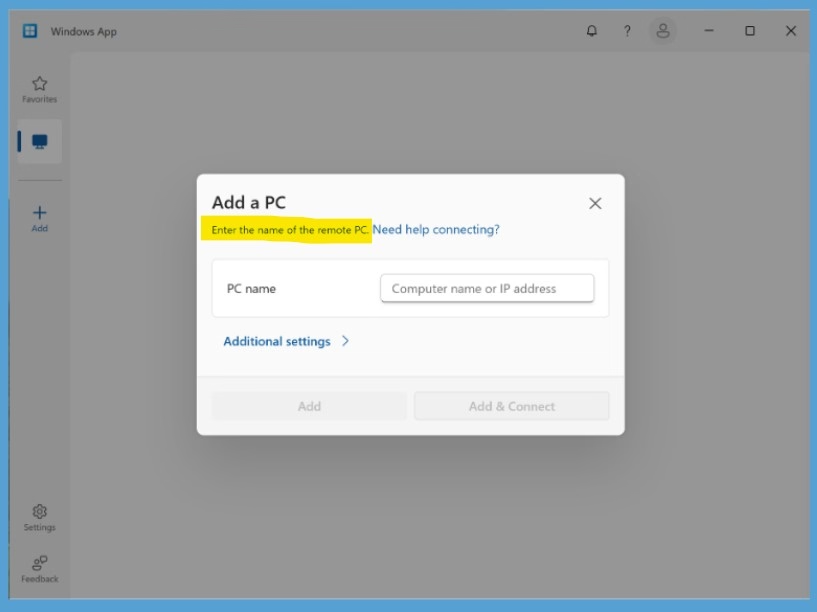
To use Remote PC connections in Windows App, first make sure Remote Desktop is enabled on the Windows PC you want to access. Then install or update Windows App from the Microsoft Store. Open Windows App and select Add a Remote PC or select the Add button. Enter the PC name or IP address of the remote computer, and then select Add or Add and Connect. Once the connection has been added, users can save it in Windows App, reconnect to the PC when needed, and pin frequently used remote PCs to Favorites.
- Path in short ways:
- Make sure Remote Desktop is enabled on the PC you want to connect to.
- Install or update Windows App from the Microsoft Store.
- Open Windows App and select Add a Remote PC or select the Add button.
- Add your remote PC using its PC name or IP address.
- Select Add or Add and Connect.
Need Further Assistance or Have Technical Questions?
Join the LinkedIn Page and Telegram group to get the latest step-by-step guides and news updates. Join our Meetup Page to participate in User group meetings. Also, join the WhatsApp Community and the Whatsapp channel to get the latest news on Microsoft Technologies. We are there on Reddit as well.
Author
Anoop C Nair is Workplace Technology solution architect with 25+ years of experience in global enterprise organizations such as JP Morgan, Capgemini, etc. He is Microsoft Certified Trainer. Microsoft MVP from 2015 onwards for consecutive 11 years! He also conducts Intune and modern workplace tech training for enterprise organizations. He is Blogger, Speaker, and Founder of HTMD Community and HTMD Conference. His focus is on Device Management technologies such as Intune, Windows, Cloud PC. He writes about technologies like Intune, SCCM, Windows, Cloud PC, Windows, Entra, Microsoft Security.