
Key Takeaways
- SCCM includes 31 out-of-box SSRS reports specifically for software updates and patching insights.
- These reports help track deployment status, compliance, failures, and overall update health across devices.
- Useful for validating and monitoring software update (patch) deployments in SCCM.
- Additional hardware-related reports are also available to complement update reporting.
- All reports are accessed via SQL Server Reporting Services (SSRS), which must be properly configured.
- Common issues like report server connection errors can impact report access and need to be resolved.
SCCM Default Software Update Reports for SSRS Reporting Patching Deployment and Troubleshooting! SCCM includes 31 out-of-box SSRS reports for software updates, helping administrators track patching status, compliance, and deployment progress. These reports are essential for managing software updates and ensuring systems remain secure and up to date.
Table of Content
Table of Contents
SCCM Default Software Update Reports for SSRS Reporting Patching Deployment and Troubleshooting
Let’s check the ConfigMgr Default Reports Software Updates | SCCM. Thirty-one (31) out-of-box reports are available as part of Configuration Manager SSRS reports. Learn how to deploy New Software Update (a.k.a patching/patch deployment) Patch Package using ConfigMgr.
There are other helpful hardware-related reports outside ConfigMgr software update reports. Also, you can learn How to Launch ConfigMgr Reports from the previous post here.
If you have trouble opening default SCCM reports, refer to Fix Report Server, which cannot Open a Connection Error ConfigMgr. Let’s also learn how to create a New Database for SSRS Reporting Service.

In this post, you will find detailed information about the default reports available in ConfigMgr for software updates. These reports are crucial for administrators to monitor and manage the status of software updates across their organization.
- SCCM ConfigMgr Asset Intelligence Reports | Default Reports | Configuration Manager
- SCCM Asset Intelligence Deprecation and Remove Asset Intelligence Sync Point Role
- Enable SCCM Asset Intelligence Hardware Inventory
- SCCM ConfigMgr Asset Intelligence Reports | Default Reports | Endpoint Manager | Configuration Manager
Prerequisites to Access SCCM Software Update (SCCM Patching) Reports
To successfully access SCCM Software Update (patching/patch deployment) reports, ensure all required components are properly configured and up to date. The Reporting Services Point role must be installed and healthy, as it enables integration between SCCM and SSRS.
Verify that SSRS is functioning correctly with no connectivity or database issues, especially after recent updates or upgrades. Additionally, confirm that you have the necessary permissions to access reports from both the SCCM console and the SSRS web portal URL. Proper RBAC roles and security scopes are essential to avoid access or visibility issues.
- Reporting Services Point is installed.
- SSRS reports are working fine.
- Ensure you have appropriate permissions to launch reports from the Console and SSRS URL.
Steps to Launch Software Update Default Reports from SCCM Console
You can easily access and run Software Update (SCCM patching) reports directly from the SCCM console. These reports help administrators quickly review update compliance, deployment status, and overall patching health across devices.
- Launch Console
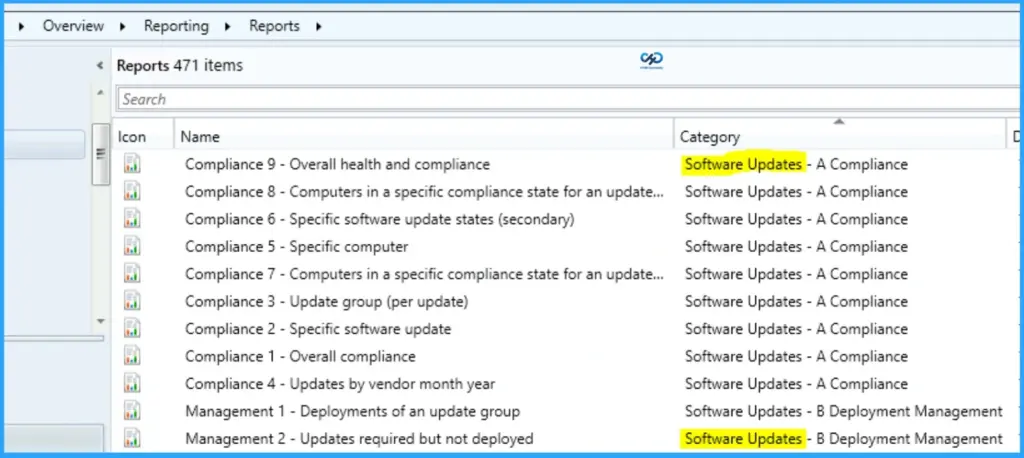
- Navigate to \Monitoring\Overview\Reporting\Reports.
- Sort the reports by Category.
- Right-click on the related report “Software Updates“.
- Select the RUN option.
Introduction to SCCM Default Software Update Report Categories in SCCM
SCCM provides a structured set of default Software Update (SCCM patching) reports within SSRS to help administrators efficiently monitor and manage update deployments. These reports are organised into 5 distinct categories, making it easier to navigate and focus on specific aspects such as compliance, deployment status, and update summaries.
- Understanding these categories helps simplify reporting and improves overall patch management visibility.
| Software Update Category |
|---|
| Software Updates – A Compliance |
| Software Updates – B Deployment Management |
| Software Updates – C Deployment States |
| Software Updates – D Scan |
| Software Updates – E Troubleshooting |
Software Updates – A Compliance
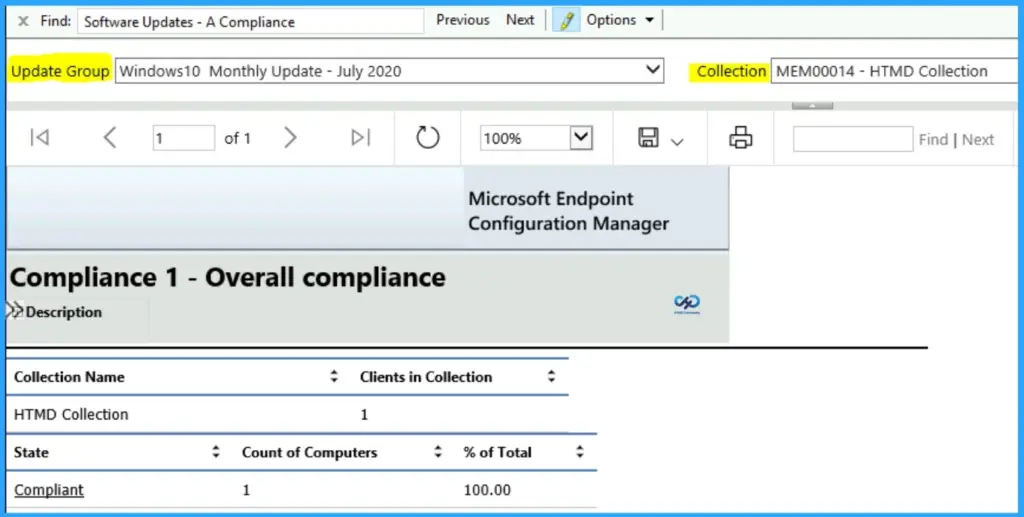
The compliance category includes reports that help you understand the compliance status of software updates in your environment. These reports provide details on which devices are compliant, non-compliant, or missing updates, helping administrators quickly identify issues and take necessary actions to ensure systems are up to date and secure.
| Software Updates – A Compliance |
|---|
| Compliance 8 – Computers in a particular state of compliance for an update (secondary) |
| Compliance 1 – Overall compliance |
| Compliance 2 – Specific software update |
| Compliance 3 – Update group (per update) |
| Compliance 4 – Updates by vendor month year |
| Compliance 5 – Specific computer |
| Compliance 6 – Specific software update states (secondary) |
| Compliance 7 – Computers in a specific compliance state for an update group (secondary) |
| Compliance 8 – Computers in a particular state of compliance for an update (secondary) |
| Compliance 9 – Overall health and compliance |
Software Updates – B Deployment Management
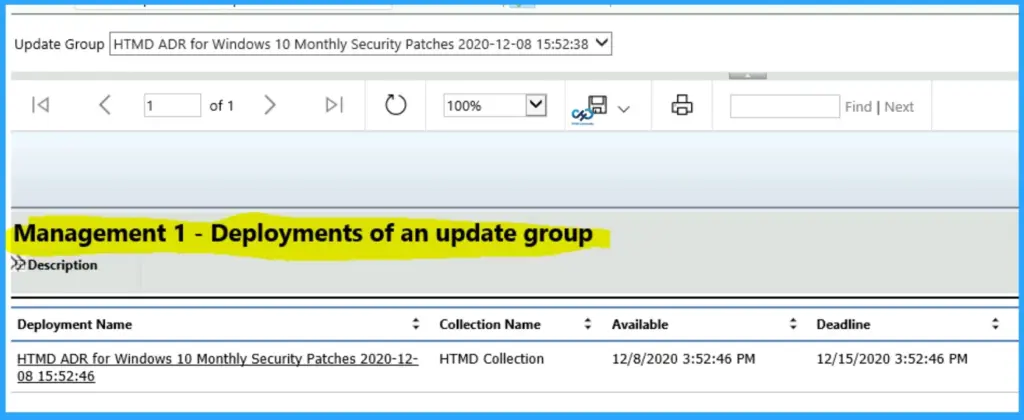
The reports in the Software Updates – B Deployment Management category help to identify the Software Update Deployment details.
| Software Updates – B Deployment Management |
|---|
| Management 1 – Deployments of an update group |
| Management 2 – Updates required but not deployed |
| Management 3 – Updates in a deployment |
| Management 4 – Deployments that target a collection |
| Management 5 – Deployments that target a computer |
| Management 6 – Deployments that contain a specific update |
| Management 7 – Updates in a deployment missing content |
| Management 8 – Computers missing content (secondary) |
Software Updates – C Deployment States
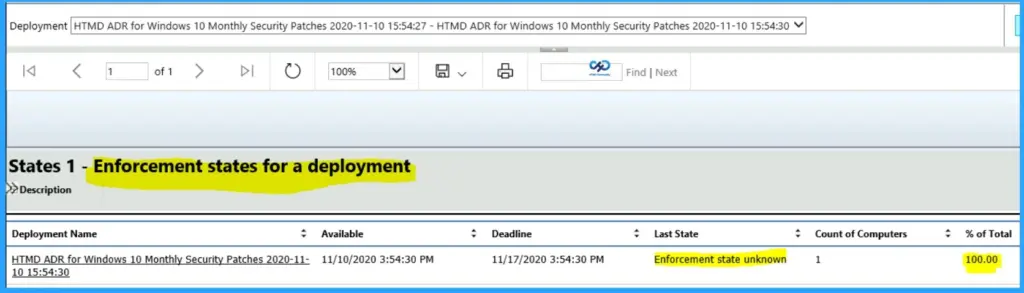
Let’s get more details about the Deployment States of Software Update deployments (a.k.a patching/patch). This report returns all deployments containing all the software updates defined in a specified software update group.
| Software Updates – C Deployment States |
|---|
| States 1 – Enforcement states for a deployment |
| States 2 – Evaluation states for a deployment |
| States 3 – States for deployment and computer |
| States 4 – Computers in a specific state for a deployment (secondary) |
| States 5 – States for an update in a deployment (secondary) |
| States 6 – Computers in a specific enforcement state for an update (secondary) |
Software Updates – D Scan
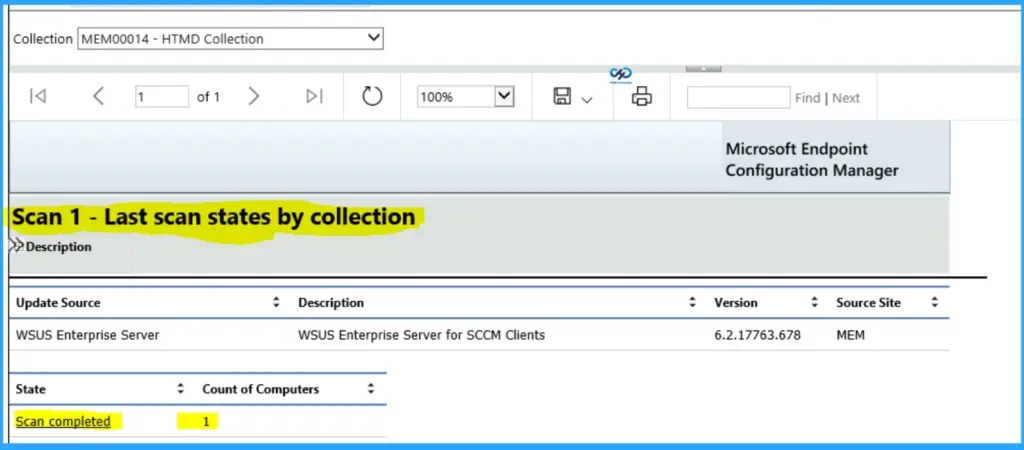
Let’s get more details about the Software Updates Scan-related details. This report returns the enforcement states for a particular software update (a.k.a patching/patch deployment), typically the second phase of a deployment assessment.
- For the overall progress of software update installation, use this report with “States 2 – Evaluation states for a deployment“.
| Software Updates – D Scan |
|---|
| Scan 1 – The last scan states by collection |
| Scan 2 – The last scan states by site |
| Scan 3 – Clients of a collection reporting a specific state (secondary) |
| Scan 4 – Clients of a site reporting a specific state (secondary) |
Software Updates – E Troubleshooting
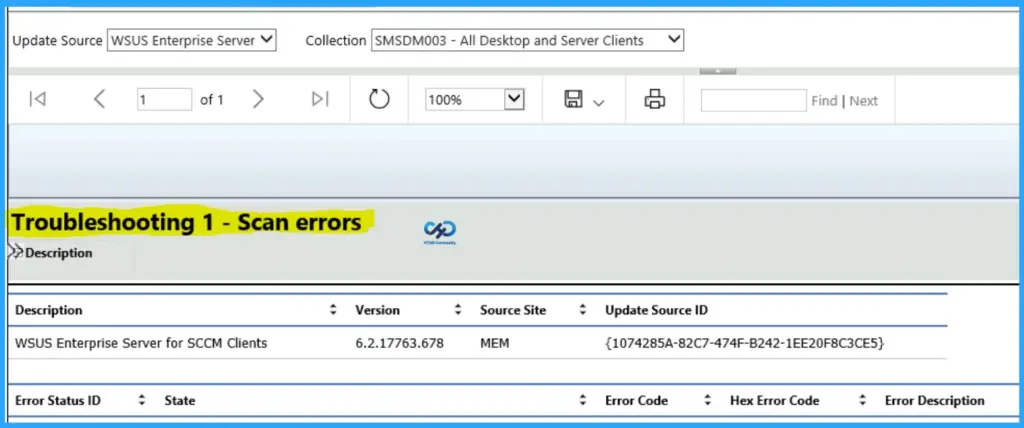
Let’s find out some Software Updates (a.k.a patching/patch deployment) and Troubleshooting related reports. This report returns the scan errors at the site and a count of computers experiencing each mistake.
| Software Updates – E Troubleshooting |
|---|
| Troubleshooting 1 – Scan errors |
| Troubleshooting 2 – Deployment errors |
| Troubleshooting 3 – Computers failing with a specific scan error (secondary) |
| Troubleshooting 4 – Computers failing with a specific deployment error (secondary) |
Resources
Need Further Assistance or Have Technical Questions?
Join the LinkedIn Page and Telegram group to get the latest step-by-step guides and news updates. Join our Meetup Page to participate in User group meetings. Also, join the WhatsApp Community to get the latest news on Microsoft Technologies. We are there on Reddit as well.
Author
Anoop C Nair is Microsoft MVP! He is a Device Management Admin with more than 20 years of experience (calculation done in 2021) in IT. He is a Blogger, Speaker, and Local User Group HTMD Community leader. His primary focus is Device Management technologies like SCCM 2012, Current Branch, and Intune. He writes about ConfigMgr, Windows 11, Windows 10, Azure AD, Microsoft Intune, Windows 365, AVD, etc.
Anoop C Nair is Workplace Technology solution architect with 25+ years of experience in global enterprise organizations such as JP Morgan, Capgemini, etc. He is Microsoft Certified Trainer. Microsoft MVP from 2015 onwards for consecutive 11 years! He also conducts Intune and modern workplace tech training for enterprise organizations. He is Blogger, Speaker, and Founder of HTMD Community and HTMD Conference. His focus is on Device Management technologies such as Intune, Windows, Cloud PC. He writes about technologies like Intune, SCCM, Windows, Cloud PC, Windows, Entra, Microsoft Security.