
Key Takeaways
- Windows 365 Security Baselines provide Microsoft’s recommended security configurations for Cloud PCs.
- Security baselines help standardize endpoint protection across Windows 365 environments.
- Administrators can deploy baseline policies directly from the Intune Endpoint Security portal.
- The baseline includes settings for Microsoft Defender, Firewall, Device Guard, SmartScreen, Attack Surface Reduction, and Remote Desktop security.
In this post, we will how deploy Windows 365 security baseline policies to Cloud PCs. Microsoft Intune Security Baselines provide a streamlined way to apply Microsoft’s recommended security settings across managed devices. For organizations using Windows 365 Cloud PCs, the Windows 365 Security Baseline offers a preconfigured collection of security settings designed specifically for virtual desktop environments. These baseline policies help administrators to secure foundation without manually configuring hundreds of individual security settings.
Table of Contents
Table of Contents
Deploy Windows 365 Security Baselines to Strengthen Cloud PC Security using Microsoft Intune
The Windows 365 Security Baseline simplifies endpoint protection by combining settings related to Microsoft Defender, Firewall, Attack Surface Reduction, Remote Desktop, Device Guard, and many other security controls into a single policy profile. This approach helps improve security consistency, reduce administrative overhead, and support compliance requirements across Cloud PC deployments.
Get Started
It’s time to create Windows 365 security baseline policies now. I don’t think the policy deployment will take so much time; however, if you have already deployed security policies to Cloud PCs using setting catalog or other policies, that could create policy conflict issues.
Try to check the baseline policies with new Cloud PC deployments without any other security policies. Let’s see how to create Windows 365 security baseline policies for Cloud PCs.

- Sign in to Microsoft Intune Admin Center
- Navigate to Endpoint Security node.
- Click on Security Baselines node – You can see several other baseline policies in this node.
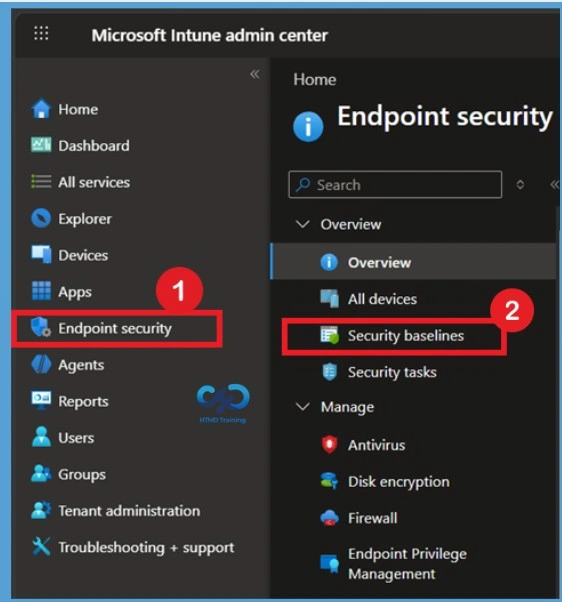
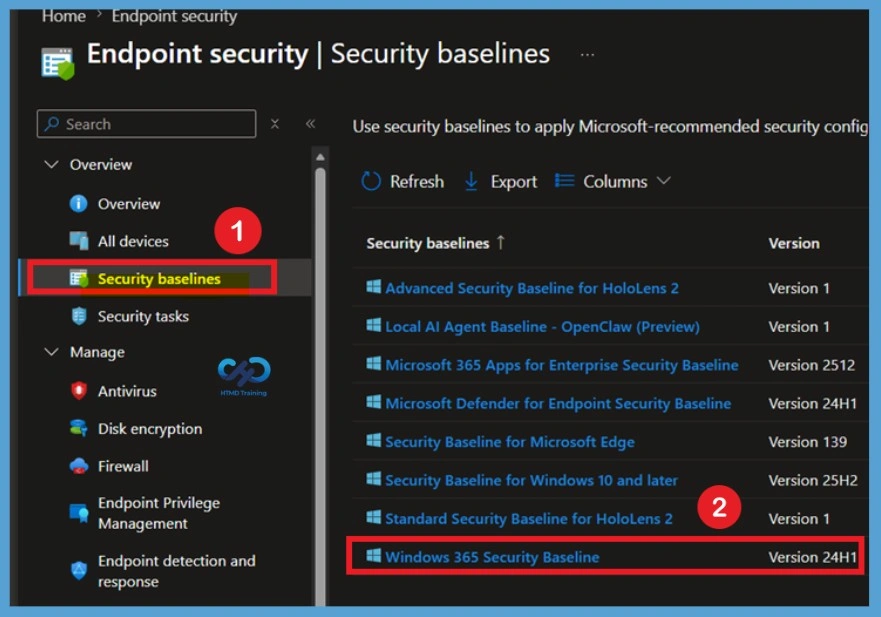
On the Security Baselines page, you can view all the security baseline templates available in Microsoft Intune. These baselines provide Microsoft recommended security configurations for different platforms and workloads, helping administrators quickly deploy security settings across managed devices.
In this example, we will use the Windows 365 Security Baseline. Since the goal is to secure Windows 365 Cloud PCs with Microsoft’s recommended security settings, select Windows 365 Security Baseline from the list of available baselines and proceed with the configuration.
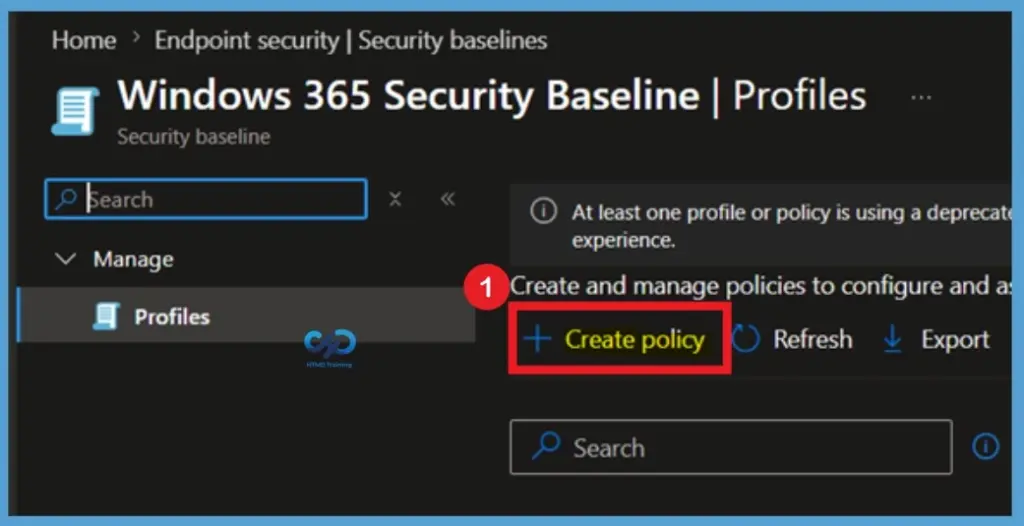
After selecting the Windows 365 Security Baseline, click + Create Policyto begin creating a new security baseline policy. This option allows you to deploy Microsoft’s recommended security settings to Windows 365 Cloud PCs through a centralized Intune policy.
Create the Windows 365 Security Baseline Profile
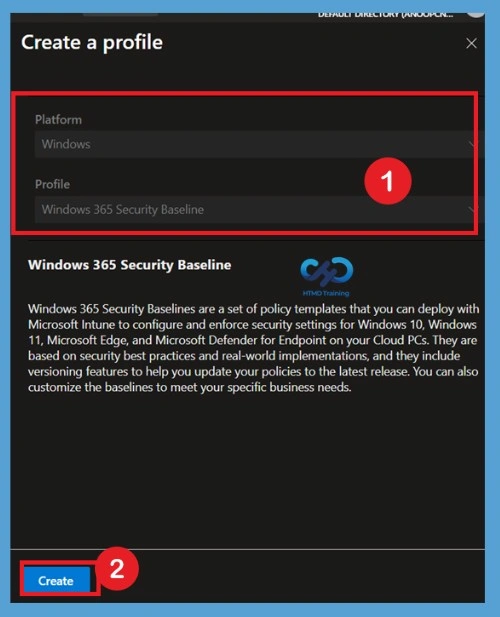
On the Create Profile page, the Platform is automatically set to Windows, and the Profile is selected as Windows 365 Security Baseline. These values are predefined by Microsoft and cannot be modified during the profile creation process. Since the required options are already configured, review the selected values and click Create to proceed.
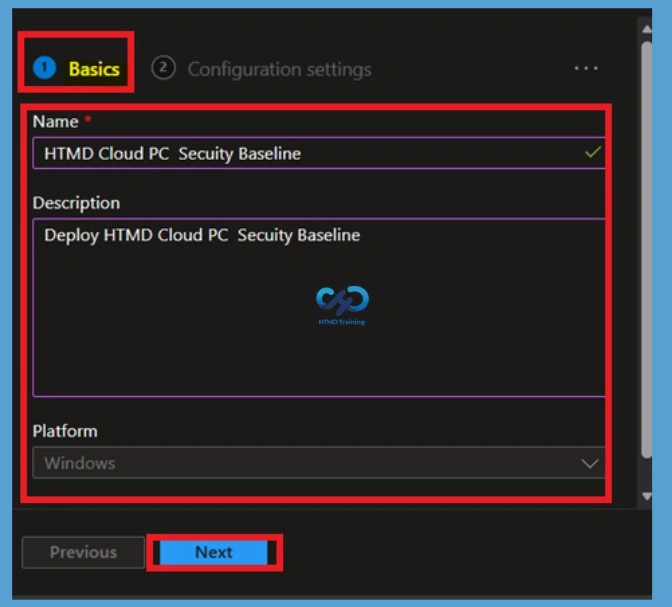
Basic Tab
You will have to enter name and description of the Windows 365 Security Baseline. There are no drop-down options for the platform and Baseline version while writing this post. You can click on the next button to continue.
- Name -> HTMD Cloud PC Security Baseline
- Platform -> Windows 10 and Later
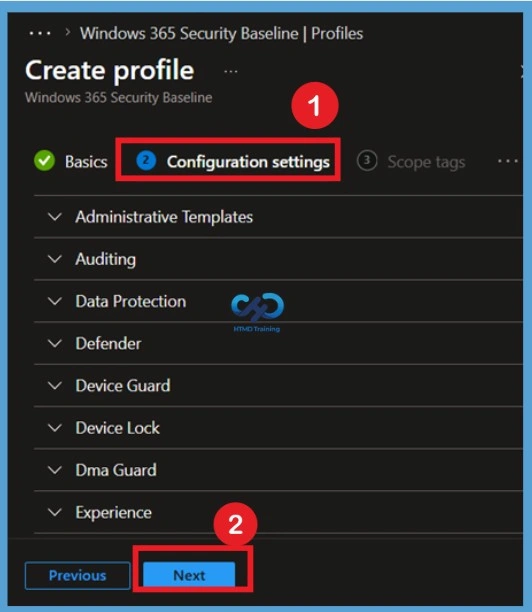
Cloud PC Security Baseline Categories in Configuration Settings
You can get a quick overview of the Windows 365 security baseline categories with default values of these tables. This will help you understand the configurations very quickly and adjust them as per your requirements. However, I would recommend using the default Cloud PC security baseline.
You can check the individual policies in each category from the following blog post – List of Security Baselines Settings for Cloud PC Windows 365.
| Category of Security Baseline | Default Value |
|---|---|
| Administrative Templates | Configured |
| Auditing | Mix of Success and Failure |
| Data Protection | Configured |
| Defender | Configured |
| Device Guard | Enabled |
| Device Lock | Enabled |
| DMA Guard | Block All |
| Experience | Enabled |
| Device Guard | Enabled |
| Device Installation | Enabled |
| DMA Guard | Block All |
| File Explorer | Disabled |
| Firewall | Configured |
| File Explorer | Disabled |
| Firewall | Configured |
| Internet Explorer | A Lot of options Disabled/Enabled (Use IE?) |
| Local Policies Security Options | Configured a lot of settings |
| Microsoft Defender | Configured a lot of settings |
| Microsoft Defender Antivirus Exclusions | 3/9 Minutes |
| Microsoft Edge | Enabled and Disabled |
| MS Security Guide | Enabled and Disabled |
| MSS Legacy | Highest Protection, Enabled and Disabled for some settings |
| Remote Assistance | Disabled |
| Remote Desktop Services | High and Enabled |
| Remote Management | Enabled and Disabled |
| Remote Procedure Call | Authenticated |
| Search | Configured |
| Smart Screen | Configured |
| System | Good unknown and bad critical |
| Windows Connection Manager | Enabled |
| Windows Ink Workspace | Enabled |
| Windows PowerShell | Enabled |
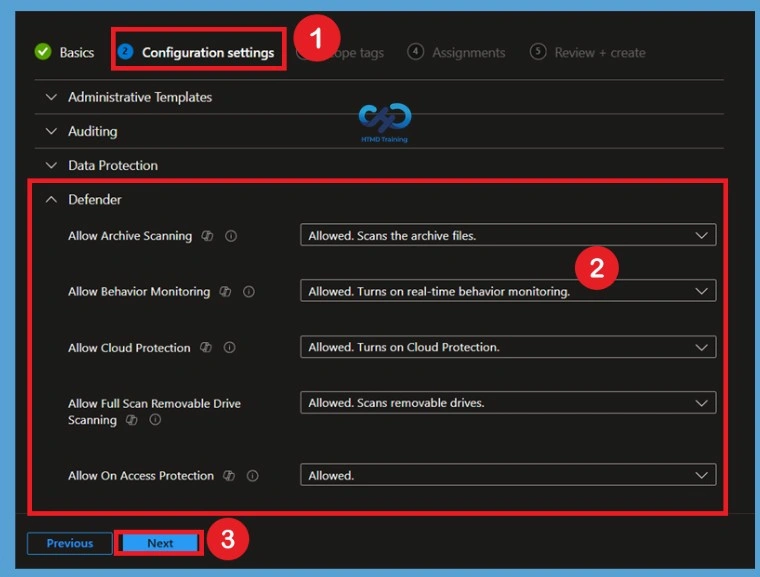
The Configuration Settings page also allows administrators to view and customize individual security settings within each category. In this example, the Microsoft Defender section is expanded, displaying settings such as Allow Archive Scanning, Allow Behavior Monitoring, Allow Cloud Protection, Allow Full Scan Removable Drive Scanning, and Allow On-Access Protection.
These settings help strengthen endpoint security and improve threat detection capabilities on Windows 365 Cloud PCs. Once you have checked and verified the values baseline policies for Cloud PCs, you can click on the Next button.
Configure Scope Tag
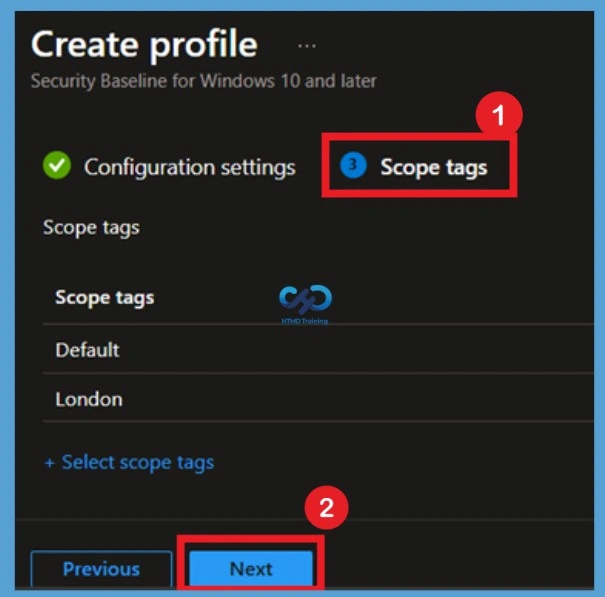
Scope Tags allow administrators to control visibility and management permissions for the security baseline. Organizations using role-based access control (RBAC) can assign scope tags to limit access to specific administrative teams. You can select the appropriate scope tags to support proper Intune RBAC scenarios.
- Click on Next continue.
Assignments
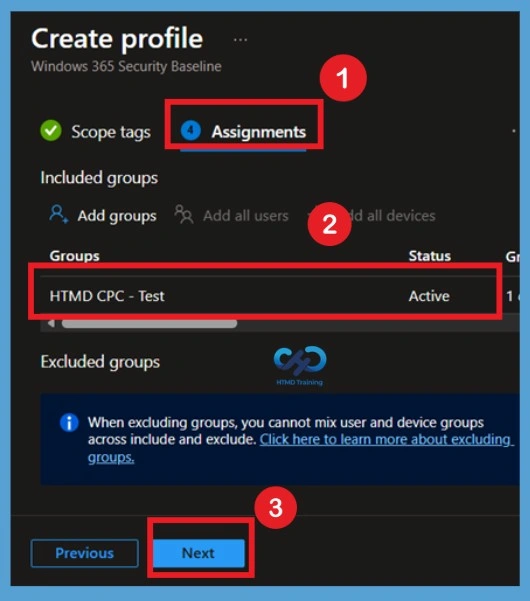
On the Assignments page, click Add Groups and select the Microsoft Entra ID device group containing the target Windows 365 Cloud PCs. Proper group targeting ensures that baseline settings are delivered only to intended devices. Here I selected HTMD CPC Test group.
Review and Create the Policy
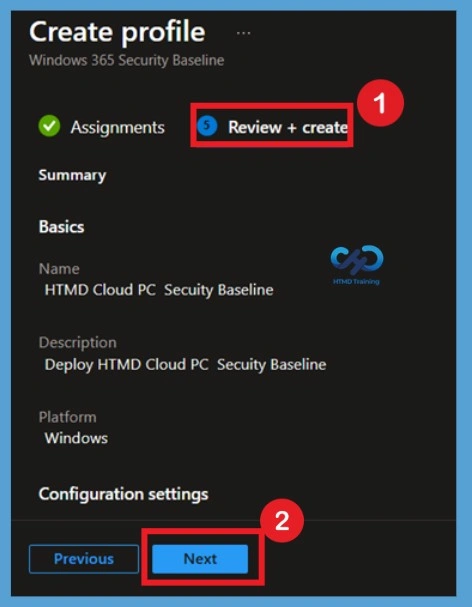
The Review + Create page provides a summary of all configured settings, assignments, and scope tags. Carefully verify the information before proceeding with deployment to avoid configuration errors.
Reviewing policy settings before deployment helps identify issues and confirms that the correct target groups and security configurations have been selected. Once validation is complete, click Create to deploy the Windows 365 Security Baseline.
Results
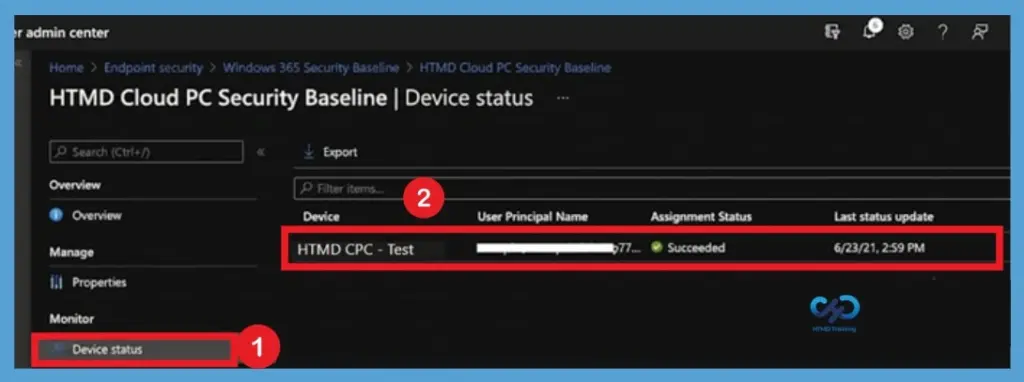
You can look into the default Intune reports to check the status of baseline security policies for Cloud PC. There are two ways to check the default reports. Check the report from Windows 365 security baseline policy > Monitor section > Device Status and Per Settings option. Check the report from Devices > Endpoint Security Configuration Node.
Need Further Assistance or Have Technical Questions?
Join the LinkedIn Page and Telegram group to get the latest step-by-step guides and news updates. Join our Meetup Page to participate in User group meetings. Also, join the WhatsApp Community and the WhatsApp channel to get the latest news on Microsoft Technologies. We are there on Reddit as well
Author
Anoop C Nair is Workplace Technology solution architect with 25+ years of experience in global enterprise organizations such as JP Morgan, Capgemini, etc. He is Microsoft Certified Trainer. Microsoft MVP from 2015 onwards for consecutive 11 years! He also conducts Intune and modern workplace tech training for enterprise organizations. He is Blogger, Speaker, and Founder of HTMD Community and HTMD Conference. His focus is on Device Management technologies such as Intune, Windows, Cloud PC. He writes about technologies like Intune, SCCM, Windows, Cloud PC, Windows, Entra, Microsoft Security.