
Key Takeaways
- Security Baselines provide Microsoft’s recommended security settings for Windows devices in Intune.
- Administrators can deploy multiple security configurations through a single policy profile.
- Baseline templates are regularly updated to align with Microsoft’s latest security guidance and best practices.
- Security Baselines help improve device security, reduce configuration complexity, and support compliance requirements.
This guide helps you to Create and Manage Windows Security Baselines in Microsoft Intune for Enhanced Endpoint Protection. Intune makes it easy to deploy Windows security baselines to help you secure and protect your users and devices. Security baselines are groups of pre-configured Windows settings that help you apply and enforce granular security settings recommended by the relevant security teams. You can also customize each baseline you deploy to implement only the required settings and values.
Table of Contents
Table of Contents
Create and Manage Windows Security Baselines in Microsoft Intune for Enhanced Endpoint Protection
Microsoft Endpoint Manager updates the versions of built-in Security Baselines depending on the changing needs of a typical organization. Each setting in a baseline has a default configuration for that baseline version. Intune security baselines combine multiple security configurations into a single policy that can be deployed to Windows 10, Windows 11, and Windows 365 Cloud PCs. Administrators can use the default recommended values or customize individual settings to meet organizational security and compliance requirements.
- Deploy Windows 365 Security Baseline Policies to Cloud PCs
- How To Start Troubleshooting Intune Issues | Fix Intune Issues With Easy Steps MEM
- Intune Security Baseline Microsoft Defender Policy Troubleshooting Tips For Cloud PCs
Intune Security Baselines Policies for Windows 10 or Windows 11
To begin creating a Windows Security Baseline policy, sign in to the Microsoft Intune admin center and navigate to Endpoint Security > Security Baselines. This section contains all baseline templates provided by Microsoft, including Windows Security Baseline, Microsoft Defender for Endpoint Baseline, and Microsoft Edge Baseline.
- Sign in to Microsoft Intune Admin Center
- navigate to Endpoint Security > Security Baselines
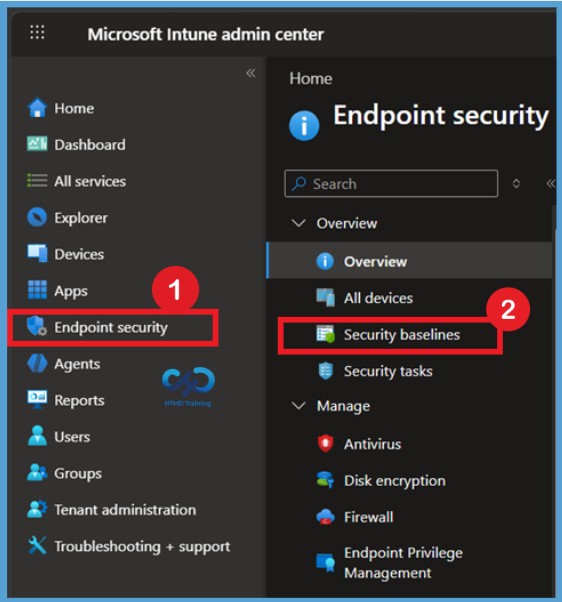
The Security Baselines workspace serves as a centralized location for deploying Microsoft’s recommended security configurations. Administrators can review available baseline templates, compare baseline versions, and create new profiles based on the latest security recommendations for Windows devices. Here You can see several other baseline policies in this node, Select the Security Baseline for Windows 10 and later set.

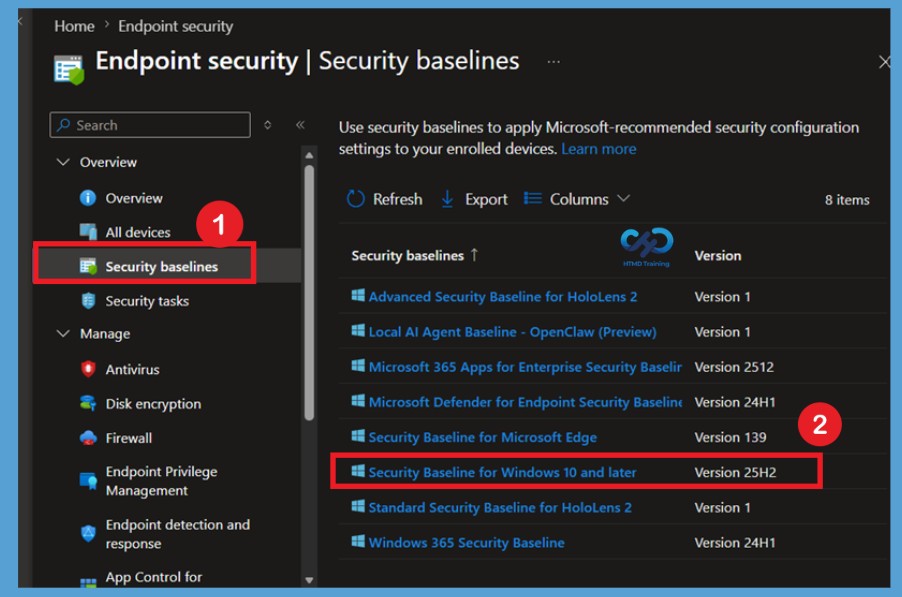
You can now click on + Create Profile to create a Security Baseline for Windows 10 or 11. You can also check the versions of the baseline available. The Supported baseline is November 2021.When a new baseline version becomes available, it replaces the previous version. Profiles instances that you’ve created prior to the availability of a new version. You may notice the banner showing the message that At least one profile or policy is using a deprecated version. Microsoft recommends that you update all policies and profiles to the latest version.
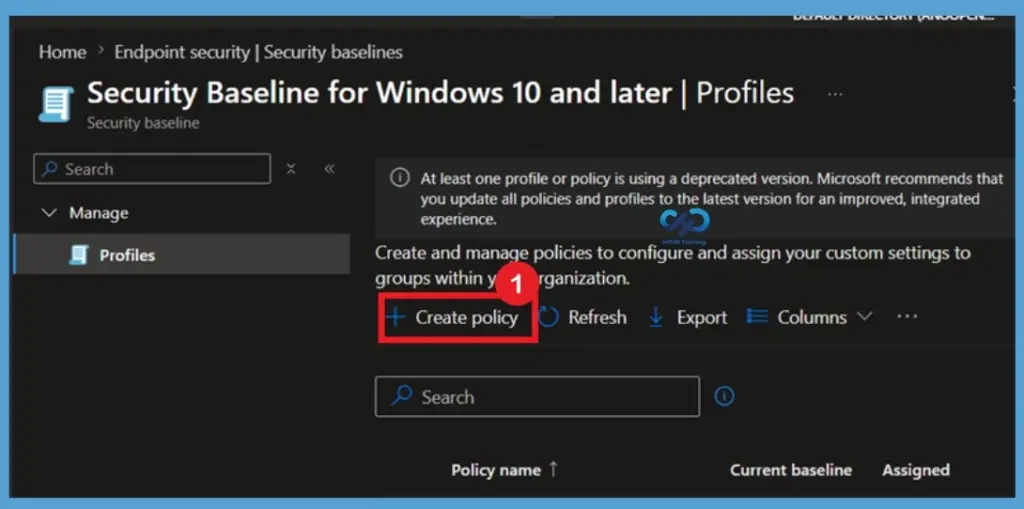
Creating a new profile allows administrators to deploy a customized instance of the security baseline. While Microsoft provides recommended default values, organizations can review and adjust individual settings to meet their specific security, compliance, and operational requirements. Platform already selected Windows and Security baseline Windows 10 and later
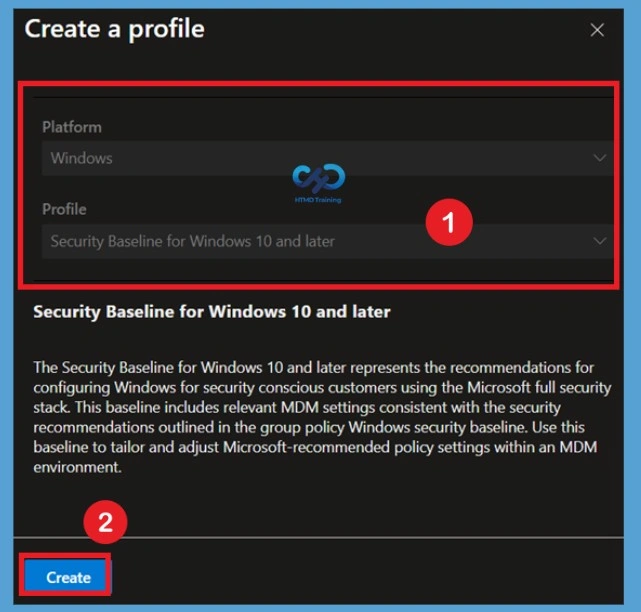
Configure Basic Information
You will have to enter the name and description of the Security Baseline for Windows 10 or 11. The platform and Baseline version are automatically selected. You can click on the Next button to continue.
- Name -> Security Baseline for Windows 10 or Windows 11
- Descrption – Intune Security Baselines Policies for Windows 10 or Windows 11
- Platform -> Windows 10 and Later
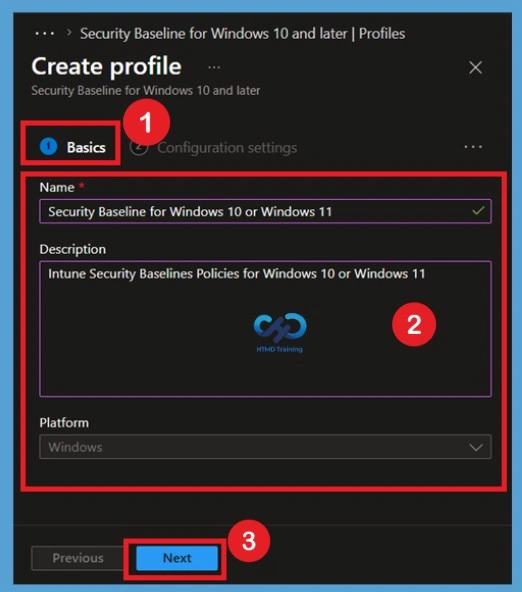
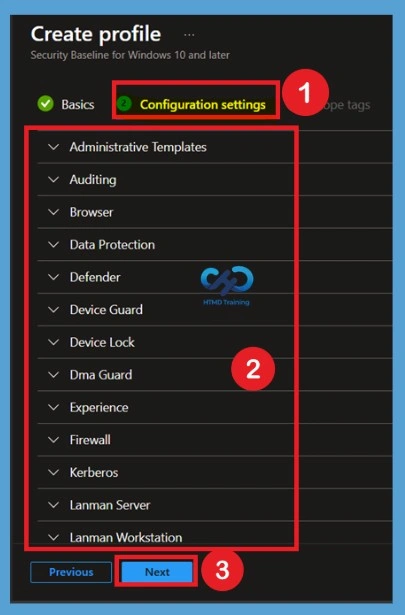
Configuration Settings
The Configuration Settings page displays all security categories and settings included in the selected baseline. Administrators can expand each category to review Microsoft’s recommended values and modify settings if necessary. Each setting is preconfigured according to Microsoft’s security guidance, helping organizations quickly deploy a secure configuration. While customization is supported, it is generally recommended to use the default baseline values.
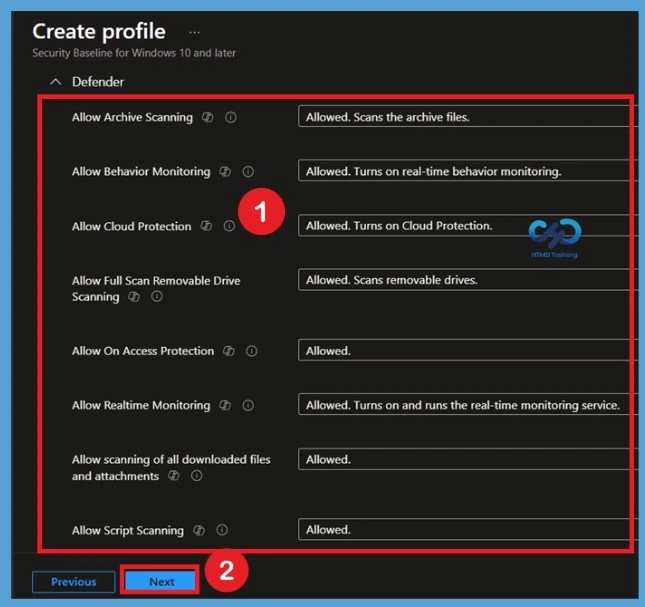
Each setting in a baseline has a default configuration for that baseline version. This will help you understand the configurations quickly and adjust them as per your requirements. However, We would recommend using the default security baseline.
| Setting Name | Baseline Default |
| Allow Archive Scanning | Allowed |
| Allow Behavior Monitoring | Allowed |
| Allow Cloud Protection | Allowed |
| Allow Full Scan Removable Drive Scanning | Allowed |
| Allow Realtime Monitoring | Allowed |
| Allow scanning of all downloaded files and attachments | Allowed |
| Allow Script Scanning | Allowed |
Configure Scope Tags
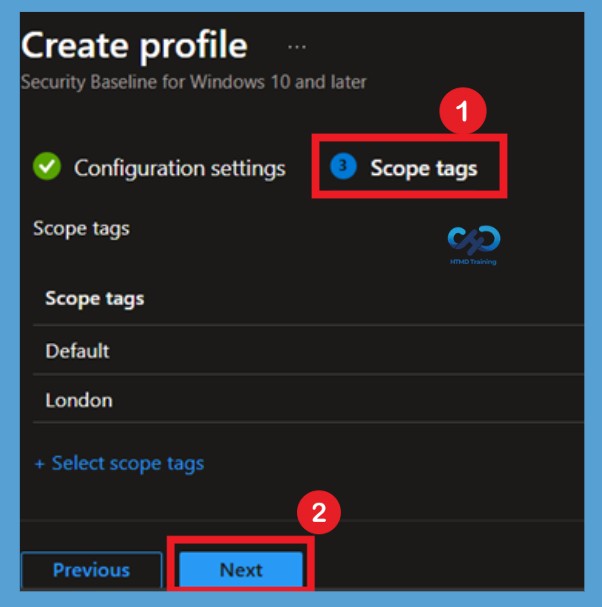
The Scope Tags page allows administrators to assign scope tags to the policy. Scope tags are used to control administrative visibility and access within organizations that use role-based administration. Applying scope tags ensures that only authorized IT teams can view and manage the security baseline. Here I added the Scope Tag
Assign the Security Baseline Policy
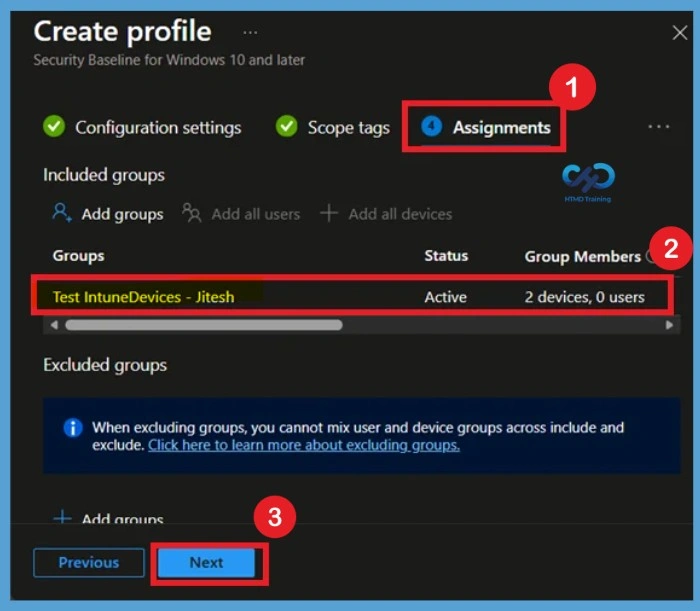
On the Assignments page, select the device or user groups that will receive the security baseline policy. Administrators can also exclude specific groups if certain devices should not receive the configuration. On the Assignments tab, select groups to include and assign the baseline to one or more groups. Select Next to continue.
Review and Create the Policy
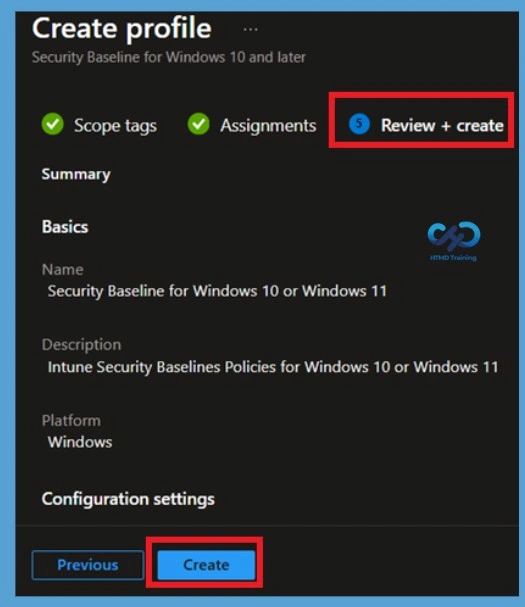
The Review + Create page summarizes all configured settings, assignments, and deployment options. Review the information carefully before proceeding with policy creation. When you’re ready to deploy the baseline, advance to the Review + create tab and review the details for the baseline. Select Create to save and deploy the profile.
Verify Successful Policy Creation
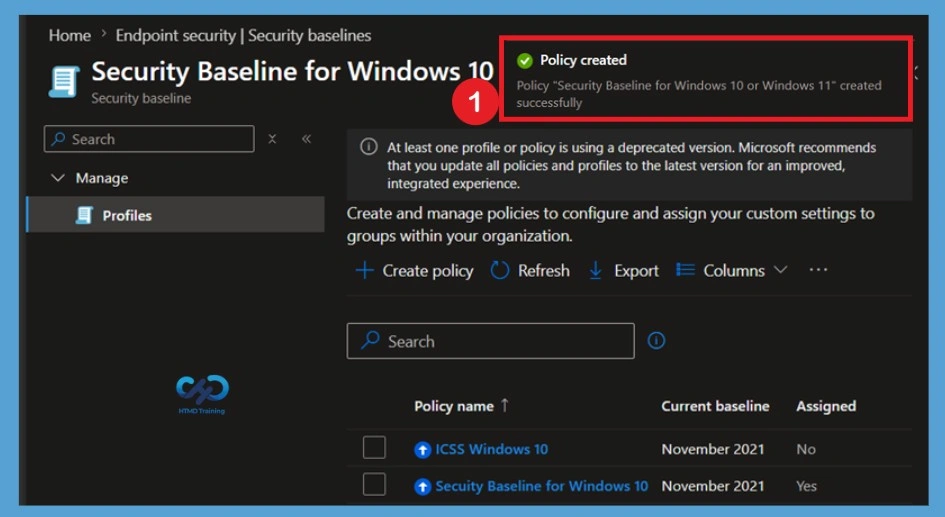
A notification will appear automatically in the top right-hand corner with a message. You can see the message “Profile created successfully”. Once you create the profile, it’s pushed to the assigned group and might apply immediately.
Monitor Intune Security Baselines and Profiles
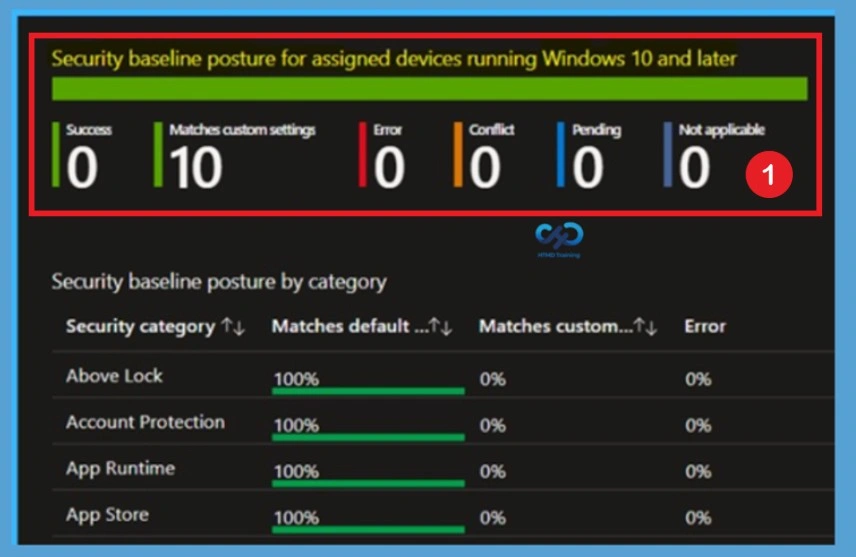
Once deployment begins, administrators can monitor the policy through the Overview, Device Status, User Status, and Assignment Status reports available within the policy. These reports provide valuable insights into deployment success, failed assignments, and pending configurations. Monitoring deployment status helps administrators quickly identify and resolve issues affecting policy application. Intune provides several options to monitor security baselines. You can:
- Monitor a security baseline, and any devices that match (or don’t match) the recommended values.
- Monitor the security baseline profile that applies to your users and devices.
- View how the settings from a selected profile are set on a selected device.
Need Further Assistance or Have Technical Questions?
Join the LinkedIn Page and Telegram group to get the latest step-by-step guides and news updates. Join our Meetup Page to participate in User group meetings. Also, join the WhatsApp Community and the WhatsApp channel to get the latest news on Microsoft Technologies. We are there on Reddit as well
Author
About Author – Jitesh, Microsoft MVP, has over six years of working experience in the IT Industry. He writes and shares his experiences related to Microsoft device management technologies and IT Infrastructure management. His primary focus is Windows 10/11 Deployment solution with Configuration Manager, Microsoft Deployment Toolkit (MDT), and Microsoft Intune.