
Key Takeaways:
- ASR Policy for Blocking USB Device Access
- Helps to pose a data leakage of USB storage devices
- USB storage usage is restricted based on the configured policy
- BitLocker removable drive policies to ensure users can only write to BitLocker-protected removable media.
Let’s discuss about Block USB Device Access using Intune ASR Policy. In this post, we will see how to Block USB Device Access in Microsoft Intune. You can block access to USB storage to restrict copying the data to USB devices and control the use of unauthorized USB devices in your corporate network. Removable Disk Deny Write Access. As an organization, It’s important to understand all security aspects to protect and be safe.
Table of Contents
Table of Contents
Block USB Device Access using Intune
With the settings for device control, you can configure devices for a layered approach to secure removable media. Microsoft Defender for Endpoint provides multiple monitoring and control features to help prevent threats in unauthorized peripherals from compromising your devices.
- Block Untrusted Executables to Prevent Ransomware Attacks using Intune ASR Rule
- Block Attempts to Restart Devices in Safe Mode using Intune ASR Rule
- Block Malicious Code Creation in Word Excel and PowerPoint using Intune ASR Rule
Steps to Block USB Device Access
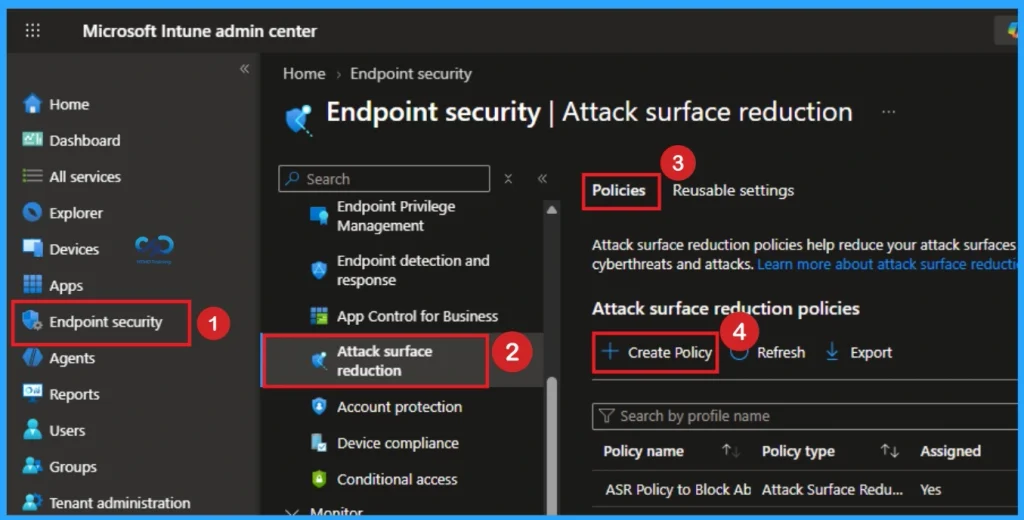
Let’s follow the below steps to block USB Device Access using Intune. Sign in to the Microsoft Intune admin center. Then go to Endpoint security > Attack surface reduction > Create Policy.
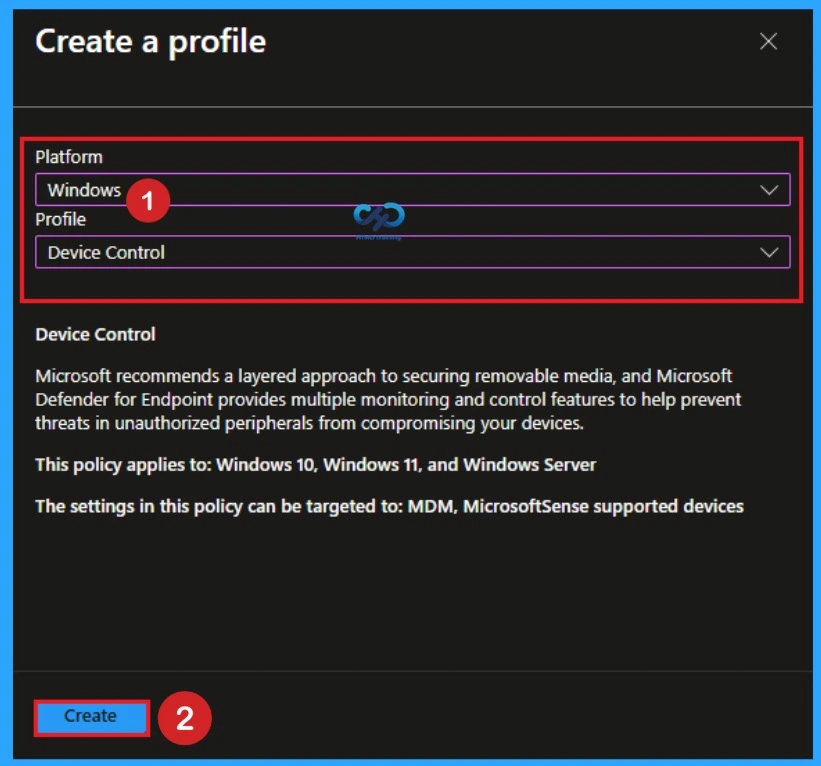
After that you will get In Create Profile page and you can , Select Platform as Windows, and Profile, Device control. Click on Create button.

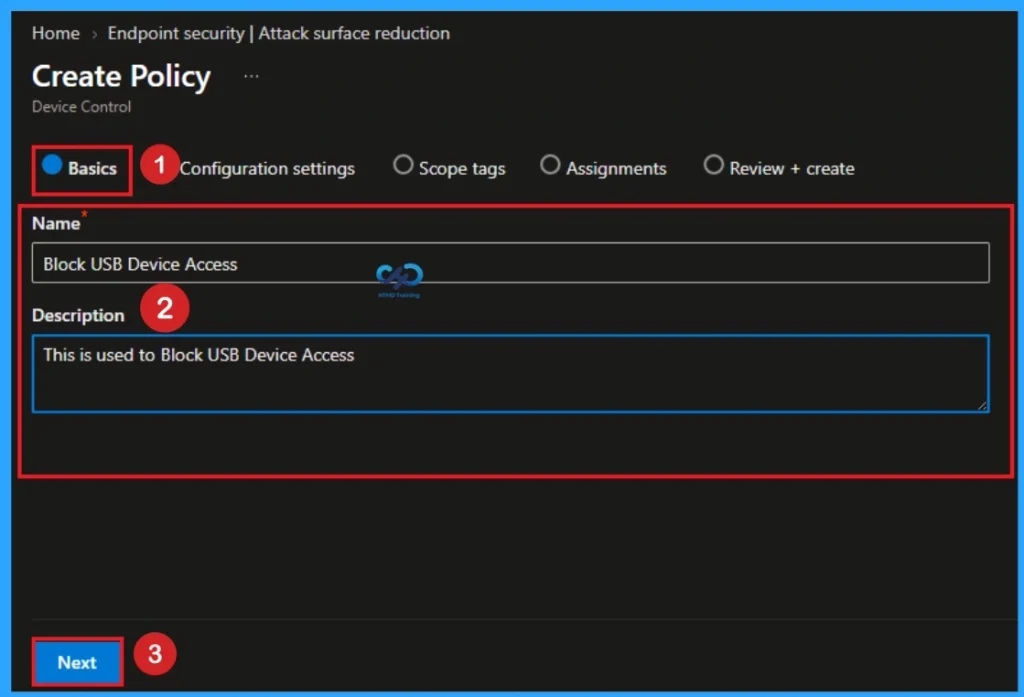
Basic Tab
On the Basics tab, enter a descriptive name, such as Block USB Device Access. Optionally, enter a Description for the policy like This is used to Block USB Device Access, then select Next.
Configuration Settings
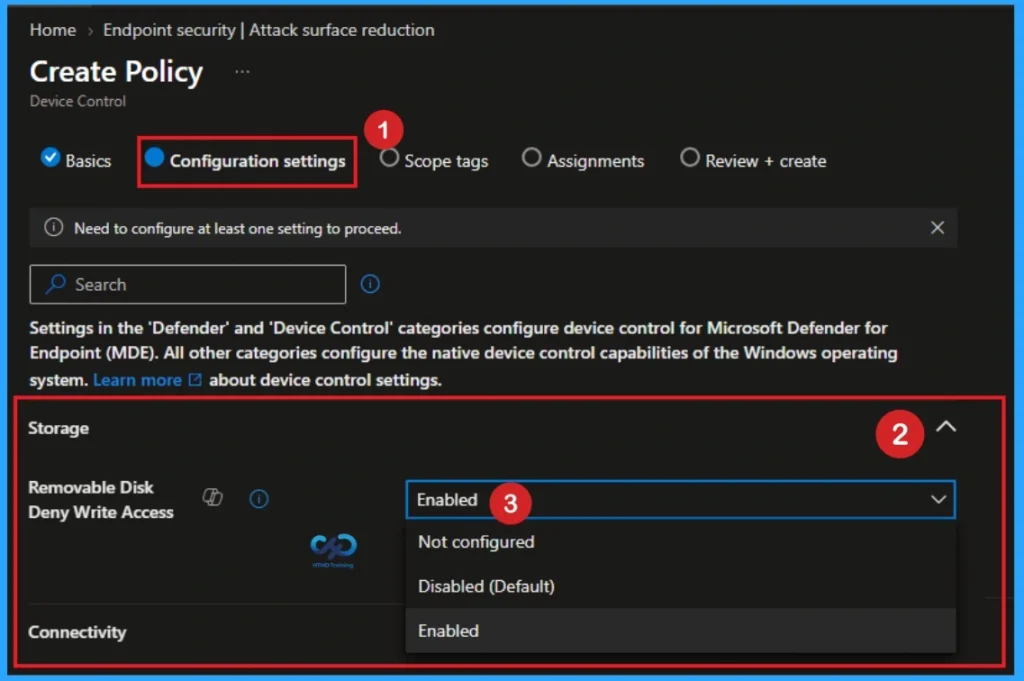
On the Configuration settings, Scroll down the lists of available device control settings and Configure Removable Disk Deny Write Access to Yes. This policy will block the use of removable storage on the device. And Click Next.
| Policy Details |
|---|
| If you enable the Removable Disk Deny Write Access policy setting, write access is denied to this removable storage class. If you disable or do not configure this policy setting, write access is allowed to this removable storage class. |
| To require that users write data to BitLocker-protected storage, enable the policy setting “Deny write access to drives not protected by BitLocker,” which is located in “Computer Configuration\Administrative Templates\Windows Components\BitLocker Drive Encryption\Removable Data Drives.” |
Note 2: Allow USB Connection policy is applicable only in HoloLens 2, Hololens (1st gen) Commercial Suite, and HoloLens (1st gen) Development Edition. This enables a USB connection between the device and a computer to sync files with the device or to use developer tools to deploy or debug applications.
Changing this policy does not affect USB charging. Both Media Transfer Protocol (MTP) and IP over USB are disabled when this policy is enforced. The most restricted value is 0.
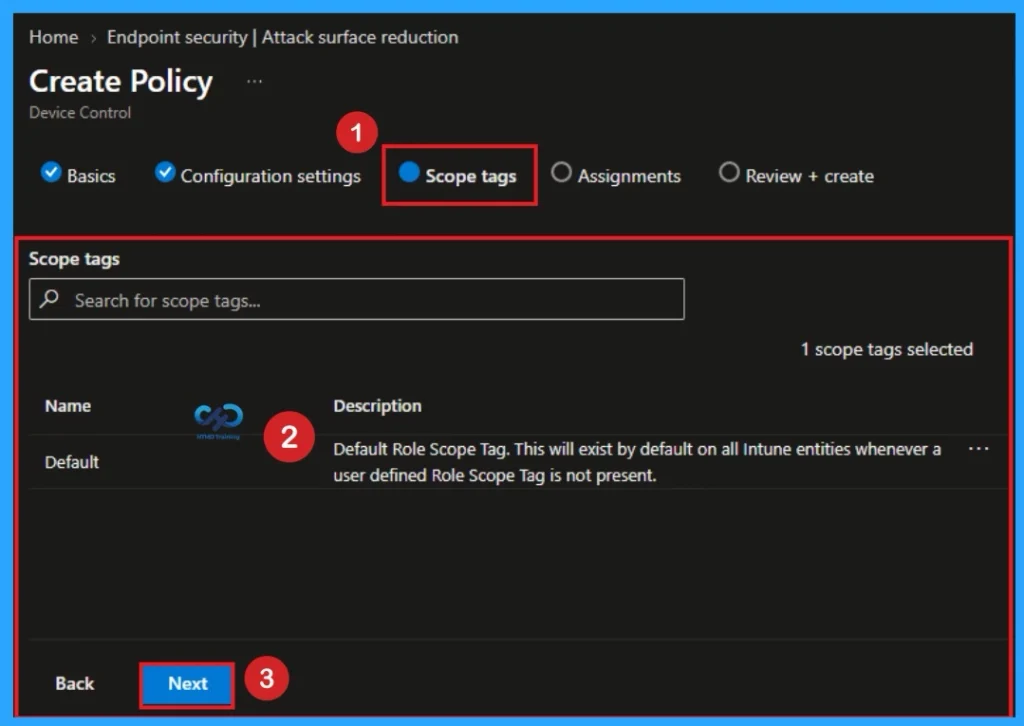
Scope Tags
In Scope tags, you can assign a tag to filter the profile to specific IT groups. Add scope tags (if required) and click Next.
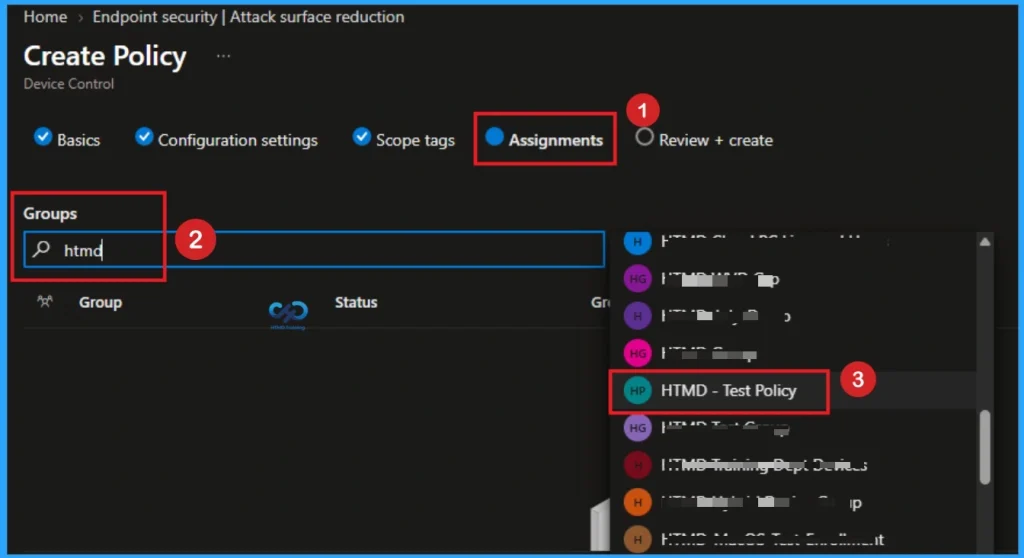
Assignments for Selecting Group
Under Assignments, you can search for groups to assign the ASR policy. After searching you can choose groups from the search result.
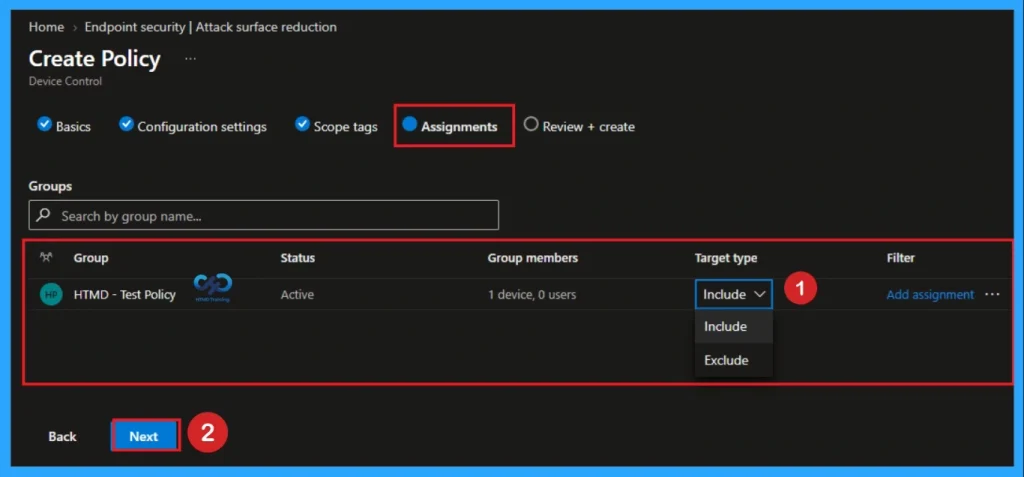
After hoosing groups you can see the group on the Assignment Tab. Here you can Included or exclude the groups. Select Next to continue.
Review Policy
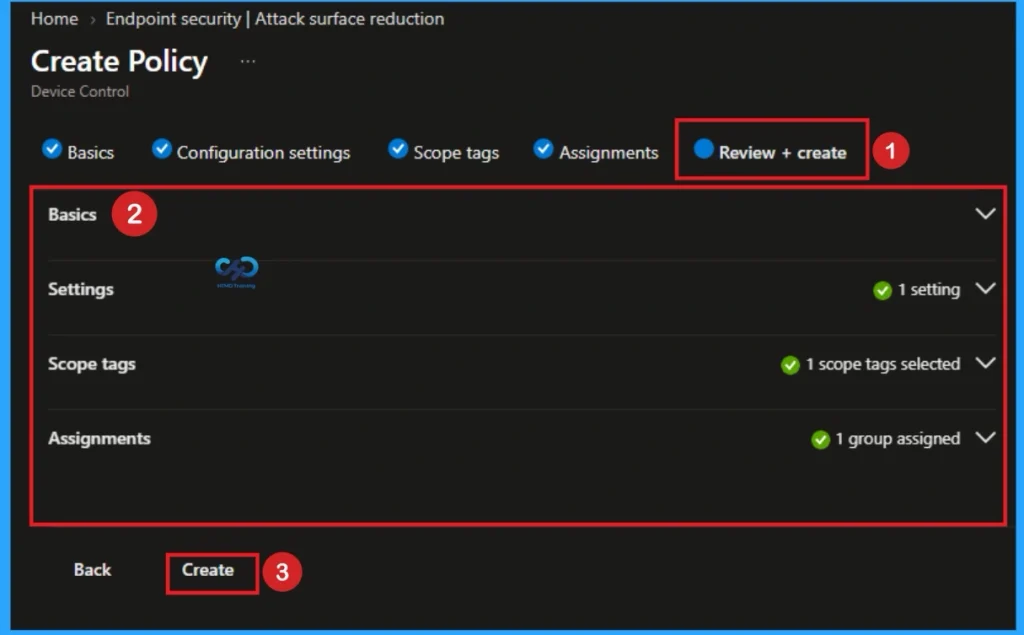
In Review + create, review your settings. This step helps you to avoid policy misconfiguration. When you select Create, your changes are saved, and the policy is assigned.
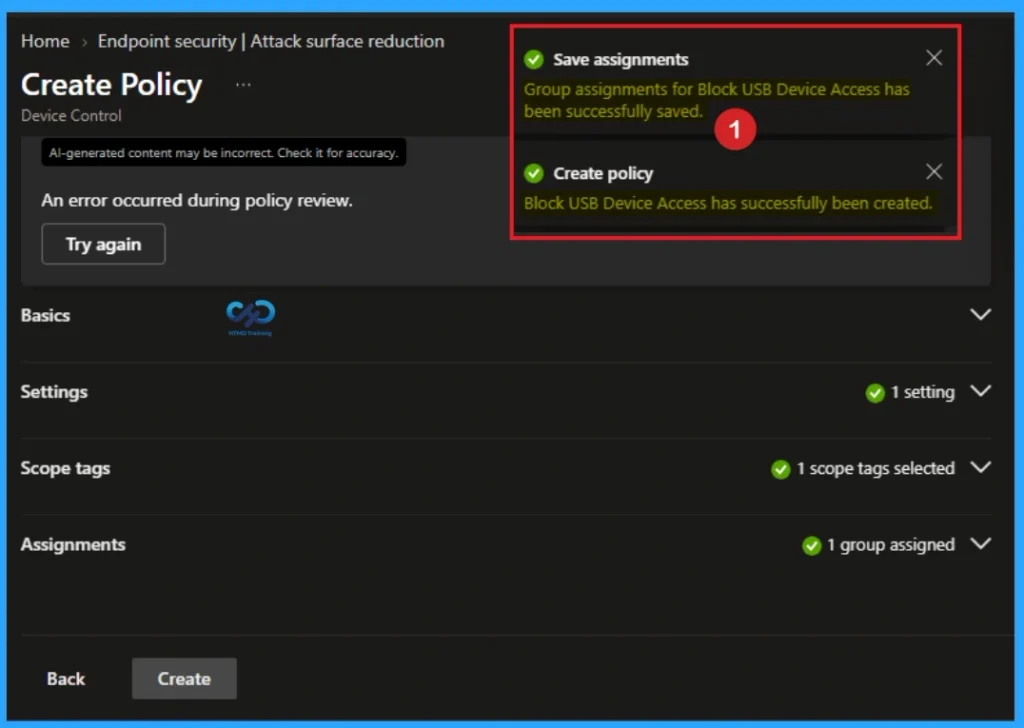
A notification will appear automatically in the top right-hand corner with a message. Here you can see, Profile was created successfully. The policy will also shown in the list as shown below.
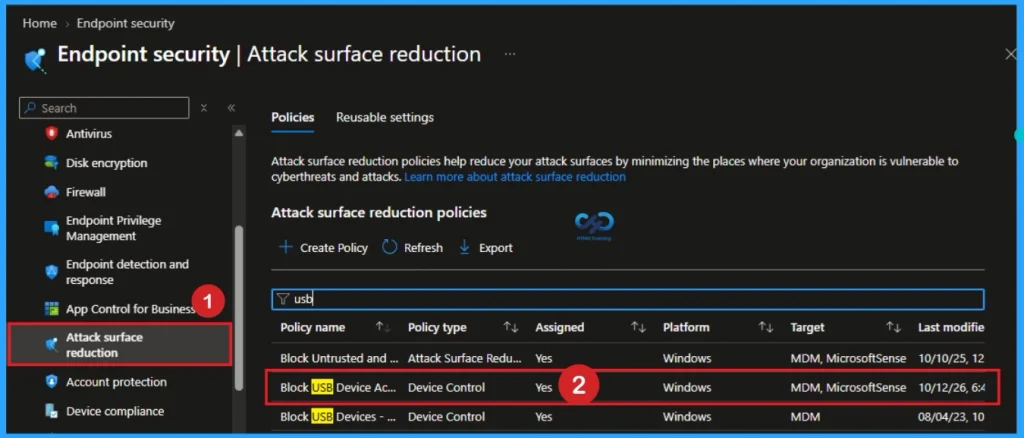
Checking ASR Policy Status
After you will get the success notification, you can check the policy status on Endpoint security > Attack surface reduction and search the policy with Name.
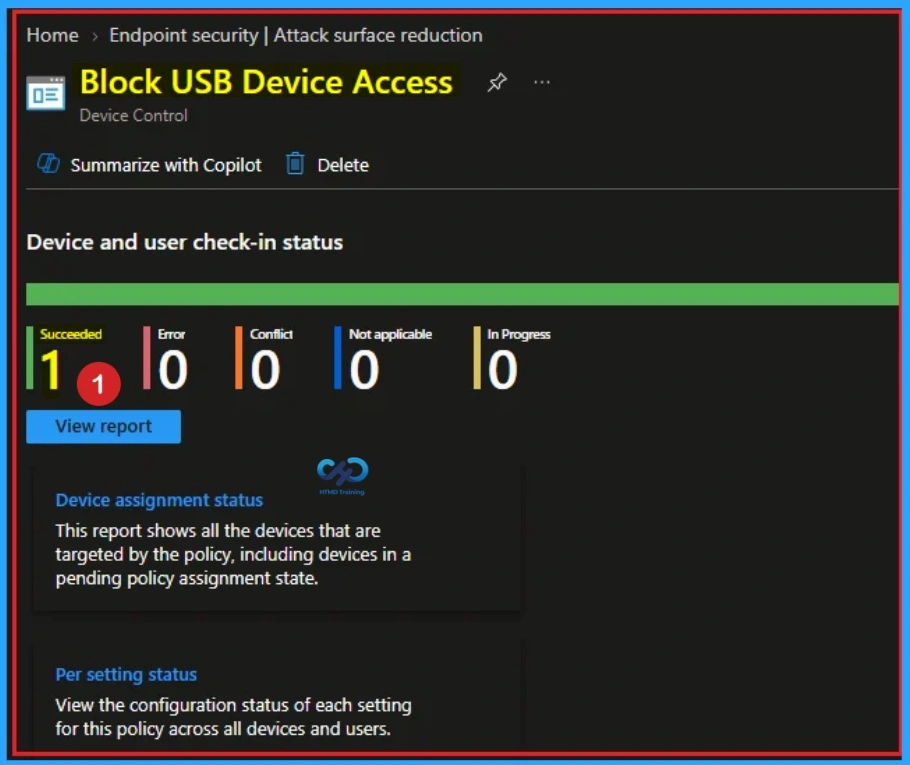
The below screenshot shows the device check-in status of Block USB Device Access using Intune ASR Policy. Here it is shows succeeded as 1 which means policy is success.
End User Experience
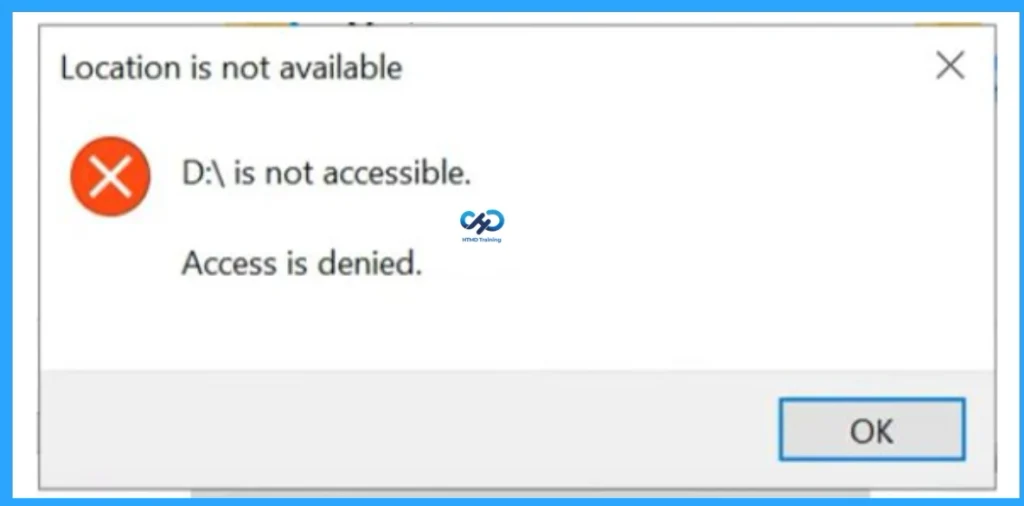
Once the policy applies to the device, users will not access removable storage devices connected with the system. Look at the below screenshot.
Need Further Assistance or Have Technical Questions?
Join the LinkedIn Page and Telegram group to get the latest step-by-step guides and news updates. Join our Meetup Page to participate in User group meetings. Also, join the WhatsApp Community and the Whatsapp channel to get the latest news on Microsoft Technologies. We are there on Reddit as well.
Author
About Author -> Jitesh has over 5 years of working experience in the IT Industry. He writes and shares his experiences related to Microsoft device management technologies and IT Infrastructure management. His primary focus area is Windows 10 Deployment solution with Configuration Manager, Microsoft Deployment Toolkit (MDT), and Microsoft Intune.
Hi can we block usb access for Mac using Intune
I have not tested it. But I will try this option https://forum.howtomanagedevices.com/endpointmanager/intune/is-it-possible-to-block-usb-access-in-mac-os-using-intune/
Hi, is it possible to add an “allow list” to this policy for devices you don’t want to block ?
This will block only the USB Storage … all the other USB device should work. Are you looking for any particular USB storage device here.
Hi,
Great post!
I have applied the above policy to a few machines and there is one machine that has an exception but when I added that device to the exception group (after applying block policy) and assigned the policy, the USB storage block policy is not removed and the device is still blocking the USB storage.
any help?
I think it’s worth checking this https://www.anoopcnair.com/intune-policy-tattooed-not-tattooed-windows-csp/
Hi, i must allow only read from USB Storage devices, is that possible using Intune Endpoint?
You can check the post -> Disable Removable Storage Write Access Using Intune
https://www.anoopcnair.com/disable-removable-storage-write-access-intune/
Just putting a note here this will not work with windows 10 teams edition (SurfaceHub) You may have to create a custom policy.
The above settings block all storage devices but how can we whitelist a specific storage devices?
Hi,
I block using above note but i remove policy still blocking my usb device
It’s because of Intune tattooing issue https://www.anoopcnair.com/intune-policy-tattooed-not-tattooed-windows-csp/
You need to send a policy with unblocking USB values to get rid of block values from various places.
The UI for this policy is changed in Intune. Now it doesn’t show up as Block external storage.
Updated the post with more details and screenshots. Does that make sense?
Also, there are more options explained at https://techcommunity.microsoft.com/t5/microsoft-defender-for-endpoint/protect-your-removable-storage-and-printers-with-microsoft/ba-p/2324806
How would we deny read access to removable devices while still allowing printers, keyboards, mouses etc? It seems the only option now is to block write access but i do not see an option for read.
As one user mentioned in Nov 2022, the “Removable Disk Deny Write Access” setting is no longer available in Intune ASR policies.
How is blocking of USB storage devices now managed?
I’ve established a policy called Attack surface reduction policies-USB Drive Restrictions for Block USB and assigned it to all users. This policy excludes some allowed USB groups, but USB access is still blocked.
How can the excluded USB group have access to USB?
Has anyone figured out how to create an exception list after blocking all removable storage? most articles online suggest you first “Enable” (Prevent installation of devices not described by other policy settings) and then create an allow list with (Allow installation of devices that match any of these device instance IDs).
but somehow this fails to work on my end. Has anyone successfully done this?
How to disable USB hard drives via policy in Intune and defender as well for devices but keep mouse, keyboard and audio classes open for those devices?
Dear Anoop,
I want to block USB removal storage and type C port which can connect mobile data transfer to be blocked by using intune portal.
Regards
Kirankumar
How can i block an external hard disk?
Hi,
Restrict USB devices and allow specific USB devices using Administrative Templates in Microsoft Intune.
Is this policy works? As I have tested on a device but it is detecting my pendrive
Hi,
Restrict USB devices and allow specific USB devices using Administrative Templates in Microsoft Intune.
Is this policy works? As I have tested on a device but it is detecting my pendrive.
Hi Sir,
Kindly share the steps for intune via mac device usb block.