
Key Takeaways
- Prevents users from adding new emails or mailbox items to existing PST files.
- Supports cloud-based mailbox management strategies.
- Helps reduce the risks associated with unmanaged local email archives.
- Assists organizations in meeting compliance and data retention requirements.
In this post, we can get to know how to Disable PST Access in Microsoft Outlook to Prevent Unmanaged Email Storage using Intune Policy. This policy prevents users from adding new content to PST files that are already associated with their Outlook profiles. While users may still be able to access existing PST data, they cannot save additional emails, folders, or mailbox items into those files. This helps organizations control how Outlook data is stored without immediately removing access to historical information.
Table of Contents
Table of Contents
Disable PST Access in Microsoft Outlook to Prevent Unmanaged Email Storage using Intune Policy
Restricting new content from being written to PST files minimizes the use of local mailbox archives and encourages users to rely on centrally managed Microsoft 365 mailboxes and organizational retention policies. It is particularly useful for organizations that are transitioning away from PST-based email storage or implementing stricter data governance requirements. In 2026, organizations continue to prioritize cloud-first data management and regulatory compliance
- Prohibit Access to Control Panel and PC Settings to Prevent Users from Modifying System Settings using Intune Policy
- Configure RDP Properties Using Intune Settings Catalog
- Intune User Policy Troubleshooting Tips For Prevent Changing Theme
- Intune Win32 App Deployment Troubleshooting Help Guide
- Intune Security Baseline Microsoft Defender Policy Troubleshooting Tips
- Troubleshoot Microsoft Edge Security Policy Deployment Issues
Create the Disable PST Access to Outlook Profile Policy
Deploying this policy through Microsoft Intune provides administrators with an efficient way to prevent uncontrolled growth of PST files while maintaining visibility and management of Outlook data across managed devices.
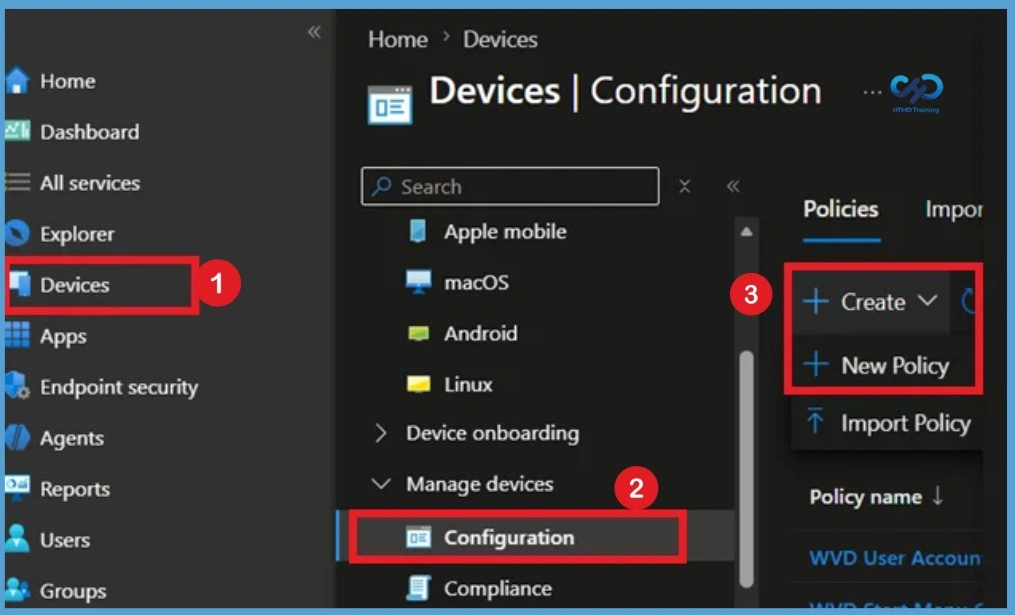
So, let’s look how to deploy this policy in MS Intune. First, Sign In to the Microsoft Intune Admin Center. After signing in, navigate to Devices > Windows > Configuration Profiles and select Create > New Policy to begin creating a new Settings Catalog profile for the Remove Search Link from Start Menu policy. The following are the two PST policies, and both are user-based policies. Let’s get started!

- Login to Microsoft Intune Admin Center
- Navigate to Devices > Windows > Configuration profiles.
- Click on +Create Profile.
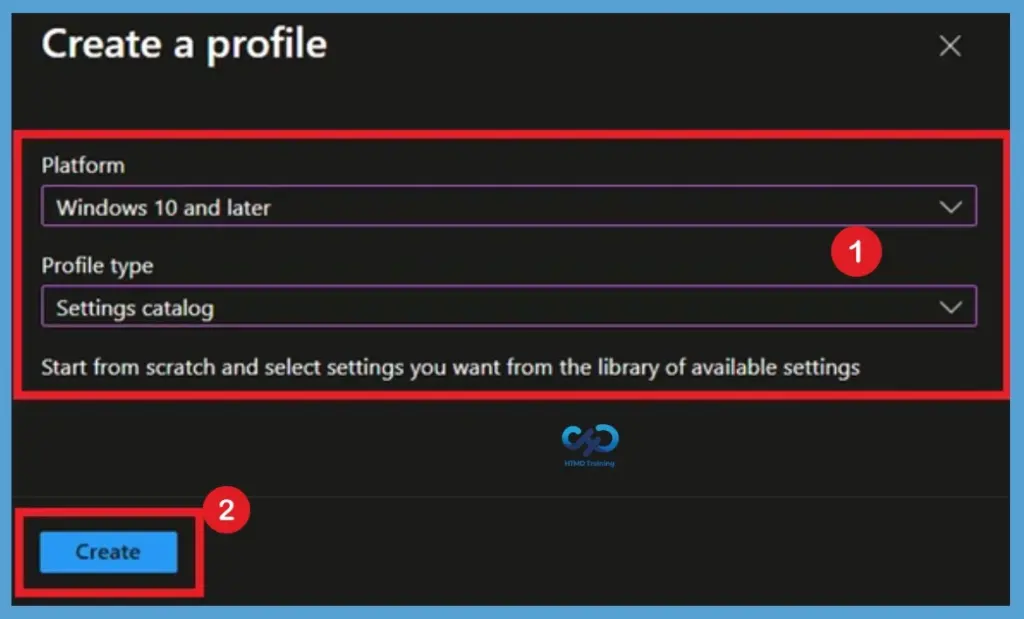
When creating a new policy, select Windows 10 and later as the platform and choose Settings Catalog as the profile type. The Settings Catalog includes thousands of Windows configuration settings and is Microsoft’s recommended method for managing modern Windows policies in Intune.
Basic Tab for PST Access to Outlook Profile Policy
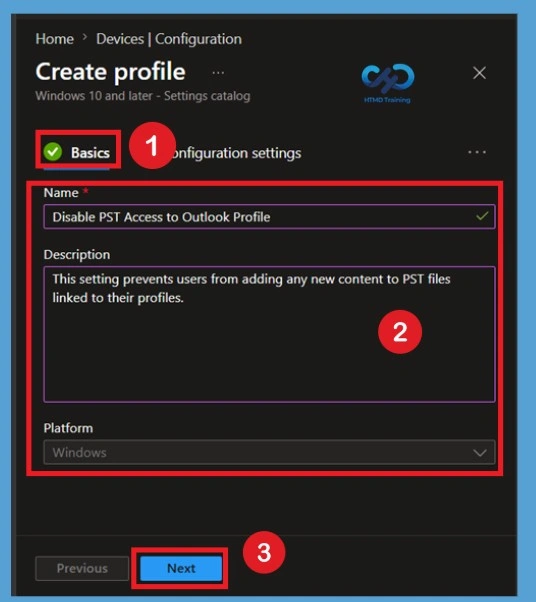
Once you click on Create button from the above page then on the Basics page, provide a meaningful policy name that clearly identifies its purpose, such as Disable PST Access to Outlook Profile. You can also add a description explaining that the policy restricts PST file usage in Microsoft Outlook to improve data security and support organizational compliance requirements. The Basics page is primarily used to document the policy so that administrators can easily identify its purpose in the Intune portal.
- Name – Disable PST Access to Outlook Profile
- Click Next to proceed to the Configuration
Configure the Disable PST Access to Outlook Profile Policy Settings
On the Configuration settings page, click Add settings to open the Settings Picker. In the search or category section, browse to Microsoft Outlook 2016 > Miscellaneous > PST Settings. From the available list of settings, select both Prevent users from adding PSTs to Outlook profiles and prevent using Sharing-Exclusive PSTs (User) and Prevent users from adding new content to existing PST files (User). These two user-based settings are used to restrict PST file usage in Microsoft Outlook.
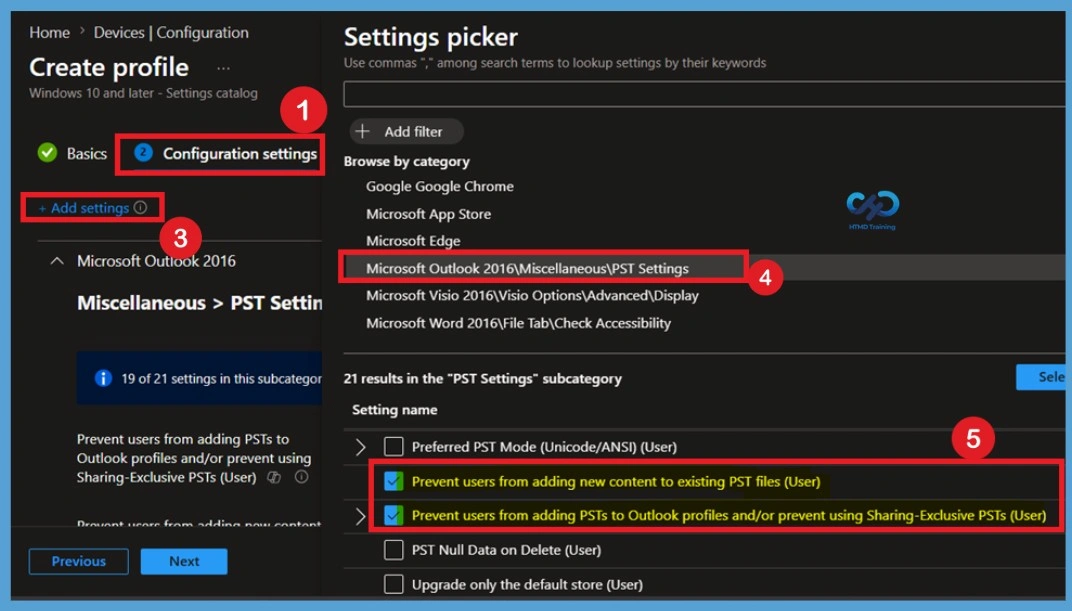
Default State of the Disable PST Access to Outlook Profile Policy
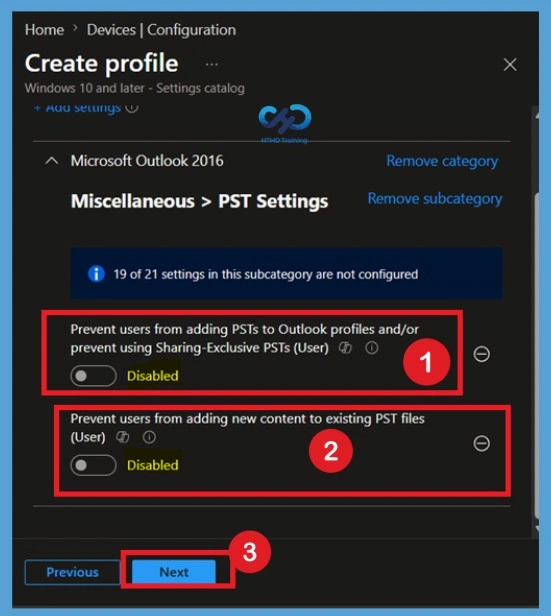
By default, both Outlook PST policies are configured as Disabled when they are first added to the Settings Catalog profile. In this state, users can continue to add PST files to their Outlook profiles and store additional content in existing PST files without any restrictions. No changes are applied to Outlook’s default PST functionality unless the admins enables the policy settings.
- If no configuration changes are made, Outlook will continue operating with its default PST file behavior.
- Click on the Next If you want to continue in this State.
- Prevent users from adding new content to existing PST files (User) – Disabled by Default
- Prevent users from adding PSTs to Outlook profiles and – or prevent using Sharing-Exclusive PSTs (User) – Disabled by Default
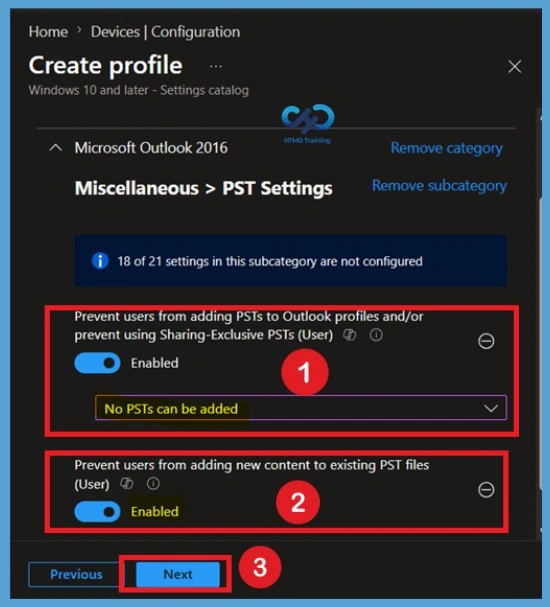
Enable the Disable PST Access to Outlook Profile Policy
To enable PST restrictions, turn on the toggle button for Prevent users from adding PSTs to Outlook profiles and prevent using Sharing-Exclusive PSTs (User). Once enabled, a drop-down menu becomes available that allows administrators to choose the appropriate restriction level. To completely block PST file usage, select No PSTs can be added from the available options. This configuration prevents users from adding PST files to Outlook profiles and helps eliminate unmanaged email storage on local devices.
- Next, enable the Prevent users from adding new content to existing PST files (User) setting by switching its toggle to Enabled.
- You will also need to select the behavior of the second PST policy from the drop-down option. I have gone with a very strict option called – No PSTs can be added.
- When configured, users will still be able to access existing PST files if applicable, but they will not be allowed to save new emails, folders, or mailbox items to those files.
- After enabling both settings and selecting the required configuration option, click Next to continue with the policy deployment process.
Note: Enable the first policy Prevent users from adding new content to existing PST files (User) –
This setting prevents users from adding any new content to PST files linked to their profiles.
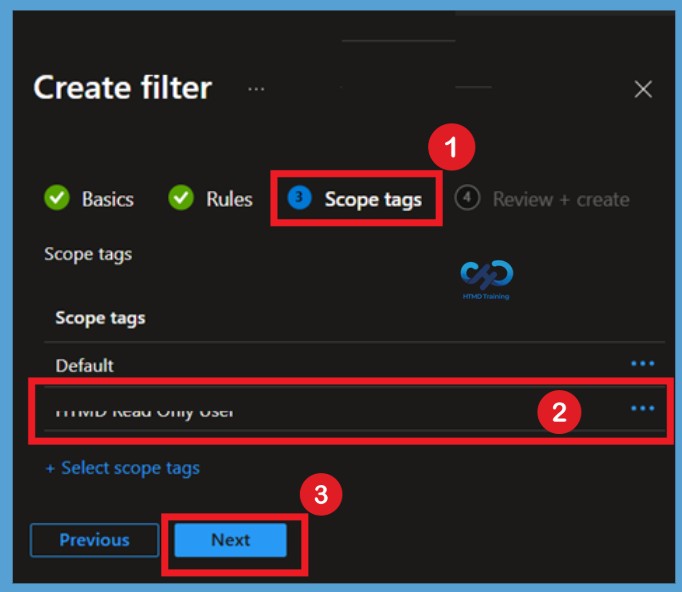
Scope Tags for the PST Access to Outlook Profile Policy
The Scope Tags page allows administrators to control which administrative groups can view and manage the policy within Microsoft Intune. If your organization uses scope tags, select the appropriate tag that matches your administrative requirements. Here, in this configuration I Skip this section by clicking on the Next.
Assign Disable PST Access to Outlook Profile Policy
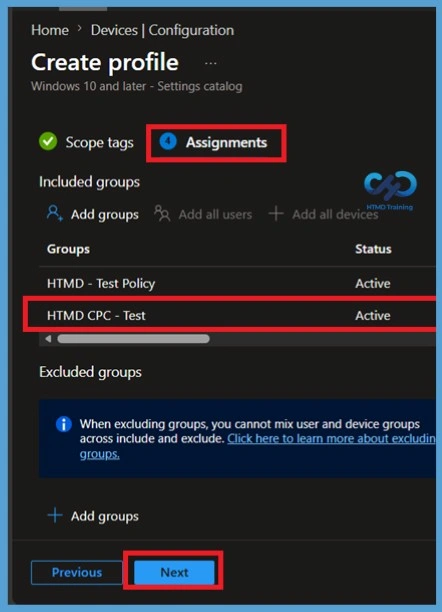
Since both Outlook PST settings are user-based policies, they must be assigned to Microsoft Entra user groups. On the Assignments page, click Add Groups and select the required user groups that should receive the policy. Assigning the policy ensures it is applied only to the intended users or devices, such as test groups or production environments. Here I selected the HTMD Test groups and then click on the Next.
Review and Create the PST Access to Outlook Profile Policy
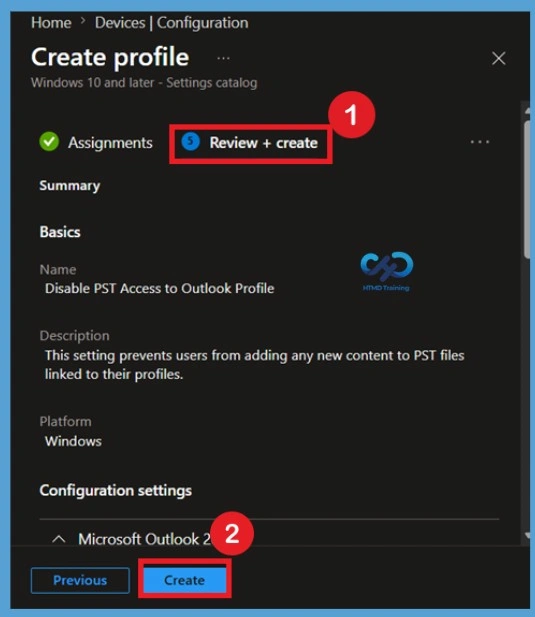
The Review + Create page provides a summary of all policy configurations before deployment. Carefully review the policy name, selected Outlook PST settings, enabled configurations, assigned groups, and scope tag selections to ensure that the policy has been configured correctly.
After confirming the settings, click Create to deploy the policy. Microsoft Intune will create the configuration profile and begin delivering it to the assigned users during the next policy sync cycle.
Monitor the PST Access to Outlook Profile Policy Deployment Status
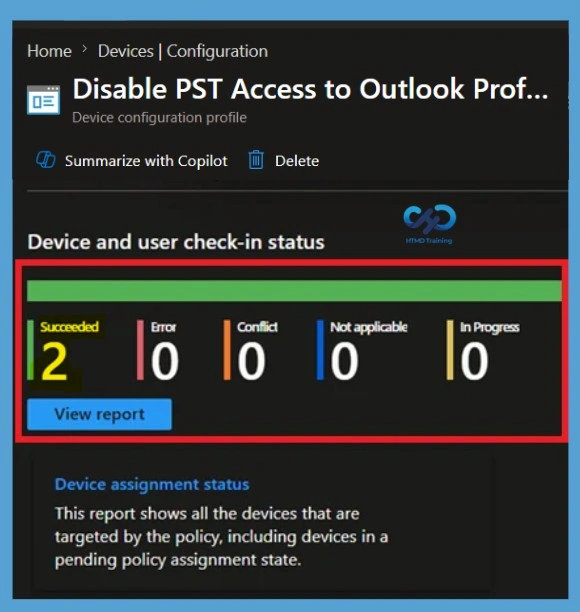
You can check the policy report from Intune Portal, which provides an overall view of device configuration policies deployment status. After deployment, open Devices > Windows > Configuration and select the Deploy Disable PST Access to Outlook Profile Policy profile. The Overview page displays deployment information, including Succeeded, Pending, Error, and Conflict status.
Verify the Client Devices– Prevent Users from Adding New Content to Existing PST Files
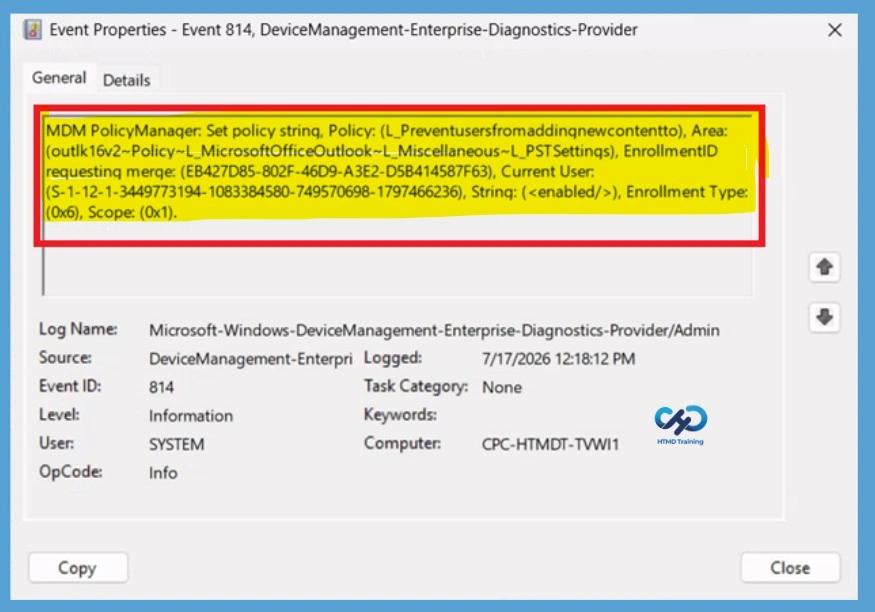
The Intune event ID 814 indicates a string policy is applied on the Windows 11 devices. You can also see the exact value of the policy being applied on those devices. You can also see the exact value of the policy applied to those users. In the target device, you can check the Event log path to confirm – Applications and Services Logs – Microsoft – Windows – Device management-Enterprise-Diagnostics-Provider – Admin.
- You can look at the Event ID 813 or 814 generated for the configured policies for managing apps.
- The below screenshot (event log entry) shows that Intune MDM PolicyManager has successfully applied a configuration policy to Outlook that prevents users from adding new content to existing PST files.
MDM PolicyManager: Set policy strinq, Policy: (L_Preventusersfromaddingnewcontentto), Area:
(outlk16v2~Policy~L_MicrosoftOfficeOutlook~L_Miscellaneous~L_PSTSettinqs), EnrollmentID
requestinq merqe: (EB427D85-802F-46D9-A3E2-D5B414587F63), Current User:
(S-1-12-1-3449773194-1083384580-749570698-1797466236), Strinq: (), Enrollment Type:
(0x6), Scope: (0x1).
Verify the Client Devices– Prevent users from adding PSTs to Outlook profiles and/or
prevent using Sharing-Exclusive PSTs (User)
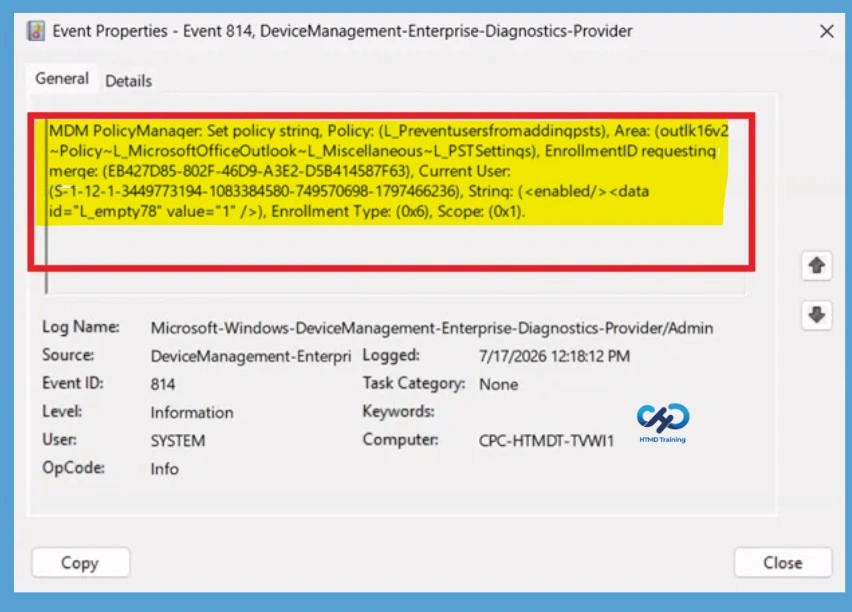
This below event log entry shows that Intune MDM Policy Manager has successfully applied a policy to Outlook that prevents users from adding new PST files to their profiles. You can check the Event log path to confirm – Applications and Services Logs – Microsoft – Windows – Device management-Enterprise-Diagnostics-Provider – Admin.
- You can look at the Event ID 814 for the configured policies for results.
| Policy Info |
|---|
| MDM PolicyManager: Set policy strinq, Policy: (L_Preventusersfromaddinqpsts), Area: (outlk16v2 ~Policy~L_MicrosoftOfficeOutlook~L_Miscellaneous~L_PSTSettinqs), EnrollmentID requestinq merqe: (EB427D85-802F-46D9-A3E2-D5B414587F63), Current User: (S-1-12-1-3449773194-1083384580-749570698-1797466236), Strinq: (), Enrollment Type: (0x6), Scope: (0x1). |
Remove Assigned Groups from the PST Access to Outlook Profile Policy
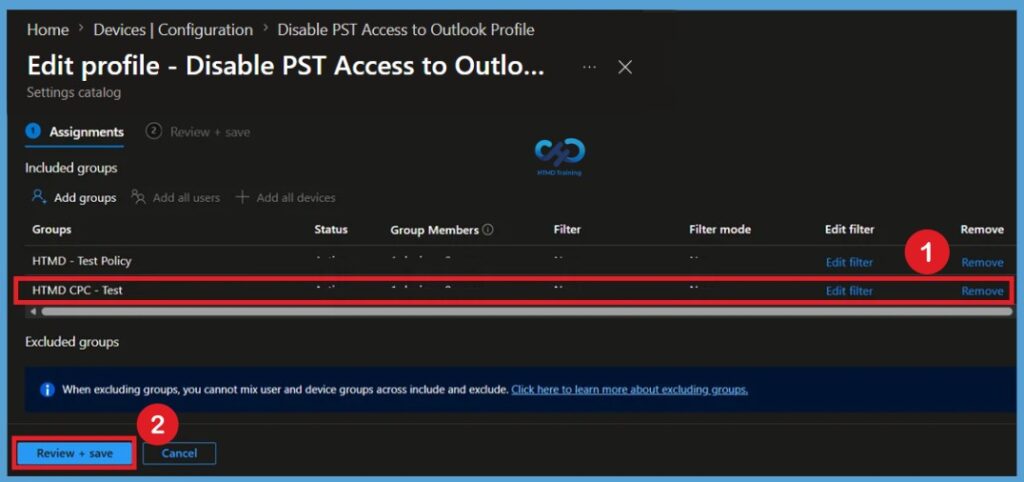
If Outlook PST restrictions are no longer required for certain users, administrators can remove the assigned Microsoft Entra user groups from the policy. Open the configuration profile, navigate to the Assignments section, and remove the user groups that should no longer receive the policy configuration.
- After saving the updated assignments, Intune will stop targeting those users during the next policy sync cycle.
- To remove the assignments, navigate to the policy profile in the Intune admin center and select Properties > Assignments > Edit. Remove the included or excluded groups associated with the policy and save the changes.
For detailed information, you can refer to our previous post – Learn How to Delete or Remove App Assignment from Intune using by Step-by-Step Guide.
Delete the Disable PST Access to Outlook Profile Policy
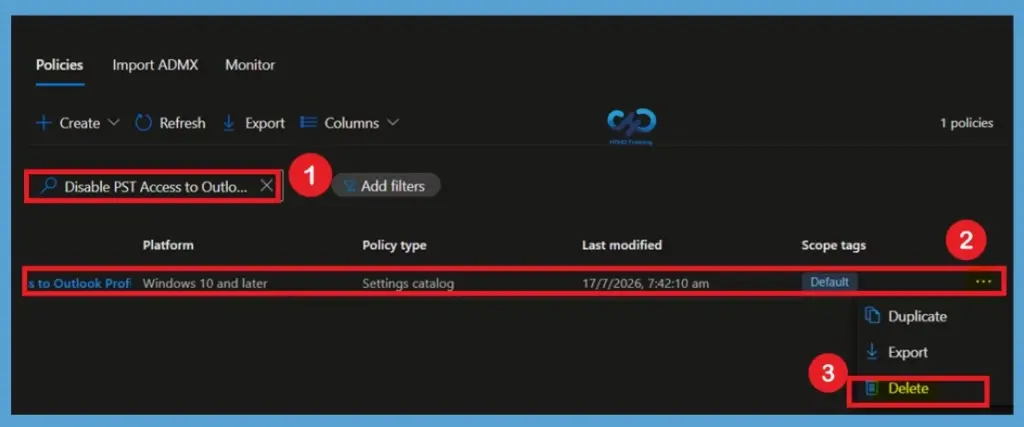
If the policy is no longer needed within the organization, it can be permanently deleted from Microsoft Intune. Navigate to Devices > Configuration Profiles, select the Outlook PST restriction policy, and choose the Delete option from the available actions. Before deleting the policy, ensure that it is no longer assigned to any user groups and that administrators understand the impact of removing PST restrictions from managed devices.
For detailed information, you can refer to our previous post – How to Delete Allow Clipboard History Policy in Intune Step by Step Guide.
Need Further Assistance or Have Technical Questions?
Join the LinkedIn Page and Telegram group to get the latest step-by-step guides and news updates. Join our Meetup Page to participate in User group meetings. Also, Join the WhatsApp Community and WhatsApp Channel to get the latest news on Microsoft Technologies. We are there on Reddit as well.
Author
Anoop C Nair has been Microsoft MVP from 2015 onwards for 10 consecutive years! He is a Workplace Solution Architect with more than 22+ years of experience in Workplace technologies. He is also a Blogger, Speaker, and Local User Group Community leader. His primary focus is on Device Management technologies like SCCM and Intune. He writes about technologies like Intune, SCCM, Windows, Cloud PC, Windows, Entra, Microsoft Security, Career, etc.
Hi Anoop,
I have done all the settings and Intune report also confirms that policy is applied successfully. But still I am able to add the PST file in the outlook profile.
Please advise.