

Key Takeaways
- Check the total, used, and available Microsoft Intune licenses from the Tenant Administration section in the Intune admin center.
- Monitor license usage to avoid running out of available Intune licenses.
- Ensure users and devices are assigned the appropriate Intune licenses before using the service.
- Use the Intune admin center for a quick overview of your subscription and license status.
- PowerShell and the Microsoft 365 admin center can also be used to view and manage Intune license details.
Check Microsoft Intune License Status using Intune Admin Center and PowerShell! In this post, you will learn how to check your Microsoft Intune license details in the Microsoft Intune admin center and how to view the current Intune license status using PowerShell. The Tenant administration section provides a quick overview of your Intune subscription, including the total number of licenses, licenses currently in use, and the number of available licenses.
Table of Content
Table of Contents
Check Microsoft Intune License Status using Intune Admin Center and PowerShell
Microsoft Intune requires eligible licenses for users or devices that directly or indirectly use Intune services and management features. In addition to the Intune admin center, you can use PowerShell to retrieve current license information programmatically, making it useful for automation, reporting, and large-scale tenant management.
- Latest Intune Admin Portal Walkthrough Guide | MEM Admin Center
- How to Scale PowerShell Automation using Cloud Runbooks
- Automate the Process of Removing Primary User from Intune Device using Microsoft Graph API
- Best way to Deploy Shell Scripts using Intune
- Run Remediation Script on-demand for Windows Devices using Intune
How to Check Intune License In Microsoft Intune Admin Center
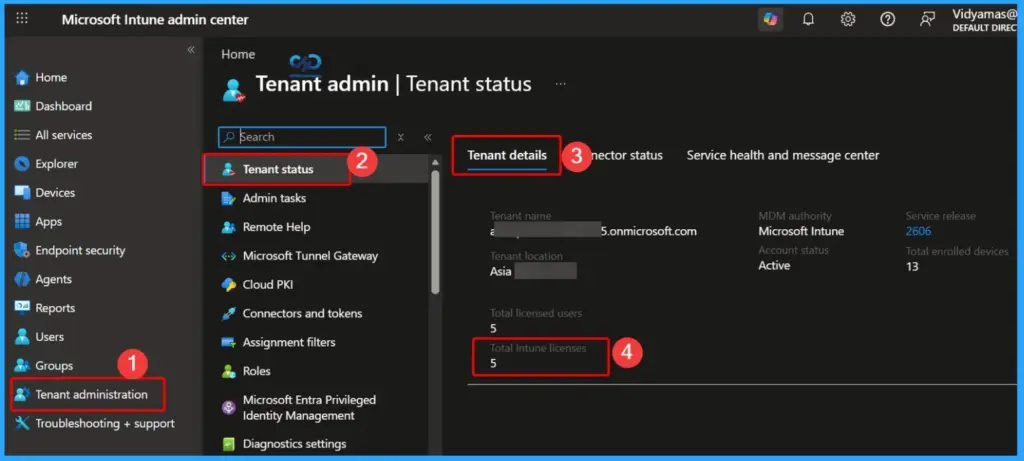
Sign in to the Microsoft Intune admin center and navigate to Tenant administration > Tenant status > Tenant Details. On the Tenant details tab, you can view key information about your Intune tenant, including the tenant name, location, MDM authority, service release version, and licensing details.
The License Information section displays the current Total Intune Licenses available for your tenant and the Total Licensed Users currently assigned an Intune license. This information helps administrators monitor license usage, identify available capacity, and ensure there are enough licenses to support users and devices managed by Microsoft Intune.

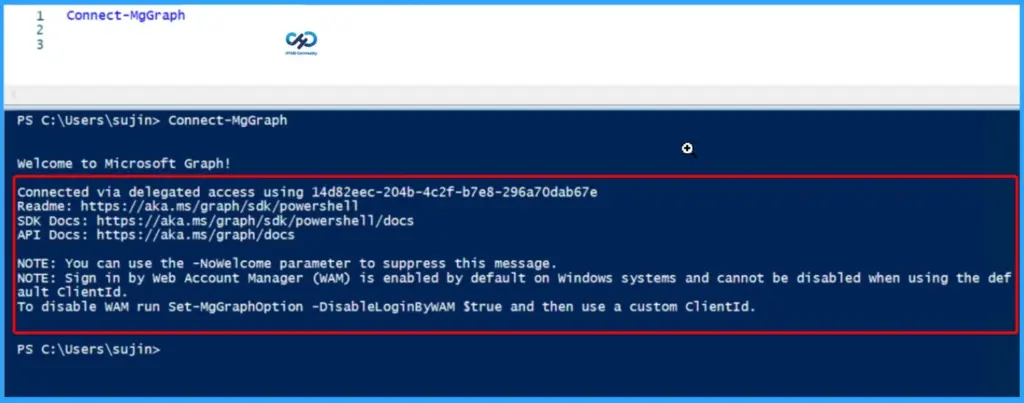
Sign In to Microsoft Graph Using PowerShell
The window below shows the Connect-MgGraph command being executed in PowerShell. This command signs you in to Microsoft Graph and creates a connection between your PowerShell session and your Microsoft 365 tenant. You must complete this step before running any Microsoft Graph PowerShell cmdlets to retrieve Microsoft Intune license information.
After the command runs successfully, the “Welcome to Microsoft Graph!” message appears, confirming that the connection has been established. Once connected, you can execute Microsoft Graph PowerShell commands to retrieve your current Intune license details.
Connect-MgGraph
PS C:\Users\sujin> Connect-MgGraph
Welcome to Microsoft Graph!
Connected via delegated access using 14d82eec-204b-4c2f-b7e8-296a70dab67e
Readme: https://aka.ms/graph/sdk/powershe1l
SDK Docs: https://aka.ms/graph/sdk/powershe11/docs
API Docs: https://aka.ms/graph/docs
NOTE: You can use the -Nowelcome parameter to suppress this message.
NOTE: Sign in by Web Account Manager (WAM) is enabled by default on windows systems and cannot be disabled when using the def
ault ClientId.
To disable WAM run Set-MgGraphoption -DisableLoginByWAM Strue and then use a custom ClientId.
PS C:\Users\sujin>
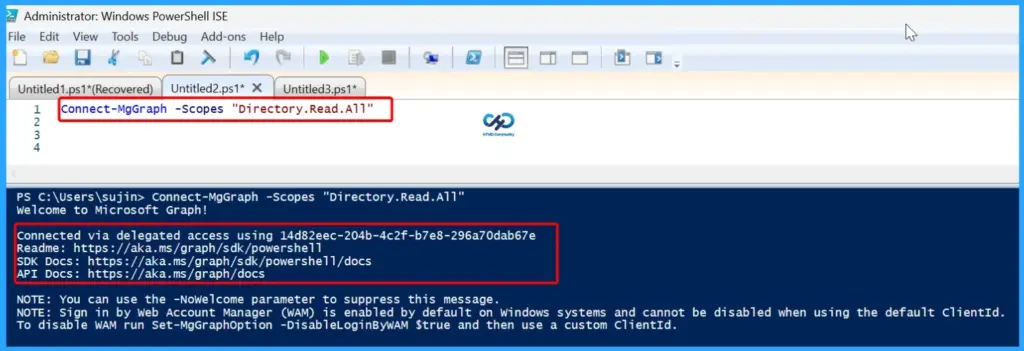
Connect-MgGraph -Scopes “Directory.Read.All” command being run in PowerShell
This command helps you to read directory information from your Microsoft Entra ID tenant. The Directory.Read.All permission is commonly required to view tenant details, users, groups, and license information.
After the sign-in is successful, the “Welcome to Microsoft Graph!” message appears, confirming that the connection has been established. Once connected, you can run Microsoft Graph PowerShell commands to check Microsoft Intune license details, such as the total number of Intune licenses, assigned licensed users, and other tenant information.
Connect-MgGraph -Scopes “Directory.Read. A11”
PS C:\Users\sujin> Connect-MgGraph -Scopes “Directory.Read.A11”
Welcome to Microsoft Graph!
Connected via delegated access using 14d82eec-204b-4c2f-b7e8-296a70dab67e
Readme: https://aka.ms/graph/sdk/powershe11
SDK Docs: https://aka.ms/graph/sdk/powershe11/docs
API Docs: https://aka.ms/graph/docs
NOTE: You can use the -Nowelcome parameter to suppress this message.
NOTE: Sign in by Web Account Manager (WAM) is enabled by default on windows systems and cannot be disabled when using the default ClientId.
To disable WAM run Set-MgGraphOption -DisableLoginByWAM Strue and then use a custom ClientId.
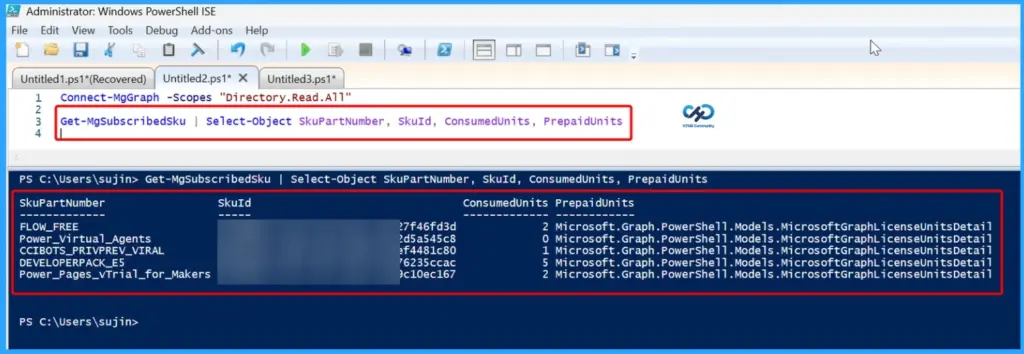
Retrieve Microsoft Intune License Details Using PowerShell
The Get-MgSubscribedSku PowerShell cmdlet is being used to retrieve the Microsoft 365 and Microsoft Intune license information for your tenant. The command selects and displays four properties: SkuPartNumber, SkuId, ConsumedUnits, and PrepaidUnits.
The output lists all the license SKUs available in your Microsoft 365 tenant. SkuPartNumber shows the license name, SkuId is the unique identifier for each license, ConsumedUnits displays the number of licenses currently assigned to users, and PrepaidUnits contains information about the total number of licenses available for that SKU. This command provides a quick overview of your organization’s license inventory and helps administrators monitor license usage directly from PowerShell.
Get-MgSubscribedSku | Select-Object SkuPartNumber, SkuId, ConsumedUnits, PrepaidUnits
Check the License Details Assigned to a User Using PowerShell
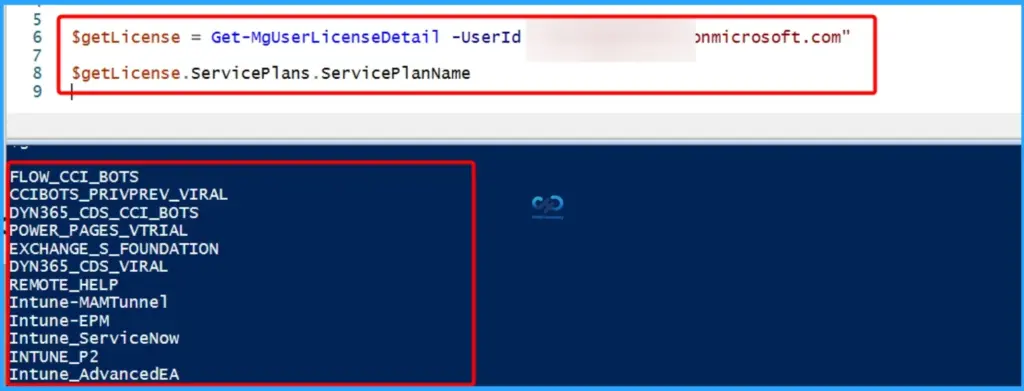
The Get-MgUserLicenseDetail PowerShell cmdlet is being used to retrieve the license details assigned to a specific Microsoft 365 user. The command stores the user’s license information in the $getLicense variable and then displays the names of the enabled service plans by running $getLicense.ServicePlans.ServicePlanName.
| Service Plan |
|---|
| FLOW_CCI_BOTS CCIBOTS_PRIVPREV_VIRAL DYN365_CDS_CCI_BOTS POWER_PAGES_VTRIAL EXCHANGE_S_FOUNDATION DYN365_CDS_VIRAL REMOTE_HELP Intune-MAMTunnel Intune-EPM Intune-ServiceNow INTUNE_P2 Intune_AdvancedEA |
Need Further Assistance or Have Technical Questions?
Join the LinkedIn Page and Telegram group to get the latest step-by-step guides and news updates. Join our Meetup Page to participate in User group meetings. Also, join the WhatsApp Community and the Whatsapp channel to get the latest news on Microsoft Technologies. We are there on Reddit as well.
Author
Jitesh, Microsoft MVP, has over six years of working experience in the IT Industry. He writes and shares his experiences related to Microsoft device management technologies and IT Infrastructure management. His primary focus is Windows 10/11 Deployment solution with Configuration Manager, Microsoft Deployment Toolkit (MDT), and Microsoft Intune.