
Key Takeaways
- Understanding and Managing Unlicensed Administrator Access in Microsoft Intune
- Unlicensed administrators can access Intune without an Intune license.
- This applies to different administrator roles, including Intune Administrator, Global Administrator, and Entra ID administrators.
- Access is controlled by the RBAC roles assigned to the administrator.
- Up to 350 unlicensed admins are supported per security group, and they must be direct members.
- Changes to unlicensed admin access can take up to 48 hours to take effect.
- Other Microsoft services, such as Microsoft Entra ID Premium, may still require the appropriate license.
- The option is enabled by default for accounts created after the Intune service release 2006.
- This feature is especially useful when you have limited Intune licenses but need multiple administrators to manage Intune.
The Allow access to unlicensed admins option allows administrators to access the Microsoft Intune admin center without requiring an Intune license. This can apply to administrators with Intune RBAC roles, as well as users with appropriate Microsoft Entra roles, such as Global Administrator. The level of Intune access is determined by the roles and permissions assigned to the administrator. However, access to other Microsoft services or features may still require the appropriate license.
Table of Content
Table of Contents
Intune supports up to 350 unlicensed admins per security group and only applies to direct members. Admins above this limit will experience unpredictable behavior. It can take up to 48 hours for access changes to take effect. The Unlicensed admins option has been enabled by default on all accounts created after the Intune service release 2006. This is more useful when you have limited licenses available to you. Let’s see How Unlicensed Admin users can Perform Intune Admin Activities.
- IntuneWinAppUtil.exe Windows 11 Compatibility
- Duplicate Intune RBAC Roles | Endpoint Manager Roles
- Targeting Intune Win32 apps and PowerShell Scripts based on the Enrollment Date
Allow Unlicensed Admins to Access Intune
Sign in to the Microsoft Intune admin center at https://intune.microsoft.com/. From the left navigation pane, select Tenant administration, and then select Roles to access the available Intune role and permission settings.
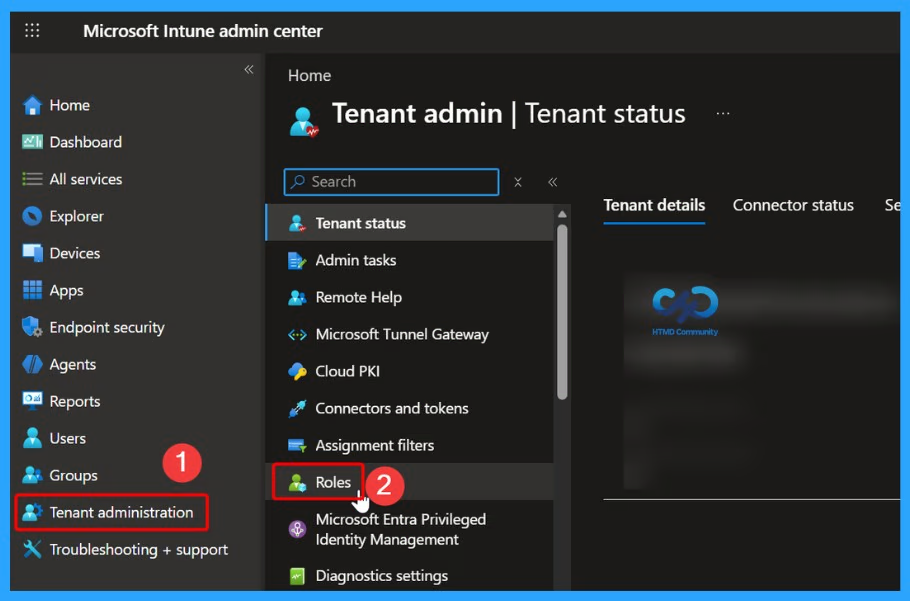
Allow Access to Unlicensed Administrators
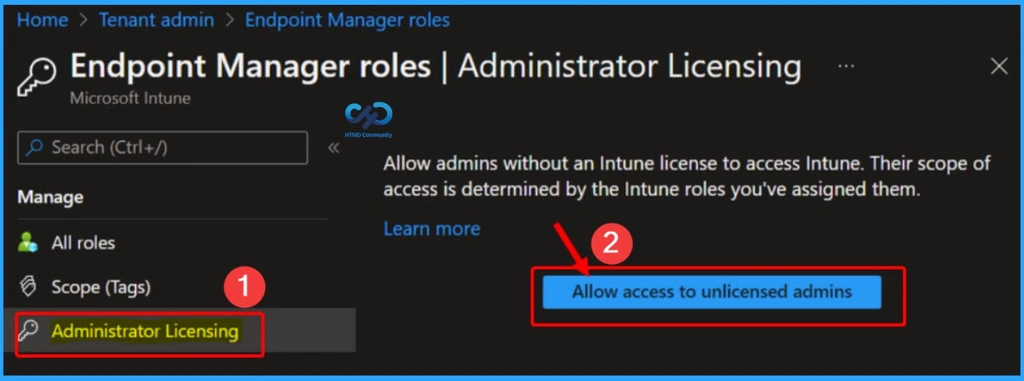
Under Administrator licensing, select Allow access to unlicensed admins. This setting allows administrators who do not have an Intune license to access the Microsoft Intune admin center, based on the permissions assigned to their Intune RBAC role.

| Allow access to unlicensed admins |
|---|
| Allow admins without an Intune license to access Intune. Their scope of access is determined by the Intune roles you’ve assigned them. |
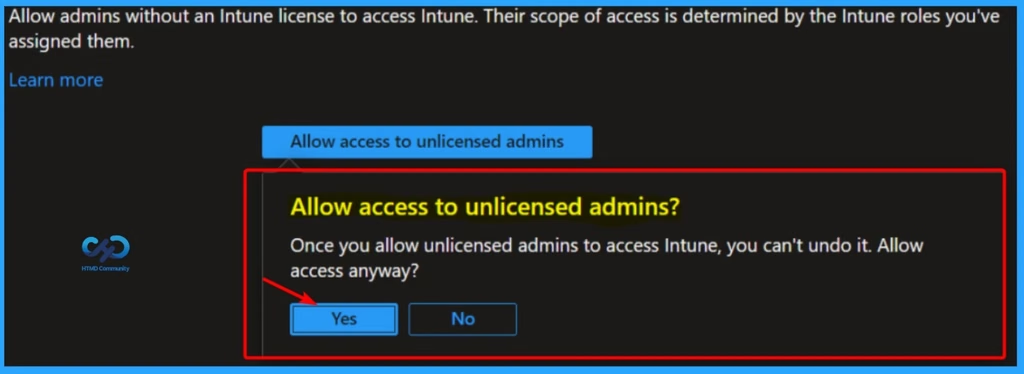
Confirm Access for Unlicensed Admins
A confirmation prompt titled “Allow access to unlicensed admins” will appear. Select Yes to enable access for administrators who do not have an Intune license. Important: This setting is a tenant-level configuration, so review the implications carefully before enabling it.
Verify Intune Role Assignments
After enabling access for unlicensed administrators, the Administrator licensing section confirms that administrators can access Intune. To revoke access from an unlicensed administrator, remove the user from the Microsoft Entra ID security group assigned to the relevant Intune role.
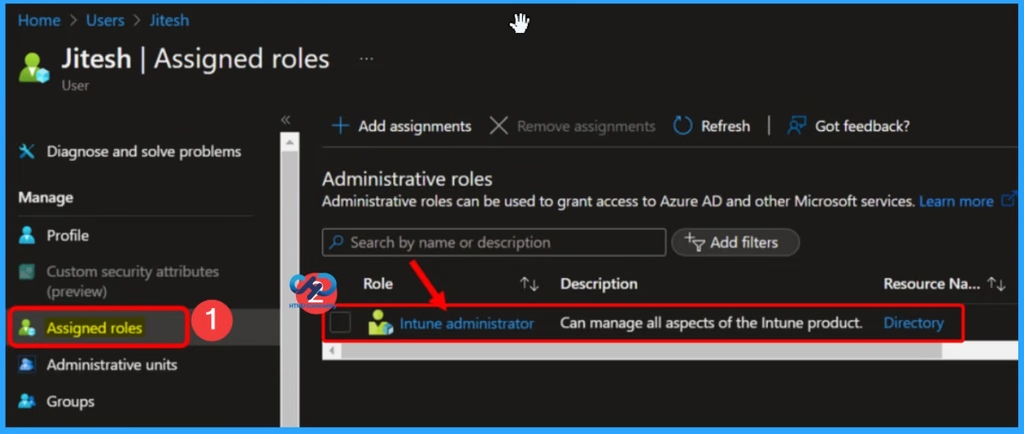
Next, verify the role assigned to the administrator. In the Microsoft Intune admin center, go to Users, search for and select the required user, and open Assigned roles. Here, you can verify whether the user has an appropriate Intune RBAC role, such as Intune Administrator. If no suitable role is assigned, select + Add assignments and assign the required administrative role.
Verify User Licensing
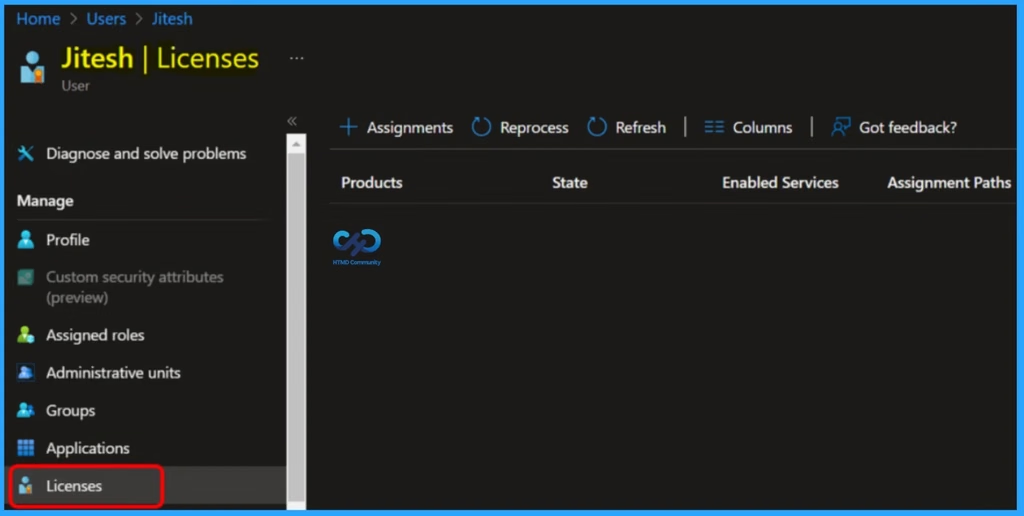
Select Licenses on the user profile to verify the user’s assigned licenses. If the user does not have an Intune license, they can still access the Microsoft Intune admin center when Allow access to unlicensed admins is enabled and the user has an appropriate Intune RBAC role.
Need Further Assistance or Have Technical Questions?
Join the LinkedIn Page and Telegram group to get the latest step-by-step guides and news updates. Join our Meetup Page to participate in User group meetings. Also, join the WhatsApp Community and the Whatsapp channel to get the latest news on Microsoft Technologies. We are there on Reddit as well.
Author
Jitesh, Microsoft MVP, has over six years of working experience in the IT Industry. He writes and shares his experiences related to Microsoft device management technologies and IT Infrastructure management. His primary focus is Windows 10/11 Deployment solution with Configuration Manager, Microsoft Deployment Toolkit (MDT), and Microsoft Intune.