
Key Takeaways
- New CIS benchmark auditing is available in public preview in Microsoft Intune.
- Audit Windows 11 devices against the CIS Microsoft Intune for Windows 11 Benchmark version 5.0.0.
- The audit profile covers 404 benchmark settings, including Level 1, Level 2, and BitLocker-related checks.
- Identifies security configuration gaps across targeted devices without changing existing settings.
In this post we are discussing, Audit Windows Devices Against CIS Benchmarks using Microsoft Intune. Microsoft Intune introduces a new audit capability that allows administrators to assess Windows 11 devices against the Center for Internet Security (CIS) Microsoft Intune for Windows 11 Benchmark. This feature helps IT administrators identify configuration gaps and evaluate device security posture without making changes to existing device configurations. The CIS benchmark audit profile is available in public preview and is designed to help organizations validate their Windows security configurations against established security recommendations.
Table of Contents
Table of Contents
Audit Windows Devices Against CIS Benchmarks using Microsoft Intune
Administrators can use the audit results to understand which benchmark settings their devices meet and which require further attention. With this capability, IT admins can create a CIS audit profile in the Microsoft Intune admin center, assign it to targeted device groups, and review the audit results after devices report their evaluation status. The audit report provides a setting-level view of compliance findings across targeted Windows 11 devices.
- Windows Web Sign-In now Supports Microsoft Entra Hybrid Joined Devices for Passwordless Authentication
- Configure Windows Enhanced Sign-in Security ESS Policy in Microsoft Intune to Protect Windows Hello
- Windows Elevates Passkey Security with Plug-in Credential Manager Integration
What’s New in Microsoft Intune
Microsoft Intune now supports auditing Windows 11 devices against the CIS Microsoft Intune for Windows 11 Benchmark (Audit Only). This capability allows administrators to assess device security configurations against the CIS recommendations without modifying existing settings. The preview includes a combined audit profile covering 404 benchmark settings across Level 1, Level 2, and BitLocker-related checks. Administrators can assign the profile to device groups and use the dedicated Audit report to review security findings, identify configuration gaps, and export results. This helps organizations gain visibility into their Windows security posture directly from the Intune admin center.
Create a CIS Audit Profile for Windows 11 Devices
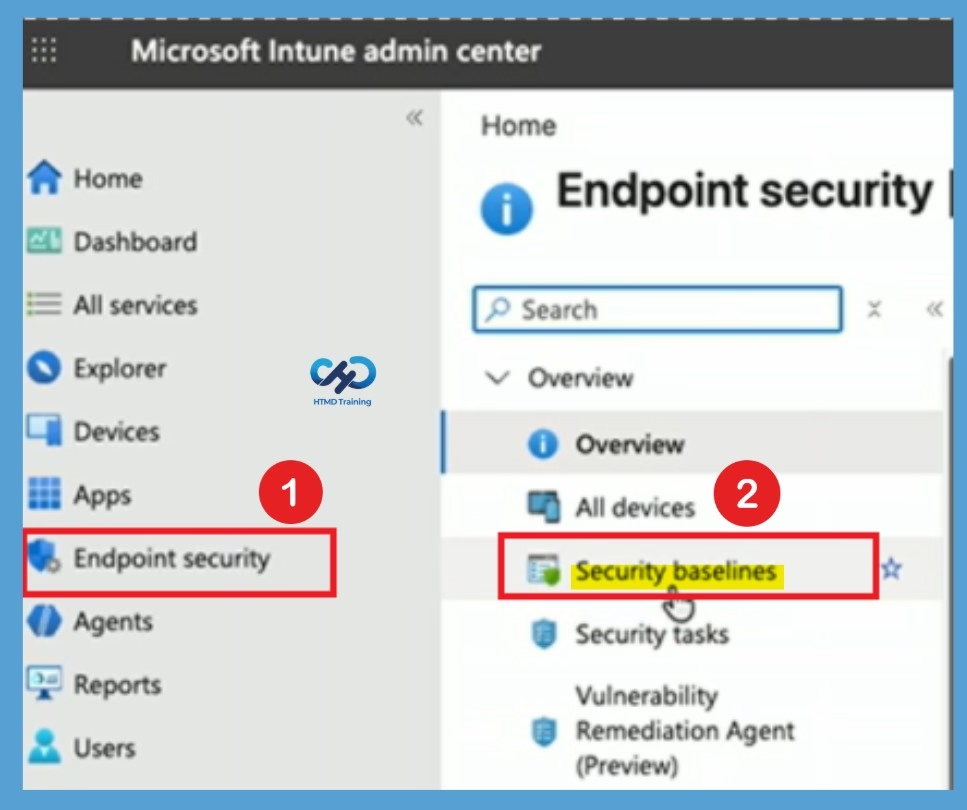
Sign in to the Microsoft Intune admin center. From the left navigation pane, select Endpoint security to access the endpoint security management options. Under Endpoint security, select Security baselines to open the available security baseline profiles. This section is where you can access and manage the security baselines available in Microsoft Intune.

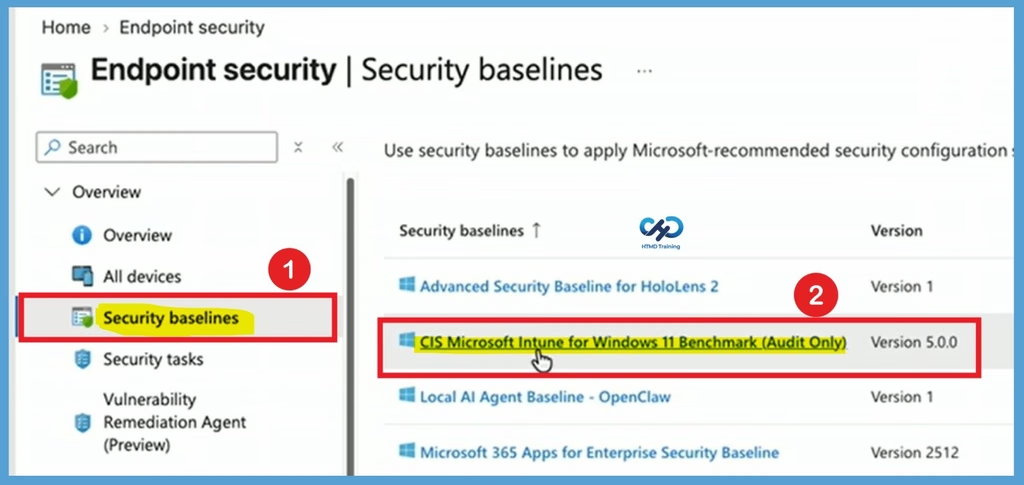
Under the Security baselines section, locate CIS Microsoft Intune for Windows 11 Benchmark (Audit Only) with version 5.0.0. Select this benchmark to open its details and access the profile creation options. This benchmark provides the audit-only version of the CIS Microsoft Intune for Windows 11 Benchmark, allowing administrators to evaluate Windows 11 devices against the recommended security settings.
Create a Policy
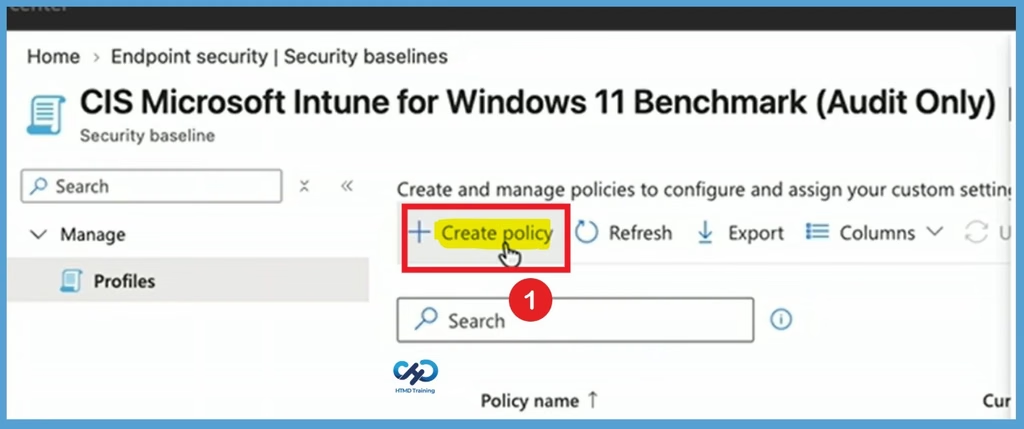
After selecting the CIS Microsoft Intune for Windows 11 Benchmark (Audit Only), you will be taken to its Profiles section. Here, you can create and manage policies based on the selected benchmark. Select Create policy to begin creating a new audit policy using the CIS benchmark. This starts the profile creation workflow, where you can configure the profile name, scope tags, and assignments.
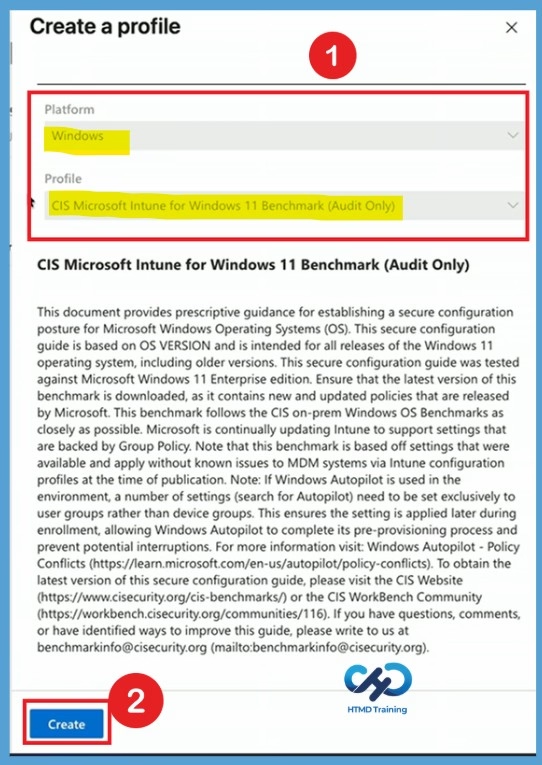
After selecting Create policy, a Create a profile window appears. In this window, the Platform is selected as Windows, and the Profile is selected as CIS Microsoft Intune for Windows 11 Benchmark (Audit Only). These options define the platform and benchmark used for the audit. Review the selected platform and profile and click Create to proceed to the profile configuration wizard.
| Create Profile | info |
|---|---|
| Platform | Windows |
| Profile | Windows 11 Benchmark (Audit Only). |
Configure the Basics
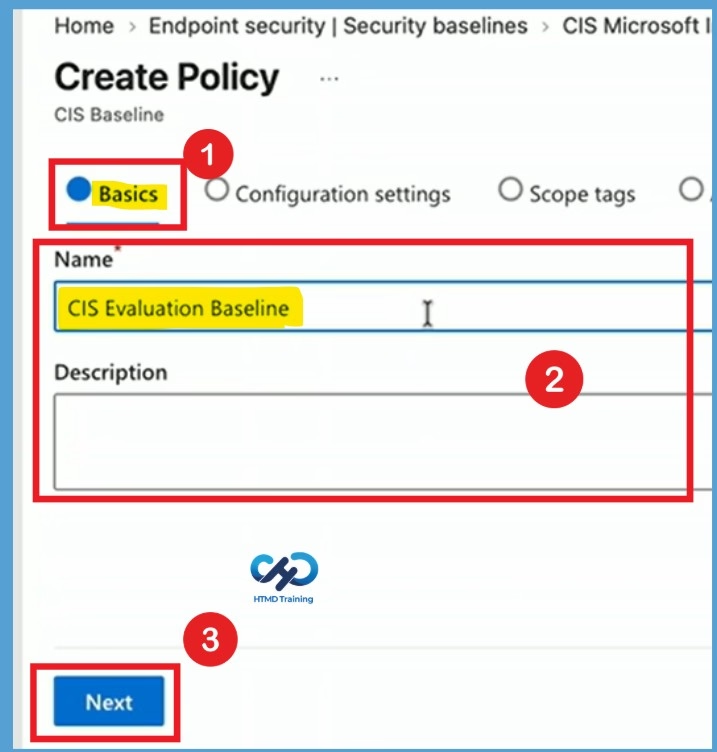
Under the Basics tab, enter a descriptive name for the audit profile. In this demonstration, the profile is named CIS Evaluation Baseline. You can also add a description to provide additional information about the purpose of the profile. Once you have entered the required details, click Next to proceed to the Configuration settings tab.
Configuration Settings
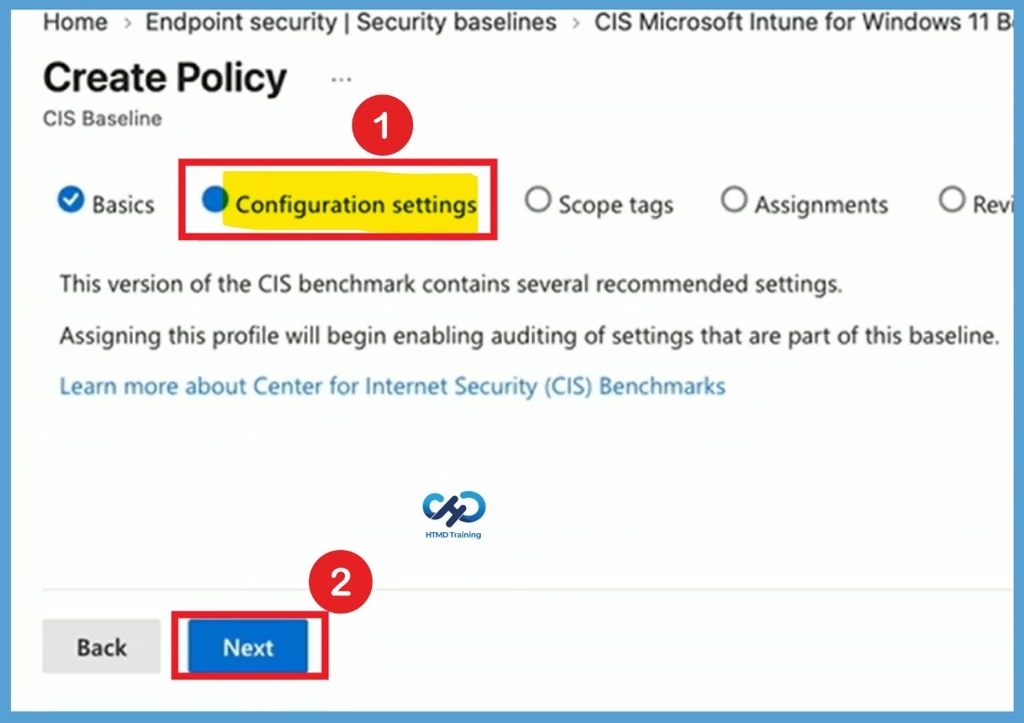
Under the Configuration settings tab, review the audit information provided for the CIS benchmark. The page explains that the benchmark contains recommended settings and that assigning the profile enables auditing of the settings included in the baseline. No configuration changes are required in this section because the profile is intended to audit existing device configurations. After reviewing the information, click Next to continue.
Configure Scope Tags
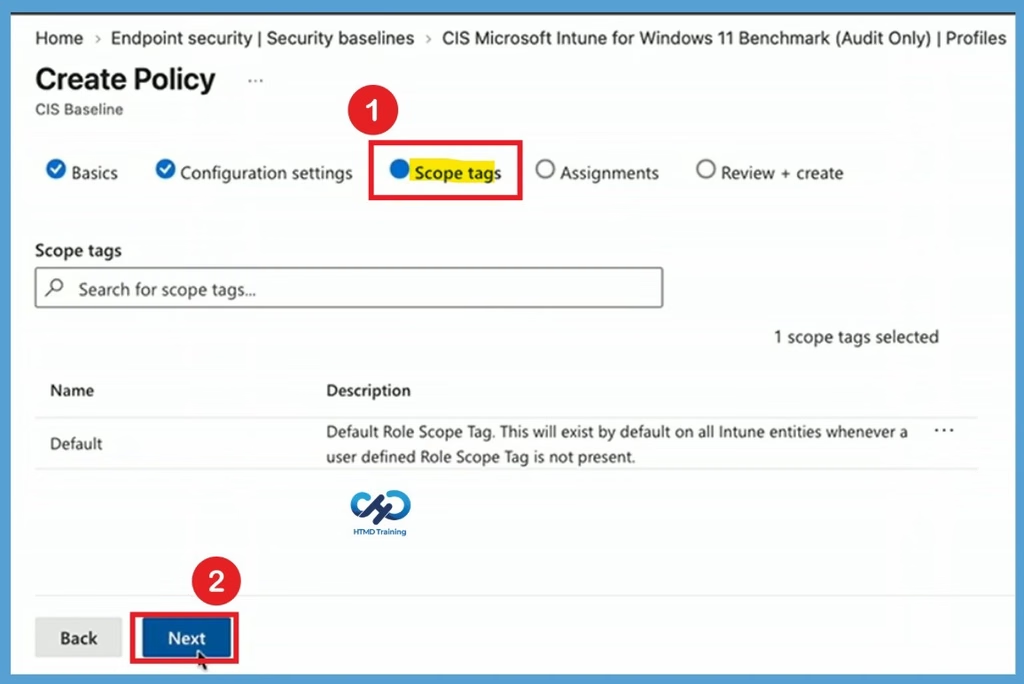
Under the Scope tags tab, review the scope tags associated with the audit profile. Scope tags help control administrative access to profiles and other Intune resources based on the organization’s role-based access control configuration. Add or select the required scope tags based on your administrative requirements. Once you have reviewed the scope tag settings, click Next to proceed.
Assign the Audit Profile
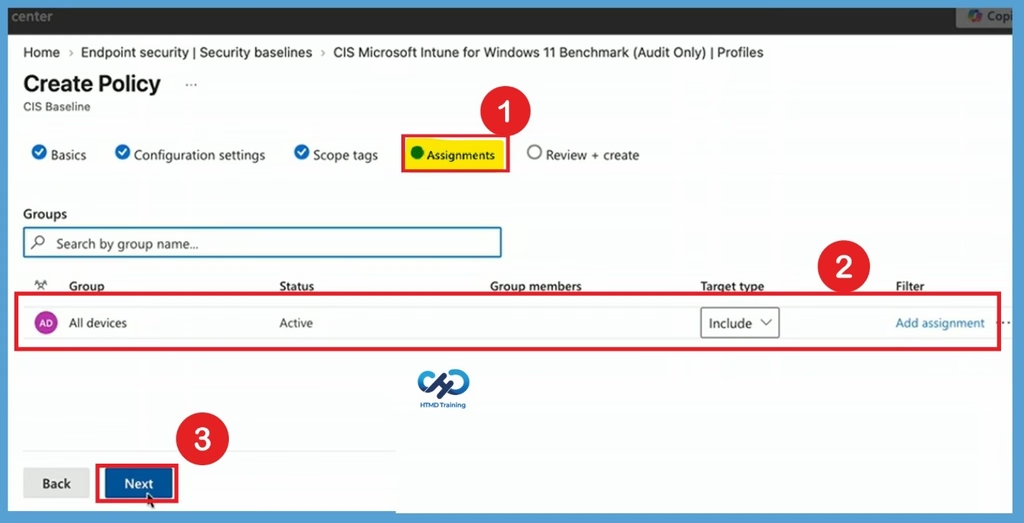
Under the Assignments tab, select the device groups to which you want to assign the CIS audit profile. In this demonstration, the profile is assigned to All Devices, targeting all eligible devices within the tenant. You can select specific device groups based on your auditing requirements. Once you have configured the assignments, click Next to continue to the Review + create tab.
Review and Create the Audit Profile
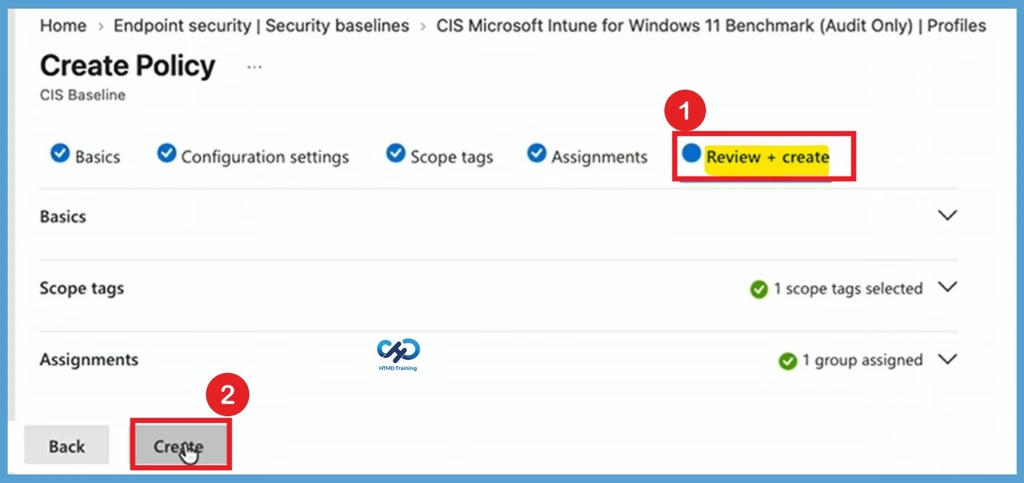
Under the Review + create tab, review the details configured for the audit profile, including the Basics, Scope tags, and Assignments sections. Ensure that the profile name and targeted device groups are correct before creating the policy. After reviewing the details, click Create to create and assign the CIS audit profile. Intune will begin processing the profile creation and assignment.
Confirm Profile Creation
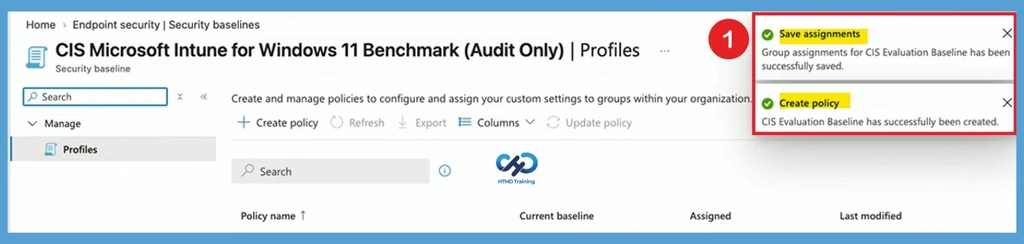
After creating the profile, Intune displays notifications confirming that the group assignments have been successfully saved and that the CIS Evaluation Baseline profile has been successfully created. These notifications confirm that the profile creation and assignment process has completed successfully in Intune. The assigned devices can now begin receiving the audit profile and reporting their evaluation results.
Open the Created CIS Audit Profile
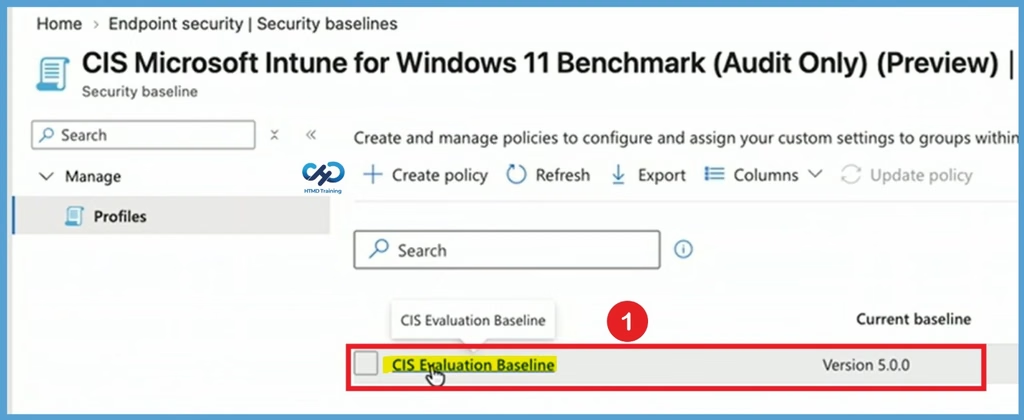
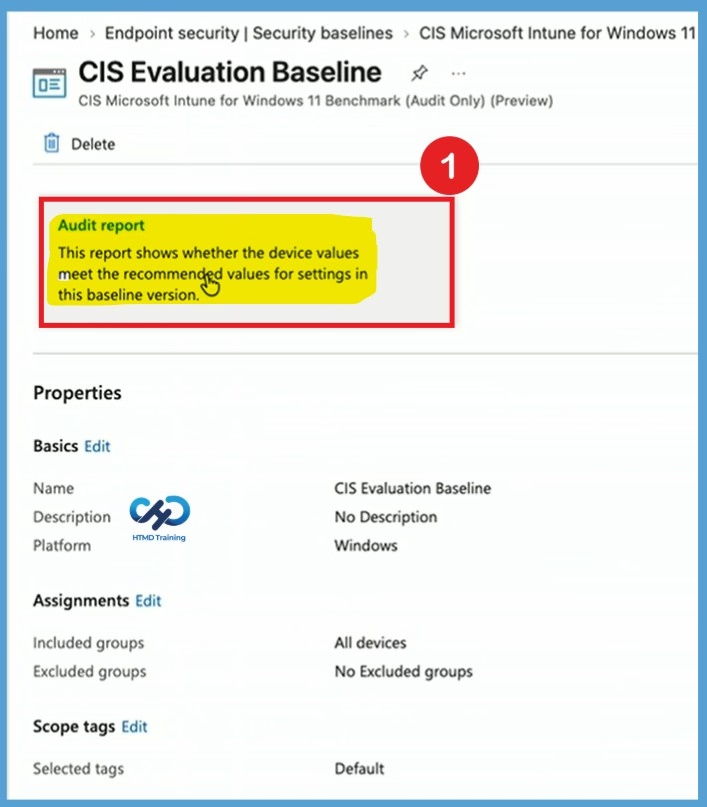
Once the profile is created, navigate to the Profiles section under the selected CIS benchmark and locate CIS Evaluation Baseline. Select the newly created profile to open its details page. From this page, you can also access the dedicated audit reporting experience to review the evaluation results. Within the CIS Evaluation Baseline profile, locate the Audit report section displayed above the profile properties.
The report description indicates that it shows whether the device values meet the recommended values for settings included in the baseline version. Select Audit report to open the dedicated reporting experience. This report allows administrators to review the evaluation results generated for the targeted devices against the CIS benchmark recommendations.
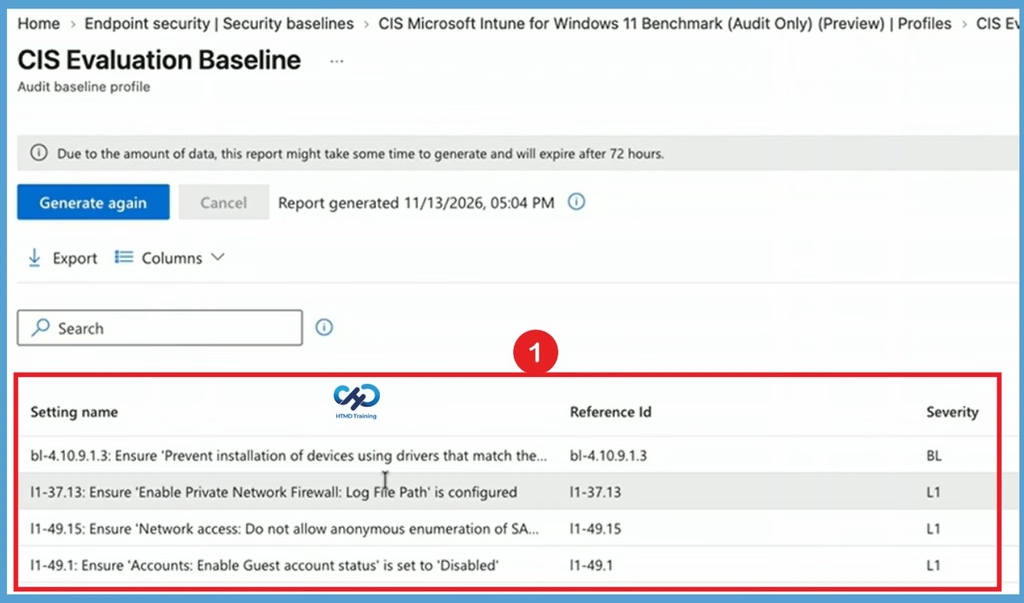
The Audit report displays the CIS benchmark audit settings, including the setting name, Reference ID, and severity level. Administrators can use this information to identify individual benchmark checks and understand the security recommendations being evaluated. The report also provides options such as Search, Export, and Generate again to help administrators review and refresh the audit results. Once the evaluation data is available, administrators can investigate the results to identify security configuration gaps across their targeted Windows 11 devices.
Need Further Assistance or Have Technical Questions?
Join the LinkedIn Page and Telegram group to get the latest step-by-step guides and news updates. Join our Meetup Page to participate in User group meetings. Also, join the WhatsApp Community and the Whatsapp channel to get the latest news on Microsoft Technologies. We are there on Reddit as well.
Author
Anoop C Nair is Workplace Technology solution architect with 25+ years of experience in global enterprise organizations such as JP Morgan, Capgemini, etc. He is Microsoft Certified Trainer. Microsoft MVP from 2015 onwards for consecutive 11 years! He also conducts Intune and modern workplace tech training for enterprise organizations. He is Blogger, Speaker, and Founder of HTMD Community and HTMD Conference. His focus is on Device Management technologies such as Intune, Windows, Cloud PC. He writes about technologies like Intune, SCCM, Windows, Cloud PC, Windows, Entra, Microsoft Security.