
Key Takeaways
- Windows 11 Enhances Security Key Sign-In with NFC Tap Location Indicator
- Windows 11 introduces an enhanced security key sign-in experience for display-based NFC readers.
- A new visual indicator shows users exactly where to tap their security key.
- The indicator automatically adjusts to the device’s screen orientation.
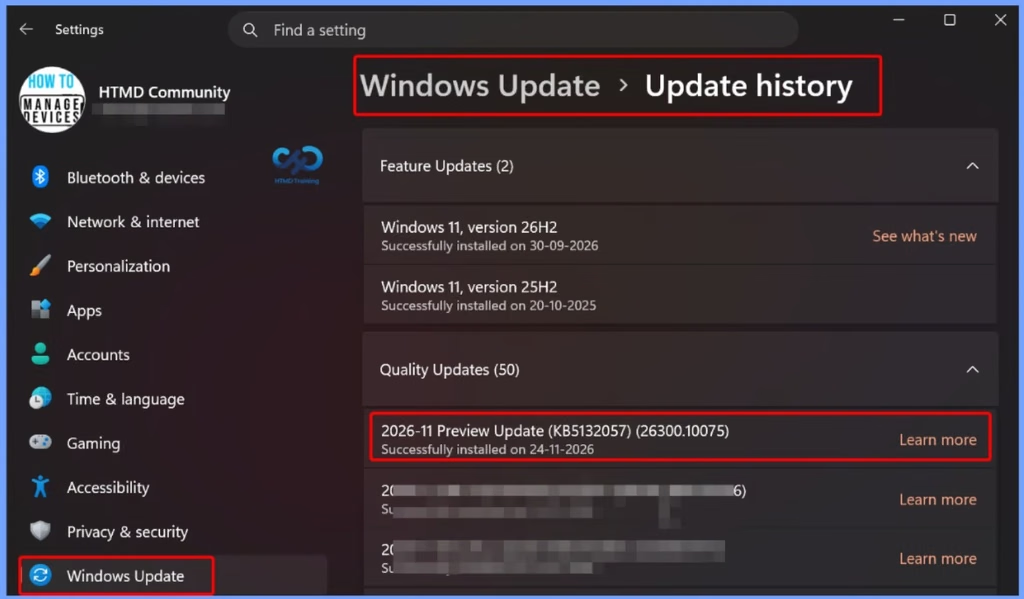
- Install the November 2026 Windows non-security update (KB5132057) to enable this experience.
- IT administrators and device manufacturers can refer to the updated Microsoft documentation for configuration instructions.
Windows 11 has introduced a new feature to make signing in with a security key easier. Some devices have an NFC reader that allows users to sign in by tapping a security key on the device. Now, Windows 11 displays a small indicator on the screen to show users exactly where they need to tap their security key.
Table of Content
Table of Contents
1. What is NFC Sign-in?
NFC (Near Field Communication) allows users to sign in by tapping a supported security key, card, or badge against an NFC reader on their device.
2. What is the NFC Tap Location Indicator?
It is a visual indicator displayed on the Windows lock screen. It shows users exactly where to tap their security key, card, or badge.
3. When Does this Indicator Appear?
The indicator appears automatically when these three conditions are met:

1. Security key sign-in is selected: The user chooses the Windows Security Key (FIDO) sign-in option.
2. Waiting for NFC tap: Windows is waiting for the user to tap their security key, card, or badge.
3. Device supports NFC location configuration: The device manufacturer (OEM) has configured the correct NFC antenna location.
Windows 11 Enhances Security Key Sign-In with NFC Tap Location Indicator
The indicator automatically changes its position based on how the device screen is placed (horizontal or vertical). This makes it easier for users to find the correct tapping location. To get this feature, users need to install the November 2026 Windows update (KB5132057).
- Windows Web Sign-In now Supports Microsoft Entra Hybrid Joined Devices for Passwordless Authentication
- Configure Windows Enhanced Sign-in Security ESS Policy in Microsoft Intune to Protect Windows Hello
- Windows Elevates Passkey Security with Plug-in Credential Manager Integration
Configure NFC Tap Location Indicator Using Microsoft Intune
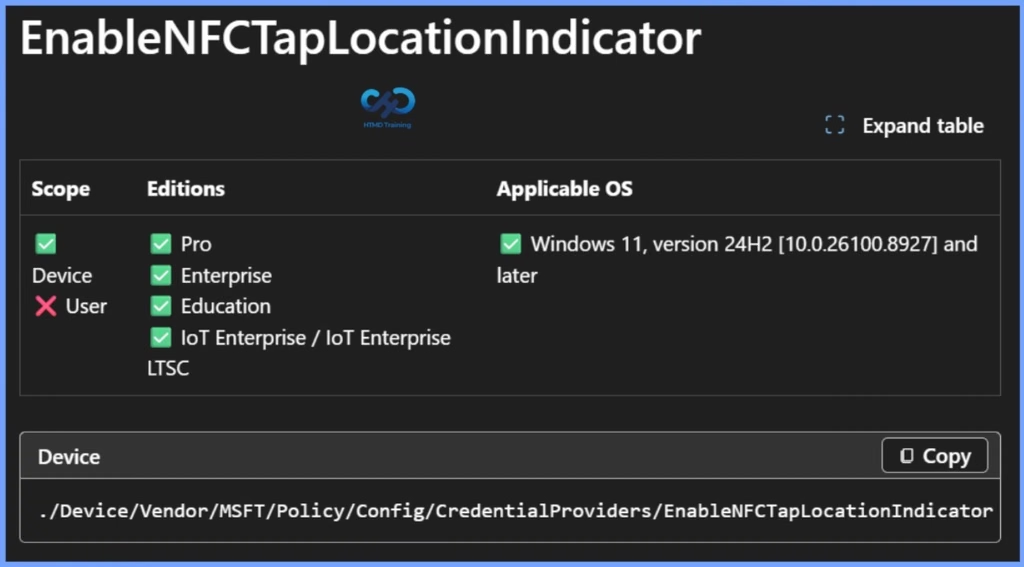
IT administrators can use Microsoft Intune to control whether the NFC tap location indicator appears on Windows device lock screens. To configure this, create a custom configuration policy using the Policy CSP – CredentialProviders setting. Set the value to 0 to hide the indicator or 1 to show it when applicable. Once configured, assign the policy to a device.
./Device/Vendor/MSFT/Policy/Config/CredentialProviders/EnableNFCTapLocationIndicator
| Category | Setting name | Value |
|---|---|---|
| CredentialProviders | EnableNFCTapLocationIndicator | Use 0 to hide the NFC tap location indicator.Use 1 or leave the policy not configured to show the indicator when applicable. |
NFC Tap Location Indicator
The NFC tap location indicator only helps users identify where to tap their security key, card, or badge. It does not change or affect the existing security key sign-in process. Users can also continue using a personalised lock screen background while the indicator is displayed. For a better visual experience, Microsoft recommends enabling transparency and animation effects on the device.
The NFC tap location indicator can be configured using Intune/CSP or Group Policy (GPO), depending on the Windows edition.
| Windows edition | Intune/CSP | GPO |
|---|---|---|
| Pro / Pro Education | ✅ | ✖ |
| Enterprise / Education | ✅ | ✅ |
| IOT Enterprise | ✅ | ✅ |
Need Further Assistance or Have Technical Questions?
Join the LinkedIn Page and Telegram group to get the latest step-by-step guides and news updates. Join our Meetup Page to participate in User group meetings. Also, join the WhatsApp Community and the Whatsapp channel to get the latest news on Microsoft Technologies. We are there on Reddit as well.
Author
Anoop C Nair is Workplace Technology solution architect with 25+ years of experience in global enterprise organizations such as JP Morgan, Capgemini, etc. He is Microsoft Certified Trainer. Microsoft MVP from 2015 onwards for consecutive 11 years! He also conducts Intune and modern workplace tech training for enterprise organizations. He is Blogger, Speaker, and Founder of HTMD Community and HTMD Conference. His focus is on Device Management technologies such as Intune, Windows, Cloud PC. He writes about technologies like Intune, SCCM, Windows, Cloud PC, Windows, Entra, Microsoft Security.