
Key Takeaways
- Microsoft Intune will introduce an updated web-based device enrollment experience for iOS/iPadOS in late January 2027.
- This change applies only to tenants currently using web-based device enrollment.
- Existing enrollment profile settings will remain unchanged.
- IT administrators do not need to make any configuration changes.
- Organisations may update their internal user guides and helpdesk documentation to explain the new enrollment experience.
Microsoft Intune will update the way users enroll their iPhones and iPads using a web browser. This change is expected in late January 2027 and will affect only organizations that already use web-based enrollment. Users will see a new enrollment experience, but existing settings will remain the same. Admins do not need to make any changes. They can simply update their helpdesk instructions if needed.
Table of Content
Table of Contents
New iOS/iPadOS Web-Based Enrollment Experience in Intune
Users enrolling their iPhones and iPads through web-based enrollment will see a new enrollment experience. However, the existing enrollment settings will remain the same, and admins do not need to make any changes. Other iOS/iPadOS enrollment methods will not be affected by this update.
- Company Portal Web App: Admins can add the Company Portal website as a shortcut on the iPhone/iPad home screen.
- Check Device Status: Users can check their device status, compliance information, and available device actions.
- Easy Access: Users can open Company Portal by tapping the home screen shortcut instead of typing the website address in a browser.
- Microsoft Authenticator: Users must install the Microsoft Authenticator app to access work or school apps.
- Before Enrollment: Employees and students should install Microsoft Authenticator before starting the device enrollment process.
- How to Block OS Updates on iOS Devices using Intune
- Onboard iOS/iPadOS Devices to Microsoft Defender for Endpoint
Set up web based device enrollment for iOS
To use web-based device enrollment in Microsoft Intune, devices must run iOS/iPadOS 15 or later. If a device is running iOS/iPadOS 14.9 or an earlier version, Intune will automatically use app-based enrollment, which requires the Company Portal app. Before setting up enrollment, admins must also configure the MDM authority in Intune and set up an Apple MDM Push certificate.
| Step | Details |
|---|---|
| Set up Just-in-Time (JIT) Registration | Create a device configuration policy with a Single Sign-On (SSO) app extension to enable JIT registration. |
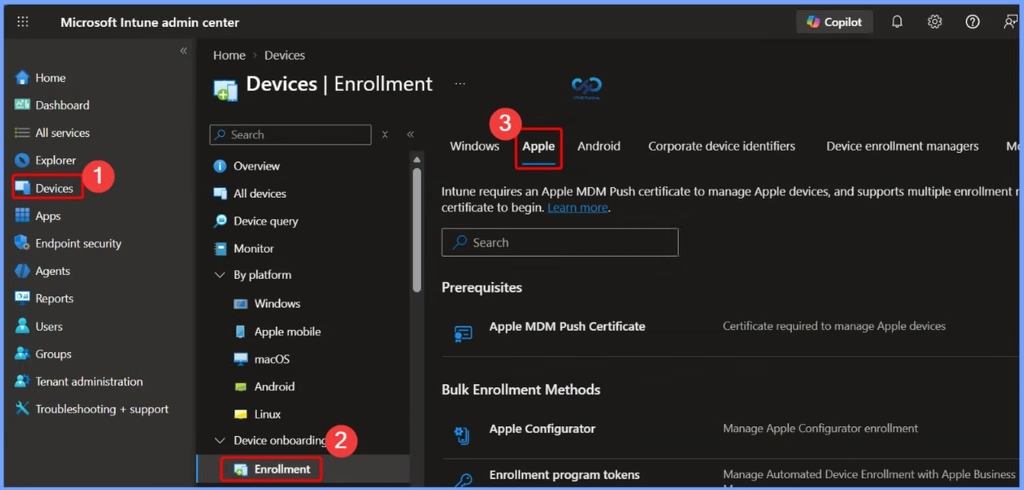
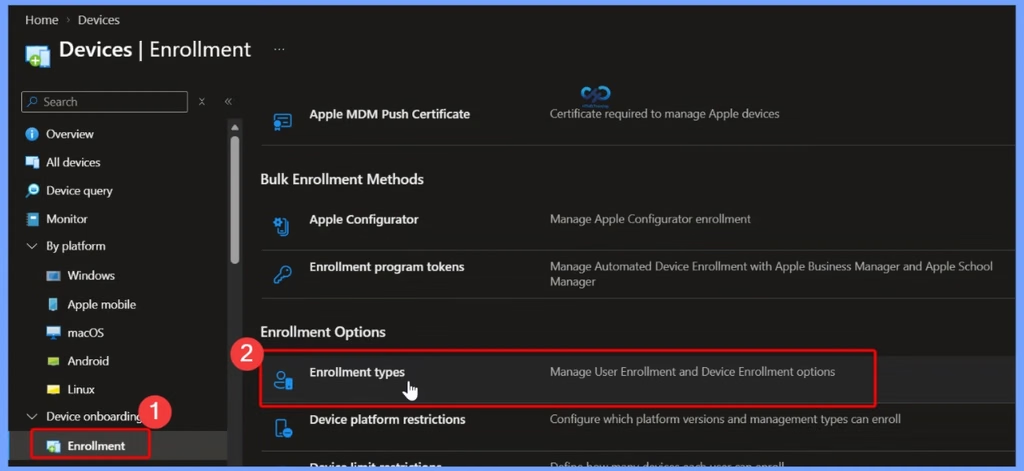
| Create an Enrollment Profile | Go to Intune Admin Center → Devices → Enrollment → Apple → Enrollment types. Select Create profile → iOS/iPadOS. Enter a profile name and description, select Web based device enrollment, assign it to users or groups, review the settings, and select Create. |
| Prepare Employees for Enrollment | Inform employees about the enrollment process. When they sign in to a work app on their personal device, they may be redirected to the Company Portal website to start enrollment. |
iOS/iPadOS Enrollment Types: User Enrollment and Device Enrollment
Microsoft Intune supports different enrollment options for managing iOS/iPadOS devices. User Enrollment is mainly designed for personal (BYOD) devices, where users can access company data while keeping personal information separate. Device Enrollment provides more control over the device and is suitable for both company-owned and personal devices. Admins can choose the enrollment method based on their organization’s device management requirements.
Create a New iOS/iPadOS Enrollment Profile
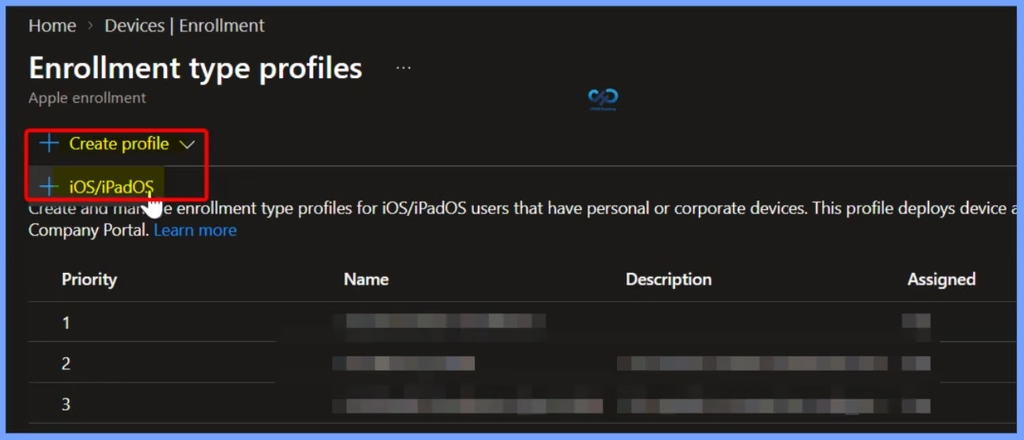
Go to the Enrollment types page in the Microsoft Intune admin center. Select + Create profile and choose iOS/iPadOS to create a new enrollment profile for Apple devices. The screenshot below shows more details.
Enter the Enrollment Profile Details
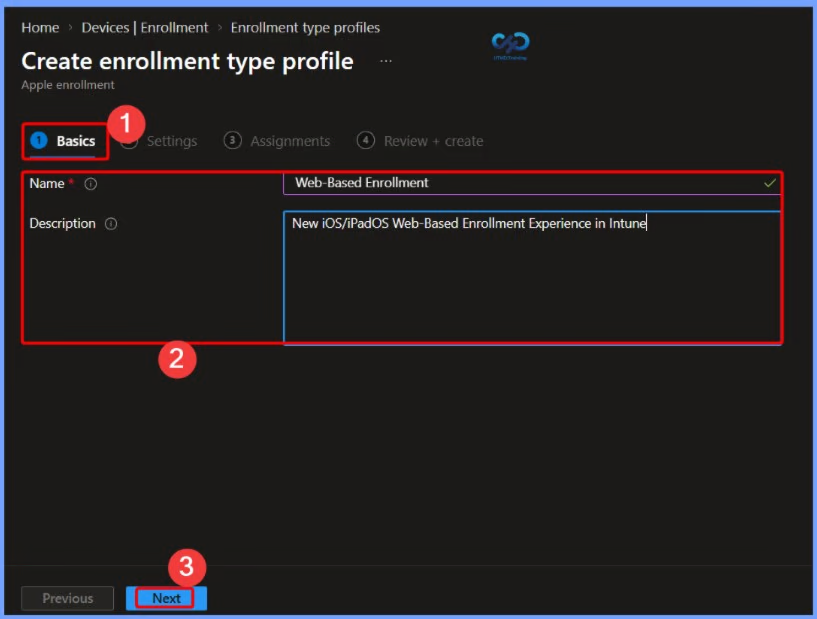
In the Basics tab, enter a profile name as Web-Based Enrollment and add the description New iOS/iPadOS Web-Based Enrollment Experience in Intune. These details help admins easily identify the enrollment profile in the Intune admin center. Click Next.
Select the Web-Based Device Enrollment Type
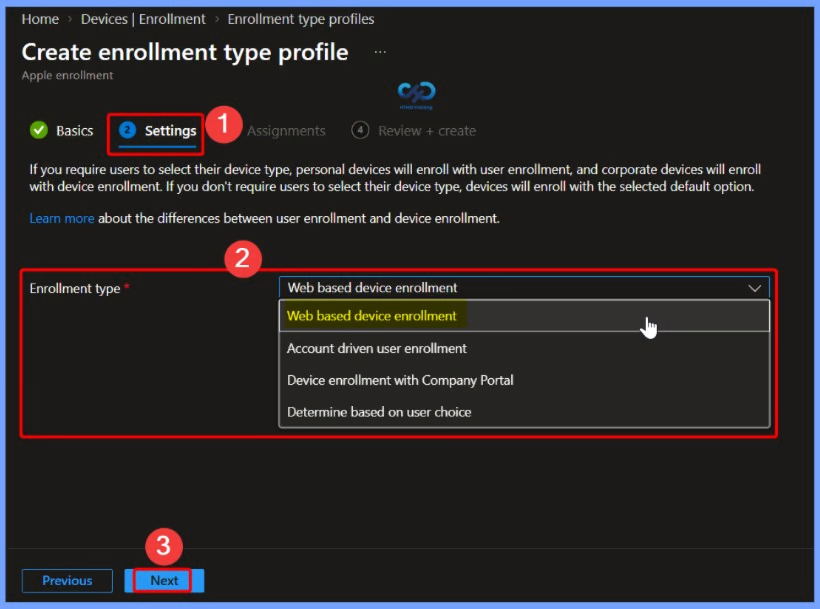
In the Enrollment type section, select Web based device enrollment from the available options. Other options include Account-driven User Enrollment, Device Enrollment with Company Portal, and Determine based on user choice. For this setup, choose Web based device enrollment to allow users to enroll their iPhones and iPads through Safari without using the Company Portal app for enrollment.
Assign the Enrollment Profile to an iOS Device Group
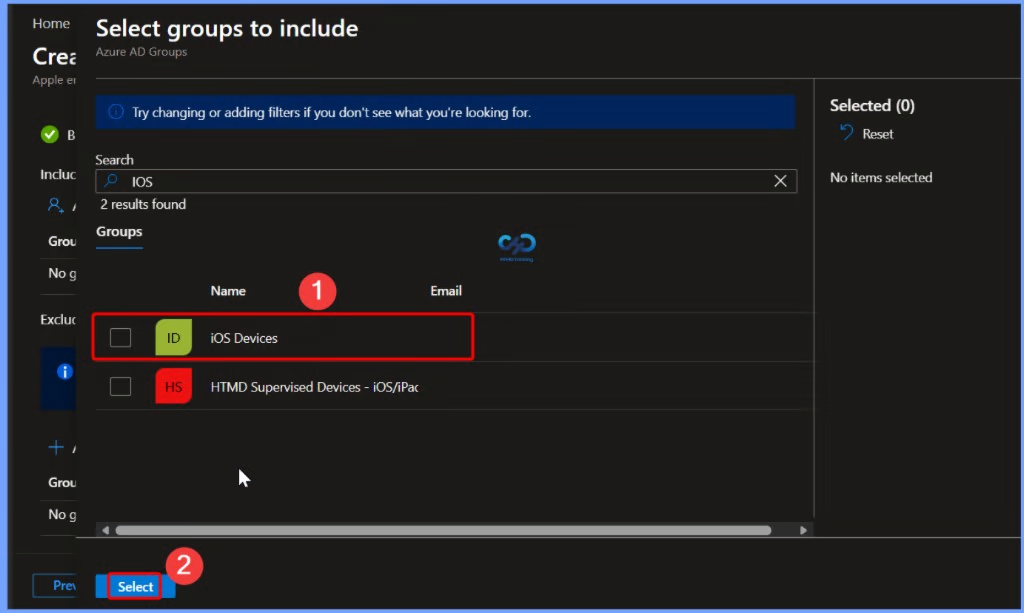
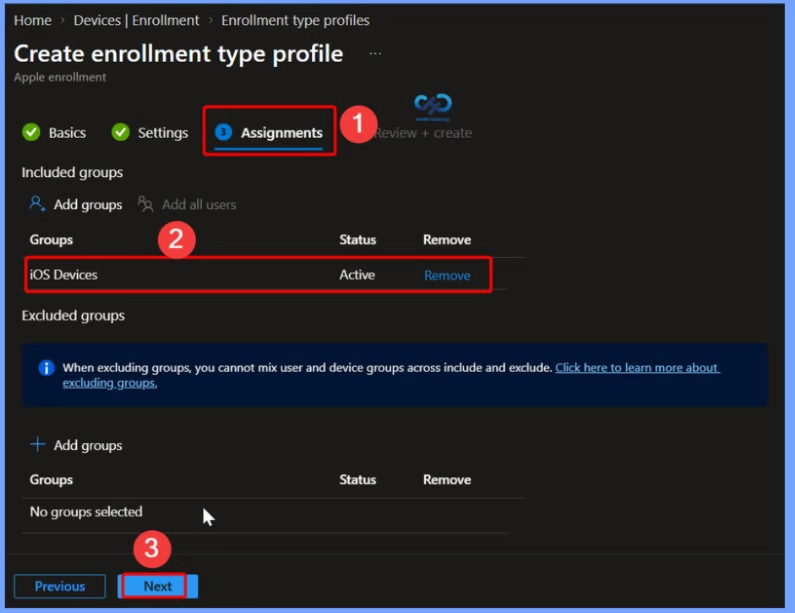
In the Assignments tab, select the iOS Devices group to assign the web-based enrollment profile to the required users or devices. This ensures the selected group receives the enrollment profile.
Review and Manage Group Assignments
In the Assignments tab, you can see the assigned iOS/iPadOS group and its status as Active. If you no longer want to assign the profile to this group, you can select the Remove hyperlink to remove the group from the assignment.
Review and Create the Enrollment Profile
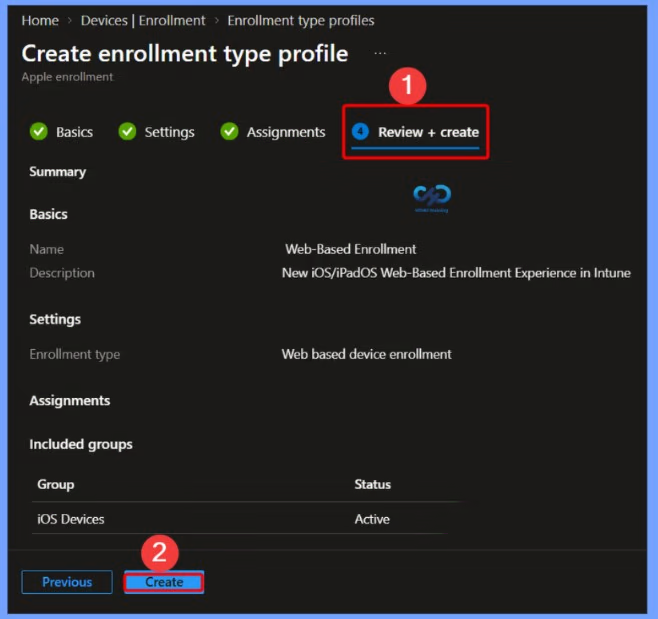
In the Review + Create tab, check all the selected settings, including the profile name, enrollment type, and group assignments. Make sure all details are correct, then click Create to finish creating the web-based device enrollment profile in Microsoft Intune.
Need Further Assistance or Have Technical Questions?
Join the LinkedIn Page and Telegram group to get the latest step-by-step guides and news updates. Join our Meetup Page to participate in User group meetings. Also, join the WhatsApp Community and the Whatsapp channel to get the latest news on Microsoft Technologies. We are there on Reddit as well.
Author
Anoop C Nair is Workplace Technology solution architect with 25+ years of experience in global enterprise organizations such as JP Morgan, Capgemini, etc. He is Microsoft Certified Trainer. Microsoft MVP from 2015 onwards for consecutive 11 years! He also conducts Intune and modern workplace tech training for enterprise organizations. He is Blogger, Speaker, and Founder of HTMD Community and HTMD Conference. His focus is on Device Management technologies such as Intune, Windows, Cloud PC. He writes about technologies like Intune, SCCM, Windows, Cloud PC, Windows, Entra, Microsoft Security.