
Key Takeaways
- Create Automatic App Update policies to keep Windows applications up to date.
- Configure application update behaviour when applications are actively running.
- Allow administrators to exclude specific applications from automatic updates.
- Assign application update policies to groups using an approach similar to Windows Update policies.
In this post, we are discussing the Automatic App Updates Expand Enterprise App Management Capabilities in Microsoft Intune. Microsoft is expanding Enterprise App Management capabilities in Microsoft Intune to simplify application patching and help IT administrators keep Windows applications up to date. During the Microsoft Ignite session, Microsoft introduced new capabilities designed to improve application update management, including better control over application update behaviour and the ability to automatically update applications that are not originally deployed through Intune.
Table of Contents
Table of Contents
Automatic App Updates Expand Enterprise App Management Capabilities in Microsoft Intune
Keeping applications up to date across an enterprise can be challenging, especially when users install applications independently or when applications are already included in device images. IT administrators often have limited visibility and control over these applications, making it difficult to ensure that devices run the latest software versions.
- 6 Exciting Features coming to Intune Enterprise App Management
- Intune Adds Inventus OEMConfig App to Enhance Android Enterprise Management
- New Update Button is Available for Intune Enterprise Application Management to Update Catalog Apps
What’s New in Enterprise App Management
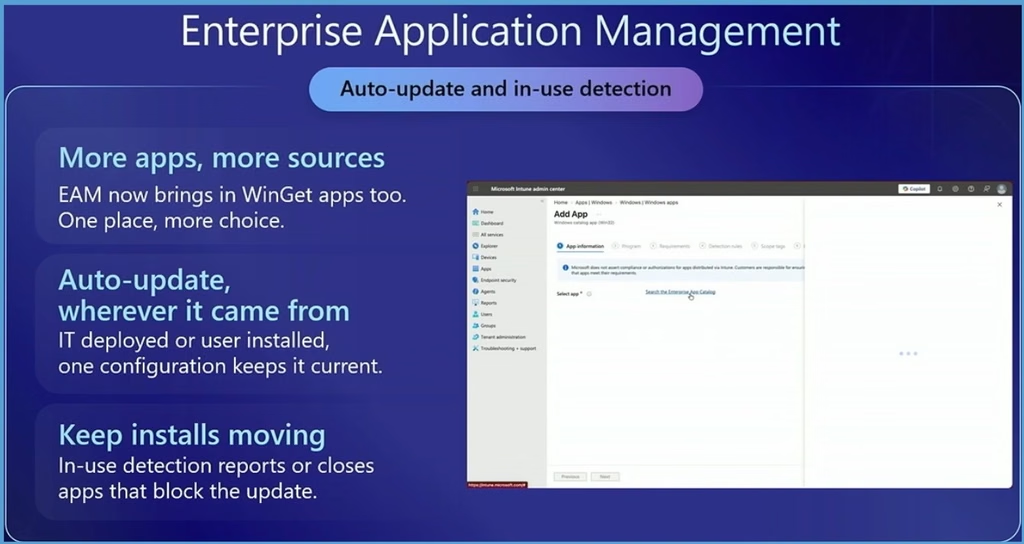
Microsoft is introducing new capabilities in Enterprise App Management to simplify application patching and improve update control across Windows devices. These enhancements focus on automatically updating applications, managing update behaviour when applications are in use, and providing administrators with the flexibility to exclude selected applications. Previously, IT administrators primarily managed application updates for applications that were deployed and managed through Intune. However, many enterprise applications are installed independently by users, downloaded directly from the internet, or included in the Windows device image.
| Features | Info |
|---|---|
| More apps, more sources | Enterprise App Management now brings WinGet apps into the app management experience, providing more application choices. |
| Auto-update, wherever it came from | Applications can be automatically updated regardless of whether they were deployed by IT or installed by users. |
| Keep installs moving | In-use detection can report or close applications that are blocking an update |
Configure Enterprise App Management using Microsoft Intune
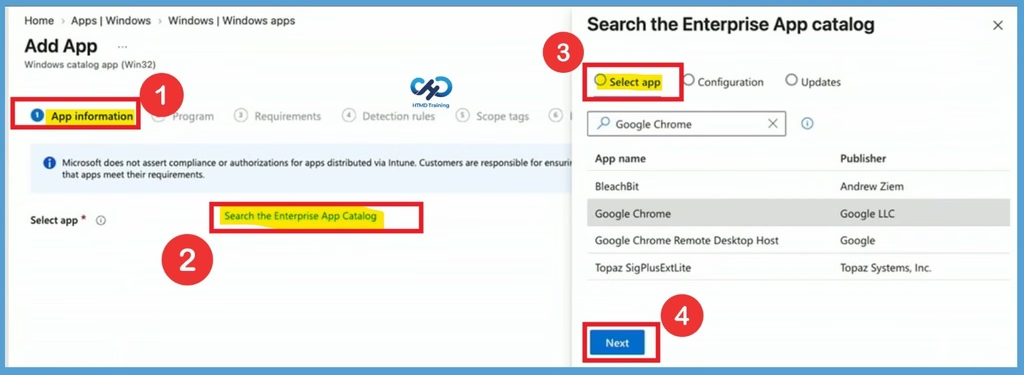
To configure an application using Enterprise App Management in Microsoft Intune, navigate to Apps > Windows > Windows apps in the Intune admin centre and select Add. Choose Windows catalog app (Win32) as the app type. Under the App information step, select Search the Enterprise App Catalog to browse the available applications. Search for the required application, such as Google Chrome, select it from the catalog, and click Next to proceed.

Select the Application Configuration from the Enterprise App Catalog
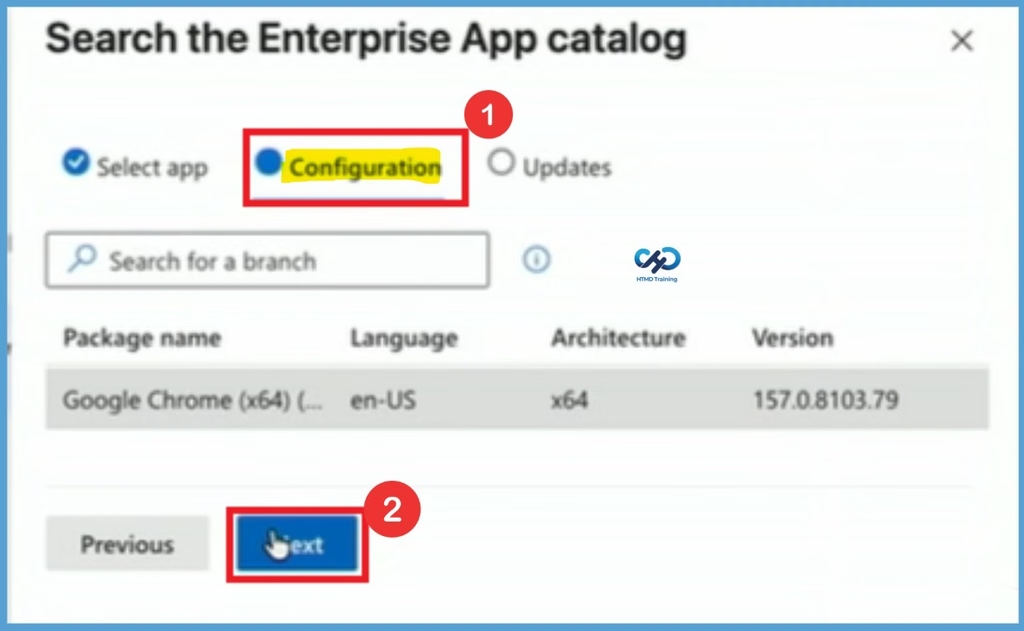
After selecting the application, the Enterprise App Catalog wizard provides the Configuration stage. Select the available application package from the list, which displays details such as package name, language, architecture, and version. For example, the screenshot shows Google Chrome (x64), English (en-US), and the package version. Select the appropriate package and click Next to continue.
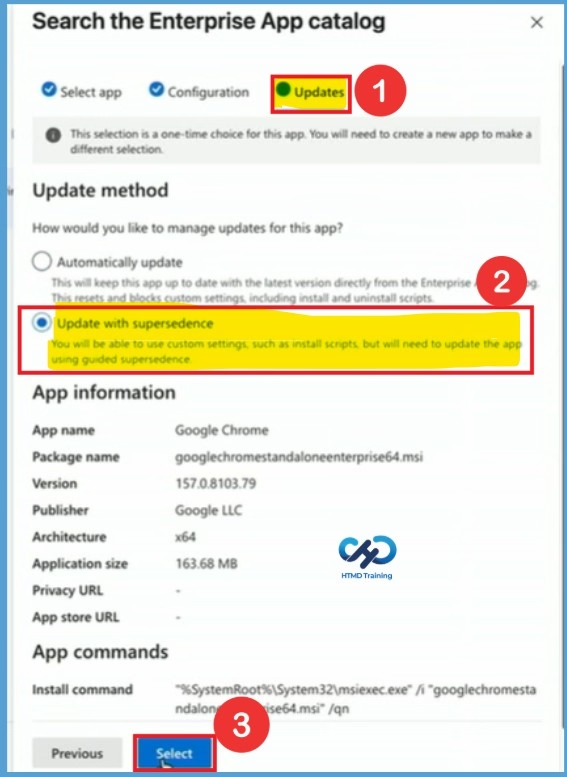
Configure the Application Update Method
In the Updates section of the Enterprise App Catalog, administrators can select how the application updates will be managed. The screenshot provides 2 update methods: Automatically update and Update with supersedence. Automatically update keeps the application updated directly from the Enterprise App Management catalog, resetting and blocking custom settings, including installation and uninstallation scripts.
Update with supersedence allows administrators to retain custom settings, such as installation scripts, while managing application updates through guided supersedence. Select the required update method and click Select to proceed.
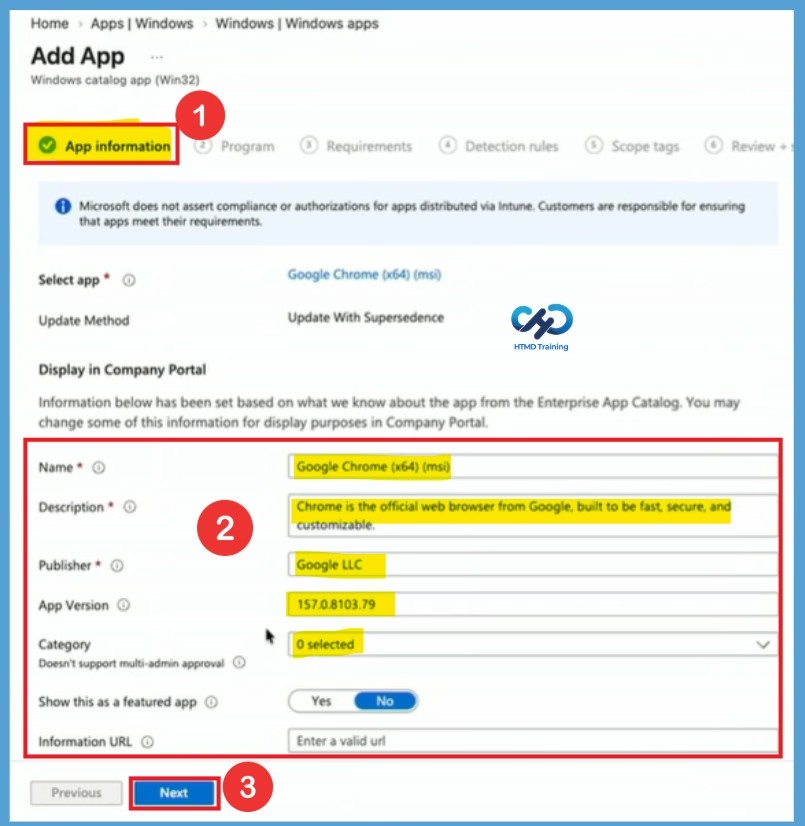
After clicking on the select now you are on the App info main page again. Here you can see that all the details name, description, publisher, app version and show this as a feature app as No. Now you can select the next option for Program tab.
Configure Application Installation Program Tab
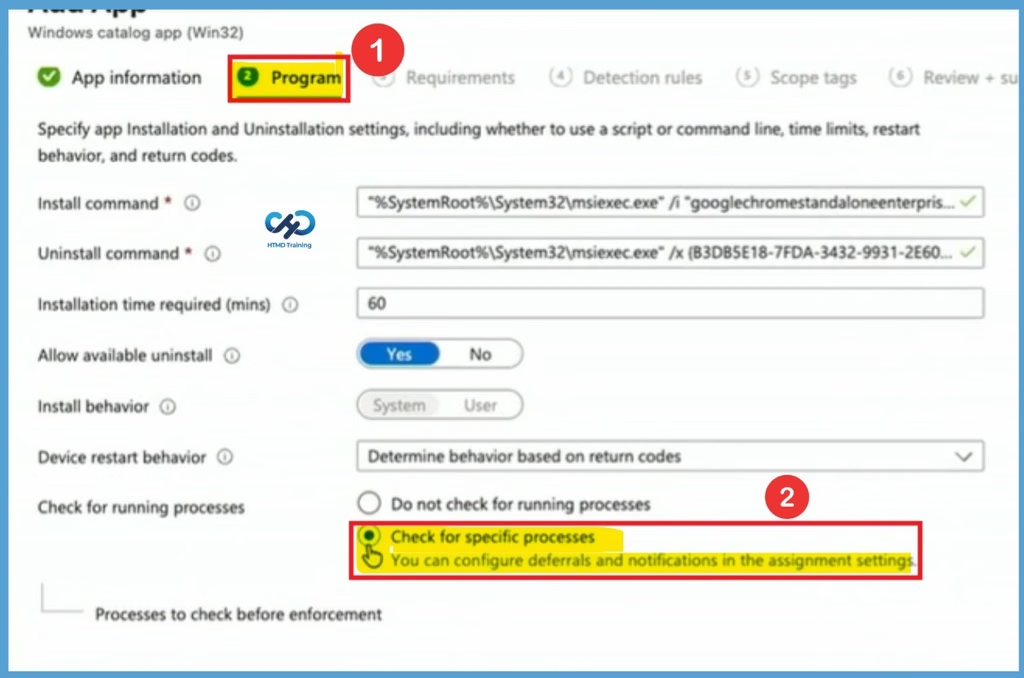
After selecting the application package, administrators are directed to the Program step of the Windows catalog app configuration. This section allows administrators to configure installation and uninstallation commands, installation time, available uninstall options, installation behaviour, and device restart behaviour. In the demonstrated configuration, the Check for specific processes option is selected under Check for running processes.
This allows administrators to identify application processes that need to be checked before enforcement. The screen also indicates that deferrals and notifications can be configured through the assignment settings, helping administrators manage application updates when users are actively running the application.
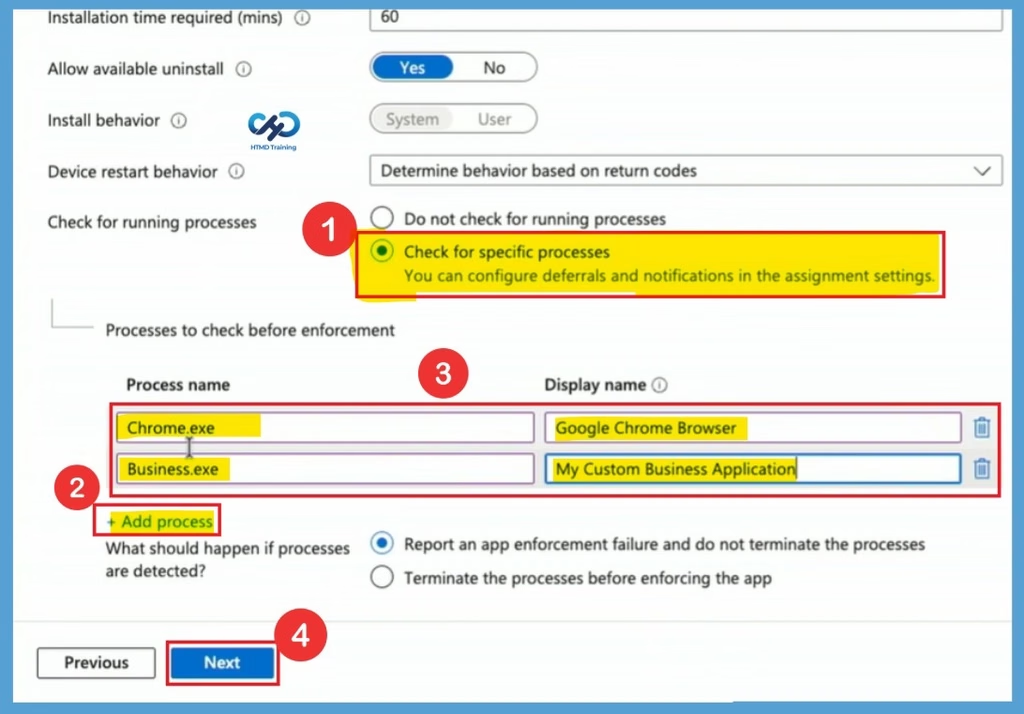
When you click on the check for specific process to identify applications that should be checked before enforcing an update. Click Add process and enter the process name and display name, such as Chrome.exe with Google Chrome Browser. You can add multiple processes based on your requirements. If the specified processes are detected, administrators can choose to report an app enforcement failure without terminating the processes or terminate the processes before enforcing the app. After configuring the required settings, click Next to continue.
- After program and Requirements, Detection rules, Scope tags, Review + Create.
| Process name | Display name |
|---|---|
| Chrome.exe | Google Chrome Browser |
| Business.exe | My Custom Business Application |
Automatic App Update Policy
The application update settings configured during Enterprise App Management app creation apply to the selected catalog application. Microsoft also introduces a separate Automatic App Update policy that allows administrators to keep applications updated across Windows devices, regardless of how they were initially installed. In the following section, we will explore how to create and configure this policy using Microsoft Intune.
Create an Automatic App Update Policy Using Microsoft Intune
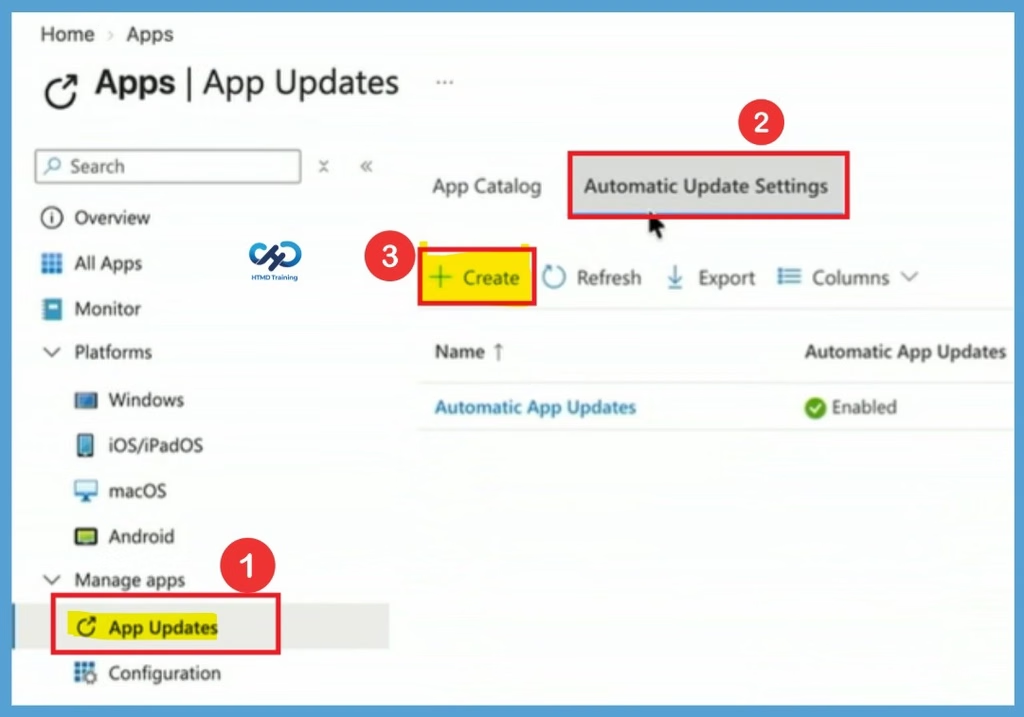
To create an Automatic App Update policy in Microsoft Intune, navigate to Apps > App Updates in the Intune admin centre. Under the App Updates section, select the Automatic Update Settings tab. Click Create to start creating a new Automatic App Update policy.
Basic Details of the Automatic App Update Policy
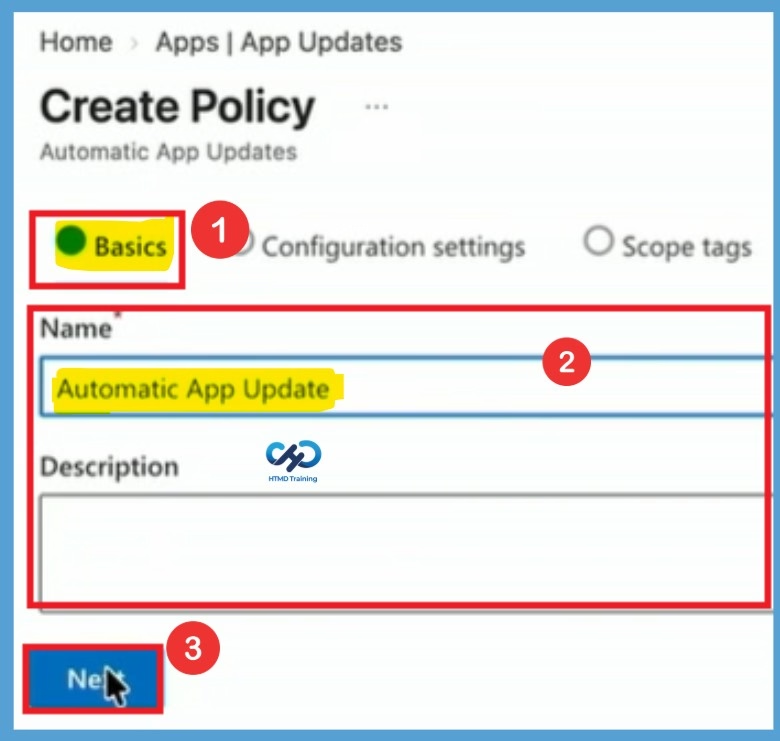
Under the Basics section, enter a name for the Automatic App Update policy. You can also provide a description to identify the purpose of the policy and its configuration. After entering the required details, click Next to continue.
Configure Automatic App Update Settings
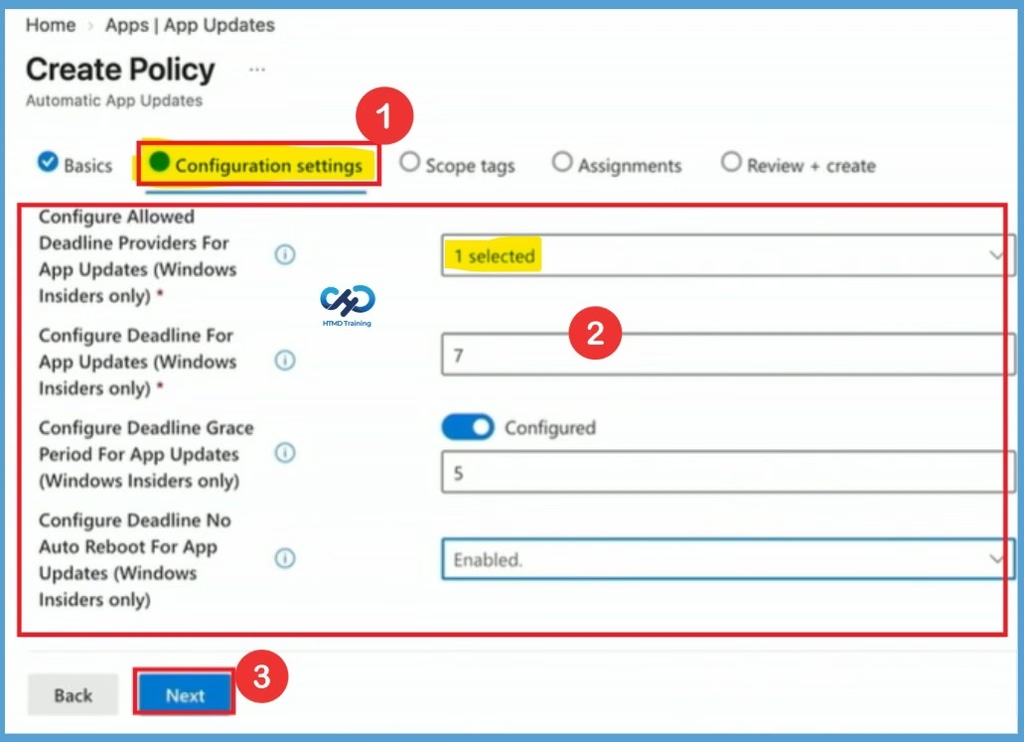
Under Configuration settings, administrators can configure the application update deadline and restart-related settings. In the demonstrated configuration, the allowed deadline providers for app updates and the app update deadline are configured. The screenshot shows a deadline value of 7 days and a configured grace period of 5 days. Administrators can also configure the No Auto Reboot setting for app updates. Note that the settings displayed in this demonstration are marked as Windows Insiders only. After configuring the required settings, click Next to proceed.
Also continue with the other tabs scope tabs assignments and review+ create. Under the Review + create section, review the configured policy details, including the basic information, configuration settings, scope tags, and assignments. Ensure that all the settings are configured as expected and click Create to complete the policy creation process.
Search for Applications in the App Catalog
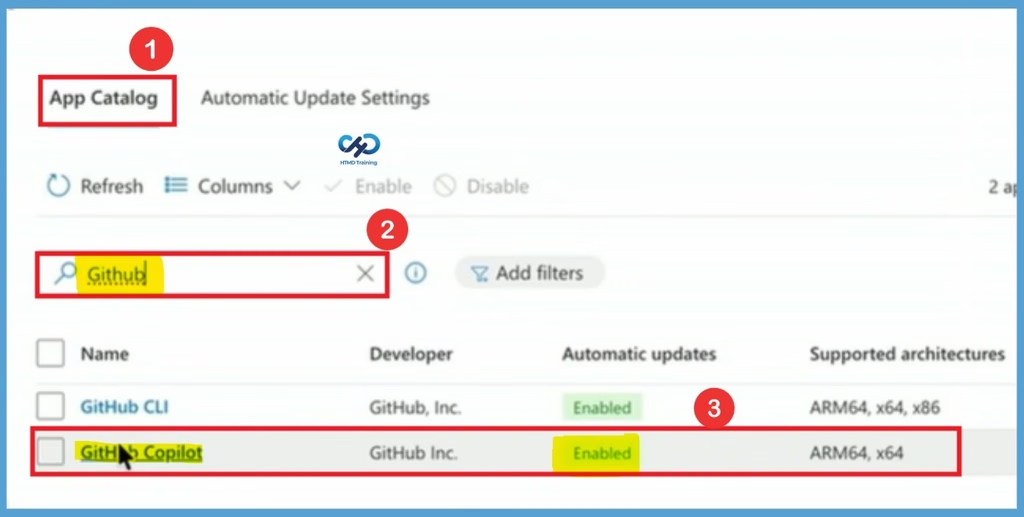
After configuring the Automatic App Update policy, administrators can review applications available in the Enterprise App Catalog and manage which applications should be included in automatic updates. In the session, the catalogs displays applications such as GitHub CLI and GitHub Copilot, along with their developers, automatic update status, and supported architectures. This allows administrators to identify applications and manage their automatic update behaviour(Enabled) based on organisational requirements.
View Application Updates in Windows Settings
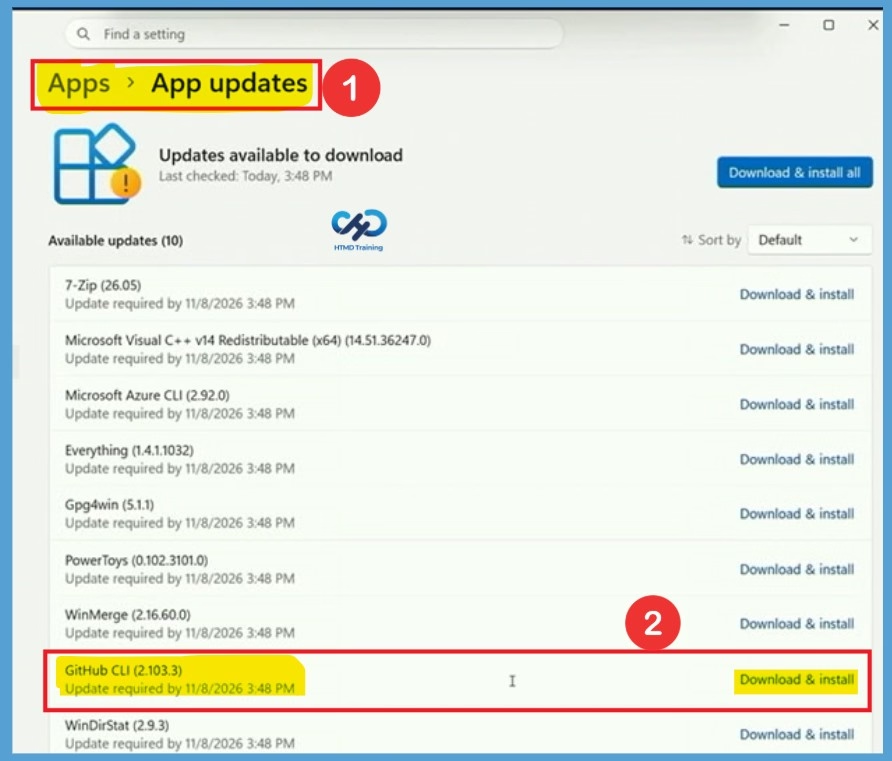
Once the Automatic App Update policy is applied, users can view application updates through the Windows Settings experience. On the Windows device, navigate to Settings > Apps > App updates to view the available application updates. The demonstrated screen displays applications with available updates, their versions, update deadlines, and download and install options. Users can also select Download and install all to initiate the available updates.
Need Further Assistance or Have Technical Questions?
Join the LinkedIn Page and Telegram group to get the latest step-by-step guides and news updates. Join our Meetup Page to participate in User group meetings. Also, join the WhatsApp Community and the Whatsapp channel to get the latest news on Microsoft Technologies. We are there on Reddit as well.
Author
Anoop C Nair is Workplace Technology solution architect with 25+ years of experience in global enterprise organizations such as JP Morgan, Capgemini, etc. He is Microsoft Certified Trainer. Microsoft MVP from 2015 onwards for consecutive 11 years! He also conducts Intune and modern workplace tech training for enterprise organizations. He is Blogger, Speaker, and Founder of HTMD Community and HTMD Conference. His focus is on Device Management technologies such as Intune, Windows, Cloud PC. He writes about technologies like Intune, SCCM, Windows, Cloud PC, Windows, Entra, Microsoft Security.