
Key Takeaways
- Microsoft Intune introduces Deployment Plans to manage application rollouts through multiple deployment rings.
- Deployment Plans allow administrators to schedule deployment start dates and times.
- Expanded filters support more granular device targeting using inventory properties such as BIOS information, TPM, ownership, memory and encryption.
- Inventory-based filters help administrators identify and target the appropriate devices for deployment.
In this post, we are discussing the Microsoft Intune Introduces Deployment Plans and Enhanced Device Filtering. Microsoft is introducing new deployment management capabilities in Intune to help IT administrators manage application rollouts more safely and target devices more precisely. The new Deployment Plans experience enables administrators to stage application deployments through different validation rings, while expanded filters provide more granular device targeting using inventory information.
Table of Contents
Table of Contents
Microsoft Intune Introduces Deployment Plans and Enhanced Device Filtering
These improvements are designed to help organizations follow safer deployment practices by validating application updates across different groups before expanding the rollout to users. Administrators can organize deployments into internal, IT validation, business validation and broad rollout stages, while using device inventory properties to create more precise targeting conditions. With these new capabilities, Microsoft aims to help IT administrators maintain better control over deployment progression, decide when applications are deployed and ensure that updates reach the appropriate devices.
- Automatic App Updates Expand Enterprise App Management Capabilities in Microsoft Intune
- 6 Exciting Features coming to Intune Enterprise App Management
- Intune Adds Inventus OEMConfig App to Enhance Android Enterprise Management
- New Update Button is Available for Intune Enterprise Application Management to Update Catalog Apps
What’s New
Microsoft Intune introduces Deployment Plans and enhanced filters to help IT administrators manage deployments more easily and safely. Deployment Plans allow administrators to roll out applications in stages using different rings, starting with a small group and gradually expanding to more users. Administrators can also schedule when deployments begin and use existing security groups for each ring. Along with this, enhanced filters use device information such as BIOS, TPM, memory and encryption to target specific devices more accurately.
Create a Deployment Plan for Google Chrome using Microsoft Intune
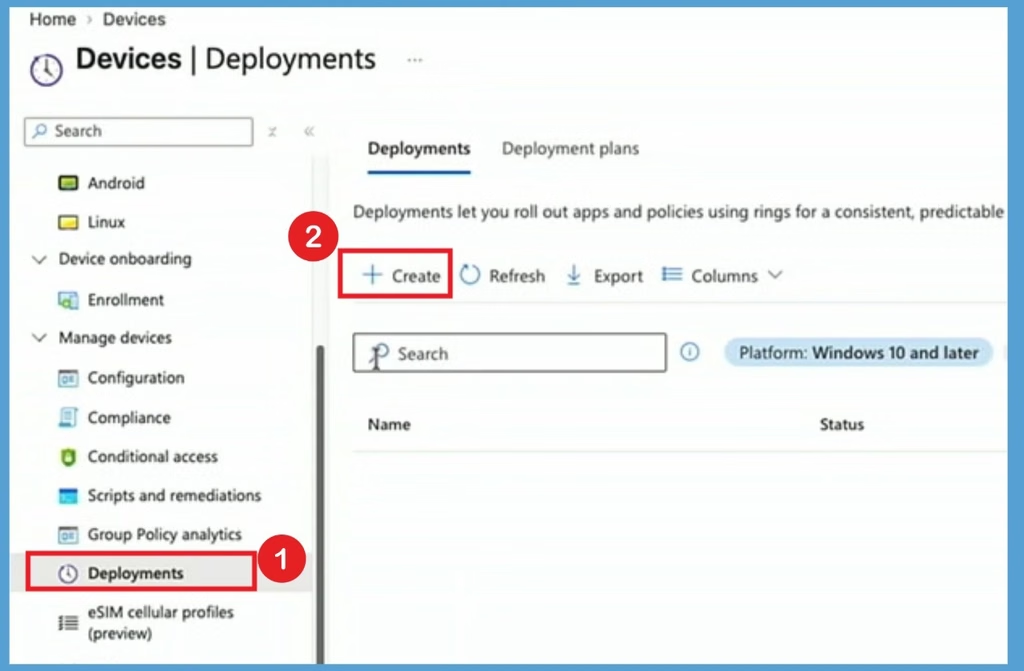
The Ignite demo walks through creating a deployment plan for Google Chrome and organizing the rollout through a deployment ring. The process begins under the Deployments section in Intune, where administrators create a new deployment, select the application payload, configure the deployment schedule and review the deployment plan.

- Device> Deployment> Create
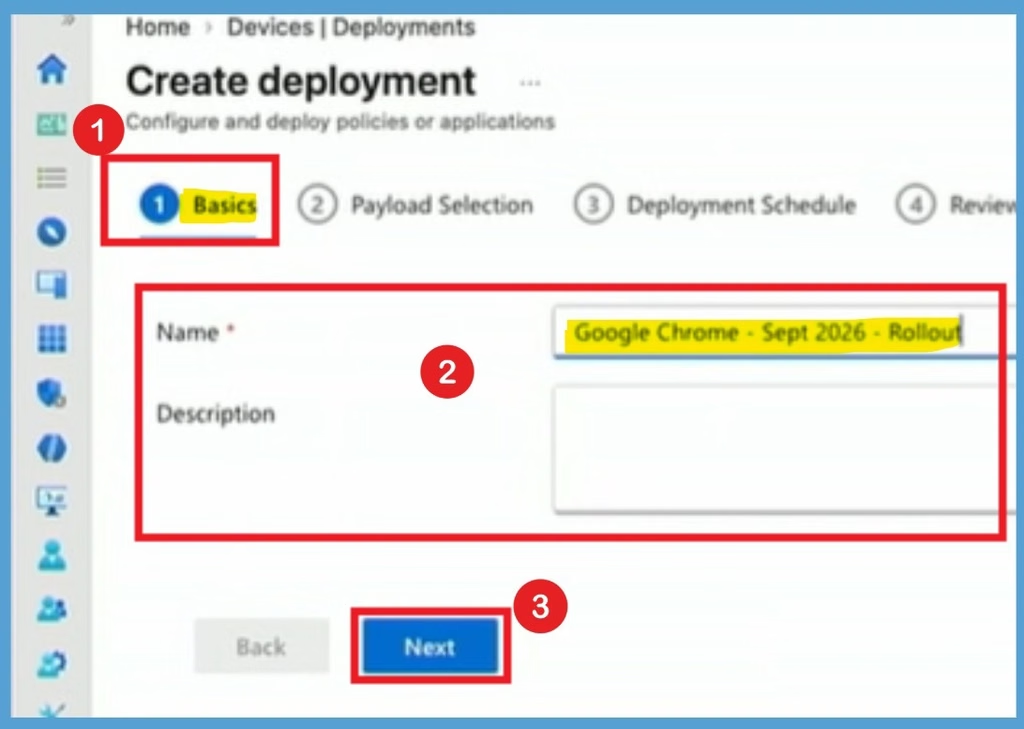
Basic Tab
On the Basics page, enter the deployment name as Google Chrome September 2026 Rollout. No description is entered in the demo. Once the name is configured, click Next to proceed to the payload selection stage.
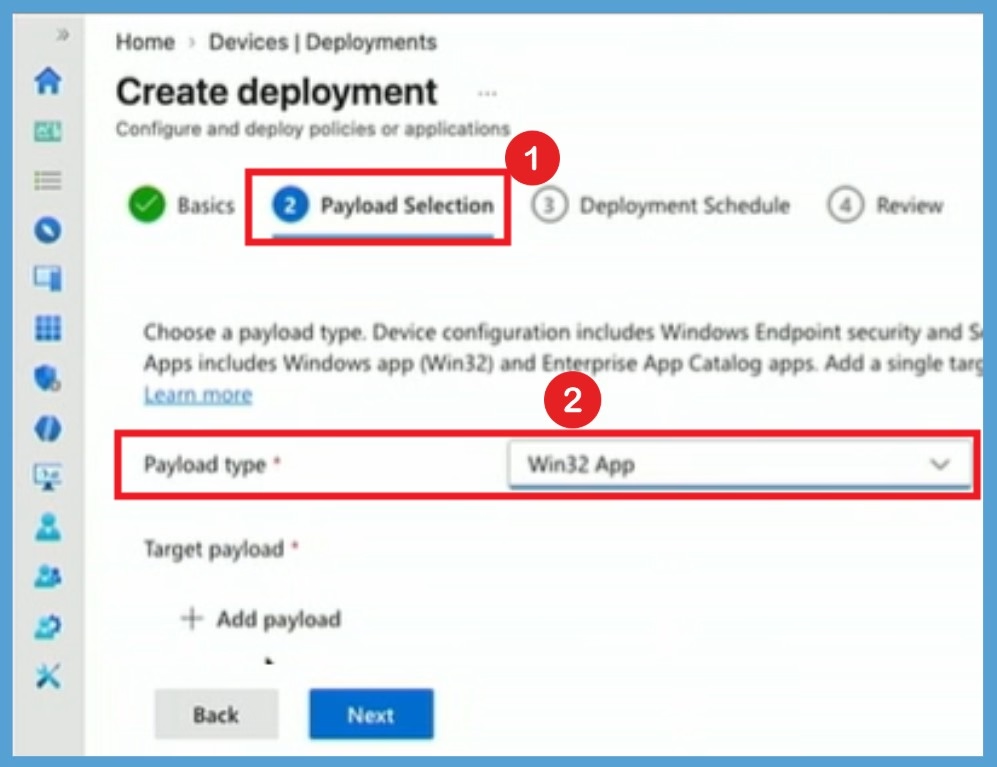
Select the Application Payload Type
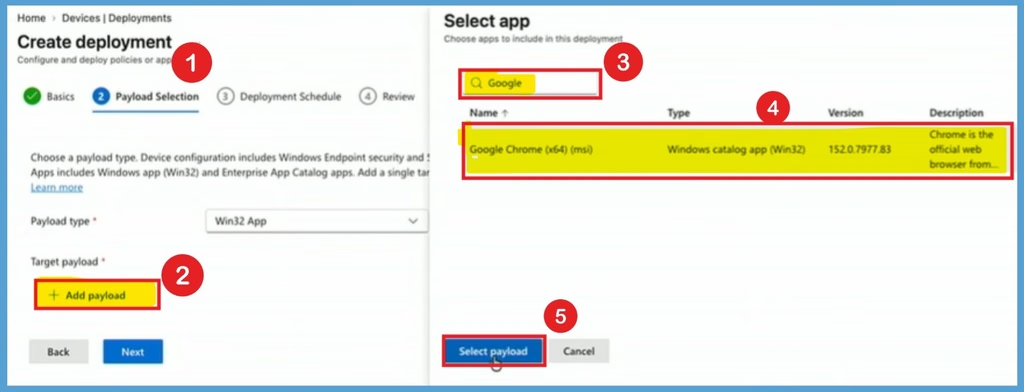
On the Payload Selection page, select Win32 app as the payload type. This allows administrators to choose the application that will be included in the deployment plan. After selecting the payload type, click on the Add payload option to choose the application for deployment.
Add payload
After selecting Add payload, the Select app window opens. Enter Google in the search field to find the application. In the demo, the search results display Google Chrome (x64) (msi), listed as a Windows catalog app (Win32), with its version information. Select the Google Chrome application from the results and click Select payload to add it to the deployment.
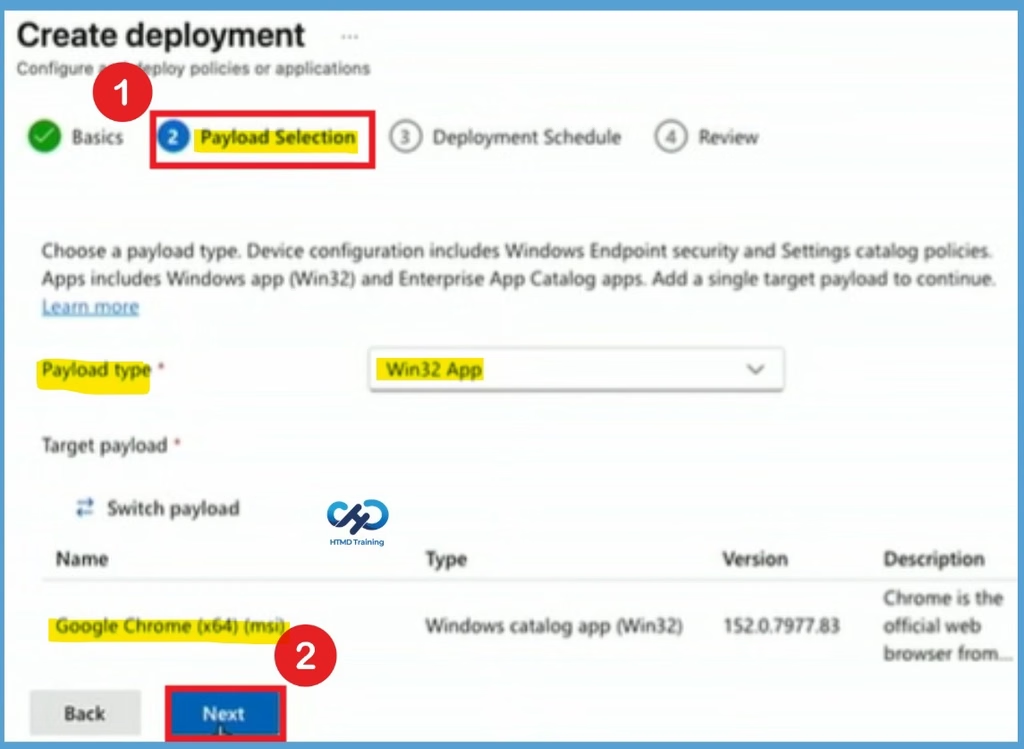
Once the payload is selected, you will return to the Payload Selection page, where the selected Google Chrome application is displayed under Target payload. You can review the application name, type, version and description. The selected payload is shown as Google Chrome (x64) (msi), with the type listed as Windows catalog app (Win32). After reviewing the application details, click Next to continue to the Deployment Schedule section.
Deployment Schedule
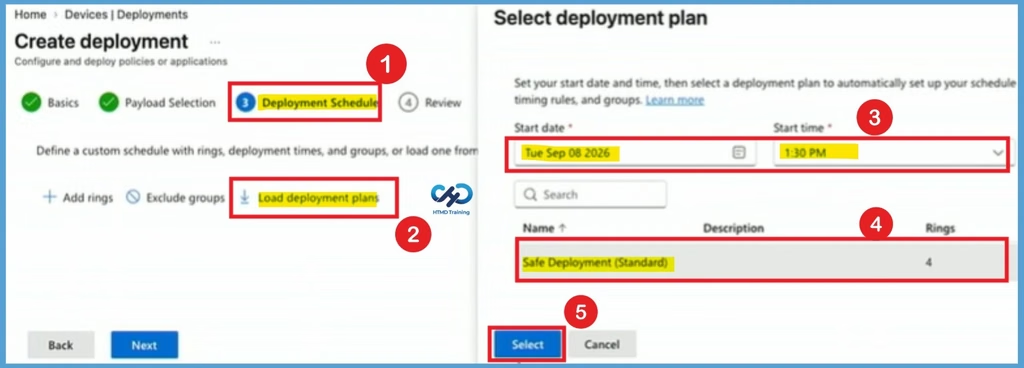
On the Deployment Schedule page, administrators can configure the deployment start date and time or load an existing deployment plan to automatically populate the deployment schedule, timing rules, and groups. Select Load deployment plans to view the available plans. In this example, the Safe Deployment (Standard) plan is selected, which contains four deployment rings. After selecting the plan and setting the start date and time, administrators can proceed to configure the deployment rings and their assigned groups.
In the Create deployment page, administrators can organize application deployments into different rings by adding existing groups. In this example, the deployment plan includes Internal Validation and IT Validation rings, each with a dedicated security group. Administrators can add groups to each ring and configure application settings for the assigned groups, allowing them to control how the application is deployed during each validation stage.
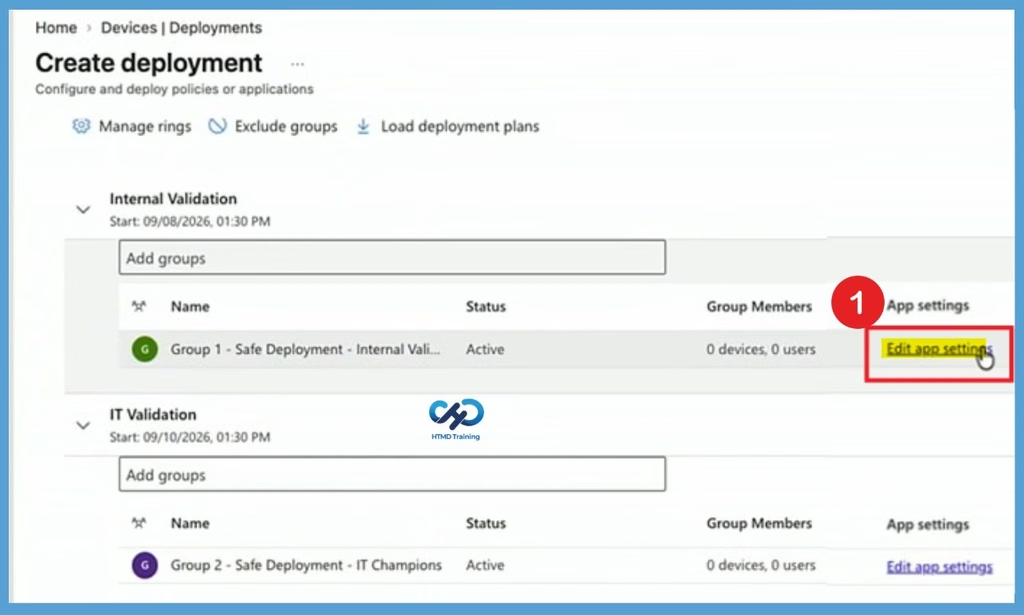
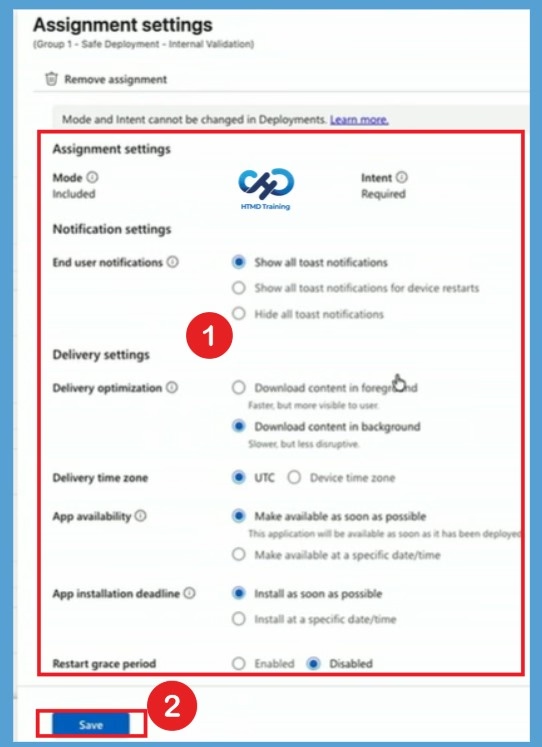
After adding a group to a deployment ring, administrators can select Edit app settings to configure assignment settings for that group. These settings include end-user notifications, delivery optimization, delivery time zone, app availability, app installation deadline, and restart grace period. Administrators can customize these options to control how the application is delivered and when users are expected to install it.
Monitor Deployment Ring Progress
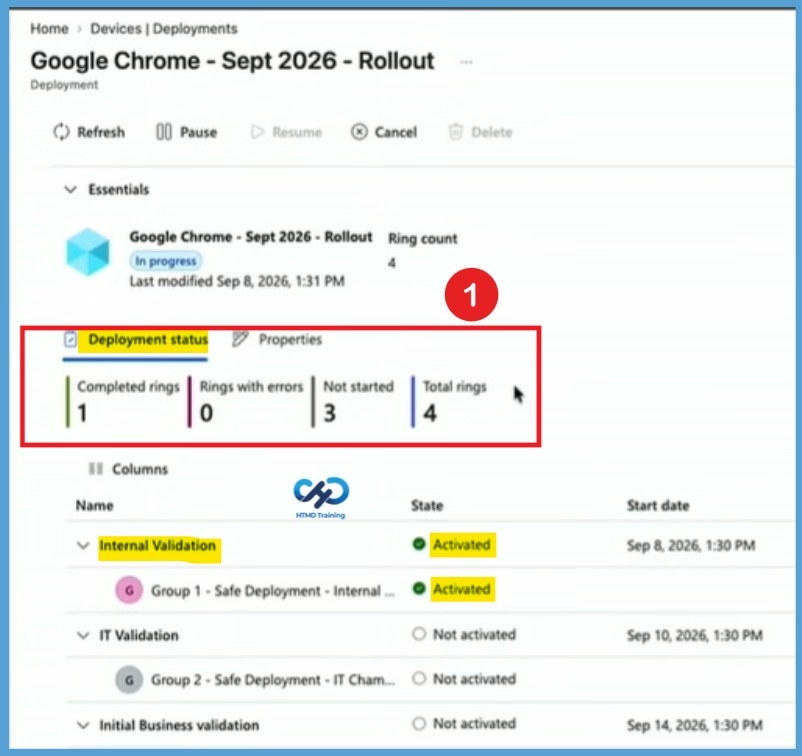
Once the deployment plan is created, administrators can monitor its progress from the deployment overview. The Deployment status tab displays the number of completed rings, rings with errors, rings that have not started, and the total number of rings. Administrators can also expand individual rings to review their activation status and scheduled start dates, helping them track the rollout as it progresses through each validation stage.
Assignment Filters Capability
After demonstrating the Deployment Plans experience, the Ignite session moves to the enhanced Assignment Filters capability in Microsoft Intune. This is a separate feature demonstration that show Configure Enhanced Assignment Filters in Microsoft Intune how administrators can use device inventory information to create more granular filters and target devices.
Configure Enhanced Assignment Filters in Microsoft Intune
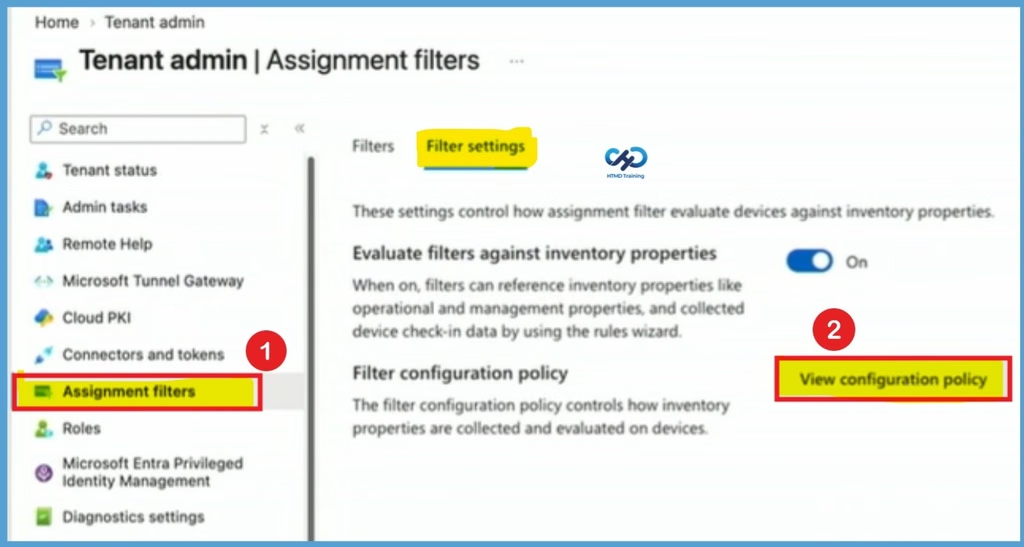
To configure enhanced assignment filters, navigate to Tenant admin > Assignment filters > Filter settings. Here, you can enable the Evaluate filters against inventory properties option to allow assignment filters to use device inventory properties, such as operational and management properties, and collected device check-in data. You can also select View configuration policy to review the policy that controls how inventory properties are collected and evaluated on devices.
Create a Managed Devices Filter
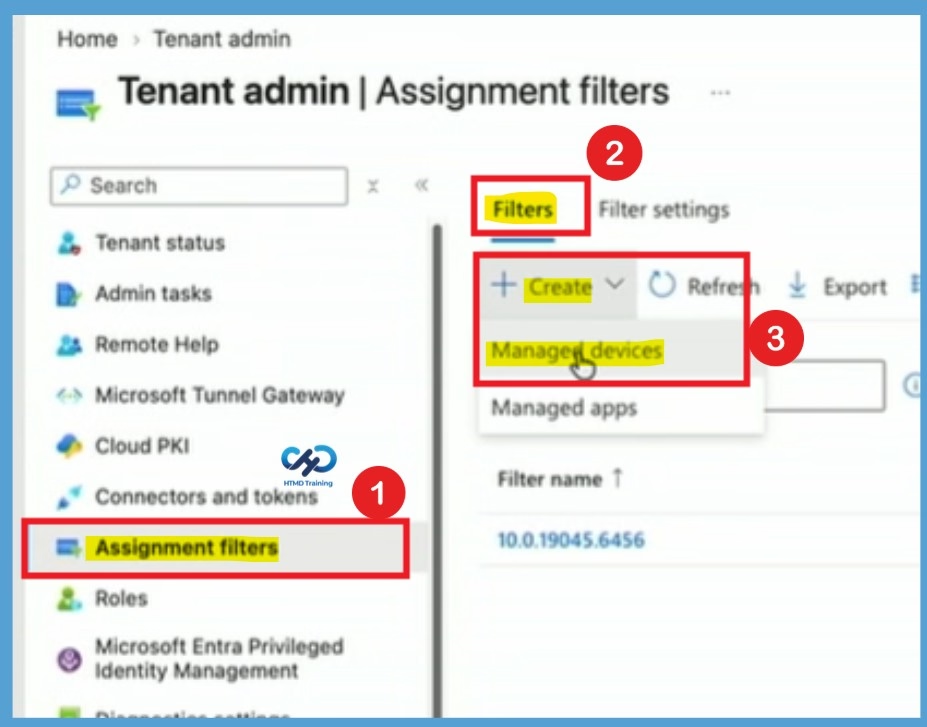
Under the Filters tab, select Create and choose Managed devices to create a new device assignment filter. Intune allows administrators to create filters for managed devices or managed apps, depending on their targeting requirements. Selecting Managed devices opens the filter creation wizard, where administrators can configure the filter details and rules.
Basic Tab
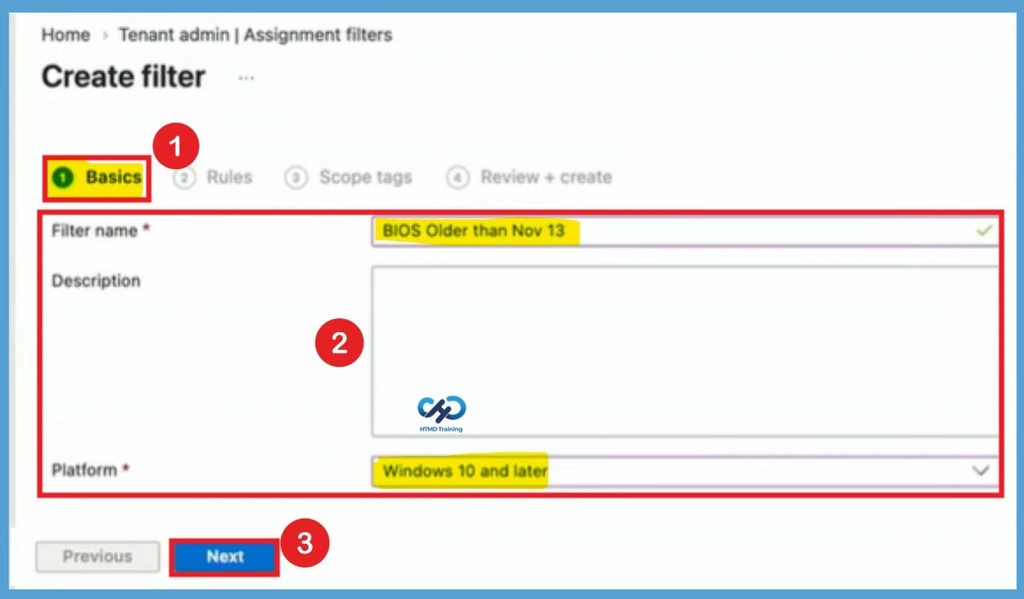
On the Basics page, enter a name for the filter and optionally provide a description to identify its purpose. Select the appropriate platform from the available options. In this example, the filter is named BIOS Older than Nov 13, and the platform is set to Windows 10 and later. Select Next to continue configuring the filter rules.
Create Filter Rules Using Device Inventory Properties
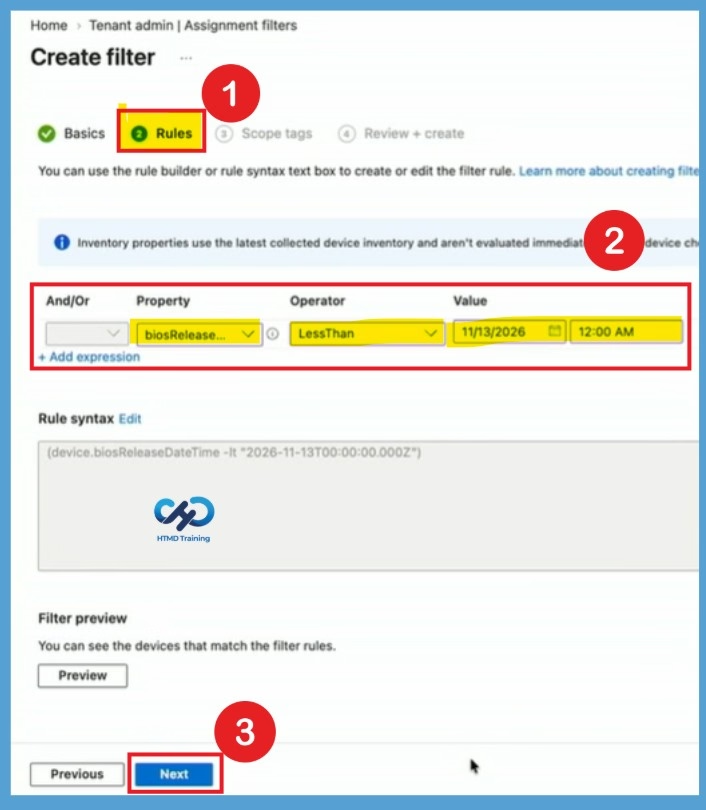
On the Rules page, administrators can use the rule builder or rule syntax to define the conditions for the filter. In this example, the biosReleaseDateTime inventory property is selected with the LessThan operator and a date of November 13, 2026, at 12:00 AM. This rule identifies devices whose BIOS release date is earlier than the specified date. Administrators can also review the generated rule syntax and use the Preview option to see which devices match the filter before proceeding.
Need Further Assistance or Have Technical Questions?
Join the LinkedIn Page and Telegram group to get the latest step-by-step guides and news updates. Join our Meetup Page to participate in User group meetings. Also, join the WhatsApp Community and the Whatsapp channel to get the latest news on Microsoft Technologies. We are there on Reddit as well.
Author
Anoop C Nair is Workplace Technology solution architect with 25+ years of experience in global enterprise organizations such as JP Morgan, Capgemini, etc. He is Microsoft Certified Trainer. Microsoft MVP from 2015 onwards for consecutive 11 years! He also conducts Intune and modern workplace tech training for enterprise organizations. He is Blogger, Speaker, and Founder of HTMD Community and HTMD Conference. His focus is on Device Management technologies such as Intune, Windows, Cloud PC. He writes about technologies like Intune, SCCM, Windows, Cloud PC, Windows, Entra, Microsoft Security.