
Key Takeaways
- Automates passkey rollout, no more manual user-by-user setup
- Enables phishing-resistant authentication at scale
- Reduces operational effort for IT admins
- Uses Conditional Access policies to drive adoption
- Improves overall security with modern authentication methods
Automate Passkey Adoption at Scale with Conditional Access Optimisation Agent in Microsoft Entra! Setting up strong, phishing-resistant login for all users has always been difficult and takes a lot of time. Now, the Conditional Access Optimization Agent in Microsoft Entra makes this easier by helping with passkey adoption. It handles the process automatically, so admins don’t have to set up each user one by one, making security better while saving time and effort.
Table of Content
Table of Contents
Conditional Access Optimization Agent in Microsoft Entra Now Automates Passkey Adoption at Scale
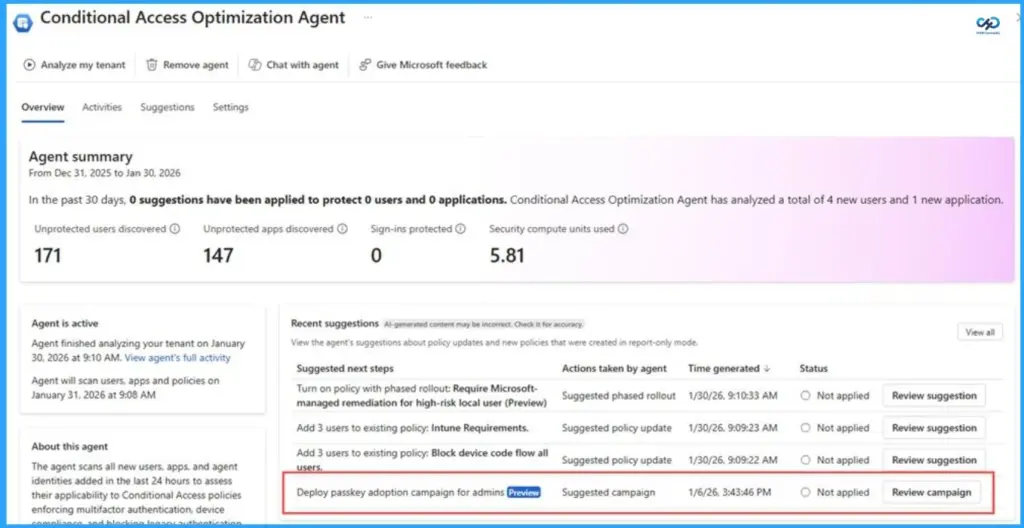
The agent works by checking if users and their devices are ready for passkeys. It then creates a simple deployment plan and helps guide users step by step to register. Once everything is ready, it applies Conditional Access policies automatically. As users complete each step, the campaign keeps updating and tracking their progress.
| Conditional Access Optimization Agent in Microsoft Entra |
|---|
| Passkeys are deployed in an organized and automated way instead of manual setup |
| Users and devices are checked before starting enrollment |
| Conditional Access policies are first tested without impacting users |
| Campaign progress updates automatically, reducing admin work |
| Starts with protecting high-value accounts like privileged administrators |
- Native Authentication for Microsoft Entra External ID | Complete Control Over Login Experience
- How to Setup Passwordless Login for Microsoft Accounts
- Entra External ID Now Supports SMS as an MFA Option
- Windows Elevates Passkey Security with Plug-in Credential Manager Integration
How to Get Started with Passkey Adoption
Getting started is simple if you follow a structured approach. First, make sure all the required prerequisites are in place, such as licensing, security capacity, and enabling passkeys. Then, assign the right admin role and use the Microsoft Entra admin center to begin the campaign.
The agent will guide you by checking readiness, creating a deployment plan, and helping you review policies before enforcing them. Starting with privileged accounts is important, as they are the most targeted, and once successful, you can expand to all users.

Many organizations want better security, but find it hard to roll it out to everyone. This solution makes that process easier and more practical by automating and guiding the deployment.
- Steps to Follow:
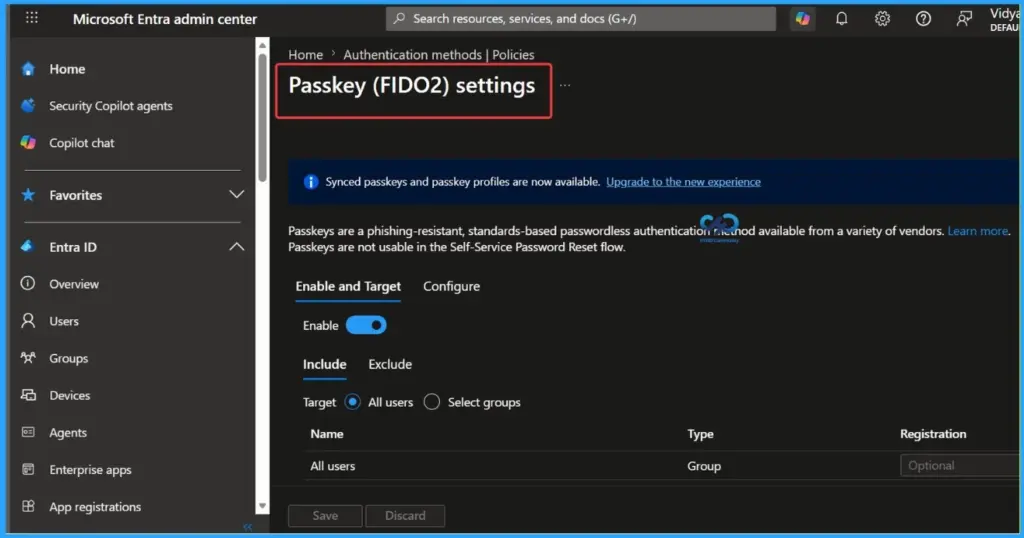
- Ensure prerequisites are ready (Entra ID P1, Security Compute Units, passkeys enabled)
- Assign the Security Administrator role
- Go to campaign management in Microsoft Entra admin center
- Allow the agent to evaluate readiness and create a plan
- Review report-only Conditional Access policies before enforcing
Need Further Assistance or Have Technical Questions?
Join the LinkedIn Page and Telegram group to get the latest step-by-step guides and news updates. Join our Meetup Page to participate in User group meetings. Also, join the WhatsApp Community and the Whatsapp channel to get the latest news on Microsoft Technologies. We are there on Reddit as well.
Author
Anoop C Nair is a Workplace Technology solution architect with 25+ years of experience. Microsoft Certified Trainer. Microsoft MVP from 2015 onwards for consecutive 11+ years! He is a blogger, Speaker, and Founder of HTMD Community and HTMD Conference. His main focus is on Device Management technologies like Intune, Windows, and Cloud PC. He writes about technologies like Intune, SCCM, Windows, Cloud PC, Entra, and Microsoft Security.