
Key Takeaways
- April 2026 updates may trigger a one-time BitLocker recovery prompt
- Some devices may show a BitLocker recovery prompt on first restart after update
- The issue is caused by changes in the Secure Boot chain and Windows Boot Manager
- Only systems with specific BitLocker Group Policy are affected
- Most users will not be impacted, as the issue depends on custom configurations
In this post, BitLocker Recovery Prompt Reported After Latest Windows Updates. Microsoft has released its April 2026Windows updates, including KB5083769, KB5082052, and KB5082200, as part of its regular Patch Tuesday. These updates bring security fixes and some system improvements for Windows 11 and Windows 10 devices.
Table of Contents
Table of Contents
BitLocker Recovery Prompt Reported After April 2026 Windows Security Updates
After installing these updates, some users may see a BitLocker recovery screen when they restart their device. This means the system asks for a recovery key, which can be unexpected, especially for normal users. The issue does not affect all devices. This happens only on systems with certain security settings related to BitLocker and Secure Boot. Microsoft has confirmed the issue and shared guidance on how to prevent or fix it, so users and IT teams can handle it easily.
- BitLocker Recovery Boot Issue After July 2024 Security Update
- Intune Bitlocker Drive Encryption A Deeper Dive To Explore
- Managing Windows Bitlocker Compliance Policy Using Intune | MS Graph | Grace Period
- Block Hide BitLocker Recovery Key From Users Using MS Graph And PowerShell
What Is Causing the Issue?
The main issue is recent updates modify the Windows boot process. As part of security improvements, systems may switch to a newer 2023 signed Windows Boot Manager. If a device is configured with BitLocker policies, this change can be interpreted as a risk. As a result, BitLocker may request the recovery key to confirm that the device is still secure.
| Affected Updates |
|---|
| Windows 11 KB5083769, |
| Windows 11 KB5082052 |
| Windows 10 KB5082200 |
| Windows Server 2022/2025 |
BitLocker Recovery Screen After April 2026 Update
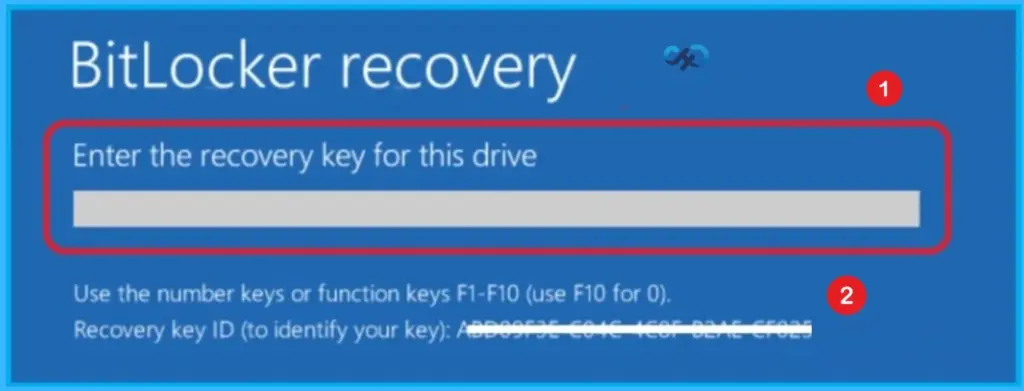
The below screen appears on some devices after installing the April 2026 Windows updates, where the system asks for a BitLocker recovery key during startup. It usually happens because of changes in security settings related to Secure Boot and BitLocker configuration. Although it may look concerning, this prompt typically occurs only once and mainly affects systems with specific policy settings enabled.

Impact on Enterprise
For organizations managing large numbers of devices, as multiple systems may enter BitLocker recovery mode after updates, leading to user lockouts and increased helpdesk requests. Since recovery requires a 48-digit key, delays can occur if keys are not easily accessible from Active Directory or Microsoft Entra ID.
Workarounds to Prevent BitLocker Recovery Prompt
Microsoft has provided multiple ways to avoid or reduce the chances of seeing the BitLocker recovery screen after installing the April 2026 updates. The most effective solution is to remove or reset the specific BitLocker policy that forces TPM validation. This allows Windows to automatically choose a compatible security profile instead of using a strict configuration that can cause conflicts after the update.
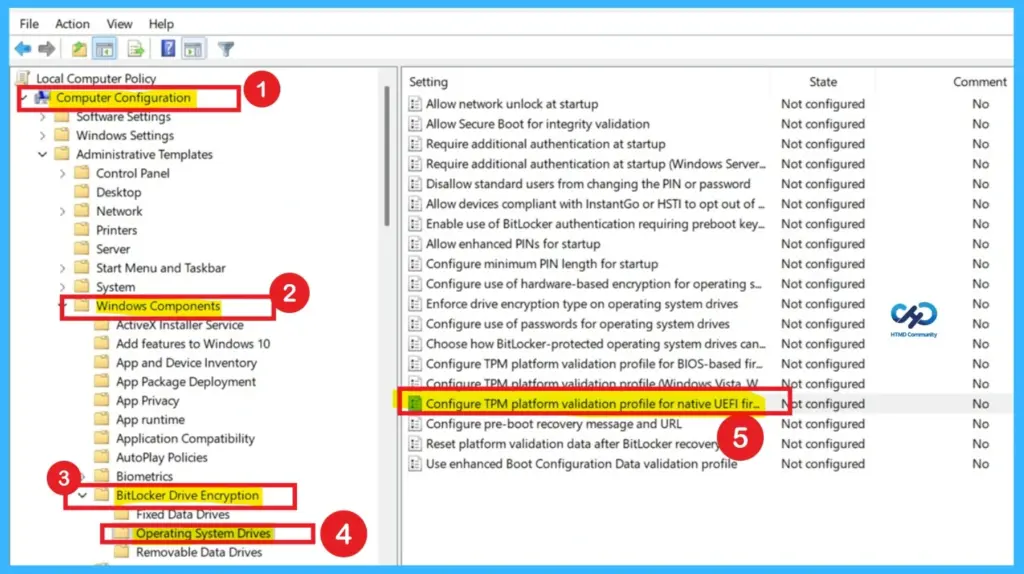
- Navigation Path: To resolve the BitLocker recovery prompt issue, administrators should first disable the problematic Group Policy setting found under Computer Configuration > Administrative Templates > Windows Components > BitLocker Drive Encryption > Operating System Drives > Configure TPM platform validation profile in gpedit.msc.
- After making this change, run gpupdate or force to apply the updated policy.
- Next, suspend and then re-enable BitLocker using manage-bde commands to refresh the TPM bindings.
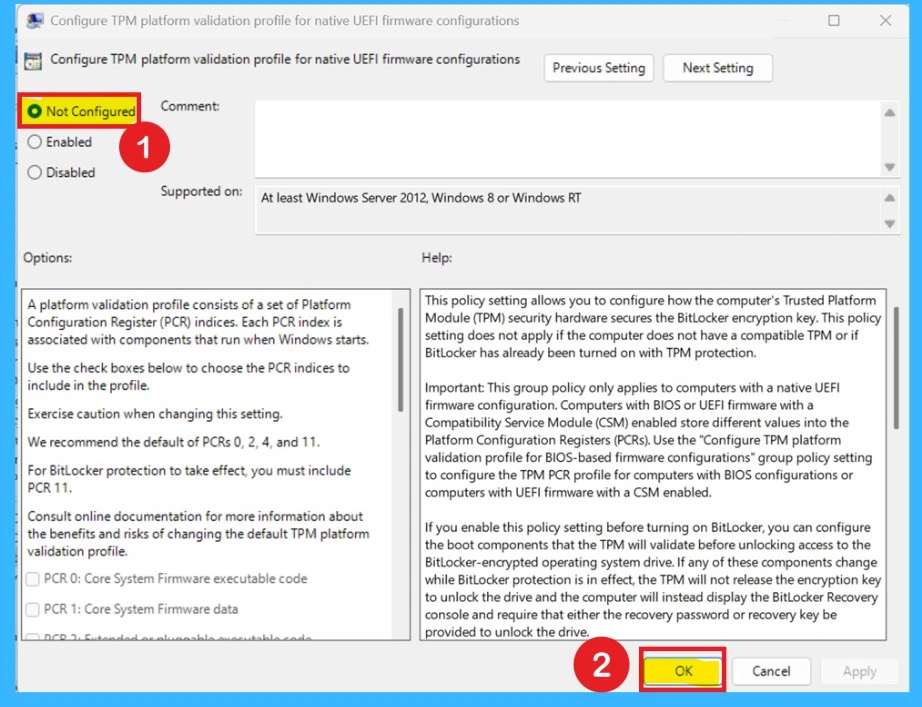
This Group Policy setting controls how the TPM secures the BitLocker encryption key by validating system components during startup. It applies only to PCs with native UEFI firmware; BIOS or UEFI systems with Compatibility Support Module (CSM) enabled require a different policy. When enabled before BitLocker is turned on, administrators can choose which boot components the TPM validates, but any changes to those components will trigger the BitLocker Recovery console.
If disabled or left unconfigured, BitLocker uses the default PCR profile based on hardware: without Secure Boot, PCRs 0, 2, 4, and 11 are validated; with Secure Boot, PCRs 7 and 11 are used. Modifying the PCR profile increases or decreases sensitivity to system changes, which can lead to recovery prompts, especially if PCR 7 is omitted or PCR 0 is included during firmware updates. The recommended approach is to leave this policy unconfigured, allowing Windows to automatically select the best PCR profile for balancing security and usability.
- Admins should set the policy Configure TPM platform validation profile for native UEFI firmware configurations to Not Configured, update the policy on devices, and then suspend and resume BitLocker protection.
- This ensures the system updates its security settings properly and avoids recovery prompts.
Use Known Issue Rollback
For organizations that cannot immediately change policies, Microsoft offers a Known Issue Rollback (KIR) option. This method prevents the update from applying the change that triggers the BitLocker prompt.
KIR is especially useful in enterprise environments where large numbers of devices are managed centrally, allowing IT teams to avoid disruption until a permanent fix is released.
Note: Always make sure secure boot updates are already done or not.
Need Further Assistance or Have Technical Questions?
Join the LinkedIn Page and Telegram group to get the latest step-by-step guides and news updates. Join our Meetup Page to participate in User group meetings. Also, join the WhatsApp Community and the Whatsapp channel to get the latest news on Microsoft Technologies. We are there on Reddit as well
Author
Anoop C Nair is a Workplace Technology solution architect with 25+ years of experience. Microsoft Certified Trainer. Microsoft MVP from 2015 onwards for consecutive 11+ years! He is a blogger, Speaker, and Founder of HTMD Community and HTMD Conference. His main focus is on Device Management technologies like Intune, Windows, and Cloud PC. He writes about technologies like Intune, SCCM, Windows, Cloud PC, Entra, and Microsoft Security.