
Key Takeaways
- Prevents users from changing the Windows lock screen and logon image.
- Helps maintain a standardized device appearance.
- Useful for corporate, educational, and shared-device environments.
- Can be configured through the Intune Settings Catalog.
Let’s checkHow to Prevent Users from Changing Lock Screen and Logon Images using Intune. A customized lock screen can help users personalize their devices, but in many organizations, administrators prefer to maintain a consistent and professional appearance across all managed Windows devices. When this policy is enabled, users can no longer change the image displayed on the Windows lock screen or logon screen. Instead, Windows displays the default image configured by the operating system or organization.
Table of Contents
Table of Contents
How to Prevent Users from Changing Lock Screen and Logon Images using Intune
You can prevent users from changing Lock Screen Logon Image using Intune policies. By default, users can change the background image shown when the machine is locked or display the logon screen to Windows Spotlight, picture, or a slideshow.
- Intune User Policy Troubleshooting Tips For Prevent Changing Theme
- Intune Win32 App Deployment Troubleshooting Help Guide
- Disable PST Access to Outlook Profile using Intune MEM
- 3 Methods to Enable Disable Lock Screen Notifications in Windows 11
- Control System Lock Screen Policy for Users with Intune
- Block Android Work Profile Lock Screen Notifications using Intune
Create the Prevent Changing Lock Screen and Logon Image Policy
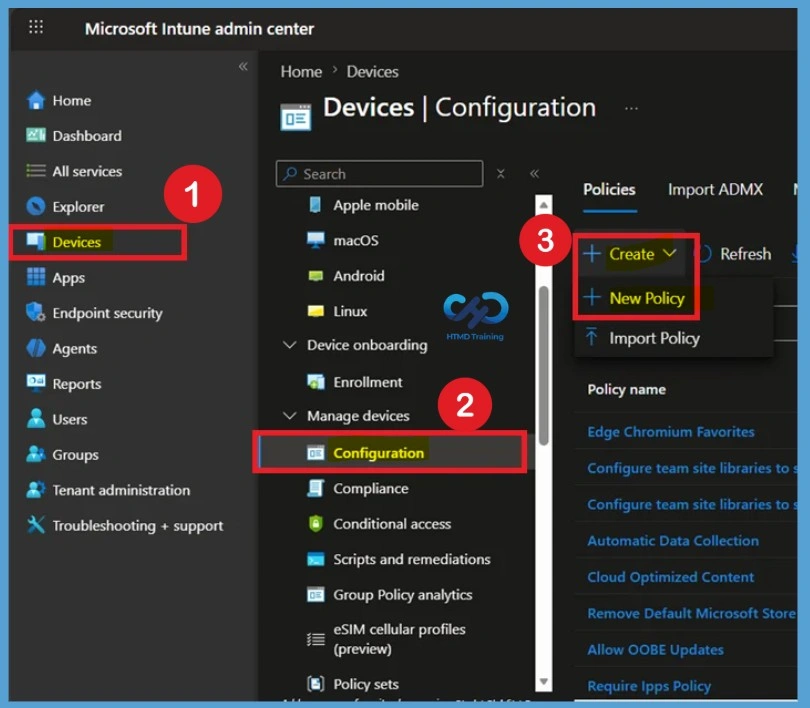
To begin configuring the Prevent Changing Lock Screen and Logon Image policy, sign in to the Microsoft Intune Admin Center and navigate to Devices > Configuration Profiles. Click Create Profile to create a new Windows configuration profile.
- Sign in to the Intune Admin Center
- Select Devices > Windows > Configuration profiles > Create profile
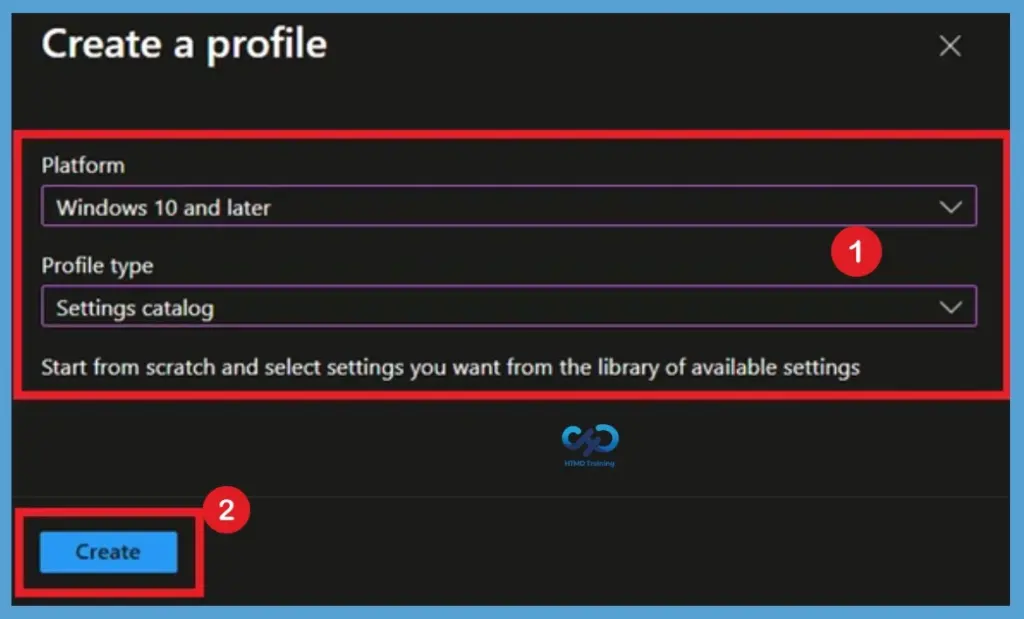
In Create Profile, Select Platform, Windows 10, and later and Profile, Select Profile Type as Settings catalog. Click on Create button.

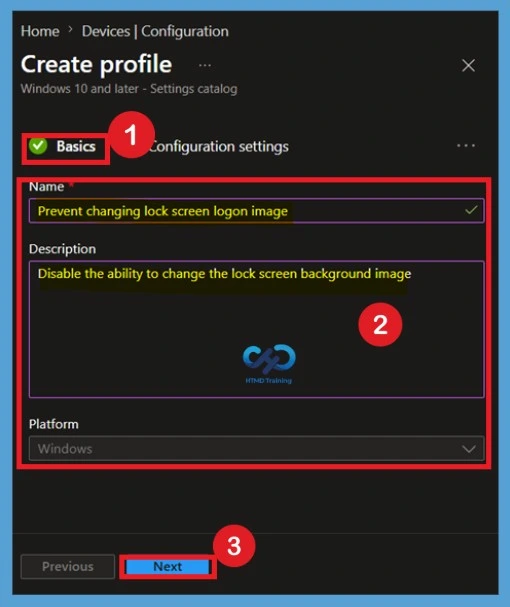
Configure the Basics Tab
On the Basics page, enter a policy name such as Prevent Changing Lock Screen and Logon Image Policy. Providing a descriptive name helps administrators quickly identify the purpose of the configuration profile. You can also add a detailed description explaining that the policy restricts users from changing lock screen and sign-in images on Windows devices. After entering the required details, click Next to continue.
Configure Settings for the Prevent Changing Lock Screen and Logon Image Policy
In the Configuration Settings page, click Add Settings to open the Settings Picker. This is where you will search for and select the required policy setting. Search for Prevent Changing Lock Screen and Logon Image and browse to Administrative Templates > Control Panel > Personalization. Select the setting and add it to the profile configuration.
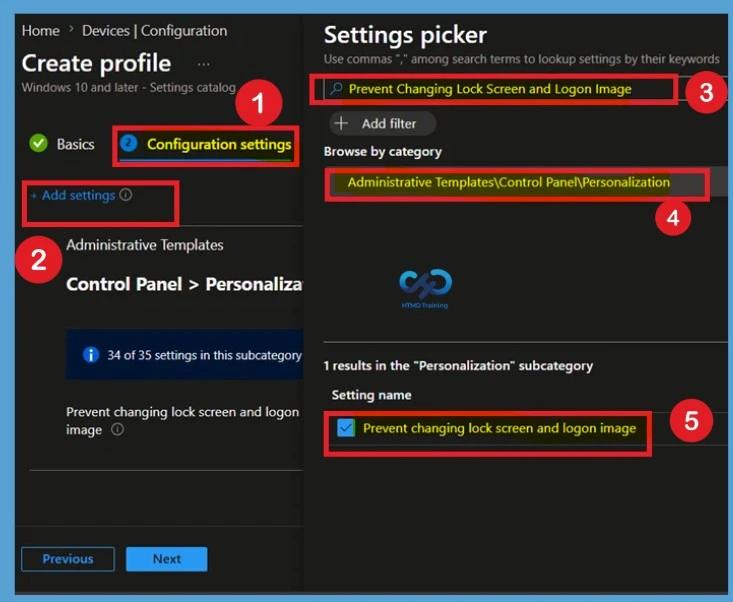
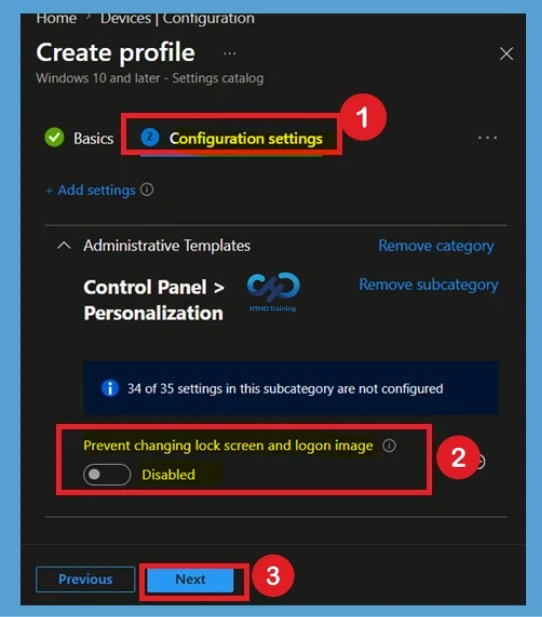
Disable State of the Policy
If you want users to regain control over their lock screen and sign-in background images, set Prevent Changing Lock Screen and Logon Image to Disabled. When disabled, Windows users can personalize their devices and change the lock screen image according to their preferences using Windows personalization settings.
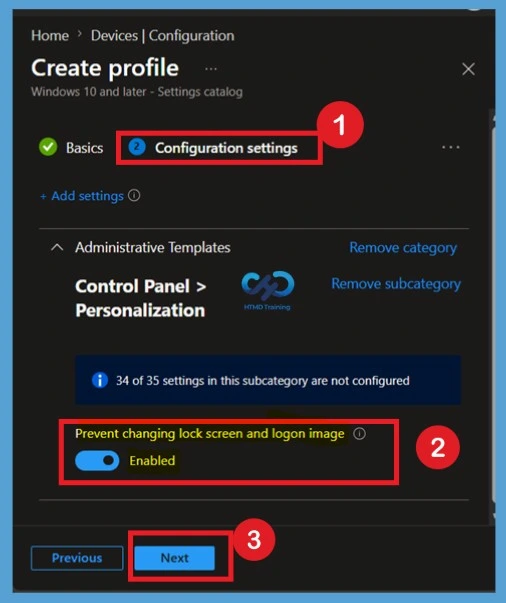
Enable the Prevent Changing Lock Screen and Logon Image Policy
After adding the setting, locate Prevent Changing Lock Screen and Logon Image within the configuration page. Change the setting value to Enabled. When the policy is enabled, users will not be allowed to change the lock screen or logon background image. Windows will display the default image instead of any user-selected image.
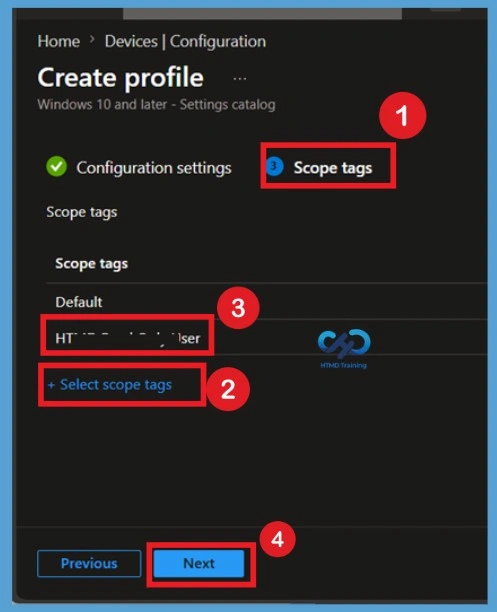
Configure Scope Tags
On the Scope Tags page, assign scope tags if your organization uses role-based administration. Scope tags help control which administrators can view and manage the policy. If scope tags are not required in your environment, you can leave the default configuration unchanged and proceed to the next step.
Importance of Assignments
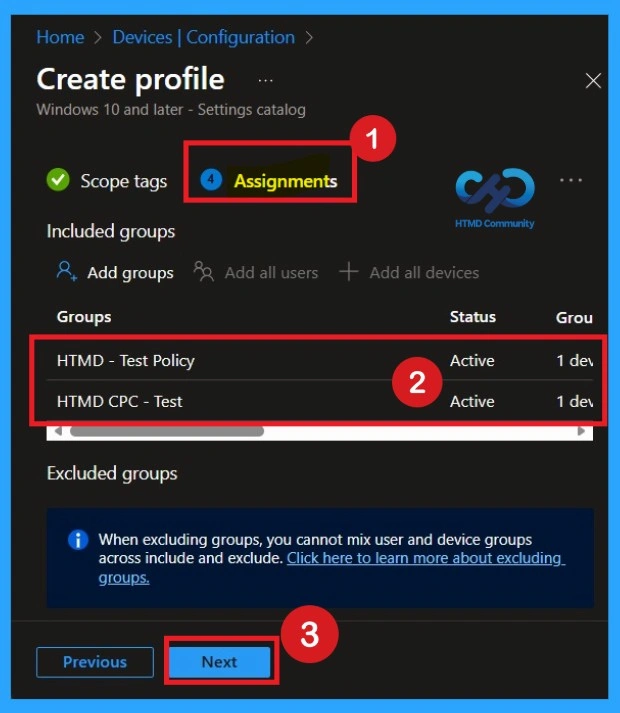
On the Assignments page, select the Microsoft Entra user or device groups that should receive the Prevent Changing Lock Screen and Logon Image Policy. In this example, the policy is assigned to the HTMD Test Policy Group and HTMD CPC Test Policy. You can add additional groups by selecting Add groups and choosing the required targets based on your deployment requirements.
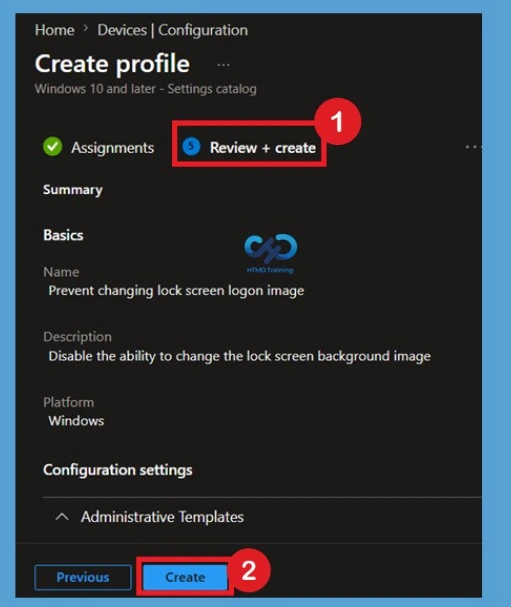
Review + Create page
The Review + Create page displays all configured settings for the Prevent Changing Lock Screen and Logon Image policy. Verify the platform, assignments, and policy configuration. Once you confirm everything is correct, click Create. Intune will create the profile and begin deploying it to assigned device.
A notification will appear automatically in the top right-hand corner with a message. Here, Policy “Prevent changing lock screen logon image” was created successfully.
- The policy is also shown in the Configuration profiles list.
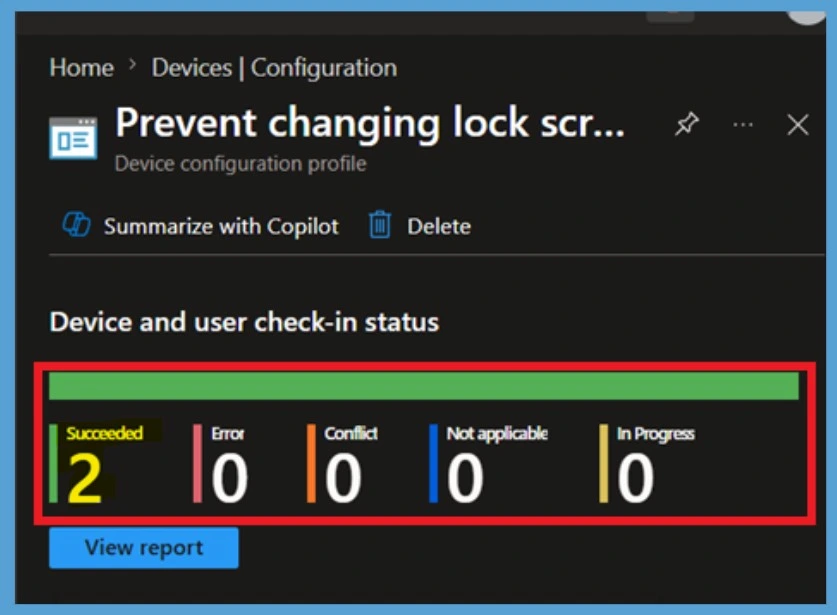
Monitor Deployment Status
After creating the policy, open the profile and navigate to Device Status and User Status. These reports show whether the policy deployment was successful. Monitoring deployment status helps identify devices that have successfully received the Prevent Changing Lock Screen and Logon Image policy and highlights any deployment issues that require attention.
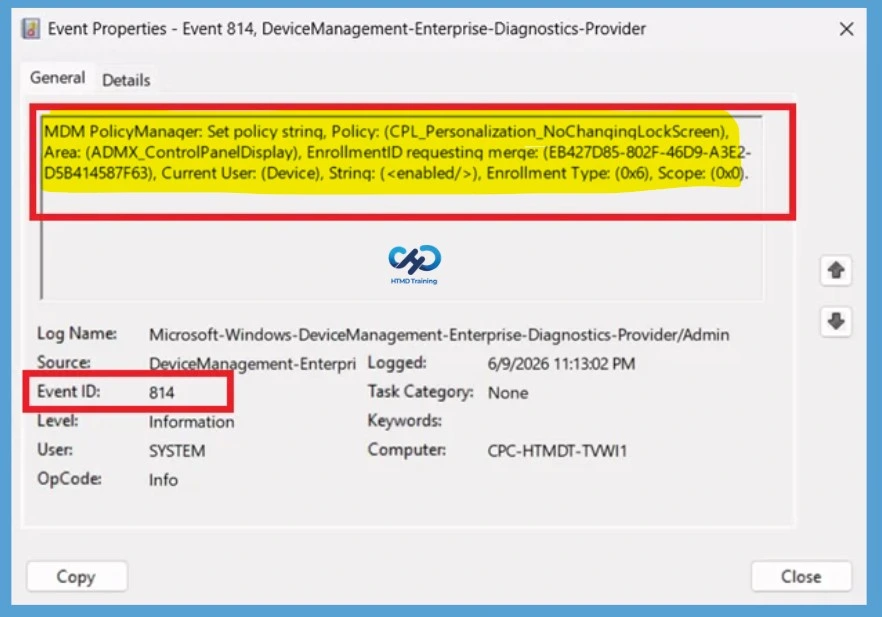
Verify the Prevent Changing Lock Screen and Logon Image Policy on Client Devices
To confirm if a policy has been applied, use the Event Viewer on the client device. Go to Applications and Services Logs > Microsoft >Windows >Device Management > Enterprise Diagnostic Provider > Admin. From the list of policies, use the Filter Current Log option and search for the latest information ID.
How to Remove an Assigned Group from this Policy
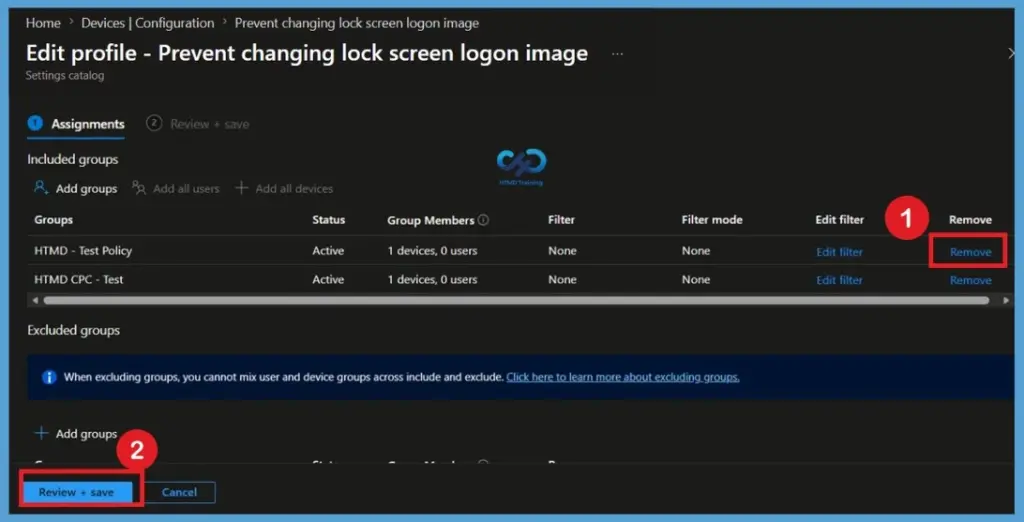
If the policy is no longer required for specific users or devices, open the profile and navigate to Assignments. Remove the assigned groups from the policy. After saving the changes, Intune stops targeting those groups. During the next policy sync, affected devices will no longer receive the Prevent Changing Lock Screen and Logon Image policy.
- Open the policy from the configuration tab and click on the edit button. Then, click on the Remove button. Click Review + Save after making the changes.
For detailed information, you can refer to our previous post – Learn How to Delete or Remove App Assignment from Intune using by Step-by-Step Guide.
How to Delete this Policy from Intune Portal
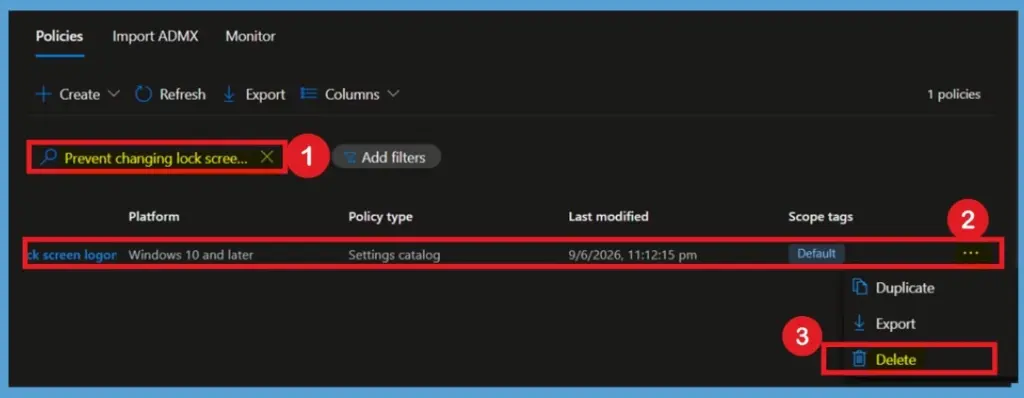
To permanently remove the policy from Intune, open the Prevent Changing Lock Screen and Logon Image policy and select Delete from the profile. Confirm the deletion when prompted. Once deleted, the policy is removed from Intune and can no longer be managed or assigned unless a new profile is created.
- First, search for the policy name in the configuration section. When you find the policy name, click the 3-dot menu next to it and tap the Delete option
For more information, you can refer to our previous post – How to Delete Allow Clipboard History Policy in Intune Step by Step Guide.
Configuration Service Provider (CSP)
The Policy CSP allows administrators to manage Windows settings through Microsoft Intune and other MDM solutions. The Prevent Changing Lock Screen and Logon Image policy prevents users from modifying the lock screen and sign-in background image on managed Windows devices.
Description Framework Properties:
| Property Name | Property value |
|---|---|
| Format | chr (string) |
| Access Type | Add, Delete, Get, Replace |
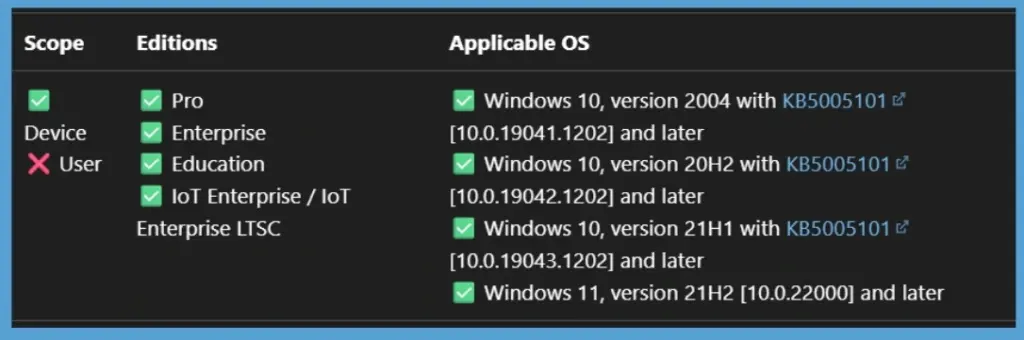
Note: This setting only applies to Enterprise, Education, and Server SKUs.
ADMX mapping:
| Name | Value |
|---|---|
| Name | CPL_Personalization_ForceDefaultLockScreen |
| Friendly Name | Force a specific default lock screen and logon image |
| Location | Computer Configuration |
| Path | Control Panel > Personalization |
| Registry Key Name | Software\Policies\Microsoft\Windows\Personalization |
| ADMX File Name | ControlPanelDisplay.admx |
Need Further Assistance or Have Technical Questions?
Join the LinkedIn Page and Telegram group to get the latest step-by-step guides and news updates. Join our Meetup Page to participate in User group meetings. Also, join the WhatsApp Community and the WhatsApp channel to get the latest news on Microsoft Technologies. We are there on Reddit as well
Author
About Author – Jitesh, Microsoft MVP, has over six years of working experience in the IT Industry. He writes and shares his experiences related to Microsoft device management technologies and IT Infrastructure management. His primary focus is Windows 10/11 Deployment solution with Configuration Manager, Microsoft Deployment Toolkit (MDT), and Microsoft Intune.
How to re- allow users to be able to change background for lockscreen and desktop ?
simply set the setting to disabled, but keep the configuration profile