
Key Takeaways
- The Intune Company Portal offers multiple branding options that help improve the end-user experience.
- Most organisations deploy applications as Available, allowing users to install apps on demand and reducing IT overhead.
- The application logo makes it easier for users to quickly recognise and select the correct apps in the Company Portal.
- A familiar product logo improves usability and adoption, especially for new users.
- Proper branding creates a clean, professional, and user-friendly Company Portal experience.
- Configuring application icons is a simple but effective way to enhance self-service app deployment in Intune.
Configuring an application logo in the Company Portal using Microsoft Intune is a simple way to enhance the end-user experience. By adding the correct application logo, users can quickly identify apps in the Company Portal. It helps you make navigation easier and more familiar. Using Intune, IT admins can upload and assign application logos during app creation or while editing existing apps. These logos appear consistently across devices, helping organizations present a clean, branded, and user-friendly application catalog in the Company Portal.
Table of Content
Table of Contents
Easy Steps to Configure an Application Logo in the Company Portal using Intune
Application logos make the Intune Company Portal easier to use for everyone. They help users quickly recognize the right apps, avoid mistakes, and install what they need without contacting IT. This reduces support tickets, saves IT admins time, and makes the Company Portal look clean and professional.
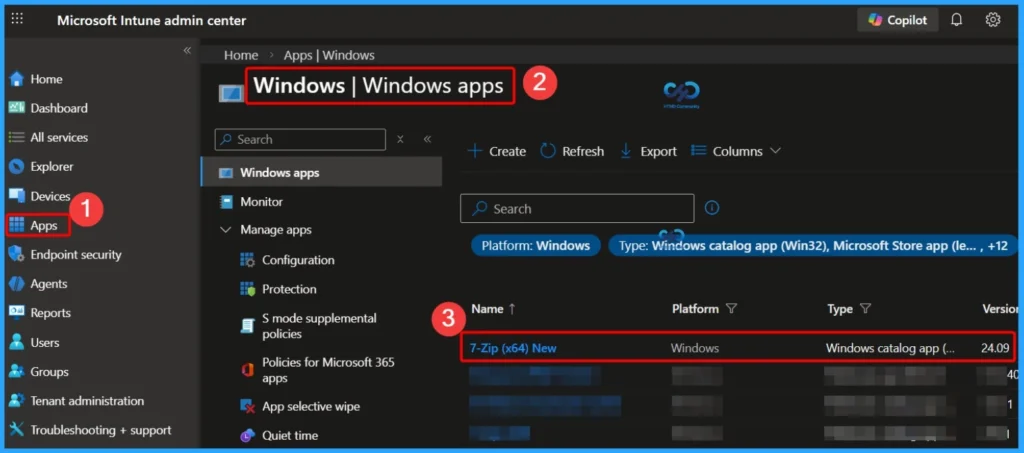
- Sign in to the Microsoft Intune admin center.
- Select Apps > Windows > Windows apps
- To add a logo to an existing application, select the application from the list.
| Application Name |
|---|
| 7-Zip |
- Intune Application Deployment using MSI EXE IntuneWin Formats
- Troubleshoot and Fix Company Portal Enrollment Your Device Is Already Connected Error
- New Company Portal Experience Monitor App Installation Progress and Compliance Status Reporting
- MS Intune Stop Supporting User Enrollment with Company Portal for iOS iPadOS
- New Appearance for Intune Company Portal App for Windows
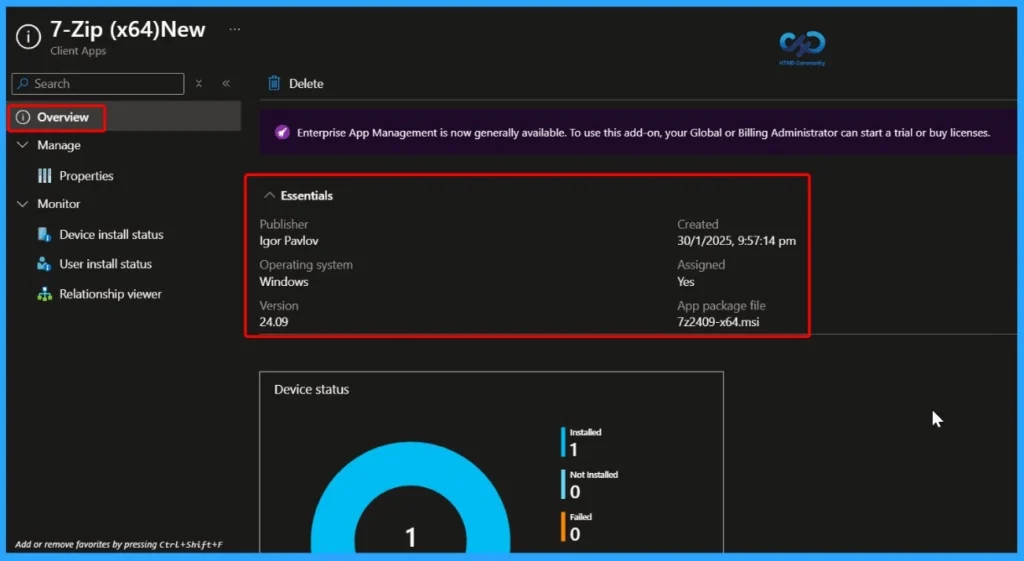
View Essential Application Details in Intune
In the Overview tab, you can see the essential details of the application. This includes information such as the publisher, operating system, app version, created date and time, and the assignment status. The Overview tab helps IT admins quickly understand the app’s configuration and deployment status without navigating through multiple settings.
Configure Application Logo from App Information
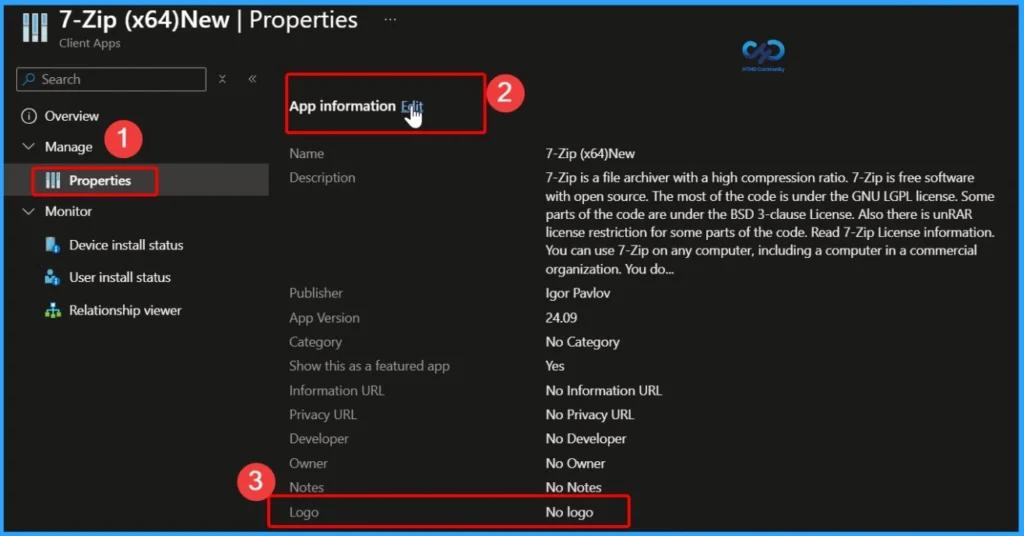
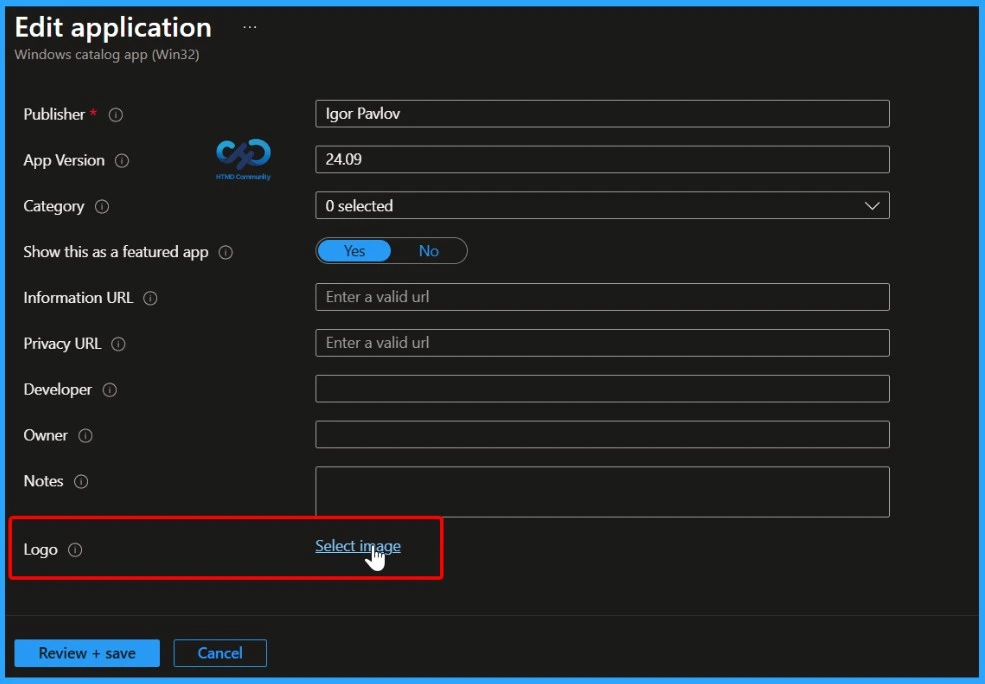
Go to the Properties tab of the selected application and open App information. Click Edit, then select Edit again in the App Information section to upload and specify the application logo. This logo will be displayed in the Company Portal, helping users easily recognise the app.

Important – Make sure you have collected or downloaded the icon file (.ico) for the Applications manufacturer and copied it to the device. Once you have your icons ready, you can now add them to your applications in Intune.
Upload and Confirm the Application Logo
Under Edit application properties, scroll down to the Logo section and click Select image. Choose Browse to upload the logo file for the application. The icon can be up to 256 × 256 pixels, which works well for high-DPI displays. This logo is what users will see when they browse the app in the Company Portal.
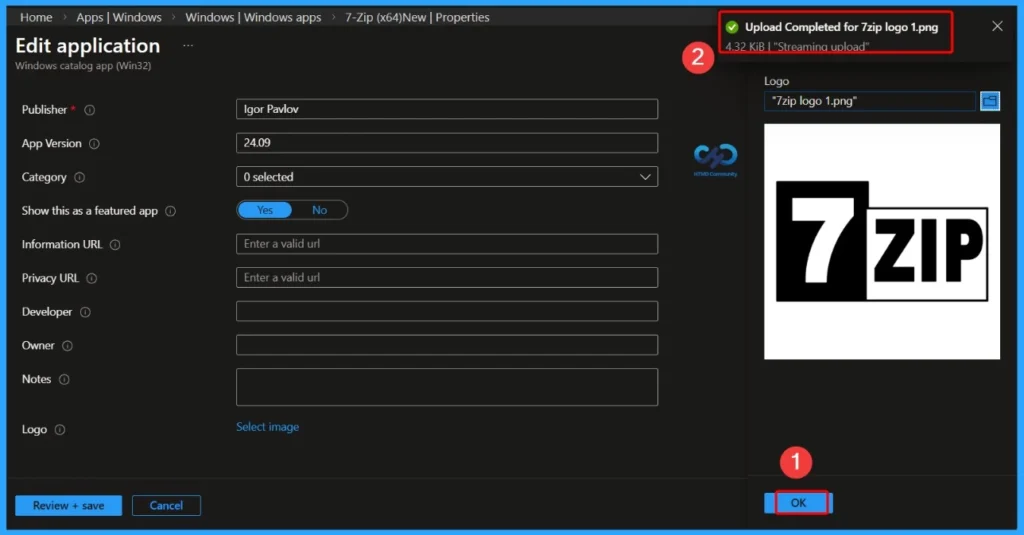
After selecting the logo file, it will appear in the preview. Click OK to confirm the upload. A notification will then appear in the top-right corner showing a success message, confirming that the image was uploaded successfully.
Logo Upload Confirmation Notification
In the screenshot below, you can see a notification message confirming that the 7-Zip application logo was uploaded successfully. This message appears in the top-right corner of the Intune admin center and indicates that the logo upload process has been completed without any issues.
Save Application Changes and Confirm Update
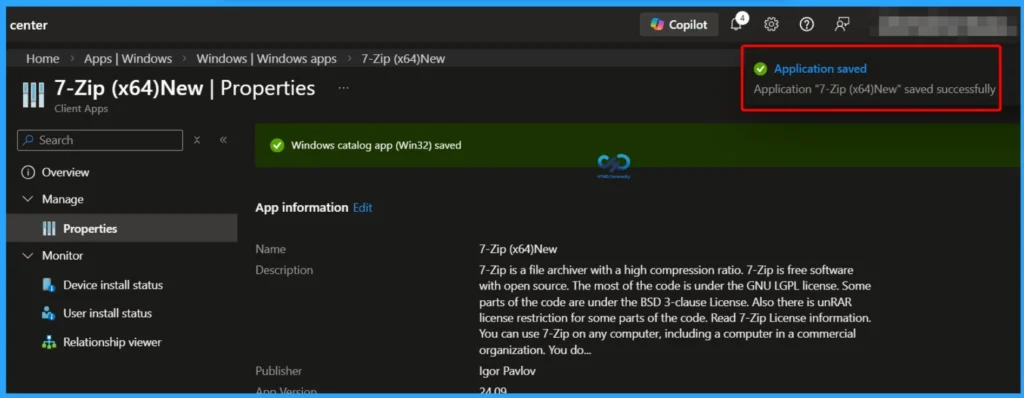
After reviewing all the tabs App information, Program, Requirements, Detection rules, Supersedence, Scope tags, Assignments, and Review + create, click the Save button. Once saved, a notification message appears confirming that the application settings have been updated successfully.
End-User Experience
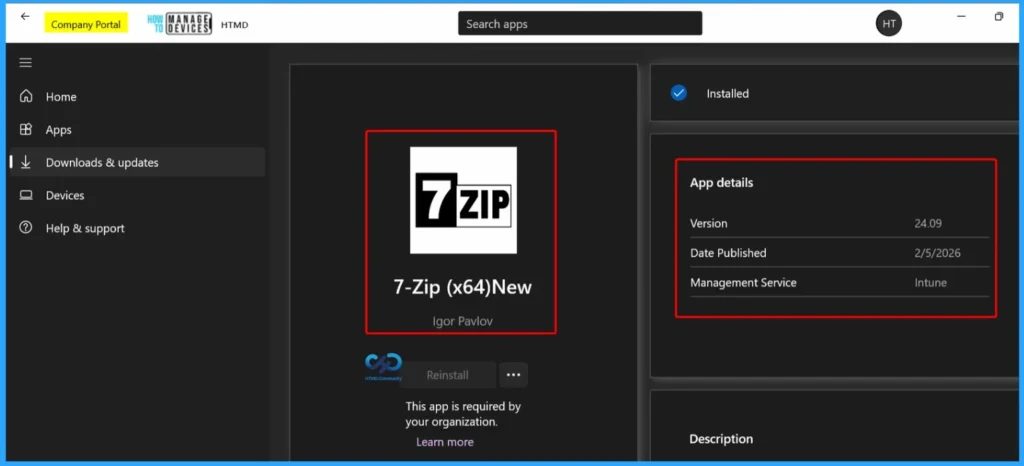
Now let’s see how the application looks from the user’s side. When a user opens the Company Portal on a managed Windows device, the application is displayed with the configured logo. This clear and familiar logo helps users easily identify the app, improves visibility, and makes the Company Portal more user-friendly and easier to navigate.
- Start Menu > Company portal > Downloads and Updates
Need Further Assistance or Have Technical Questions?
Join the LinkedIn Page and Telegram group to get the latest step-by-step guides and news updates. Join our Meetup Page to participate in User group meetings. Also, join the WhatsApp Community and the Whatsapp channel to get the latest news on Microsoft Technologies. We are there on Reddit as well
Author
About Author – Jitesh, Microsoft MVP, has over six years of working experience in the IT Industry. He writes and shares his experiences related to Microsoft device management technologies and IT Infrastructure management. His primary focus is Windows 10/11 Deployment solution with Configuration Manager, Microsoft Deployment Toolkit (MDT), and Microsoft Intune.
great post, always easy to read and practical.
Good to hear, you like it. Appreciate your inputs as always helpful.