
Key Takeaways
- Entra ID dynamic device groups depend on the deviceOSVersion property, not the Windows release Name
- Dynamic groups automatically manage Windows 11 25H2 devices using device properties.
- Intune filters let you include or exclude Windows 11 25H2 devices during app or policy assignment.
- Filters help with testing and phased deployments without creating multiple device groups.
Let’s learn how to create a Windows 11 25H2 Entra ID Device Group. This post will help you to create Microsoft Entra ID dynamic device group, for Windows 11 25H2 devices. Entra ID group-based deployments are the primary use case for Intune Settings Catalog policies and apps. You have options such as Intune filters to target specific devices/users and avoid using Entra ID dynamic groups.
Table of Content
Table of Contents
Windows 11 25H2 OS Version Details
The Entra ID device group creation is based on the OS version and requires a full version. You can get the version details of Windows 11 build numbers and version numbers. You can create Microsoft Entra ID dynamic device groups based on available device properties. This would allow you to manage the Windows 11 25H2 devices in your environment securely.
The Intune assignment filters are another useful method to filter devices based on their properties. Intune filter rules will help you to apply the filter rules to include or exclude Windows 11 25H2 devices from an application or policy deployment.
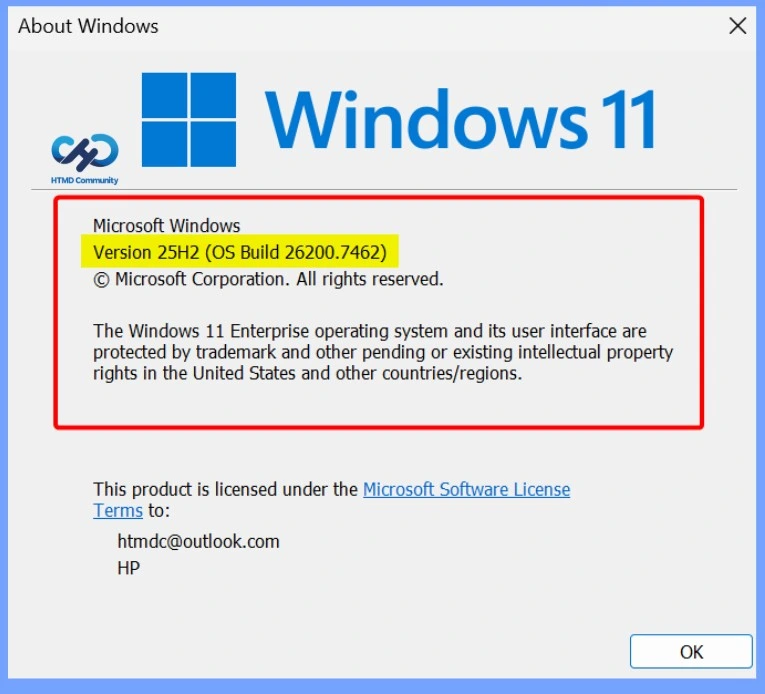
The Windows 11 version build number starts with 22000, the Windows 11 22H2 version is 10.0.22621, and the Windows 11 23H2 (Canary) build version is 10.0.25947. This is expected to be updated on Windows 11, 23H2 version will be released for production use. The Windows 11 25H2 details are given below.

| Windows 11 Versions – Production Release Build Version | Windows 11 Build version | Start of Servicing Date | End of Servicing Date |
|---|---|---|---|
| Windows 11 25H2 – 10.0.26200.7623 | 10.0.26200.7623 | 9th October 2025 | September 2027 |
- Free Entra Training Videos | Start Learning Entra ID Azure AD
- Assign Azure AD Roles To Azure AD Groups For Effective Role Based Access Control
Create Windows 11 25H2 Entra ID Device Group
Let’s create a Microsoft Entra ID dynamic device group for Windows 11 version 25H2. The best reliable option is to proceed with the OS version properties.
Important: Microsoft Azure Active Directory (Azure AD) is becoming Microsoft Entra ID. More details – What is Microsoft Entra ID?
- Sign in to the Entra Portal https://entra.microsoft.com/ with a Global administrator, Intune administrator, or User administrator role.
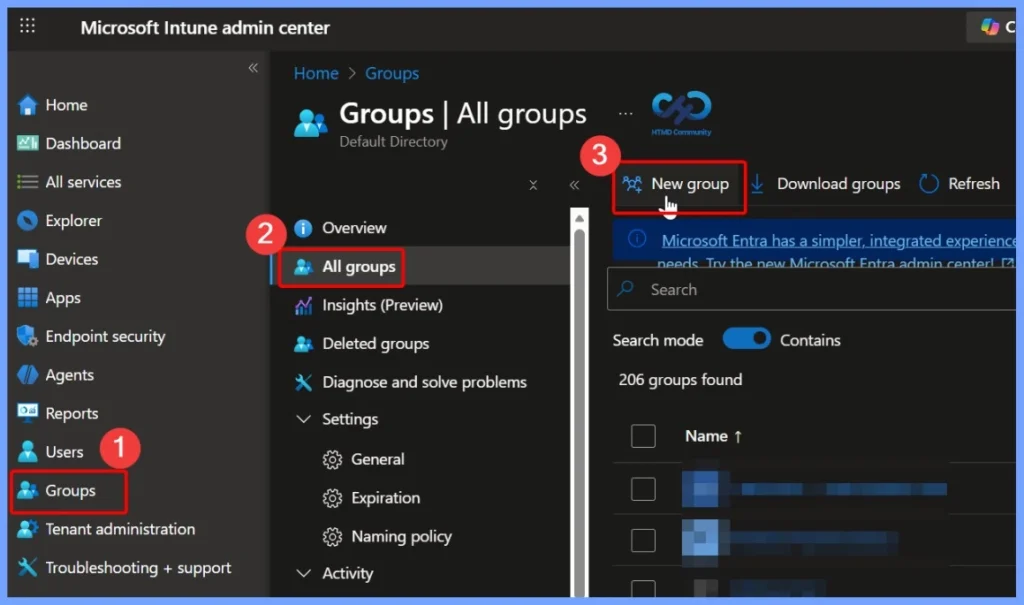
- Click on Groups > All Groups > New Group
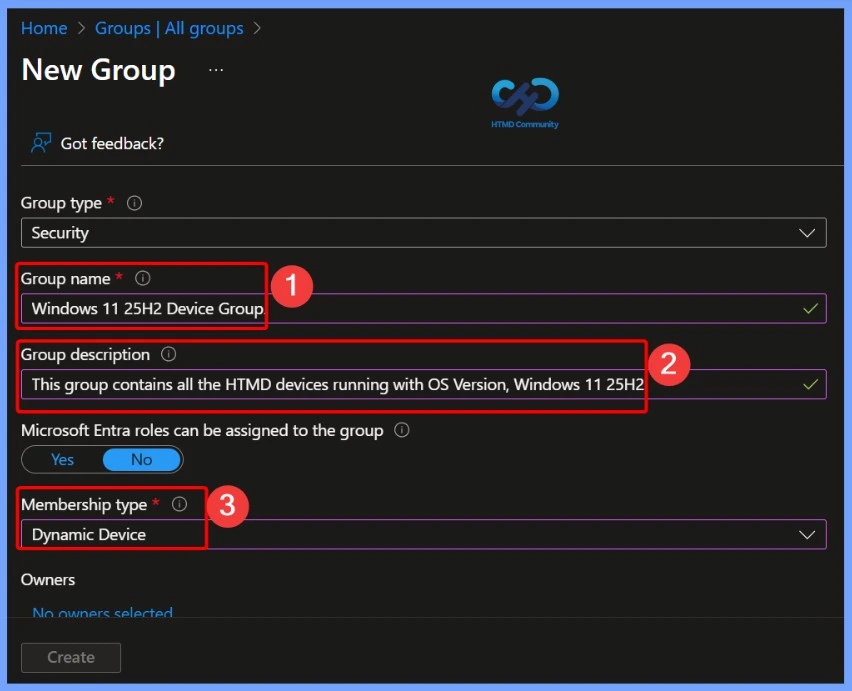
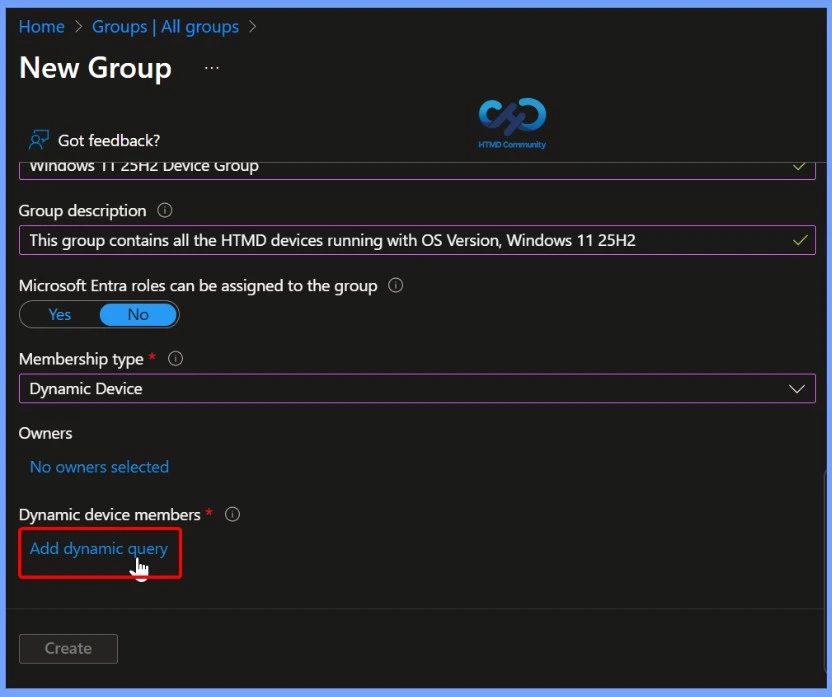
On the New Group, Add the required information to proceed for Dynamic Group. Click on Add Dynamic Query under Dynamic User Members.
- Select Security – Group Type from the drop-down option.
- Enter the Group Name “Windows 11 25H2 Devices” (Provide a suitable name), Or Group Description to make it easier for others.
- Select Dynamic User as the Membership type.
Note – You need to select Membership type as Dynamic Device or User to have the Add dynamic query in this blade to appear.
There are two options to build the Microsoft Entra ID dynamic group query. You can use the rule builder or rule syntax text box to create or edit an Entra ID User group dynamic membership rule.
- Rule Builder – Graphical Interface, easy to create the dynamic query.
- Rule Syntax – Advanced technical users for complex queries.
You must follow the steps below to use Microsoft Entra ID dynamic group Rule Builder to create dynamic query rules.
- Under Configure Rules – Choose the Property drop-down list.
- Select deviceOSVersion as the property from the drop-down list.
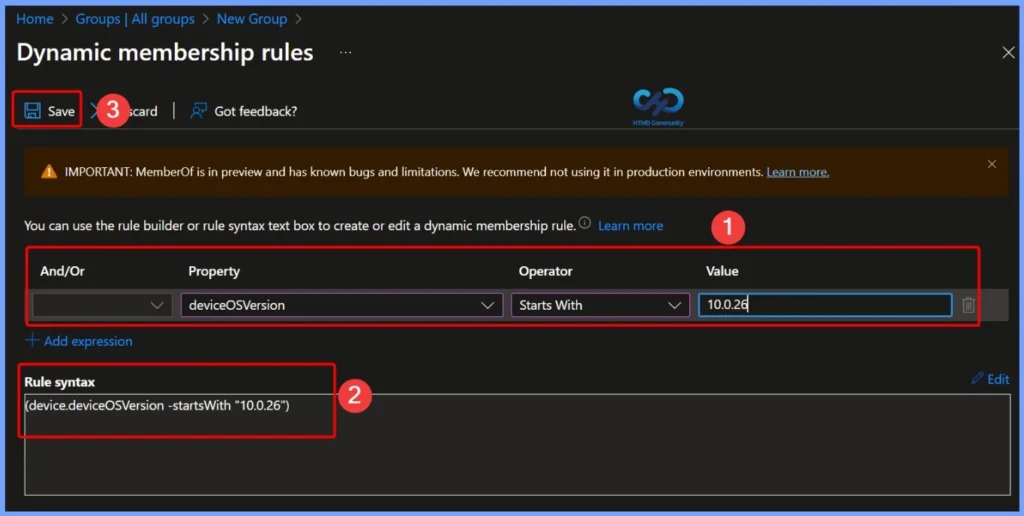
It’s time to choose an Operator now for the deviceOSVersion. I have selected Starts With from the operator drop-down menu, and the Value should be the build version (device.deviceOSVersion -startsWith “10.0.26200.“)
IMPORTANT: Member of is in preview and has known bugs and limitations. We recommend not using it in production environments. Learn more.
In the Dynamic membership rules, you need to configure the Property as deviceOSVersion, set the Operator to Starts With, and specify the Value as 10.0.26. In the rule syntax, this configuration appears as (device.deviceOSVersion -startsWith “10.0.26“), which ensures that only Windows 11 25H2 devices are included in the dynamic group.
On the Validate Rules tab, Click Add devices based on group selection to validate configured rules for the group. You can use the validate options to confirm whether or not the Microsoft Entra ID dynamic query logic works as you expect.
- Validation results will appear and show whether a device or user is a member of the group or not. The result will show the Status as follows.
In group (✅Green Tick) - If a user or device satisfies a rule on a group, the result will show as In group.
Not in group (❌Red Cross).- If a user or device no longer satisfies the rule, the result will show as Not in group.
Unknown - If the rule is not valid or there is a network issue, the result will show as Unknown.
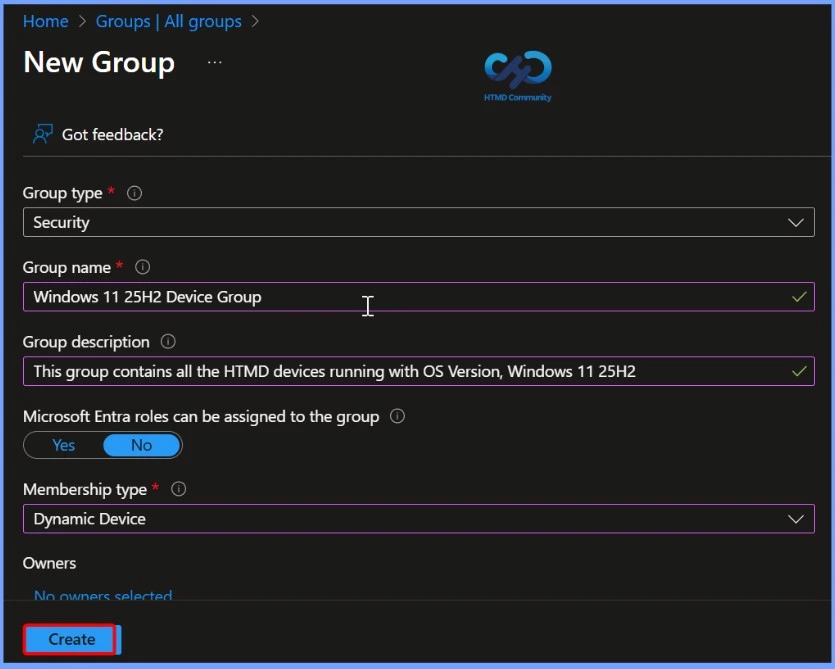
Once validation is completed, you can click on the CREATE buttons to complete the process of building Microsoft Entra ID dynamic device group creation.
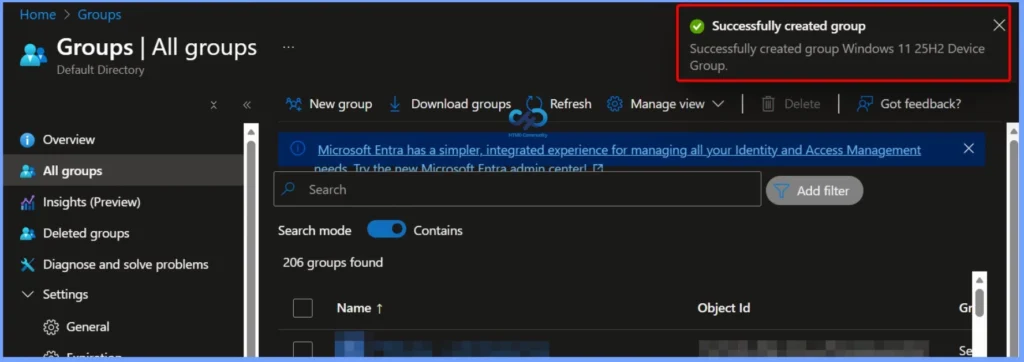
A notification will appear with the message, Successfully created group Windows 11 25H2 Device. The Microsoft Entra ID Dynamic User Group is now created based on selected criteria on the OS Version.
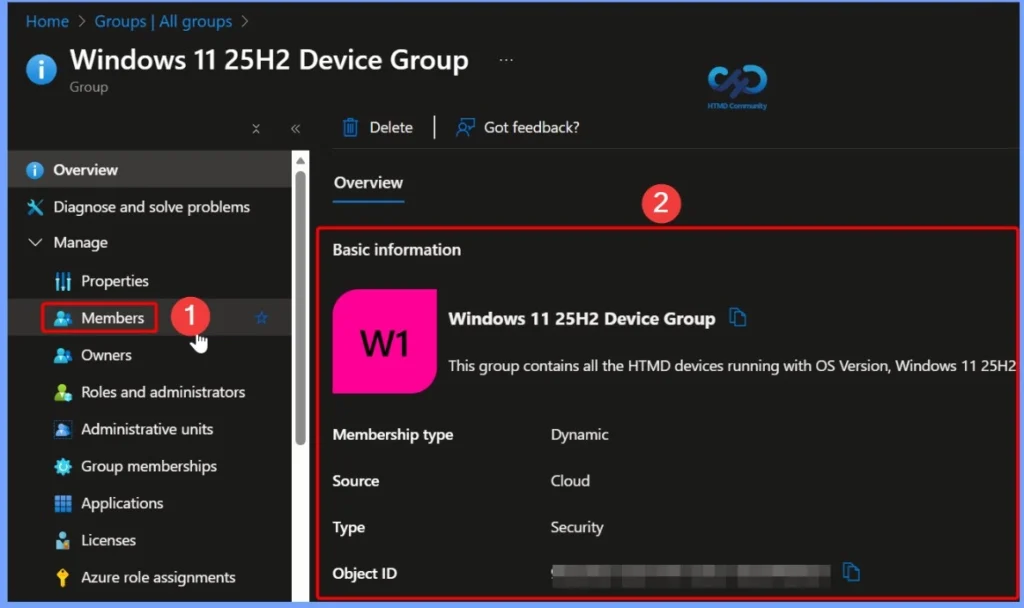
The group will automatically include the Windows device meeting the defined criteria in the dynamic query. You can check the results from the Windows 11 25H2 Entra ID dynamic group Members tab.
Normally, the Microsoft Entra ID dynamic device groups get updated within 5 minutes or so. However, Dynamic group membership updates are expected to be processed for all groups within 24 hours. You can also pause processing, by default, the setting is set to No.
Need Further Assistance or Have Technical Questions?
Join the LinkedIn Page and Telegram group to get the latest step-by-step guides and news updates. Join our Meetup Page to participate in User group meetings. Also, join the WhatsApp Community to get the latest news on Microsoft Technologies. We are there on Reddit as well.
Author
About Author – Jitesh, Microsoft MVP, has over six years of working experience in the IT Industry. He writes and shares his experiences related to Microsoft device management technologies and IT Infrastructure management. His primary focus is Windows 10/11 Deployment solution with Configuration Manager, Microsoft Deployment Toolkit (MDT), and Microsoft Intune.