
Key Takeaways
- Protect organizational data by enforcing Windows device compliance requirements through Microsoft Intune.
- Evaluate Windows device security using BitLocker, Secure Boot, TPM, antivirus, firewall, and other supported security settings.
- Maintain operating system security by enforcing minimum and maximum OS versions and permitted operating system builds.
- Identify potentially vulnerable devices by integrating Microsoft Defender for Endpoint machine risk scores.
In this post, let’s see how to Create Windows Compliance Policies to Protect Corporate Data using Microsoft Intune. We will see a quick overview of creating an Intune compliance policy for Windows 11 devices. Also, we shall discuss the options of creating a custom Intune compliance policy. Compliance policy configuration is an important design decision while managing Windows 11 physical or virtual devices with Intune. Intune compliance policies are the first step of the protection before providing access to corporate applications, along with Conditional Access policies.
Table of Contents
Table of Contents
Create Windows Compliance Policies to Protect Corporate Data using Microsoft Intune
Windows 365 Cloud PCs provide users with a Windows desktop experience hosted in the Microsoft Cloud. Similar to physical Windows devices, Cloud PCs must meet organizational security requirements to protect corporate applications, business data, and other resources. Administrators can use Microsoft Intune compliance policies to evaluate the security configuration of Windows 365 Cloud PCs. The user can access the company data securely only from Windows 365 Cloud PC (or any other device for that matter) If the devices are compliant with the rules specified in the policy.
- How to Configure Android Compliance Policies in Microsoft Intune
- Managing Windows Bitlocker Compliance Policy Using Intune | MS Graph | Grace Period
- Bitlocker Unlocked With Joy – Behind The Scenes Windows 10 – Part 1
- Easiest Method to Enable MFA for Admins using Azure AD Conditional Access
NOTE! – Microsoft recently released an option to create a Custom Compliance policy for Windows devices with PowerShell script and JSON option. But this is only available for Azure AD Joined devices while writing this post.
Create Intune Compliance Policy
You can start creating compliance policies from two places in the Intune admin center portal. The Devices Node and from Endpoint Security node. This post will show how to create Intune compliance policies from the Endpoint Security node.

- Open Microsoft Intune Admin Center
- Navigate via Endpoint Security > Compliance Policies.
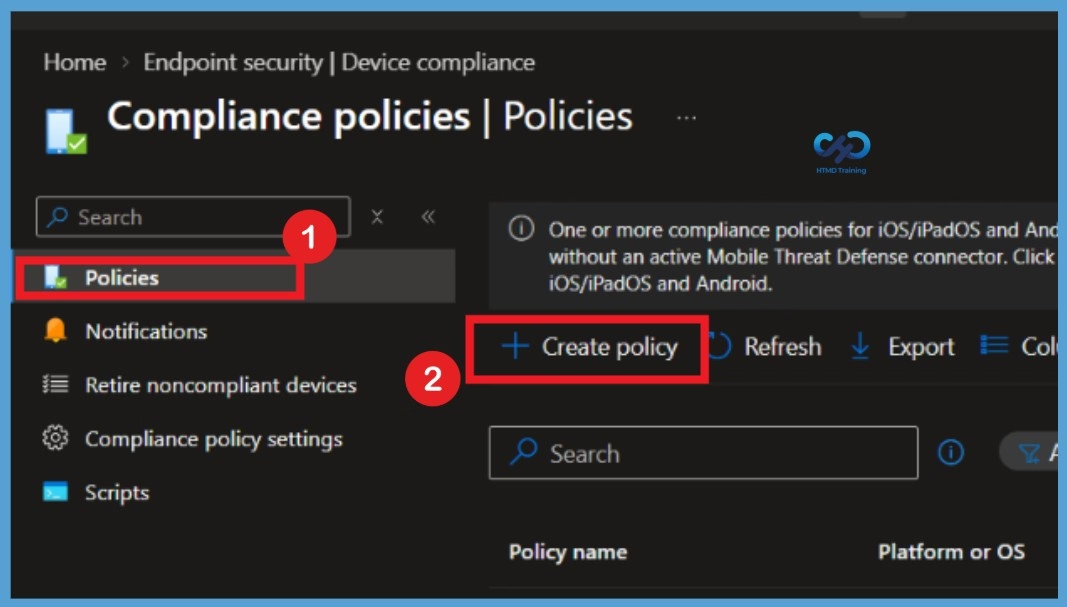
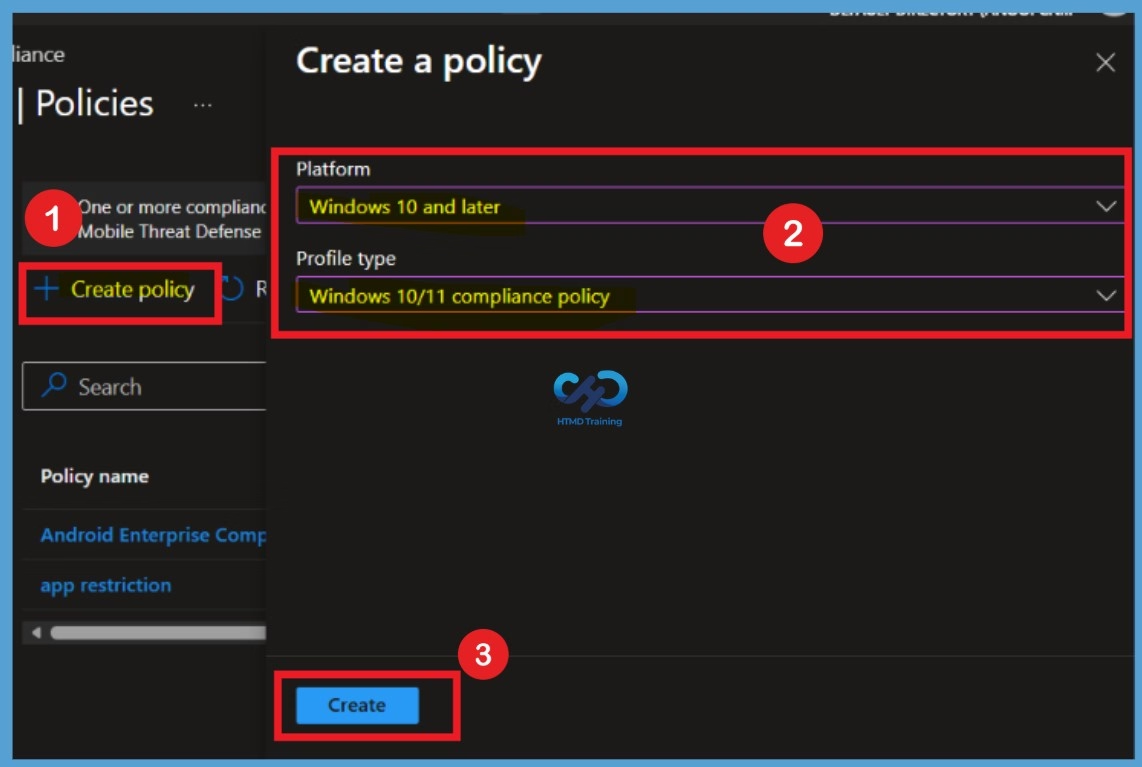
Create a Profile
Make sure to select Windows 10 or Later as the platform. The profile type should be Windows 10/11 compliance policy. You will need to click on the Next button to continue.
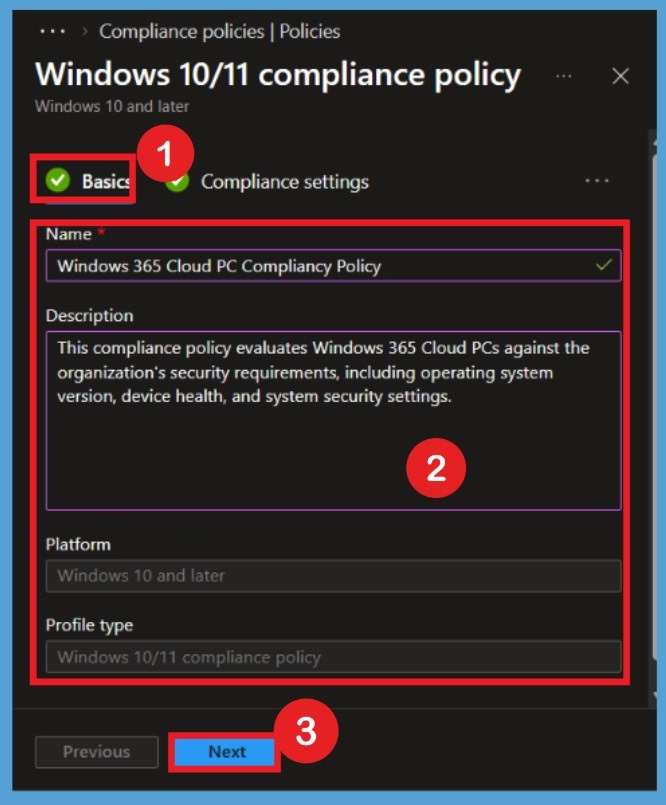
Basic Tab
Enter the name and description of the compliance policy on this page. I have used the name Windows 365 Cloud PC Compliance Policy. This compliance policy will make sure that all the Windows 365 Cloud PC devices are compliant before they can access the corporate resources like email, SharePoint, Teams, etc.
Intune Compliance Policy – Device Health Checks
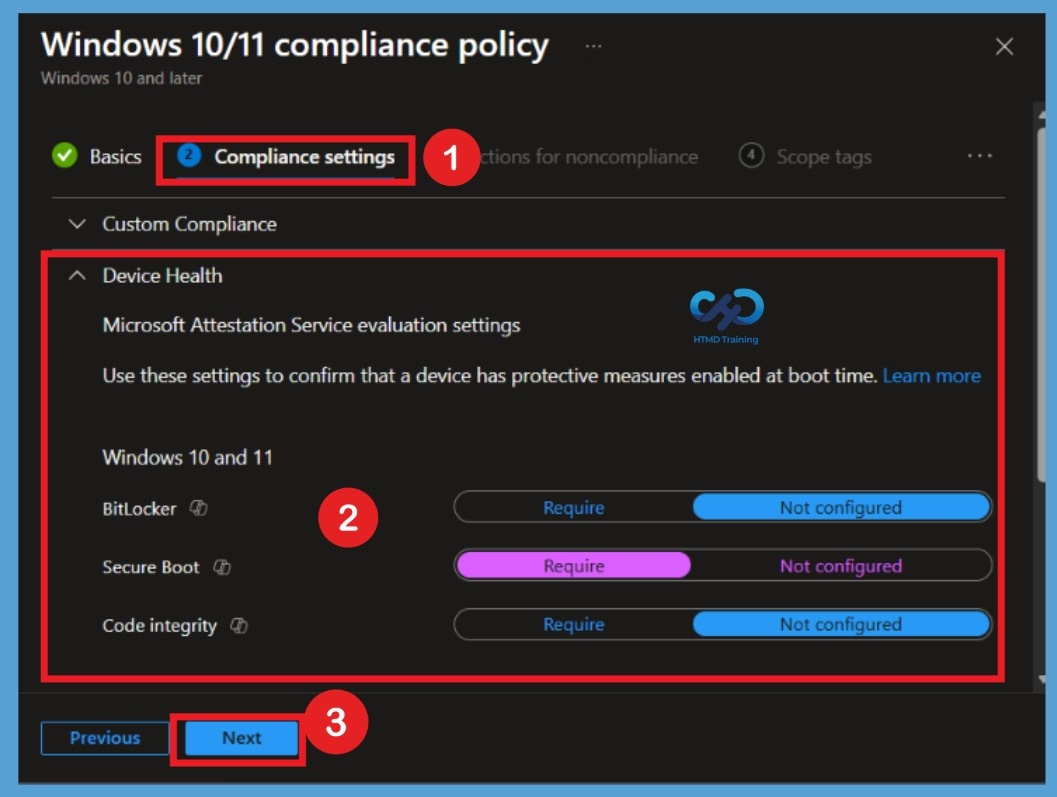
Now, let’s decide the policies required for your organization as per the security standards from the Device Health check category. I tested Require Secure Boot to be enabled on the device, and it didn’t work for the Windows 365 Cloud PC, which is Windows 11 upgrade capable as per Endpoint Analytics. The following options are available under the Device Health category of Intune compliance policies.
- Device Health
- Windows Health Attestation Service evaluation rules Require BitLocker
- Require
- Not configured
- Require Secure Boot to be enabled on the device
- Require
- Not configured
- Require code integrity
- Windows Health Attestation Service evaluation rules Require BitLocker
Operating System Version Intune Compliance Policy Rules
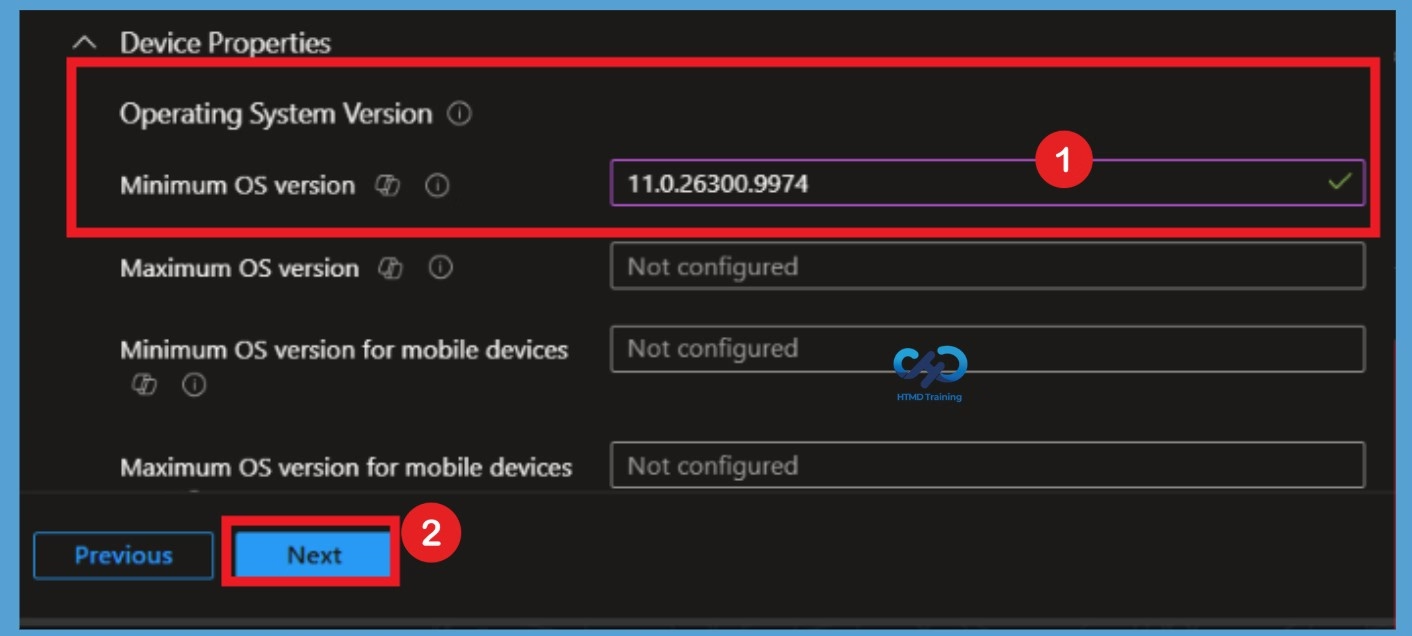
Let’s look at the Operating System Version compliance settings available in Microsoft Intune. These rules help ensure that Windows 365 Cloud PCs run the required Windows versions and builds to meet monthly patch compliance requirements. Windows OS version numbers follow the “major.minor.build.revision” format. You can use these values to configure minimum and maximum OS versions and define valid operating system builds for your Cloud PCs.
- Operating System Version
- Minimum OS version
- Maximum OS version
- Minimum OS version for mobile devices
- Maximum OS version for mobile devices
- The valid operating system builds
- Configuration Manager Compliance
- Require device compliance from Configuration Manager
In this example, I have entered “11.0.26300.9974” as the minimum OS version. Any targeted Windows device running an earlier OS version will be marked as non-compliant. If you need to enforce a specific November cumulative update across different Windows versions, consider using the Valid operating system builds setting instead. This allows you to define separate acceptable build ranges for each Windows release.
- Windows 11 Version Numbers Build Numbers Major Minor Build Rev
- Windows 10 Version Numbers Build Numbers Major Minor Build Rev
System Security Related Compliance Policy Rules for Windows Devices
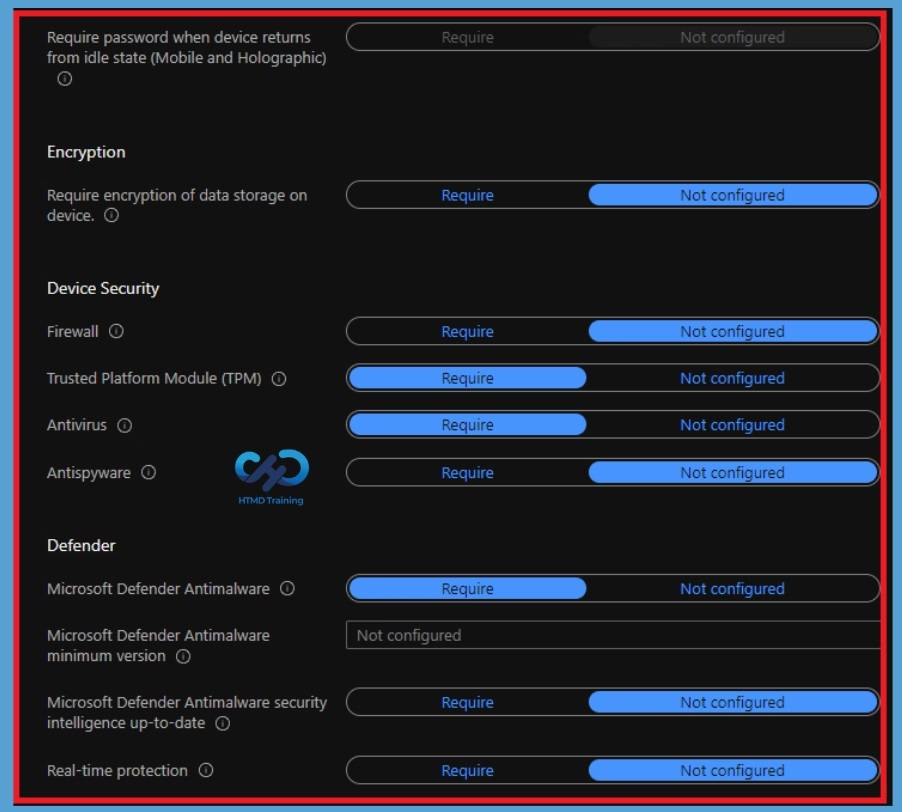
Let’s check the System Security Related Compliance Policy Rules for Windows Devices. You can specify the compliance policies for password settings, the complexity of the password, Encryption policies for data storage on devices, etc.
NOTE! – These password policies are important when you move Windows 365 Cloud PC to Azure AD join scenario soon. I’m assuming that the password policies are managed through GPOs in Hybrid Azure AD join scenarios for most of you.
Other system security policy compliance rules such as Firewall, TPM, Antivirus, and Antispyware are also available as out of box options. The defender policies are the other one. All these system security policy rules will help you ensure the device is fully secured from all the threads. Also, if the Windows device does not meet any of the required rules defined in the compliance policy, then that device won’t access company resources until they fix those issues.
- For example, if the device is missing antivirus software, then the compliance policy and the Azure AD conditional access policy will block the device from accessing company resources.
Device Risk Score Compliance Policy Rule
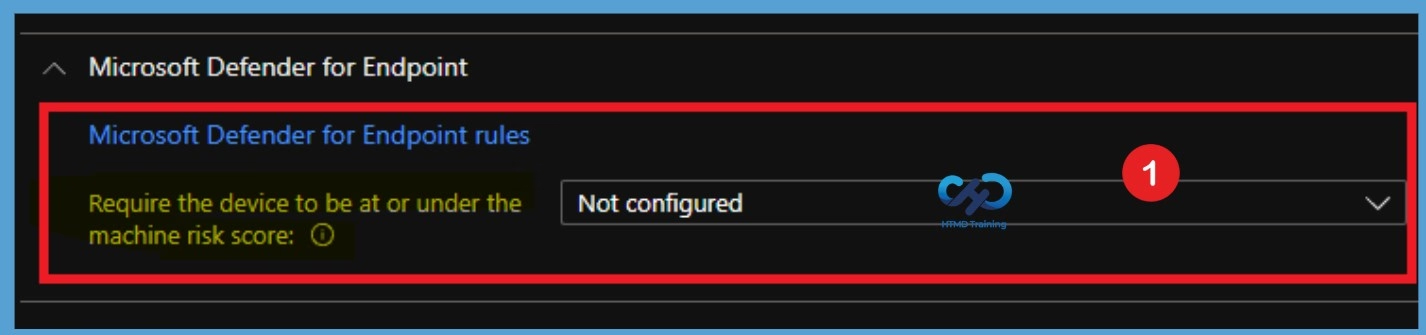
One option is to check the Device Risk Score using IntuneCompliance Policy Rule and provide access to corporate resources. Select the maximum allowed machine risk score for devices evaluated by Microsoft Defender for Endpoint if the Devices that exceed this score get marked as noncompliant.
Sample Intune Compliance Rules Set for Windows 365 Cloud PC Testing
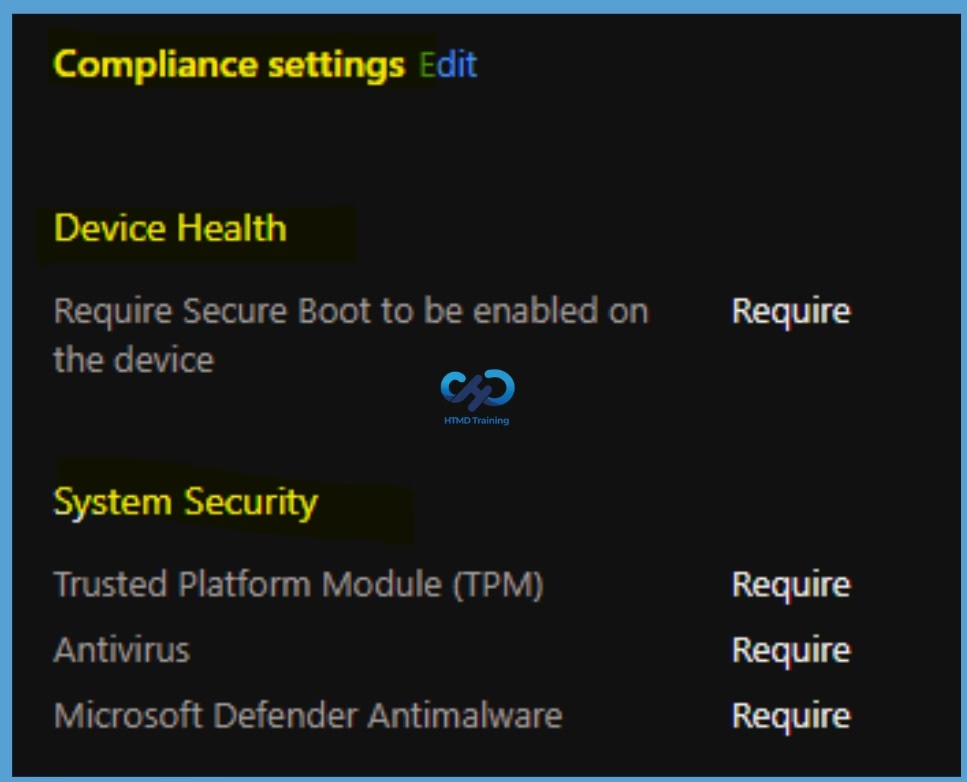
I have tested Windows 365 Cloud PCs with a set of sample Intune Compliance policy rules as listed down in the below list. You will need to change the set of rules as per your organization’s requirements and security standards. This is not the recommended rules from my side but just a sample to let you know how this works.
| Compliance Settings | Information |
|---|---|
| Device Health | Require Secure Boot to be enabled on the device -Require |
| System Security | Trusted Platform Module (TPM) – Require Antivirus – Require Microsoft Defender Antimalware – Require |
How to Enforcement Intune compliance policy Rules Quickly
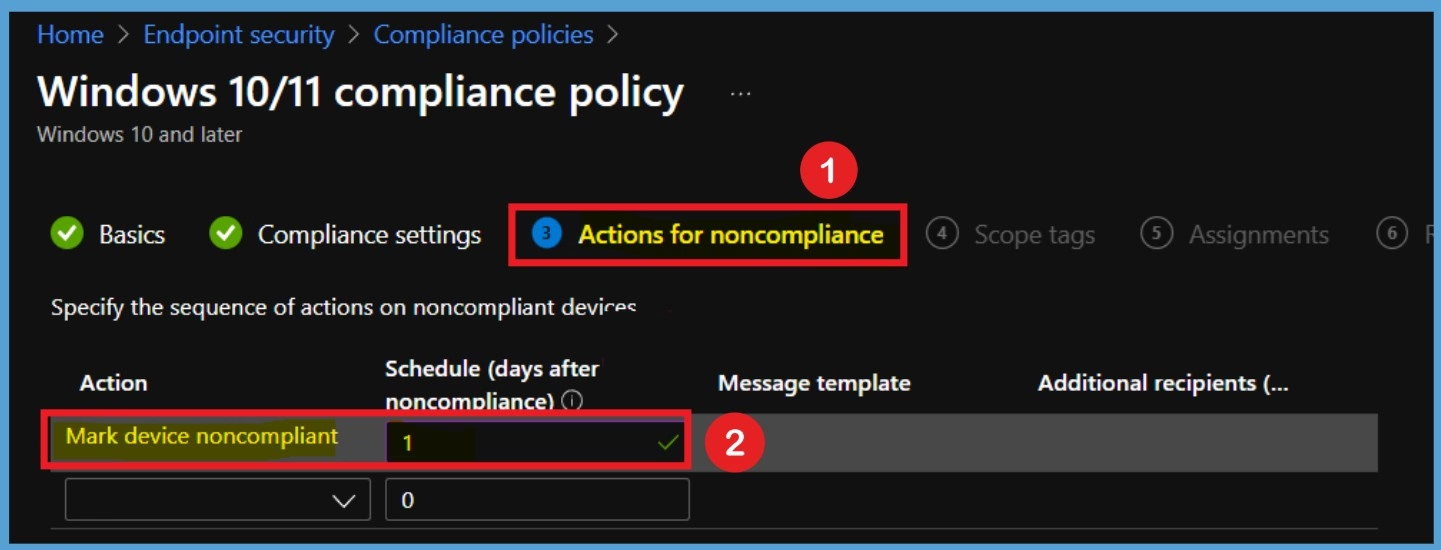
This section of the compliance policy settings for Windows devices and Cloud PC + Azure Virtual Desktop persistent single session devices. The default value I put in is 1 day, but you can change it to 4 hours or 5 days as per your requirement. The following blog will help you make it more flexible using MS Graph and PS script. We already have a blog post from Mark Thomas to guide you through quickly enforcing the Intune compliance policy rules on Windows Devices, including Cloud PCs and AVDs.
Compliance Policy to Cloud PC Device Group
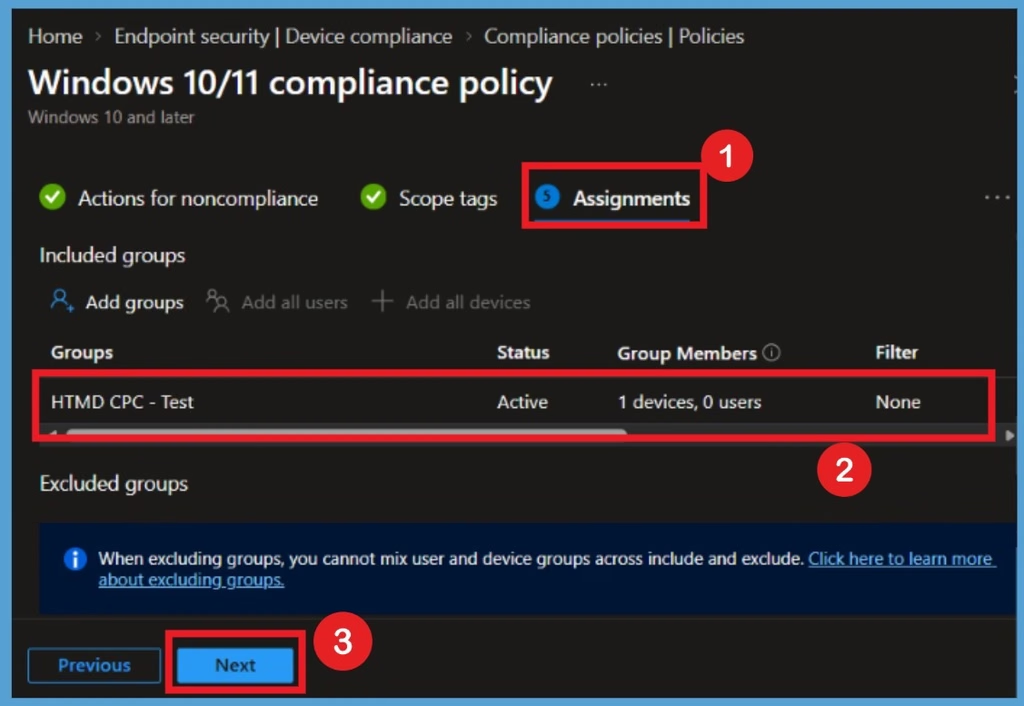
The deployment of compliance policy should go to an Azure AD dynamic Device group where all the Cloud PCs or AVD devices are present. I don’t think this compliance policy should be deployed to the user group. You can select the appropriate scope tags to support proper Intune RBAC scenarios. You can now click on CREATE button to complete the Intune Compliance policy rules for Windows 365 Cloud PCs.
Review+ Create
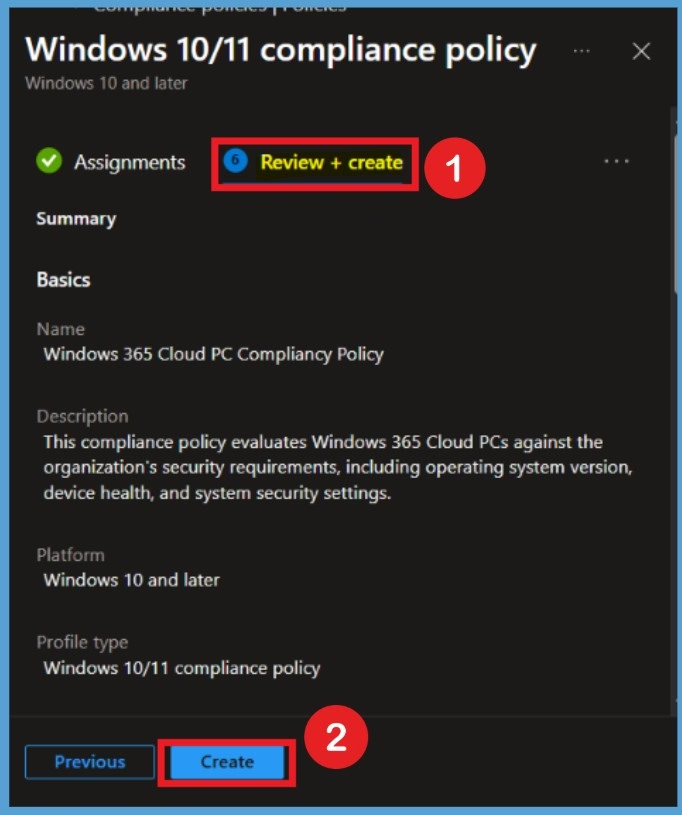
This is the last step of the configuration, and it is act like a summary page and you see all the details such as basic, configuration assignment section etc. If you want to change anything, go back to the previous page and edit them easily. Here I am clicking on the Create option.
Conclusion
Windows 365 Cloud PC and AVD compliance policies should be designed according to virtual desktop requirements rather than simply copying physical device settings. Security rules such as Secure Boot and TPM need careful validation. In my testing with four Cloud PCs, these settings produced inconsistent results, so I recommend testing them in your environment before including them in production compliance policies.
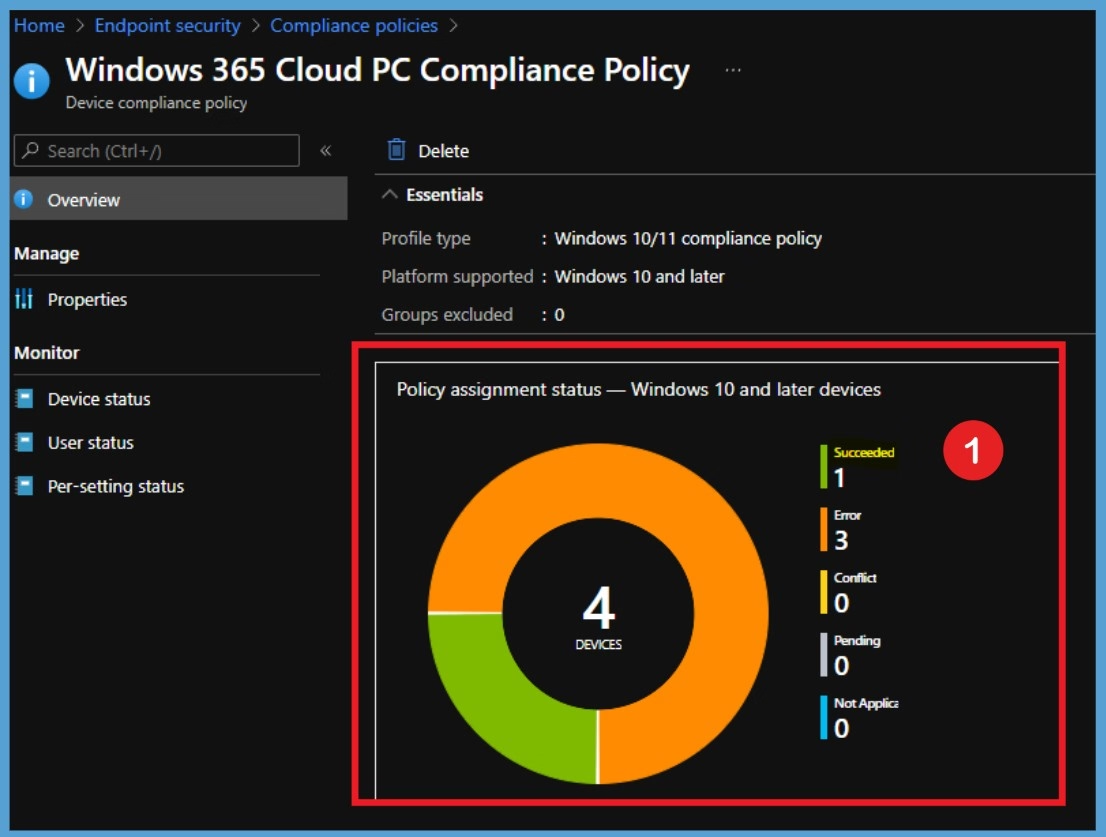
I got an error when testing CPC-anoopb-J-DS VM, which is Windows 11 upgrade capable (as per Endpoint Analytics reports), but I can check the compliance rule called Require Secure Boot to be enabled on the device. This is mainly because of virtual machine level or hypervisor layer limitations.
Error 0x87d10194 – Error Details SyncML(404): The requested target was not found.
Also, you can see the report below where the TPM check is also not applicable for a Windows 11 capable VM. I might need to dive deep into this to understand more about these errors and the limitations of compliance rules for virtual desktop scenarios. There is another status that concerns me is the Minimum OS version. This gives a not compliant error. This is also accurate since I have provided the minimum OS version as 11.0.26300.9974, but the actual OS version of Cloud PC is 11.0.26300.9974
- TPM Check – Not applicable
- Minimum OS Version – Not Compliant
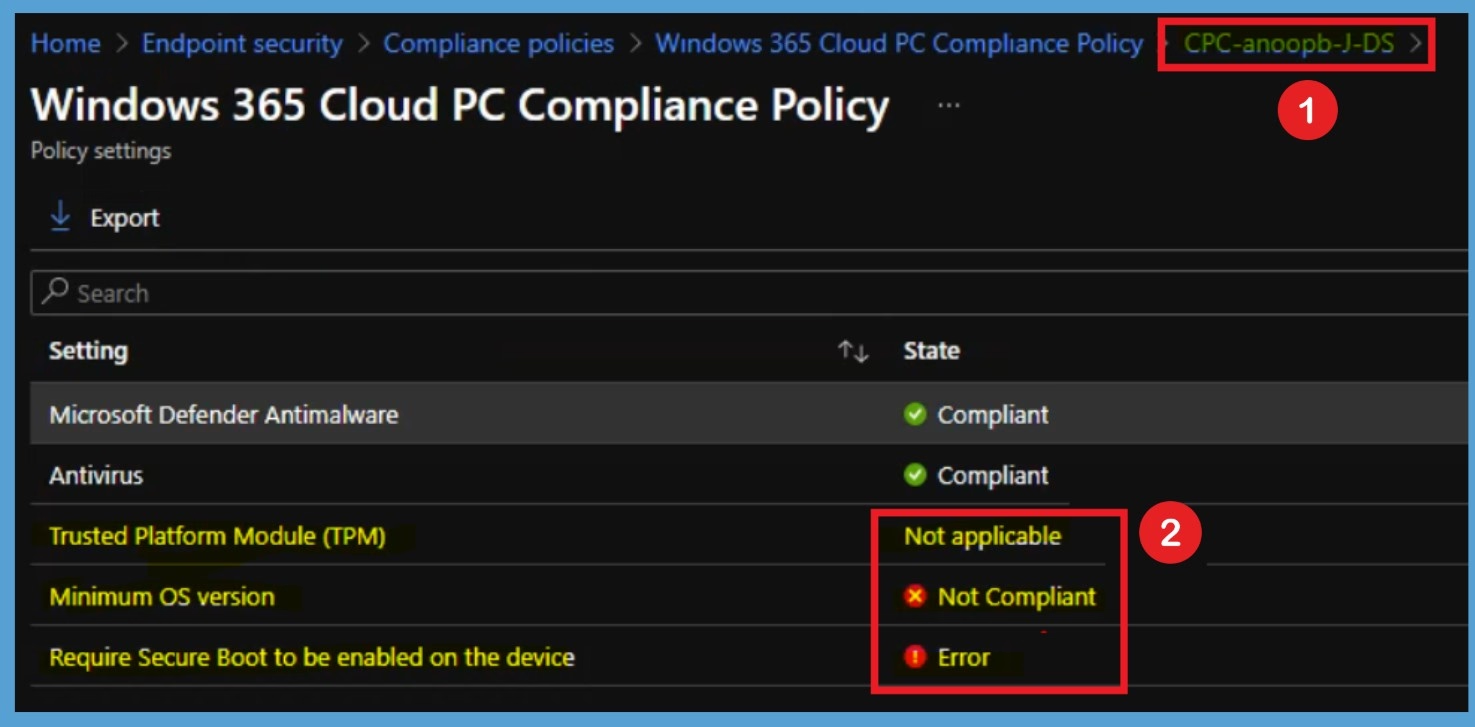
TIP: Cloud PC Monitoring Health Performance Using Endpoint Analytics Intune. The above Cloud PC can Windows 11 upgrade with TPM chipset and all. However, the Compliance rule thinks that it can’t check the TPM of this Cloud PC.
Author
Anoop C Nair is Workplace Technology solution architect with 25+ years of experience in global enterprise organizations such as JP Morgan, Capgemini, etc. He is Microsoft Certified Trainer. Microsoft MVP from 2015 onwards for consecutive 11 years! He also conducts Intune and modern workplace tech training for enterprise organizations. He is Blogger, Speaker, and Founder of HTMD Community and HTMD Conference. His focus is on Device Management technologies such as Intune, Windows, Cloud PC. He writes about technologies like Intune, SCCM, Windows, Cloud PC, Windows, Entra, Microsoft Security.
Is there anyway to automate or script the minimum os build portion? That way you don’t have to go in there every month and change the value. Seems like there’s potential to forget resulting in devices being non compliant.