
Key Takeaways
- Learn how to Delete Application Assignments in Microsoft Intune
- Understand how to remove an existing application assignment.
- Learn how to delete assignments for Required, Available for enrolled devices, and Uninstall deployment types.
- Understand how assignment removal affects the Company Portal and managed devices.
In this post, you will learn how to Manage and Delete Application Assignments in Microsoft Intune to Stop App Deployment. If you want to stop the deployment of an application, you can either delete the apps assignment temporarily or delete it entirely. Deleted app assignments are removed from the company portal from managed devices. When you delete app deployment, this action doesn’t delete the group, any dependencies, or the application itself. Before adding a Win32 app to Microsoft Intune, you must prepare the app using the Microsoft Win32 Content Prep Tool.
Table of Contents
Table of Contents
Manage and Delete Application Assignments in Microsoft Intune to Stop App Deployment
You use the Microsoft Win32 Content Prep Tool to pre-process Windows classic (Win32) apps, Intune Win32 App Deployment Step By Step Guide. You will learn how to get Application Version Details from Intune Portal, Intune discovered apps is a list of detected apps on the Intune enrolled devices in your tenant. You may find it helpful to assess and understand a few app fundamentals to know the details of the application name and application version.
The App Install Status report also provides a list of apps with versions and installation details, App installation details include Version, Publisher, and Platform. Let’s check the Intune App Installation Status Report.
- Intune Win32 App Troubleshooting Client Side Deep Dive
- Intune Win32 App Dependencies Deployment
- Intune App Installation Status Report
Delete Application Deployment from Intune MEM Portal
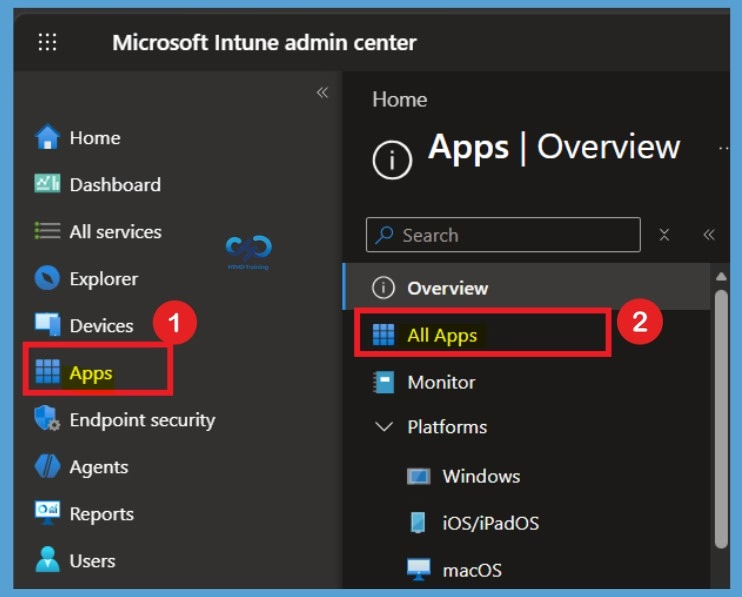
Here’s how you can delete application deployment from Intune portal. You have two options to navigate to the application node either you can navigate to the All Apps or Apps > By Platform. Sign in to Microsoft Endpoint Manager Admin Center. Navigate to Apps > All apps. Here you can see the lists of available applications in the portal.

Find Application Assignments in Microsoft Intune
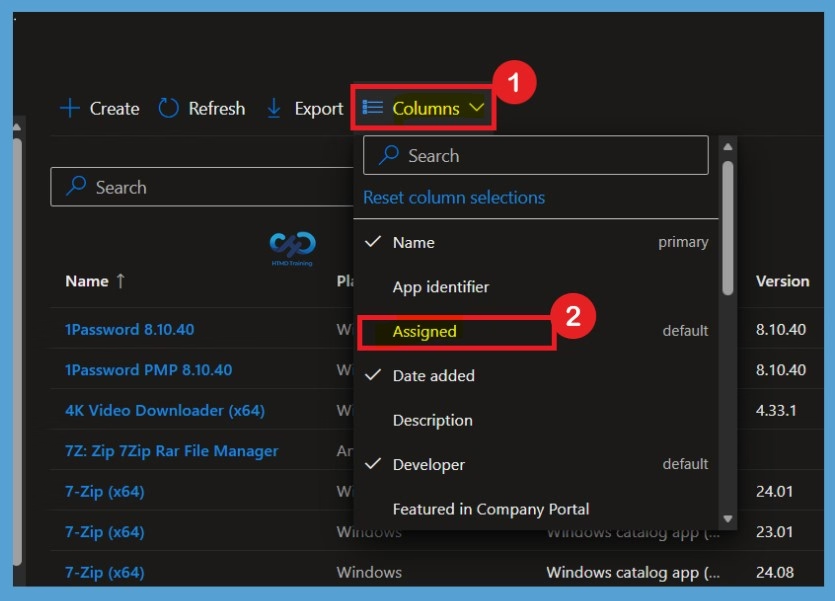
If you do not see the Assigned Column on the All apps page, you can enable it from the Columns option. Click on Columns to view the available column options, such as App identifier, Name, Assigned, Date added, and Description. Select the Assigned checkbox to enable the column, and then apply the changes. Return to the All apps page, where you can now see the Assigned column and check whether the application has been assigned.
Select App from All Apps
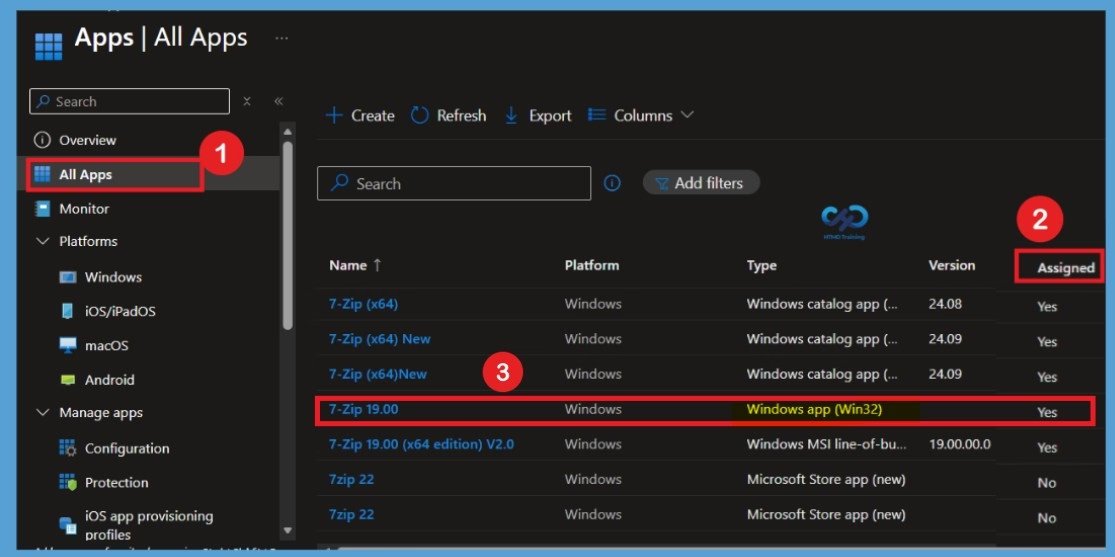
When you open the All-apps section, you can see the list of applications available in Microsoft Intune. In the Assigned column, you can check whether an application has been assigned for deployment. Select an application that shows Yes in the Assigned column. For this example, I selected the 7-Zip 19.00 application to remove its existing deployment assignment.
7-Zip 19.00 Properties
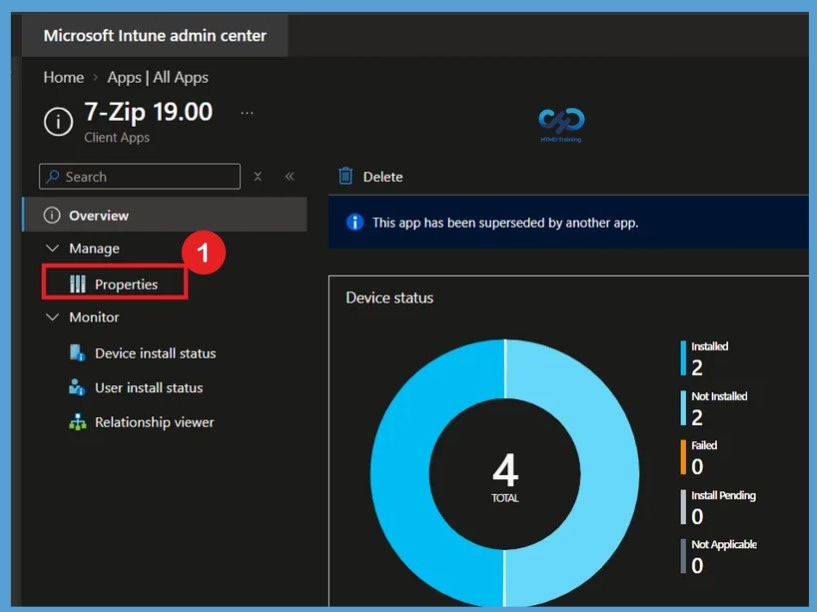
After selecting the 7-Zip 19.00 application, you will be redirected to the Overview page, where you can view the application details and device status. To manage the application configuration and assignments, click on the Properties tab.
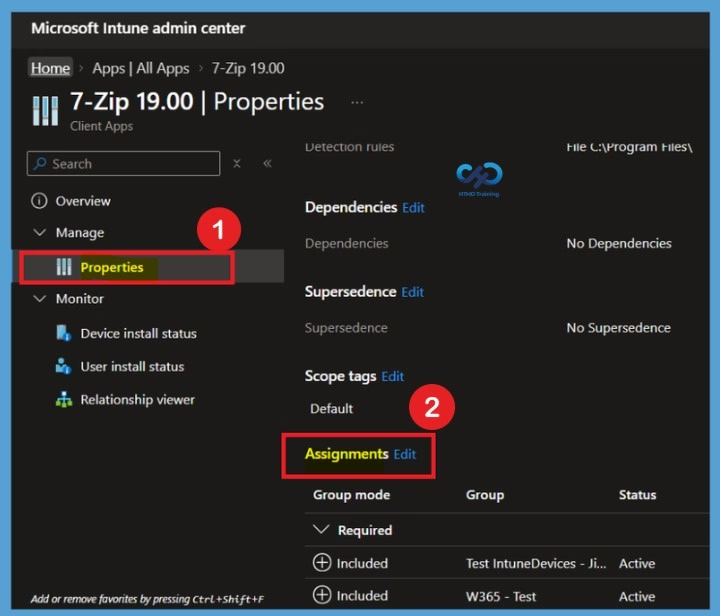
After opening the Properties tab, you can view different configuration details of the application. Under the Assignments section, you can see the groups assigned to the application. For this example, I want to remove one group from the application deployment, so I click on the Edit button in the Assignments section.
Edit Application Assignments in Microsoft Intune
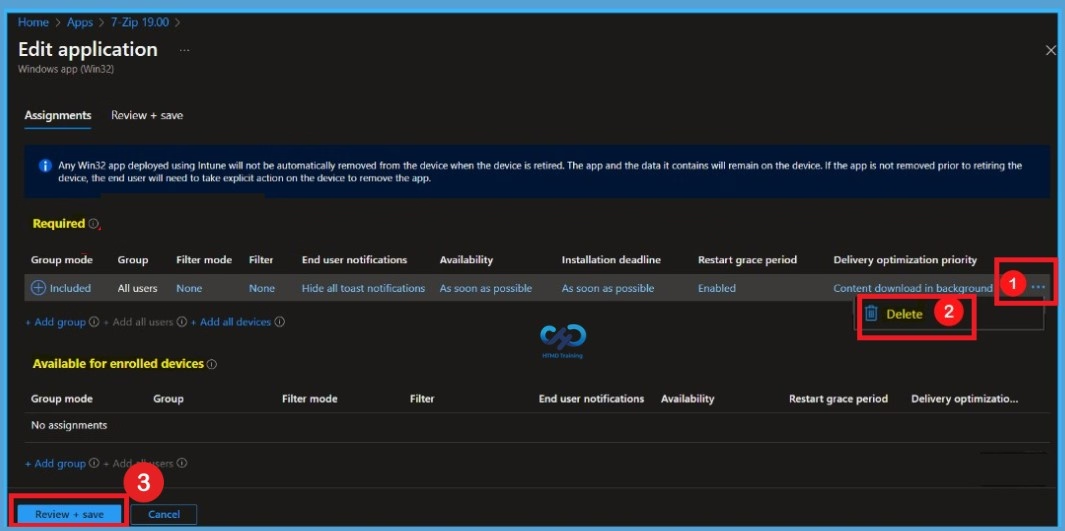
Based on assignments, select 3 dots at the end of the row next to the Delivery optimization priority and choose Delete. If want to remove the assignment completely, ensure the app assignment is deleted from all the modes.
Note – App availability can be set based on the assignment type. Assignment type can be Required, Available for enrolled devices, or Uninstall.
Review and Save Application Assignment Changes
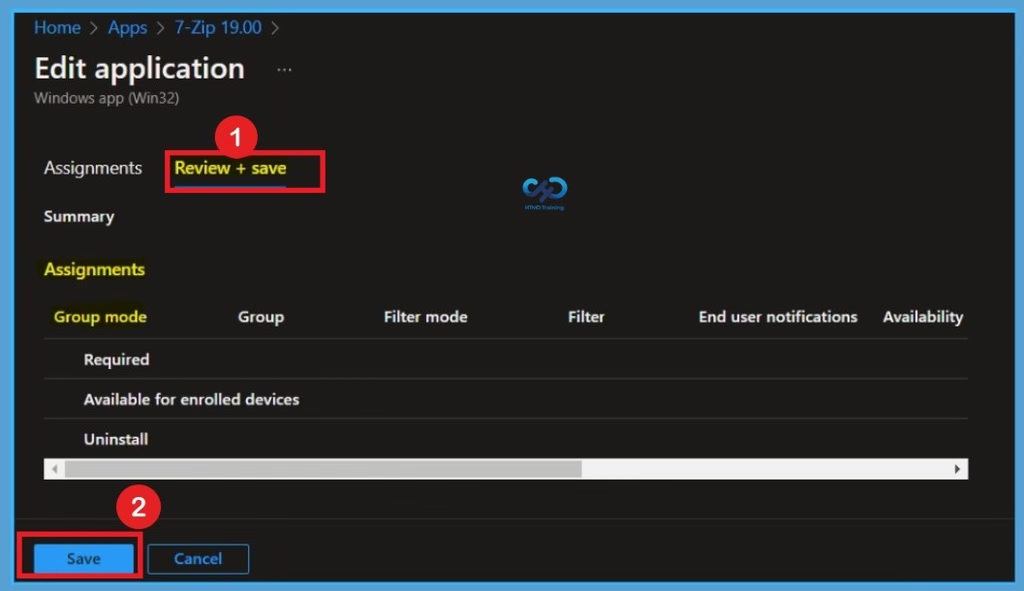
After deleting the assigned group, you will be redirected to the Review + Save page. Here, you can review the changes made to the application assignment. Verify that the selected group has been removed from the deployment configuration. Click on the Save button to apply the changes. The application will no longer be assigned to the removed group after the changes by Microsoft Intune.
Verify the Application Assignment Changes
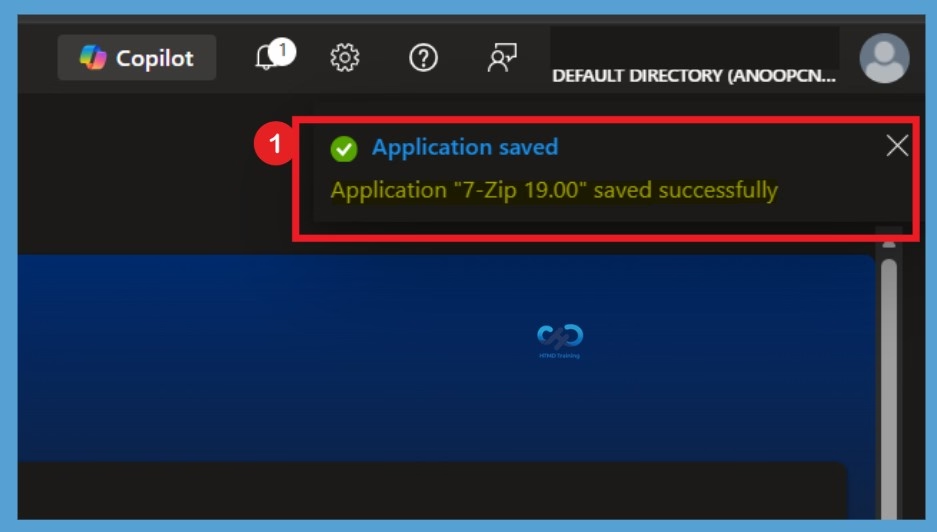
After clicking on the Save button, a notification will appear in the top-right corner of the Microsoft Intune admin center. The notification confirms that the application configuration has been saved successfully. In this example, the message displays “Application ‘7-Zip 19.00’ saved successfully.” This indicates that the changes have been saved in Intune. You can close the notification after verifying the message.
Verify the Application Assignment Status
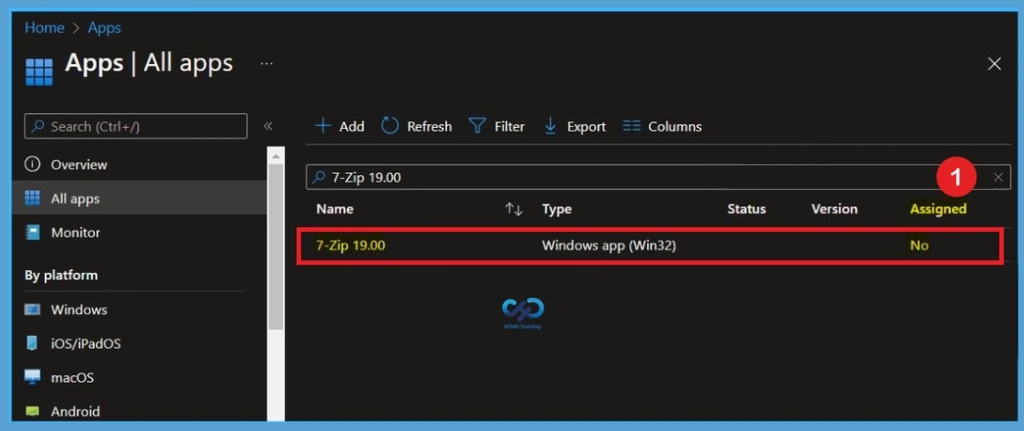
After receiving the success notification, navigate to Apps > All apps in the Microsoft Intune admin center. Find the 7-Zip 19.00 application in the application list. Check the Assigned column to verify the current assignment status. In this example, the Assigned column displays No. This indicates that no assignments remain for the application. If other assignments still exist, the status may continue to show Yes.
- Once the app assignment is removed, the assigned application in Intune company portal will automatically be removed. When the devices check-in with the Intune service.
Need Further Assistance or Have Technical Questions?
Join the LinkedIn Page and Telegram group to get the latest step-by-step guides and news updates. Join our Meetup Page to participate in User group meetings. Also, join the WhatsApp Community and the Whatsapp channel to get the latest news on Microsoft Technologies. We are there on Reddit as well.
Author
About Author – Jitesh, Microsoft MVP, has over six years of working experience in the IT Industry. He writes and shares his experiences related to Microsoft device management technologies and IT Infrastructure management. His primary focus is Windows 10/11 Deployment solution with Configuration Manager, Microsoft Deployment Toolkit (MDT), and Microsoft Intune.